
One of the things of managing your own site is that you're always wondering if the site's up or not. It's always something in the back of my mind and I want to have something that can do the job for me of checking and warning me if something goes bad, so that I don't have to continuously check.
I checked and there are a lot of websites and services that take care of this, but Power Automate is perfectly able to do this since we can easily ping a website and get a result.
Let's take a look at how to do it.
Decisions
There are a few decisions that you need to make beforehand.
- What sites do you want to track?
- How frequently you want to check?
- How you want to be notified.
- Notification strategy for when things are working and when things fail.
These may look simple but it's important because it influences how we approach things. Whether it's just one website or 50, it matters. If you want a complex set of notifications or just a simple email.
Plan and understand what you need.
For our purposes we'll:
- Monitor this and the company site
- I want to check every 5 minutes.
- Slack and Email notification
- When stuff is going well send only a slack notification. When things go wrong send a slack and an email notification
One could think that if all is going well then we would not need to send a notification, but what if Power Automate fails to check? Then the site could be down and you would not get a notification. This way we can check the process is running and doing its job.
Strategy
So now that we have our strategy, here's the Flow that I have.
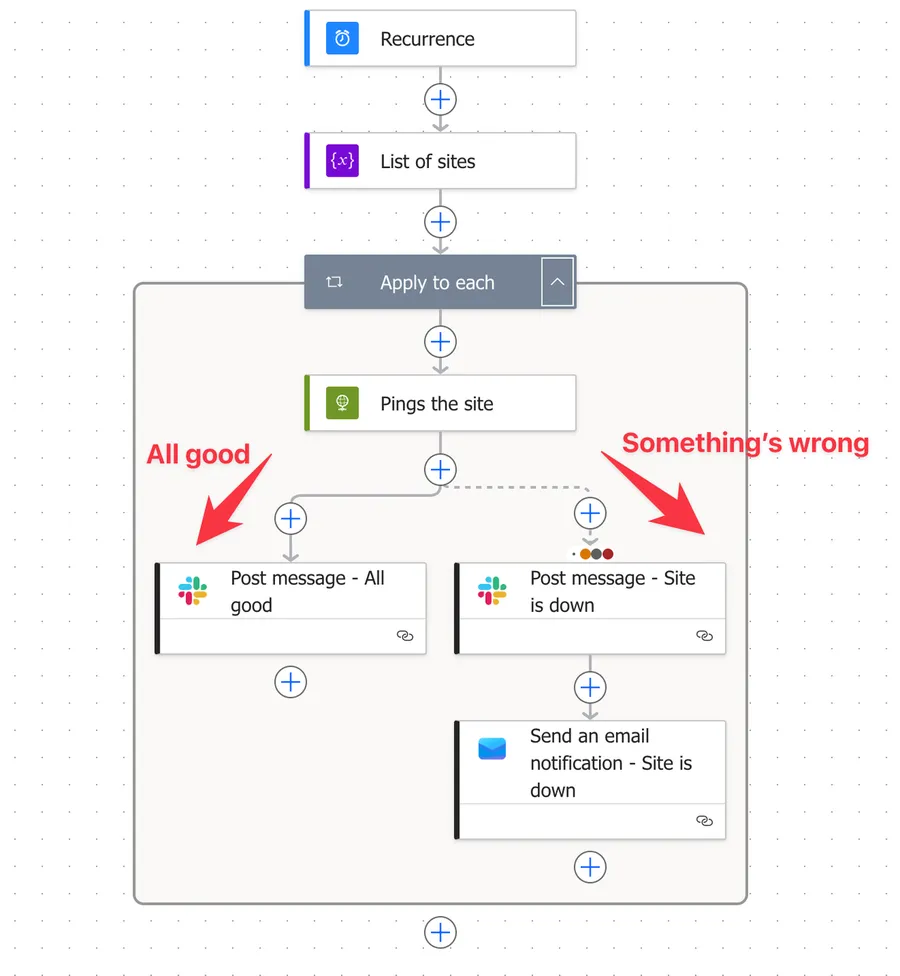
So we have 2 branches. One if all goes well, so if the ping of the site can get any information and the other one if something goes wrong.
Parallel branches are Power Automate's way of processing things at the same time, but in this case we're using them as an error management tool for timeouts and overall issues.
If you're not familiar with these concepts I have articles on them:
So the strategy is simple:
- Ping the website
- if all goes well then send a message
- if something fails send a message and an email
Let's explore each of them so that we can check all the details.
List of sites
Create a simple array variable (in my case called "List of sites") using an Initialize variable Action. This way you can have a central list of sites that you can change over time. Be careful to define it as an array and define the value as an array as well, otherwise it won't work.
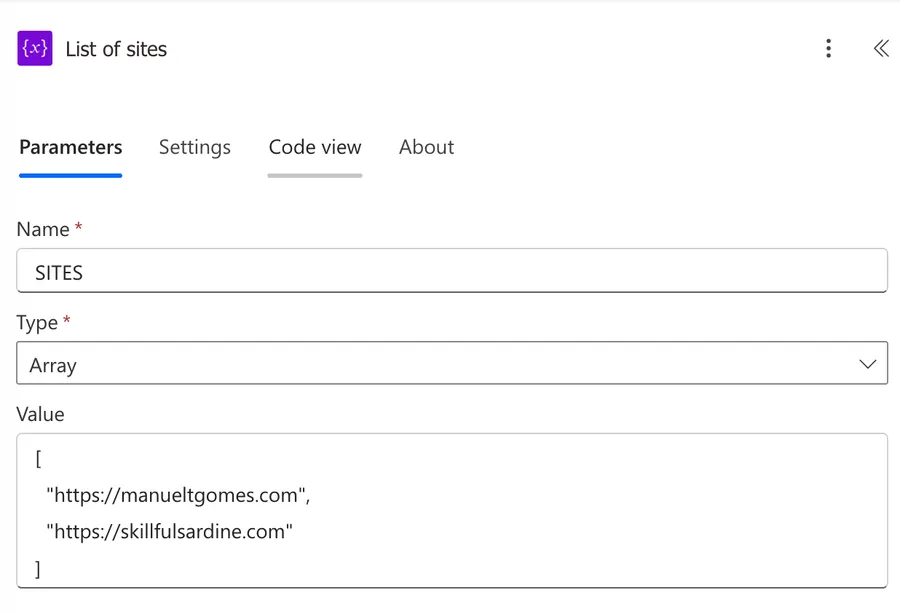
Simple enough for now. Even if you have one site, you can still implement this strategy since in the future adding a new site is just adding an item here. No additional work needed.
Apply to each
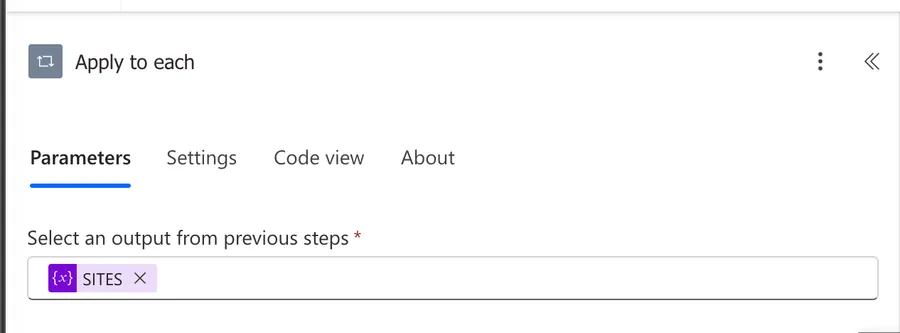
Now that we have the list of sites, let's use an Apply to Each to go over them. Nothing fancy here.
Ping the website
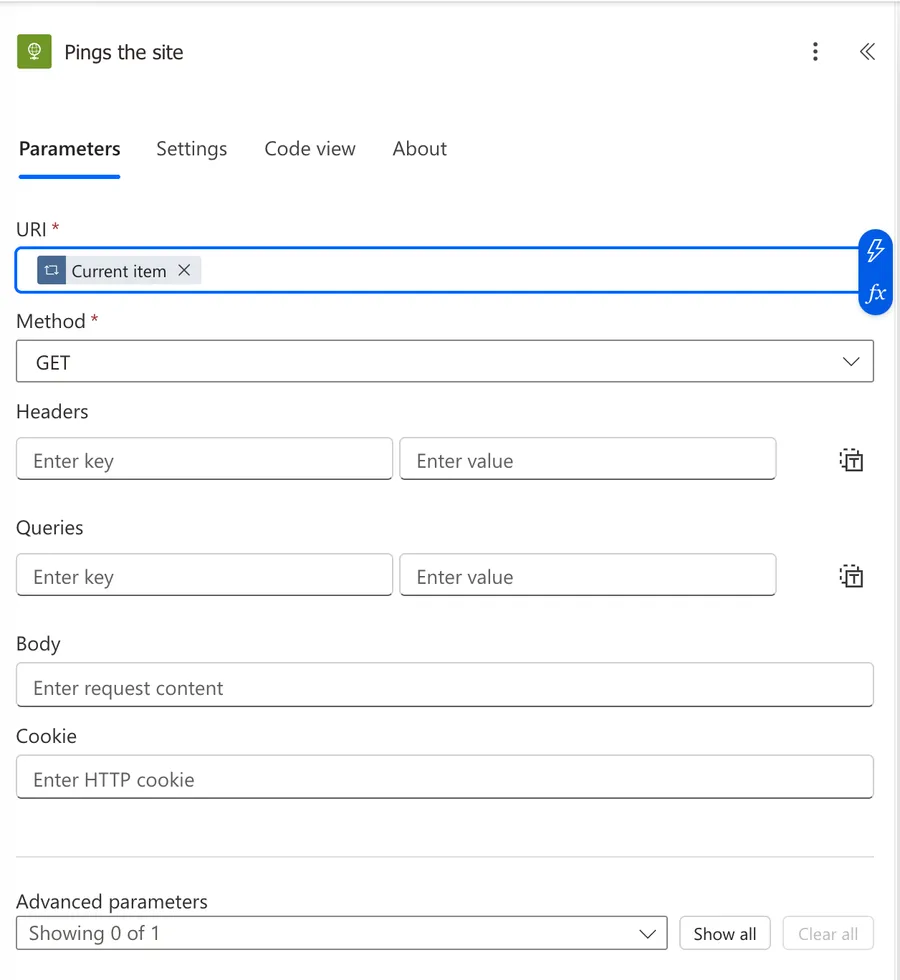
Now let's ping the website. We'll use the "HTTP" action and send a request to the websites that we have on the list.
To get the websites, you use a simple "item" function to get the current item's value in the Apply To Each, and provide it as the URI to be checked.
- Only ping your websites or sites that you know it's ok to do it.
- There are some sites that have a /health or similar endpoint where you can ping and not get the full website.
- Some may indicate that a "HEAD" method is better than a "GET". They work in a similar way but the "HEAD" will only get partial information from the site making the request faster. In the cases where you want to ping the /health endpoint and parse the information the "HEAD" will not be sufficient since it won't get the body of the site.
So now that we have the site's status, let's proceed.
All goes well
Now it depends on what you want to do for the notification. In my case I'll define a simple slack notification like this.
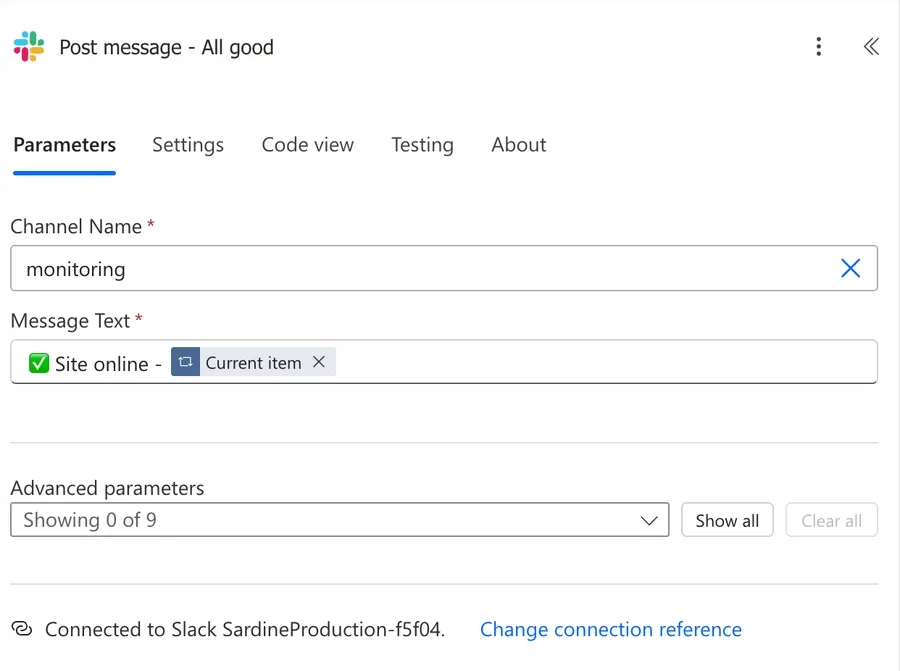
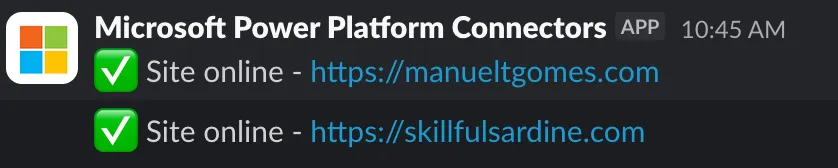
To make things clear I'm using the site's URL as the notification message so that I can get a message like this:
Something's wrong.
Now we define a parallel branch to process in case something goes wrong. Here's how to create one. First create a "parallel branch".
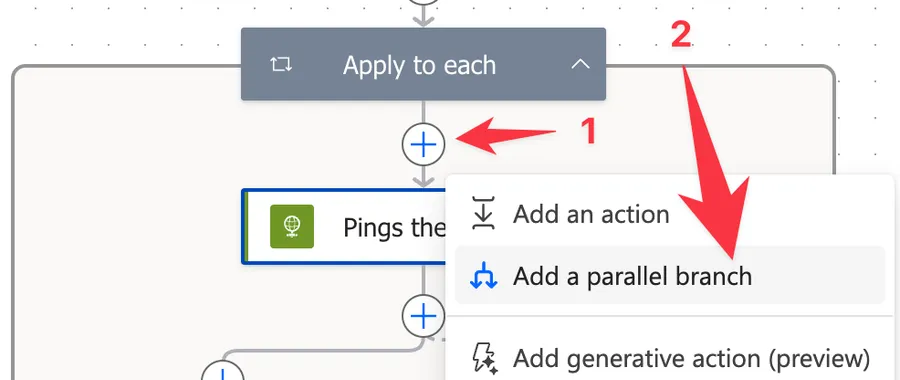
The name is misleading since it won't run in parallel, because of a change that we'll do next.
Now let's create a new slack (or any other action that you want to take after) and click "Settings".
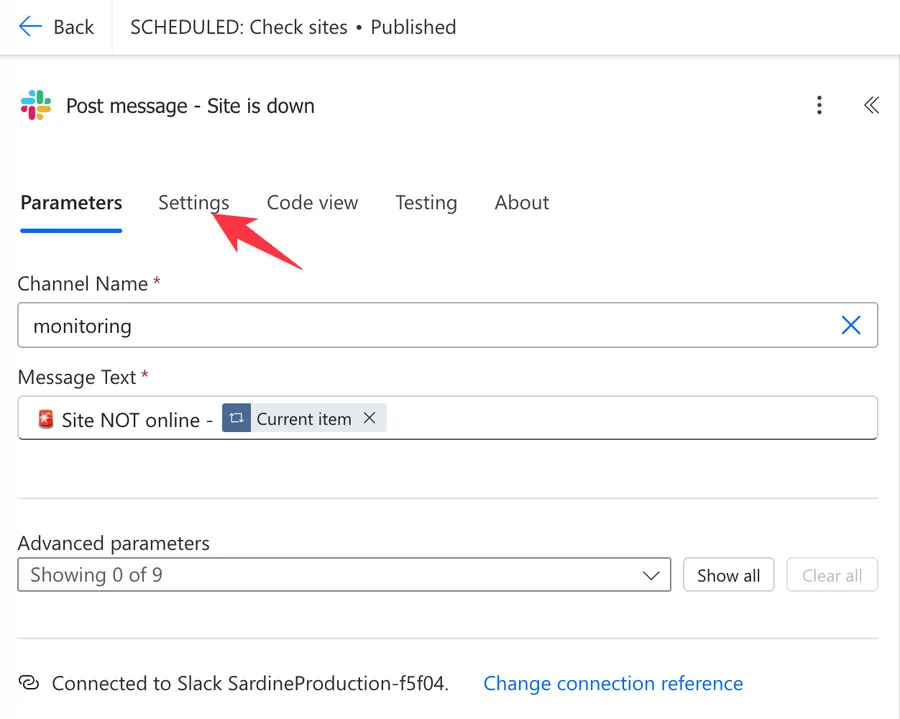
Expand the "select actions" and you'll see the 4 options. We want to select the other 3. This will allow us to run this "branch" of the Flow only if the previous action failed, timed out or was skipped, all signs that something's wrong and needs to be checked.
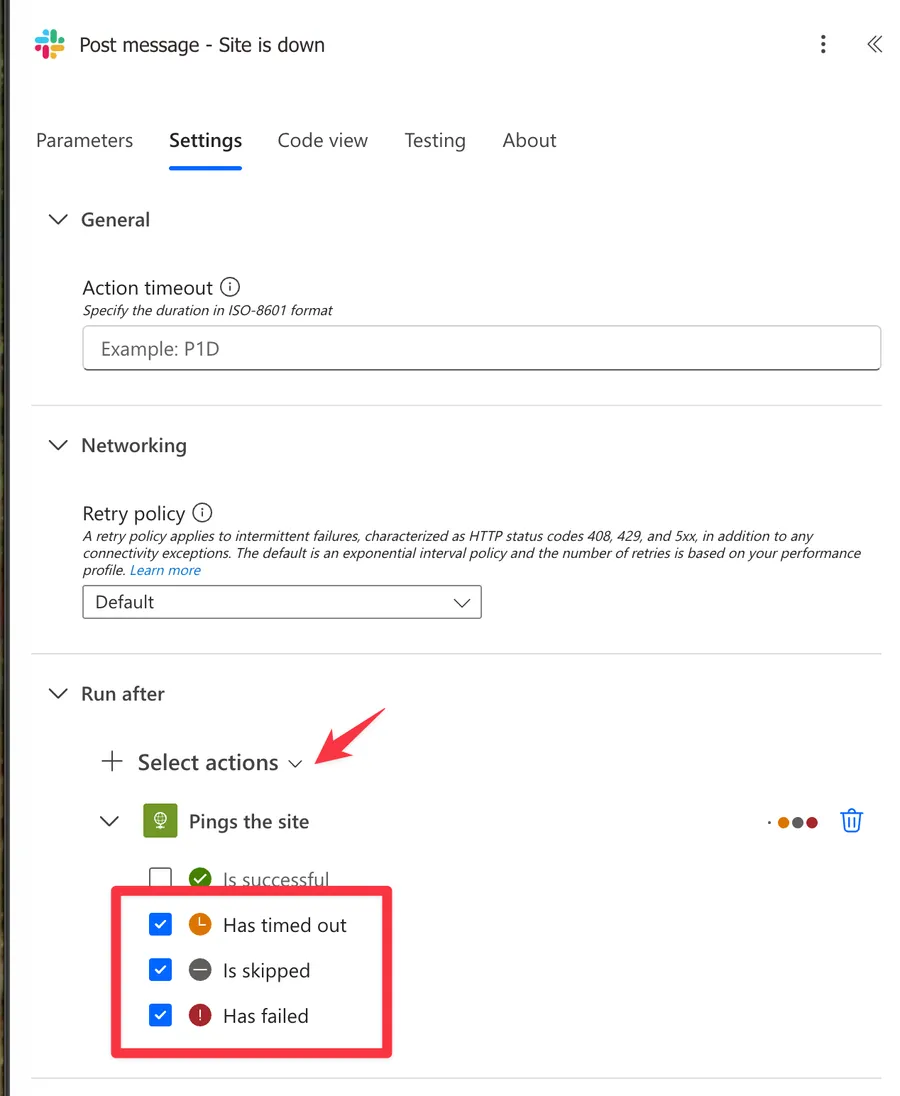
That's it. Notice that you'll see the dots corresponding to the colors. By default Flows run after the previous one ran successfully so they don't show the dots.
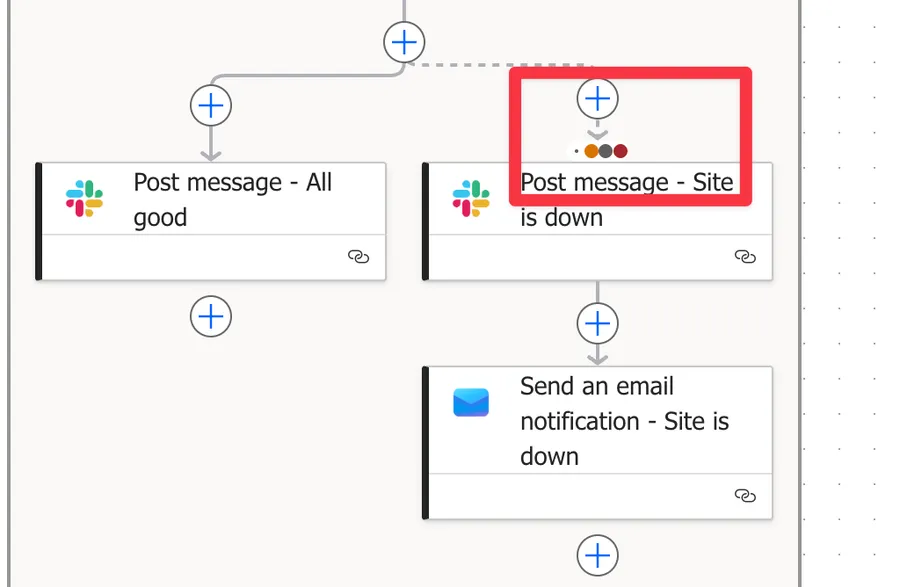
In my case I added one extra action to send me a notification, but notice that I didn't repeat the "has timed out" (and the other 2) action again. These are only corresponding to the previous action, so in the case of the "Send an email notification (V3)" action I want to run after the post message in slack. Alternatively you could create a 3rd branch and repeat the actions for the "Send an email notification (V3)" so that you can send the email and post the slack message at the same time.
Final Thoughts
We don't need a lot of actions to perform very powerful actions in Power Automate. In this article I went a bit in detail in all actions and formulas so that you have a global view and learn about how each of them are used. Hope it helps you!
Photo by mostafa meraji on Unsplash


No comments yet
Be the first to share your thoughts on this article!