
If you work with Power Automate and deal with files, you've encountered issues saving them with error messages like "String/bytes is not convertible to String/binary" for example, or when you try to open a file in SharePoint, and it doesn't open.
The issue is that you're using a file that is not in the correct format, so you need to check if you're using the "binary" version of the "base64" version.
The issue becomes quite serious, if we're not careful, because you could be saving images for example, in the incorrect format so when you find out that the file is corrupted, it's too late.
I see this happening a lot, usually because of incorrect behaviors or simply because we don't understand the differences between the information that we're getting, so let's focus on the differences, the actions that use one or the other, and how to convert between them.
Before we start, it's important to mention that, most of the time, you won't need to convert files or do complex tasks. The whole point is for the tools to do the job for you, but it's important for you to know the concepts so that, in case something strange happens, you can quickly understand and debug the problem.
The "Two" Formats
When Power Automate, SharePoint or any other tool handles files internally, it always uses the same format: binary. But when the data is transferred between the tools, the format used is base64, and this is confusing for some people. We don't have 2 formats, but have the same thing (the file), represented in 2 different ways (binary and base64).
To better understand, let's look at an example.
When you use the SharePoint "Get file content" action, you will get the binary file represented in base64 format. You can identify it in the UI when you see something like this:
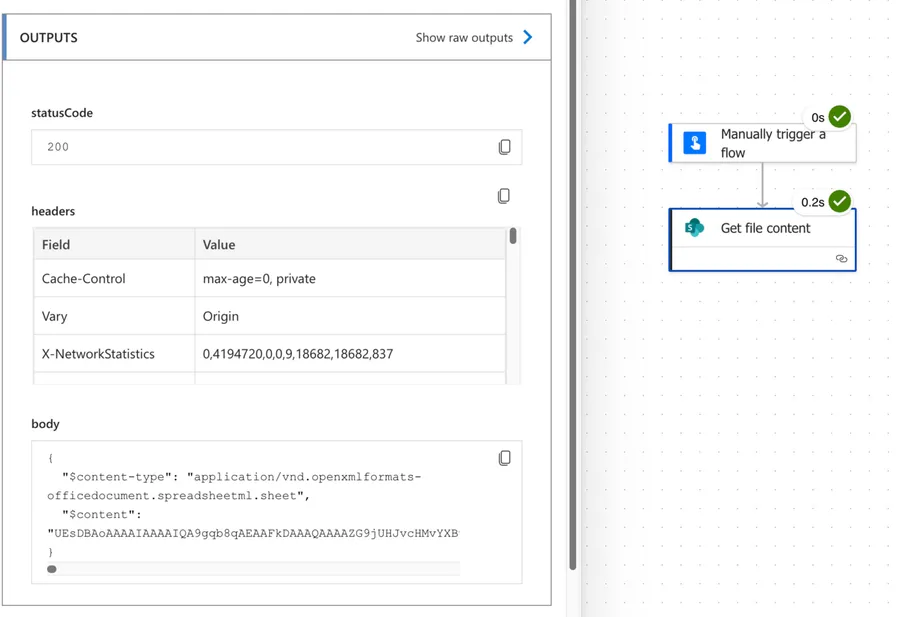
This is where most of the confusion comes from. Power Automate will show you the base64 representation of the file in the $content, but you'll know it's a binary file because it contains the $content-type as well, as follows:
{
  "$content-type": "<MIME Type>",
  "$content": "<Base64 String>"
}
The $content-type tells you what kind of file it is (like "application/pdf" or "image/png") so that the desired tool, like Excel for example, knows what type of file it is opening.
Base64 is a text representation of binary data, in the case above the sequence of letters and numbers, not a different format altogether. It's a different representation of the same thing, the file's contents.
Why is base64 useful?
The question is, why is this useful? Keeping things simple, binary formats includes a lot of special characters that make things a bit harder to transfer over the wire, so tools needed to find a representation that would have a set of characters that wound not interfere with the communication.
If you allow systems to "talk with each other", the communication needs to be done with a set of rules that make problems like quotes, double quotes and more not happen. Base64 clears these errors because it uses a very limited set of characters, making things deterministic when we want to transfer text (even if it contains the file) from one system to another.
This representation is not unique to Power Automate. It uses this extensively behind the scenes, like when getting information from SharePoint, for example, but many other systems use the same strategy. Usually we don't know or care as it should be, but in this case we have a peak behind on how things work.
You'll see external tools that have the "File Contents" field that, commonly, expect this type of data to be provided.
The biggest disadvantage of base64 is that they are about 33% larger than the original binary data because of encoding overhead, making the transfer of files a bit more costly in terms of time to send the information.
Now that we know what "binary" and "base64", let's take a look at some things that might not make sense.
Confusing behaviors
We would expect that all connectors would use the same strategy for transferring files, but it's not the case. Let's take a look at some stranger cases and how to deal with them.
I'll add more over time when I find them and if they are useful to you, but if you have one, please let me know, and I'll add it.
Outlook Attachments
The Office 365 "Get Attachment" action sends the attachment contents but behaves differently.
Here's what we get:
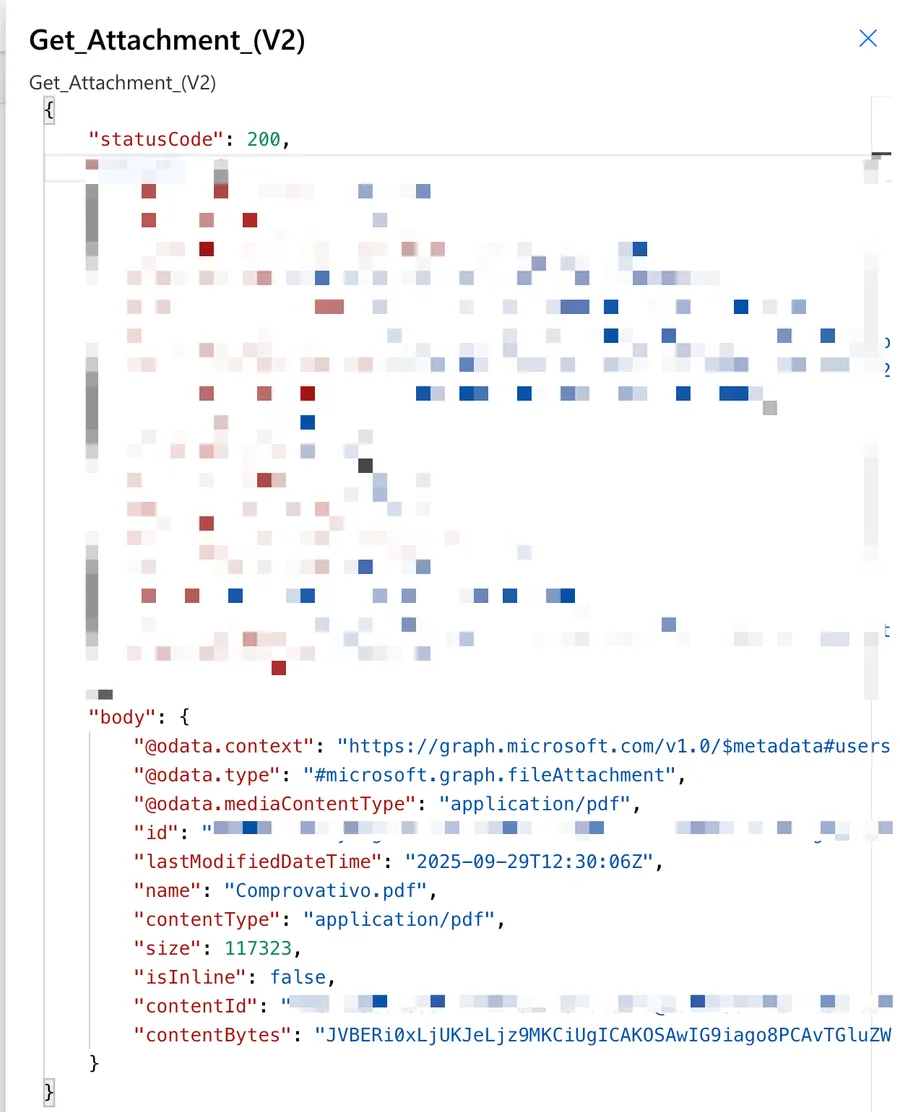
Here's the json representation:
{"@odata.context":"https://graph.microsoft.com/v1.0/$metadata#users('9ae6f5e3-ce59-4a00-a92e-924a908342c7')/messages('AA....3D')/attachments/$entity","@odata.type":"#microsoft.graph.fileAttachment","@odata.mediaContentType":"application/pdf","id":"AAMk...=","lastModifiedDateTime":"2025-09-29T12:30:06Z","name":"Comprovativo.pdf","contentType":"application/pdf","size":117323,"isInline":false,"contentId":"B2C...F@EURP250.PROD.OUTLOOK.COM","contentBytes":"JVBERaI...."}
Notice that we don't get our structure like we would expect, but instead get:
- ContentType - the same as our
$content-type - ContentBytes - not the same as our
$content
So we will get the information of the contentType, but this is also present in the "contentBytes" since they are the base64 full representation of the binary file. Think of the "contentType" as a nice way to get the information in case you need to use it. Another nice thing is the size of the file.
If we have a "base64" representation of the binary file, we can use a SharePoint "Create File" action, for example, and it will save the files directly without changes.
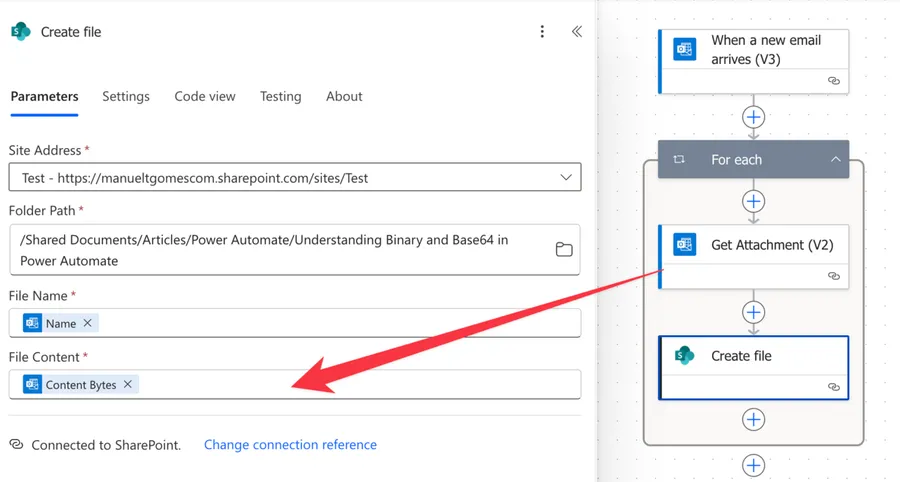
I see a lot of examples online where people tell you that you need to convert the files, but you don't, as you've seen above. Just provide the "ContentBytes", and it will work.
Avoid conversions, like base64ToBinary for example, as much as possible if you don't need it.
Final Thoughts
So the main takeaway from this article is that base64 is a way to transfer files, while binary is what you save in order for the tools to be able to use the file itself. They are the same thing, a file, but represented differently so that we can transmit it over the wire or open it by an application.
Usually, Power Automate will do the "right thing," and it will convert the data for you, but if you end up having a file that is corrupted, it could be useful to understand what you're saving and what information you're providing.
Photo by Mika Baumeister on Unsplash



No comments yet
Be the first to share your thoughts on this article!