
Creating files is one of the most common tasks in Power Automate since it's the base for most automations, like file sorting, processing and much more. So SharePoint "Create File" action is an essential tool that you need to know about, but there are quite a few things that can confuse you.
Let's do the usual deep dive into the action, check its limitations, edge cases and more.
Where to find it?
I always recommend searching for the action you need. It's a lot faster and since Power Automate is starting to have a lot of actions, your best bet is to search.
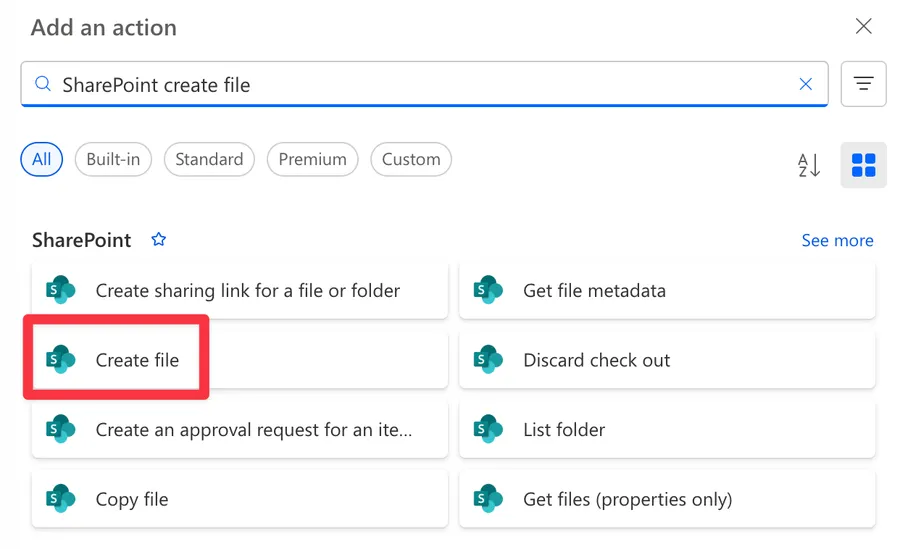
You can also search for "SharePoint" and get the following.
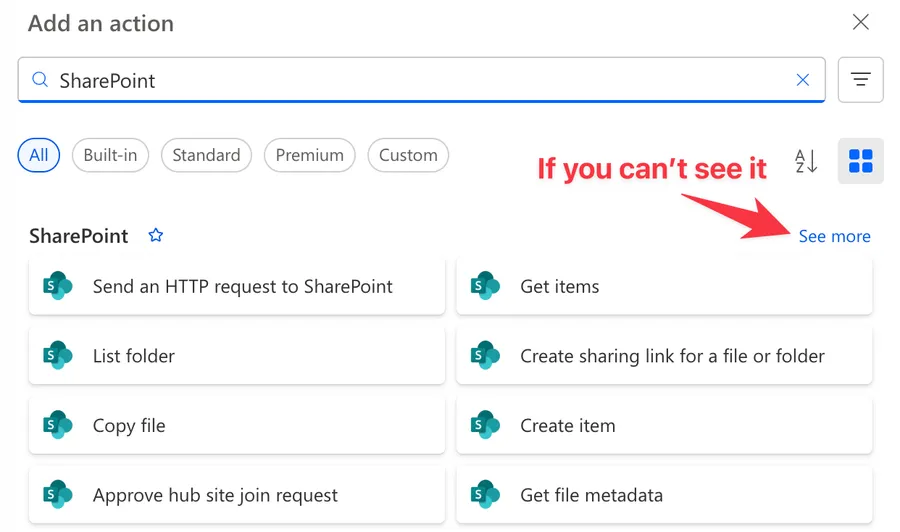
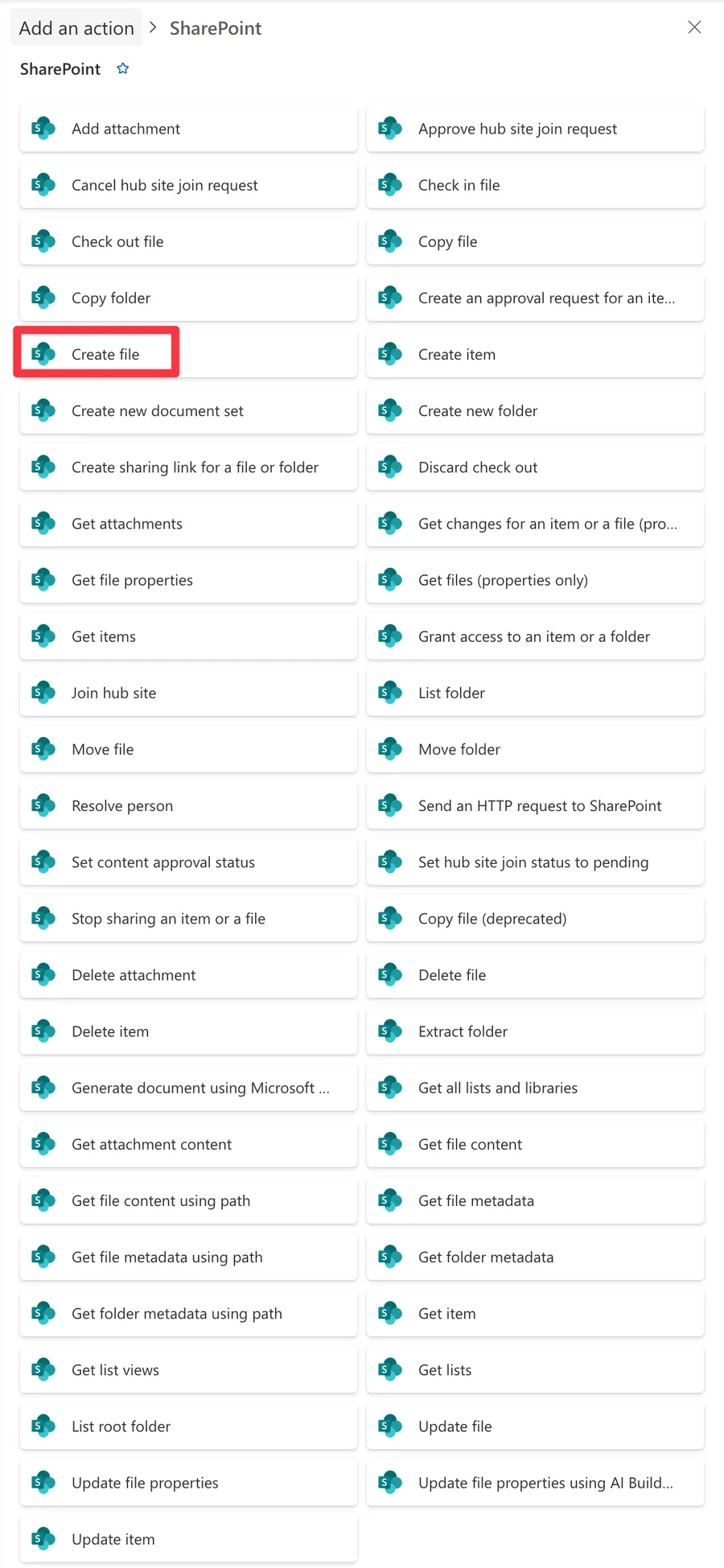
The action is here.
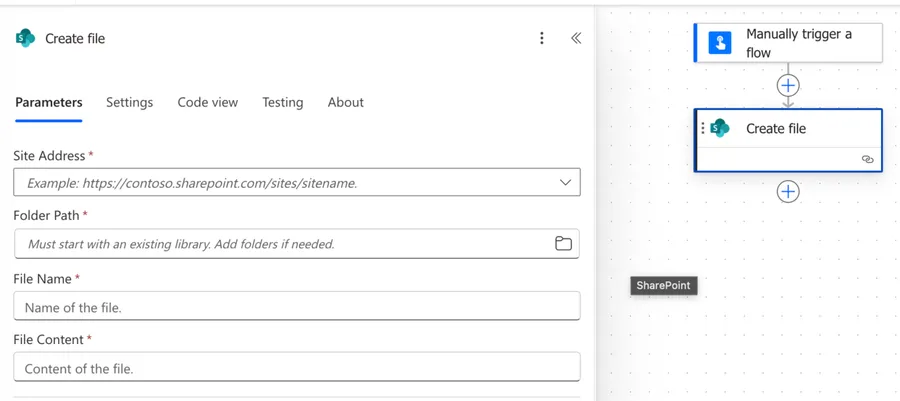
Here's what it looks like.
Now that we know how to find it, let's understand how to use it.
Usage
There are a few mandatory parameters that we need to provide so let's take a look at each of them.
The site
Since this is a SharePoint action we will need to first pick the site. I always recommend picking it from the dropdown.
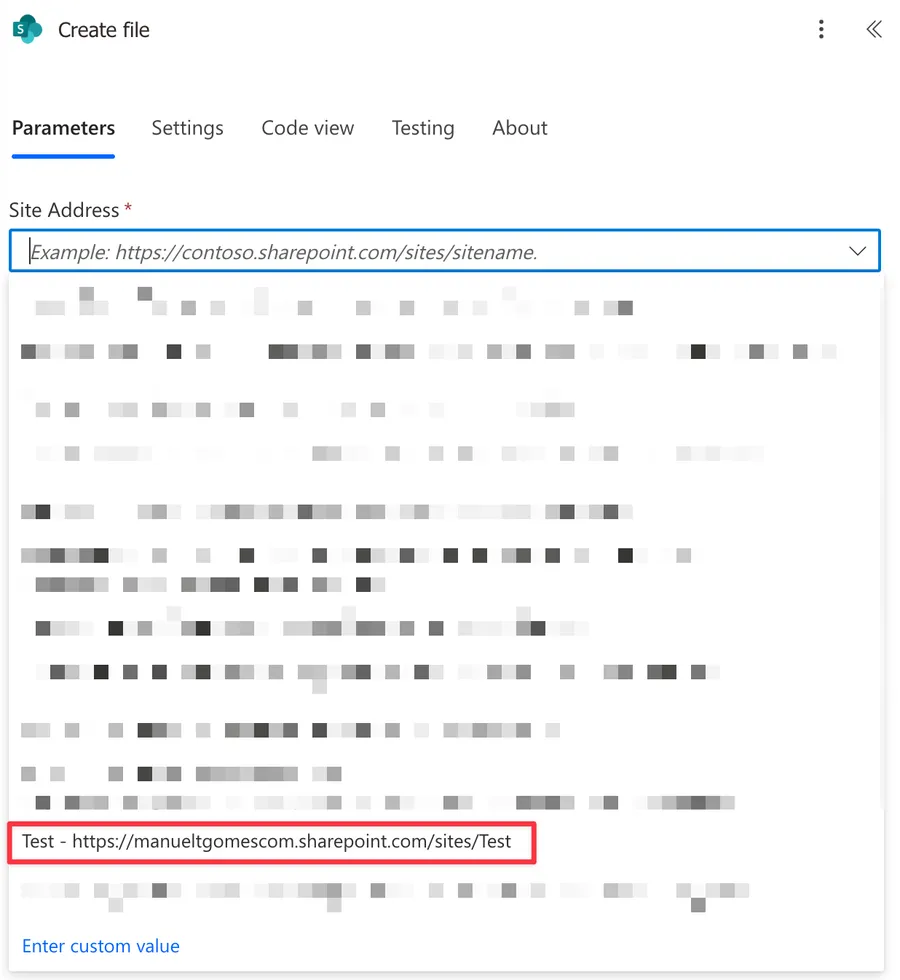
Sorry for the heavy blurring but I don't want to expose my horribly named sites to you.
If it doesn't show up, you can provide the link yourself. Notice that Power Automate asks you for the "Site Address".
It's very common to copy and paste the site's url and not notice that the list or Document Library is also in the URL.
For example, https://manueltgomescom.sharepoint.com/sites/Test is correct but https://manueltgomescom.sharepoint.com/sites/Test/Shared%20Documents/Forms/AllItems.aspx is not. Like I mentioned, ideally always pick from the dropdown.
Now that we know how to validate this, let's check the path.
The Folder Path
Now that we know the site where to find it, let's take a look at the folder. We need a place to save the file, so we can pick from the document libraries that exist in the site.
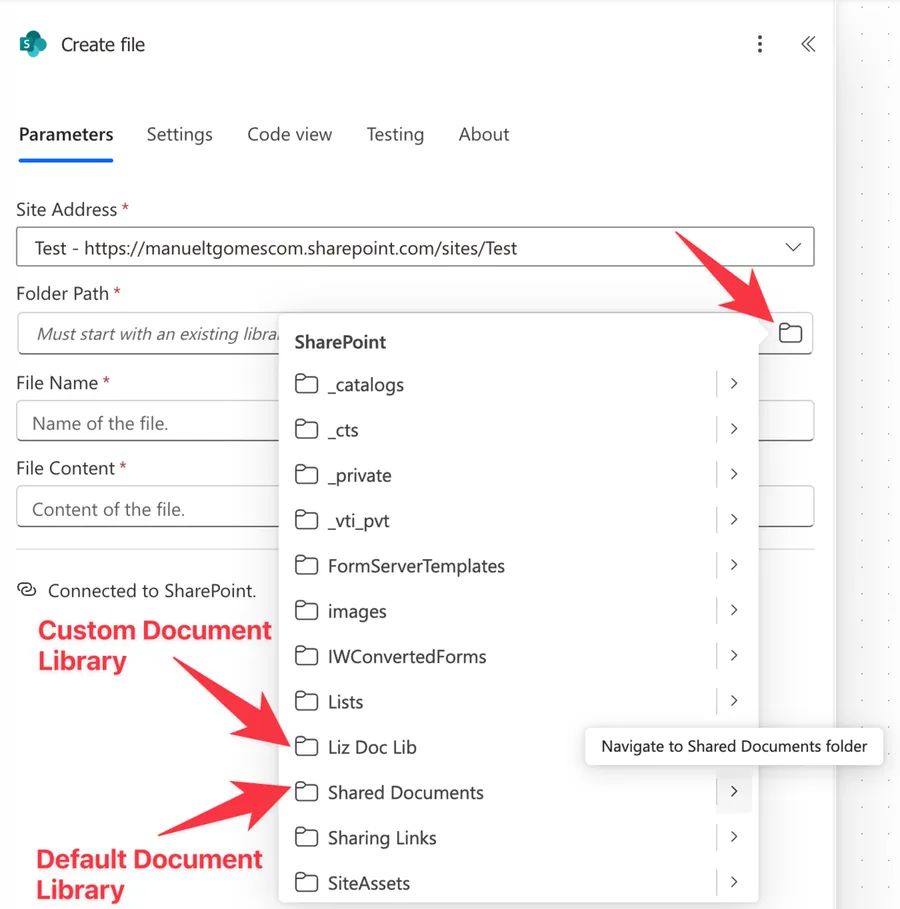
They can be:
- The default document library
- Any custom document libraries that you created in the past
- Other libraries that SharePoint created.
I would advise only storing on the first two document library types described above. System document libraries should not change over time, but emphasis on "should". Also, we need to keep things as intuitive as possible so that we can later find the files, so organization is key here.
One thing to keep in mind: the document library has to already exist. The "Create File" action will happily drop a file into a library or folder, but it won't create the library itself, so make sure that's set up first.
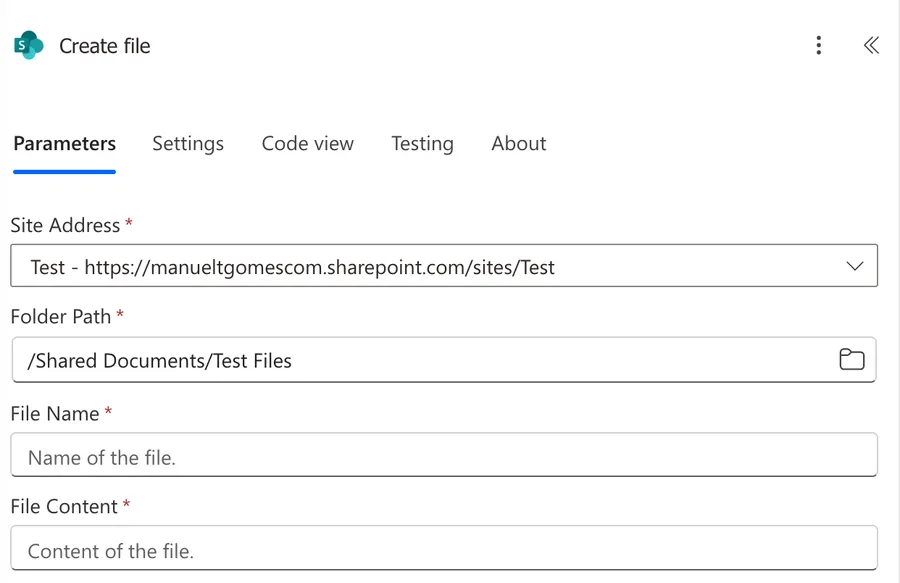
Now that we have a folder path, let's take a look at the next one.
File Name
So far nothing too crazy. We need a site, a place to store it and now a file name. You can build the filename dynamically or provide a static file name. Remember that if you provide a static file name, it'll create the file the first time, but on the next run you'll hit a "file already exists" error unless you've enabled overwrite (check below on "non-intuitive behaviors").
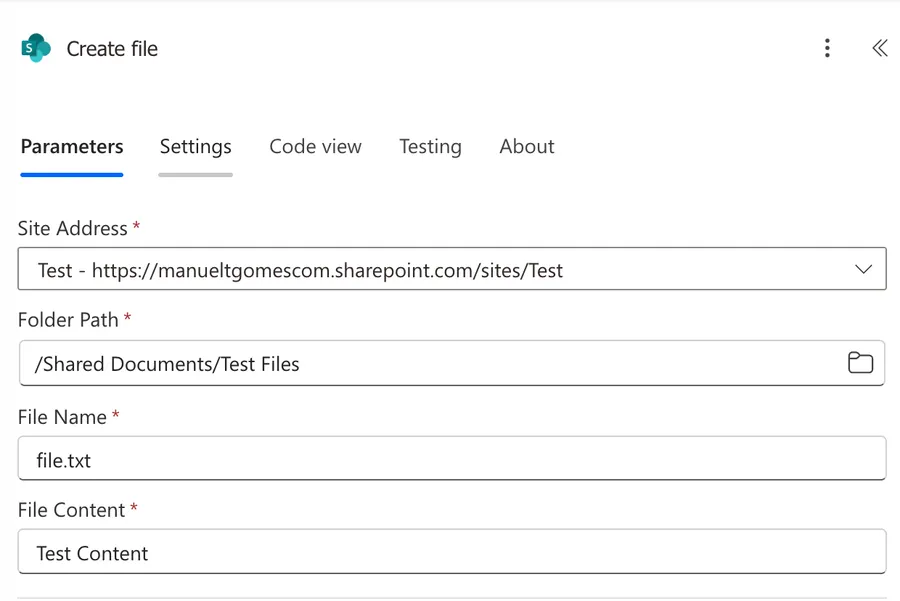
Here's a simple example where you can use the time to create different files each time:
formatDateTime(utcNow(),'yyyy-MM-dd HH:mm')
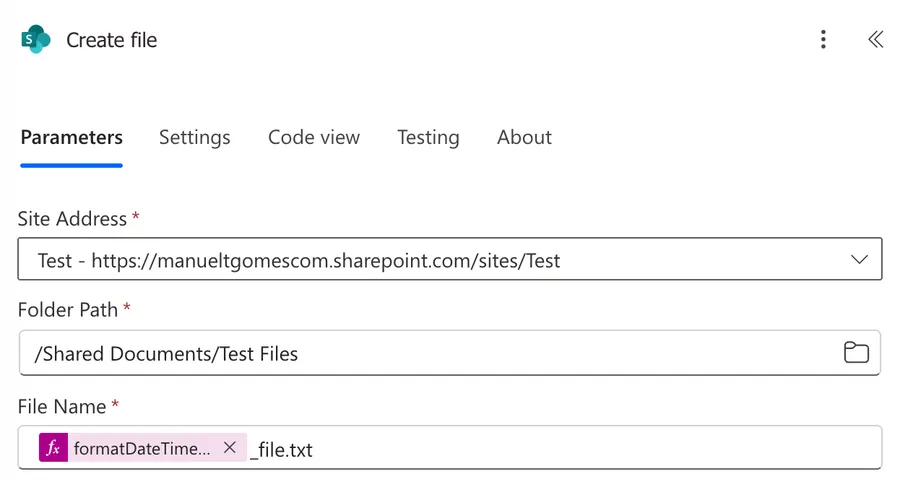
You don't even need the "concat" function to be able to get a value.
Here's the result:

There are a few restrictions in the file name, so take a look below for the details.
SharePoint is quite picky about file names, so it's better to know the rules upfront.
Officially prohibited characters (according to Microsoft): " * : < > ? / \ |
You also can't end your file name with a period (.), use two periods in a row (..), or pad the name with leading or trailing spaces.
Characters I don't recommend using (not officially prohibited, but cause issues):
#and%- These are conditionally supported (your SharePoint admin can enable them), but in my experience they still cause "File not found" errors in Power Automate even when they're enabled in SharePoint.~,{, and}- Modern SharePoint usually accepts these without complaint, but they're inconsistent across older sites and some migration tools will quietly rewrite them (turning "Report {final}" into "Report _final_", for example). I'd still avoid them to be safe.&- Can cause issues in some older Office versions and certain API calls.+- Generally works, but can cause URL encoding problems in some scenarios.;- Causes issues when saving Office files via the Backstage view.
Reserved names to avoid: CON, PRN, AUX, NUL, COM0-COM9, LPT0-LPT9, .lock, _vti_, desktop.ini, and files starting with ~$ (which SharePoint uses for temporary files).
My recommendation is to keep file names simple. Use letters, numbers, spaces, hyphens, and underscores. Everything else is asking for trouble.
One thing's missing. The contents of the file.
File contents
Finally we need the contents of the file. We can build, usually, 2 types of files:
- Binary files - These are the Excel, PowerPoint, etc files that are usually base64
- Text files - These are your CSV, TXT and other files that you can open in notepad for example and see their contents.
You can provide the contents of a text file directly in the file contents and the file will be created with that. For example, let's say that you're creating a CSV file and want to save it somewhere.
You can do the following:
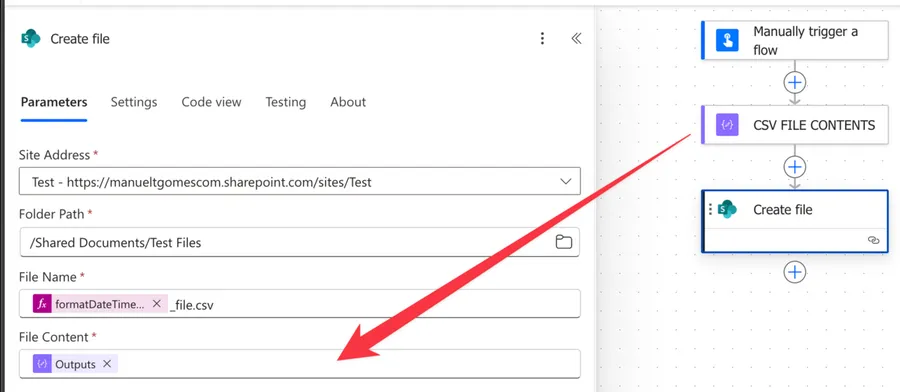
Notice that we don't need to do any conversion and it will work.
If you're working with binary files you will, usually, never generate them manually. The most common case is when you can use the SharePoint Get File content action where you'll get the file contents and provide it directly.
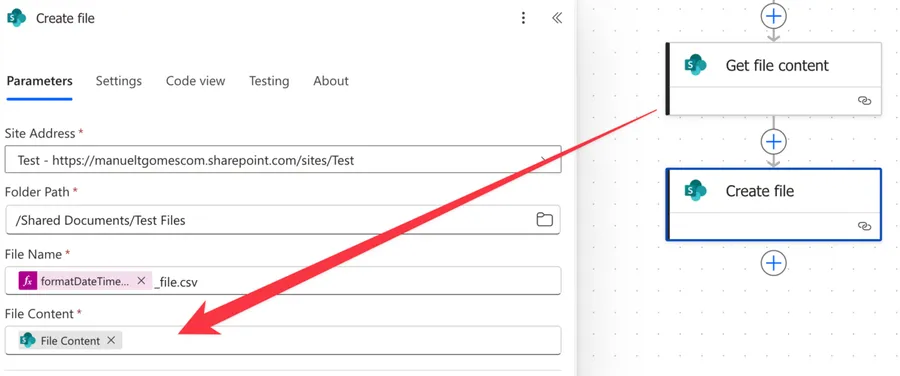
There are also a few limitations to be aware of so please check the limitations section below.
Non-intuitive behaviors
Overwriting an existing file isn't obvious
If you run the SharePoint "Create File" action with a name that already exists, you'll get a "a file with the name X already exists" error. The action doesn't overwrite files out of the box, which surprises a lot of people since you'd expect a re-run to simply update the file.
The fix is a bit hidden. Turn off chunking (click the three dots → Settings → Content Transfer → Allow Chunking → Off) and an "Overwrite" option appears that lets you replace the existing file on each run. If instead you want a brand new file every time, build a dynamic file name like we saw above and you'll sidestep the conflict entirely.
Be careful with the file's extension.
Since you provide the file's extension it's quite easy to make a mistake, so if you're reading an Excel file and saving it as "file.docx", Power Automate will create it without checking. Then when you'll try to open the file in SharePoint it will return an error because it's expecting one file type but the contents are from another. This is quite a common mistake.
File's metadata and properties are not transferred
If you get a file from SharePoint "Get File content" action it's not guaranteed that all the metadata will be transferred. This is not a "clone" of the file, but a new file altogether. For example, if your document library has additional columns these won't be filled with the value from the original file. To do that you will need to use the SharePoint "Update File Properties" action after you create the file.
Email attachments can be tricky
If you're saving email attachments to SharePoint, first, make sure you enable "Include Attachments" in your email trigger (it's in the advanced options and defaults to "No"). There is a common confusion when using this because you'll get a "ContentBytes" and a "ContentType", but the first one will have all the information you need. You can take a look at this detailed guide, but the highlight is to use the "ContentBytes" and the file will be created correctly.
Limitations
Here are some things to keep in mind when working with this action. These aren't bugs but actual limitations of the action itself.
File size limits
The big one is file size. While SharePoint can handle files up to 250 GB, Power Automate has a message size limit of 100 MB. In practice, you'll hit issues around 70-80 MB because of Base64 encoding overhead.
For files larger than 100 MB, there are workarounds so please take a look at this guide on handling large files for detailed alternatives.
Timeouts
The 120-second timeout isn't specific to this action, it's Power Automate's platform-wide limit on synchronous connector calls. If you're creating a large file or the SharePoint service is slow, you may hit it. There's not much you can do besides reducing the file size or moving to chunked or asynchronous uploads, but even that is not 100% guaranteed.
Path length
There's a 400-character limit on file paths (starting from /sites/ onwards). This includes the site name, library name, folders, and file name. It sounds like a lot until you have deeply nested folders or long file names. Keep your folder structures shallow and file names concise to avoid this issue, but I understand this is not always possible to do.
Folder paths can also cause issues with trailing slashes, special characters in folder names, or using Path instead of FullPath from the "Create Folder" action. The most common fix is to remove trailing slashes and always use the FullPath output when chaining folder creation with file creation.
Access limitations
You can't access files in shared libraries or OneDrive shared folders directly. The action only works with SharePoint sites where you have proper permissions.
Permissions can be tricky, especially with run-only users vs connection owners, or when dealing with authentication token expiration. The key thing to remember: when "Run-only users provide their own connection" is enabled, the Flow runs with their permissions, not yours. If permissions suddenly stop working, try removing and re-adding the SharePoint connection.
Chunking limitations
The action has limited support for file chunking (splitting large files into pieces). While it's enabled by default, it can cause issues when the file already exists or with files around 30 MB. If you're seeing "file already exists" errors or corruption with larger files, try disabling chunking in the action settings (click the three dots → Settings → Content Transfer → Allow Chunking → Off). This works for files under 100 MB; for larger files, you'll need the "Copy File" action or Graph API.
If you're on an on-premises SharePoint (2013, 2016, or 2019), the action can't chunk at all, so large files will fail there no matter what. That's a hybrid-scenario gotcha worth keeping in mind.
Version control
The action automatically creates new versions when you update existing files (with chunking disabled). SharePoint maintains version history automatically (if enabled), so you don't need to worry about it. There are no parameters in the action to control versioning directly - it's all handled by SharePoint based on your library settings. I would recommend going to the website and checking if the version control is enabled. I have an article for it if you need details. Also there's a way to recover previous versions automatically in Power Automate, so if you want details I also have an article on how to do it.
Troubleshooting Common Errors
Let's look at some common errors you might encounter and how to fix them.
"Access Denied" (403 error)
This usually means one of three things:
- Your connection might have expired, especially after recent MFA changes. Try removing the connection and creating a new one.
- You might not have the right permissions on the library. You need at least "Contribute" permissions to create files, so please take a look in your SharePoint site.
- Sometimes illegal characters in the filename can cause this error too, so double-check your file name.
- Remember the action runs under the connection owner's permissions, not the person who triggered the Flow. If it works for you but fails for someone else, that's usually the reason.
API rate limits and throttling
If you're creating many files at once, you might hit SharePoint's rate limits (600 API calls per connection per minute). Power Automate handles 429 "Too Many Requests" errors automatically with retries, but if you're doing bulk operations, reduce parallelism in your loops. A simple rule: keep parallelism × SharePoint actions per item × items processed under 600 per minute.
"Your changes conflict with those made concurrently"
This happens when you try to update file properties immediately after creating the file. SharePoint is still processing the file creation when you try to update it.
The easiest fix is to add a small delay (5-10 seconds) between the "Create File" action and the "Update File Properties" action. Not elegant, but it works. Alternatively, you can add proper error handling with retry logic.
"The file is locked for shared use"
Someone has the file open or it's checked out. You can't do much about this except add retry logic to your Flow. Check the file again after a delay and try again. If it keeps failing, you might need to notify someone to close the file.
Corrupted files or files that won't open
If the file is created but won't open, check these things. For Office files, make sure you're using the "Compose" action with both $content-type and $content. For email attachments, make sure "Include Attachments" is enabled in your trigger, otherwise you need to fetch the attachment using a "Get Attachment" action to get the correct value.
Missing dynamic content or null field errors
Sometimes dynamic content doesn't show up in the picker, or you get errors about null fields. This usually happens when actions aren't fully configured, Split On is enabled on triggers, or you're trying to use content before it's initialized. I have a dedicated article on dealing with missing dynamic content that covers these scenarios in detail.
Quick error code reference
When your Flow fails, you'll see error codes. Here's what they mean and what you can do about them:
400 - "Bad Request" Something's wrong with your data. Check if the file already exists. Also verify your file name doesn't have weird characters and avoid using special characters.
401 - "Unauthorized" Your connection expired. Go to the Flow, remove the SharePoint connection, and add it again to re-authenticate.
403 - "Forbidden" You don't have permission to create files in that library. Ask your SharePoint admin to give you "Contribute" access. Sometimes this also happens if your filename has illegal characters.
404 - "Not Found" The site, library, or folder you're trying to save to doesn't exist. Double-check the path and make sure you typed it correctly.
408 - "Timeout" The file is too large or SharePoint is slow. Try with a smaller file or wait and run the Flow again later.
409 - "Conflict" You're trying to do two things to the same file at once. Add a 5-10 second delay between creating the file and updating it.
423 - "Locked" Someone has the file open. Ask them to close it and try again, or add retry logic to your Flow. You can check who by going to the SharePoint site, check the corresponding file in the document library and see who it is.
429 - "Too Many Requests" You're creating too many files too quickly. Power Automate will automatically retry, so just wait. If you're doing bulk operations, slow them down.
500, 502, or 503 - "Server Error" SharePoint is having a bad day. Wait a few minutes and run your Flow again. These are usually temporary.
Recommendations
Here are some things to keep in mind.
Don't use static file names
Unless you have strong validation to check if the file exists before creating it (or you've deliberately enabled overwrite), don't use static file names. If you run the SharePoint "Create File" action and the file already exists, you'll get a "A file with the name Shared already exists." error and the Flow will fail.
Don't build the path manually
I would strongly advise to pick the file's path from the menu and don't build it dynamically. It's possible, but you will get into a world of pain with special characters and spacings (if they exist). It's best to pick from the dropdown so that you're sure that it will always work and Power Automate and SharePoint will always do "the right thing" to get the file into the correct place.
One quick note: if you do build paths dynamically, use unencoded paths. SharePoint works best with paths like /Shared Documents/Folder/File.pdf instead of encoded versions like /Shared%20Documents/Folder/File.pdf. The action accepts three path types: file paths (the one I prefer), server-relative URLs (starting with /), and absolute URLs, but file paths from the dropdown are always the safest bet.
Name the action correctly
The name is super important in this case since we get the file by calculating the path or having a defined static one. Always build the name so others can understand your use without opening the action and checking the details.
Always add a comment
Adding a comment will also help avoid mistakes. Indicate where the file comes from, for example, if it's calculated and how. It's essential to enable faster debugging when something goes wrong. It's quite easy to put a quick comment that indicates "File from accounting SharePoint list with the latest results". It's easy and will save you from needing to open all the previous actions to know this.
Always deal with errors
Have your Flow fail graciously and notify someone that something failed. It's horrible to have failing Flows in Power Automate since they may go unnoticed for a while or generate even worse errors. I have a template that you can use to help you make your Flow resistant to issues. You can check all details here.
If you want to go deeper into error handling patterns like Try-Catch-Finally, error logging to SharePoint lists, or custom retry configurations, check out this advanced error handling guide.
Sanitize file names if they're dynamic
If you're building file names dynamically from user input or other sources, you should clean them up first. The easiest way is to use a series of "replace" functions to remove or replace illegal characters:
replace(replace(replace(variables('FileName'), '/', '-'), ':', '-'), '?', '')
This example replaces slashes and colons with hyphens and removes question marks entirely. You can chain as many of these as you need. It's tedious but it will save you from weird errors down the line.
Use retry policies for flaky operations
Power Automate has built-in retry logic that can save you a lot of headaches. Click the three dots on the "Create File" action, go to Settings, and you'll see the "Retry Policy". By default, it will retry 4 times with exponential backoff when it encounters timeouts or service errors.
This is especially useful if you're dealing with locked files or temporary service issues. The Flow will automatically retry instead of failing immediately.
Final Thoughts
The "Create File" action looks simple, but the real friction lives in the details: the file name rules, the 100 MB message limit, and the quiet difference between overwriting text files and erroring on binaries. Pick your paths from the dropdown, keep file names clean, and wrap the action in proper error handling, and it becomes one of the most dependable steps in your flows.
Back to the Power Automate Action Reference.
Photo by Yaqing Wei on Unsplash



No comments yet
Be the first to share your thoughts on this article!