
I've been banging on this drum for a while, but error handling is essential in all Flows that do some work in "production" data. Having Flows that fail is common, but failures may result in invalid data, information being sent to the wrong person, or worse.
But to do proper error handling, we need the correct strategy. There are many ways to do this, but my favorite is inherited from many programming languages. The "try, catch, finally."
One thing to know before continuing: this article was written a while ago, and in the meantime Power Automate was updated with a new UI. I'll show you in the article how to do things depending on your stage of adoption of the new UI, so consider this when reading. Let's start.
Concept
The concept is simple, separated into three parts:
- Try - This is where you'll put your actions and "try" to execute them.
- Catch - If the actions have an error, we'll "catch" it and deal with it.
- Finally - In the end, we'll do the cleanup regardless of whether there was an error or not.
It's quite simple, but we don't have that in Power Automate, so we need to be creative.
There are a lot of different versions of this strategy out there. If you don't like mine, I'm sure that you'll find another that will fit your needs, but always be sure to let me know why you didn't like it so that I can improve it further.
As always, I've built a template so that you don't need to do all the work.
Why use this pattern
Power Automate already shows a red exclamation mark when a Flow fails. So why bother wrapping things in try, catch, finally? Let me show you the cases where this pattern saves you real pain.
You know when things break
Without error handling, a failed Flow sits silently in the run history until someone either notices or complains. With a Catch scope, you can send an email or a Microsoft Teams message the moment something goes wrong:
- "Flow X failed at step Build Email: Connection timeout."
- A Teams notification to your support channel with the error message and a link to the run.
- A row added to a SharePoint list so you have a long-term log of failures.
The point is the same. Errors come to you instead of waiting to be found.
Cleanup always runs
The Finally block lets you do things that must happen no matter what. Release a lock you grabbed. Deleting information you loaded. Update a status field to "Done" or "Failed" instead of leaving it stuck on "Processing." Send the final notification. Without Finally, half-done state lingers in your data when something goes wrong.
Consistency across all your Flows
Once you've built the block once, copy and paste it everywhere. Every Flow in your tenant handles errors the same way. New team members don't need to invent error handling from scratch, and when something goes wrong, the format of the error message is identical whether it came from Flow A or Flow Z.
Errors don't kill the whole Flow
A failed action in plain Power Automate stops everything downstream. With try, catch, finally, you can decide what happens next: retry, fall back to a different path, log and continue, or terminate gracefully. The error becomes a branch in your logic, not a brick wall.
The template
The template is built using "scope actions" with some "compose actions" for the messages.
Old UI:

New UI:
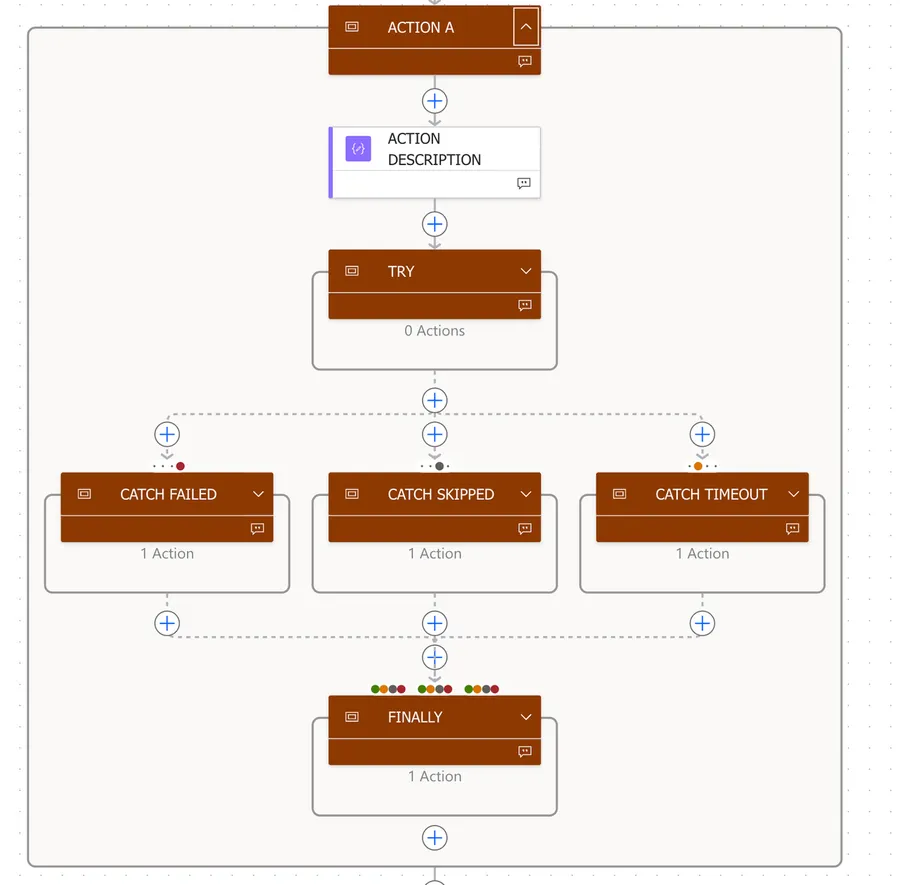
With this, you can add a new group of actions in your Flow and control if they fail or not. All logic will be inside the Scope action, so you can add multiple sequential "blocks" of "try, catch, finally" and control how your Flow will act in each "section."
The try
Let's look at the "try" part of the "try, catch, finally."
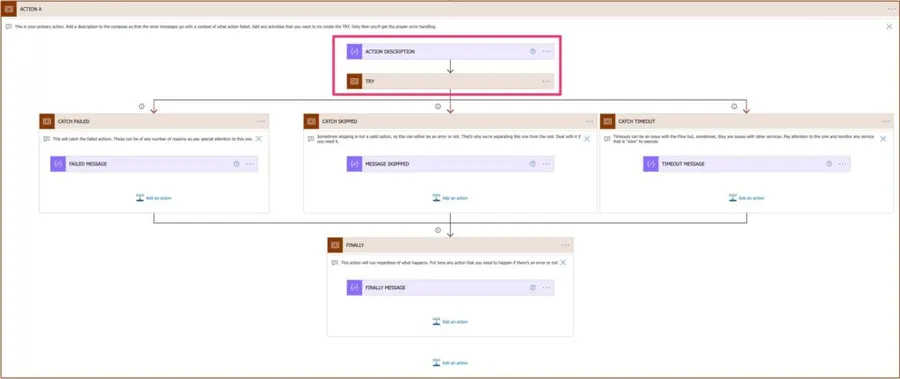
The compose will contain the description of the "try, catch, finally" block. This will be used in the error messages so that you can have, for example, "Build Email: Failed."
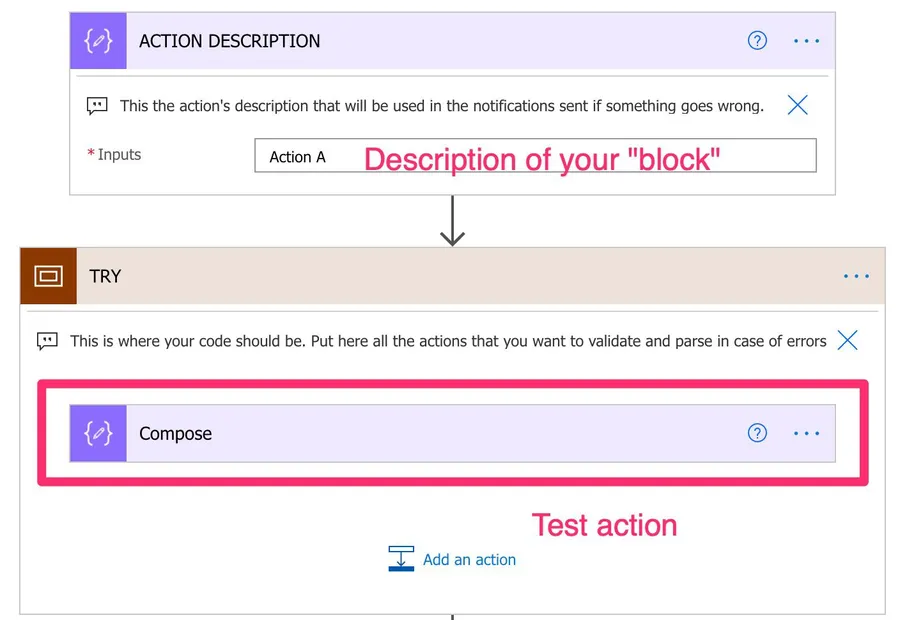
In the example above, we have a compose that will fail to test the whole template in action.
The catch
Now the "catch" part of the "try, catch, finally."
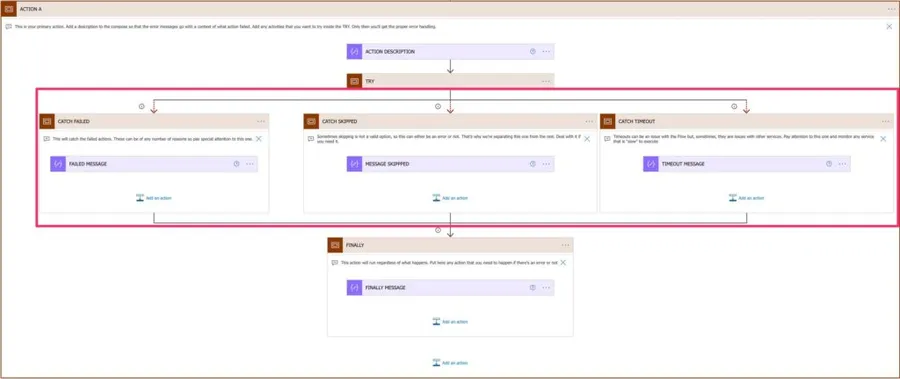
This is where all the "magic" happens if something goes wrong. To achieve this, we need to configure the "Configure run after" for each of them to catch individual errors. For example, in the "Failed," we do:
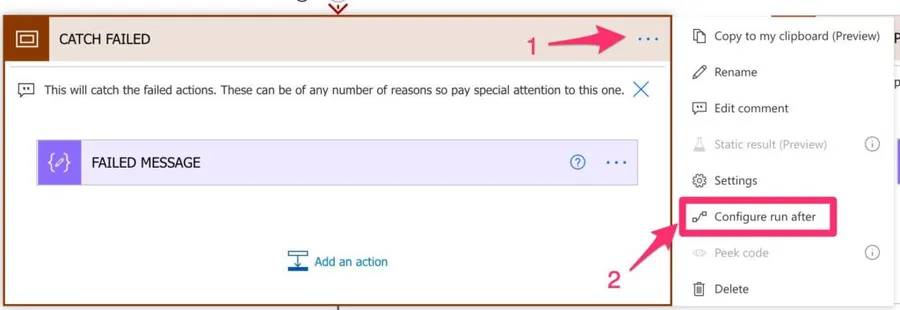
And we only set the "has failed" option.
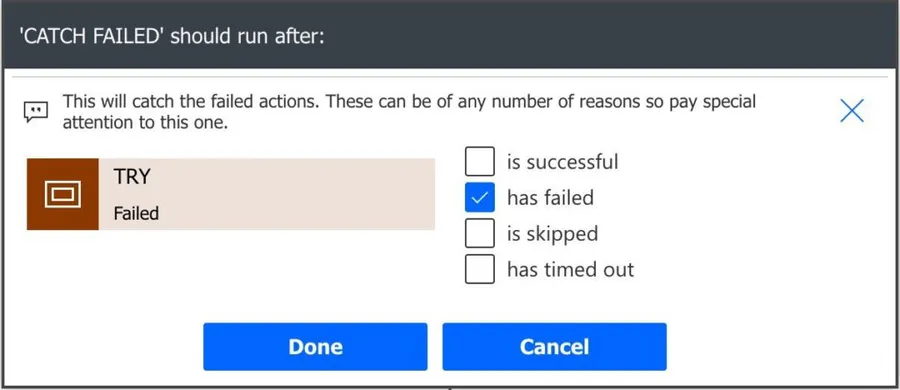
We repeat for all the others, to get the same result.
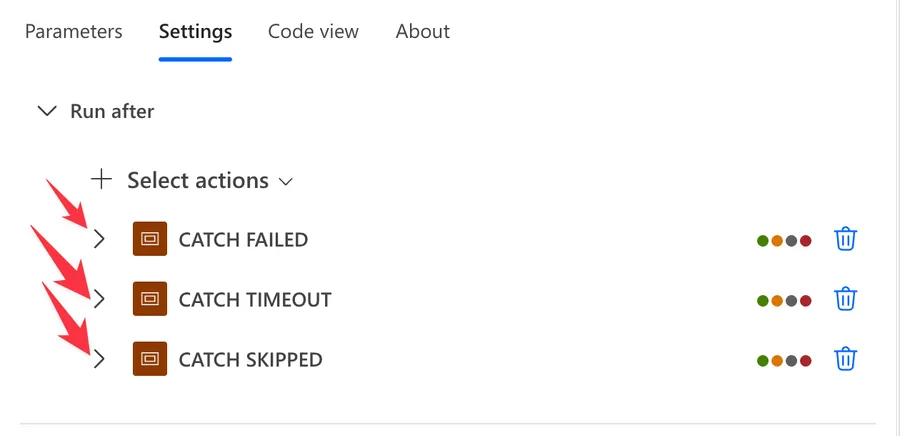
If you're on the new UI, the same setting looks like this:
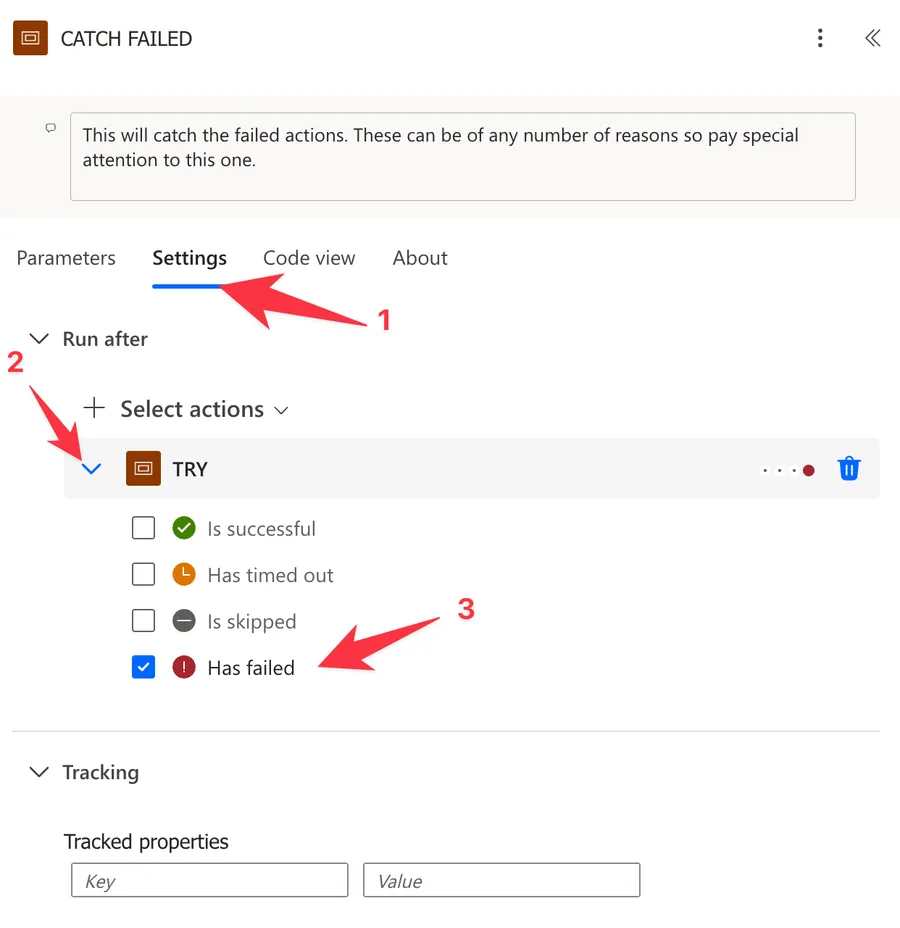
The compose action will contain the error message that you want to send when something goes wrong. I added the prefix of the previous compose action to get the name plus the error message.

The finally
Now the "finally" part of the "try, catch, finally."
This action will always run, so keep this in mind when adding actions here. To do this, we configure the "Configure Run After" will all options selected for all previous scope actions.
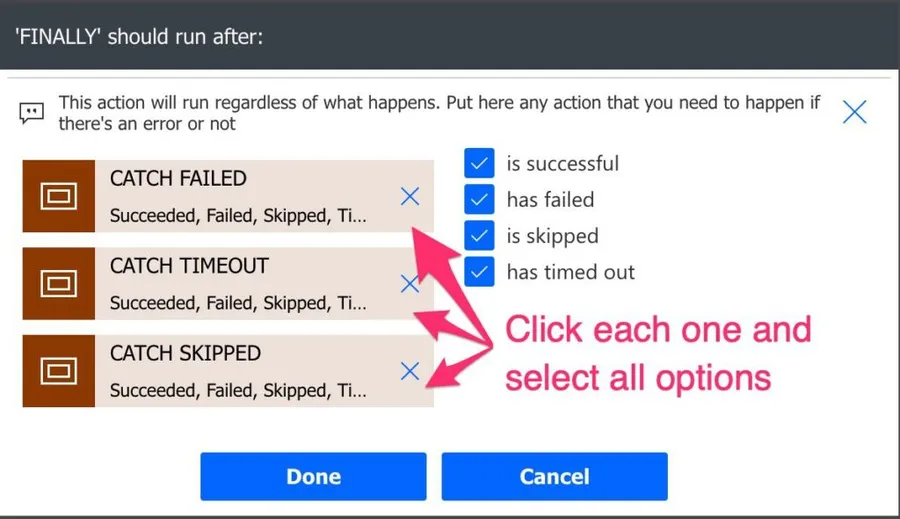
I've added a compose so that you have a message that you can use to be consistent with all the others.
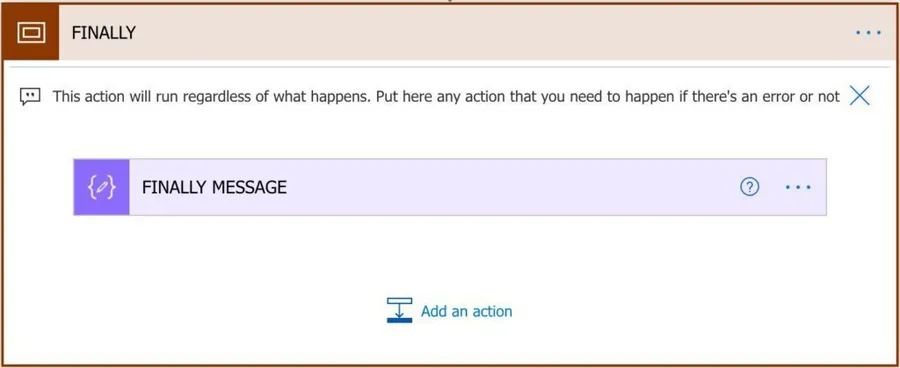
This must always run because you may need to do some actions even if there are errors in the previous steps. If not, keep it like it is, and your Flow will continue.
If you're on the new UI, you can expand what you need:
Testing the Flow
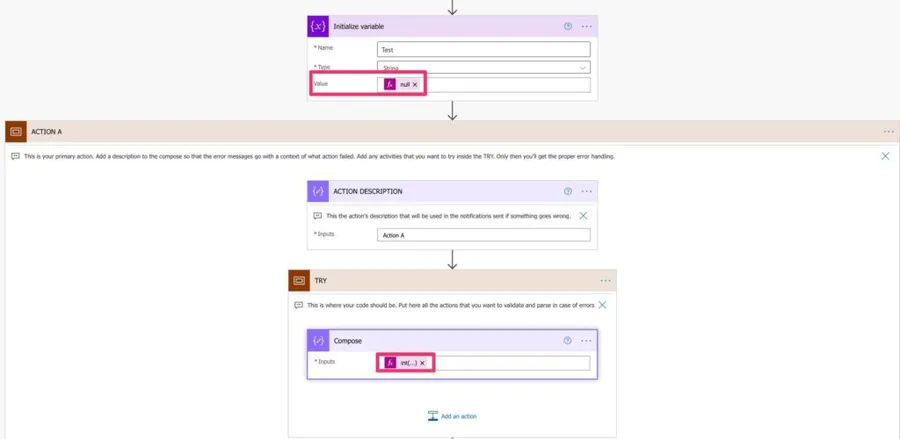
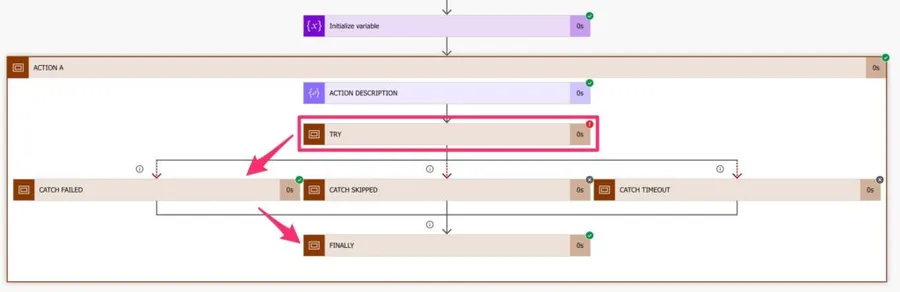
Let's do a simple test. We'll define a variable with a "null" value and then try to convert that number into an int in the "try" part. We would get a failure that our Flow will "catch" in the first branch of the tree.
We'll get:
How to use it?
There are two ways to use it: import the solution, or copy and paste the JSON below.
The template lives in my Power Automate Cookbook. You can download it directly here and import it. If you don't know how, here are the instructions.
The copy-and-paste route is awesome and super simple.
I would keep this article handy, or copy the JSON below, when you need to add a new block like this. You don't need to import or add things manually over and over again. Another strategy is to customize the JSON to your liking and keep your own copy. Don't worry about understanding every field. I'll show you how to paste it into a Flow in a moment.
To do that, here's the code of the full template (Old UI):
{
  "id": "5be28f29-40b0-4234-863e-9ab8731e45c0",
  "brandColor": "#8C3900",
  "connectionReferences": {},
  "connectorDisplayName": "Control",
  "icon": "data:image/svg+xml;base64,PHN2ZyB3aWR0aD0iMzIiIGhlaWdodD0iMzIiIHZlcnNpb249IjEuMSIgdmlld0JveD0iMCAwIDMyIDMyIiB4bWxucz0iaHR0cDovL3d3dy53My5vcmcvMjAwMC9zdmciPg0KIDxwYXRoIGQ9Im0wIDBoMzJ2MzJoLTMyeiIgZmlsbD0iIzhDMzkwMCIvPg0KIDxwYXRoIGQ9Im04IDEwaDE2djEyaC0xNnptMTUgMTF2LTEwaC0xNHYxMHptLTItOHY2aC0xMHYtNnptLTEgNXYtNGgtOHY0eiIgZmlsbD0iI2ZmZiIvPg0KPC9zdmc+DQo=",
  "isTrigger": false,
  "operationName": "ACTION_A",
  "operationDefinition": {
    "type": "Scope",
    "actions": {
      "CATCH_FAILED": {
        "type": "Scope",
        "actions": {
          "FAILED_MESSAGE": {
            "type": "Compose",
            "inputs": "@{outputs('ACTION_DESCRIPTION')}: Failed",
            "runAfter": {}
          }
        },
        "runAfter": { "TRY": ["Failed"] },
        "description": "This will catch the failed actions. These can be of any number of reasons so pay special attention to this one."
      },
      "CATCH_SKIPPED": {
        "type": "Scope",
        "actions": {
          "MESSAGE_SKIPPED": {
            "type": "Compose",
            "inputs": "@{outputs('ACTION_DESCRIPTION')}: Action skipped",
            "runAfter": {}
          }
        },
        "runAfter": { "TRY": ["Skipped"] },
        "description": "Sometimes skipping is not a valid option, so this can either be an error or not. That's why we're separating this one from the rest. Deal with it if you need it."
      },
      "CATCH_TIMEOUT": {
        "type": "Scope",
        "actions": {
          "TIMEOUT_MESSAGE": {
            "type": "Compose",
            "inputs": "@{outputs('ACTION_DESCRIPTION')}: Timeout detected. Please review the actions",
            "runAfter": {}
          }
        },
        "runAfter": { "TRY": ["TimedOut"] },
        "description": "Timeouts can be an issue with the Flow but, sometimes, they are issues with other services. Pay attention to this one and monitor any service that is \"slow\" to execute"
      },
      "FINALLY": {
        "type": "Scope",
        "actions": {
          "FINALLY_MESSAGE": {
            "type": "Compose",
            "inputs": "@{outputs('ACTION_DESCRIPTION')}: Finally Reached",
            "runAfter": {},
            "description": "If you have a lot somewhere, you can insert here the message and use it in your Flow. You can even use it in combination with the action description for better clarity in your Flows"
          }
        },
        "runAfter": {
          "CATCH_FAILED": ["Succeeded", "Failed", "Skipped", "TimedOut"],
          "CATCH_TIMEOUT": ["Succeeded", "Failed", "Skipped", "TimedOut"],
          "CATCH_SKIPPED": ["Succeeded", "Failed", "Skipped", "TimedOut"]
        },
        "description": "This action will run regardless of what happens. Put here any action that you need to happen if there's an error or not"
      },
      "ACTION_DESCRIPTION": {
        "type": "Compose",
        "inputs": "Action A",
        "runAfter": {},
        "description": "This is the action's description that will be used in the notifications sent if something goes wrong."
      },
      "TRY": {
        "type": "Scope",
        "actions": {},
        "runAfter": { "ACTION_DESCRIPTION": ["Succeeded"] },
        "description": "This is where your code should be. Put here all the actions that you want to validate and parse in case of errors"
      }
    },
    "runAfter": {},
    "description": "This is your primary action. Add a description to the compose so that the error messages go with a context of what action failed. Add any activities that you want to try inside the TRY. Only then you'll get the proper error handling."
  }
}
Then paste it and it will show in "My Clipboard".
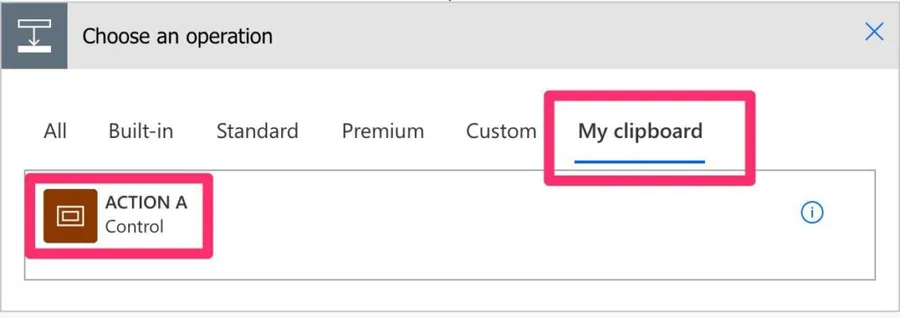
If you're using the new Power Automate UI, then you can use the following:
{
  "nodeId": "ACTION_A",
  "serializedValue": {
    "type": "Scope",
    "description": "This is your primary action. Add a description to the compose so that the error messages go with a context of what action failed. Add any activities that you want to try inside the TRY. Only then you'll get the proper error handling.",
    "actions": {
      "CATCH_FAILED": {
        "type": "Scope",
        "description": "This will catch the failed actions. These can be of any number of reasons so pay special attention to this one.",
        "actions": {
          "FAILED_MESSAGE": {
            "type": "Compose",
            "inputs": "@{outputs('ACTION_DESCRIPTION')}: Failed",
            "metadata": {
              "operationMetadataId": "1e724b1d-2606-494e-b196-5a2904b46cbb"
            }
          }
        },
        "runAfter": {
          "TRY": [
            "Failed"
          ]
        },
        "metadata": {
          "operationMetadataId": "da030f6d-9cd7-492a-b6a4-f9024c3d46fd"
        }
      },
      "CATCH_SKIPPED": {
        "type": "Scope",
        "description": "Sometimes skipping is not a valid option, so this can either be an error or not. That's why we're separating this one from the rest. Deal with it if you need it.",
        "actions": {
          "MESSAGE_SKIPPED": {
            "type": "Compose",
            "inputs": "@{outputs('ACTION_DESCRIPTION')}: Action skipped",
            "metadata": {
              "operationMetadataId": "e4b200dd-203d-45c2-a184-9af2c795dfa7"
            }
          }
        },
        "runAfter": {
          "TRY": [
            "Skipped"
          ]
        },
        "metadata": {
          "operationMetadataId": "2ccaae4c-5504-4e6a-b640-a53df9e17564"
        }
      },
      "CATCH_TIMEOUT": {
        "type": "Scope",
        "description": "Timeouts can be an issue with the Flow but, sometimes, they are issues with other services. Pay attention to this one and monitor any service that is \"slow\" to execute",
        "actions": {
          "TIMEOUT_MESSAGE": {
            "type": "Compose",
            "inputs": "@{outputs('ACTION_DESCRIPTION')}: Timeout detected. Please review the actions",
            "metadata": {
              "operationMetadataId": "c37d3c4e-13d4-4bd5-b0a2-a76a7932d6b8"
            }
          }
        },
        "runAfter": {
          "TRY": [
            "TimedOut"
          ]
        },
        "metadata": {
          "operationMetadataId": "35ae2abc-1bb9-4abc-b2a3-1c9f40702e32"
        }
      },
      "FINALLY": {
        "type": "Scope",
        "description": "This action will run regardless of what happens. Put here any action that you need to happen if there's an error or not",
        "actions": {
          "FINALLY_MESSAGE": {
            "type": "Compose",
            "description": "If you have a lot somewhere, you can insert here the message and use it in your Flow. You can even use it in combination with the action description for better clarity in your Flows",
            "inputs": "@{outputs('ACTION_DESCRIPTION')}: Finally Reached",
            "metadata": {
              "operationMetadataId": "9569260c-f06b-4a01-bc86-83f3f8306da3"
            }
          }
        },
        "runAfter": {
          "CATCH_FAILED": [
            "Succeeded",
            "Failed",
            "Skipped",
            "TimedOut"
          ],
          "CATCH_TIMEOUT": [
            "Succeeded",
            "Failed",
            "Skipped",
            "TimedOut"
          ],
          "CATCH_SKIPPED": [
            "Succeeded",
            "Failed",
            "Skipped",
            "TimedOut"
          ]
        },
        "metadata": {
          "operationMetadataId": "d05cd02a-6272-4545-8a15-6071b3477602"
        }
      },
      "ACTION_DESCRIPTION": {
        "type": "Compose",
        "description": "This is the action's description that will be used in the notifications sent if something goes wrong.",
        "inputs": "Action A",
        "metadata": {
          "operationMetadataId": "fbe8720c-5fd7-4d17-a42b-8149135c31e1"
        }
      },
      "TRY": {
        "type": "Scope",
        "description": "This is where your code should be. Put here all the actions that you want to validate and parse in case of errors",
        "actions": {},
        "runAfter": {
          "ACTION_DESCRIPTION": [
            "Succeeded"
          ]
        },
        "metadata": {
          "operationMetadataId": "0a7baf37-c5ec-4f3e-9099-c44b5629a87d"
        }
      }
    },
    "runAfter": {},
    "metadata": {
      "operationMetadataId": "69bdd424-d4d4-4661-bba9-d656babe7751"
    }
  },
  "allConnectionData": {},
  "staticResults": {},
  "isScopeNode": true,
  "mslaNode": true
}
To copy it, right-click on where you want to insert it and then "Paste an action".
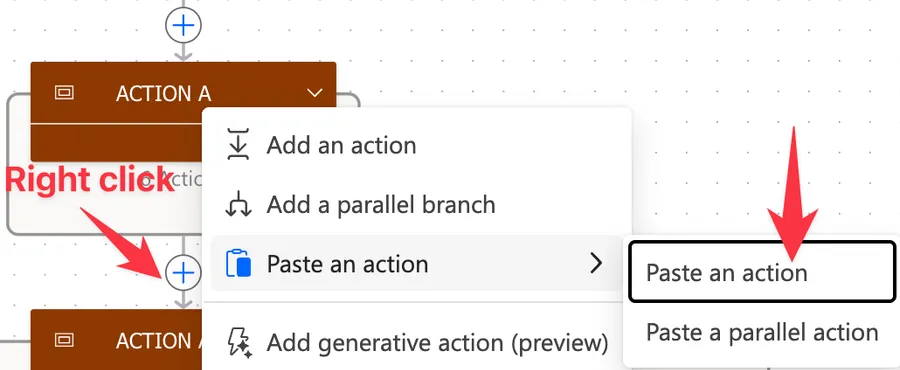
How awesome is that?!? You can have a macro, text snippet, or anything else that copies the text to the clipboard, and you'll have the template always available.
Like I mentioned in the Pro Tip, you can customize the JSON to your needs and copy or duplicate the actions:
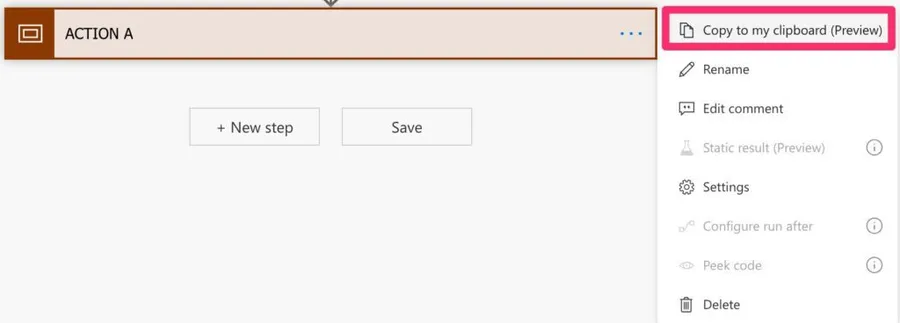
Or if you're on the new UI:
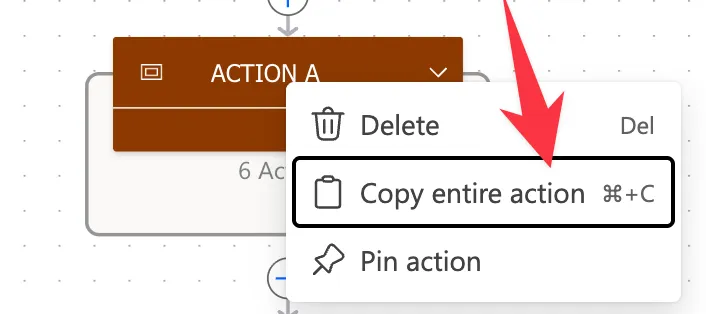
Save the text and re-use it as much as you want.
Non-intuitive behaviors
The pattern is simple to set up, but there are a few things that catch people off guard once they start using it. Let's walk through them so you don't have to learn them the hard way.
Your Flow looks "Succeeded" even when it failed
This one bites everyone at least once. Once the Catch scope runs, it succeeds (it did its job), so the whole Flow ends with a "Succeeded" status in the run history. Anyone scanning for failures will miss the error entirely.
The fix is to drop a "Terminate" action with status "Failed" at the end of your Catch scope. The Flow will still log the error, but the run history will correctly show it as a failure.
If you want Finally to always run (cleanup, releasing a lock, sending a final notification), put the "Terminate" at the end of Finally instead, and use a variable in Catch to mark whether an error happened.
This is different from not having try, catch in place. We should always be in control, and just letting things break is dangerous. Getting a Teams message or an email goes a long way, and we can even include a link straight to the failing Flow.
Getting the error message
Sometimes you want the actual error message from the failed action, not just "something failed". To simulate one, I created a "Compose" action (the "Compose_1" in the error) and tried to access an item in an element that is not an array (the "[0]" of the error).
Then we can create a compose message with the following formula:
first(result('TRY_1'))?['error']?['message']
Please notice that you will need to replace the "TRY_1" with the action in your Flow for this to work.
You will get something like this:
Unable to process template language expressions in action 'Compose_5' inputs at line '0' and column '0': 'The template language expression 'triggerOutputs()?['headers']?['x-ms-user-email'][0]' cannot be evaluated because property '0' cannot be selected. Property selection is not supported on values of type 'String'. Please see https://aka.ms/logicexpressions for usage details.'.
Here's the run. Notice the compose with the error, and inside the "Finally" you can have the exception.
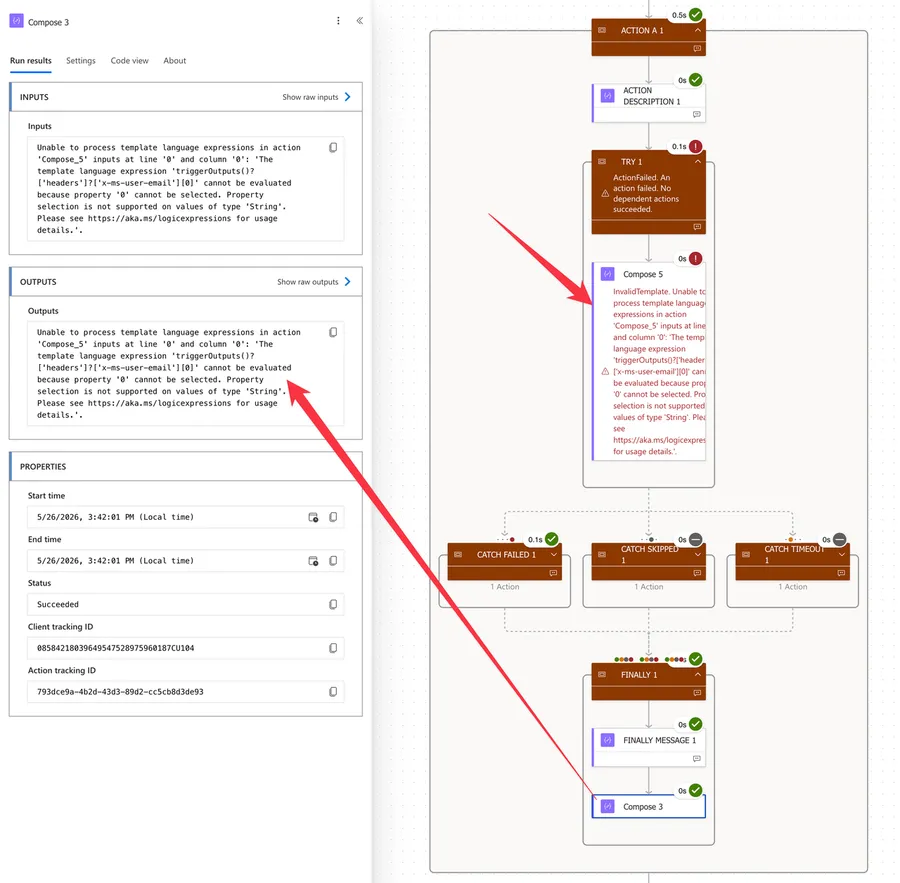
The error message is human readable, and it can be stored or sent in an email to warn someone that the Flow is failing and already providing some feedback.
Apply to each won't return the real error
If you have an "Apply to each" action inside the Try and an error occurs, you won't get the correct message.
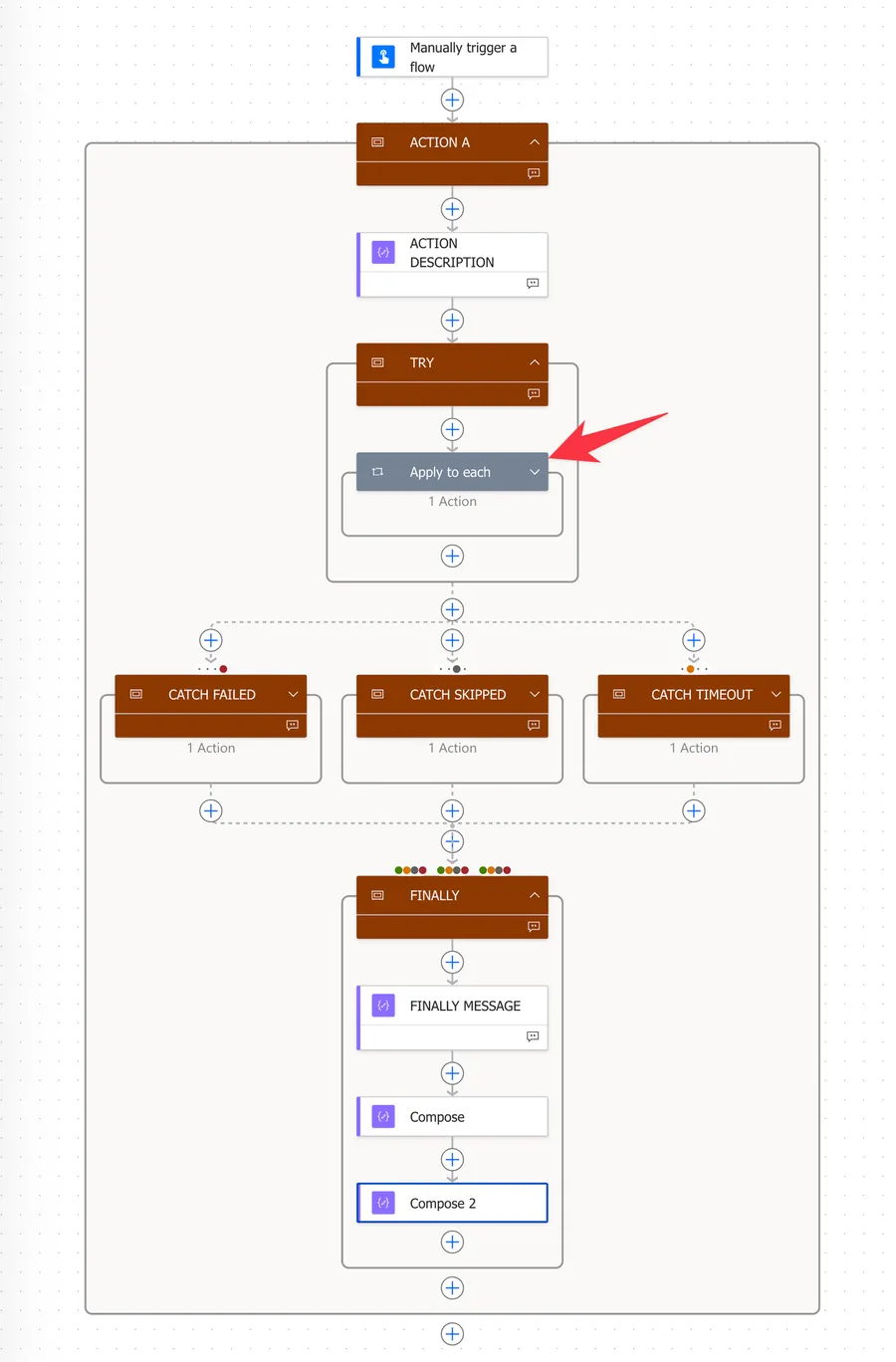
You will get "An action failed. No dependent actions succeeded."
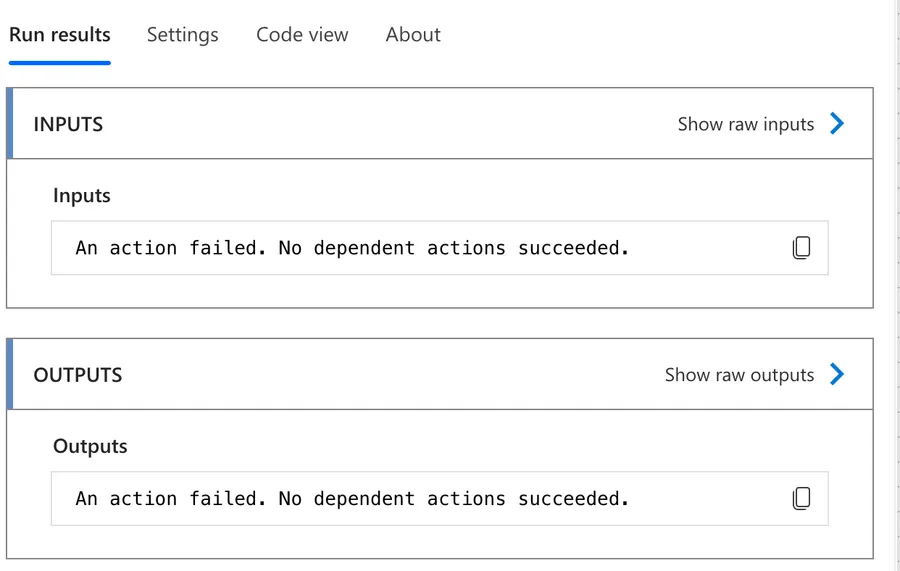
The explanation is simple. In the previous example, the action that failed was inside the "Try" so we could get its result. But if something fails inside the "Apply to each" action, that action itself will fail and the "Apply to each" will fail as well. The previous expression will catch the "Apply to each" action error, not the internal exception.
But we can get it.
You can get all errors from Apply to each
To get it, we need to query the result of the "Apply to each" action instead:
result('Apply_to_each')
The error will look something like this:
[
  {
    "name": "Compose_1",
    "outputs": [
      {
        "name": "Compose_1",
        "startTime": "2026-05-26T12:59:01.9450746Z",
        "endTime": "2026-05-26T12:59:01.9459077Z",
        "trackingId": "d93f3e9c-3faf-4947-8c50-ba7b10615f94",
        "clientTrackingId": "0858503731529459512705936187CU226",
        "clientKeywords": [
          "testFlow,lc:POWERAUTOMATE,lcat:BASE,u:07E3D9CBCAA3BF5EDAAEDFD25F97C104"
        ],
        "code": "BadRequest",
        "status": "Failed",
        "error": {
          "code": "InvalidTemplate",
          "message": "Unable to process template language expressions in action 'Compose_1' inputs at line '0' and column '0': 'The template language expression 'triggerOutputs()?['headers']?['x-ms-user-email'][0]' cannot be evaluated because property '0' cannot be selected. Property selection is not supported on values of type 'String'. Please see https://aka.ms/logicexpressions for usage details.'."
        }
      },
      {
        "name": "Compose_1",
        "startTime": "2026-05-26T12:59:02.1937968Z",
        "endTime": "2026-05-26T12:59:02.1945777Z",
        "trackingId": "45f4119a-42e7-468a-a6b5-93d1da5548be",
        "clientTrackingId": "0858503731529459512705936187CU226",
        "clientKeywords": [
          "testFlow,lc:POWERAUTOMATE,lcat:BASE,u:07E3D9CBCAA3BF5EDAAEDFD25F97C104"
        ],
        "code": "BadRequest",
        "status": "Failed",
        "error": {
          "code": "InvalidTemplate",
          "message": "Unable to process template language expressions in action 'Compose_1' inputs at line '0' and column '0': 'The template language expression 'triggerOutputs()?['headers']?['x-ms-user-email'][0]' cannot be evaluated because property '0' cannot be selected. Property selection is not supported on values of type 'String'. Please see https://aka.ms/logicexpressions for usage details.'."
        }
      },
      {
        "name": "Compose_1",
        "startTime": "2026-05-26T12:59:02.7464186Z",
        "endTime": "2026-05-26T12:59:02.7472951Z",
        "trackingId": "448c98c7-e8de-451e-8969-96b3cf095f75",
        "clientTrackingId": "0858503731529459512705936187CU226",
        "clientKeywords": [
          "testFlow,lc:POWERAUTOMATE,lcat:BASE,u:07E3D9CBCAA3BF5EDAAEDFD25F97C104"
        ],
        "code": "BadRequest",
        "status": "Failed",
        "error": {
          "code": "InvalidTemplate",
          "message": "Unable to process template language expressions in action 'Compose_1' inputs at line '0' and column '0': 'The template language expression 'triggerOutputs()?['headers']?['x-ms-user-email'][0]' cannot be evaluated because property '0' cannot be selected. Property selection is not supported on values of type 'String'. Please see https://aka.ms/logicexpressions for usage details.'."
        }
      }
    ],
    "startTime": "2026-05-26T12:59:03.0552795Z",
    "endTime": "2026-05-26T12:59:03.0775653Z",
    "trackingId": "9b511604-c904-4a54-9880-016aeec6efcb",
    "clientTrackingId": "0858503731529459512705936187CU226",
    "clientKeywords": [
      "testFlow,lc:POWERAUTOMATE,lcat:BASE,u:07E3D9CBCAA3BF5EDAAEDFD25F97C104"
    ],
    "code": "NotSpecified",
    "status": "Failed",
    "repetitionCount": 3
  }
]
The error will give us a lot of information, like all errors so that we can parse and deal with them, but also the number of items that were processed (the "repetitionCount" field). Note that we're running the "Apply to each" action inside the Try in this example, which is why the result() call targets it directly.
Apply to each will parse all elements
If you have this try catch inside an Apply to each, all elements will be parsed even if an error occurs in the first one (or in all of them). You can use this to your advantage. Since you're sure the items will all be parsed, you can proceed "normally" when things go well and log the ones that failed for future processing. I don't see a lot of people taking advantage of this. Most people drop an Apply to each in their Flow without any safety net and fail midway through the process.
We can prove this with the example above, where we have 3 errors in 3 runs, but all 3 were processed.
This is a feature that you should take advantage of, in my opinion. If you process data inside an "Apply to each" action without protection and something fails the process stops. If you're importing data, you may need to:
- Manually check which data was actually imported.
- Identify which field failed and why.
- Fix the Flow and start again, sometimes after cleaning the data manually.
It's messy and not useful. You can get all errors in the end and then process only the failing fields.
So use this to your advantage and catch the "errors" so that you can deal with them later in the way that makes sense.
Final Thoughts
I like the "try, catch, finally" strategy because it provides us with a way to deal with issues and has our Flows running smoothly.
Having the block of "actions" available with a simple copy & paste is a game-changer. You make them as complete as you want and then add them to your Flows with a few clicks.
If you want to go further (retry policies, custom retry loops, long-term error logging beyond the 28-day run history), have a look at Advanced Error Handling Patterns in Power Automate. It picks up where this template leaves off.
Photo by Brett Jordan on Unsplash


Great info. Thanks!
hello Manuel, Have you found a way to manually "Break" out of the TRY block? eg. in my try block, i want to create an error, and skip to the CATCH block to elegantly handle it. Adam has suggested a manual way to exit out of the TRY block using an HTTP action that will intentionally fail https://powerusers.microsoft.com/t5/Building-Flows/Breaking-out-of-Scope/m-p/956609/highlight/true#M134091 i want wondering if you had any thoughts on how to do this in a more elegant way? thank you
Hi Cameron, You have a fascinating use case there. Adam's solution makes sense, but then you would have your "normal" errors mixed with your "I want to continue" errors. Can you have a segmentation by a variable or state, for example? What I mean is that at the point where you want to jump set a variable to "something" and then have a Condition action that will have the "normal" set of actions, and the other doesn't do anything. This way, your action will end nicely and proceed to the next stage of action. This will make things a bit more complex since you have to have more conditions, but at least you know that if the Flow fails, then it's a failure that you need to deal with. It's up to you how you want to interpret the results, but I would try to make things "Flow" in either direction depending on "I want to continue" or "do all the actions". Makes sense, or do I make things more complex? :D