
The "Parse JSON" action is one of the most useful actions in Power Automate. It takes a JSON string and turns it into structured dynamic content that you can use in subsequent actions. Without it, you'd have to write expressions to access every single field in your JSON data, which gets tedious fast.
The idea is simple. You have some JSON data, you tell Power Automate what structure to expect using a schema, and then each property becomes a nice dynamic content card you can pick from. It's a "Data Operations" action, sitting alongside other favorites like the "Compose" action, "Select," and "Filter Array".
Where to find it?
You can find it under "Built-in" actions. Look for the "Data Operations" group.
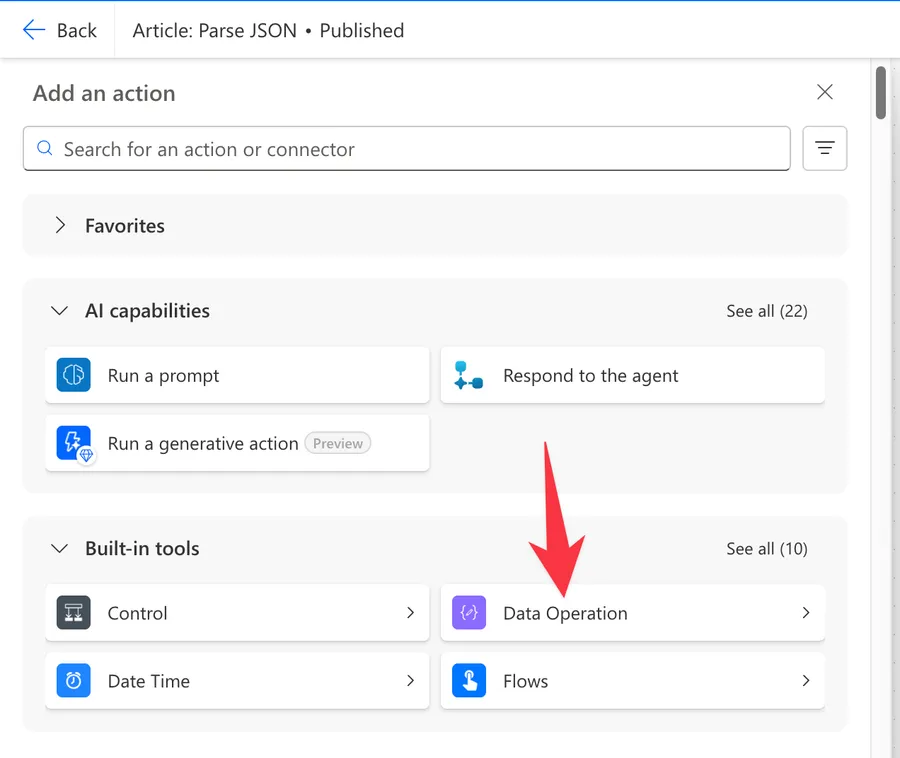
Select the "Parse JSON" action.
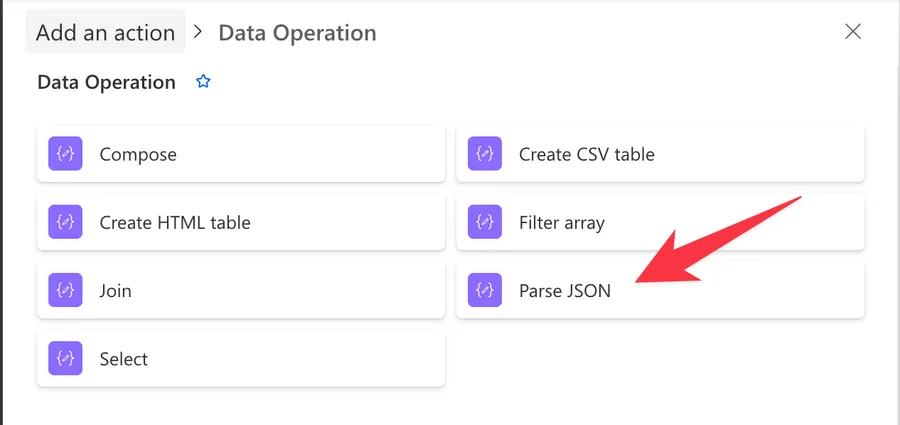
Here's what it looks like.
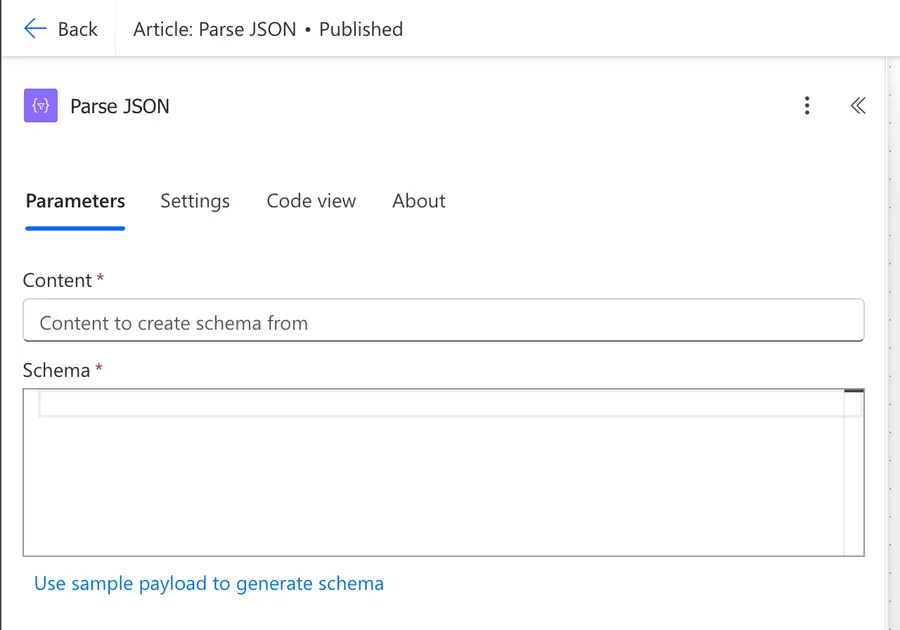
Power Automate tends to save the most common actions in the main screen, so check there before going through the full hierarchy. Also, you can use the search to find it quickly.
Now that we know how to find it, let's understand how to use it.
Usage
The "Parse JSON" action has two fields: Content and Schema. Both are required.
Content
The "Content" field is where you provide the JSON data you want to parse. This can come from many places:
- The body output from an HTTP action
- The output from a "Compose" action
- A variable containing JSON
- Dynamic content from any action that outputs JSON
[Screenshot needed: Content field with dynamic content picker showing options]
Schema
The "Schema" field is where you define the structure of your JSON. It uses JSON Schema format to describe what properties exist and what types they have.
Here's an example of a simple schema:
{
    "type": "object",
    "properties": {
        "name": { "type": "string" },
        "age": { "type": "integer" },
        "email": { "type": "string" }
    },
    "required": ["name"]
}
I can't remember a single time I generated the above structure manually, so always use the handy "Use sample payload to generate schema" described in the next section.
Generate from sample
The easiest way to create a schema is to click the "Generate from sample" button. A dialog opens where you paste a sample of your JSON data, and Power Automate generates the schema for you.
Here's an example of a JSON file.
{
    "name": "Portugal",
    "capital": "Lisbon",
    "population": 10467366,
    "area": 92212,
    "currency": "Euro",
    "languages": ["Portuguese"],
    "region": "Europe",
    "subregion": "Southern Europe",
    "flag": "https://upload.wikimedia.org/wikipedia/commons/5/5c/Flag_of_Portugal.svg"
}
Click the button and copy your JSON inside.
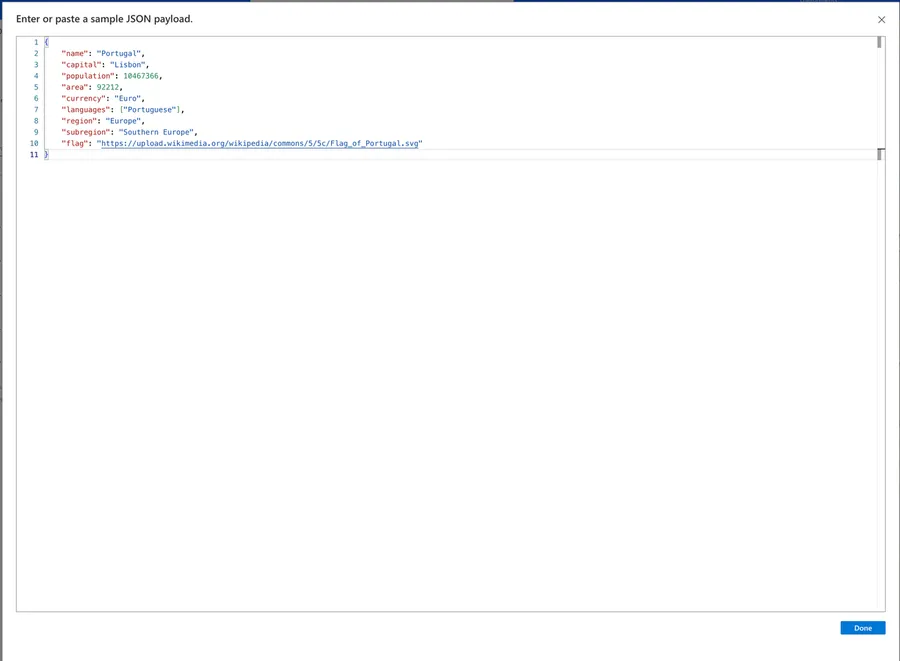
And the schema will be created for you.
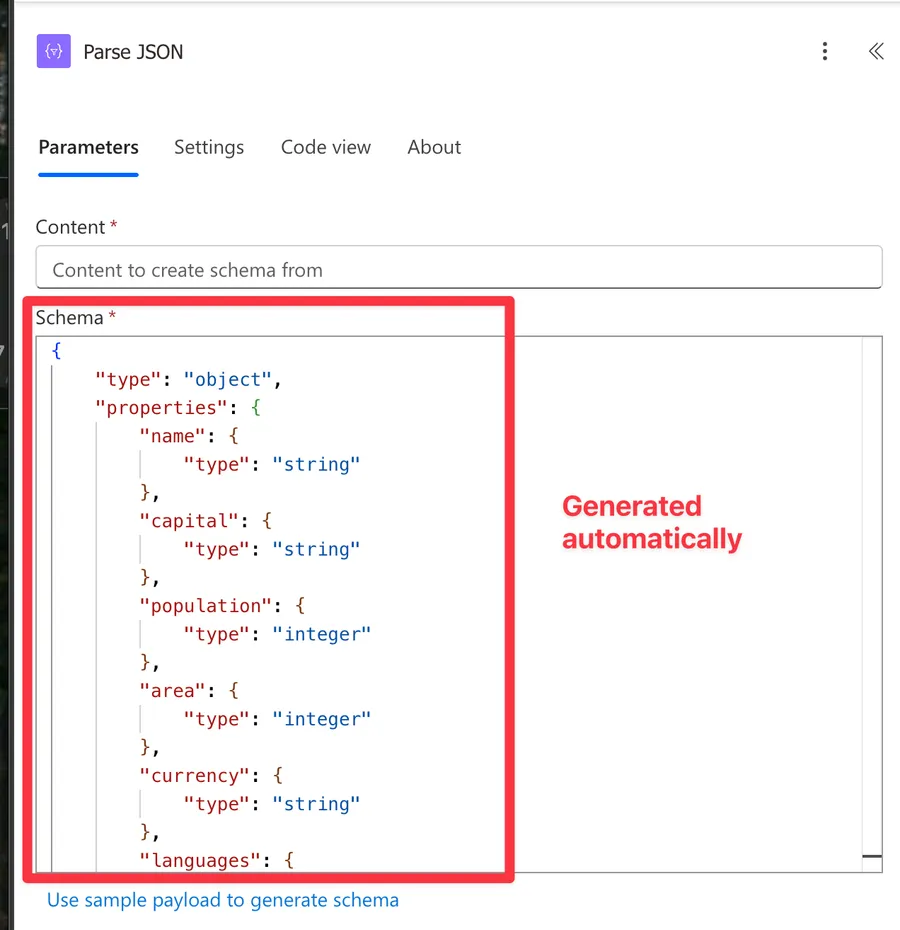
Where do you get sample data? The best approach is to run your Flow once, go to the run history, expand the action that produces the JSON (like an HTTP action or a "Compose" action), and copy the output from there.
The "Generate from sample" button is a starting point, not a finished product. It marks all non-null fields as "required" and infers types only from the sample you provide. You should always review and edit the generated schema. More on this in the Recommendations section.
Using the parsed output
After a successful parse, each property defined in your schema becomes available as dynamic content in subsequent actions. Instead of writing expressions to access fields, you can simply pick them from the dynamic content picker.
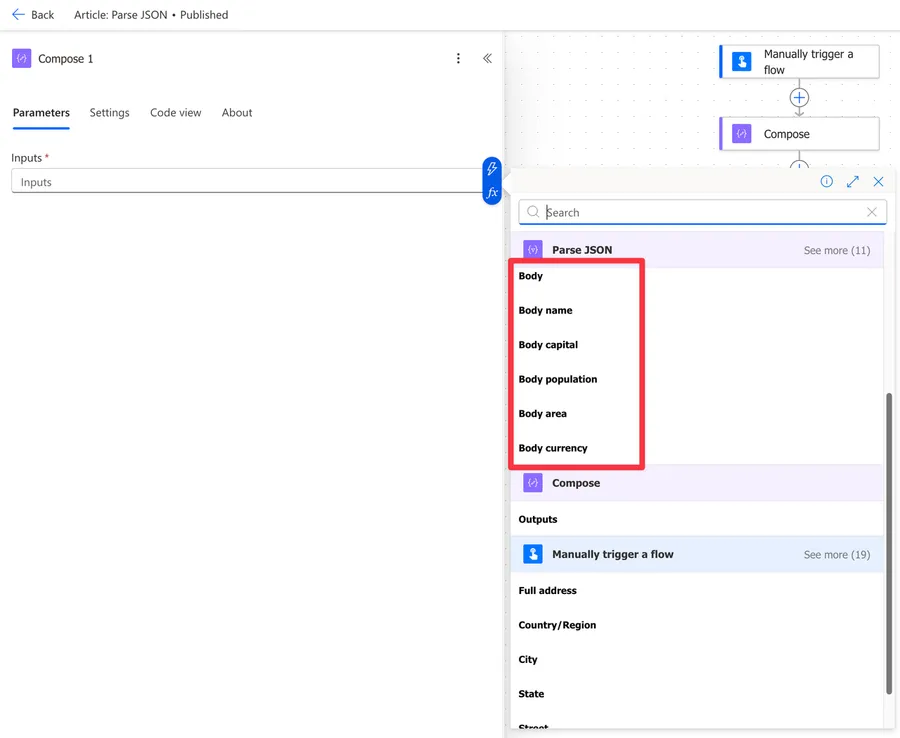
If your JSON contains arrays, referencing an array property will automatically wrap your action in an "Apply to each" action. This can be surprising if you don't expect it, so keep it in mind.
Non-intuitive behaviors
There are a few things about the "Parse JSON" action that can catch you off guard.
Schema validation is strict
If a field is listed in the required array and is missing from the input JSON, the action fails. It doesn't skip it or default to null. Similarly, if a field's type doesn't match what the schema expects, it fails. This is the number one source of "Parse JSON" failures in production Flows.
Null handling is tricky
JSON null is not the same as a missing field, and both cause problems differently. If your schema says a field is "type": "string" and the value is null, the action will fail. You need to explicitly allow null values like this:
"type": ["string", "null"]
The "Generate from sample" button does not generate null-safe schemas. If your sample has all fields populated, any null values in real data will cause failures. I wrote a detailed article on how to solve the JSON Invalid type error that covers this in depth.
Extra properties are silently ignored
If the incoming JSON has properties that are not defined in your schema, they are simply ignored. No error is thrown. This means you only need to define the properties you actually plan to use, which is great for keeping your schema simple.
Nested objects may not show in the dynamic content picker
For deeply nested JSON structures, Power Automate may not display all nested properties in the dynamic content picker. In those cases, you'll need to use expressions to access them, like:
body('Parse_JSON')?['outerProperty']?['innerProperty']
Alternatively, you can chain multiple "Parse JSON" actions: one for the outer structure and another for the nested objects.
Integer vs. Number distinction
JSON Schema distinguishes between integer (whole numbers) and number (decimals). If your sample has 42, the generator creates "type": "integer". But if that field can sometimes be 42.5, you need "type": "number". The number type accepts both integers and decimals, so when in doubt, use number.
Limitations
Here are some limitations to be aware of.
No partial parsing
The "Parse JSON" action is all-or-nothing. If schema validation fails on any property, the entire action fails. You cannot tell it to "parse what you can and skip errors."
No advanced JSON Schema features
The action supports basic JSON Schema features like type, properties, required, items, and enum. Advanced features like oneOf, allOf, $ref, or conditional schemas (if/then/else) are not fully supported and may behave unpredictably.
Performance with large payloads
While there's no officially documented maximum schema size, extremely complex schemas with hundreds of properties and deep nesting can make the flow designer slow. Very large JSON payloads can also cause flow timeouts. Keep your schemas focused on the properties you actually need.
Dynamic content display limits
If your schema has many properties, the dynamic content picker may not display all of them. You'll need to use expressions to reference fields that don't show up in the picker.
Troubleshooting Common Errors
Here are the most common errors you'll encounter and how to fix them.
"Invalid type. Expected String but got Null"
This happens when a field in the JSON has a null value, but the schema defines it as "type": "string" (or any single type). The fix is to change the type to allow null:
"type": ["string", "null"]
After generating a schema, review every field that could be null and add "null" to its type. I cover this error in detail in my article on how to solve the JSON Invalid type error.
"ValidationFailed. The schema validation failed"
This means the JSON structure doesn't match the schema. Common causes include:
- A property in the
requiredarray that's missing from the JSON - The JSON is an array but the schema expects an object (or vice versa)
- Wrapper elements that the schema doesn't account for
The best approach is to compare the actual JSON from your flow run history with the schema and find the mismatch.
Dynamic content not showing expected fields
If your parsed output doesn't show the fields you expect, double-check that the property names in your schema match the actual JSON exactly. JSON property names are case-sensitive, so "Name" and "name" are different properties.
Recommendations
Here are some things to keep in mind.
Always edit the generated schema
Never trust the "Generate from sample" button blindly. After generating your schema:
- Remove properties you don't need (smaller schema = better performance)
- Review the
requiredarray and remove fields that could be missing - Add
"null"to type arrays for fields that could be null - Check
integervsnumbertypes
Use Compose before Parse JSON for debugging
Place a "Compose" action before the "Parse JSON" action, set its input to the same content, and run the Flow. The "Compose" output shows you exactly what "Parse JSON" is receiving, making it much easier to diagnose schema mismatches.
Consider skipping Parse JSON for simple cases
If you only need one or two values from a JSON object, an expression like body('HTTP')?['propertyName'] may be simpler than setting up a "Parse JSON" action with a full schema. No schema maintenance required.
Name it correctly
The name is super important in this case since you may have multiple "Parse JSON" actions in a single Flow. Always build the name so that other people can understand what you are parsing without opening the action and checking the details. For example, "Parse JSON - HTTP Response" or "Parse JSON - User Profile."
Always add a comment
Adding a comment will also help avoid mistakes. Indicate what data source the JSON is coming from and what the key properties are. It's essential to enable faster debugging when something goes wrong.
Always deal with errors
Have your Flow fail graciously and notify someone that something failed. It's horrible to have failing Flows in Power Automate since they may go unnoticed for a while or generate even worse errors. I have a template that you can use to help you make your Flow resistant to issues. You can check all details here.
Final Thoughts
The "Parse JSON" action is essential for working with JSON data in Power Automate. The key to using it well is understanding that schema validation is strict, so take the time to edit your generated schemas and handle null values properly. Once you get the hang of it, it becomes second nature.
Back to the Power Automate Action Reference.
Photo by Jon Tyson on Unsplash


No comments yet
Be the first to share your thoughts on this article!