
You just imported a Power Automate solution into a new environment, and when you try to enable a flow, you get this error:
"Flow client error returned with status code 'BadRequest' and details 'InvalidOpenApiFlow'"
The name "InvalidOpenApiFlow" makes it sound like the flow definition itself is broken - maybe a malformed expression, a missing column, or a bad schema. So you start checking actions, list GUIDs, and column names, but everything looks fine. That's because the problem isn't the flow definition at all. It's almost always about connection references.
Why This Happens
When you export a solution that contains flows, the connection references travel with it. These are the links between your flow and the connectors it uses - SharePoint, Office 365, Outlook, and so on.
But here's the thing: connection references are just pointers. They say "this flow needs a SharePoint connection," but they don't carry the actual authenticated connection with them. When the solution lands in the new environment, those references arrive unbound - they're not linked to any active connection.
Power Automate can't enable a flow if it doesn't know which connections to use. Instead of telling you "hey, your connections aren't mapped," it throws the unhelpful "InvalidOpenApiFlow" error.
How to Fix It
The fix is straightforward once you know what to look for. After importing the solution, you need to map each connection reference to an active connection in the target environment.
Step 1: Open the Solution
Go to the Power Platform admin center or the Power Automate maker portal and open the solution you just imported.
Step 2: Check the Connection References
Inside the solution, look for the connection references. You'll see a list of all the connectors the solution needs - SharePoint, Office 365 Users, Outlook, and any others your flows depend on.

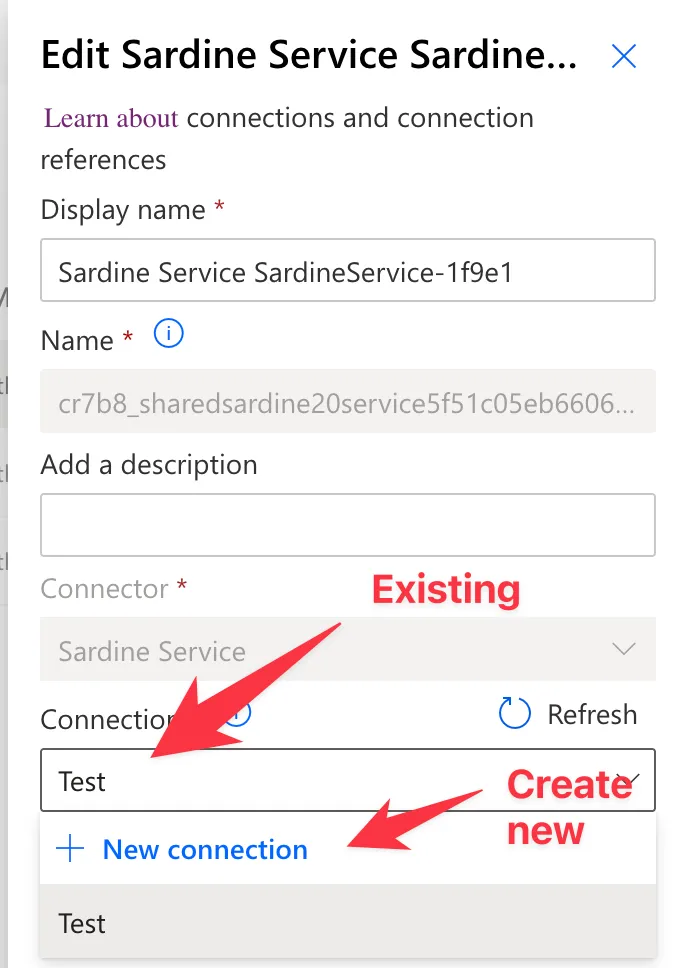
Step 3: Map Each Connection
For each connection reference, select an existing connection in the target environment or create a new one. Make sure you authenticate with an account that has the right permissions for each connector. These instructions work for any type of service, including your custom services.
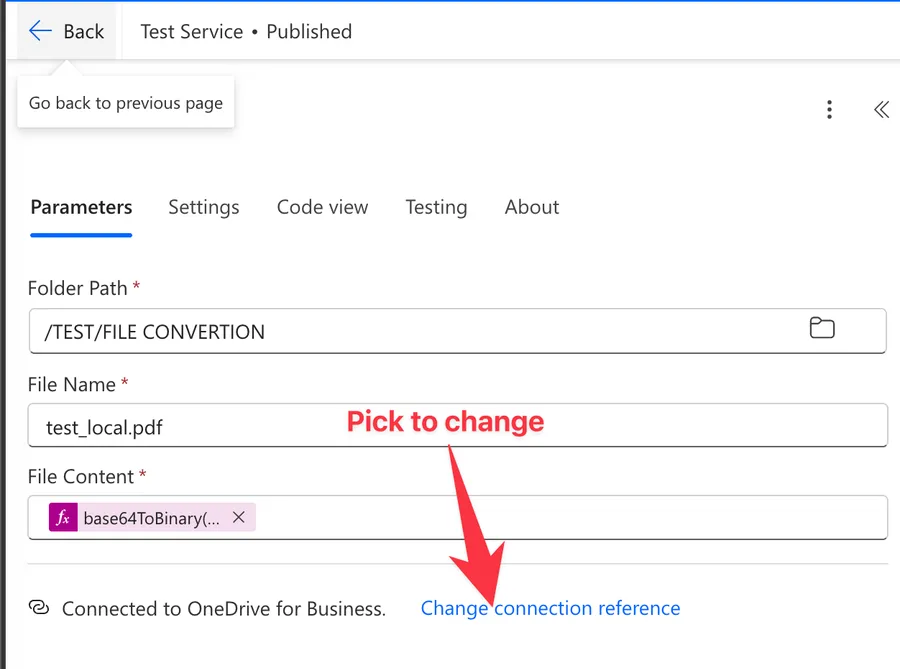
Another possibility is to map it directly in the Flow. For that, check the existing Flow and open the details of the action and pick "change connection reference". Here's an example for the "Create File" action in OneDrive for Business.
Step 4: Enable the Flow
Once all connection references are mapped, go back to your flow and enable it. It should turn on without issues.
Other Possible Causes
While unbound connection references are by far the most common cause, there are a few other scenarios that can trigger this error:
- Expired or revoked connections: The connection reference points to a connection that exists but whose authentication has expired. Re-authenticate the connection and try again.
- Missing custom connectors: If the flow uses a custom connector that doesn't exist in the target environment, import the custom connector first. Check step 3 to fix it.
- Connector availability: Some connectors (premium, preview, or region-specific) may not be available in the target environment due to licensing or regional restrictions. This can happen a lot if you export and import a solution in another environment in another tenant.
Tips for Importing Solutions
To avoid this error in the future, keep these practices in mind:
- Map connections during import: When you import a solution through the Power Platform UI, it prompts you to map connection references. Don't skip this step - it's exactly what prevents the "InvalidOpenApiFlow" error, but it doesn't solve it 100% since sometimes connections may be expired for example.
- Verify connections before enabling: After import, check that all connection references show a valid, authenticated connection.
- For automated deployments: If you're importing solutions through pipelines or the CLI, use deployment settings files that explicitly map connection reference logical names to connection IDs in the target environment.
Final Thoughts
The "InvalidOpenApiFlow" error is one of those misleading messages that sends you down the wrong path. It sounds like a flow definition problem, but it's almost always about connection references not being wired up in the target environment. After importing a solution, always check your connection references first - it'll save you a lot of unnecessary troubleshooting.
Photo by CHUTTERSNAP on Unsplash



No comments yet
Be the first to share your thoughts on this article!