
AUTHOR
Manuel
Over the last 20 years, I have been employed to work with big and small companies. My main focus has been on IT project management and improving the productivity of teams of all sizes thanks to optimizing the usage of Software. My drive is that, thanks to my help, people can focus on their job, save time and avoid frustration. I am specialized in Power Automate, and through my personal website – ManuelTGomes.com – I’ve been able to help hundreds of thousands of people over the last few years. This has made me decide to turn my passion into my job. I started my own company – Skillful Sardine – helping people and companies fix problems by teaching about and optimizing the usage of Power Automate and dozens of other Office 365 tools.

Advanced Error Handling Patterns in Power Automate

Quick Automations: Automatic “do not disturb” on a place

Power Automate: How to change the run history from 28 days

How to call Microsoft Graph API from Power Automate?

6 years, lots of changes

How to generate an Excel ID to access data in Power Automate
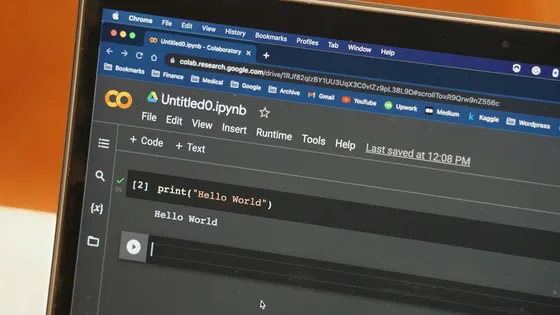
Can Power Automate Run Python Scripts?

With AI You need to know more not less

Power Automate: Running PowerShell Scripts
Run PowerShell scripts from your Flows using the Azure Automation connector.

How to update environment variables automatically with Power Automate

Power Automate: dayOfYear function
Returns 1-366 for any date.