
The "When I am @mentioned in a channel message" trigger fires whenever someone tags you with an @mention inside a specific Microsoft Teams channel.
Although Microsoft Teams will notify you, there are times where you can trigger automations or defined processes to do something when this happens. One could be to log those messages into your todo list so that once you're back on holidays you can check them and see if there's something important for you to process. Another less invasive reason is for when you have super noisy channels where you don't want to have them spamming you all the time, but you want to be notified when something happens. Finally, since we can integrate things, you can have an automation that triggers on an event and sends you a standard @mention notification. Then with another Flow you can trigger a process. The notification serves only for Power Automate to tell you "I found this issue and triggering the other process" for example.
This trigger is scoped to a single channel and uses polling. Its sibling, "When I'm @mentioned", is webhook based and also fires for chat mentions. Please pick the one that matches your scope, the Triggers side by side section at the bottom of this article has the full comparison.
Let's see how it works.
Where to find it?
The easiest way is to search for it as follows:
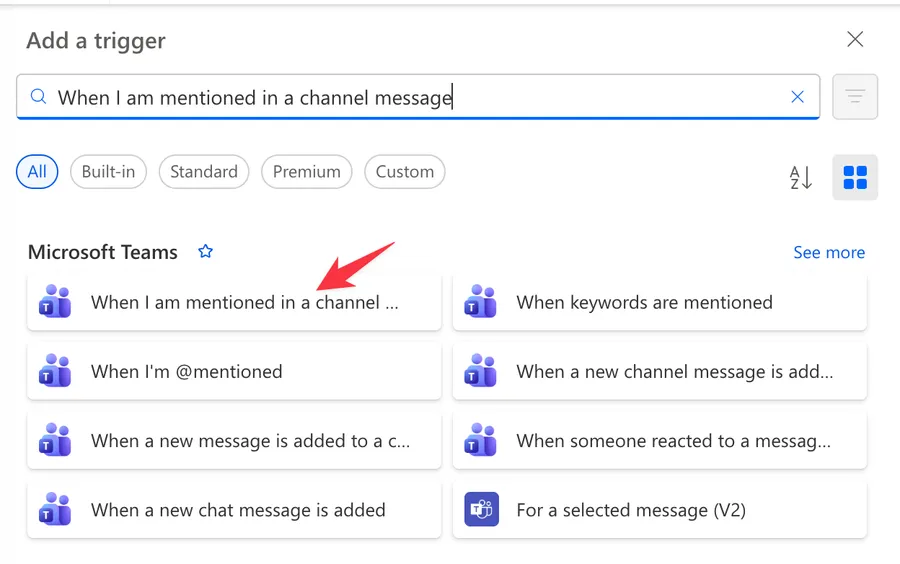
Here's what it looks like.
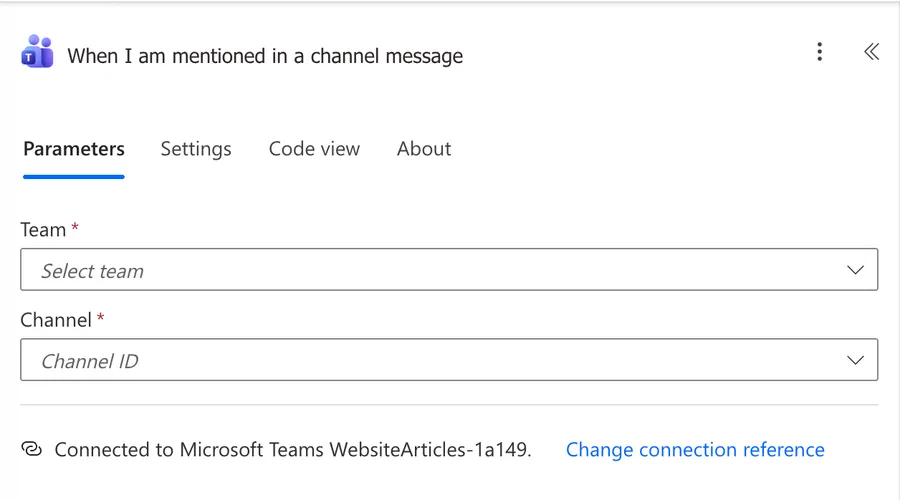
Now that we know how to find it let's understand how to use it.
Usage
The trigger has two required parameters that scope it to a single conversation.
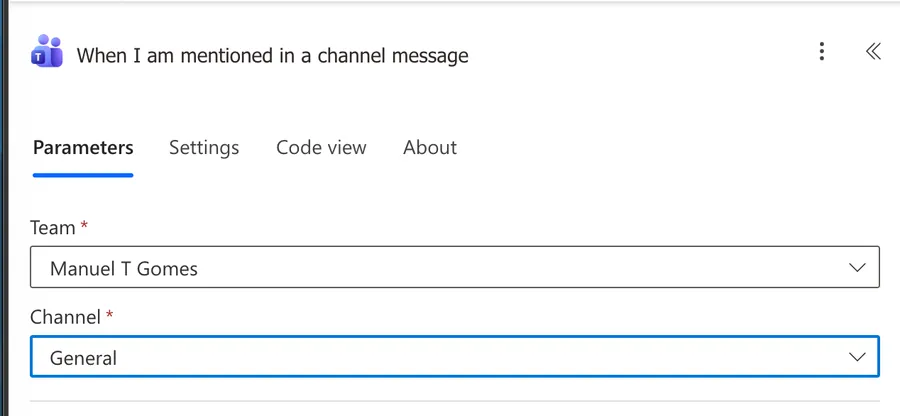
Team
Select the team that owns the channel you want to monitor. The dropdown lists every team your connected account belongs to. If the team you expect is missing, please confirm that the connection is using the account with the right tenant and permissions. There are a few cases where people have multiple users and one of them doesn't have access to the team.
Channel
Once a team is picked, the Channel dropdown shows the channels available inside that team. Pick the one you want to watch. You can only select one channel per trigger, so if you need to listen to several channels, please clone the flow or build separate flows. You can also use the "When I'm @mentioned" trigger, which lets you paste several channel IDs into a single flow.
The trigger uses the connected user's identity, so it only fires for @mentions of that user. If Joana from Porto sets up the flow with her account, only mentions to Joana fire it, even if Tiago from Lisbon is also active in the same channel.
Outputs
The trigger returns a single Teams ChatMessage object describing the message that mentioned you. Here are the most useful fields.
| Field | Type | Description |
|---|---|---|
id |
string | Unique identifier of the message |
body.content |
string | The message content, in HTML or plain text |
body.contentType |
string | Either html or text |
subject |
string | Subject of the message, often empty for channel chat |
importance |
string | One of: normal, high, urgent |
messageType |
string | Type of chat message, usually message |
createdDateTime |
date-time | When the message was posted |
lastModifiedDateTime |
date-time | When the message was last edited |
from.user.id |
string | Azure AD ID of the sender |
from.user.displayName |
string | Display name of the sender |
mentions |
array of object | List of every entity mentioned in the message, including you, other users, channels, or tags |
channelIdentity.channelId |
string | The channel where the message was posted |
channelIdentity.teamId |
string | The team that owns the channel |
When pulling values from optional fields, please use safe navigation, for example triggerOutputs()?['body']?['mentions']. The subject field, in particular, is empty most of the time and will break expressions if accessed without a guard.
The body.content field often arrives as HTML with the mention rendered as an <at id="0">Display Name</at> tag. The matching entry in the mentions array carries the same id, the rendered mentionText, and a mentioned.user.id you can use downstream. If you need the Azure AD ID of the first mentioned user, use triggerOutputs()?['body']?['mentions']?[0]?['mentioned']?['user']?['id'].
If you plan to post the content elsewhere, please convert it with the "html to text" action first.
Non-intuitive behaviors
Here are some behaviors that catch people off guard.
It does not fire on replies
The trigger only listens for root messages in the channel. If someone @mentions you inside a reply to an existing thread, the trigger will not fire, even though the mention is real. This is the single most common surprise people hit, so please plan around it.
It does not fire on edits
If a colleague posts a message without mentioning you and then edits it later to add the @mention, the trigger will not fire. The mention has to be present when the message is first posted.
Polling, not push
This is a polling trigger that checks Teams roughly every three minutes. A mention can take up to that long to surface, so do not rely on it for true real-time scenarios. If you need an instant reaction, please look at adaptive cards or Graph subscriptions instead.
Backlog on re-enable
If the flow is disabled, either manually or because of repeated failures, every mention that arrived while it was off will be processed when you turn it back on. Tiago from Coimbra had a flow that posted a Teams card on every mention, and after three days offline it produced a small avalanche of cards. Please add a date guard if a backlog would cause harm.
@channel and @team are different mentions
This trigger only fires for direct mentions of the connected user. A @channel or @team mention does not count, even though it does notify you in the Teams client. To react to those, please use the "When a new channel message is added" trigger and inspect the mentions array yourself.
Limitations
Here are the constraints to keep in mind.
One channel per trigger
You cannot pick multiple channels in a single trigger. Each flow listens to exactly one channel inside one team.
Root messages only
As covered above, replies do not fire the trigger. There is no toggle to change this.
Shared channels need the host team
For shared channels, the Team parameter must point to the host team, the team that owns the shared channel, not the team you joined to access it. Picking the wrong team is a quiet failure mode, the trigger simply never fires.
Polling frequency
The connector polls every three minutes. Premium licensing does not change this for the Teams connector specifically.
API call ceiling
The connector allows 100 API calls per connection every 60 seconds. Heavy flows that read replies, members, or attachments inside the run can hit this ceiling quickly.
Account scope
The trigger only fires for the connected account's mentions. There is no way to monitor mentions for a different user, even if you have admin rights. If you need that, please look at the Microsoft Graph API instead.
Recommendations
Here are some things to keep in mind.
Use a service account for shared flows
If the flow is meant for a team, please connect it with a dedicated service account that everyone agrees to monitor. Otherwise the flow follows the personal account of whoever set it up, and the moment that person leaves, every mention stops being processed. Please note that this is the user under whose account the flow runs, not the connection to the channel that picks up when "I am mentioned". These are different things, so be aware of them.
Strip the HTML before reusing the content
The message body arrives as HTML with <at> tags around the mention. If you plan to log it, email it, or send it to a SharePoint list, please run it through the "html to text" action first. Raw HTML inside a SharePoint text column rarely looks the way you expect.
Add a trigger condition to filter loops
If your flow posts a Teams reply that mentions the user back, you risk a loop. Please add a trigger condition that checks the sender, for example @not(equals(triggerOutputs()?['body']?['from']?['user']?['id'], 'your-user-id')), so the flow ignores messages it generated itself.
Filter at the trigger, not inside the flow
If you only care about mentions from a specific person, with a specific keyword, or with a certain importance, please add a trigger condition rather than running the flow and using a Condition action to bail out. The flow still consumes a run when a Condition rejects it, but a trigger condition stops the run before it starts. Example, only fire when the message contains the word "deploy", @contains(toLower(triggerOutputs()?['body']?['body']?['content']), 'deploy').
Don't hardcode Team or Channel IDs
Always pick the Team and Channel from the dropdowns, never paste a custom value. Microsoft does not promise that internal IDs are stable across renames, migrations, or platform updates, and a hardcoded ID makes debugging painful since you have to translate it back to a human-readable team. The picker is the safe path.
Be cautious in busy channels
The trigger fires for every message that mentions you, but it is still scoped to the channel as a whole, so a noisy channel will burn through the connector's 100 calls per 60 seconds budget if your flow does any extra reads. If the channel is high traffic, please combine a trigger condition with a lean flow body, and consider moving heavy work to a child flow that only runs when needed.
Name it correctly
Always build the name so others can understand the trigger's purpose without opening it and checking the details.
Always add a comment
Adding a comment will also help avoid mistakes. Indicate what conditions trigger the flow and any assumptions about the data. It's essential to enable faster debugging when something goes wrong.
Triggers side by side
A quick comparison if you are deciding between the two triggers.
| Aspect | When I am @mentioned in a channel message | When I'm @mentioned |
|---|---|---|
| Scope | One specific channel | Chats and channels |
| Multiple targets per trigger | No, one per flow | Yes, by pasting IDs |
| Mechanism | Polling, ~3 minutes | Webhook, near real time |
| Fires on replies | No | Yes |
| Fires on edits | No | No |
| Available in GCC/GCCH/DoD | Yes | No |
| Works for guests | Yes | No |
| Setup | Pick a Team and a Channel | Pick a Message type, then paste chat or channel IDs |
The full reference for the broader trigger lives here.
Your Questions
Can I monitor several channels with a single trigger?
Not with this trigger. The Team and Channel parameters each accept a single value and there is no way to scope it across every channel you belong to. Two paths forward, clone the flow per channel if you only need a handful, or switch to "When I'm @mentioned", which lets you paste several channel IDs into a single trigger. For very broad coverage, the Microsoft Graph API is the cleanest option. See the Triggers side by side section above for the full comparison.
Final Thoughts
The "When I am @mentioned in a channel message" trigger is a fantastic way to cut through channel noise and react only to the messages that name you, but it has clear edges, no replies, no edits, and a three-minute heartbeat. Build with those edges in mind, pair it with a service account when the flow is shared, and you will end up with a quiet, reliable assistant that only speaks up when it should.
Back to the Power Automate Trigger Reference.
Photo by VENUS MAJOR on Unsplash


No comments yet
Be the first to share your thoughts on this article!