
The "When I'm @mentioned" trigger fires whenever someone tags you with an @mention inside a Microsoft Teams chat or channel. It belongs to the Microsoft Teams connector in Power Automate and is the broadest mention trigger available, since a single flow can react to mentions across one-on-one chats, group chats, and channels, all in near real time.
Although Microsoft Teams will notify you, there are times where you can trigger automations or defined processes to do something when this happens. One could be to log those mentions into your todo list so that once you're back from holidays you can check them and see if there's something important for you to process. Another less invasive reason is for when you have super noisy chats or channels where you don't want to have them spamming you all the time, but you want to be notified when something happens. Finally, since we can integrate things, you can have an automation that triggers on an event and sends you a standard @mention notification. Then with another Flow you can trigger a process. The notification serves only for Power Automate to tell you "I found this issue and triggering the other process" for example.
This trigger covers chats and channels and uses a webhook, so it is near real time. Its sibling, "When I am @mentioned in a channel message", is scoped to a single channel and uses polling instead. Please pick the one that matches your scope, the Triggers side by side section at the bottom of this article has the full comparison.
Let's see how it works.
Where to find it?
The easiest way is to search for it as follows:
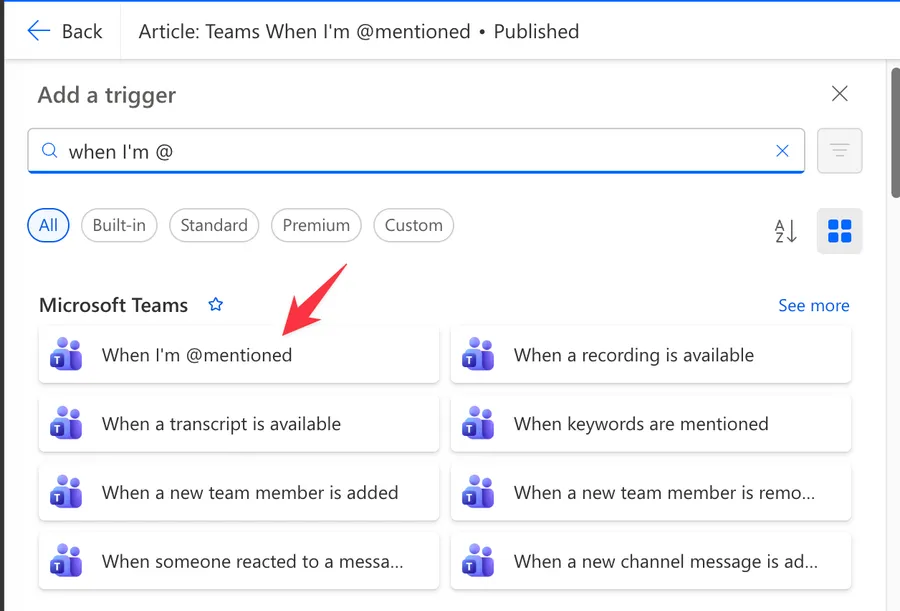
Here's what it looks like.
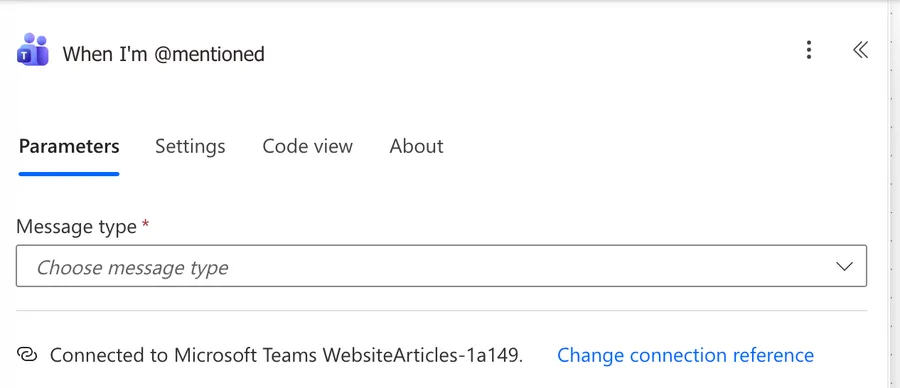
Power Automate tends to save the most common triggers in the main screen, so check there before going through the full hierarchy. Also, you can use the search to find it quickly.
There are 2 potential message types to choose from:
- Channel
- Chat
We'll go over them in the next section, and detail why they are useful.
Usage
The trigger asks you to pick a Message type first, and the rest of the form changes based on that choice.
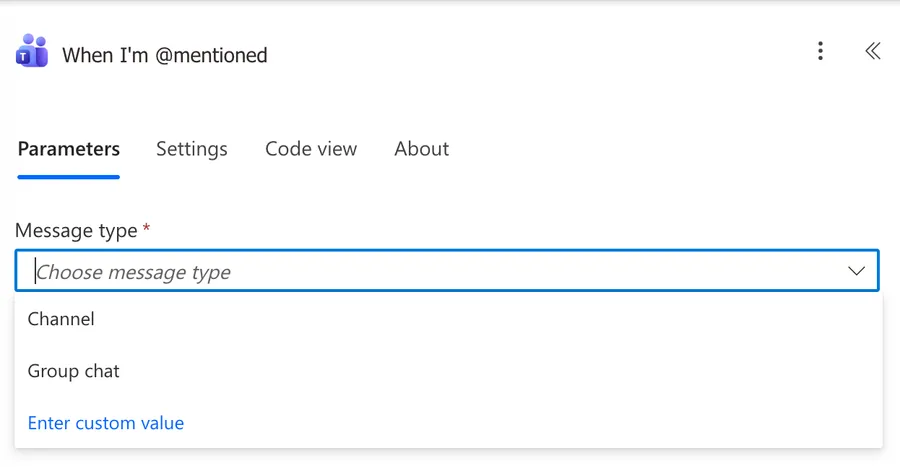
Message type
Pick either Chat or Channel. This decides where the trigger listens, and the next set of fields appears based on what you choose.
Chat option
When you pick Chat, the trigger asks for the chat(s) that you want to pick from.
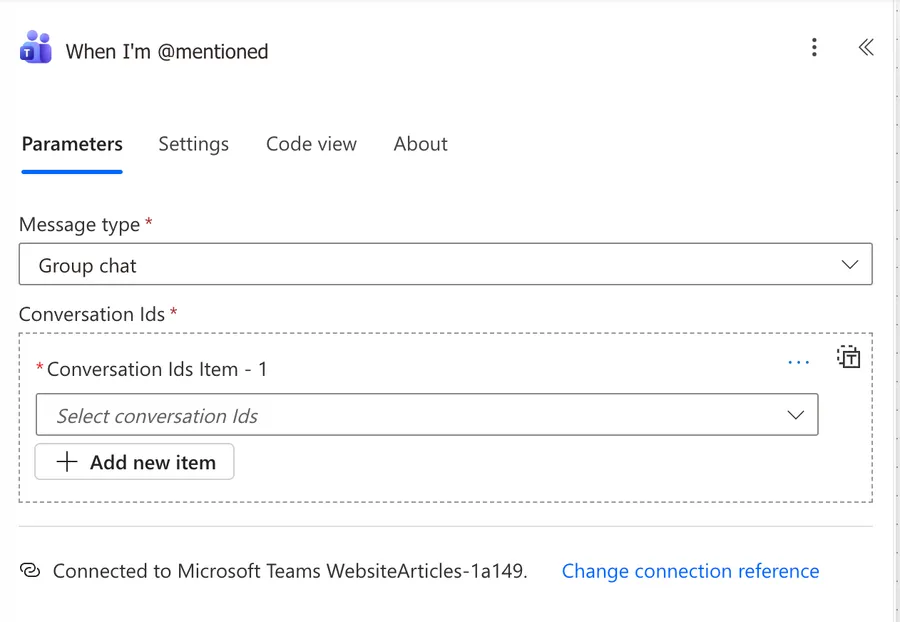
Notice that you don't have a dropdown to select them. This is unfortunate but that's a side effect of how multiple items are represented in Power Automate, so you have to get the conversation ID and paste it in so that Power Automate knows where to listen. You can paste several IDs to monitor multiple chats with a single trigger.
Channel option
When you pick Channel, the trigger asks for a Team and then a Channel inside that team. The flow only fires for @mentions you receive inside that channel.
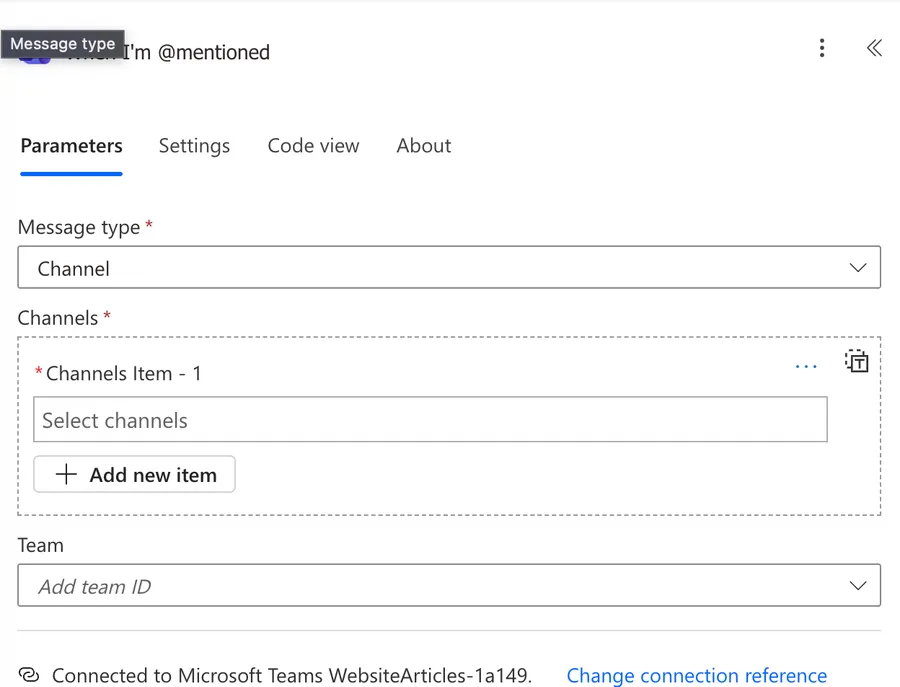
Again as above, the channel needs to be inserted manually but you can have a list of multiple channels to monitor. This is better than the "When I am @mentioned in a channel message" where you can only check one channel at a time.
The trigger uses the connected user's identity, so it only fires for @mentions of that user. If Joana from Porto sets up the flow with her account, only mentions to Joana fire it, even if Tiago from Lisbon is also active in the same chat.
Getting the chat or channel IDs
Because the trigger asks for IDs, and not for a friendly dropdown selection, you need a way to find them. Here are the practical ways for each type, from quickest to most robust.
Method 1, copy the link in the Teams client
This is the fastest way when you only need one or two IDs.
For a channel, click the three dots next to the channel name in the Teams app and select "Get link to channel". You will get a URL like the one below.
https://teams.microsoft.com/l/channel/19%3Axxxxxxxxxxxxxxxxxx%40thread.tacv2/General?groupId=yyyyyyyy-yyyy-yyyy-yyyy-yyyyyyyyyyyy&tenantId=zzzzzzzz-zzzz-zzzz-zzzz-zzzzzzzzzzzz
The Team ID is the value after groupId=. The Channel ID is the encoded portion between /l/channel/ and ?, with %3A decoded back to : and %40 decoded to @, so the final value looks like 19:xxxxxxxxxxxxxxxxxx@thread.tacv2. Private channels sometimes hide this option, in that case please skip to Method 2.
For a chat, hover over any message inside the chat, click the three dots, and select "Copy link". The URL contains the chat ID in the form 19:xxxxxxxxxxxxxxxxxx@thread.v2. The new Teams client occasionally hides this option, especially for 1:1 chats, so the next method is a more reliable fallback.
Method 2, use the List actions in a helper flow
This is the right method when you want several IDs, when the link option is hidden, or when you want the IDs to refresh automatically.
Build a small helper flow with a manual trigger and one of these actions, then run it once and copy the IDs you need.
- For channels, use "List channels". Pick the team in the dropdown, the response is an array with
idanddisplayNamefor every channel you can see. - For chats, use "List chats". The response is an array of every chat the connected account is part of, with
id,topic, and the list of members.
If you want the trigger to follow renames or new channels automatically, you can keep this helper flow alive and store the IDs in a SharePoint list or a Dataverse table, then read them from there at flow design time.
Method 3, the Microsoft Graph API
For tenants where the actions above do not return what you need, for example shared channels owned by another team, the Microsoft Graph API exposes the same IDs through /teams/{team-id}/channels and /me/chats. This is the heaviest option but the only one that covers every edge case.
Once you have the IDs, paste them into the trigger field. For multiple values, follow the input format used by the trigger (see the screenshots in the Chat and Channel sections above). Power Automate treats each entry as a separate target and fans the trigger across all of them.
Outputs
The trigger returns a Teams ChatMessage object describing the message that mentioned you. The exact shape is dynamic, but here are the most useful fields.
| Field | Type | Description |
|---|---|---|
id |
string | Unique identifier of the message |
body.content |
string | The message content, in HTML or plain text |
body.contentType |
string | Either html or text |
subject |
string | Subject of the message, often empty |
importance |
string | One of: normal, high, urgent |
messageType |
string | Type of chat message, usually message |
createdDateTime |
date-time | When the message was posted |
lastModifiedDateTime |
date-time | When the message was last edited |
from.user.id |
string | Azure AD ID of the sender |
from.user.displayName |
string | Display name of the sender |
mentions |
array of object | List of every entity mentioned, including you, other users, channels, or tags |
replyToId |
string | The parent message ID when the message is a reply, otherwise null |
chatId |
string | Identifier of the chat, when the source is a chat |
channelIdentity.channelId |
string | Identifier of the channel, when the source is a channel |
channelIdentity.teamId |
string | Identifier of the team that owns the channel |
webUrl |
string | Direct deep link to the message inside Teams |
When pulling values from optional fields, please use safe navigation, for example triggerOutputs()?['body']?['mentions']. The subject and channelIdentity fields are empty for chat-sourced messages, so they will break expressions if accessed without a guard.
The body.content field often arrives as HTML with the mention rendered as an <at id="0">Display Name</at> tag. The matching entry in the mentions array carries the same id, the rendered mentionText, and a mentioned.user.id you can use downstream. If you need the Azure AD ID of the first mentioned user, use triggerOutputs()?['body']?['mentions']?[0]?['mentioned']?['user']?['id'].
If the message is a reply, replyToId carries the parent message ID and messageType stays as message. Use replyToId when you need to skip replies, for example @equals(triggerOutputs()?['body']?['replyToId'], null) as a trigger condition limits the flow to root posts.
If you plan to post the content elsewhere, please convert it with the "html to text" action first.
Non-intuitive behaviors
Here are some behaviors that catch people off guard.
It is a webhook, so it is near real time
Unlike its channel-only sibling, this trigger is webhook based. Teams pushes the event as soon as the message is posted, so latency is usually a few seconds, not minutes. Please do not assume the same three minute window applies here.
It does fire on replies
If someone @mentions you inside a reply to a thread, this trigger does fire. That is the opposite of the channel-only trigger, which ignores replies. If you only care about top-level posts, please filter inside the flow using messageType or replyToId.
It does not fire on edits
If a colleague posts a message without mentioning you and then edits it later to add the @mention, the trigger will not fire. The mention has to be present when the message is first posted.
@channel and @team mentions do not count
The trigger only fires for direct mentions of the connected user. A @channel or @team mention does not count, even though it does notify you in the Teams client. To react to those, please use the "When a new channel message is added" trigger and inspect the mentions array yourself.
Group chats older than 50 are hidden in the dropdown
The Chat dropdown shows the 50 most recent chats. If the group chat you want to monitor is older than that and has not been touched in a while, it will not appear. Please post a quick message in it to bump it up, or use the chat ID directly via custom value.
Webhook subscriptions can quietly expire
Webhook based triggers depend on a subscription that Teams renews periodically. If the renewal fails, for example because the connection token expired, the flow stops firing without a clear error in the run history. Please check the connections page if mentions stop arriving for no obvious reason.
Group chat triggers can drift after a few hours
Multiple reports in the Power Platform community describe the same pattern when the trigger is pointed at a group chat, the flow fires correctly for the first hour or two and then quietly stops, even though new mentions keep arriving. There is no clean Microsoft fix at the time of writing. The workarounds that have helped people are, save and re-save the trigger to force a fresh webhook subscription, add an explicit trigger condition on chatId so Teams cannot route an unrelated event to the flow, and consider running a heartbeat flow that pings you if no run has happened in a long stretch. If reliability is critical, please combine this trigger with the channel-scoped sibling for the channels you care about.
Limitations
Here are the constraints to keep in mind.
Default environment only
This trigger only works in the default Power Platform environment. If your tenant uses dedicated environments for production flows, please plan for the trigger not being available there and design around it.
No support for guest or external users
The trigger does not fire when a guest or external user @mentions you. If your work involves cross-tenant collaboration, please be aware that those mentions will silently miss the flow.
Government and sovereign clouds
The trigger is not supported in Microsoft Cloud for Sovereignty, GCC, GCC High, or DoD environments. If you operate in any of those clouds, please use the channel-scoped trigger or the Microsoft Graph API instead.
No wildcard or "all my chats" option
You can monitor several chats or channels by pasting their IDs into the trigger, see the Usage section, but there is still no wildcard. If a new chat or channel is created after the flow is saved, it will not be picked up automatically. For a true "everything I get" feed, please use the Microsoft Graph API instead.
API call ceiling
The Teams connector allows 100 API calls per connection every 60 seconds. Heavy flows that read replies, members, or attachments inside the run can hit this ceiling quickly.
Account scope
The trigger only fires for the connected account's mentions. There is no way to monitor mentions for a different user, even if you have admin rights. If you need that, please look at the Microsoft Graph API instead.
Recommendations
Here are some things to keep in mind.
Pick the right sibling for the job
If you only care about one channel and you are happy with a few minutes of latency, the channel-scoped trigger is the simpler choice and easier to reason about. Use this trigger when you need chat coverage, real-time delivery, or you want to monitor several chats or channels from a single flow. Mixing the two on the same channel will produce duplicate runs.
Use a service account for shared flows
If the flow is meant for a team, please connect it with a dedicated service account that everyone agrees to monitor. Otherwise the flow follows the personal account of whoever set it up, and the moment that person leaves, every mention stops being processed.
Strip the HTML before reusing the content
The message body arrives as HTML with <at> tags around the mention. If you plan to log it, email it, or send it to a SharePoint list, please run it through the "html to text" action first. Raw HTML inside a SharePoint text column rarely looks the way you expect.
Add a trigger condition to filter loops
If your flow posts a Teams reply that mentions the user back, you risk a loop. Tiago from Coimbra had a flow that thanked the sender after each mention, and it ended up thanking itself in a thread that grew until he killed the flow. Please add a trigger condition that checks the sender, for example @not(equals(triggerOutputs()?['body']?['from']?['user']?['id'], 'your-user-id')), so the flow ignores messages it generated itself.
Filter at the trigger, not inside the flow
If you only care about mentions from a specific person, with a specific keyword, or in a specific chat, please add a trigger condition rather than running the flow and using a Condition action to bail out. The flow still consumes a run when a Condition rejects it, but a trigger condition stops the run before it starts. Example, only fire when the message contains the word "deploy", @contains(toLower(triggerOutputs()?['body']?['body']?['content']), 'deploy'). If you also want to skip replies, combine it with @equals(triggerOutputs()?['body']?['replyToId'], null).
Get IDs dynamically when you need to paste them
Because the Chat option, and any multi-channel setup, requires you to paste IDs, please pull them from a dynamic source rather than copying them once and forgetting. The "List chats" and "List channels" actions in the same connector return the IDs you need, and a small upstream flow that refreshes them avoids surprises when a chat is renamed or a channel is migrated. Microsoft does not promise that internal IDs are stable across all platform updates, so a hardcoded value is a quiet time bomb.
Watch the connections page
Because this is a webhook trigger, a broken connection silently stops new runs without showing failures in the run history. Please add a calendar reminder to check the connection every couple of weeks, or build a heartbeat flow that pings you if no run has happened in a long time.
Name it correctly
Always build the name so others can understand the trigger's purpose without opening it and checking the details.
Always add a comment
Adding a comment will also help avoid mistakes. Indicate what conditions trigger the flow and any assumptions about the data. It's essential to enable faster debugging when something goes wrong.
Triggers side by side
A quick comparison if you are deciding between the two triggers.
| Aspect | When I'm @mentioned | When I am @mentioned in a channel message |
|---|---|---|
| Scope | Chats and channels | One specific channel |
| Multiple targets per trigger | Yes, by pasting IDs | No, one per flow |
| Mechanism | Webhook, near real time | Polling, ~3 minutes |
| Fires on replies | Yes | No |
| Fires on edits | No | No |
| Available in GCC/GCCH/DoD | No | Yes |
| Works for guests | No | Yes |
| Setup | Pick a Message type, then paste chat or channel IDs | Pick a Team and a Channel |
The full reference for the channel-scoped trigger lives here.
Final Thoughts
The "When I'm @mentioned" trigger is the most flexible mention trigger in the Teams connector, and the only one that catches mentions inside chats. The trade-off is that it lives in the default environment only, ignores guests, and quietly relies on a webhook that you should keep an eye on. Use it when reach matters, lean on the channel-scoped sibling when scope and reliability matter more, and you will rarely have to think about Teams mentions again.
Back to the Power Automate Trigger Reference.



No comments yet
Be the first to share your thoughts on this article!