
Meetings are a part of life, unfortunately, and that's something that we can live with. But how we deal with them is something within our control. There are a lot of tasks that can be automated when you receive a meeting invitation like:
- Automatically decline if you're busy or focused on a project.
- Automatically accept for the few people that you know that book a meeting is for the right reasons.
- Create a to-do task to analyze the meeting notes.
- Reject a meeting that doesn't have meeting notes (I've done this in the past and a lot of people didn't like it).
- Create an automatic meeting in another calendar.
But it all needs a trigger and that's why the "When a new event is created" trigger exists. It triggers a Flow in Power Automate that will then do what you need.
Let's take a look at how it works, limitations, and best practices.
This article covers the V3 version of the trigger (operation ID: CalendarGetOnNewItemsV3), which uses Microsoft Graph as its backend. Earlier versions (V1 and V2) used the now-deprecated Outlook REST API. If you're creating a new Flow, you'll automatically get V3. If you have older Flows using V2, consider updating them to V3 since Microsoft recommends migrating away from the deprecated API.
Where to find it?
To find this trigger, you can search for "Office 365 Outlook" or navigate through the connectors list, but I always recommend searching for it. It's faster, and you can usually find it quickly.
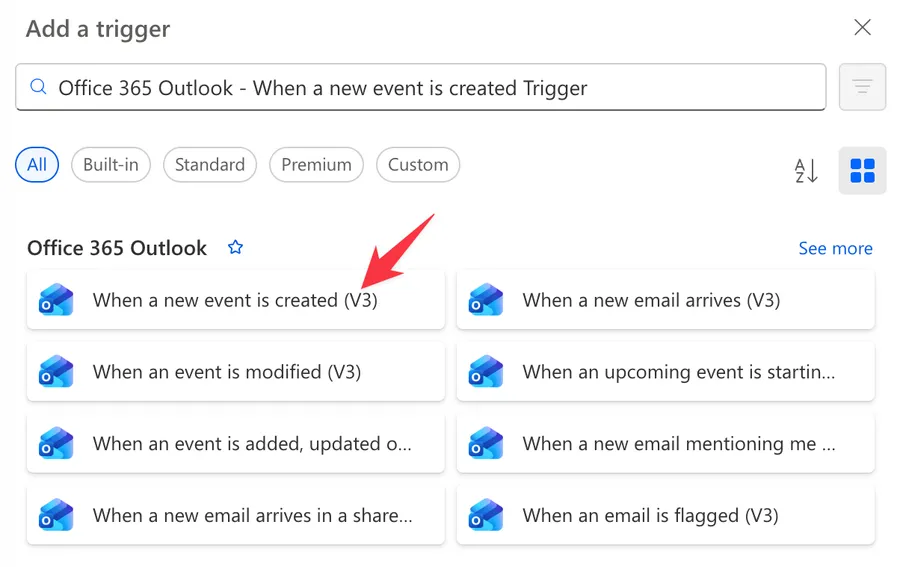
Be careful not to select the "Outlook" version. This is your "hotmail" and "outlook.com" account, not your corporate one.
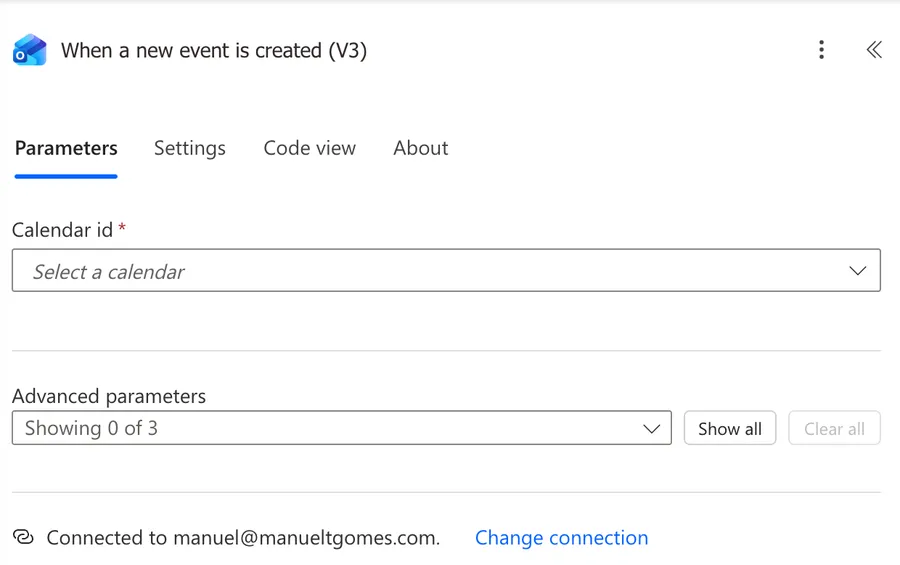
Here's what it looks like when selected:
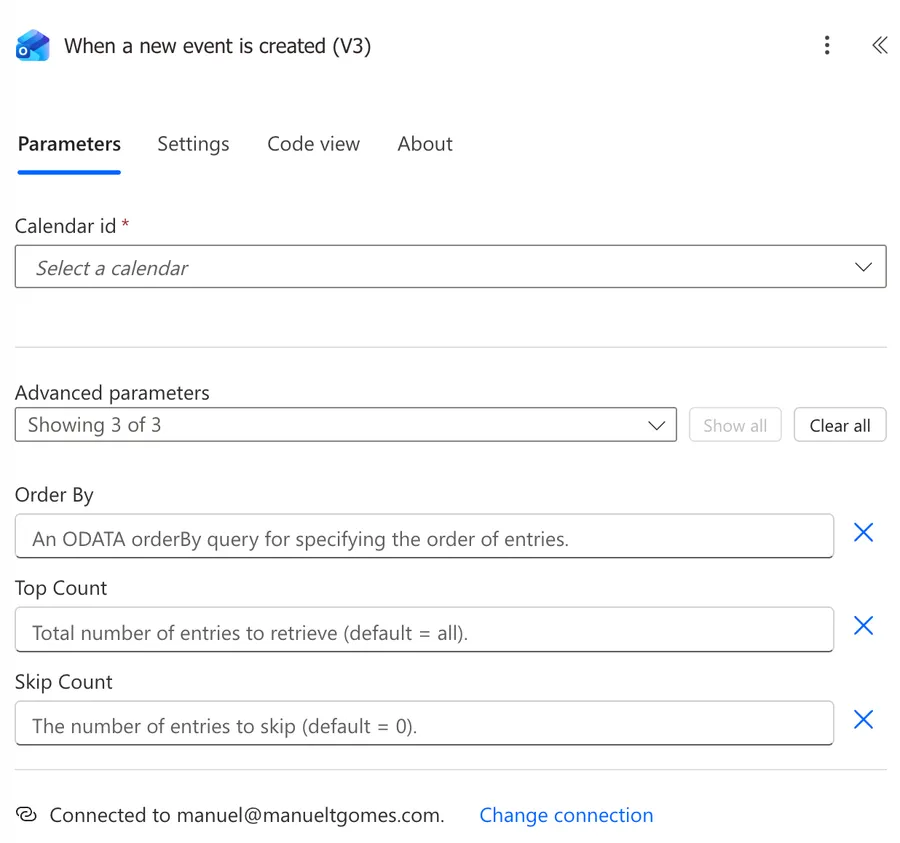
And here are the additional fields that we can choose from:
Now that we know how to find it, let's understand how to use it.
Usage
The "When a new event is created" trigger monitors a calendar and starts your Flow whenever someone creates a new event. Let's look at how to configure it and what information it provides.
Basic configuration
The trigger requires only one setting: selecting which calendar to monitor.
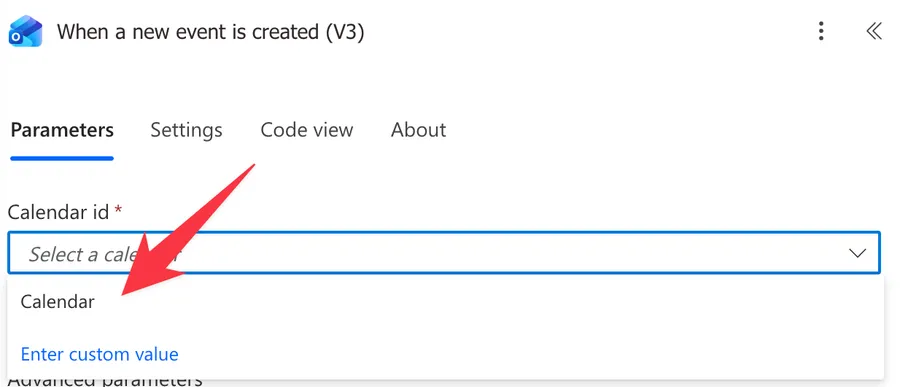
This dropdown shows all calendars you have access to. By default, it shows your primary calendar ("Calendar"), but you may also see:
- Calendars you've created (like "Personal" or "Work Projects")
- Calendars shared with you (if you have edit permissions)
- Group calendars from Microsoft 365 Groups you belong to
If you don't see a calendar you expect, check your permissions. You need at least "Can edit" access for the calendar to appear in this dropdown. Room mailboxes and resource calendars typically won't appear here - we'll cover workarounds in the Limitations section.
Also important to say that the "Calendar Id" is misleading since you're not providing an Id, but selecting one calendar from a dropdown. Internally it will be translated to an ID that the API can work with, but important to make this clear.
Converting times from UTC
Since Start time and End time are always returned in UTC (Coordinated Universal Time), you'll almost always need to convert them to your local time zone. UTC is the global time standard - it doesn't adjust for daylight saving time. For example, if you're in New York (Eastern Time), UTC might be 5 hours ahead of your local time.
Add a "Convert Time Zone" action immediately after the trigger:
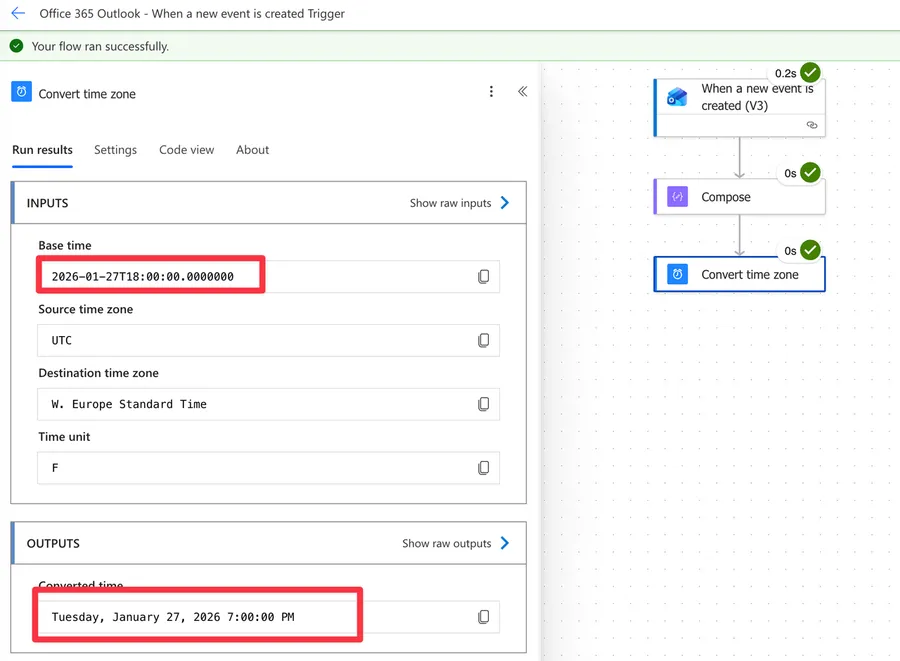
Configure it like this:
- Base time: Select "Start time" from dynamic content
- Source time zone:
(UTC) Coordinated Universal Time - Destination time zone: Select your local time zone (e.g.,
Eastern Standard Time)
Convert both Start time and End time right after the trigger and store them in variables using the "Initialize variable" action. This makes them easier to use throughout your Flow without repeating the conversion.
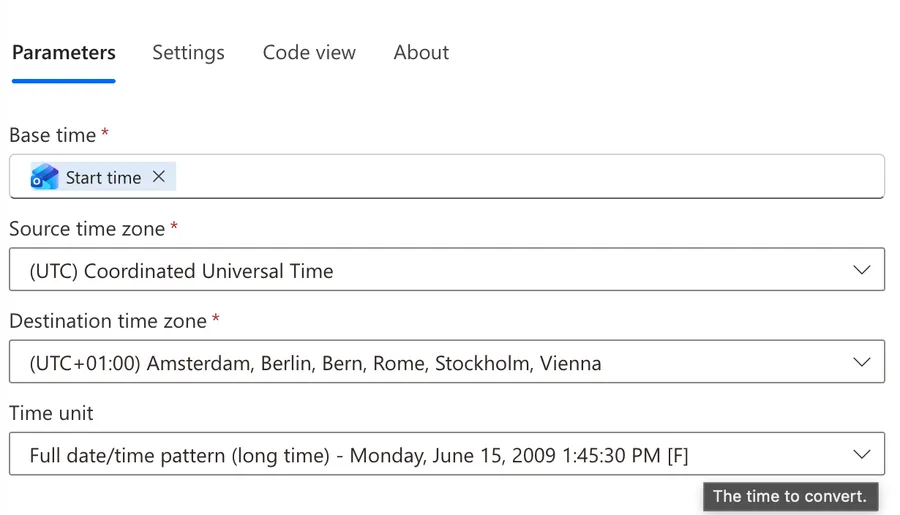
If you need to format the date for display (like "Monday, January 28"), use the "formatDateTime" function after converting, if the option that you need doesn't exist in the dropdown of the "Convert Time Zone" action (the "Time unit" in the screenshot).
Outputs
Let's create a test calendar event and see what we get. In the screenshot you'll see a "Compose" action that contains the raw outputs of the trigger.
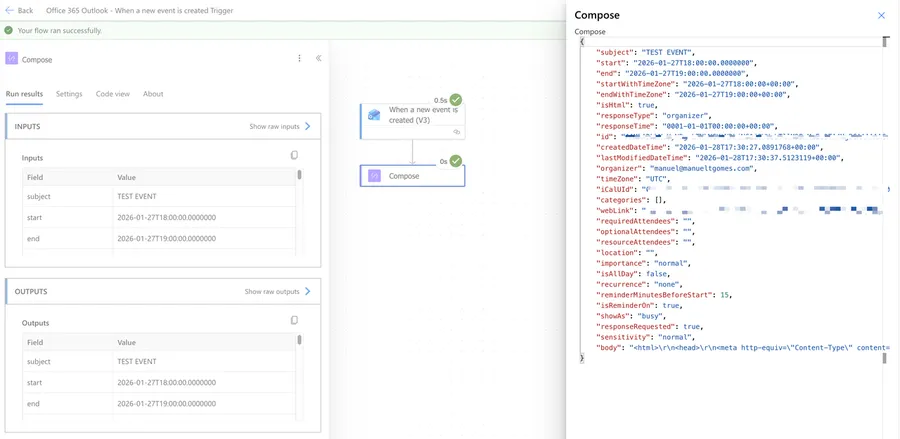
Here are the key outputs and what they mean:
| Output | Description | Example Value |
|---|---|---|
| Id | Unique identifier for this event. You'll need this if you want to update or delete the event later. | AAMkAGI2... |
| Subject | The title of the calendar event - what you see in your calendar view. | TEST EVENT |
| Start time | When the event begins. This is always in UTC, not your timezone, so be careful not to get confused. | 2026-01-27T18:00:00+00:00 |
| End time | When the event ends (same UTC caveat as above). | 2026-01-27T19:00:00+00:00 |
| Start time with time zone | Start time paired with the time zone that was set when creating the event. | 2026-01-27T18:00:00 + UTC |
| End time with time zone | End time paired with the event's time zone. | 2026-01-27T19:00:00 + UTC |
| Time zone | The time zone that was set when creating the event. This will depend on your configurations. | UTC |
| Body | The description or notes for the event. Can contain HTML formatting. | <html><body>Agenda: 1. Review...</body></html> |
| Is HTML | Indicates whether the body content is HTML or plain text. | true or false |
| Is all day event | A true/false value indicating if this is an all-day event. | true or false |
| Importance | The priority level set on the event. | low, normal, or high |
| Sensitivity | The privacy level of the event. Useful for filtering out private meetings. | normal, personal, private, or confidential |
| Show as | How this event appears on your calendar (your availability status). | free, tentative, busy, oof, workingElsewhere, or unknown |
| Response type | Your response status to this event. This is crucial for filtering - more on this below. | none, organizer, accepted, declined, tentativelyAccepted, or notResponded |
| Response time | Timestamp of when you responded to the event. | 2026-01-27T18:30:00Z |
| Response requested | Whether the organizer wants attendees to respond. | true or false |
| Organizer | The email address of the person who created the meeting. | manuel@manueltgomes.com |
| Required attendees | People who must attend the meeting. | not-me@manueltgomes.com |
| Optional attendees | People who are optional for the meeting. | wont-show-up@manueltgomes.com |
| Resource attendees | Resources (rooms, equipment) attached to the event. Separate from required/optional attendees. | room101@company.com |
| Location | The event location (display name and address details). | Conference Room A |
| Recurrence | Whether this is a repeating event and how often. | none, daily, weekly, monthly, or yearly |
| Series master ID | For recurring events, the ID of the master series. Useful for grouping occurrences together. | AAMkAGI2... |
| Categories | Outlook categories assigned to the event. Useful for filtering events by category. | Blue category, Work |
| Reminder minutes before start | How many minutes before the event you'll be reminded. | 15 |
| Is reminder on | Whether the reminder is enabled for this event. | true or false |
| Web link | URL to open this event directly in Outlook on the web. | https://outlook.office365.com/... |
| iCalUId | A universal calendar identifier that stays consistent across calendars. Different from the event Id. | 040000008200... |
| Created time | When the event was originally created. | 2026-01-27T17:55:00Z |
| Last modified time | When the event was last changed. Useful for detecting updates. | 2026-01-27T18:01:00Z |
Not all outputs appear in the dynamic content picker by default. Some may require you to use an expression like triggerOutputs()?['body/propertyName'] to access them. Also, the iCalUId can be null in some edge cases, so always use safe navigation (?) when accessing it.
Understanding Response type values
The Response type output deserves special attention because it's key to filtering events:
- none - No response. Typically for self-created events without attendees or unsynced events.
- organizer - You are the organizer of the event.
- tentativelyAccepted - You tentatively accepted the invitation.
- accepted - You accepted the invitation.
- declined - You declined the invitation.
- notResponded - You haven't responded yet.
This is especially useful for the duplicate trigger issue covered in Non-intuitive behaviors below.
Non-intuitive behaviors
This trigger has some behaviors that can catch you off guard and could be huge issues if you're not aware of them.
Times are always in UTC
We covered this in Usage, but it bears repeating: Start time and End time are always returned in UTC, regardless of what time zone the event was created in. If you use these values directly without converting, your notifications, comparisons, or logs will show the wrong time.
For example, a meeting at 2:00 PM Eastern Time will show as 2026-01-28T19:00:00Z (7:00 PM UTC) in the trigger outputs.
Always use the "Convert Time Zone" action, otherwise the dates you'll use may be wrong.
Polling delay - not instant
This is a polling trigger, not a webhook. That means Power Automate periodically checks your calendar for new events rather than being notified instantly when one is created.
How often it polls depends on your license:
- Free plan: Every 15 minutes
- Office 365 / Dynamics 365 plans: Every 5 minutes minimum
- Premium / paid plans: Every 1 minute minimum
Most of the time, the trigger fires within a few minutes. However, in rare cases (high system load, throttling, or service issues), it can take longer.
If you need truly real-time notifications, be aware of this limitation. For most automation scenarios, a few minutes delay is acceptable.
No built-in filtering options
Unlike the email trigger which lets you filter by subject, sender, importance, etc., this calendar trigger has no built-in filters. It fires for every new event in the selected calendar.
You'll need to add your own filtering using a "Condition" action after the trigger to filter out the ones you don't want to act upon.
The trigger may fire twice when accepting meeting invitations
This behavior is documented in Microsoft's official connector documentation and reported by users in the Power Platform Community. However, I was unable to replicate this issue in my environment. It may have been fixed, or it might only occur under specific circumstances (certain Outlook clients, tenant configurations, or older trigger versions). I'm including it here so you're aware, but your experience may vary.
According to the documentation, here's what can happen:
- Someone sends you a meeting invitation
- The trigger fires (the invitation appears in your calendar as a tentative event)
- You click "Accept"
- The trigger fires again
The reason given is that when you accept a meeting, Outlook doesn't just update the existing event - it essentially recreates it. The event gets a new internal ID and a new "created" timestamp, so Power Automate sees this as a brand new event.
If you experience this issue, filter by Response Type. Add a "Condition" action right after the trigger to check the response type, or use a trigger condition to prevent the Flow from running at all. Click the three dots on the trigger, then Settings, then Trigger Conditions, and add:
@equals(triggerOutputs()?['body/responseType'], 'organizer')
This expression uses the "equals" function to check if you're the organizer. With this condition, the Flow only runs for events YOU create, not for meeting invitations.
The trigger may fire twice when editing during event creation
This is another documented behavior that I couldn't replicate. According to community reports, the trigger can fire twice if you:
- Start creating a new event
- Type a subject
- Change the start or end time
- The trigger fires
- Save the event
- The trigger fires again
The explanation is that Outlook auto-saves as you edit, and Power Automate may detect multiple "new" events during this process. If you encounter this, the same Response Type filter mentioned above should help.
Trigger conditions may not work without Split On
If you add a trigger condition and it doesn't seem to filter anything, check your Split On setting. In the new Power Automate designer, Split On can be disabled by default. When it's off, trigger conditions may fail silently.
To fix this: go to trigger Settings, enable Split On, and select the appropriate array parameter. After that, your trigger conditions should work as expected.
Resource calendar shows the wrong organizer
If you're monitoring a room or resource calendar, the trigger always identifies the calendar owner as the event organizer, not the person who actually booked the resource. Microsoft has confirmed this is "working as designed."
If you need to know who actually booked the room, you'll need to query the Microsoft Graph API directly for the actual creator information - the trigger output alone won't give you this.
Infinite loops when your Flow creates events
If your Flow creates or modifies calendar events using the same connection, it will re-trigger itself, creating an infinite loop. This can consume your Flow run quota quickly.
Solution: Add a marker to events your Flow creates and filter them out:
- When creating events, add a prefix like "[AUTO]" to the subject
- Add a trigger condition:
@not(contains(triggerOutputs()?['body/subject'], '[AUTO]'))
Alternatively, use a dedicated service account for the Flow's actions (different from the trigger connection) so the Flow's changes don't trigger itself.
Some event properties may be null
Some event properties are optional and might not be present. For example, an event might not have optional attendees, or the body might be empty. If you try to access a property that doesn't exist, your Flow will fail with a "The property 'X' does not exist" error.
Use the "coalesce" function to provide a default value:
coalesce(triggerOutputs()?['body/optionalAttendees'], '')
This expression returns the optional attendees if they exist, or an empty string if they don't. The "coalesce" function takes multiple values and returns the first one that isn't null.
Limitations
Here are the constraints you'll encounter with this trigger.
Standard connector - no premium license needed
The Office 365 Outlook connector is a standard connector, included with any Microsoft 365 subscription. You don't need a separate Power Automate license to use this trigger, as long as your Flow only uses standard connectors. If you combine it with premium connectors, the Flow owner needs a Premium license.
Only calendars you own appear in the dropdown
The calendar dropdown only shows calendars where you are the owner or have been granted edit permissions directly. This means:
- Room mailboxes (conference rooms) won't appear
- Resource mailboxes (equipment, vehicles) won't appear
- Other users' personal calendars won't appear unless explicitly shared with you
For shared calendars to appear, the calendar must be shared with "Can edit" permissions and added to your Outlook on the web (OWA) calendar list.
A potential workaround: if you have full access to a shared mailbox (like a room resource), you can try using a service account that owns that mailbox to create the Flow.
One calendar per trigger
Each trigger can only monitor a single calendar. If you need to monitor multiple calendars, you have two options:
- Create separate Flows for each calendar
- Use the "When an event is added, updated or deleted" trigger which offers more flexibility (though it's more complex to handle)
REST API must be enabled
This trigger requires Office 365 mailboxes with the REST API enabled. Accounts on dedicated or on-premise Exchange servers, as well as sandbox accounts, may not work. If your organization uses EWS Application Access Policies, the following user-agents must be allowed: LogicAppsDesigner, azure-logic-apps, PowerApps, Microsoft Flow, PowerAutomateLocal, PowerAutomateCloud.
Conditional Access policies can block the trigger
If your organization has Conditional Access policies configured, they can block the connector from running. You'll see an AADSTS53003 error in your Flow run history. Work with your IT admin to ensure the Power Automate service is allowed through your policies.
Deleted events before processing
If someone creates an event and then quickly deletes it before Power Automate processes the trigger, your Flow won't run. This is rare given the polling interval, but possible.
No access to attachment contents
While you can see if an event has attachments (through the body or other indicators), this trigger doesn't directly provide attachment content like the email triggers do. You'd need additional actions to retrieve any files attached to calendar events. Note that only file attachments are supported - item attachments (email messages, calendar items attached to events) are not supported by the connector.
Flow auto-suspension
A Flow without any trigger activity for 90 days may be automatically turned off by Power Automate. Additionally, Flows with consistent errors are turned off after 14 days, and Flows that are consistently throttled are also turned off after 14 days. Keep this in mind for automations on calendars with infrequent events.
Government cloud availability
The Office 365 Outlook connector supports GCC and GCC High environments, but some features may have limited availability. If you're deploying in a government cloud environment, verify compatibility with your specific tenant configuration.
Recommendations
Here are some things to keep in mind to build reliable calendar automations.
Always convert time zones first
Make the "Convert Time Zone" action your first step after the trigger. Convert both Start time and End time immediately, and store them in variables using "Initialize variable" action. This prevents time-related bugs throughout your Flow.
Consider using trigger conditions to prevent duplicates
If you experience the duplicate trigger issue mentioned in Non-intuitive behaviors (where the Flow runs twice for accepted meetings), use a trigger condition to filter by Response Type:
@equals(triggerOutputs()?['body/responseType'], 'organizer')
This prevents the Flow from running for meeting invitations altogether. Learn more about limiting triggers.
Prevent infinite loops with markers
If your Flow creates calendar events, always add a recognizable marker (like "[AUTO]" or "[FLOW]" in the subject) and filter these out in your trigger condition. Infinite loops can consume your Flow quota quickly and are frustrating to debug.
Test with different event types
Before deploying, test your Flow with:
- Regular events: Events you create yourself
- Meeting invitations: Events someone else invites you to
- All-day events: These behave slightly differently
- Recurring events: A weekly meeting, for example
- Events with and without attendees
Each type might produce different output values.
Handle errors gracefully
Calendar data can be unpredictable - empty fields, unexpected formats, or missing properties. Wrap your critical actions in a "Scope" action and use the Try, Catch, Finally pattern to handle failures gracefully.
At minimum, have your Flow notify you when something fails rather than failing silently.
Name it correctly
Always build the name so others can understand the trigger's purpose without opening it and checking the details. Don't leave the trigger with its default name. Rename it to something like:
- "When new event in Marketing Calendar"
- "When meeting created on Room 101"
This helps when you have multiple Flows or when someone else needs to maintain your work.
Always add a comment
Adding a comment will also help avoid mistakes. Indicate what conditions trigger the Flow and any assumptions about the data. It's essential to enable faster debugging when something goes wrong.
Document your trigger, especially if you've added trigger conditions. Since trigger conditions are hidden in Settings, anyone looking at your Flow won't know why it "isn't working" for certain events.
Include:
- What events you expect to process
- Any trigger conditions you've set
- Why those conditions exist
Final Thoughts
The "When a new event is created" trigger is a straightforward way to automate around your calendar, but the gotchas around UTC times and potential duplicate triggers are worth understanding before you deploy. Take the time to convert time zones immediately, add proper trigger conditions, and test with different event types. Once you've got those basics covered, you'll have a reliable automation that saves you time every day.
Back to the Power Automate Trigger Reference.
Photo by Jakob Dalbjorn on Unsplash


No comments yet
Be the first to share your thoughts on this article!