
Sooner or later, every canvas app needs to fetch one specific record. Not a list, not a page of results, just the one row that matters, like the profile of the person signed in or the order behind a confirmation screen. In Power Apps, that job belongs to the "LookUp" function.
"LookUp" completes a famous trio. The "Filter" function returns every record that matches a condition, the "Search" function finds a string anywhere in a set of columns, and "LookUp" returns the first record that satisfies a formula. Let's see how it works and, just as important, how it behaves with large data sources.
Where to find it?
You write "LookUp" in the formula bar in Power Apps Studio. It's a data-flow function, not a behavior function, so you can use it in any property: a Label's Text, a control's Default, a Visible property, or inside a behavior formula in a Button's OnSelect. The one place it rarely belongs is a Gallery's Items, since a Gallery wants a table and "LookUp" returns a single record. We'll see that contrast in the examples below.
The "Filter" function returns a table with all the records that match the condition. "LookUp" returns only the first matching record. If you expect one result, use "LookUp". If you expect many, use "Filter".
Usage
It follows a simple pattern.
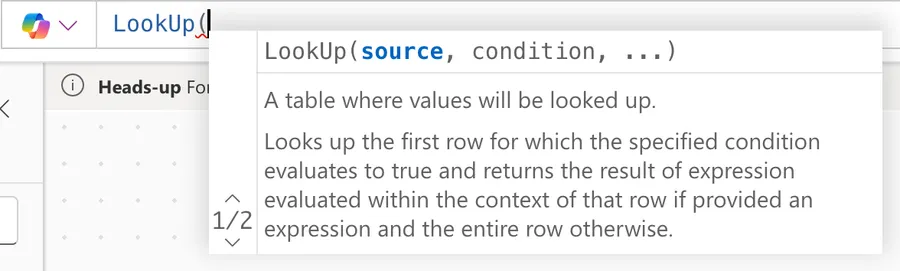
LookUp( Table, Formula [, ReductionFormula ] )
| Parameter | Required | Type | Description |
|---|---|---|---|
| Table | Yes | Table | The table or data source to search. |
| Formula | Yes | Formula | Evaluated for each record. The first record that returns true is the one you get back. |
| ReductionFormula | No | Formula | Evaluated over the record that was found, reducing it to a single value. If you omit it, you get the whole record instead. |
The two-argument form returns the whole record
With two arguments, "LookUp" hands you the full record, and you can pull out the columns you need with dot notation.
LookUp( Customers, Email = "maria@manueltgomes.com" )

// Returns: { Name: "Maria Silva", Email: "maria@manueltgomes.com", Phone: "912 345 678" }
LookUp( Customers, Email = "maria@manueltgomes.com" ).Phone

// Returns: "912 345 678"
The three-argument form returns a single value
The reduction formula runs over the record that was found and reduces it to one value. It can be a column name or a small calculation over that record's columns.
LookUp( Customers, Email = "maria@manueltgomes.com", Phone )

// Returns: "912 345 678"
LookUp( Orders, OrderID = 1042, Quantity * UnitPrice )

// Returns: 149.5
No match returns blank
When no record satisfies the condition, "LookUp" returns blank instead of raising an error. Check the result with the "IsBlank" function before you rely on it.
If( IsBlank( LookUp( Customers, Email = txtEmail.Text ) ), "No customer found", "Customer exists" )

// Returns: "No customer found" when the email doesn't exist in Customers
Real-world examples
Show the signed-in user's details
A classic welcome screen. Put this in a Label's Text property to greet the person by the department stored in your Employees list.
// Fetch the department of the signed-in user
LookUp( Employees, Email = User().Email, Department )

// Returns: "Finance" for joao@manueltgomes.com
A Gallery's Items vs a Label's Text
Here's the trio working together. The Gallery shows the many, the Label shows the one. Set the Gallery's Items to a "Filter" function formula and let "LookUp" feed the detail Label.
// galOrders.Items: all orders for the selected customer
Filter( Orders, CustomerID = galCustomers.Selected.ID )

// lblLastInvoice.Text: one specific value from one specific record
LookUp( Invoices, InvoiceID = galOrders.Selected.InvoiceID, Total )
Stop duplicates before they happen
Before creating a record, check if it already exists. Set a Save Button's DisplayMode so it disables itself when the email is already registered.
// Disable the save button when the email already exists
If( IsBlank( LookUp( Customers, Email = txtEmail.Text ) ), DisplayMode.Edit, DisplayMode.Disabled )
Non-intuitive behaviors
"First" means the data source's order, not yours
"LookUp" doesn't sort anything. The "first" matching record is the first one the data source happens to return, and you can't pass a sort order to the function. If more than one record can match, either tighten the condition until it identifies a single record (an ID column is perfect for this) or accept that the result may not be the one you expected.
Extra matches are silently ignored
If five records match, you get one and hear nothing about the other four. There's no warning, no error. This is by design, but it hides data problems like duplicated keys. The duplicate check example above exists precisely because "LookUp" won't complain for you.
Dot notation on a blank result doesn't error
LookUp( Customers, Email = "rui@manueltgomes.com" ).Phone returns blank when there's no match, instead of crashing the app. That's convenient, but the blank quietly flows into labels, variables, and "Patch" calls. Use the "IsBlank" function at the point where an empty result actually matters.
Delegation
Good news first: "LookUp" is delegable for the major data sources, including Dataverse, SharePoint, SQL Server, and Salesforce. The condition you write as the second argument is what makes or breaks it. Stick to delegable operators and functions inside it: =, <>, the comparison operators, And/Or, the in operator, and functions like "StartsWith" and "EndsWith". Each data source has its own quirks. SharePoint, for example, only delegates = on text columns and on the ID column, and won't delegate Not.
The reduction formula (the third argument) deserves its own note. It only runs over the single record that was already found, so keep it simple, ideally a plain column reference. The heavy lifting, and the delegation risk, lives entirely in the condition.
If your condition is not delegable for your data source, Power Apps only evaluates the first 500 records (up to 2,000 if you raise the limit). On larger data sets, "LookUp" may return blank for a record that exists, with no error to warn you.
For the why and the workarounds, see my article on delegation and the delegable functions reference table.
Limitations
One record only
"LookUp" never returns more than one record. If you need all the matches, that's the "Filter" function's job, and no amount of clever conditions will change that.
Two lookup levels per query
A single query expression supports a maximum of two "LookUp" functions when expanding related records (one level only for offline scenarios). If you find yourself nesting deeper, restructure the data or stage intermediate results in variables.
Put the column on the left side of the comparison
When comparing a column against another expression, write the column on the left: 'Business Unit'.Name = LookUp( ... ).Name works, while the reversed order may fail to evaluate. Microsoft documents this left-hand-side requirement explicitly.
Localization
Power Fx formulas change with the author's regional settings. With comma-based settings the argument separator is a comma; with semicolon-based settings, such as Portugal's, it's a semicolon. If you copy a formula from this article and it errors immediately, this is the first thing to check.
// Comma-based regional settings
LookUp( Customers, Email = "maria@manueltgomes.com", Phone )

// Semicolon-based regional settings (for example, Portugal)
LookUp( Customers; Email = "maria@manueltgomes.com"; Phone )
Recommendations
Here are some things to keep in mind.
Make the condition uniquely identifying
Since "LookUp" returns the first match and ignores the rest, build conditions on columns that identify exactly one record, like an ID or an email. A condition on a first name will work in tests and betray you in production.
Guard against blank results
Every "LookUp" can come back blank. Decide what your app should do in that case and make it explicit with the "IsBlank" function or the "If" function with a fallback value. A label showing nothing is confusing; a label showing "No customer found" is helpful.
Keep the reduction formula simple
A plain column name as the third argument is easy to read and easy to debug. If you need calculations over several columns, fetch the whole record into a variable first and compute from there.
// Fetch once, reuse many times
Set( varCustomer, LookUp( Customers, Email = txtEmail.Text ) )
Always add a comment
Adding a comment will help others understand your formula. Indicate what the function is doing and why, especially if the expression is complex.
// Find the customer by email; blank means they're not registered yet
LookUp( Customers, Email = txtEmail.Text )
Final Thoughts
"LookUp" is the function you reach for when one record is all you need: the first match comes back as a full record or as a single reduced value, and a miss comes back as a friendly blank. Keep the condition delegable and uniquely identifying, guard the blank, and it will serve you on every screen of your app.
Sources
- Filter, Search, and LookUp functions on Microsoft Learn
- Function reference for Power Apps (Power Fx) on Microsoft Learn
- Understand delegation in a canvas app on Microsoft Learn
Back to the Power Apps Function Reference
Photo by Daniel Lerman on Unsplash


No comments yet
Be the first to share your thoughts on this article!