
Did you know that forms can have pre-filled fields?
You can configure them before you send the link to the form so that each person receives the form with different information.
It's quite easy to do and Microsoft Forms even helps you to do it properly.
Here's how to do it, but first, why do it at all?
Why do it?
If you already have a use case you can skip forward, but if you're curious why you should even consider this, let me give you some ideas.
Speed things up
The first thing that comes to mind is that you want to pre-fill with the information regarding the person so that they don't need to do it. For example, if the form is to track a specific product or order, and has an "Order ID", having that filled-in automatically would be great. It would save the person a bit of time.
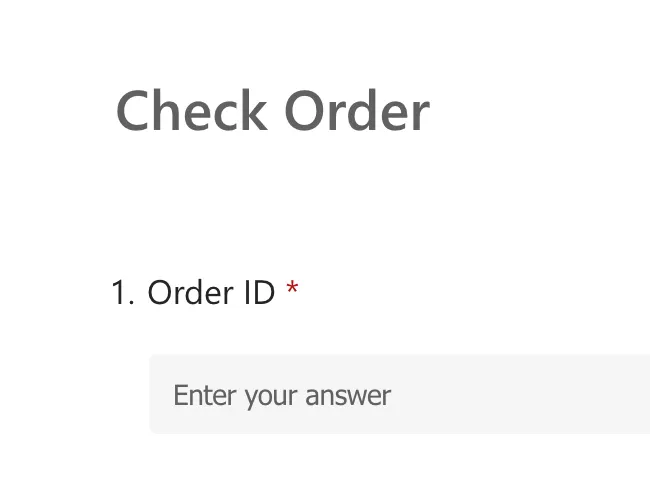
This is especially valuable if the field is mandatory and people could make mistakes, so providing this information beforehand helps a lot in data quality.
Speaking of data quality.
Prevent mistakes and keep the data uniform
For fields like names or places, letting people insert the values manually is a good way of finding out how many possible different variations of things could exist. People can add extra spaces, mix uppercase and lowercase, and spell things incorrectly.
I know that Forms provides dropdowns so that you can pick the values, but if the list is too large it would be a burden for you to fill and maintain and for the person to find the value they want.
If you pre-fill with something you already know, people start with a uniform and clean field. It's fast for the person to fill in, and good for you since you'll get clean data.
How to do it
To do it, open any form that you have, go to the "3 dots menu" and pick "Get Pre-filled URL".
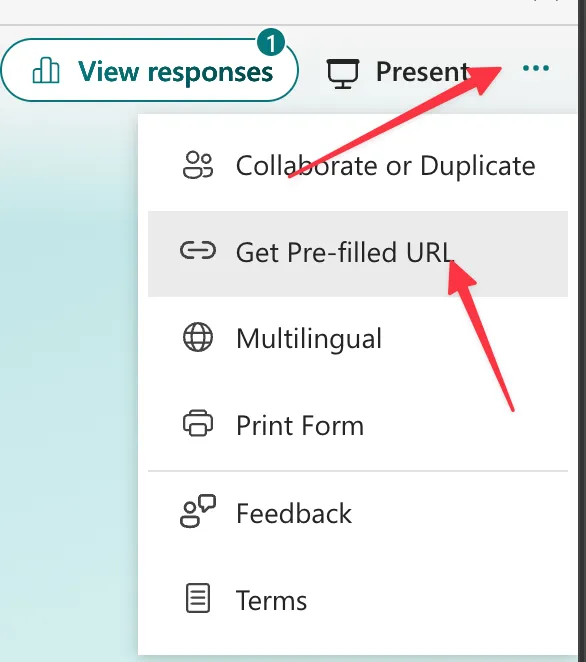
The UI will change and you will get a few options to pick from:
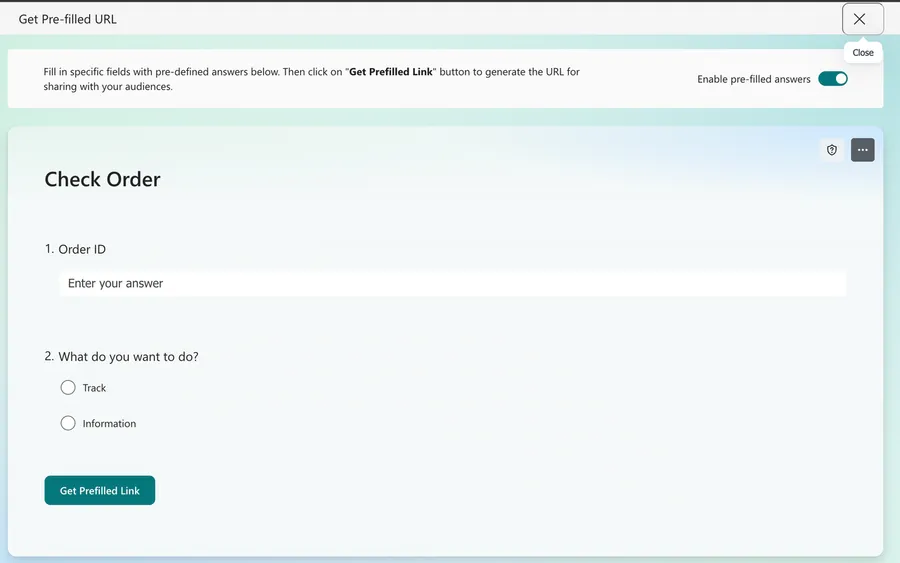
First the toggle to enable and disable the option. It may look like it's in an odd place, but this is the only way to turn the option off if you change your mind in the future.
Then pick the values that you want pre-defined. For example, type test in the "Order ID" question. For the "What do you want to do?" question, pick the option that you want as the default (I picked Track), like this:
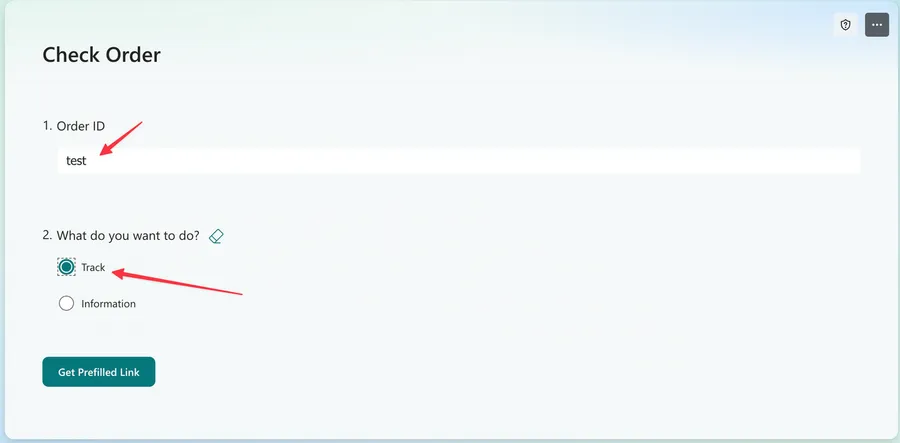
You don't need values for all of them. You can pick the ones that make sense for the person that is filling the form and leave the others empty.
When you're done press "Get Prefilled Link" and copy the link.
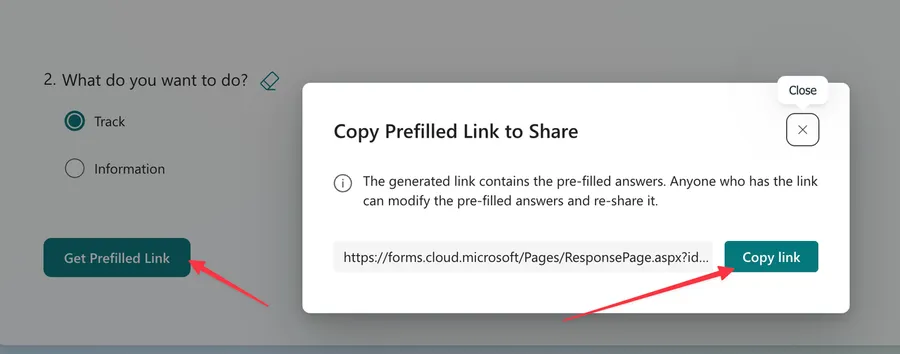
You will get something like this:
https://forms.cloud.microsoft/Pages/ResponsePage.aspx?id=<FORM ID>&rea530dd10d1b4da597d7cebf5fd1d36a=test&r634c1f1883364f63bd6efe81f5a58239=%22Track%22
The link has some familiar items. We can see the test and the Track that we selected when generating the link.
So we can deduce that this part is a question's identifier followed by its answer:
rea530dd10d1b4da597d7cebf5fd1d36a=test
Each question has its own identifier, and yours will be different from mine, so copy them from your own link. Choice answers like Track are wrapped in %22, which is an encoded quote, while text answers like test are not.
Now that you have the link you can do whatever you want with it, like changing the test to the actual order ID for example. When you open the link, you'll see this:
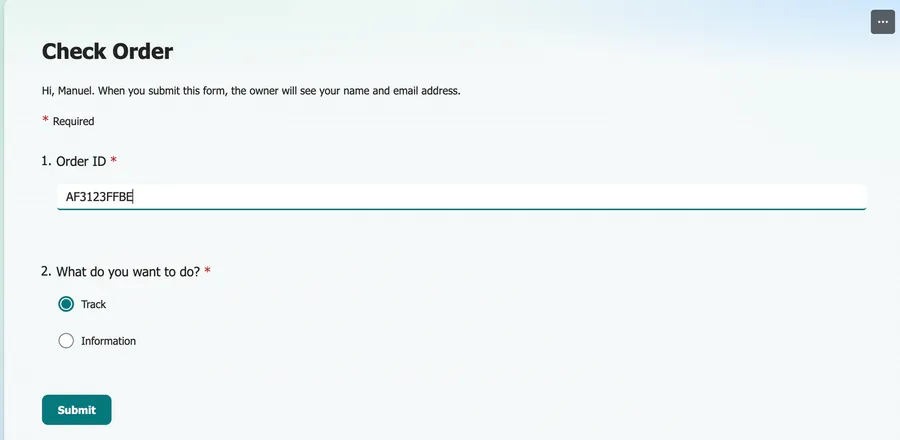
Since all is done in the URL you can customize things as you want. And that's the whole point. So if you're sending a form to people, using Power Automate for example, you can get the "Order ID" from the database and just change the URL and send it to the user.
That's it. It's a simple way to save your users time.
Some suggestions
I would advise you to generate the link once and customize it later like we did above. It's a lot easier than trying to guess the valid URL and the question IDs.
If you have old forms please be careful because the URLs changed. Microsoft now has a new structure so if you did this before, open your forms and copy the new URL.
Also, you don't need to customize all fields, or there would be no reason for the person to fill in the form. Fill only the ones that you need.
Finally, please keep the suggestions short and ideally without many special characters. Since all will be included in the URL it's possible that Microsoft Forms can complain or convert the information incorrectly, so keep things simple, or as simple as possible.
Limitations
People can change the data
Just because you defined it as "prefilled" doesn't mean that people can't change the data. People can edit the fields afterward, so take this into consideration. This is something to make the person's life easier, not a way to validate the data. If you rely on the value, validate it after the form is submitted.
Validation rules still apply
If the "Order ID" question only accepts numbers and the link provides a value like AF3123FFBE, Microsoft Forms still fills in the field, then shows an error so the person can correct it.
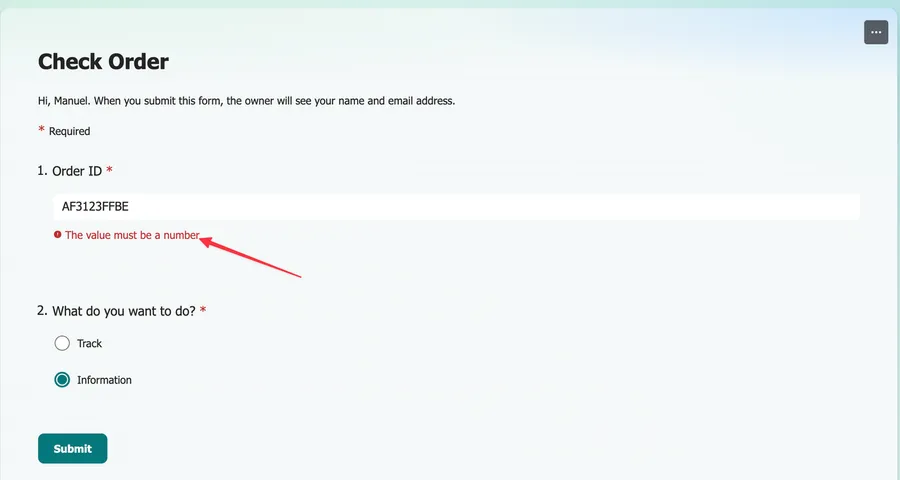
The validation will take place as if the person inserted the data manually. If you provide a value that is not in the list of options, Microsoft Forms ignores it, so check the spelling against the list.
Final Thoughts
No one likes to fill in forms, so having something that makes things easier and faster would go a long way for your users to actually fill them in.
If you have suggestions or limitations that you want featured here, please let me know or comment and I'll add it.
Photo by Shutter Speed on Unsplash


No comments yet
Be the first to share your thoughts on this article!