
I'm sure you noticed by now, but if you didn't, here's something you should know. When you do a "Get Items" from a SharePoint List, for example, Power Automate only fetches the first 100 records.
We will explore why this is and how you can optimize things, but the number 100 is important for you to know to avoid issues.
So let's explore the "why" and how to get around this.
Why the limitation
There are several reasons to do so. The first one below is backed by Microsoft's own documentation, while the others are more my own reasoning, so take those with a grain of salt.
Save resources
When you pull information from SharePoint, the systems need to communicate and transfer information, so limits are important. If you have huge SharePoint lists, pulling all the data would be wasteful.
And this isn't just my theory, and it's a bit technical but here's what Microsoft documents. Once a database operation locks more than 5,000 rows at once, SQL Server (the system that stores the data) locks the entire table until the operation finishes. When that happens, other users can't access the table, and everyone sees a drop in performance.
As Microsoft puts it:
"thresholds and limits are essential to help minimize the impact of resource-intensive database operations and balance the needs of all users."
Limits are what keep one heavy query from slowing things down for the rest of us.
Save time
Another good reason to limit the information is to make things fast. Pulling 100 items is quite different than pulling thousands of items. So you will get the information faster and, if needed, you can pull more values from the system later.
Best Practice
Like I mentioned before, it's a good practice to have limits in everything that happens in a system. Otherwise, even by mistake, someone could break things.
First, limit the information
Before we understand how to get more items, we should know how to only get the items that we need. This way we can keep things nice and fast while getting only the information that we need.
Filtering
First, let's filter the data that we get. It's always a good practice to only fetch the data we need. Use the "Filter Query" field with OData queries.
I see a lot of people getting all the data and then using the "Filter array" action, for example, to only get the information that they need. This is quite wasteful, not to mention you will be pulling a lot of information that you don't need, making your Flow a lot slower.
If all of this is strange to you, check out my OData reference to learn more.
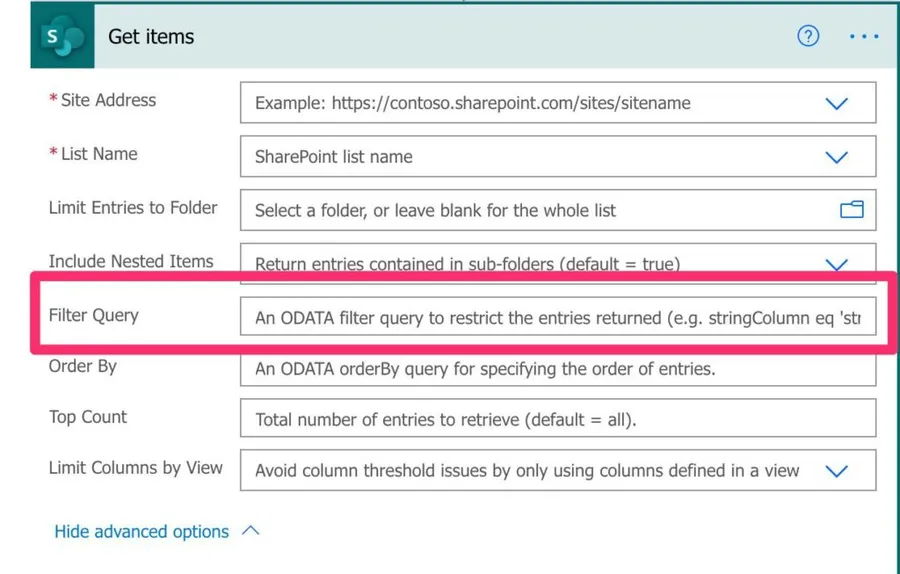
With simple queries like:
nameOfTheFields gt 10
You can filter the information that you get and have less to parse.
A couple of things to keep in mind with the "Filter Query" field. You need to use the column's internal name, not the display name you see in the list. Also, some column types can't be filtered this way, like calculated columns and multi-value lookup or person columns, so don't be surprised if those throw an error.
Top
The top is another way to filter the information. The 100-record default only applies when you leave the Top Count field empty. If you set it, you can return up to 5,000 items in a single call, and combined with pagination (which we'll cover below) you can go even higher.
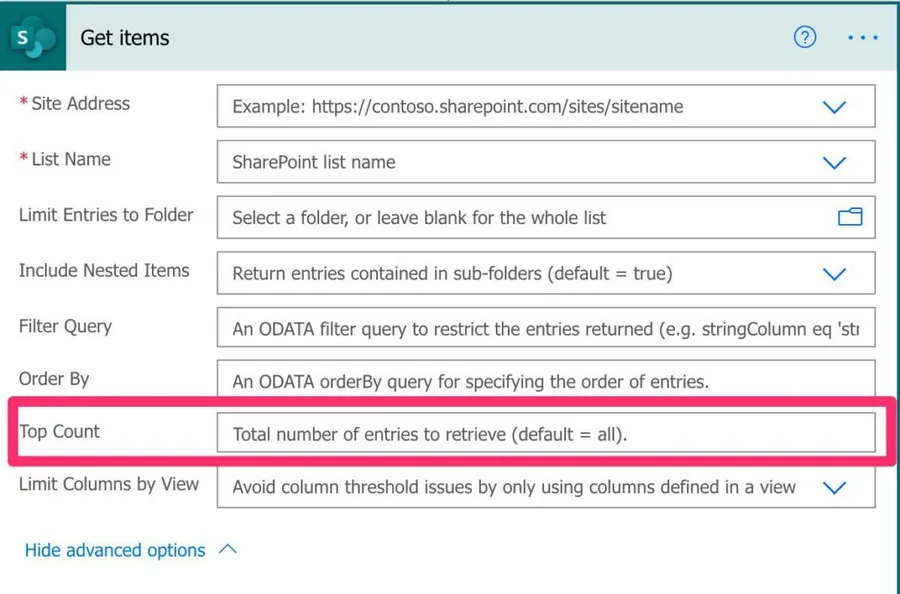
The description can be a little bit misleading. The default result is not "all", it's 100 or less. If you get 100, don't assume that you only have 100 records.
You can use cool tricks like reversing the order of your data and then fetching the top items. Then you're always getting the most recent values for your list.
Limit the columns
I always like to mention the limit of columns because it's quite rare that we will need all columns in a SharePoint list, for example. You can define a view that has only a subset of columns and fetch only that information.
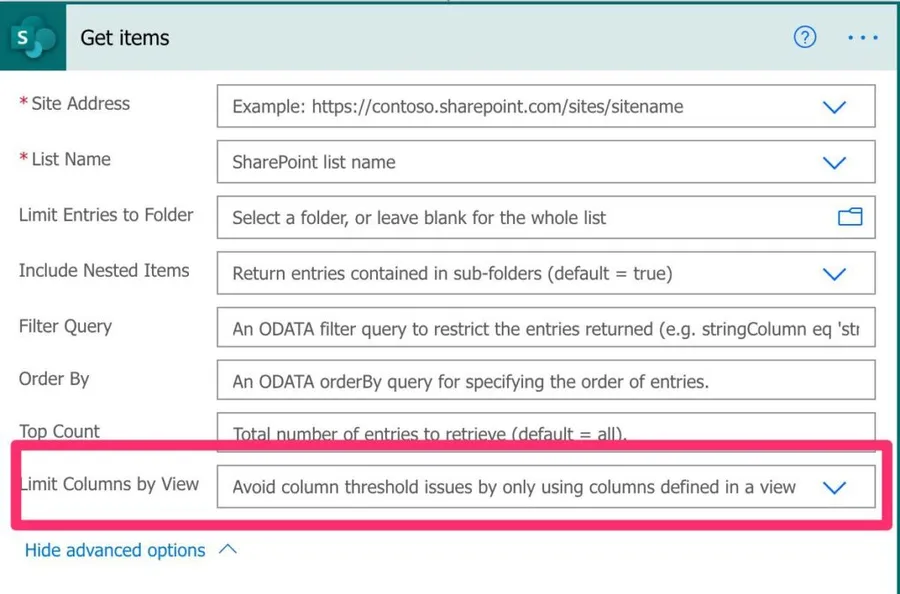
This will make your Flow fetch the information faster than having all the columns returned.
If you can't filter
Of course, there's only so much we can do with 100 items. So let's check how to increase this limit. To do so, you need to activate pagination. Pagination is a strategy where you get 100 items and a link to the next 100 items.
Enable pagination
To test, let's use a Flow that fetches all elements of a list and counts them.
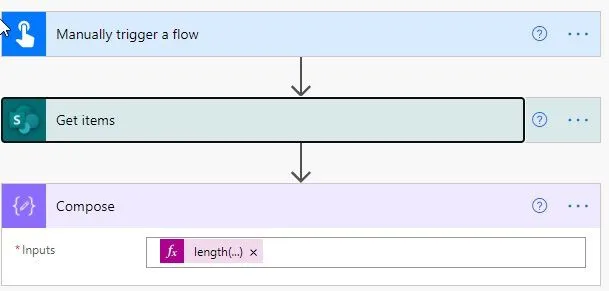
The count is as follows:
length(outputs('Get_items')?['body/value'])
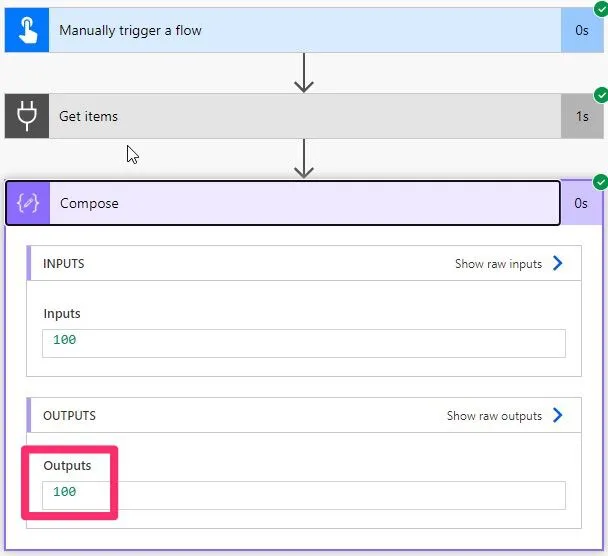
As you can see, we get the first 100 (there's more, and we'll see them in a bit).
Now let's activate pagination:
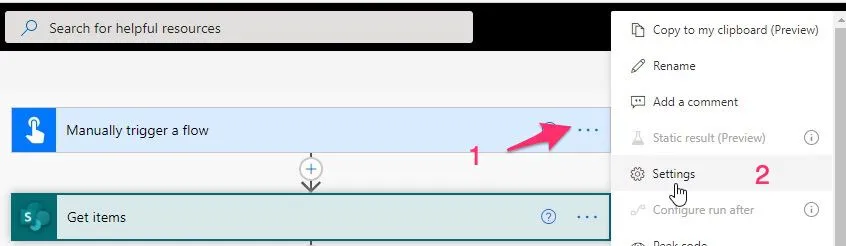
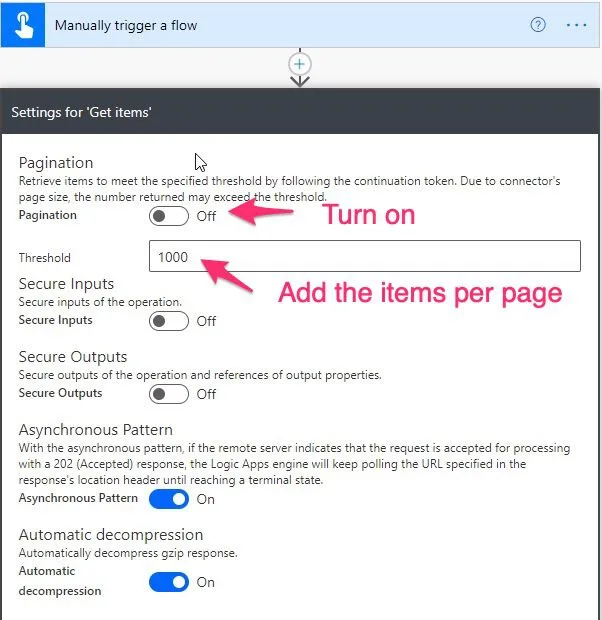
Enable pagination and add the items you want per page:
Here's the result with pagination.
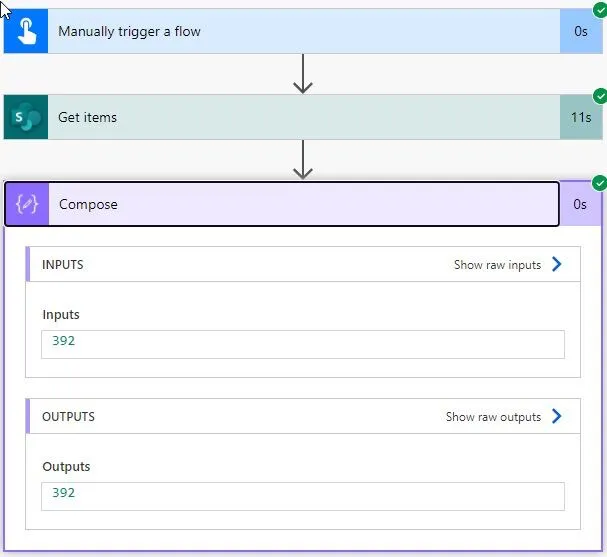
In this case, since it's less than a full page, we'll get all items.
Get to the next page
If you set a lower number than the total, you'll get a "next link" to the next X number of records. It's the first item in the body of the response.
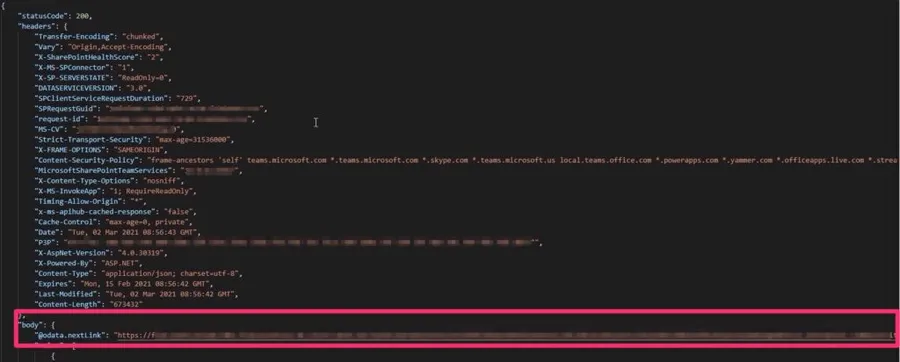
With this strategy, you can provide, for example, a pagination experience in your Power Apps app, where the users can fetch only the information they need.
Please take into consideration 2 things:
- The page has the number of items you define, but they need to be bigger than 100. Otherwise, Power Automate will default to the 100 max items.
- There are some reported cases where the pagination link doesn't work. There is no workaround reported, and it's already reported for Microsoft's team to fix, but keep this in mind if something "strange" happens.
Pagination has a ceiling too. On the free and seeded plans it tops out at 5,000 items, and on the paid (premium) plans it goes up to 100,000. It's also a "soft" limit, so Power Automate may slightly overshoot the number you set rather than cut off mid-page.
The 5,000 item threshold
There's a separate trap waiting for you, and it catches a lot of people. SharePoint has a list view threshold of 5,000 items. Any single query that would scan more than 5,000 rows gets blocked with an error, even if your filter would only return a handful of results.
The fix is to filter on an indexed column. That way SharePoint resolves the query against the index instead of scanning the whole list. A few rules worth knowing:
- A list can have up to 20 indexes.
- Automatic indexing stops once a list passes 20,000 items, so it's best to index early.
- The first column in your filter must be indexed and return fewer than 5,000 matches.
So if you have a large list and your "Get items" suddenly starts failing, this threshold is almost always the reason.
Going further with the REST API
If you ever outgrow the connector entirely, the "Send an HTTP request to SharePoint" action lets you call the REST API directly with "$top", "$select", and "$filter", following the "next" link in a loop. It's the standard way to go beyond the connector's limits, and it gives you a lot more control over exactly what comes back.
I understand that this is more advanced, but I'll include it here in case you want to explore it in more detail.
Final Thoughts
Like I mentioned before, pagination is your best friend when it comes to getting more information from SharePoint Lists (or other data sources). But keep in mind the small "gotchas." Please keep in mind also that you should always limit the information that comes from the server as much as possible.
Photo by Charlie Larkman on Unsplash


This article helped me almost two years after it was posted. Thanks to the author!!