I see this question being asked once in a while so I think it's time to answer it. It's always a variation of:
I would like to get an email from Outlook and save it in...
It's possible to do it in Power Automate, and not that hard, but it depends on your strategy. I will break this article down into:
- Doing it automatically, where you get each email and parse it.
- Doing it manually, where you look at a folder and parse emails in bulk.
Then I will show you how to save the file and potential issues that you may encounter.
Let's take a look, starting with my favorite. Automatic.
Automatically: When a new email arrives
Here's what you'll need:
- The "When a new email arrives (V3)" trigger, to catch the emails that you want to archive.
- The "Export email (V2)" action to fetch the email
- "Create file" action to drop it in OneDrive for Business, but any other save action is fine.
Here's what it looks like:
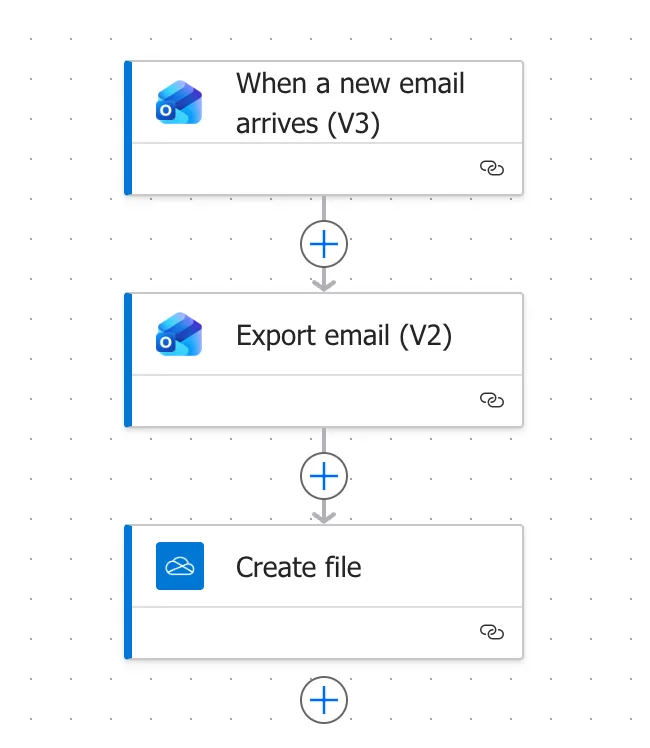
In my experience, this will work when the email arrives, but if you try to run the Flow again, like in "Test" > "Automatically" it will fail, especially if you move the email to a folder and back for example. I think it's something related to the way that Microsoft 365 Outlook internally deals with IDs so take this into consideration.
Manually: Pointing at a folder
Here's what you'll need:
- The "Manually trigger a flow" trigger, so you press a button when you want it to run, but any other trigger is fine as a "Scheduled" action for example.
- The "Get emails (V3)" action, to list what's in the folder. I would advise here not to point to the inbox otherwise you'll store all files, unless it's what you want
- The "Apply to each" action, to get all emails that need to be parsed.
- The "Export email (V2)" action, to turn each message into a file
- "Create file" action to drop it in OneDrive for Business, but any other save action is fine.
Here's what it looks like:
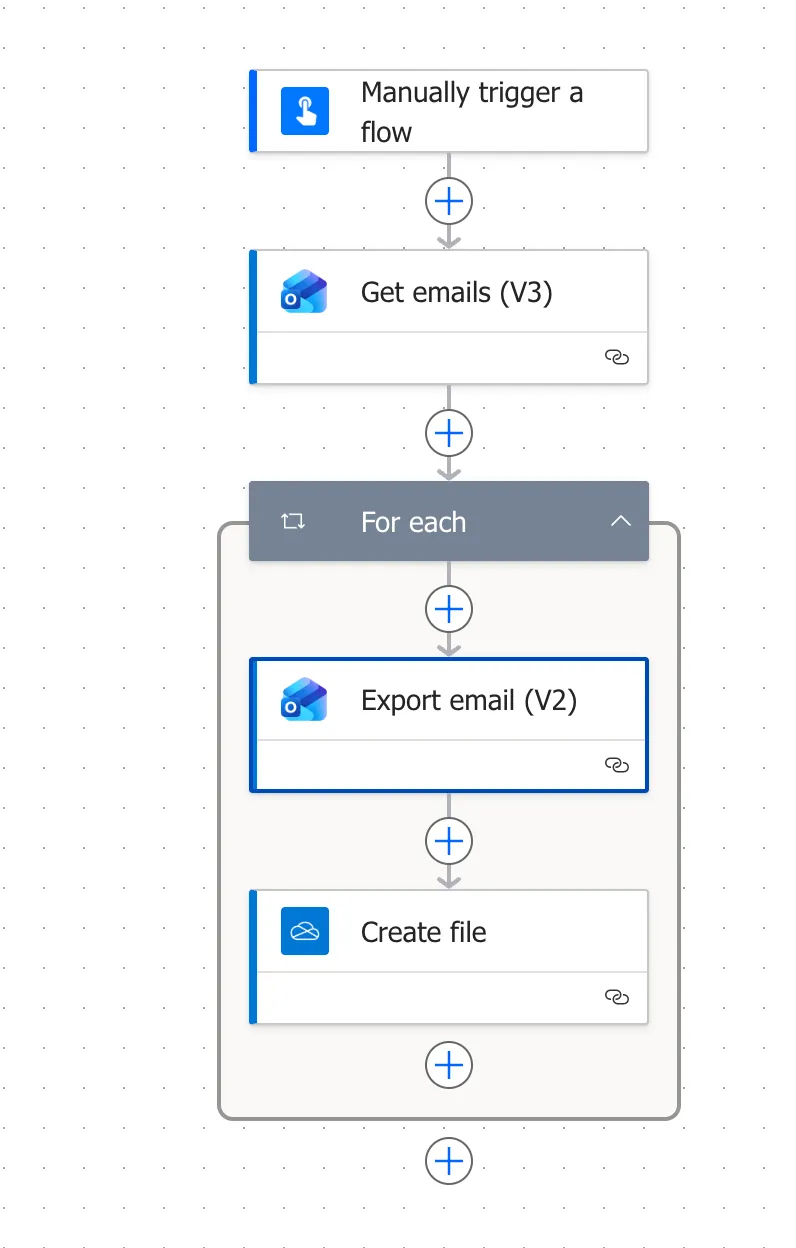
A few notes on this strategy:
It can create duplicates
Each time you run it, it will get the list of emails in the folder. So if you run twice and don't check what emails you already saved you will have duplicates.
To avoid this I would advise you to create a folder like "to process" where you drop the emails to process, and once the email is processed you can move it to another "archive" folder. So the folder you use the "get emails" action will contain only emails that were never saved.
I would not point it to inbox
Unless that's what you want, don't point it to the inbox, otherwise you will parse all emails, including unwanted emails that arrive. Unless the mailbox is filtered beforehand, create a new folder, like mentioned above to move the files there to process.
Don't use pagination but use top
If you use the strategy of "to process" and "archive" then you can parse only a few at a time. This would allow you to avoid issues and timeouts trying to parse a lot of emails at the same time. It may take a little bit longer but it's safer. Parse 10 at a time for example in a schedule that you define and you'll be fine. For example, use a "Schedule" trigger that triggers every 5 minutes and parse 10 items. Test with different intervals and top values until you reach a reliable number.
Adding pagination will make your flow more complex and unreliable.
Exporting the email
The strategy is the same either you trigger the Flow manually or automatically. You get 1 or more emails that you can parse.
Some tenants still show an older "Export email [DEPRECATED]" action in the picker alongside the current one. They look nearly identical in the list. Check for the V2 in the name before you click, because the deprecated one is not a supported path.
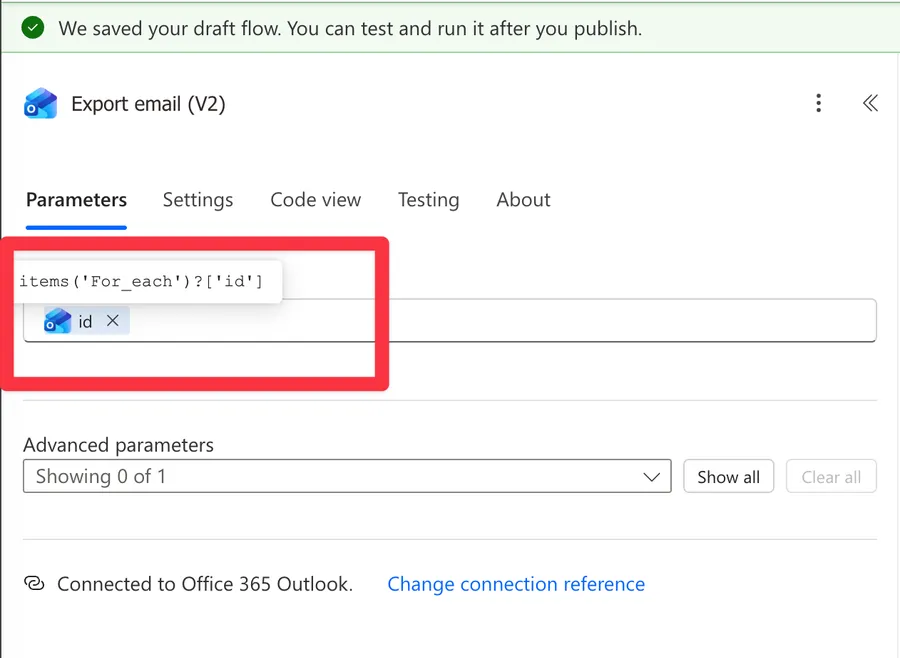
If you use the "manual" you will have an "Apply to each" action and add "Export email (V2)" inside it. The Message Id is the ID of the email the loop is currently on:
items('Apply_to_each')?['id']
Here's the breakdown:
items('Apply_to_each')returns the email object the loop is processing right now. Note the underscores, since Power Automate replaces spaces in action names when you reference them in an expression.?['id']safely reads the ID property. The question mark returns null instead of crashing the flow if the property isn't there.
Here's what it looks like:
If you use the automatic strategy the "Export email (V2)" action looks like this:
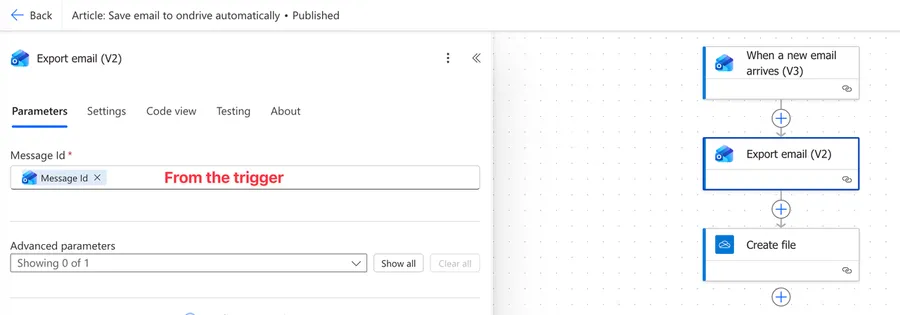
In any of the cases, the response is a text like this:
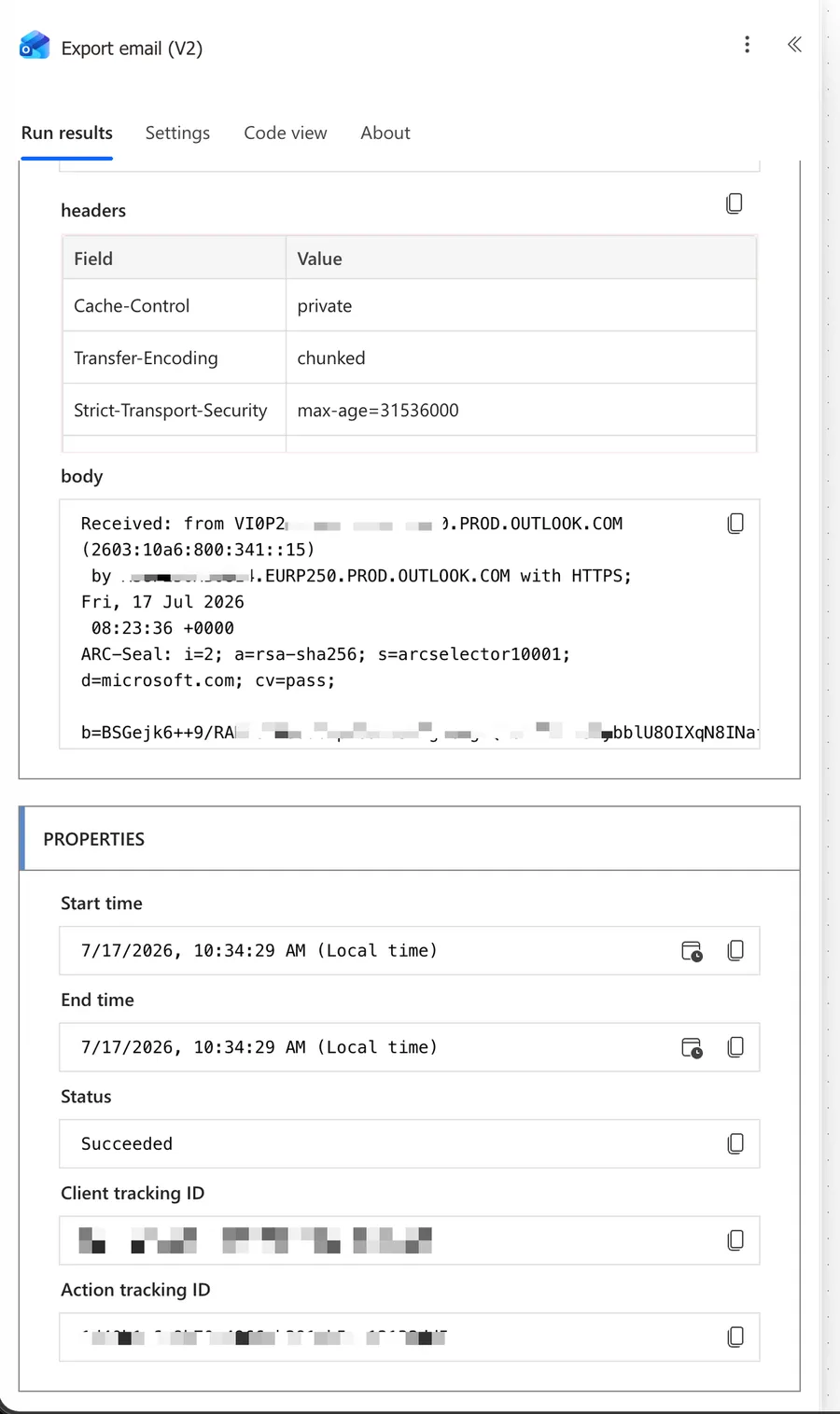
Now we need to save it, and this is where things can get tricky.
Creating and Naming the file
Add the "Create file" action for OneDrive for Business (or any other) and pick the folder where you want to save it. I recommend not using dynamic paths in the Folder Path and pick one from the list.
The first mistake I usually see is in the File Name part. You can't just use the subject, because OneDrive for Business rejects " * : < > ? / \ | in filenames, and email subjects are full of colons and slashes. Every "RE: Project update" would fail on the colon alone.
Another issue is that the files could have the same name, like "Project update" so using the subject can create problems.
There are a few strategies to deal with this. You can use the date for example, or clean the invalid characters. Emails can have multiple variations, but people (like me) are not very creative naming them, so it's super important that you create a proper syntax to deal with the file names since they will be the way that you will identify the emails in the folders.
Here's an expression that handles it, by converting the time and removing the special characters.
For the manual trigger variation
concat(
  formatDateTime(items('Apply_to_each')?['receivedDateTime'], 'yyyy-MM-dd_HHmmss'),
  '_',
  if(
    empty(trim(coalesce(items('Apply_to_each')?['subject'], ''))),
    'no-subject',
    take(
      replace(replace(replace(replace(replace(replace(replace(replace(replace(
        trim(items('Apply_to_each')?['subject']),
      '/', '_'), '\', '_'), ':', '_'), '*', '_'), '?', '_'), '"', '_'), '<', '_'), '>', '_'), '|', '_'),
      100
    )
  ),
  '.eml'
)
More and more I see "Apply to Each" actions being created with "For each", like you can see in the screenshots above so you would have to adapt the formula where you have Apply_to_each to For_each depending on your case.
Here's an example:

It looks tricky (and it is a bit), so let's walk through what each part does:
- The "formatDateTime" function stamps the received date on the front. This isn't decoration. Ten emails called "RE: Update" would otherwise overwrite each other, and the timestamp both prevents that and makes the folder sort chronologically, which is what you actually want from an email archive.
- The nested "replace" functions swap each of the nine characters OneDrive for Business rejects for an underscore. There's no single function that strips them all, so nesting is the price. It's ugly, but it runs as one action, and in a loop that's about to run hundreds of times that speed matters more than elegance.
- The "coalesce" and "empty" functions together catch the email with no subject. Without this, sanitizing an empty subject gives you an empty string, and you try to save a file named
.eml, which OneDrive for Business refuses. Naming itno-subjectkeeps the run alive. - The "take" function caps the subject at 100 characters. The full path in OneDrive for Business has a 400 character budget and long subjects will eat it.
- The "concat" function glues it together and adds the extension.
If the expression makes you nervous, drop it in a "Compose" action first and run the flow once. You'll see the actual filenames in the run history before anything gets written.
If you define your own name with any other formula don't forget to include the .eml so that the file is created correctly
For the automatic trigger variation
If you run it automatically the expression is the same but you need to replace the Apply_to_each to the trigger since you're not processing multiple emails.
concat(
  formatDateTime(triggerOutputs()?['body/receivedDateTime'], 'yyyy-MM-dd_HHmmss'),
  '_',
  if(
    empty(trim(coalesce(triggerOutputs()?['body/subject'], ''))),
    'no-subject',
    take(
      replace(replace(replace(replace(replace(replace(replace(replace(replace(
        trim(triggerOutputs()?['body/subject']),
      '/', '_'), '\', '_'), ':', '_'), '*', '_'), '?', '_'), '"', '_'), '<', '_'), '>', '_'), '|', '_'),
      100
    )
  ),
  '.eml'
)
Common mistakes
Exporting creates an invalid file
Cause: The most often cause for this is that people create the FileName without including the .eml.
Solution: Always include the .eml so that the file is created with the correct extension.
Every export returns an empty file
Cause: Several people report "Export email (V2)" producing blank EML files when Original Mailbox Address is left empty, even though Microsoft documents the field as optional. The reports tie it to specific tenants and designer versions, so it may not apply to you at all.
Solution: Fill Original Mailbox Address with your own address, even for your own mailbox. It's documented as the shared mailbox override, but setting it explicitly costs nothing and rules the problem out. You can find an article about specific shared mailboxes here.
The flow fails with "The specified object was not found in the store"
Cause: The message ID came from one mailbox and the export looked in another. It also appears when the message genuinely moved or got deleted while the Flow was running.
Solution: Make the Original Mailbox Address match on both actions.
Final Thoughts
Most of this Flow is straightforward. You pick your trigger, you export the email, you save the file. The tricky part is the formula for the file name, since that's where the invalid characters, the duplicates, and the empty subjects all show up, and it's where most of the errors above come from. Get that one right and the rest falls into place. I would go with the automatic version whenever you can, since the emails get archived as they arrive and you never have to think about it again, and keep the manual one for that folder you already let pile up.
Photo by Brett Jordan on Unsplash


No comments yet
Be the first to share your thoughts on this article!