
If you're opening old Flows in solutions you may see it open in the "old" designer and get the error message:
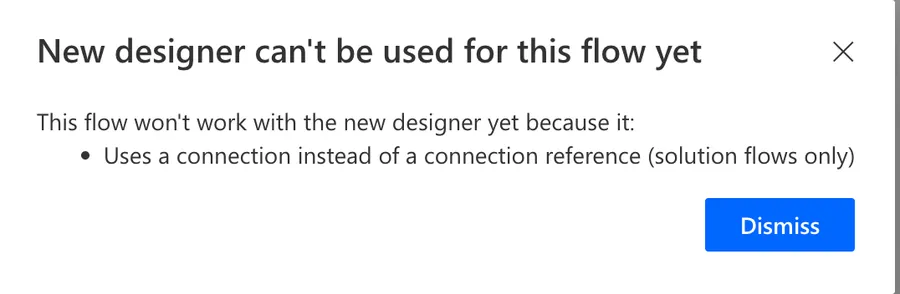
New designer can't be used for this flow yet
This flow won't work with the new designer yet because it:
- Uses a connection instead of a connection reference (solution flows only)
It's important to understand that this is not something that will break your Flow, but it's a decision that Microsoft implemented over time and it's overall a good one.
If you don't know what a connection reference is or why it's different from a connection, check here for more details.
I will describe the history and how to solve it in the next section so if you want to go straight to the solution please jump forward.
Timeline of events
This message didn't show up out of nowhere. Microsoft has been nudging us towards connection references for years, and once you see the steps, you'll understand why converting your Flow is the right thing to do and not just a workaround to make a warning go away.
- September 2020: connection references show up in preview. The idea is simple. Your Flow points to a named reference instead of being glued to the connection you happened to create that day. That's what allows a Flow to travel between environments without everyone having to reconnect everything on the other side. Source: Move flows across environments without resetting connections!
- May 2022: the solution checker starts telling you off. Microsoft adds rules "ensuring that solution-aware flows use connection references instead of connections", so if you built your Flow the old way, it starts being reported as not following ALM guidelines. Source: Solution checker warns if flows do not meet ALM guidelines
- November 2023: the new cloud flows designer becomes generally available. Have a look at the list of things it can't open yet and you'll find "Solution flows that use connections rather than connection references". That's your error message, word for word. Sources: Updated Cloud flows designer is generally available! and Explore the cloud flows designer
- Today: you don't get to choose anymore. Look at the top right corner of your Flow. The "New designer" toggle is greyed out, so nobody is asking you to switch. You're being kept in the classic designer until that Flow uses connection references, and the classic designer "receives security updates and critical bug fixes, but no new features are being developed for it." Every new thing Microsoft ships for Power Automate lands on the other side of that toggle. Source: Classic designer vs. modern designer for cloud flows
Why did they make this decision?
Let's take a look at this example:
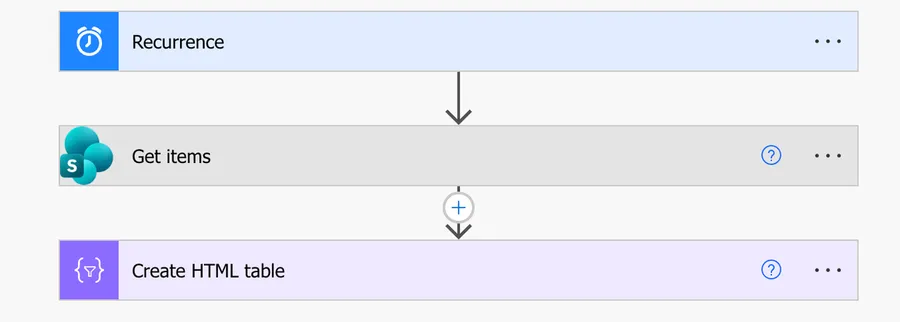
You can see the connection in the 3 dots menu. You'll get something like this:
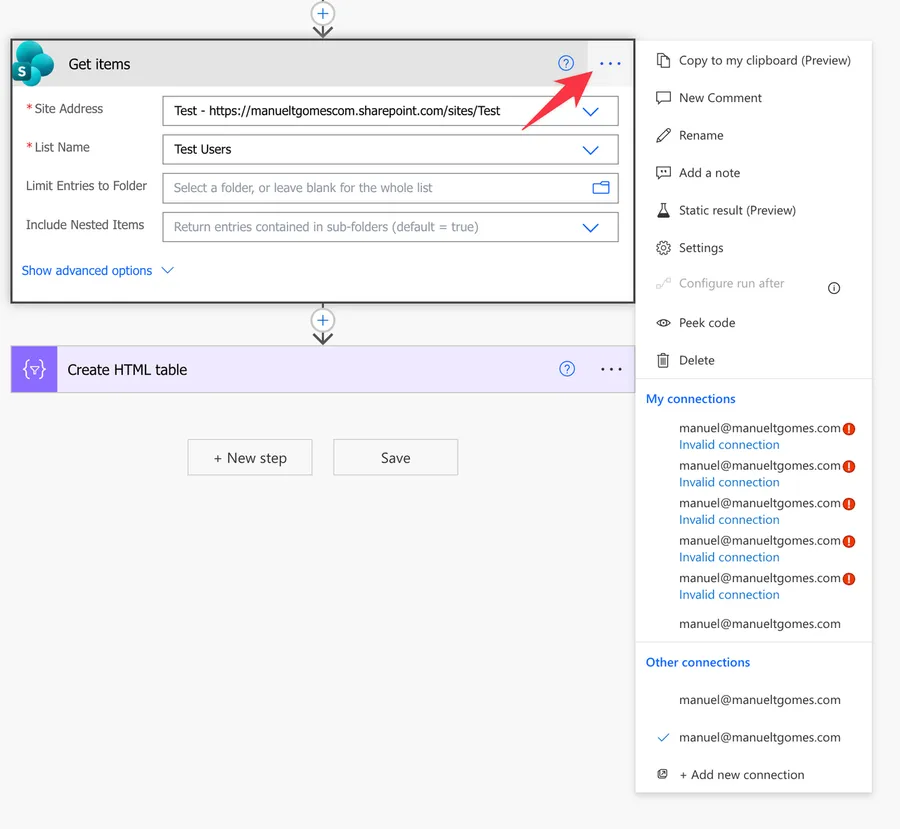
I use this example on purpose to show you what happens all the time.
When you create a Flow, you don't pay attention to the connections, so Power Automate creates one for you. Then you proceed with building your complex Flow with multiple SharePoint actions using that connection, but then something happens to it. It gets invalidated and you need to go to each of the places where it exists and change it to a new one. You end up with a situation like above.
A graveyard of old connections that don't work anymore.
Another issue is when you want to export the Flow and import it in another environment, for example. Having only one connection that is shared by all Flows makes things easier in the import process because you only need to map one to get all of the actions that use it automatically updated.
So overall a very good decision. I really like connection references and they work great, so the fact that Microsoft "forced" people over time to move to them is a good thing.
How to change them?
It's quite easy actually. Go to your solution and create a new connection reference by going to "New" > "More" > "Connection Reference"
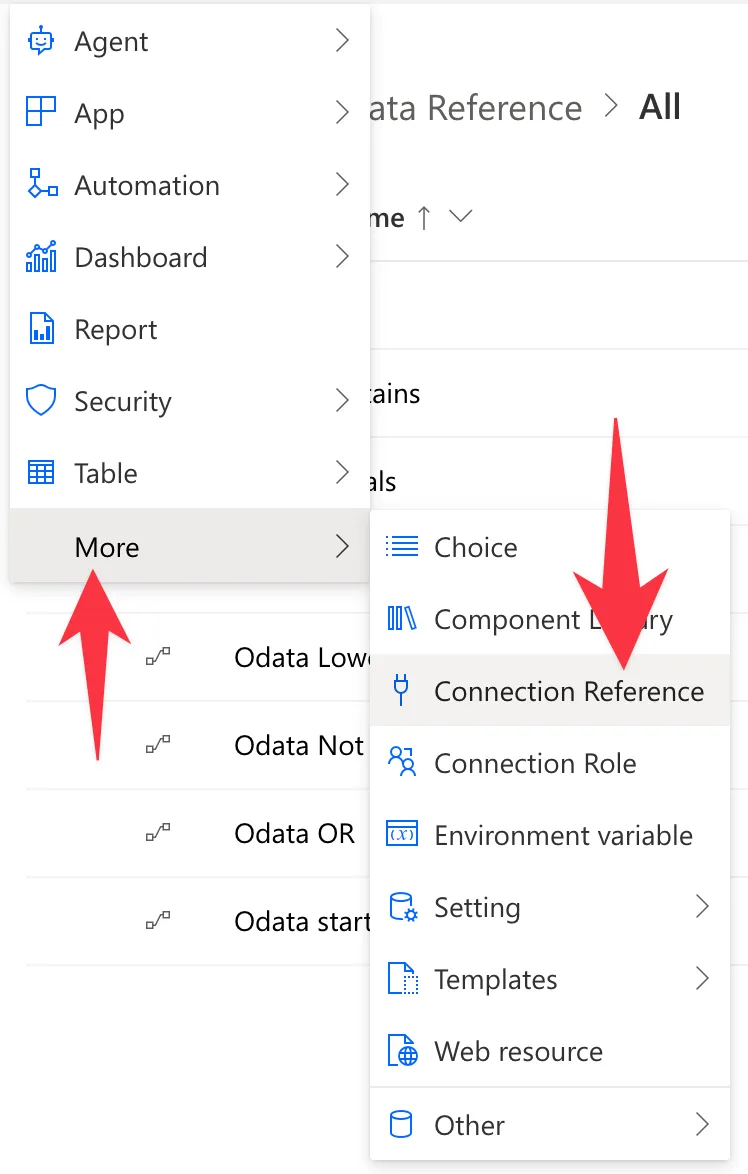
Give it a name and pick the connector that you want to use:
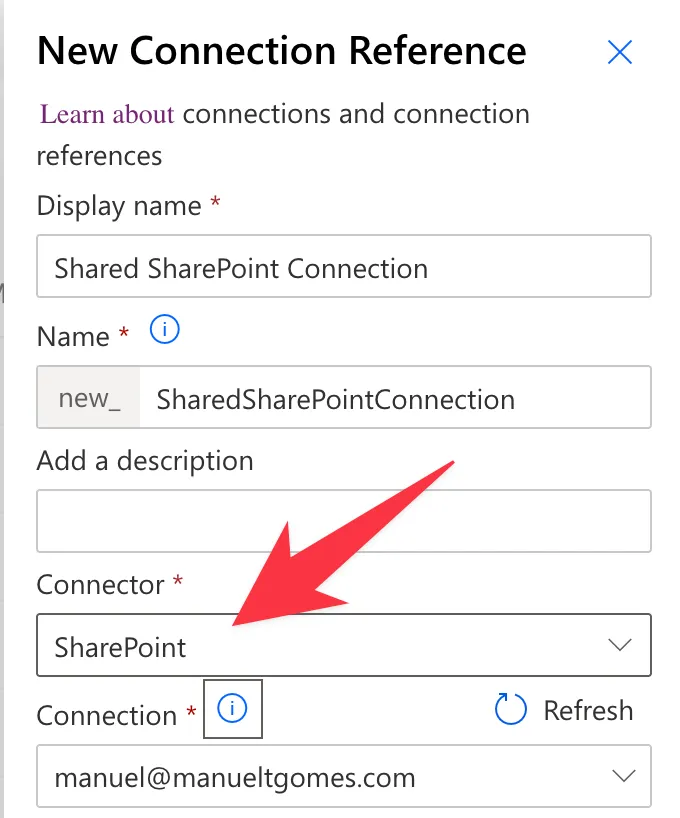
You will see in your solution something like this:

Now go to your Flow and refresh or open it again and click the 3 dots. You will now see the new connection reference in the list.
It's possible that it takes a bit to propagate so if you don't see the connection reference right away, don't worry. Wait a few seconds and it should show up.
If the connection doesn't show in the list, click the "Flow Checker" and press "Remove the connections..."
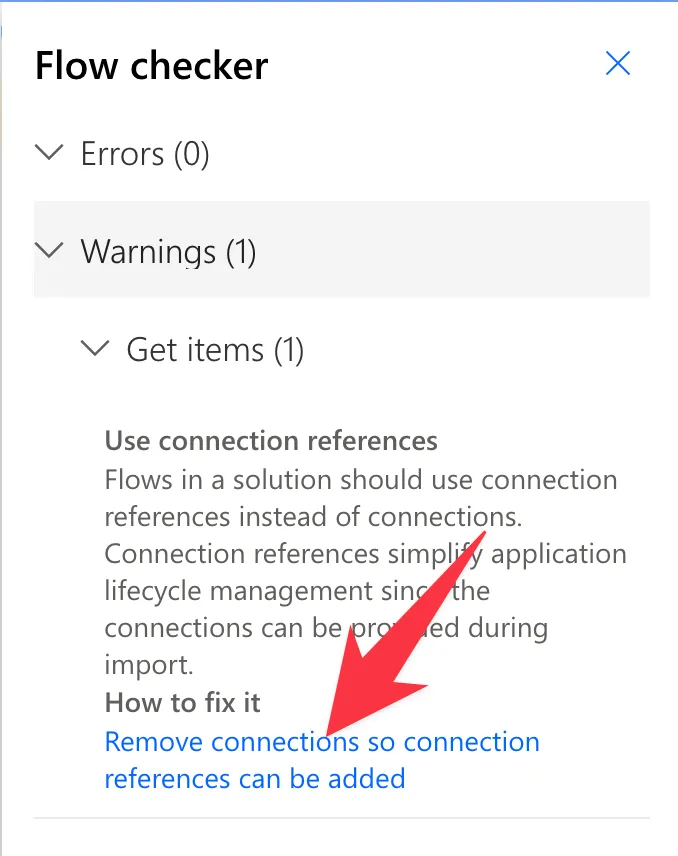
This will remove all connections and it will refresh the UI like this:
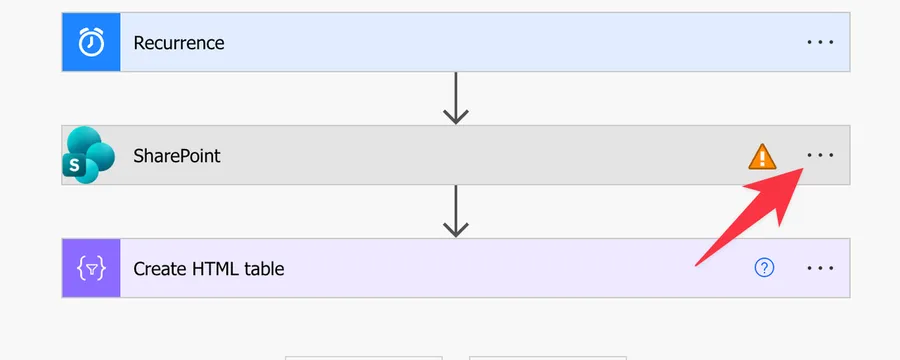
Now let's add our connection.
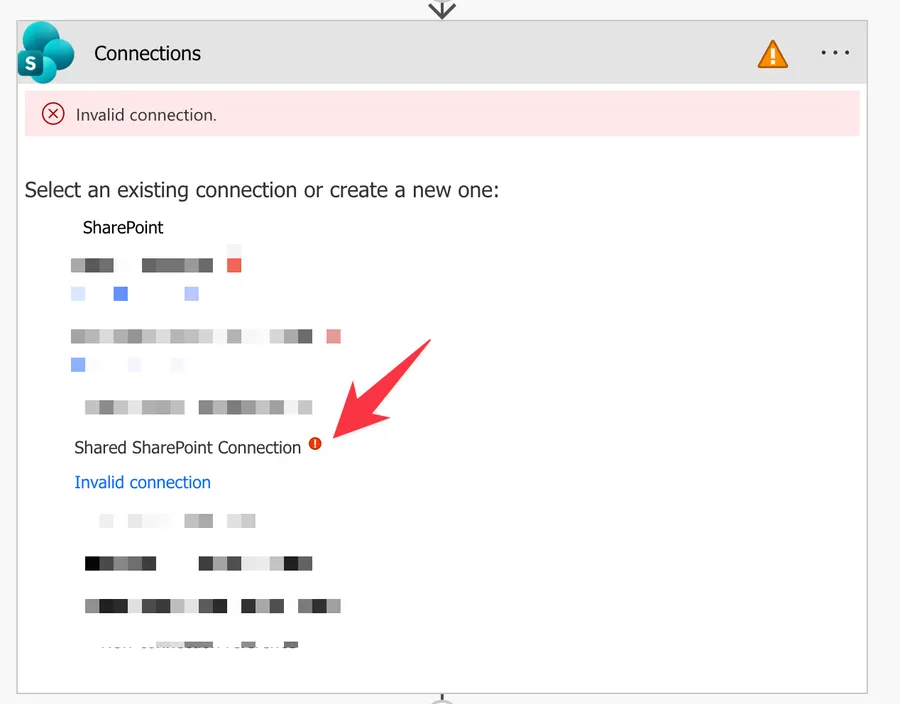
It's possible that the connection is invalid, but don't worry, click "Invalid Connection" and authenticate again (you may need a few refreshes until Microsoft is able to connect everything in the backend).
Once the connection is done you can press "Save" and you'll see the error message going away and the "New designer" now available.

Final Thoughts
Half the article is explaining why, but I think that is super important so that you understand why the connection references are so important and useful. They will save you time and headaches in the future so please be sure to use them.
The tricky part here is the waiting. Microsoft takes a bit for the wires to connect and for us to see the connections available and properly connected so it may look like we're doing something wrong but we're not.
Photo by CHUTTERSNAP on Unsplash


No comments yet
Be the first to share your thoughts on this article!