If you're already familiar with the "Update a task" action, you know it covers the basics: title, dates, progress, and assignees. The "Update a task (V2)" action in Power Automate expands on that with new fields like Percent Complete, Bucket Id, and Applied Categories. It's currently in Preview, so things may change, but it already opens up some useful possibilities for managing your Microsoft Planner tasks automatically.
The original "Update a task" action is now marked as deprecated in the connector documentation, with Microsoft pointing users to "Update a task (V2)" as the replacement. Even though V2 is still in Preview, plan new Flows around it and migrate existing ones when you can.
Let's explore what's new and how to use it.
Where to find it?
To find it, you can search for the "Update a task" action. You'll notice there are two versions available. The one we want is labeled "Update a task (V2)" with a "(Preview)" tag.
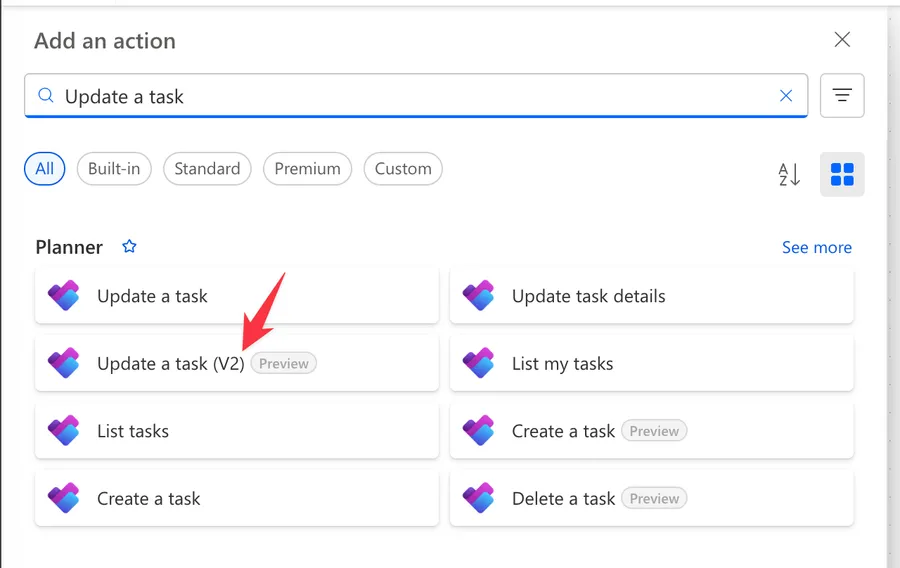
Power Automate tends to save the most common actions in the main screen, so check there before going through the full hierarchy. Also, you can use the search to find it quickly.
It looks like this:
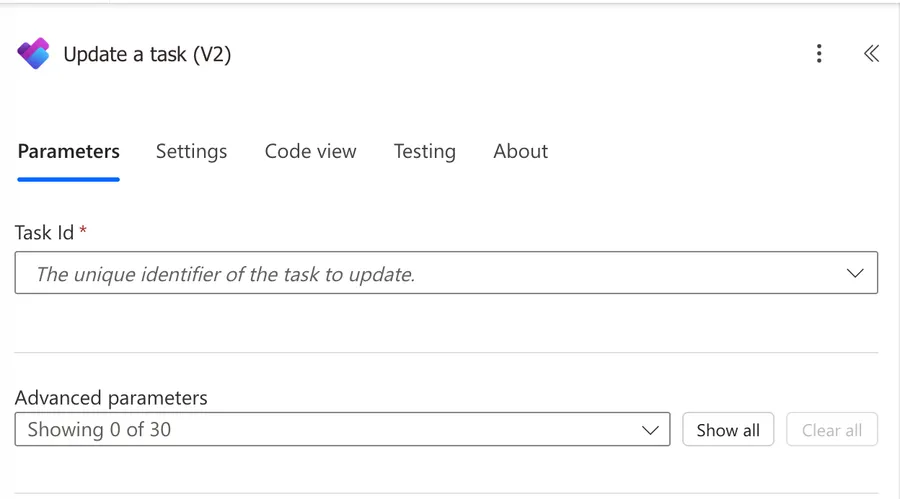
Notice that there are 30 advanced parameters. We will get there, but most of them are tags, so don't worry.
Now that we know how to find it, let's understand how to use it.
Usage
The V2 action keeps the same core fields from the original "Update a task" action, namely Task Id, Title, Due Date-Time, and Start Date-Time, and adds new ones. Let's focus on what's new.
The V2 action removes the "Add assigned users" and "Remove assigned users" fields. These are now handled by the dedicated "Add assignees to a task" and "Remove assignees from a task" actions, which are more reliable for managing task assignments.
Task Id
This is the only required field. You need to provide the unique identifier of the task you want to update. You can get this from the "Get a task" action, the "List Tasks" action, or from a trigger like the "When a new task is created" trigger.
Title
Same as the V1 action. The task title has a maximum of 255 characters. If you exceed this, you'll get a validation error. Keep titles short and descriptive. If you need more space, use the "Update Task Details" action to fill in the description instead.
Due Date-Time and Start Date-Time
These work the same as in the V1 action. Use ISO 8601 format in UTC, for example:
2026-04-09T14:30:00.000Z
Dates are always stored in UTC. If you provide a local time without the Z suffix or a timezone offset, your task may appear on the wrong date depending on your timezone. Always use UTC format (ending in Z) or include the timezone offset (e.g., +01:00).
Percent Complete
This is one of the biggest changes in V2. Instead of the "Progress" dropdown from V1 (which only allowed "Not Started", "In Progress", and "Completed"), you now get an integer field that accepts values from 0 to 100.
| Value | Planner UI displays |
|---|---|
| 0 | Not Started |
| 1-99 | In Progress |
| 100 | Completed |
For example, let's say Joana from the Lisbon office is building a Flow to track project milestones. She could set Percent Complete to 50 when a task reaches the halfway point, and 100 when it's done.
Even though you can set any value between 0 and 100, the Planner UI only displays three states. Setting 75 still shows as "In Progress" in the Planner board, not "75%". Keep this in mind if you're expecting granular tracking in the UI.
Bucket Id
This is a new field that lets you move a task to a different bucket. You provide the Bucket Id as a string, and the task moves to that bucket within the same plan.
You can get the available Bucket Ids using the "List Buckets" action. For example, if Miguel has a plan with buckets for "To Do", "In Progress", and "Done", he can automatically move tasks between buckets as their status changes.
The bucket must belong to the same plan as the task. If you try to move a task to a bucket in a different plan, the action will fail. Always make sure you're using a Bucket Id from the correct plan.
Applied Categories
The V2 action adds 25 boolean fields for task categories (labels). These map to the color labels you see in the Planner UI.
Here's the full mapping between each field name and the default Planner color:
| Field | Color | Field | Color | Field | Color |
|---|---|---|---|---|---|
| category1 | Pink | category10 | Gray | category19 | Teal |
| category2 | Red | category11 | Silver | category20 | Light blue |
| category3 | Yellow | category12 | Brown | category21 | Dark blue |
| category4 | Green | category13 | Cranberry | category22 | Lavender |
| category5 | Blue | category14 | Orange | category23 | Plum |
| category6 | Purple | category15 | Peach | category24 | Light gray |
| category7 | Bronze | category16 | Marigold | category25 | Dark gray |
| category8 | Lime | category17 | Light green | ||
| category9 | Aqua | category18 | Dark green |
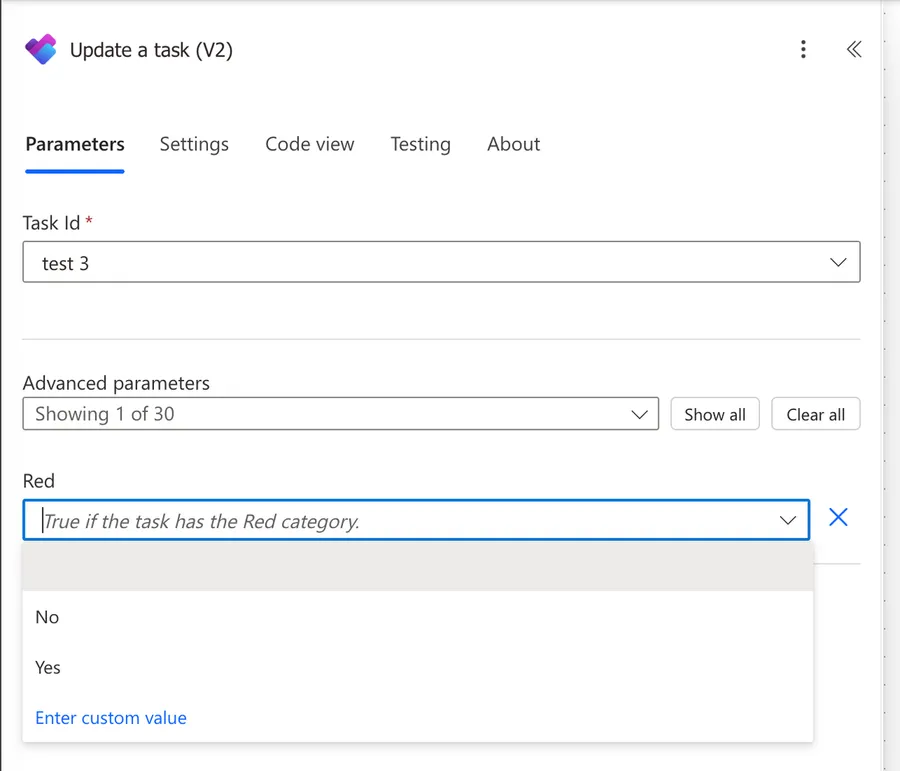
Set a category to true to apply it, or false to remove it. For example, if Ana from the Porto team wants to tag all urgent tasks with the Red label, she would set category2 to true.
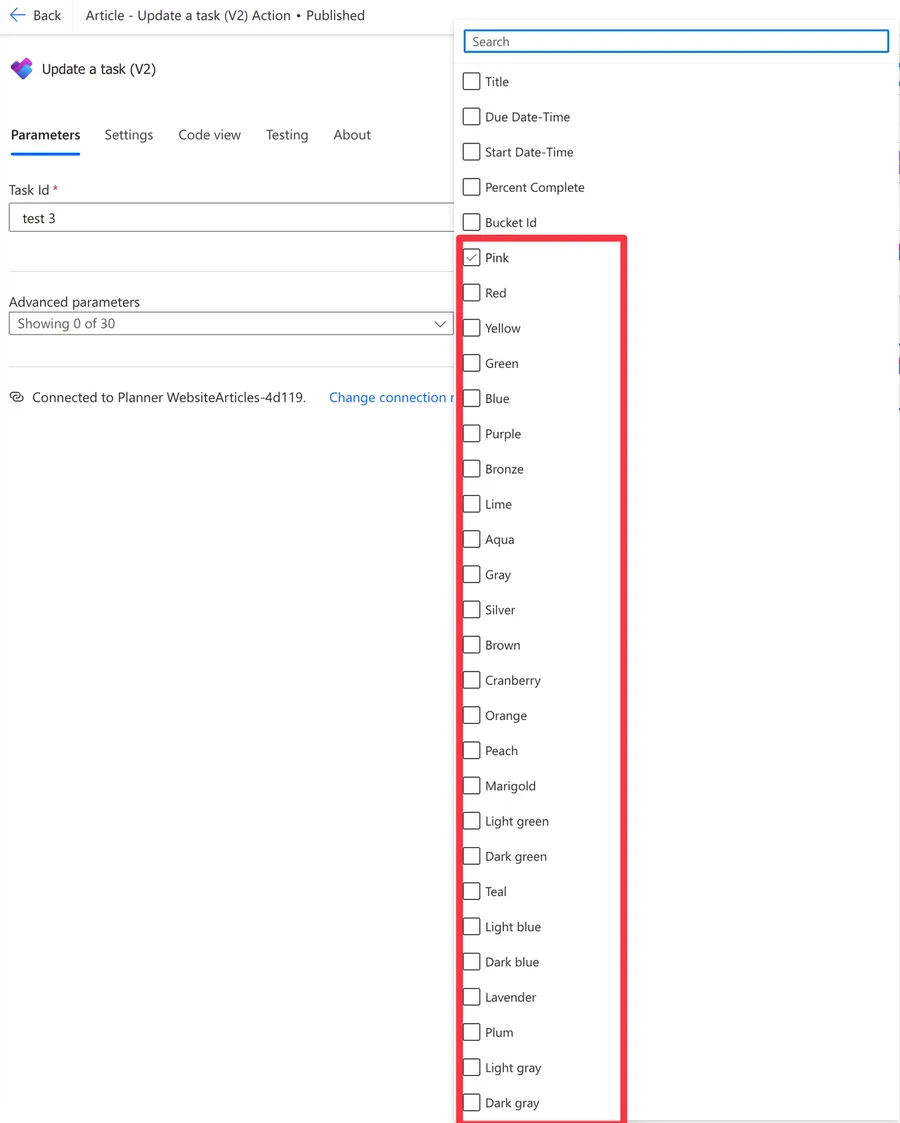
Here's how to enable "Red".
You can use the "Get plan details" action to retrieve the current label names for a plan and see what each category maps to.
Non-intuitive behaviors
Percent Complete only shows three states in the UI
Even though you can set any value from 0 to 100, the Microsoft Planner UI only recognizes three thresholds: 0 (Not Started), anything between 1 and 99 (In Progress), and 100 (Completed).
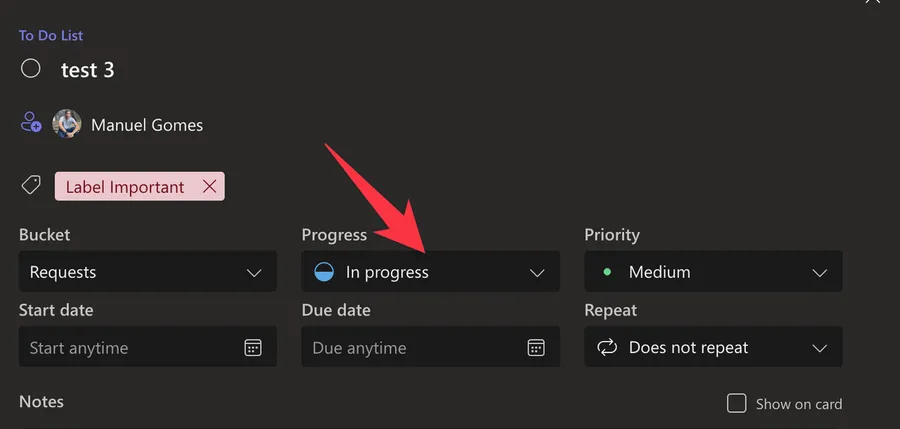
If you set Percent Complete to 75, the task still shows as "In Progress" on the board. The exact value is preserved behind the scenes, and you can read it back with the "Get a task" action, but it won't be visible in the Planner UI.
Categories are positional, not named
The category fields (category1 through category25) are positional. They don't reference the label name; they reference the position. If you rename "Pink" to "Urgent" in your plan settings, category1 still maps to that first label. This means the same Flow will work correctly even if different plans have different label names, but it also means you need to know which position corresponds to which label in your specific plan.
Concurrent updates cause ETag conflicts
The Planner API uses ETags for versioning. Every time a task is updated, its ETag changes. If you have parallel branches in your Flow that update the same task, the second update will fail with a 409 Conflict or 412 Precondition Failed error because the ETag from the first update is no longer valid.
To avoid this, always use the "Get a task" action immediately before updating to get the latest ETag, and avoid parallel updates to the same task.
Setting Percent Complete to 100 marks the task as completed
This might seem obvious, but it has side effects. When you set Percent Complete to 100, the task is marked as completed, which means it will trigger the "When a task is completed" trigger if you have one. Be careful with Flows that listen for completions and also update tasks, since you can accidentally create loops.
Limitations
Preview status
The "Update a task (V2)" action is currently in Preview. This means Microsoft may change its behavior, add or remove fields, or deprecate it without prior notice. Keep this in mind when building production Flows.
Basic plans only
The Planner connector only supports basic plans. If you're using Premium Planner plans, the tasks won't appear in the connector and can't be updated through it. For Premium plans, you'll need to use the Dataverse connector with the msdyn_project and msdyn_projecttask tables instead.
No Priority field
Unlike the "Create a task" action, the "Update a task (V2)" action does not include a Priority field. If you need to update task priority after creation, you'll need to use the "HTTP" action with the Microsoft Graph API directly.
The priority values in the Graph API are integers from 0 to 10:
| Value | Planner Label | Planner normalizes to |
|---|---|---|
| 0-1 | Urgent | 1 |
| 2-3-4 | Important | 3 |
| 5-6-7 | Medium | 5 |
| 8-9-10 | Low | 9 |
No assigned users management
The V2 action removes the "Add assigned users" and "Remove assigned users" fields that existed in V1. You need to use the dedicated "Add assignees to a task" and "Remove assignees from a task" actions instead.
API throttling
The Planner connector has a limit of 100 API calls per connection per 60 seconds. If you exceed this limit, you'll get a 429 (Too Many Requests) error. This is critical when updating tasks in loops or bulk operations.
No "task updated" trigger
There is no trigger for task modifications in the Planner connector. Only creation, assignment, and completion triggers are available. If you need to react to task updates, you'll need to poll for changes using a scheduled Flow with the "List Tasks" action.
Recommendations
Here are some things to keep in mind.
Use standard Percent Complete values
Even though you can set any value from 0 to 100, stick to 0, 50, and 100 to match what the Planner UI recognizes. Using other values works, but they won't be visible to users in the Planner board. Only use granular values if you're reading them back programmatically in your Flow.
Get the task before updating in concurrent Flows
If you have multiple Flows or parallel branches that might update the same task, always use the "Get a task" action immediately before updating. This ensures you have the latest ETag and avoids 409 Conflict errors.
Use retry policies for bulk operations
If you're updating multiple tasks in a loop, configure an exponential backoff retry policy in the action's settings (Action Settings > Retry Policy > Exponential Interval). This handles 429 throttling errors gracefully without failing the entire Flow.
Verify Bucket Ids before moving tasks
Before using the Bucket Id field, always confirm the bucket belongs to the same plan as the task. Use the "List Buckets" action to get the correct Bucket Ids for your plan.
Name it correctly
It's super important to have a good name for the action, especially where the tasks can be in multiple plans. Always build the name so that other people can understand what you are doing without opening the action and checking the details.
Always add a comment
Adding a comment will also help to avoid mistakes. Indicate the plan of the task, for example, and what you're trying to achieve with the action. It's important to enable faster debugging when something goes wrong to know your intent when you created the Flow.
Always deal with errors
Have your Flow fail gracefully and notify someone that something failed. It's horrible to have failing Flows in Power Automate since they may go unlooked for a while or generate even worse errors. I have a template that you can use that will help you make your Flow resistant to issues. You can check all details here.
Final Thoughts
The "Update a task (V2)" action is a welcome upgrade that gives you more control over your Planner tasks. The Percent Complete integer, Bucket Id, and Applied Categories fields open up new automation possibilities that weren't available before. It's still in Preview and missing some features like Priority, but together with the "Update Task Details" action for descriptions, references, and checklist items, you have everything you need to fully automate your Planner workflows.
Back to the Power Automate Action Reference.
Photo by charlesdeluvio on Unsplash


No comments yet
Be the first to share your thoughts on this article!