When it was introduced, this action was a reason for joy in the community. Previously we only could run other Flows using the Request Trigger, but the Request Trigger is a premium connector, so people that didn't have a premium account would not be able to use it. The “Run Child Flow” solved two issues. First, it allowed people without premium connectors to call other Flows. The second is that it allowed people to package everyday tasks into "child Flows" that could be called other Flows. By calling these "child Flows," you could save a lot of time since you would have only one action as a "black box" that would run. If you think about all the times you had a Flow open and painfully copied and pasted actions from one Flow to another, you would recognize this pattern, so let's look at the "Run a Child Flow" action and how it can help us in making our lives easier.
A big thanks to João André for alerting me that the post was not being displayed correctly!
Where to find it?
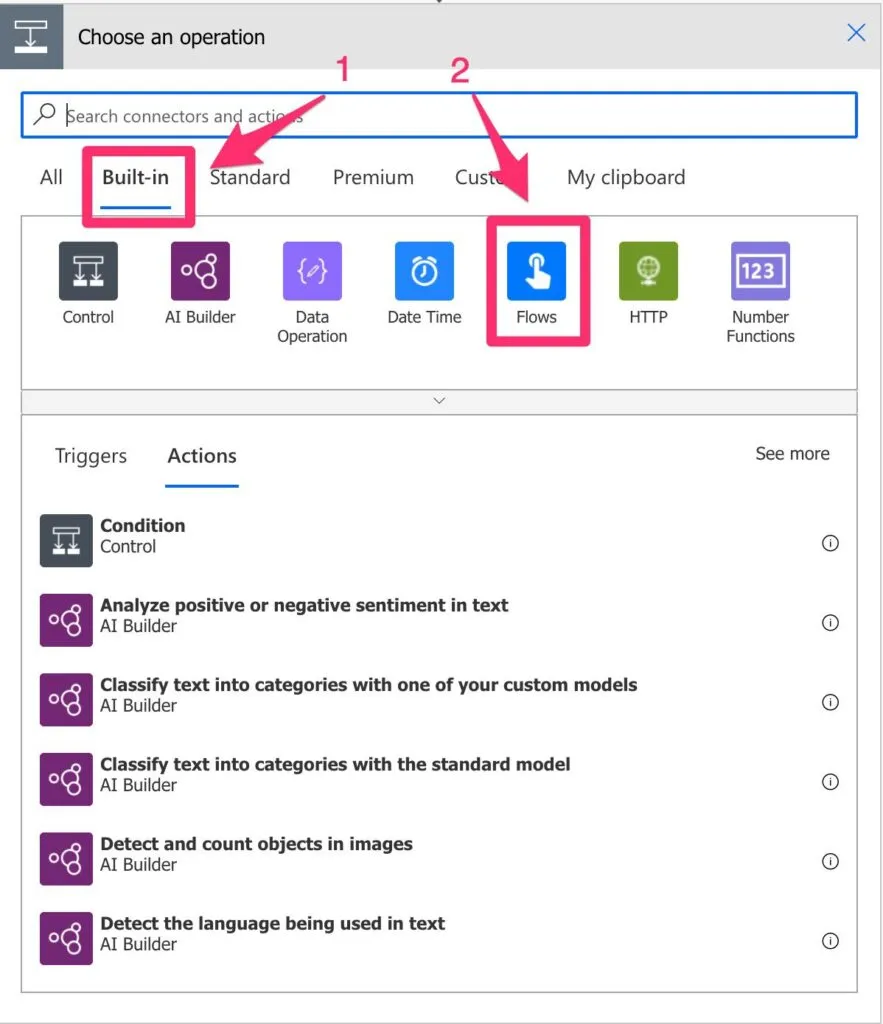
You can find it under “Built-in.”
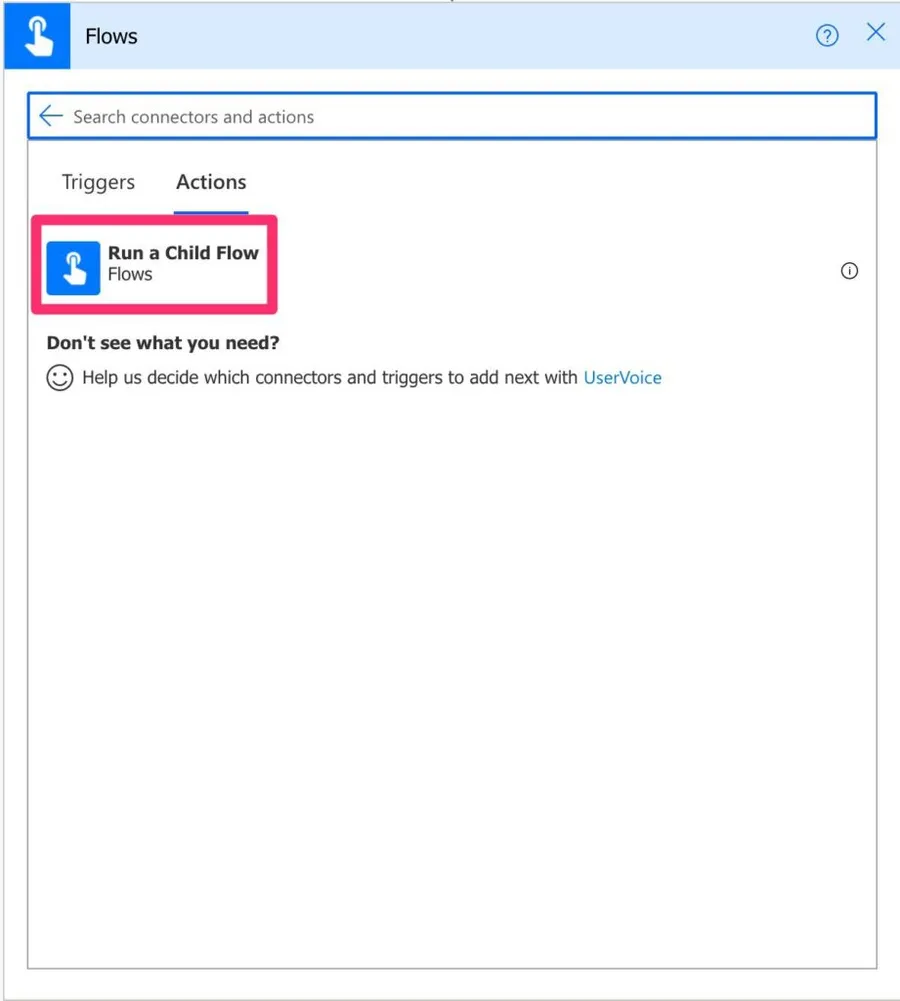
And then pick “Flows.”
💡
Pro Tip
Power Automate tends to save the most common actions on the main screen, so check there before going through the full hierarchy. Also, you can use the search to find it quickly.
Usage
Here’s what it looks like:
Let’s start with a simple example, but first, let’s create a “Child Flow” to call it inside our example.
This Flow will receive a few arguments and save them into a SharePoint list. If you have several Flows that save to the same SharePoint List, this is a better way to save the data. There are a few advantages:
If there’s a change in the SharePoint list, you only change your “Child Flow” and not all of them.
You can do data cleaning and transformation. All “parent Flows” will provide data but will always save it the same way.
You can validate if the data is correct. If a rule changes, you only have one place to change it.
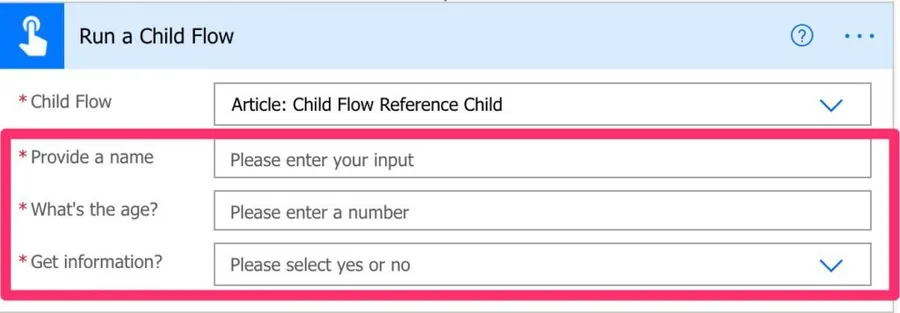
So let’s call our Child Flow.
You’ll get the Child Flow options to fill in as soon as you pick them.
But when you try to test the Flow, you get the following error:
Update the child flow for action 'Run_a_Child_Flow' to end with a response action.

Update the child flow for action 'Run_a_Child_Flow' to not use 'run-only user' connections.
There are two reasons for the two error messages:
You need a response from the child Flow. You need it to reply with something, even if your Flow doesn’t need a reply (like our case).
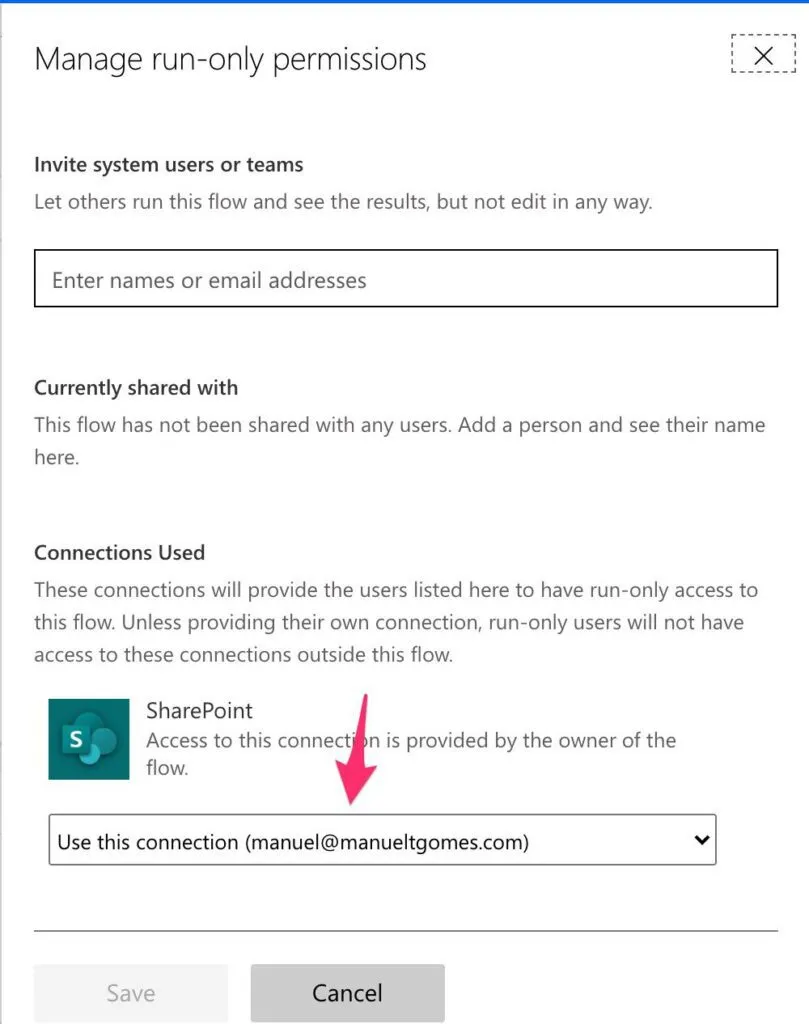
The connections don’t go from the parent to the child, so you need to define them in the child flow. It would help if you embedded” the Flow's connection to use it when running “inside” another Flow.
Let’s fix the second issue first:
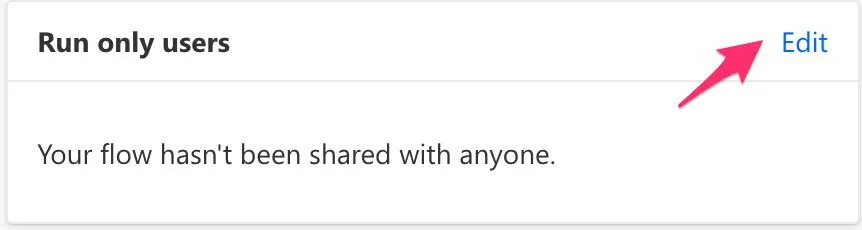
In the Child Flow, you need to edit the “Run only users.”
And then pick a connection.
Correction:
Ingrid correctly pointed out in the comments that we can use the "Respond to a PowerApp or flow" action. When writing this article, I completely forgot about it, so my THANKS again to Ingrid for pointing that out 😀
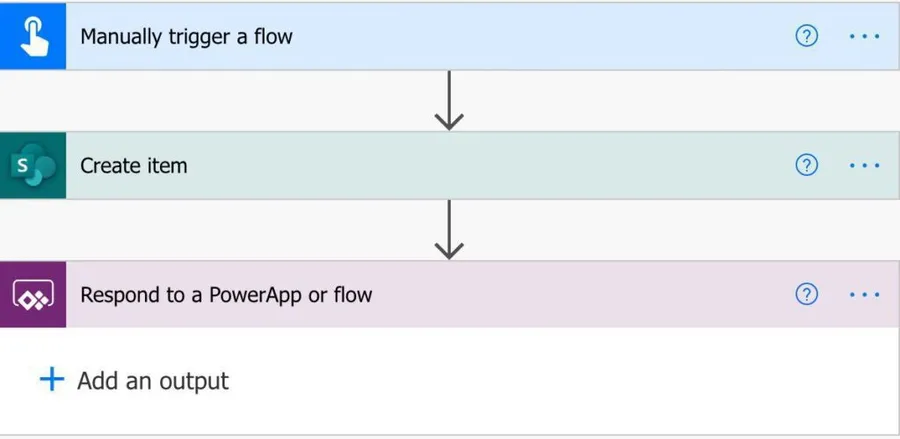
This solves the second issue, but what about the first? To do that, we need to use an action called “Respond to a PowerApp or flow.”
I know it's strange to have this action under Power Apps, but it works perfectly for our needs.
Child Flows can be Requests.
You can also have a request as a Child Flow. Let’s look at Flow as a Request (which requires premium connectors).
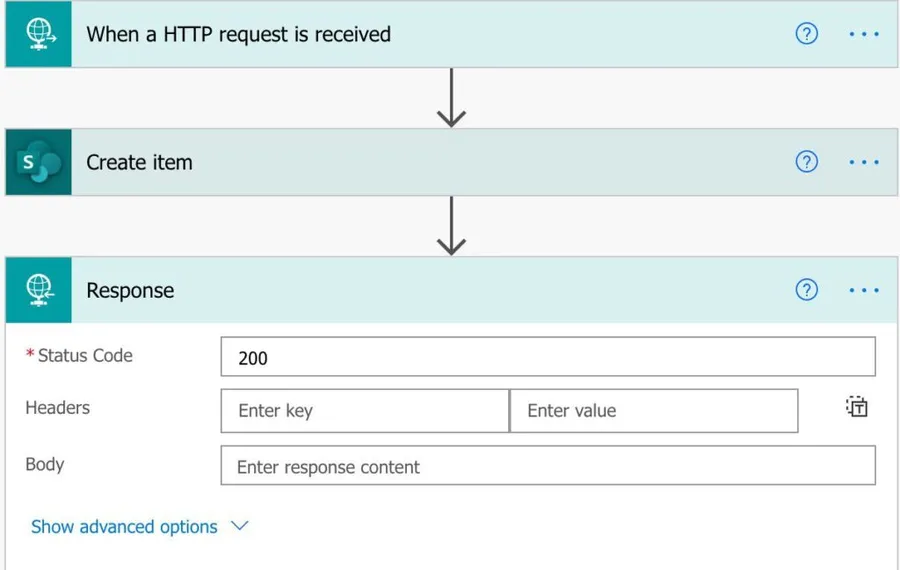
The same concept applies, and the “Run a Child Flow” action will display the parameters. It would help if you also had a “Response” action to be able to run the Flow:
The response is 200 (OK), but it can be anything you want. You can also provide a JSON Body with return information to the parent Flow.
Limitations
Besides the ones I’ve mentioned before, there’s another limitation. The “Run a Child Flow” action can only be used in solutions. Consider solutions as groups of Flows, Power Apps, Connectors, and more that have versions and can be run in the same context. I’m oversimplifying, but It’s the way that we can do Application Life Cycle management. Microsoft explains it in detail, and I’ll write about it in the future.
Policies
Another huge limitation related to the DLP or Data Loss Prevention policies. The administrator usually defines these policies, but they reveal themselves when you get the following error message:
Flow client error returned with status code "Forbidden" and details "/"error" ("code" :"ApiPolicyApiGroupViolation",."message":"Admin data policy 'AMERICAS' restricts use of
these apis: Http." "extendedData":/"violation"'/"policyld".:"/providers/Microsoft.BusinessAppPlatform/scopes/service/apiPolicies/bfabd07d-03e1-4e6f-9ab3-
01c1f3dc042c" "policyDisplayName": "AMERICAS", "type":"BlockedConnector". "parameters": ["'Http"]), "additionalinfo":018)".
If you have permissions, you can check it yourself by going to:
You can find the name of the policy in the exception above right after "policyDisplayName". In the example above, it's called "AMERICAS".
They should see it in the “Blocked” column, like this:
According to Microsoft, since the “Run a Child Flow” action shares some internal dependencies, the “Run a Child Flow” action will be disabled once this policy is enabled. This is unfortunate since they are pretty different, but there are a few ways to overcome this.
Solution 1 - Move to accepted groups
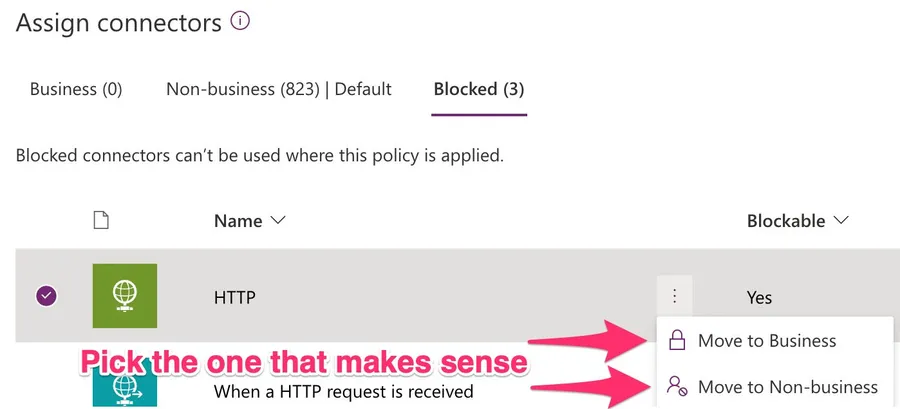
If you move to the "Business" or "Non-business," you would be able to use both the "HTTP" and “Run a Child Flow” actions. Notice that the groups enable the connections to be used only with the elements of the group. If you move the "HTTP" to the "Business" group but don't move anything else, then you would only be able to create Flows with "HTTP" but not with SharePoint, for example. That's why most people tend to keep all connectors in the same group to avoid issues.
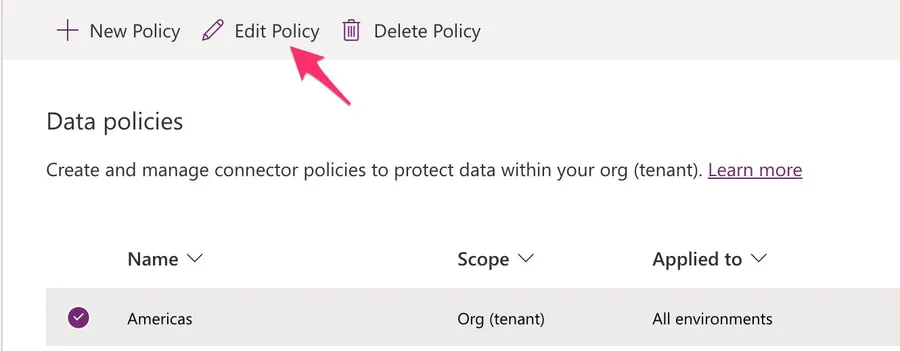
To do that, first, go to the policy and select "Edit Policy":
Select "Prebuilt connectors."
Depending on your strategy, choose the one that makes sense.
But if you want to keep the HTTP blocked, this solution is impossible, so let's look at a better one.
Solution 2 - Block traffic in HTTP but enable "Run a Child Flow."
Your administrator enabled the "HTTP" block for a good reason. They probably don't want anyone using Power Automate to do custom HTTP calls. That's fine, but by doing this, they disabled the “Run a Child Flow,” which is incredibly useful. The compromise solution is to enable it but block all endpoints it can use, making the "HTTP" action useless but enabling all the functionality of the “Run a Child Flow” action. To do this, we need to follow the steps above and move it to an allowed group and then select the policy again.
To do that please select the 3 dots in the "HTTP" connector and then select "Configure connector" and finally "Connector endpoints".
Then add a new line blocking all the traffic.
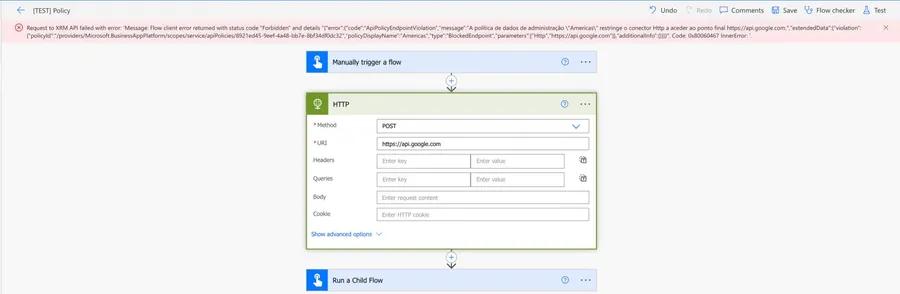
When you try to use the "HTTP" action with any endpoint, you'll get the following error message:
The error message states that you're forbidden to access the endpoint "api.google.com" (the URL is not essential) and that it violates the policy. But we can safely use "Run a Child Flow" actions without breaking the policy. It's a win-win situation where we can still block the usage of the HTTP action without blocking the "Run a Child Flow" actions.
Recommendations
Here are some things to keep in mind.
Be careful making changes.
Doing changes in one place and propagating to all other Flows is both a blessing and a curse. You can fix a bug in multiple Flows or introduce one also. Be very careful when doing changes because you’re potentially going to impact other Flows, some of them not developed by you.
Please keep it simple.
The child should have only one purpose and do it well. Child Flows are “black boxes” where something goes in, and something else comes out. Debugging them is hard to keep them as simple as possible. It’s better to break tasks into multiple “Child Flows” than to have a big one that returns unpredictable results.
Return errors also
If there’s an error with the Flow, the data, or something else, return something other than 200. It’s essential to deal with errors, and always returning the default 200 won’t do you any good. Use the body for proper error messages so the parent Flow can deal with them. The errors could be things like:
The data provided is incorrect or fails the business logic
You’re trying to insert something that already exists
You need the data formatted in another way
Not always are the errors something that broke, but something that is not correct.
The response should follow conventions.
Returning a random number in the response is possible but not advisable for two reasons:
There are conventions for the status codes. Conventions help us all “talk the same language,” and in this case is essential that if you return a 401, it means that it’s an “Unauthorized” error.
Other people will use your Flow. If you don’t have robust documentation (and what company has documentation for Flows?), other people will only know what you’ll return, and that’s it. But if they see a 401, they know what that means and can take action to solve it.
Don’t invite your error codes unless you have to. If you need, put internal error codes in the body of the message with a description of the problem.
Don’t nest
Don’t call child Flows inside of Child Flows. This will be tempting when you realize that you can have one big child Flow that “orchestrates” all the others, but you’ll have a hard time later. Knowing what’s wrong when a child Flow returns something you don’t expect is hard enough. It gets a lot worse when you try to complicate things. The mindset is always the same. Keep things as simple as possible.
Name it correctly
If a Flow is meant to be used as a “Child,” somehow indicate that in the name. I like to name mine “AUX: <Name>” to know that it’s doing something other Flows share.
Always add a comment.
I always add this recommendation because it’s the most important one. All actions should have comments describing what they do. I recommend also having scopes to classify the actions so that it’s easier to understand what a Flow is doing.
Use them wisely but use them.
Don’t go overboard to create Child Flows for everything if you’ll need that feature in the future, but don’t put everything in the same Flow. The worse thing you can get has a Flow with a bunch of business logic and needs to replicate the actions to another Flow.
Am I missing something? Leave a comment or interact on Twitter. Let’s work together to make this reference as complete as we can
I think there is a Power Apps connector "Response to App", or something like that, that can be used to respond to the parent flow. This is not a premium connector.
Regards,
Ingrid
M
Manuel T. Gomes
Author
Hi Ingrid,
I forgot about that one!!! Shame on me 😔
You're right, and you're awesome! Thanks for that!





 According to Microsoft, since the “Run a Child Flow” action shares some internal dependencies, the “Run a Child Flow” action will be disabled once this policy is enabled. This is unfortunate since they are pretty different, but there are a few ways to overcome this.
 Select "Prebuilt connectors."
 Depending on your strategy, choose the one that makes sense.
 But if you want to keep the HTTP blocked, this solution is impossible, so let's look at a better one.
 Then add a new line blocking all the traffic.
 When you try to use the "HTTP" action with any endpoint, you'll get the following error message:
 The error message states that you're forbidden to access the endpoint "api.google.com" (the URL is not essential) and that it violates the policy. But we can safely use "Run a Child Flow" actions without breaking the policy. It's a win-win situation where we can still block the usage of the HTTP action without blocking the "Run a Child Flow" actions.



Thank you for the useful info!
What if I dont have a "Run-only-users' option?
Thank you for this post.
Hi Manuel,
I think there is a Power Apps connector "Response to App", or something like that, that can be used to respond to the parent flow. This is not a premium connector.
Regards,
Ingrid
Hi Ingrid,
I forgot about that one!!! Shame on me 😔
You're right, and you're awesome! Thanks for that!
Going to re-write the post with that information.
Thanks again!
Manuel