
SharePoint is an excellent place to keep files and manage them. Most of the time, we can access the file directly and edit it, like an Excel file, for example, but today, we're interested in the file as a blob of information. We want to get the file contents and then use them elsewhere in our automation, like sending it in an email, for example.
A few notes before we continue. There's a "sister" action called "Get file content using path" that works differently. We'll see it in a bit, but this one requires an "Identifier," while the other requires you to provide the file's path.
Also, there are analogous actions for OneDrive For Business, like the "Get File Content" action and the "Get File Content using Path" action, in case you're interested in using OneDrive instead of SharePoint.
Where to find the "Get File Content" action?
You can find it in "Standard".
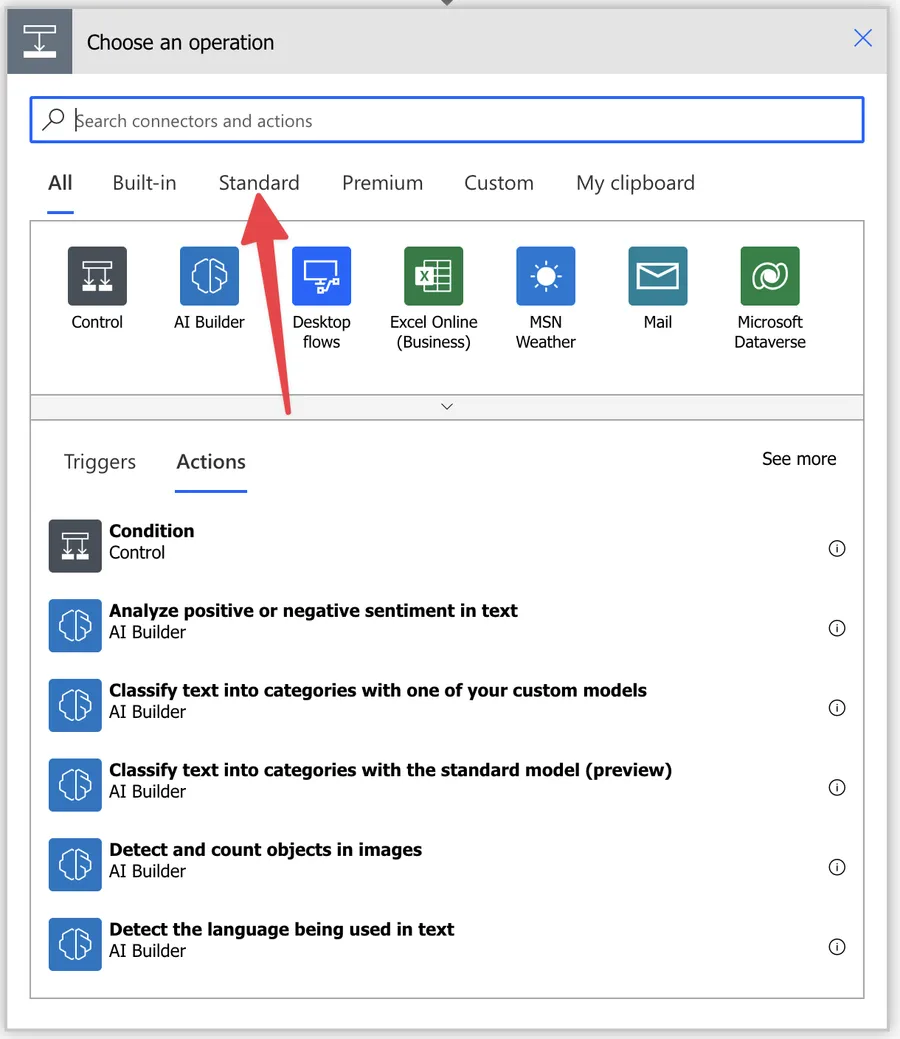
If you don't see "SharePoint," click to expand.
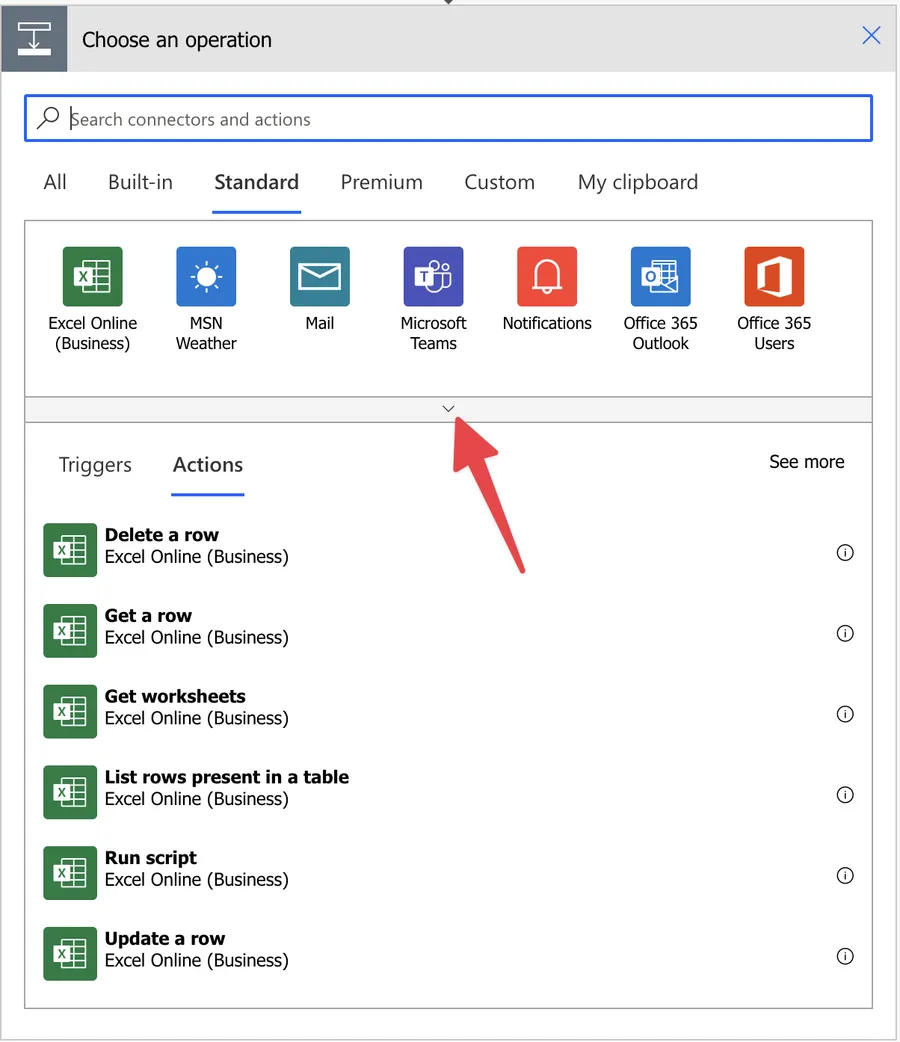
Power Automate tends to save the most common actions in the main screen, so check there before going through the full hierarchy. Also, you can use the search to find it quickly.
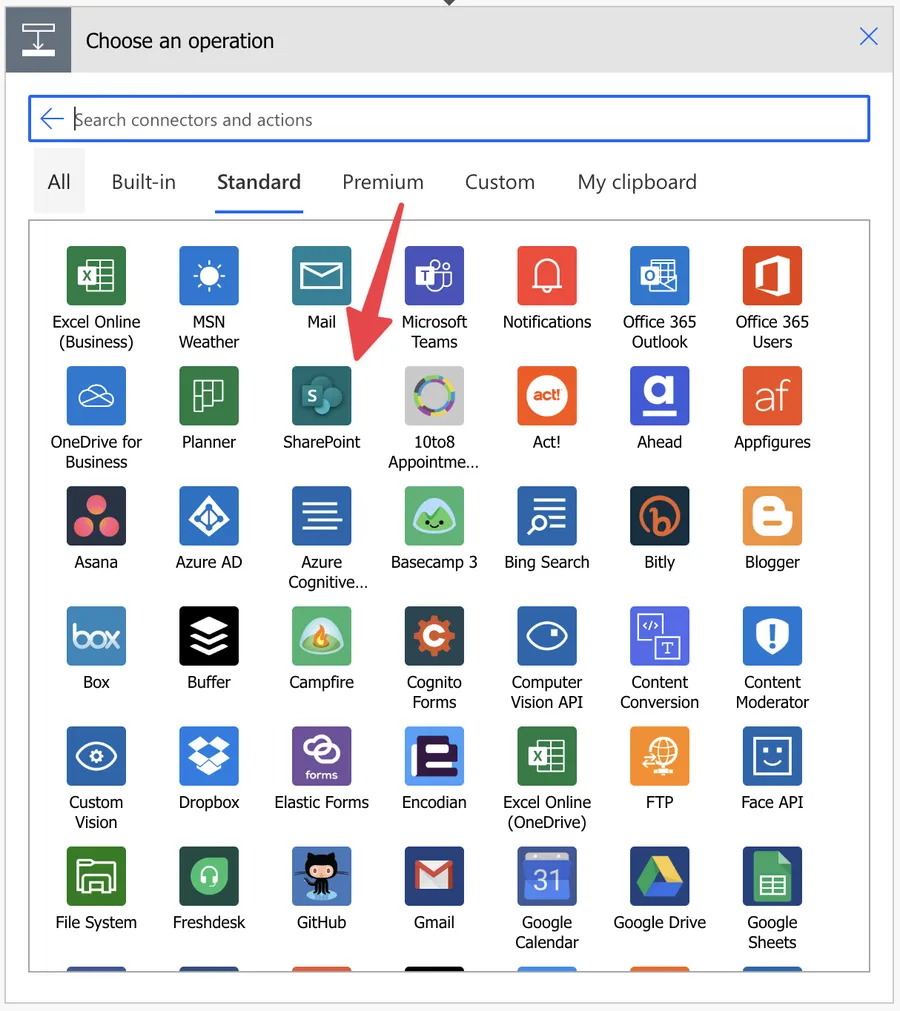
Pick "SharePoint".
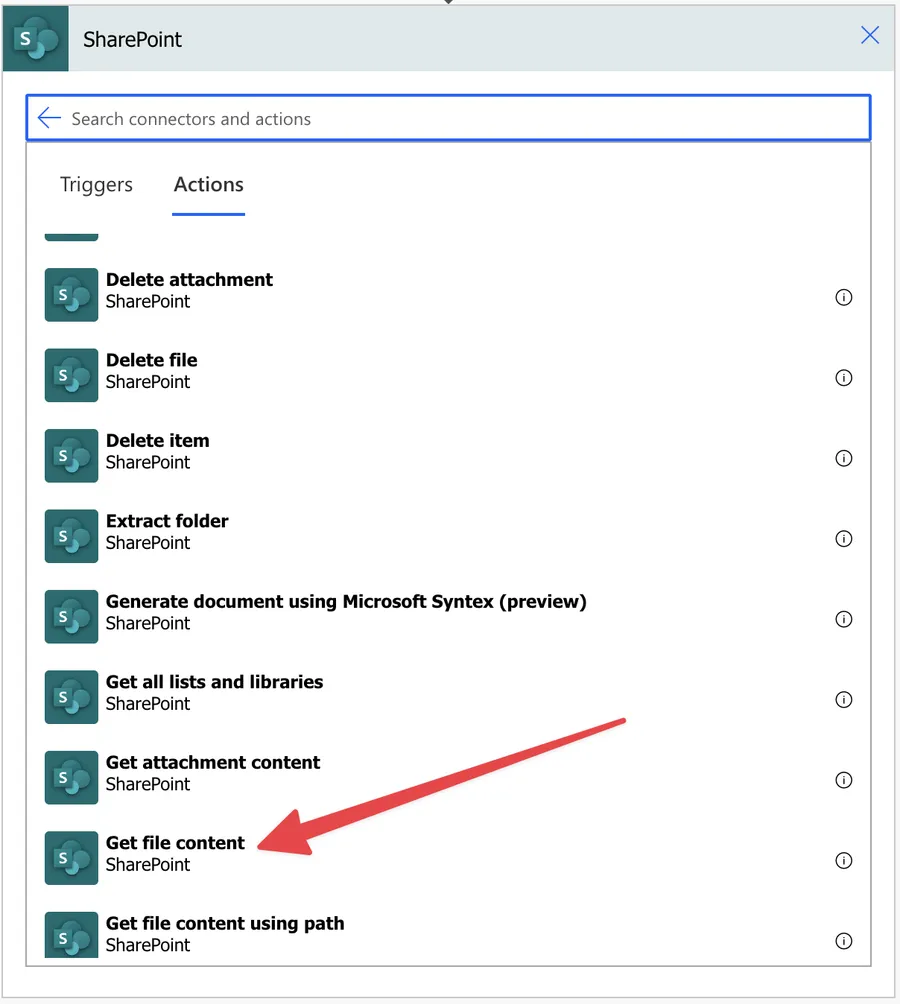
Pick the "Get file content" action.
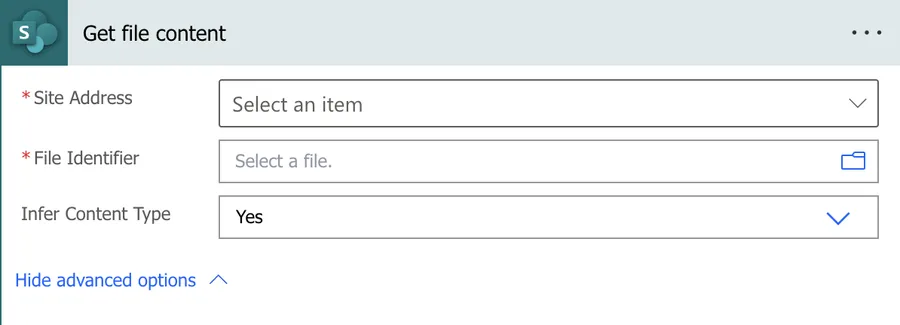
Here's what it looks like.

There are also advanced options that you can pick by pressing the "Show advanced options".
Now that we know how to find it, let's understand how to use it.
Usage
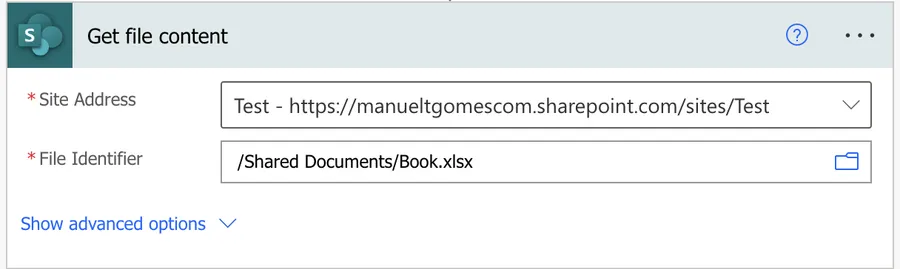
The usage is quite simple. There are two parameters:
- The SharePoint site where you have the file
- The file itself.
It's important to note that you must pick the file from the UI and not provide its path. Check below in the "non-intuitive behaviors" for more details. Here's what it looks like:
When we run it, we get the following:
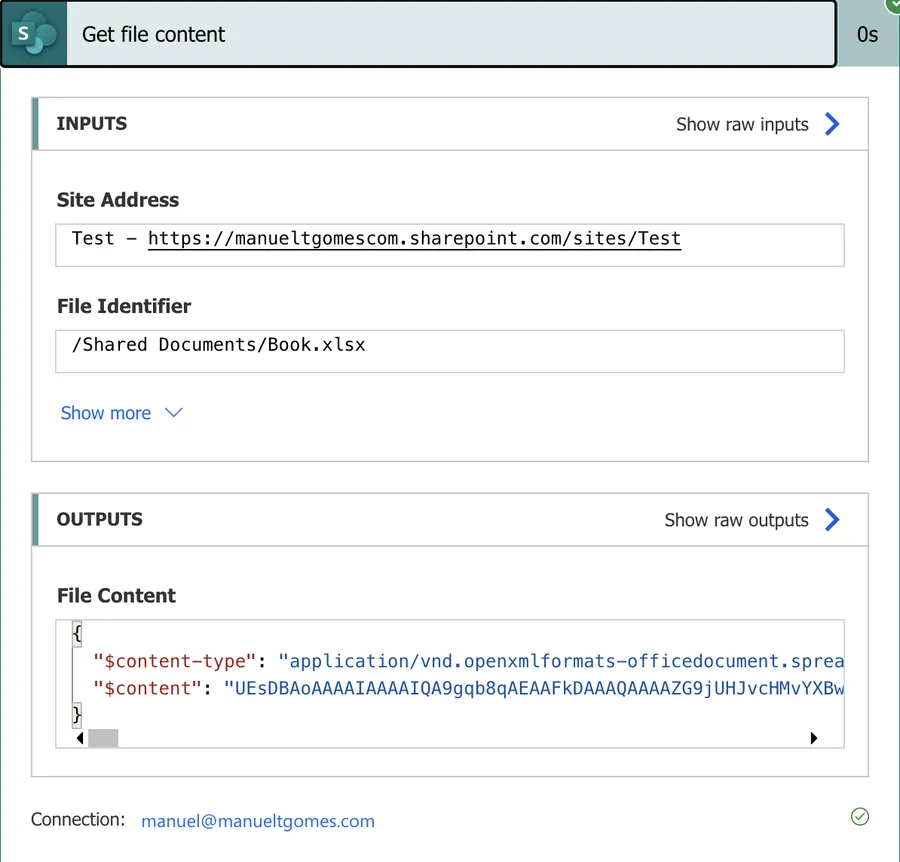
Notice that the data that we get looks "strange". Since the Excel file has an internal structure that is not readable by us, the result comes in base64. If you don't know what it is, don't worry. In this case, consider it as "data" and provide it to the actions that require the information, and Power Automate will take care of the rest.
The output contains two important properties: $content-type with the MIME type and $content with the base64 string. You can access the content using outputs('Get_file_content')?['$content']. This is useful when you want to send the file as an email attachment or create a copy of the file in another location using the "Create File" action. If you need to convert the base64 data, you can use the "base64ToBinary" function.
What about if we try to fetch the information from a text file like this?
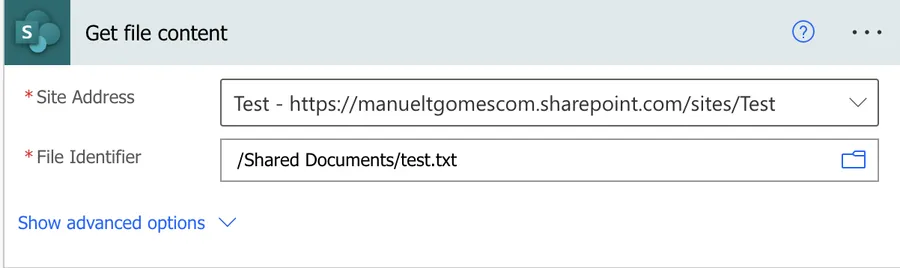
The "Get File Content" action will return the following.
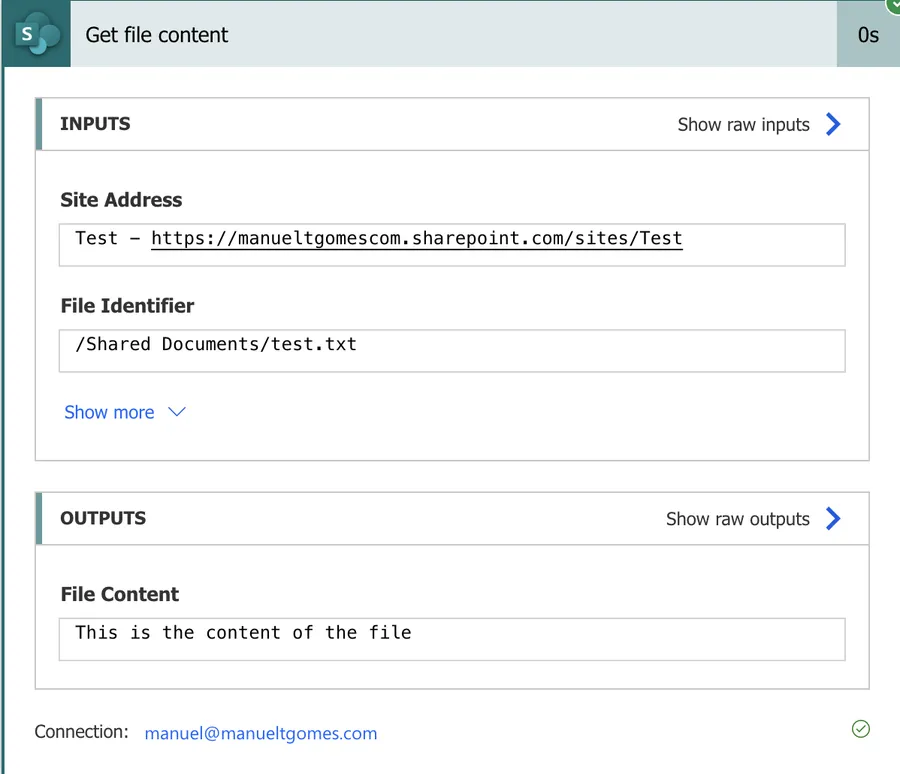
Since we're getting a text file, we won't get it as a base64 file, but we'll get its contents. This works the same way with CSV files, where the information is stored in clear text that you can "read". Again, this is a great way to get information in bulk from a file and parse it in subsequent actions.
Finally, look at the advanced properties, like the "Infer Content Type". This tells Power Automate to look at the extension and try to understand the content type. For an Excel file, it's something like this:
application/vnd.openxmlformats-officedocument.spreadsheetml.sheet
Applications need this information to know what to do with the files and how to open them, for example.
It's super rare that you'll need to worry about this, but I wanted to include an explanation of what it is in case you're curious or facing a situation where you need it. If you do, please let me know in the comments so I can include it here for others to benefit.
If you enable "Infer Content Type" and then use the output to create a file in another location, file corruption can occur if the content type is misidentified. If you're moving files around and they end up corrupted, try disabling this option.
Non-intuitive behaviors
Here are some things to keep in mind.
You can't provide the path
Some people see the path in the action and wrongly assume that they can provide it dynamically.
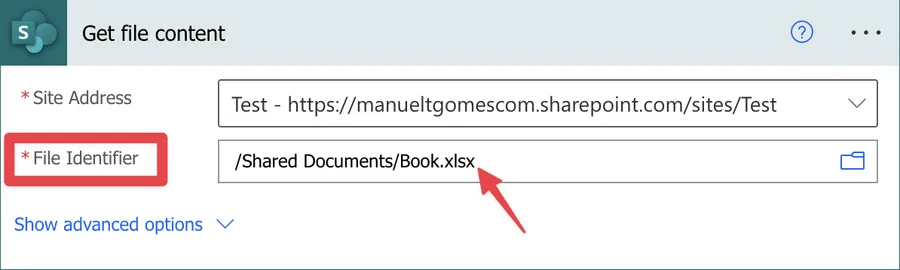
Notice that the action's parameter is called "File Identifier" and not "File Path". You can use the file identifier if you can get it from other actions, but it won't work with the path.
However, you can dynamically provide the file identifier. If you're using a trigger like "When an item or a file is modified," the {Identifier} property is available in the dynamic content list. You can also use the expression triggerBody()?['{Identifier}'] to get it. The {Identifier} is a URL-encoded server-relative path to the file, and it works perfectly with this action. Just make sure you don't try to manually construct the identifier or use the "uriComponent" function on it - use it as-is from the dynamic content.
The file must have content. If you're testing with an empty .txt file, you'll get an error because the content is null.
If you try to provide the path instead, you'll get an error message like this:
Route did not match
clientRequestId: b86c99b3-8408-4b44-8912-edcf070bbcdd
serviceRequestId: faf84c19-2e41-4c8f-a822-d6592d850991
Here's a quick way to test it. First, copy the value we got before to a "Compose" action.
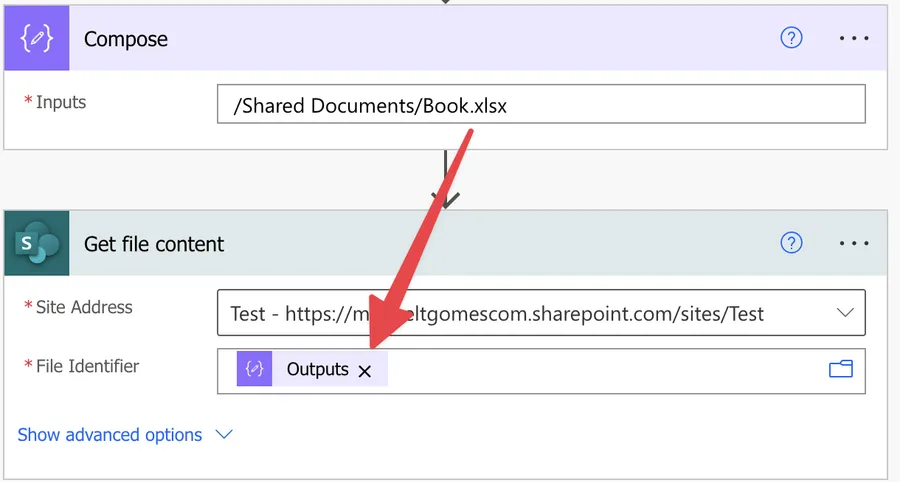
Here's the result.
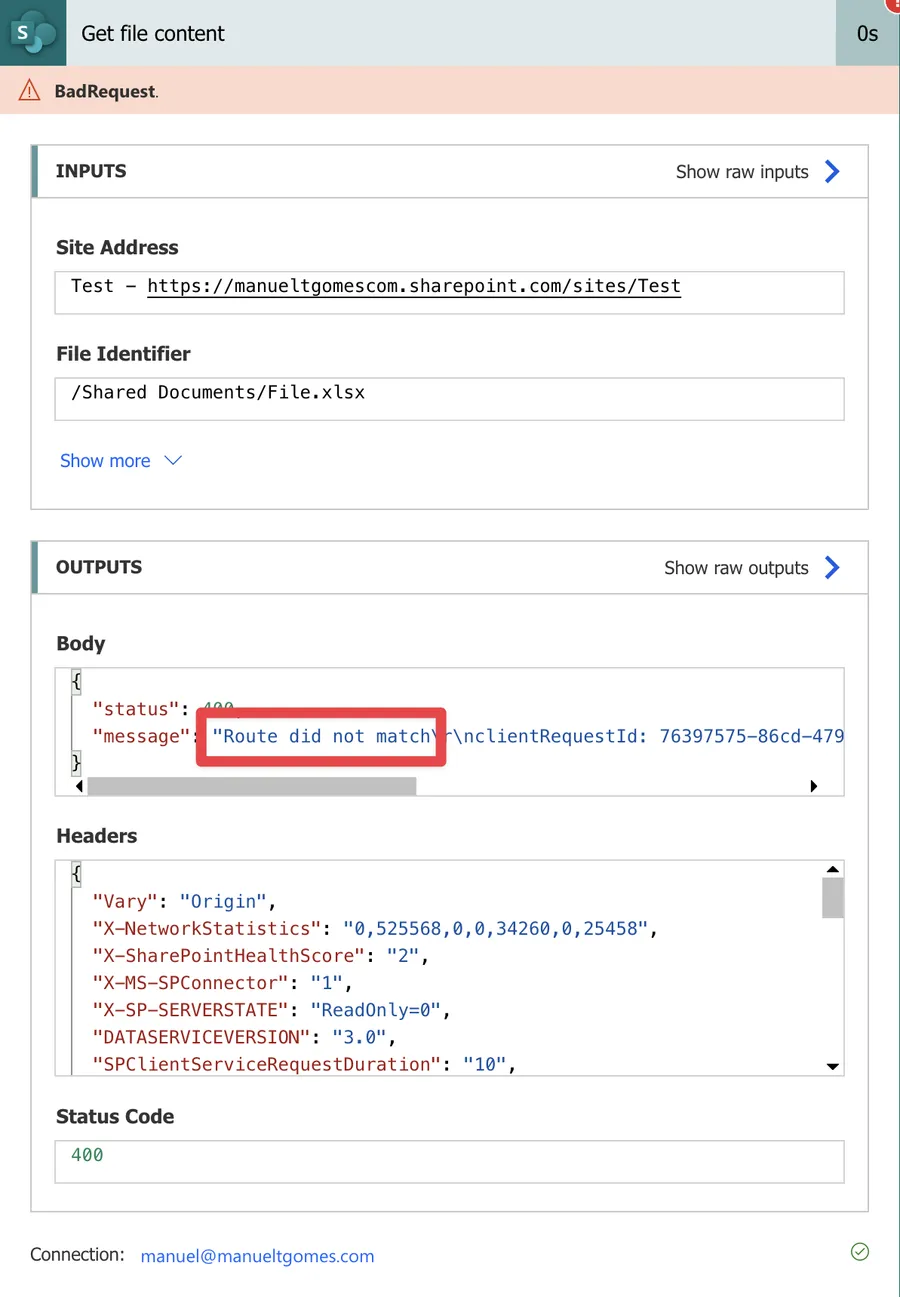
If you want to use the path dynamically, you need to use SharePoint's "Get File Content using Path" action.
JSON files with array roots
If you try to read a .json file where the root element is an array (like [{"name": "Pedro"}, {"name": "Maria"}]) instead of an object, you'll get an Internal Server Error. This is a known issue with the SharePoint connector. The workaround is to rename the file extension to .txt so the content type is inferred as text/plain instead of JSON.
I'm including this for completeness but this is quite a specific use-case. Just for you to know in case you find something like this.
Limitations
File size limit
The SharePoint connector has a 100 MB message size limit per action. However, since the "Get file content" action returns data as base64, and base64 encoding adds roughly 30% overhead, the practical file size limit is around 70-80 MB. If you exceed this, you'll get an error like:
Cannot write more bytes to the buffer than the configured maximum buffer size: 104857600
If you need to move large files, consider using the SharePoint "Copy File" action instead. With that action, the data never enters the Flow, and it supports files up to 250 GB.
Throttling
The SharePoint connector allows 600 calls per minute per connection, and this limit is shared across all Flows using the same connection. If you use the "Get file content" action inside an "Apply to each" action loop with high concurrency, you can hit this limit quickly. Keep the concurrency at 2-5 to stay safe. When throttled, you'll get HTTP 429 or 503 responses.
If you have found other limitations we should be aware of, please comment, and I'll include them in the article for everyone to benefit.
Recommendations
Here are some things to keep in mind.
Name it correctly
The name is super important in this case because we can pick the file from the UI and get the file's Identifier from other actions in the Flow. Therefore, always build the name so others can understand your use without opening the action and checking the details.
Always add a comment
Adding a comment will also help avoid mistakes. Indicate where the Identifier comes from, for example, how you get it. It's essential to enable faster debugging when something goes wrong.
Always deal with errors
Have your Flow fail graciously and notify someone that something failed. It's horrible to have failing Flows in Power Automate since they may go unlooked-for a while or generate even worse errors. I have a template that you can use to help you make your Flow resistant to issues. You can check all details here.
Final Thoughts
The "Get file content" action is a straightforward way to grab files from SharePoint and use them in your Flows. Just remember to use the file identifier, not the path, and you'll be all set. If you need the path approach, the "Get file content using path" action has you covered.
Back to the Power Automate Action Reference.
Photo by Ali Shah Lakhani on Unsplash



Great intro to what the connector does! Any idea how to decode the content for xlsx file from this connector? I am trying to parse to json so I can extract the columns and data into SQL. I cannot use list rows in table excel online connector, since the excel files are located in on-prem sharepoint. Any help would be greatly appreciated !
How do you specify the file path when using the "Get File Content" action?
You can't specify a file path with this action - that's actually covered in the "Non-intuitive behaviors" section above. The parameter is called "File Identifier," not "File Path." If you need to use a path dynamically, check out the https://manueltgomes.com/microsoft/power-platform/powerautomate/power-automate-action-reference/sharepoint-get-file-content-using-path-action/ instead.
Great explanation Manuel. Appreciate your efforts. I am looking at getting file content, identify if the content has specific words and then move the file to specific folder based on the key words in the content.
We encountered Internal Server Errors when trying to read .json files where the root structure is an array instead of an object. Power Automate struggles to infer these documents as JSON. To remedy, rename the extension to .txt so the content type is inferred as text/plain. The Parse JSON action will then works correctl.
Thanks for confirming this, Jacob! I've added a section about this exact issue to the article under "Non-intuitive behaviors." Great catch on the .txt rename workaround.
I'm trying to include the content of a Site Page (*.aspx file) in the email body. I can grab the properties of the file but the email is blank. Wondering if I need to change the Infer Content Type to something other than Yes.
The .aspx file content might be coming through as binary rather than readable HTML. Try setting "Infer Content Type" to "No" and see if that changes the output. If the content still doesn't show in the email body, you may need to explicitly set the email body to accept HTML content and use the output's content property directly.
Just a quick clarification for those using the online interface (haven't tested in desktop). You CAN dynamically identify the file from SharePoint, but you need to use the {Identifier} value from the File Properties (this works in both classic and modern interfaces). For example, if you are using the "When an item or a file is modified" trigger, set the Identifier field to: triggerBody()?['{Identifier}'] This property will show up in the dynamic list, so you don't need to use the insert expression if you don't want to. Do not include the file path, library name, etc. or it will fail (also do not use the uriComponent function.) Finally, the file MUST have content. If you're using an empty .txt file for testing, you'll get an error stating that the content is null.
Excellent clarification, Dave! You're absolutely right - the {Identifier} property from triggers and file properties works perfectly with this action. I've updated the article to include this information. The key distinction is that the path won't work, but the {Identifier} (which is a URL-encoded server-relative path) does. Thanks for the tip about empty files too - added that as well.