
The "Parse JSON" action is one of the most useful actions in Power Automate. It takes a JSON string and turns it into structured dynamic content that you can use in subsequent actions. Without it, you'd have to write expressions to access every single field in your JSON data, which gets tedious fast.
The idea is simple. You have some JSON data, you tell Power Automate what structure to expect using a schema, and then each property becomes a nice dynamic content card you can pick from. It's a "Data Operations" action, sitting alongside other favorites like the "Compose" action, the "Select" action, and "Filter Array".
One nice thing before we start. Unlike a lot of actions, this one has no V1/V2 versions to worry about and nothing here is being deprecated. It's a built-in action, so it works the same way it always has, and it doesn't need a premium license.
Where to find it?
You can find it under "Built-in" actions. Look for the "Data Operations" group.
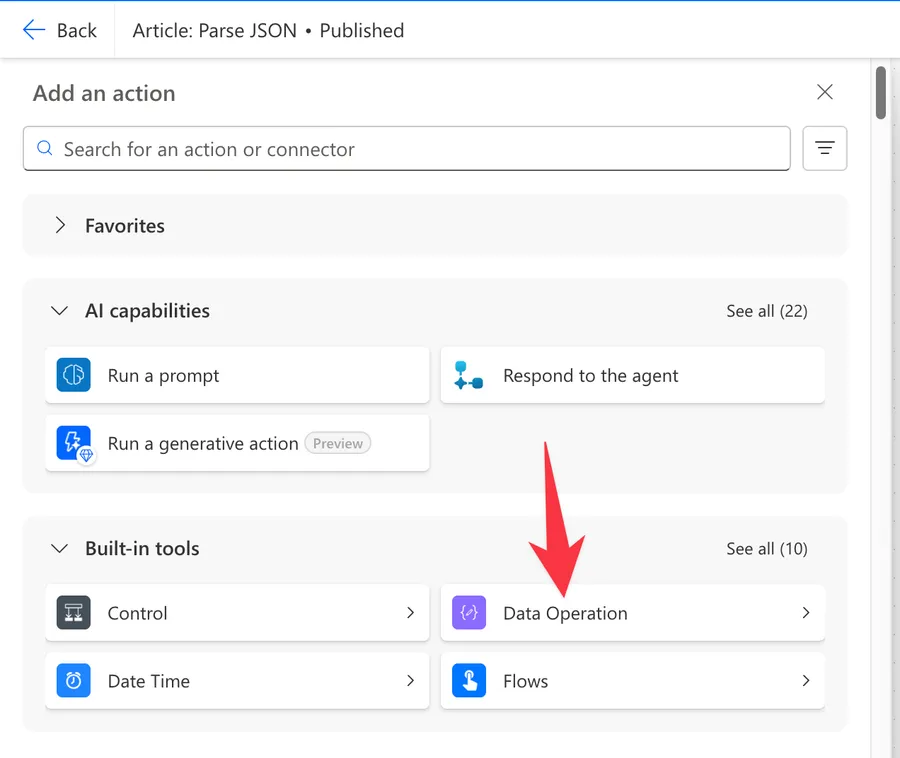
Select the "Parse JSON" action.
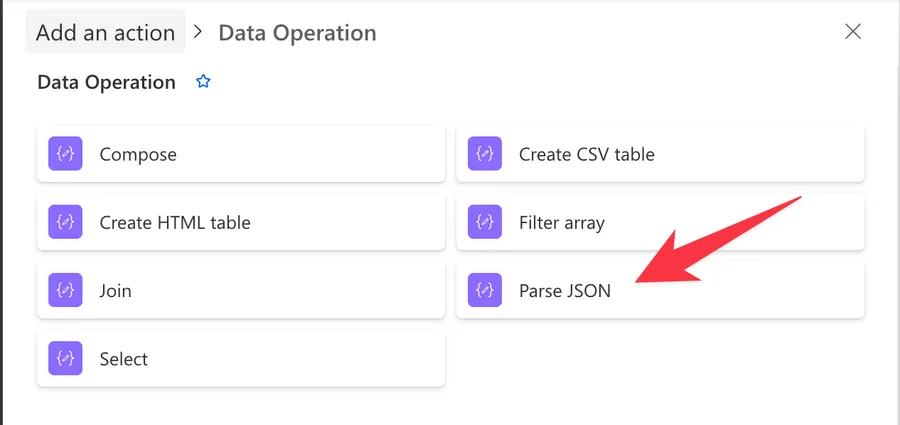
Here's what it looks like.
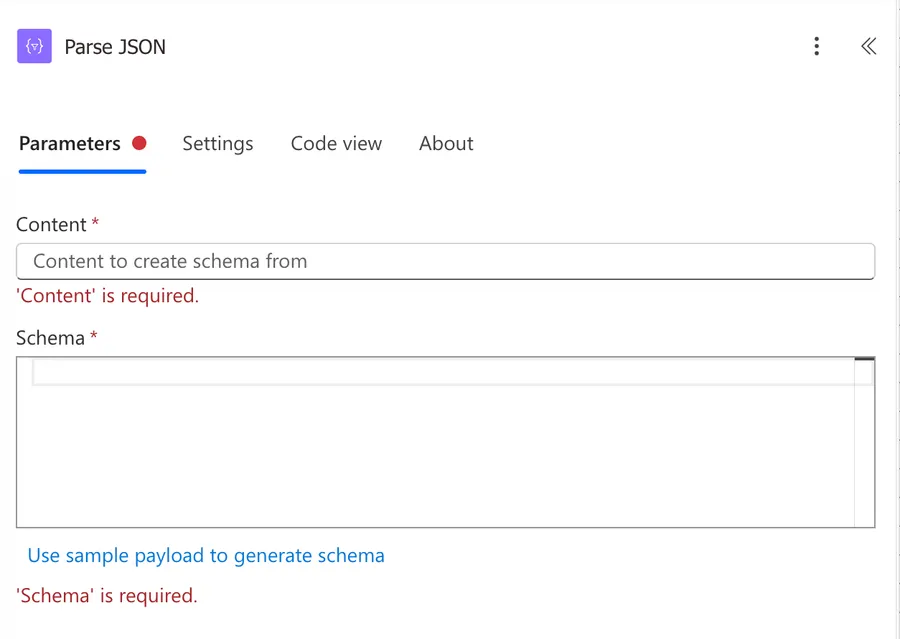
Notice that both fields are required but we'll detail them in the next section.
Power Automate tends to save the most common actions in the main screen, so check there before going through the full hierarchy. Also, you can use the search to find it quickly.
Now that we know how to find it, let's understand how to use it.
Usage
The "Parse JSON" action has two fields: Content and Schema. Both are required.
Content
The "Content" field is where you provide the JSON data you want to parse. This can come from many places:
- The body output from the "HTTP" action
- The output from a "Compose" action
- A variable containing JSON
- Dynamic content from any action that outputs JSON
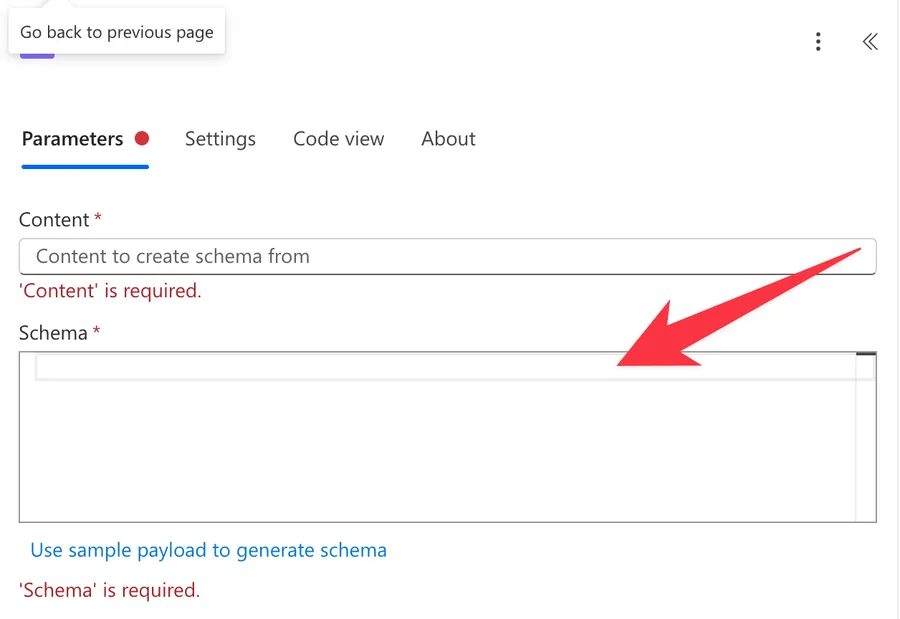
Schema
The "Schema" field is where you define the structure of your JSON. It uses JSON Schema format to describe what properties exist and what types they have.
Here's an example of a simple schema:
{
    "type": "object",
    "properties": {
        "name": { "type": "string" },
        "age": { "type": "integer" },
        "email": { "type": "string" }
    },
    "required": ["name"]
}
I can't remember a single time I generated the above structure manually, so always use the handy schema generator described in the next section.
Generate from sample
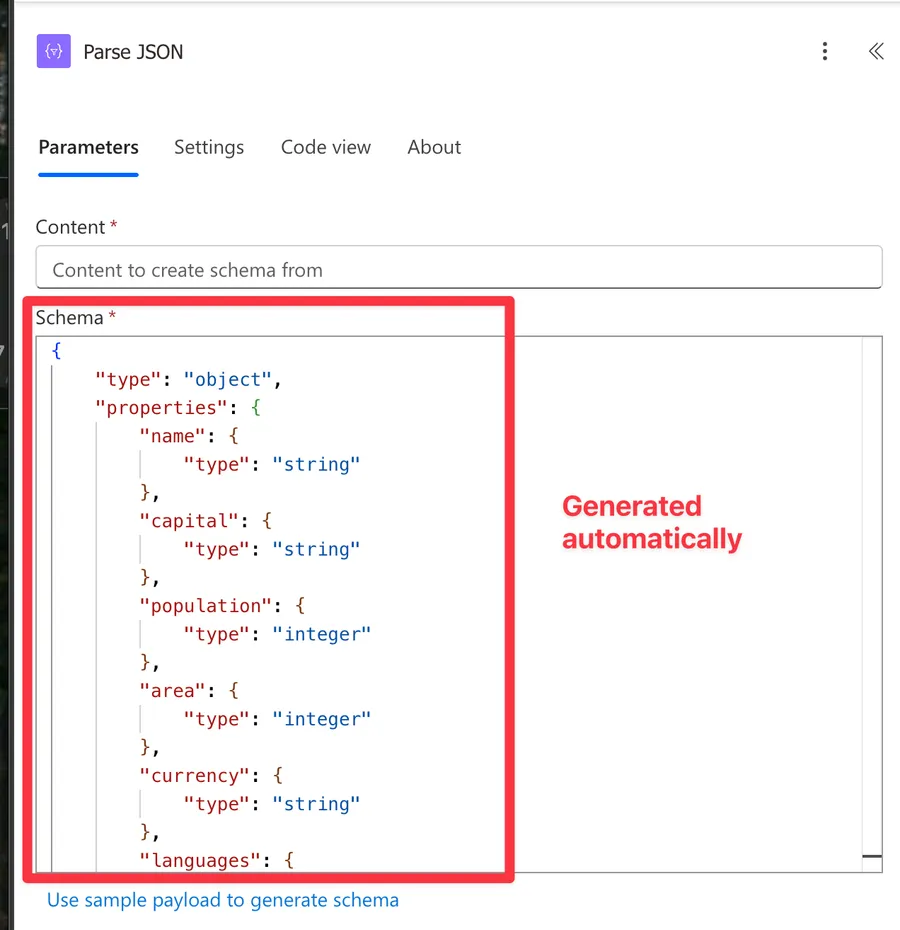
The easiest way to create a schema is to click the "Generate from sample" button. A dialog opens where you paste a sample of your JSON data, and Power Automate generates the schema for you.
If you go looking for this button in the documentation, don't be surprised when the name doesn't match. Microsoft calls the same feature "Use sample payload to generate schema" in Logic Apps and in the Power Automate Request trigger, while the "Parse JSON" action itself labels it "Generate from sample". Two names, one feature.
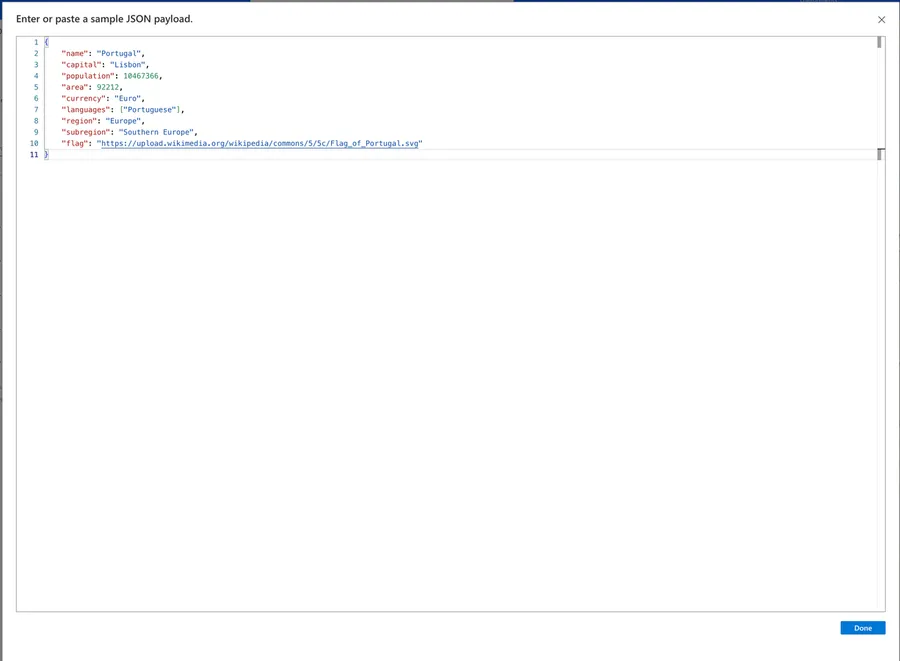
Here's an example of a JSON file.
{
    "name": "Portugal",
    "capital": "Lisbon",
    "population": 10467366,
    "area": 92212,
    "currency": "Euro",
    "languages": ["Portuguese"],
    "region": "Europe",
    "subregion": "Southern Europe",
    "flag": "https://upload.wikimedia.org/wikipedia/commons/5/5c/Flag_of_Portugal.svg"
}
Click the button and copy your JSON inside.
And the schema will be created for you.
Where do you get sample data? The best approach is to run your Flow once, go to the run history, expand the action that produces the JSON (like the "HTTP" action or a "Compose" action), and copy the output from there.
The "Generate from sample" button is a starting point, not a finished product. It marks all non-null fields as "required" and infers types only from the sample you provide. You should always review and edit the generated schema. More on this in the Recommendations section.
Using the parsed output
After a successful parse, each property defined in your schema becomes available as dynamic content in subsequent actions. Instead of writing expressions to access fields, you can simply pick them from the dynamic content picker.
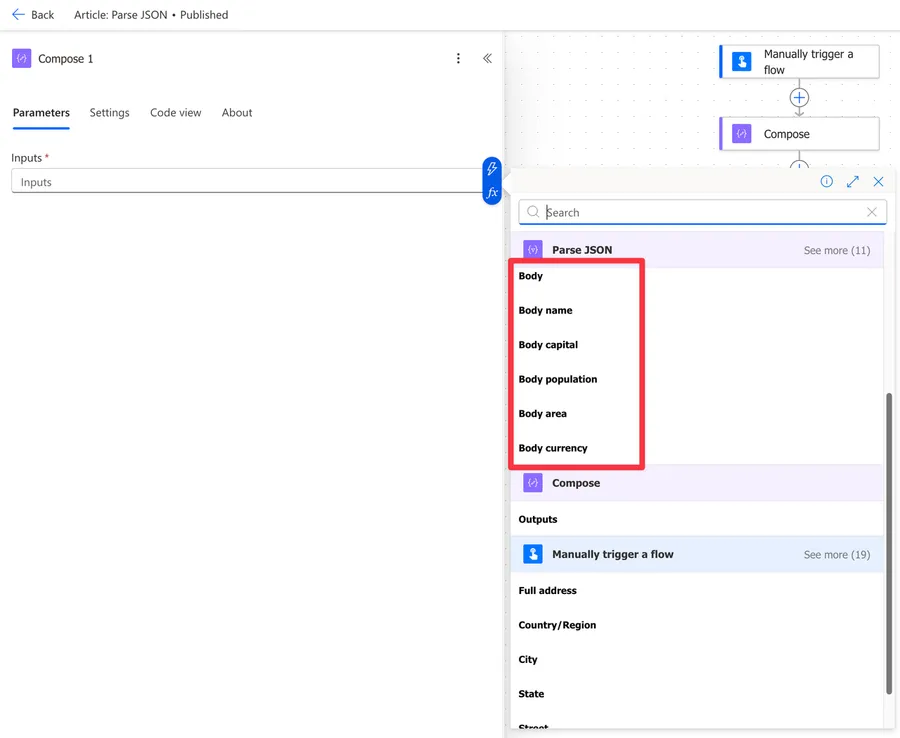
If your JSON contains arrays, referencing an array property will automatically wrap your action in an "Apply to each" action. This can be surprising if you don't expect it, so keep it in mind.
Non-intuitive behaviors
There are a few things about the "Parse JSON" action that can catch you off guard.
Schema validation is strict
If a field is listed in the required array and is missing from the input JSON, the action fails. It doesn't skip it or default to null. Similarly, if a field's type doesn't match what the schema expects, it fails. This is the number one source of "Parse JSON" failures in production Flows.
Null handling is tricky
JSON null is not the same as a missing field, and both cause problems differently. If your schema says a field is "type": "string" and the value is null, the action will fail. The obvious fix is to allow both types:
"type": ["string", "null"]
That works, and it's the fix you'll see everywhere, but it has a cost that almost nobody mentions. Once a property has more than one type, the designer stops offering it as a dynamic content card. You fix the error and quietly lose the card you were parsing for in the first place.
There's a second option that keeps the card. Give the property an empty schema:
"name": {}
An empty schema means "anything goes", so it accepts a string, a null, a number, whatever arrives, and the property still shows up in the dynamic content picker. You give up type checking on that one field, which is usually a fine trade when the field was optional anyway.
The schema generator does not produce null-safe schemas either way. If your sample has all fields populated, any null values in real data will cause failures. I wrote a detailed article on how to solve the JSON Invalid type error that covers this in depth.
Extra properties are ignored, unless you tell it not to
If the incoming JSON has properties that are not defined in your schema, they are simply ignored. No error is thrown. This means you only need to define the properties you actually plan to use, which is great for keeping your schema simple.
There's a catch. That's only true because the generated schema leaves additionalProperties out. If your schema says:
"additionalProperties": false
then the action flips to being strict about extras, and any undeclared property in the payload fails the run. You rarely type that by hand, but you get it for free when you copy a schema out of an OpenAPI or Swagger definition, which is exactly when it bites.
It types your data, it doesn't transform it
This one reframes the whole action. When the content is already a JSON object, the output body is the input, unchanged. The action validates and it hands the designer a map of what's inside, but it doesn't rewrite anything.
The useful consequence is that properties you left out of the schema are still there in the data. They're missing from the dynamic content picker, not missing from the output, so you can always reach them with an expression:
body('Parse_JSON')?['propertyIneverDeclared']
A JSON string is not a JSON object
The "Content" field wants an object. Hand it a string that happens to contain JSON, and the action refuses it with The 'content' property of actions of type 'ParseJson' must be valid JSON.
This usually isn't your fault. It happens when the upstream response arrives with a Content-Type of text/plain instead of application/json, so Power Automate treats the body as text and never parses it. The fix is to convert it yourself with the "json" function before it reaches the "Parse JSON" action:
json(body('HTTP'))
The "$schema" line is a trap
Generate a schema in any modern online tool and it will hand you back something that starts like this:
"$schema": "http://json-schema.org/draft-07/schema#"
Paste that in and things get strange, because the engine behind this action only understands JSON Schema drafts 3, 4 and 6. Declaring a draft it doesn't know can send it down the wrong validation rules and throw an InvalidTemplate error complaining about the required property, which tells you nothing useful about what actually went wrong.
Just delete the $schema line. With no version declared, the action picks the correct one by itself, which is why the built-in generator never adds it.
Nested objects may not show in the dynamic content picker
For deeply nested JSON structures, Power Automate may not display all nested properties in the dynamic content picker. In those cases, you'll need to use expressions to access them, like:
body('Parse_JSON')?['outerProperty']?['innerProperty']
Alternatively, you can chain multiple "Parse JSON" actions: one for the outer structure and another for the nested objects.
Integer vs. Number distinction
JSON Schema distinguishes between integer (whole numbers) and number (decimals). If your sample has 42, the generator creates "type": "integer". But if that field can sometimes be 42.5, you need "type": "number". The number type accepts both integers and decimals, so when in doubt, use number.
While we're here, don't expect the action to be helpful about types. It never converts anything. A value of "42" with the quotes, checked against "type": "integer", fails with Invalid type. Expected Integer but got String. It won't quietly turn the string into a number for you, and it won't do the reverse either.
Limitations
Here are some limitations to be aware of.
No partial parsing
The "Parse JSON" action is all-or-nothing. If schema validation fails on any property, the entire action fails. You cannot tell it to "parse what you can and skip errors."
The "pattern" keyword is blocked
This one is nasty because the designer lets you save the schema without a word of complaint, and then the run dies. If your schema contains pattern or patternProperties anywhere inside it, you get an error all of its own:
ActionSchemaNotSupported. The 'schema' property of action 'ParseJson' inputs contains 'pattern' or 'patternProperties' properties.
Microsoft blocked the keyword deliberately, because a carefully crafted regular expression can be used to hang the service. So this isn't a bug waiting to be fixed, it's a door that's staying shut. If you need to validate a format, do it with a condition after the parse, not inside the schema.
Not every JSON Schema feature behaves the same way
This deserves more nuance than the usual "advanced features aren't supported" line, because two different things are going on.
Validation keywords mostly work. minimum, maximum, enum, minLength, maxLength, minItems, maxItems, uniqueItems and multipleOf all genuinely enforce, and they will genuinely fail your run when the data breaks them. format is the odd one out: "format": "email" looks like it validates something, and it validates nothing at all. Don't lean on it.
Dynamic content is where things fall apart. oneOf, anyOf and allOf validate fine at runtime, but the designer can't work out which branch to build cards from, so the properties never appear in the picker and you're back to writing expressions. That's a designer limitation rather than an engine one, and it's worth knowing the difference when you're deciding whether to bother.
The one thing that is truly unsupported is an external $ref. The action has no resolver, so it cannot go fetch a schema from a URL or a neighbouring file. A $ref pointing inside the same schema, into definitions, is fine.
Payload size is a wall, not a slope
There is a real number here, and it's worth knowing before you point this action at something big. A message in Power Automate caps at 100 MB. Some actions get around this by chunking their content, but the "Parse JSON" action is not one of them, so that cap is a hard stop rather than something you gradually feel.
Long before you hit it, you'll feel the throughput budget instead. The action writes both its inputs and its outputs to the run history, and since the output is a copy of the input, a payload passing through here costs you roughly twice its size against your content throughput allowance. On the lower service tiers that allowance is 120 MB per five minutes, which a few large payloads in a loop will eat happily.
Enormous schemas hurt in a duller way too: hundreds of properties and deep nesting make the designer sluggish. Keep your schema focused on what you actually use.
Every run costs you a request
The "Parse JSON" action is free in the licensing sense, since it's a built-in action rather than a premium connector. It is not free in the quota sense. Microsoft counts built-in actions against your Power Platform request allowance, and it counts the ones that fail as well as the ones that succeed.
That allowance is 6,000 requests a day on a Microsoft 365 license, and 40,000 on a Power Automate Premium one. Which sounds like plenty, right up until you put a "Parse JSON" action inside an "Apply to each" action running over a thousand items. That single loop is a thousand requests, or a sixth of an entire day's budget for one user. An expression like body('HTTP')?['propertyName'] costs nothing at all.
Dynamic content display limits
If your schema has many properties, the dynamic content picker may not display all of them. You'll need to use expressions to reference fields that don't show up in the picker.
Troubleshooting Common Errors
Here are the most common errors you'll encounter and how to fix them.
"Invalid type. Expected String but got Null"
This happens when a field in the JSON has a null value, but the schema defines it as "type": "string" (or any single type). You have two ways out, and they're not equivalent:
"type": ["string", "null"]
allows the null but costs you the dynamic content card for that property, while:
"name": {}
allows the null and keeps the card. I'd reach for the empty schema first unless you really need the type checked. Either way, after generating a schema, go through every field that could realistically come back empty. I cover this error in detail in my article on how to solve the JSON Invalid type error.
"Required property 'content' expects a value but got null"
This one looks like the error above, and it is a completely different animal. The full message arrives wrapped in an InvalidTemplate error and it means the whole content input evaluated to null. Not a field inside your JSON. The entire thing.
The important part is that this fires before the schema is even looked at, so no amount of editing your schema will help. I've watched people lose an afternoon to this. Whatever feeds the "Content" field simply produced nothing, so go up a step and find out why. If an empty result is legitimate, guard against it with a condition, or default it with the "coalesce" function.
"ValidationFailed. The schema validation failed"
This means the JSON structure doesn't match the schema. Common causes include:
- A property in the
requiredarray that's missing from the JSON - The JSON is an array but the schema expects an object (or vice versa)
- Wrapper elements that the schema doesn't account for
There's a catch that makes this harder than it used to be. The current designer often shows you this message and nothing else, with no mention of which property actually failed. Older versions named the offending field. This was raised with Microsoft and closed as "not planned", so we're keeping it.
That turns the "Compose" trick below from a nice habit into the main way you'll solve this. Compare the real JSON from your run history against your schema and find the mismatch by eye, because the error is not going to tell you.
"ActionSchemaNotSupported"
Your schema contains pattern or patternProperties. The designer accepted it, the runtime won't. Take the keyword out and validate the format with a condition after the parse instead.
Dynamic content not showing expected fields
If your parsed output doesn't show the fields you expect, double-check that the property names in your schema match the actual JSON exactly. JSON property names are case-sensitive, so "Name" and "name" are different properties.
Recommendations
Here are some things to keep in mind.
Always edit the generated schema
Never trust the "Generate from sample" button blindly. After generating your schema:
- Remove properties you don't need (a smaller schema means better performance)
- Review the
requiredarray and remove fields that could be missing - Give an empty schema,
{}, to any field that could arrive null or change type - Check
integervsnumbertypes - Delete the
$schemaline if you pasted the schema in from somewhere else
Use Compose before Parse JSON for debugging
Place a "Compose" action before the "Parse JSON" action, set its input to the same content, and run the Flow. The "Compose" output shows you exactly what "Parse JSON" is receiving, making it much easier to diagnose schema mismatches.
Consider skipping Parse JSON for simple cases
If you only need one or two values from a JSON object, an expression like body('HTTP')?['propertyName'] may be simpler than setting up a "Parse JSON" action with a full schema. No schema maintenance required.
There's a harder-nosed reason too. As we saw in the limitations, every run of this action spends one of your Power Platform requests, and the expression spends none. Inside a loop over a few thousand items, that difference stops being a matter of taste.
Name it correctly
The name is super important in this case since you may have multiple "Parse JSON" actions in a single Flow. Always build the name so that other people can understand what you are parsing without opening the action and checking the details. For example, "Parse JSON - HTTP Response" or "Parse JSON - User Profile."
Always add a comment
Adding a comment will also help avoid mistakes. Indicate what data source the JSON is coming from and what the key properties are. It's essential to enable faster debugging when something goes wrong.
Always deal with errors
Have your Flow fail graciously and notify someone that something failed. It's horrible to have failing Flows in Power Automate since they may go unnoticed for a while or generate even worse errors. I have a template that you can use to help you make your Flow resistant to issues. You can check all details here.
Final Thoughts
The "Parse JSON" action is essential for working with JSON data in Power Automate. The key to using it well is understanding that schema validation is strict, so take the time to edit your generated schemas and handle null values properly. Once you get the hang of it, it becomes second nature.
Back to the Power Automate Action Reference.
Photo by Jon Tyson on Unsplash


No comments yet
Be the first to share your thoughts on this article!