The "convertToUtc" function is your go-to tool when you have a timestamp in a specific time zone and you need it in UTC. It's a lifesaver for keeping dates consistent across a Flow, but it also has a couple of quirks that can trip you up, especially around time zone names and daylight saving. Let's dive into how it works, walk through practical examples, and learn how to avoid the common pitfalls.
Where to find it?
You can use the function in every action where a formula is supported. For example, let's look at a "Compose" action:
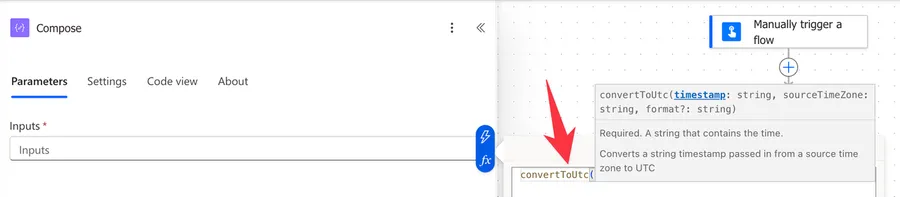
Let's look at how to use it.
Usage
The "convertToUtc" function takes two required parameters and one optional one:
convertToUtc('<timestamp>', '<sourceTimeZone>', '<format>'?)
| Parameter | Required | Type | Description |
|---|---|---|---|
| timestamp | Yes | String | The timestamp you want to convert. It's treated as being in the source time zone below |
| sourceTimeZone | Yes | String | The name of the time zone the timestamp is currently in, using Windows time zone names |
| format | No | String | A format string for the output. Defaults to o (ISO 8601), which preserves full precision |
Let's start with a simple example. Say you have a timestamp that represents midnight in Pacific Standard Time and you want to know what that is in UTC:
convertToUtc('07/07/2026 00:00:00', 'Pacific Standard Time')
This will return 2026-07-07T07:00:00.0000000Z. In July the Pacific time zone is 7 hours behind UTC, because daylight saving is in effect, so midnight on the West Coast is 7 in the morning in UTC. (More on that automatic daylight saving handling below.)
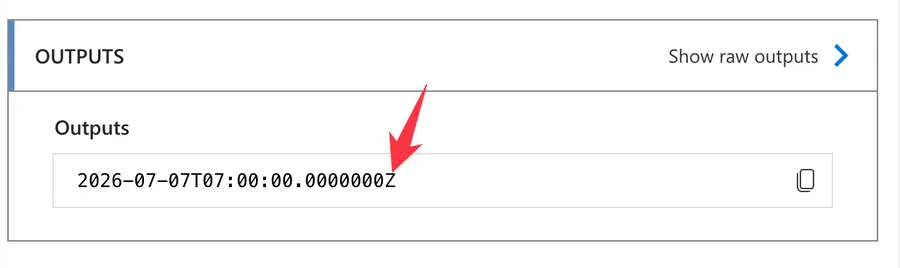
Notice the Z at the end. That's the marker that tells you the value is in UTC, and the .0000000 is the fractional seconds part that the default format includes.
This is super useful when you want to provide the converted date to some other action or even save it in the database.
I always recommend saving the date in UTC but more on that later in the recommendations sections.
Using a custom format
The third parameter lets you shape the output. For example, if you only care about a friendly date, you can pass a standard format specifier like D:
convertToUtc('07/07/2026 00:00:00', 'Pacific Standard Time', 'D')
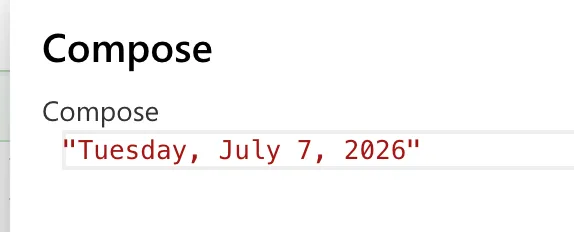
This will return Tuesday, July 7, 2026.
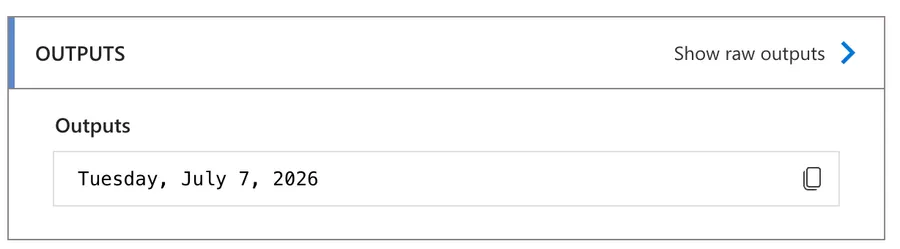
Be careful here. When you apply a format like this, you lose the time and the Z marker, so the fact that it's UTC is no longer visible in the value. It's still converted correctly, but you've traded the machine-readable shape for a human-readable one. If you plan to do more date maths later, keep the default format and reformat only at the very end.
Dynamic values
You don't have to hard-code the timestamp. You can feed in a value from an earlier step. If you have a timestamp in a "Compose" action called "Compose_1", the expression looks like this:
convertToUtc(outputs('Compose_1'), 'GMT Standard Time')
Let's break that down:
outputs('Compose_1')gets the value produced by the earlier "Compose" action.'GMT Standard Time'tells the function that the value is currently in the UK time zone.convertToUtc(...)converts it to UTC.
Non-intuitive behaviors
Here are some behaviors that can catch you off guard when using the "convertToUtc" function.
It uses Windows time zone names, not the ones you might expect
This is the number one source of confusion. The source time zone has to be a Windows time zone name, such as Pacific Standard Time, GMT Standard Time, or Central Europe Standard Time. You cannot use IANA names like Europe/Lisbon or America/Los_Angeles, and you cannot use abbreviations like PST or CET. If you get the name wrong, the Flow fails with an invalid time zone error.
The easiest way to find the exact name is to drop a "Convert time zone" action onto the canvas, pick your time zone from its friendly dropdown, then switch to peek code (or the code view) and copy the exact string it used. That way you never have to guess.
It assumes the timestamp is in the source time zone, whatever the string says
The function reads your timestamp as if it lives in the source time zone you provided, even if the string looks like it already carries UTC or an offset. To keep things predictable, feed it a timezone-naive value like 2026-07-07 09:00:00, and let the source time zone parameter do the talking. Mixing a Z-suffixed timestamp with a non-UTC source time zone is a classic way to end up several hours off.
Daylight saving is handled for you
Here's a pleasant surprise. Because Windows time zones know their own daylight saving rules, "convertToUtc" applies the right offset for the date you give it. A summer date in GMT Standard Time is one hour ahead of UTC (British Summer Time), while a winter date is exactly on UTC. You don't have to do any of that maths yourself, which is one of the strongest reasons to use this function instead of adding hours manually with the "addHours" function.
Limitations
There are a few things to be aware of when using the "convertToUtc" function.
Only Windows time zone names are supported
You're limited to the set of Windows time zone identifiers. If your source data uses IANA names or offsets, you'll need to map them to a Windows name first before you can call the function.
Expression size limits
As with all Power Automate expressions, there's a limit of 8,192 characters. If you're nesting conversions inside larger expressions, break them into smaller steps using variables or "Compose" actions.
The result is a string, not a date object
The output is always a string. You can't do maths on it directly. If you need to compare or subtract, pass the result into the "ticks" function first to get a number you can work with.
Notice the "Show Raw Outputs" result.
Troubleshooting Common Errors
Invalid time zone error
Symptom: The Flow fails with a message that the time zone is not valid, such as The 'sourceTimeZone' has an invalid value.
Cause: The name you passed isn't a recognized Windows time zone name, for example you used CET, Europe/Lisbon, or a name with unexpected punctuation.
Solution: Use the exact Windows name. The reliable way to find it is to add a "Convert time zone" action, select the zone from the dropdown, and copy the value from the code view.
Could not be parsed errors
Symptom: You get an InvalidTemplate error saying the timestamp value could not be parsed.
Cause: The input isn't a timestamp the function can read, for example an ambiguous format like 06/07/2026 where the day and month order is unclear.
Solution: Feed it a clear format first. Use the "formatDateTime" function to normalize the value before calling "convertToUtc".
The converted time is off by an hour
Symptom: The result is exactly one hour away from what you expected. Cause: This is almost always daylight saving. The function applied (or didn't apply) a summer-time offset for the date you gave it. Solution: Check the actual date of the timestamp. The offset is correct for that date, so confirm you're testing with the right day rather than assuming a fixed offset.
Recommendations
Here are some things to keep in mind when using the "convertToUtc" function.
Store everything in UTC
A good habit is to convert to UTC as early as possible and keep all your internal dates in UTC. Only convert back to a local time zone when you're about to show the value to a person. This keeps comparisons and calculations clean and avoids a whole category of bugs.
Prefer the action when you don't want to memorize names
If you find the Windows time zone names awkward, the "Convert time zone" action gives you the same result with a friendly dropdown. Use the function when you want everything in a single expression, and the action when clarity matters more.
Don't convert what's already UTC
If your value comes from the "utcNow" function or an ISO 8601 field ending in Z, it's already in UTC. Running it through "convertToUtc" with the wrong source time zone will shift it incorrectly. Only convert values that are genuinely in a local time zone.
Use debug "Compose" actions
When building conversions, drop the intermediate values into "Compose" actions so you can see exactly what each step produced. This makes it much easier to spot where an offset went wrong.
Always add a comment
Adding a comment helps you and others understand your intention. Explain which time zone the source data is in and why you're converting it. What's obvious today may not be in a few months.
Final Thoughts
The "convertToUtc" function is a dependable way to bring local timestamps into UTC, and its automatic handling of daylight saving is a real gift. The two things to get right are the Windows time zone name and making sure the value you pass really is in the source time zone you claim. Nail those, keep your internal dates in UTC, and this function will quietly do its job every time.
Sources
Back to the Power Automate Function Reference
Photo by Luis Cortes on Unsplash



No comments yet
Be the first to share your thoughts on this article!