
The "base64ToBinary" function does one job. You hand it a base64-encoded string, and it hands you back a binary value. That's it. No options, no formats, no second parameter to get wrong.
The reason it exists is that plenty of things in Power Automate travel as base64 text (attachments, API responses, note bodies, images pulled from a form), while plenty of other things expect file content as binary. "base64ToBinary" is the adapter between the two. It's easy to confuse with its two siblings, so let's get that out of the way early. The "base64" function encodes, "base64ToString" decodes back into readable text, and "base64ToBinary" decodes into file content. If you want the deeper story of how the two formats relate, Understanding Binary and Base64 in Power Automate covers the ground this article assumes.
Where to find it?
You can use the function anywhere an expression is supported. In practice it lives inside a "Compose" action, an "Initialize variable" action, or, most often, directly in the File Content box of an action that writes a file, such as the SharePoint "Create File" action or the OneDrive for Business "Create file" action.
Both take the same base64 input, and both decode it. "base64ToString" gives you text, which is what you want for a CSV, a JSON payload, or an email body. "base64ToBinary" gives you file content, which is what you want for a PDF, an image, or a spreadsheet. Run a PDF through "base64ToString" and you get a screen of garbage.
Usage
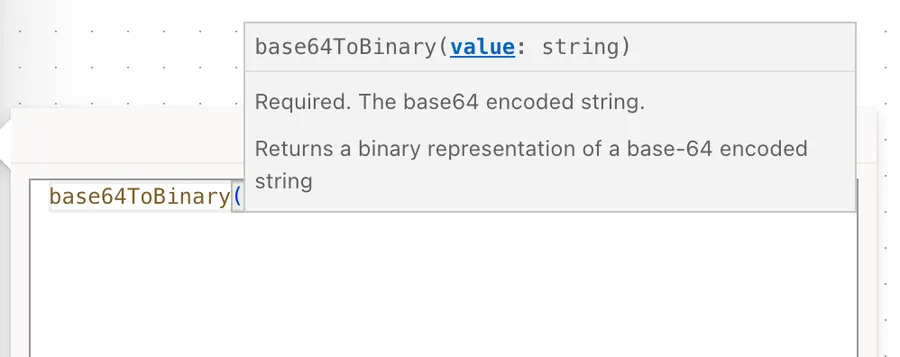
The "base64ToBinary" function takes exactly one required parameter.
base64ToBinary('<value>')
| Parameter | Required | Type | Description |
|---|---|---|---|
| value | Yes | String | The base64-encoded string to convert |
It returns the binary version of that string. There is no optional parameter, no format hint, and no way to tell it what kind of file it is dealing with.
Basic example
Microsoft's own example is the shortest possible one:
base64ToBinary('aGVsbG8=')
The string aGVsbG8= is the base64 encoding of hello. Microsoft doesn't print a result for this one, which stands out on a page where the "base64" function and "base64ToString" both show theirs. The output isn't text you can read off a page. It's file content, and it comes back as an envelope rather than a plain string, which the "Non-intuitive behaviors" section below unpacks. Run the same value through "base64ToString" instead and you get the text hello back, and that result the docs do print.
Feeding it a value from an earlier action
Hard-coded strings are for documentation. In a real Flow, the base64 comes from somewhere else, and that's where you reach for the "triggerBody" function or the "outputs" function:
base64ToBinary(triggerBody()?['fileContent'])
Let's break that down:
triggerBody()returns everything the trigger handed to the Flow.?['fileContent']safely reaches into that object for the field. The question mark matters, because a missing field gives you a null rather than a hard failure at that point.base64ToBinary(...)converts whatever it found into file content.
Reading the base64 back out of a binary value
This is the other half of the story, and it catches people out. When an action gives you file content, what you actually hold is an object with a $content property containing the base64 string. Reach into it directly:
outputs('Get_file_content')?['body']?['$content']
That gives you the base64 text without any conversion function at all, which is handy when you need to post the file to an endpoint that expects a base64 string inside a JSON body.
Real-world examples
Saving an email attachment to SharePoint
João forwards an invoice and you want the PDF in a document library. The attachment content arrives as base64, and the SharePoint "Create File" action wants file content, so the expression sits in the File Content box:
base64ToBinary(items('Apply_to_each')?['ContentBytes'])
The file lands intact, with the right size and the right bytes, and it opens without a repair prompt.
Writing a file that came back from an API
An HTTP call to https://<insertApiHost>/<insertPath> returns a JSON body with a base64 document inside it. Point the function at the property and write it out:
base64ToBinary(body('HTTP')?['document']?['data'])
Nothing else is needed. The receiving action reads the result as file content, and the "Parse JSON" action earlier in the Flow is what makes that property addressable in the first place.
Cleaning a data URI before converting
A signature control or an image picker often gives you a data URI rather than raw base64, something shaped like data:image/png;base64,iVBORw0KG.... The prefix is not base64, so it has to go before the function ever sees the value:
base64ToBinary(last(split(triggerBody()?['signature'], ',')))
The "split" function cuts the value at the comma, and the "last" function keeps the part after it, which is the payload.
Non-intuitive behaviors
The output still looks like base64 in the run history
Open the run history on a "Compose" action holding the base64ToBinary('aGVsbG8=') result from earlier and you will see something like this:
{
  "$content-type": "application/octet-stream",
  "$content": "aGVsbG8="
}
The $content is the base64 string you started with, unchanged. Nothing has been converted in the way you might picture it. What changed is the $content-type, and that is the whole point. The label tells every downstream action to treat the value as file content rather than as a piece of text. This is why the function looks like it did nothing, and why it still fixes your file.
The designer sometimes swallows the function
Add the expression in the designer, save, navigate away, come back, and the function is gone from the box, leaving only the parameter behind. Microsoft documents this as a rendering behavior, noting that the conversion functions can render unexpectedly in the designer while the underlying definition stays intact. Open Peek Code and the expression is still there, doing its job.
The trap is that editing the parameter value in that half-rendered box removes the function from the definition for real. If you need to change the value, rewrite the whole expression rather than nudging what's on screen.
Power Automate often does the conversion for you
The platform performs base64 encoding and decoding implicitly for common patterns, so plenty of Flows work perfectly well without the function anywhere in sight. Wrapping an already-binary value in "base64ToBinary" is where trouble starts, because the value is no longer valid base64 by the time the function looks at it. Reach for it when an action genuinely rejects your value, not as a precaution.
It validates the encoding, not the file
The function checks that the string is decodable base64 and stops there. Feed it a valid base64 encoding of a truncated PDF, and it will happily produce file content that no PDF reader can open. A green run does not mean a working file.
Limitations
It cannot repair a broken input
A data URI prefix, or a padding character that went missing in transit, makes the string invalid, and there is no tolerant mode. Clean the value first with the "replace" function or the "split" function, then convert.
It cannot set the content type
The result is generic file content. If a downstream system needs a specific MIME type, such as image/png, the function will not give it to you. Build the object by hand in a "Compose" action with the "json" function when you need that level of control.
It has no null handling
A null input fails the action rather than returning an empty value. Guard it with the "coalesce" function or the "if" function when the source is optional.
Expression size limits still apply
As with every Power Automate expression, you have a ceiling of 8,192 characters. That is never a problem for the function itself, since file content arrives by reference, but it does rule out pasting a base64 blob straight into the expression as a literal.
Troubleshooting Common Errors
The value cannot be decoded from base64 representation
Cause: The string is not valid base64. A data URI prefix and an already-decoded value are the two usual suspects.
Solution: Strip the prefix before converting, and confirm the source really is encoded text rather than file content.
base64ToBinary(last(split(triggerBody()?['image'], 'base64,')))
The template language function 'base64ToBinary' was invoked with a parameter that is not valid
Cause: The parameter is null, an object, or an array rather than a string. This is common when a property path is slightly wrong and quietly resolves to nothing.
Solution: Drop the raw value into a "Compose" action first and look at what actually arrives. If the source may be empty, guard it.
base64ToBinary(coalesce(triggerBody()?['fileContent'], base64('')))
The saved file is corrupt or will not open
Cause: Double conversion. The content was already binary, and wrapping it again encoded the envelope rather than the file.
Solution: Remove the function and pass the dynamic content straight through. If the action still complains, take the base64 out of the envelope with ?['$content'] and convert that instead.
base64ToBinary(outputs('Get_file_content')?['body']?['$content'])
The expression disappears after saving
Cause: The designer rendering behavior described above, not a failed save.
Solution: Check Peek Code before assuming anything is broken. If the function truly went missing, retype the full expression rather than editing the leftover parameter.
Recommendations
Convert at the point of use
Put the function in the box that needs binary, not three actions earlier. A variable holding a converted value adds one more place for the type to get muddled, and buys you nothing.
Try it without the function first
Dynamic content usually flows straight into file content fields without help. Add "base64ToBinary" when an action rejects the value, and you avoid the double-conversion problem entirely.
Clean the input in its own action
When the source might carry a data URI prefix or stray whitespace, do the cleaning in a separate "Compose" action. The run history then shows you exactly what went into the function, which turns a guessing game into a two-second read.
Always add a comment
Adding a comment will help others understand your expression. Say where the base64 came from and why the conversion is needed, because "it wouldn't save the file otherwise" is the context the next person is missing.
Final Thoughts
The "base64ToBinary" function is a one-line adapter with a single parameter and nothing to configure. Almost every problem people hit with it comes from the input rather than the function, either a value that was never valid base64 or a value that was already binary. Look at what's arriving before you reach for the conversion, and it will do exactly what it says.
Sources
- base64ToBinary in the expression functions reference
- Reference for functions in workflow expressions, Azure Logic Apps and Power Automate
- Handle Base64 and Binary File Content Types in Power Automate
Back to the Power Automate Function Reference
Photo by Nick Fewings on Unsplash



No comments yet
Be the first to share your thoughts on this article!