When we work with money, measurements, or anything that needs exact math, we cannot afford rounding surprises. The Power Automate "decimal" function converts a string into a decimal number that preserves precision. That is exactly what we want when the values come from a SharePoint text column, a CSV file, or any other source that hands us numbers wrapped in quotes.
Also, there are fields, like SharePoint list columns, that require the items to be decimals, so converting them beforehand is important.
It looks like a sibling of the "float" function, and at first glance it behaves the same way. The difference shows up in the details, and those details matter when the numbers are invoices, percentages, or totals that need to balance to the last cent.
Let's take a look.
Usage
It follows a simple pattern.
- The string to convert
Here is the most basic case.
decimal('1.23')

will return

1.23
So far, nothing surprising. The function happily accepts negative values too.
decimal('-12.5')

will return

-12.5
And it does not mind whole numbers wrapped in a string, even though we are calling "decimal".
decimal('42')

will return

42
The real reason we reach for the "decimal" function instead of the "float" function is precision. Let's compare the two with a number that has many decimal places.
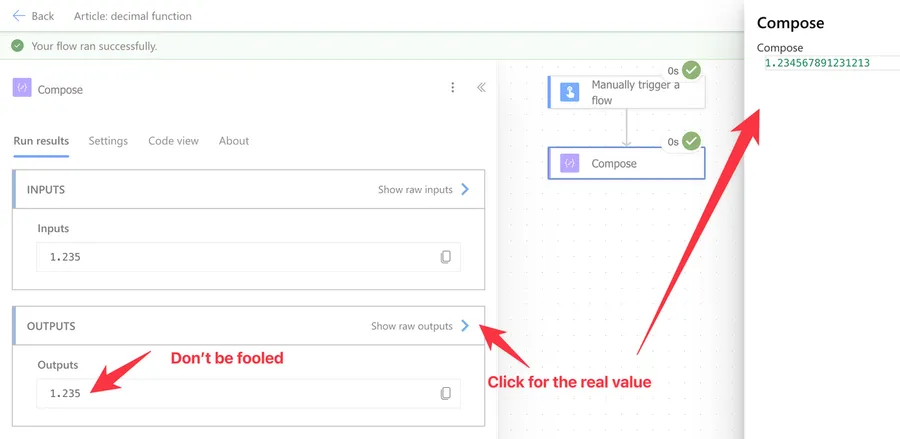
decimal('1.2345678912312131')

will return

1.234567891231213
Power Automate will return the rounded number, but don't be fooled because the real number is the one described above. Check the "Show raw outputs" panel for the actual value. This is a UI peculiarity, so always check the final value when precision matters.
float('1.2345678912312131')

will return

1.234567891231213
At this precision the two values often look identical, but the "float" result is the one that can drift between runs because floating-point numbers are stored as a binary approximation. The "decimal" result is rock solid because it uses the .NET decimal precision rules under the hood (in case you are keeping track).
We can also chain it with math functions.
add(decimal('1.2345678912312131'), decimal('1.2345678912312131'))

will return

2.469135782462426
That looks fine until we look at the next section, where we see how precision can quietly slip away.
Of course, this is a lot of precision for 99% of cases, but it is important that you know about it in case the numbers don't add up.
Edge Cases
Precision can be lost when the result is used as a number
This is the gotcha that catches everyone, at least once. The "decimal" function preserves precision, but the moment the result is used as a number in another expression, Power Automate may truncate trailing digits.
Microsoft's own documentation flags this. If you need the full precision (think currency, tax calculations, or anything audit-related), wrap the output of "decimal" with the "string" function.
Compare the two approaches.
decimal('1.2345678912312131')

will return

1.234567891231213
string(decimal('1.2345678912312131'))

will return

"1.2345678912312131"
The second one keeps the final 1 at the end. The same trick applies to math.
string(add(decimal('1.2345678912312131'), decimal('1.2345678912312131')))

will return

"2.4691357824624262"
So the rule of thumb is: do the math with "decimal", then convert to "string" the moment you need to store, log, or send the result somewhere. Most of the time you won't need that much precision, so keep working with the decimal value.
Invalid strings throw a runtime error
If the value is not a valid number, the function fails the run.
decimal('not a number')

will return an error like

Unable to process template language expressions in action 'Compose' inputs at line '1' and column '...': 'The template language function 'decimal' was invoked with a parameter that is not valid. The value cannot be converted to the target type.'
The same happens with empty strings or with currency symbols mixed into the value. The workflow expression engine expects a period (.) as the decimal separator, regardless of your locale. Numbers that use a comma instead are a special case worth its own section, which we look at next.
Comma vs period: locale traps
If your source data comes from a system that formats numbers with a comma as the decimal separator (very common in Portugal, Spain, Germany, and many other regions), the conversion will not do what you expect.
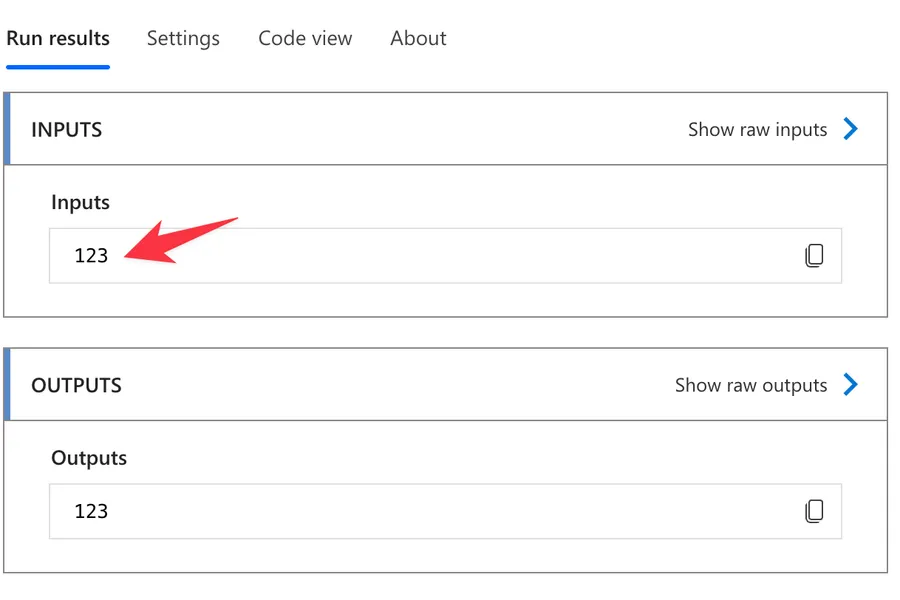
decimal('1,23')

it will return

123
That 1,23 looks fine to a European reader (like me), but the function silently treats the comma as a thousands separator and gives back 123. There is no error in the run, which makes this one of the worst kinds of bugs: the flow succeeds with the wrong number.
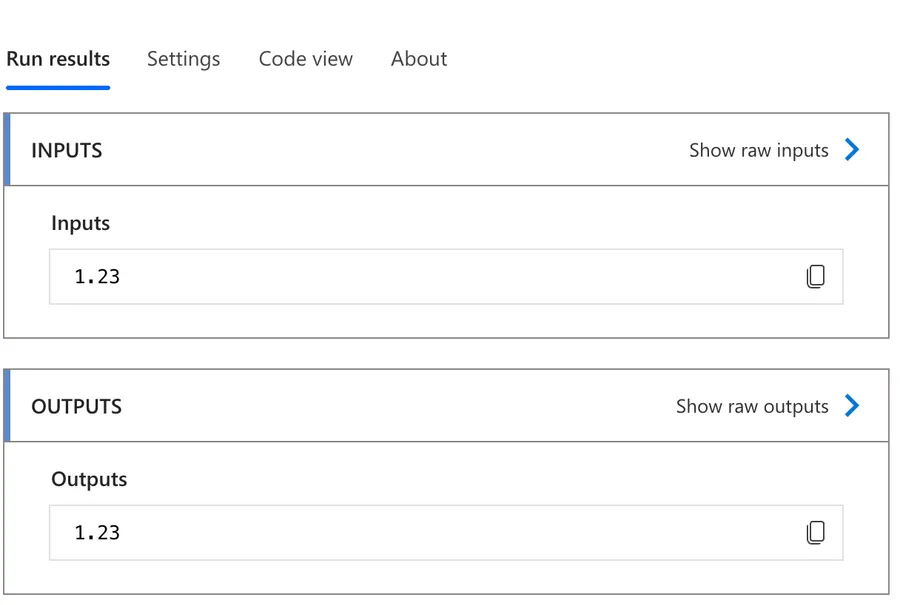
The fix is to normalize the string first with the "replace" function.
decimal(replace('1,23', ',', '.'))

will return

1.23
Null values fail
If the source is null (an empty SharePoint field, an optional property in a JSON payload, anything that was never filled in), "decimal" throws an error instead of returning 0 or null. The safe pattern is to provide a fallback with the "coalesce" function.
decimal(coalesce(triggerBody()?['Price'], '0'))
That way, a missing value becomes 0 instead of a failed run.
Range limits
The decimal type can hold up to roughly 10^28 with 28 digits of precision. That is enough for any business calculation. If you try to push past that limit, you get an overflow error.
decimal('1e100')

will return an overflow error

Flow run failed. Action 'Compose' failed: Unable to process template language expressions in action 'Compose' inputs at line '0' and column '0': 'The template language 'decimal' function was invoked with a parameter that is not a valid decimal, '1e100'. The value cannot be converted to the target type. Please see https://aka.ms/logicexpressions#decimal for usage details.'.
Most of us will never hit this, but if you are doing scientific work with very large numbers, the "float" function is the right tool, even with its precision quirks.
Limitations
Expression size limit
Power Automate caps expressions at 8,192 characters. If your formula grows close to 1,000 characters, break it up using "Compose" actions or store intermediate values in variables. Long inline expressions are also painful to debug.
Single decimal separator
The expression-language version of "decimal" only accepts the period as the decimal separator. There is no LanguageTag parameter like the Power Fx version has, so you cannot tell it "parse this number as if it were Portuguese". And as we saw in the edge cases, a comma will not raise an error, it will be silently treated as a thousands separator. You normalize the string first, then convert.
No automatic type coercion
The function expects a string. Passing an array, an object, or null will throw an error rather than try to guess what you meant. We have seen this same behavior in the "float" function and the "bool" function.
Recommendations
Here are some things to keep in mind.
Use "decimal" for money, not "float"
This is the headline recommendation. Currency, tax, percentages, totals, anything that has to balance at the end of the day, deserves the "decimal" function. The "float" function is faster and has a wider range, but those tiny binary approximations add up across hundreds of rows and produce statements that are off by a cent. That cent is the one your finance team will spot.
Wrap with "string" when storing the result
If the destination is a SharePoint column, a CSV file, an HTTP request body, or a database, wrap the final value with the "string" function. That keeps every digit intact during transport.
string(mul(decimal(triggerBody()?['UnitPrice']), decimal(triggerBody()?['Quantity'])))
Validate the input before you convert
Most "decimal" errors come from bad input, not the function itself. A combination of "coalesce" for null values and "replace" for locale issues solves the majority of real-world cases.
decimal(replace(coalesce(triggerBody()?['Price'], '0'), ',', '.'))
It reads as: if the field is missing, use '0'. Then replace any comma with a period. Then convert. That single line prevents most production failures.
Debug with "Compose" actions
When something does not add up (literally), drop a "Compose" action right before the conversion and feed it the raw string. You will be able to see in the run history exactly what value was being converted, which makes the source of the error obvious without having to guess.
Don't nest "decimal" calls
There is no good reason to wrap a decimal value in "decimal" again. If you see that pattern, the value is either already a decimal (so the call is wasted) or it is something else entirely (and the conversion is hiding a bigger issue).
Always add a comment
Adding a comment will help others understand your formula. Indicate what the function is doing and why, especially when you start chaining "coalesce", "replace", and "decimal" together. A future you will be grateful.
Final Thoughts
The "decimal" function is the quiet hero of any flow that touches numbers we care about. It preserves precision where the "float" function approximates, and it pairs beautifully with "coalesce", "replace", and "string" to give us a small, predictable toolkit for handling messy numeric data. Reach for it whenever the values have a currency symbol next to them, and your finance team will never call you about a missing cent.
Sources
Microsoft's decimal Function Reference
Microsoft's Decimal, Float, and Value functions (Power Fx)
Back to the Power Automate Function Reference.
Photo by Claudio Schwarz on Unsplash



No comments yet
Be the first to share your thoughts on this article!