
Cutting a string into exactly the piece you need is one of those tiny operations that shows up everywhere. Pulling an ID out of a longer reference, trimming a prefix off a SharePoint filename, taking the last few characters of a postcode, the list never ends. The Power Automate "slice" function is the cleanest way to do that, because it lets you say "give me everything between position A and position B" without forcing you to do any length math.
It sits in the string family next to the "substring" function and the "split" function, but it has one important advantage over both: it is forgiving. Out-of-range indices do not crash the run, negative indices count from the end, and the optional second position lets you grab tails without measuring the string first.
Where to find it?
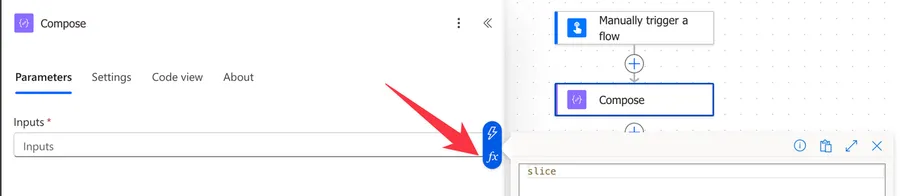
The "slice" function is available in any Power Automate field that accepts expressions. You will reach for it most often inside the Compose action, an Initialize variable action, or directly inside a Condition action. Open the Expression tab (the "fx" icon) and either type slice( or scroll to the String functions group in the picker.
Both functions extract a piece of a string, but they take different second and third parameters. The "substring" function expects a start index and a length, while "slice" expects a start index and an end index. Mixing them up is the most common mistake with this function.
Usage
The function takes one required string, one required start index, and an optional end index:
slice('<text>', <startIndex>, <endIndex>?)
| Parameter | Required | Type | Description |
|---|---|---|---|
| text | Yes | String | The string you want to extract characters from |
| startIndex | Yes | Integer | The position to start at, counting from 0. Negative values count from the end |
| endIndex | No | Integer | The position to stop at. The character at this index is not included in the result |
The return is always a string, even when the result is empty.
Basic example
slice('Power Automate', 0, 5)
Returns Power. The character at position 5 (the space) is not included.
slice('Power Automate', 6)
Returns Automate. With no end index, the slice continues to the end of the string.
Skipping a known prefix
A frequent use case is dropping a fixed prefix from a reference code. If every record arrives as PO-12345-US and you need just the middle section:
slice('PO-12345-US', 3, 8)
Returns 12345. The function reads from position 3 (the first digit) up to, but not including, position 8 (the dash before US).
Negative indices
Negative numbers count back from the end of the string. This is handy when you do not know the exact length but you do know how many characters you need from the right:
slice('Manuel T Gomes', -5)
Returns Gomes. Five characters from the end, all the way to the end.
You can also use a negative end index:
slice('Manuel T Gomes', 6, -3)
Returns T Go. Start at position 6, stop three characters before the end.
Inside an expression
A common pattern is pairing "slice" with the "length" function or the "indexOf" function to compute the right cut point. For example, to drop everything before the last dash in PO-12345-US:
slice(variables('Reference'), add(lastIndexOf(variables('Reference'), '-'), 1))
Breaking this down:
variables('Reference')reads the source string.lastIndexOf(..., '-')returns the position of the last dash.add(..., 1)moves one position past the dash, so the result starts withUS.slice(...)returns everything from that point to the end.
This way you can break things into pieces even if you don't know where the "break" character would be.
Real-world examples
Extracting an extension from a SharePoint filename
When a SharePoint trigger hands you a filename like Q3-report-final.docx, you may want just the extension to drive a Switch action. The "lastIndexOf" function gives you the position of the dot, and "slice" picks up everything after it:
slice(
  triggerOutputs()?['body/Name'],
  add(lastIndexOf(triggerOutputs()?['body/Name'], '.'), 1)
)
If the file is Q3-report-final.docx, the expression returns docx. If the file has no extension, the expression returns the whole filename, which is usually the safer fallback than an error.
Trimming a known suffix from a user input
Suppose Joana submits a form where the country code is appended to her phone number, and you need to store just the digits. If the suffix is always three characters, you can drop them with a negative end index:
slice(variables('PhoneInput'), 0, -3)
For 912345678PT, the expression returns 912345678. The negative index keeps you safe even if the surrounding code changes the length of the input.
Pulling the year out of an ISO timestamp
ISO timestamps from triggers and connectors always start with the year. If you only need that, "slice" is faster than calling the "formatDateTime" function:
slice(utcNow(), 0, 4)
Returns the current year as a string, for example 2026. Handy when you only need the year for a folder name or a tag, but I would still recommend using the "formatDateTime" function for better results.
Non-intuitive behaviors
The end index is exclusive
This is the single most surprising thing about "slice". The character at endIndex is not in the result. People who come from languages where the end is inclusive expect slice('Power', 0, 5) to return 'Power' and then panic when slice('Power', 0, 4) returns 'Powe'. Remember the rule: the result has endIndex minus startIndex characters, never one more.
Out-of-range indices do not throw an error
Unlike the "substring" function, which raises an error when you ask for positions outside the string, "slice" simply clips the result:
slice('Power', 0, 999)
Returns Power. The function caps the end index at the length of the string. Similarly:
slice('Power', 999)
Returns an empty string. Useful for defensive code, dangerous for debugging, because a silent empty result can hide bugs.
endIndex less than startIndex returns an empty string
If you compute the indices dynamically and the math goes wrong, the function does not complain. It just returns nothing:
slice('Power Automate', 8, 4)
Returns an empty string. Wrap the inputs in a Condition action or pair them with an "if" function when the values come from variables.
Negative indices that go past the start are clamped to 0
If you ask for a negative index whose absolute value is larger than the string length, the function treats it as 0 instead of failing:
slice('Power', -99, 3)
Returns Pow. The same is true for the end index. The function leans toward returning something rather than nothing, even when the inputs are nonsensical.
Empty strings return empty strings, but null throws an error
slice('', 0, 5)
Returns an empty string cleanly. However:
slice(null, 0, 5)
Returns.
Flow run failed. Action 'Compose' failed: Unable to process template language expressions in action 'Compose' inputs at line '0' and column '0': 'The template language function 'slice' expects its first parameter to be of type string. The provided value is of type 'Null'. Please see https://aka.ms/logicexpressions#slice for usage details.'.
Raises an InvalidTemplate error because the function expects a string parameter and null is not a string. Wrap any value that might be missing with the "coalesce" function:
slice(coalesce(variables('MaybeNull'), ''), 0, 5)
That way a missing value resolves to an empty string instead of failing the run.
Unicode characters above the basic plane count as two positions
Most strings behave intuitively, but emoji and other characters from the supplementary unicode planes are stored as surrogate pairs in the underlying runtime. A single visible emoji counts as two index positions, so slice('Hi 🙂', 0, 4) returns the broken half of the smiley rather than the full character.
"Hi �"
This is rare in business data, but worth knowing when you process user-generated text.
Limitations
Strings only
The parameter must be a string. Passing a number, an array, or an object will not work. When the source is not already textual, wrap it with the "string" function:
slice(string(variables('NumericId')), 0, 4)
If you need to slice an array rather than a string, reach for the "take" function and the "skip" function instead. They are the array equivalents of "slice".
No regex or pattern matching
"slice" only works with numeric positions. If your source string has variable structure, you cannot say "slice from the third dash to the next space". You have to find the positions yourself with the "indexOf" function, the "lastIndexOf" function, or the "nthIndexOf" function, and then feed those numbers into "slice".
Expression length limit
All Power Automate expressions are capped at 8,192 characters. Slicing on its own is short, but combining "slice", "indexOf", and conditional fallbacks can push you toward that ceiling. When that happens, split the work across multiple Compose actions or variables instead of nesting everything in a single expression.
No silent type conversion
Even though "slice" is permissive about out-of-range indices, it is strict about types. A start index of '3' (a string) will fail, even though 3 (an integer) works. If your index comes from a dynamic field, wrap it with the "int" function so the type is unambiguous.
Troubleshooting Common Errors
Symptom: InvalidTemplate. Unable to process template language expressions ... 'slice' expects its first parameter to be a string.
Cause: You passed a non-string value, often null from a missing field or a numeric value from a trigger output.
Solution: Wrap the input with coalesce and string:
slice(coalesce(string(variables('Value')), ''), 0, 5)
Symptom: The expression returns an empty string when you expect content. Cause: The start index is past the length of the string, the end index is smaller than the start index, or the source value was empty. Solution: Log the raw value and the computed indices in a Compose action and check the math. A quick sanity check is to compare the start index with the result of the "length" function.
Symptom: The result has one fewer character than expected.
Cause: You forgot that the end index is exclusive.
Solution: Add 1 to the end index, or rethink the boundary. The result always has endIndex minus startIndex characters.
Symptom: The result cuts an emoji or accented character in half. Cause: The character is stored as a surrogate pair and counts as two index positions. Solution: If your data routinely contains such characters, sanitize them first with the "replace" function or switch to an approach that does not depend on character positions.
Recommendations
Compute boundaries before you slice
The cleanest "slice" calls are the ones where the start and end indices are already in variables, not buried in nested expressions. Set them in a Compose action with descriptive names like StartOfId and EndOfId, then reference them in the "slice" call. Future you will thank present you when the flow needs a tweak.
Use negative indices for tails, not for everything
Negative indices are perfect when you know how many characters to take from the end. They become confusing when you mix them with positive indices in the same expression. If both ends of the cut are dynamic, prefer using positive numbers with explicit length calculations.
Validate the source before slicing
Always know that the value is a string and is long enough to slice. A quick guard with the "empty" function and the "length" function avoids silently returning empty strings into downstream actions:
if(
  greaterOrEquals(length(variables('Source')), 5),
  slice(variables('Source'), 0, 5),
  variables('Source')
)
The "if" function lets you fall back to the original string when it is too short to slice safely.
Prefer slice over substring when the source might be short
Because "slice" returns an empty string for out-of-range indices instead of failing, it is safer to use in pipelines where the input length varies. Reach for the "substring" function only when you need the strict behavior, for example when you want the run to fail loudly on bad input.
Pair it with indexOf for delimiter cuts
When you need to cut at a known character rather than a known position, "slice" combined with the "indexOf" function gives you a flexible alternative to the "split" function. It avoids creating an array just to read a single piece, which is cleaner when you only ever need one chunk.
Wrap risky slicing in a Scope
When the cut is part of a larger calculation that has to succeed or fail as a unit, group the cleanup, the index math, and the "slice" call inside a Scope action. That keeps the related steps together and makes error handling much easier when the input shape is not what you expected.
Final Thoughts
The "slice" function is small, forgiving, and quietly useful. It takes the place of a dozen ad hoc string manipulations and replaces them with a single, readable call. Used on its own it answers a simple question. Combined with the "indexOf" function, the "length" function, the "coalesce" function, and a thoughtful fallback, it becomes one of the most reliable tools in your string-handling kit. Add it next to "substring", "split", and "replace", and reach for it the next time you need to grab a piece of a string without measuring it twice.
Sources
Back to the Power Automate Function Reference
Photo by Roberto Vincenzo Minasi on Unsplash



No comments yet
Be the first to share your thoughts on this article!