
The "convertFromUtc" function does exactly what the name promises. It takes a timestamp in UTC and gives it back to you in the time zone of your choice. It's the function you reach for right before showing a date to a human being, because people don't think in UTC. They think in "the meeting is at 3pm".
It's the mirror image of the "convertToUtc" function, and while it looks simple, it has one behavior that surprises almost everyone the first time. Let's walk through how it works, look at some real examples, and make sure you don't get bitten by the quirks.
Where to find it?
You can use the function in every action where an expression is supported. The most common home for it is a "Compose" action, an "Initialize variable" action, or directly inside the field of an email you're about to send.
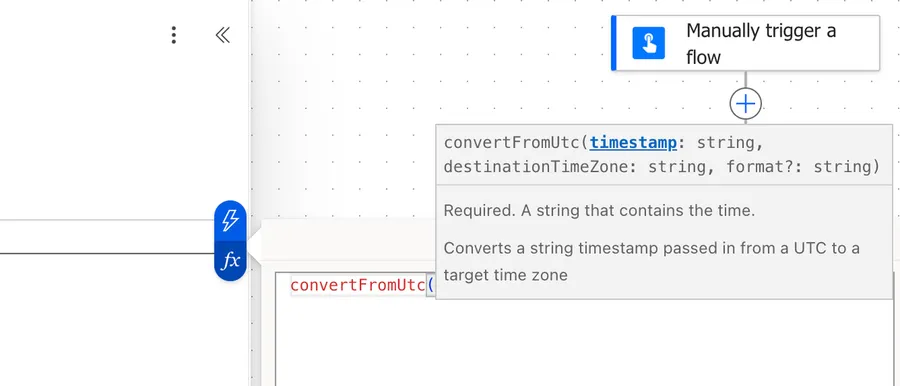
"convertFromUtc" always assumes your input is in UTC, so it only asks for a destination time zone. The "convertTimeZone" function asks for both a source and a destination, which makes it the right choice when your starting value is in some other local time zone. If your value already ends in Z, "convertFromUtc" is the simpler tool.
Let's look at how to use it.
Usage
The "convertFromUtc" function takes two required parameters and one optional one:
convertFromUtc('<timestamp>', '<destinationTimeZone>', '<format>'?)
| Parameter | Required | Type | Description |
|---|---|---|---|
| timestamp | Yes | String | The timestamp to convert. It is always treated as being in UTC, whatever the string looks like |
| destinationTimeZone | Yes | String | The time zone you want the result in, using Windows time zone names |
| format | No | String | A format string for the output. Defaults to o (ISO 8601), which preserves the full precision |
Let's start with the simplest possible example. You have a timestamp in UTC and you want to know what time that is on the US West Coast:
convertFromUtc('2026-07-07T07:00:00Z', 'Pacific Standard Time')
This returns 2026-07-07T00:00:00.0000000. Seven in the morning UTC is midnight in California, because in July the Pacific time zone is 7 hours behind UTC.
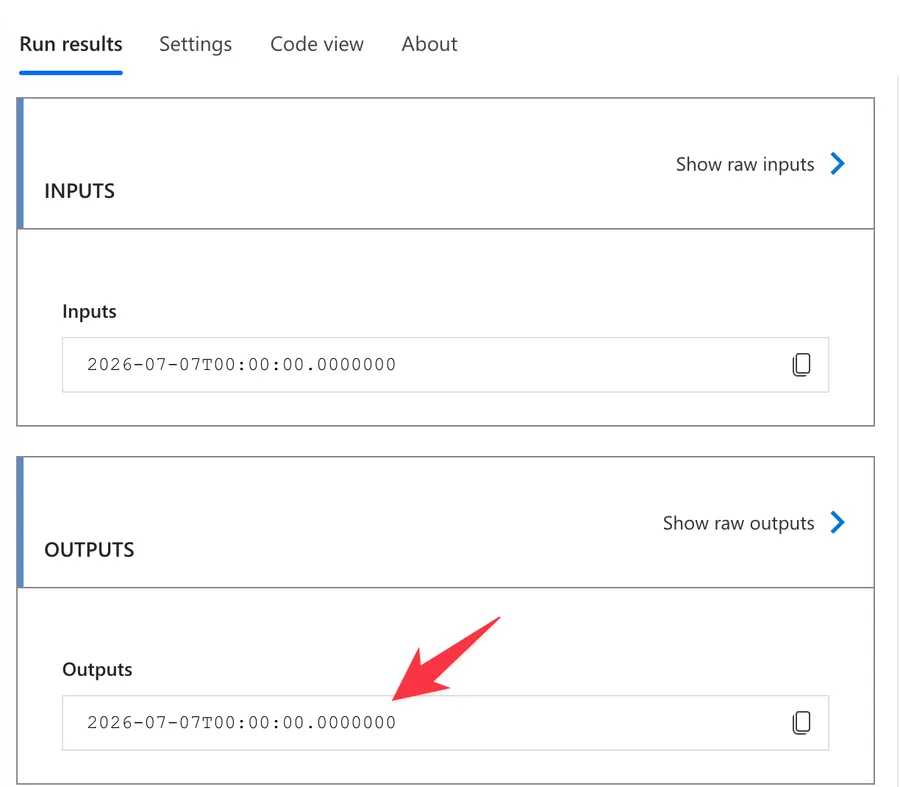
Now look closely at that result, because this is the part people miss. The Z is gone. The input said Z, meaning UTC, but the output has no Z and no +00:00 offset either. That's deliberate, and it's the single most important thing to understand about this function. We'll come back to it in the non-intuitive behaviors below.
Using a custom format
The third parameter shapes the output. If you just want something friendly to put in an email, pass a standard format specifier like D:
convertFromUtc('2026-07-07T07:00:00Z', 'Pacific Standard Time', 'D')
This returns Tuesday, July 7, 2026.
You can also build your own pattern. If you only care about the clock time, a custom format string works nicely:
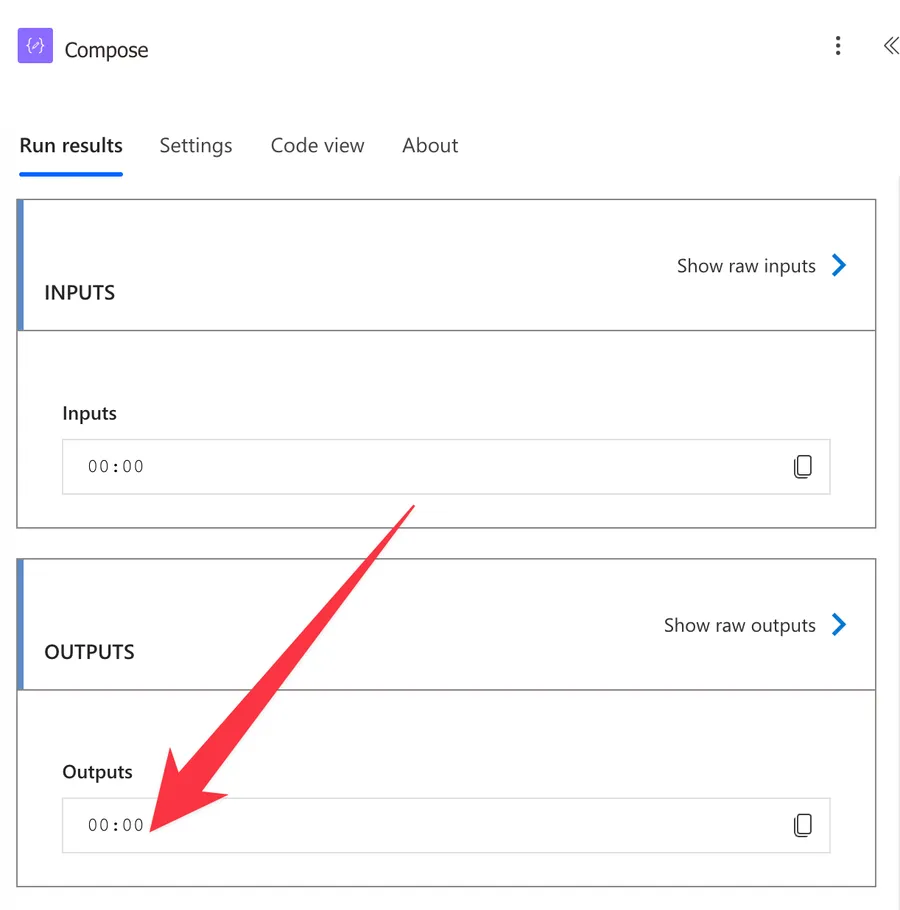
convertFromUtc('2026-07-07T07:00:00Z', 'Pacific Standard Time', 'HH:mm')
This returns 00:00.
Dynamic values
You rarely hard code a timestamp. Most of the time the value comes from a trigger or an earlier step. If your trigger gives you a date field, the expression looks like this:
convertFromUtc(triggerBody()?['DueDate'], 'GMT Standard Time', 'dd-MM-yyyy HH:mm')
Let's break that down:
triggerBody()gets the data that came in from the trigger, using the "triggerBody" function.?['DueDate']safely reaches into theDueDatefield. The question mark means that if the field is missing, you get a null instead of a crash.'GMT Standard Time'is the destination, in this case UK and Portugal time.'dd-MM-yyyy HH:mm'formats the result as something a person can read.
The same works with the "Outputs" function when the value came from an earlier "Compose" action:
convertFromUtc(outputs('Compose_1'), 'Central Europe Standard Time')
Real-world examples
Sending a confirmation email in the reader's time zone
Joana books a slot through a form and your Flow stores everything in UTC, which is the right thing to do. When the confirmation email goes out, though, she needs to see her own local time, not UTC.
convertFromUtc(variables('BookingTime'), 'GMT Standard Time', 'dddd, dd MMMM yyyy HH:mm')
This turns a stored 2026-07-07T13:30:00Z into Tuesday, 07 July 2026 14:30, which is what Joana's clock in Lisbon actually says.
Naming a file with the local date
When you're writing a daily report to SharePoint, the file name should usually reflect the local business day rather than the UTC one. Otherwise a report generated at 00:30 local time lands in yesterday's file.
concat('report-', convertFromUtc(utcNow(), 'Central Europe Standard Time', 'yyyy-MM-dd'), '.csv')
Here the "utcNow" function gives the current UTC moment, and "convertFromUtc" pulls it into local time before the date is stamped onto the name.
Checking whether something happened today, locally
If you want to know whether a timestamp falls on the current local day, convert first and compare afterwards:
equals(
  convertFromUtc(triggerBody()?['created'], 'GMT Standard Time', 'yyyy-MM-dd'),
  convertFromUtc(utcNow(), 'GMT Standard Time', 'yyyy-MM-dd')
)
Both sides land in the same time zone and the same shape, so the comparison is a simple string match. Doing this comparison in UTC would quietly give you the wrong answer for anything that happened late in the evening.
Non-intuitive behaviors
Here are the behaviors that catch people off guard with the "convertFromUtc" function.
The result loses the time zone marker entirely
This is the big one. The output has no Z and no offset. 2026-07-07T00:00:00.0000000 is just a naked timestamp, and nothing in that string records the fact that it means midnight in California.
That matters because a lot of systems assume a timestamp without an offset is UTC. If you hand this result straight to a SharePoint date column, to Dataverse, or back into the "convertToUtc" function, it can be read as UTC and shifted a second time. You end up hours away from where you started, and the Flow never throws an error.
The rule that keeps you safe is simple. Convert from UTC at the very last moment, only for display, and never store the result back into a date field. Keep your stored values in UTC and let each consumer format them.
It assumes UTC even when the input clearly isn't
The function doesn't inspect your timestamp to see what time zone it's in. It just declares it to be UTC and converts from there. Feed it a value that's already local, and it will happily shift it again with no warning.
If your starting value is in some other time zone, this is not the right function. That's precisely what "convertTimeZone" is for, since it lets you state the source explicitly.
Daylight saving is handled for you
Here's the pleasant surprise. Windows time zones know their own daylight saving rules, so the function applies the correct offset for the specific date you give it. Pacific Standard Time is 7 hours behind UTC in July and 8 hours behind in January, and you don't have to do anything to make that happen.
Note that the name is a bit of a lie. Pacific Standard Time really means "the Pacific time zone", summer rules included. It does not mean "always standard time". This is also the reason you should resist any temptation to fake a conversion by adding a fixed number of hours with the "addHours" function, because that approach breaks twice a year.
A single character format needs a percent sign
If you want a custom format made of exactly one character, you have to prefix it with %. A bare single character is read as a standard format specifier rather than a custom one, and since 'h' is not a valid standard specifier, the expression fails instead of giving you the hour.
convertFromUtc(utcNow(), 'GMT Standard Time', '%h')
Two or more characters are unambiguous, so 'HH' and 'dd-MM-yyyy' need no percent sign.
Limitations
Only Windows time zone names are supported
You are limited to the Windows time zone identifiers, such as GMT Standard Time, Pacific Standard Time, or Central Europe Standard Time. IANA names like Europe/Lisbon and abbreviations like PST or CET are not accepted. If your source data uses those, you'll have to map them to Windows names yourself before calling the function.
There's also a punctuation quirk worth knowing about. Microsoft documents it for the sibling "convertTimeZone" function, noting that some time zone names need their punctuation removed before they're accepted. If a name looks correct to you and still gets rejected, stripping the punctuation is worth a try.
The result is a string, not a date object
The output is always text. You can't do arithmetic on it directly. If you need to compare or subtract, feed the value into the "ticks" function to get a number you can work with, and do that math in UTC rather than on the converted value.
Expression size limits
As with all Power Automate expressions, you have a ceiling of 8,192 characters. Nesting conversions inside a larger expression eats into that quickly, so break complex work into "Compose" actions or variables.
Troubleshooting Common Errors
The time zone is not valid
Cause: The name you passed is not a recognized Windows time zone name. Using CET, Europe/Lisbon, or a name with unexpected punctuation will all produce this.
Solution: Use the exact Windows name. The most reliable way to find it without guessing is to drop a "Convert time zone" action onto the canvas, pick your zone from its friendly dropdown, then open the code view and copy the exact string it produced.
The timestamp could not be parsed
Cause: The input isn't a timestamp the function can read. Ambiguous values like 07/07/2026 are the usual culprit, since the day and month order is anyone's guess.
Solution: Normalize the value first with the "formatDateTime" function, then convert.
convertFromUtc(formatDateTime(variables('RawDate'), 'o'), 'GMT Standard Time')
The converted time is off by an hour
Cause: This is nearly always daylight saving. The function applied the offset that is correct for the date in the timestamp, which may not be the offset you had in your head.
Solution: Check the actual date you're converting rather than assuming a fixed offset. A July date and a January date genuinely have different answers, and the function is right in both cases.
The date is off by hours after saving it
Cause: You converted out of UTC and then stored the result in a date field. Because the output carries no offset, the receiving system read it as UTC and shifted it again.
Solution: Store the original UTC value and convert only when displaying. If a system truly needs a local value, keep the two clearly separated so nothing converts twice.
Recommendations
Here are some things to keep in mind when using the "convertFromUtc" function.
Convert late, and only for people
Keep everything internal in UTC and reach for "convertFromUtc" at the last possible moment, when a value is about to be read by a human. Comparisons, sorting, and storage all stay clean, and you sidestep the double conversion trap completely.
Always pass a format when the output is for display
The default o format gives you 2026-07-07T00:00:00.0000000, which nobody wants to read in an email. Passing something like 'dd-MM-yyyy HH:mm' makes the intent obvious and stops the raw ISO shape from leaking into your message.
Prefer the action when names are the problem
If the Windows time zone names are the part you keep getting wrong, the "Convert time zone" action gives you the same result with a dropdown. Use the function when you want a single tidy expression, and the action when clarity matters more than compactness.
Use debug "Compose" actions
When a conversion misbehaves, drop the intermediate values into "Compose" actions so you can see exactly what each step produced. Seeing the value before and after the conversion usually makes the problem obvious in seconds.
Always add a comment
Adding a comment will help others understand your expression. Say which time zone you're converting into and, more importantly, why. What is obvious to you today will not be obvious to anyone in six months, including you.
Final Thoughts
The "convertFromUtc" function is the friendly face you put on a UTC timestamp, and its automatic daylight saving handling saves you from a whole category of bugs. Just remember the one thing that trips everyone up. The result has no time zone marker, so treat it as display text and never let it round trip back into storage. Convert late, format clearly, and keep your data in UTC, and this function will serve you well.
Sources
- Microsoft's convertFromUtc function reference
- Convert a time zone in Power Automate
- Microsoft Windows Default Time Zones
- Custom date and time format strings
Back to the Power Automate Function Reference
Photo by Vince Veras on Unsplash



No comments yet
Be the first to share your thoughts on this article!