Sometimes you don't want a workflow to wait for an email, a webhook, or a button press. You just want it to run on a clock. That is exactly what the "Schedule Trigger" node is for in N8N. It starts your workflow at fixed times and intervals, working a lot like the classic Unix cron utility. Because it fires on a timer rather than reacting to an outside event, it is a polling trigger: N8N checks the clock and runs the workflow when the next scheduled moment arrives. Let's walk through how to set it up and the quirks worth knowing before you rely on it.
Where to find it?
Open your N8N workflow, select the "+" to add a node, and search for "Schedule Trigger" in the nodes panel. It sits in the trigger group, so it can be the very first node that starts your workflow.
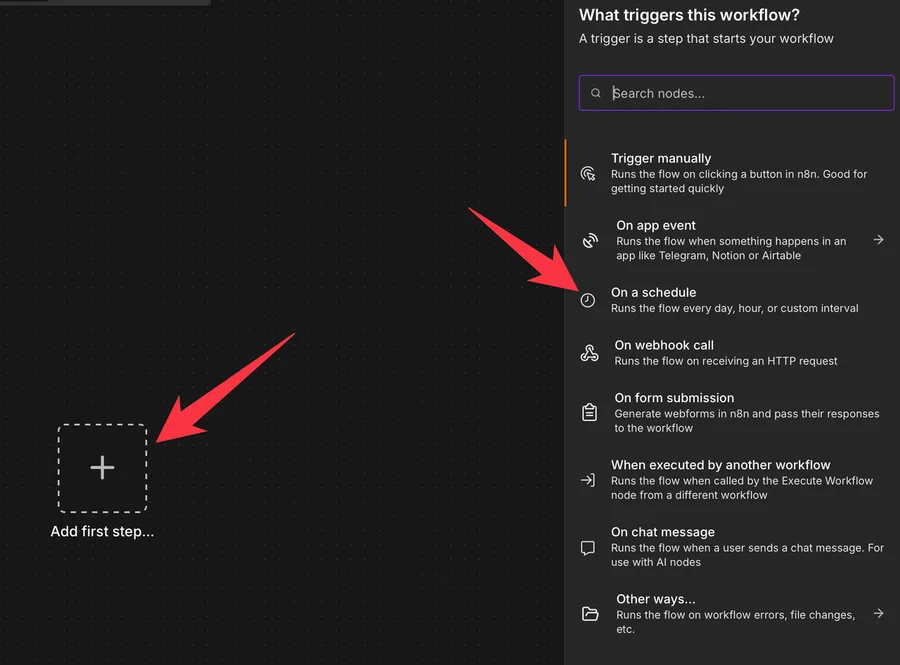
If you only want to run a workflow by hand while testing, you probably want the "Trigger Manually" node instead. The "Schedule Trigger" is for unattended, time-based runs.
Now that we know how to find it, let's understand how to use it.
Usage
The "Schedule Trigger" node is configured entirely with time settings. You add one or more rules, and each rule decides when the workflow should fire.
Credentials
This node needs no credentials. It does not talk to any external service, it only watches the clock, so there is nothing to connect or authorize.
Trigger Rules
A rule is a single schedule. You can add several rules to the same node, and the workflow will run whenever any one of them fires. This is handy when you want, for example, a run every weekday morning plus an extra run on Sunday night.
Trigger Interval
Each rule starts with a "Trigger Interval" dropdown. This is the main choice, and it changes which other fields appear:
- Seconds: sets "Seconds Between Triggers".
- Minutes: sets "Minutes Between Triggers".
- Hours: sets "Hours Between Triggers" and "Trigger at Minute" (0 to 59).
- Days: sets "Days Between Triggers", "Trigger at Hour", and "Trigger at Minute".
- Weeks: sets "Weeks Between Triggers", "Trigger on Weekdays", "Trigger at Hour", and "Trigger at Minute".
- Months: sets "Months Between Triggers", "Trigger at Day of Month" (1 to 31), "Trigger at Hour", and "Trigger at Minute".
- Custom (Cron): lets you type a raw cron expression for full control.
The named fields are the friendly way to build a schedule. Pick "Days", set "Days Between Triggers" to 1, "Trigger at Hour" to 9, and "Trigger at Minute" to 0, and you have a daily 9:00 AM run without touching cron syntax.
Custom (Cron)
When the dropdowns are not flexible enough, choose "Custom (Cron)" and fill in the "Expression" field. N8N accepts a standard five-field cron expression and also an optional sixth field at the front for seconds.
0 9 * * 1-5
Reading that left to right: minute 0, hour 9, any day of month *, any month *, and days of week 1-5 (Monday through Friday). So this fires at 9:00 AM on weekdays.
To sanity-check an expression, paste it into crontab.guru, but drop the optional seconds column first, since that tool expects the standard five fields.
Outputs
The "Schedule Trigger" emits a single item each time it fires. It does not carry data from an external system, it simply hands the rest of the workflow the moment it ran, already broken into readable pieces.
{
  "timestamp": "2026-07-06T09:00:00.000-04:00",
  "Readable date": "July 6th 2026, 9:00:00 am",
  "Readable time": "9:00:00 am",
  "Day of week": "Sunday",
  "Year": "2026",
  "Month": "July",
  "Day of month": "6",
  "Hour": "9",
  "Minute": "00",
  "Second": "00",
  "Timezone": "America/New_York (UTC-04:00)"
}
timestamp: the exact run time as an ISO 8601 string, including the timezone offset. This is the field you will use most.Readable dateandReadable time: the same moment formatted for humans.Day of week,Year,Month,Day of month,Hour,Minute,Second: the pieces of the timestamp split out, so you can branch on them without any date math.Timezone: the timezone the schedule ran in.
A downstream node reads any of these with an expression. To grab the run time, you would use:
{{ $json.timestamp }}
Here $json refers to the current item coming out of the trigger, and .timestamp picks that one field. If a field name has a space in it, reach for it with bracket notation instead:
{{ $json["Day of week"] }}
Real-world examples
Daily summary report
Set the interval to "Days", "Trigger at Hour" 8, and "Trigger at Minute" 0. Each morning the workflow wakes up, pulls yesterday's numbers from your database or an API, and sends a summary email. Because the trigger already gives you {{ $json["Readable date"] }}, you can drop the date straight into the email subject without formatting anything yourself.
Hourly API polling
Some services have no webhook, so the only way to notice new data is to check regularly. Choose "Hours", set "Hours Between Triggers" to 1, and let the workflow call the API on every run, comparing what it finds against what it saw last time.
Weekly cleanup on weekends
Pick "Weeks", set "Trigger on Weekdays" to Sunday, and "Trigger at Hour" to 2. The workflow runs quietly at 2:00 AM every Sunday to archive old records or clear temporary files while nobody is using the system.
Non-intuitive behaviors
The schedule starts when you publish
The clock for a rule begins at the moment you save and publish the workflow, not at some fixed point in the day. If you publish a "run every 6 hours" rule at 1:15 PM, the next runs land at 7:15 PM, 1:15 AM, and so on. Republishing resets that starting point, so frequent edits can quietly shift your run times.
Changes only take effect after publishing
Editing an interval, adding a rule, or changing a variable used in a cron expression does nothing until you publish a new version of the workflow. Variables in particular are only evaluated at publish time, so updating a variable later will not change the schedule until you republish.
The node previews the next runs
When you open the node, it shows the next several execution times based on your current settings. This is the fastest way to confirm a schedule does what you expect, because you can see the upcoming times without waiting for the first real run.
Limitations
It is not a guaranteed-delivery scheduler
If your N8N instance is down at a scheduled moment, that run is simply skipped. There is no catch-up or backfill when the instance comes back, so a missed 3:00 AM run stays missed. For jobs where every single run matters, plan for that gap.
Interval timing can drift on restarts
Because interval mode counts forward from when the workflow was published or the instance last started, restarting the container can shift your run times. Absolute cron expressions fire at fixed clock times regardless of restarts, so they are steadier for anything time-sensitive.
Interval mode has a known firing bug
Interval mode has a history of reports where a rule registers as active but never actually fires, while an equivalent cron expression works fine. The clearest example is "Hours Between Triggers" not firing at all (GitHub issue #23943), with related reports covering hours greater than 1 (issue #27028), intervals not triggering at all (issue #10653), and valid triggers being dropped after a schedule change (issue #23711). If a scheduled workflow shows as activated but nothing runs, switching that rule to "Custom (Cron)" is the common workaround.
The issues linked above are reported against specific N8N versions and several have since been addressed, so any given one may already be resolved in yours. Check the linked issue for its current status, and treat this as something to verify if your schedule misbehaves, not a guarantee that interval mode is broken.
Troubleshooting Common Errors
The workflow runs, but at the wrong time
Cause: The workflow is using a different timezone than you expect. N8N uses the workflow's timezone if one is set, otherwise the instance timezone, which defaults to America/New_York on many self-hosted setups.
Solution: Open the workflow's three-dots menu, choose Settings, and set the Timezone explicitly. On self-hosted instances you can also set the GENERIC_TIMEZONE environment variable as the default for every workflow.
The "Custom (Cron)" expression is rejected as invalid
Cause: A syntax slip, or mixing in the optional seconds field where a tool does not expect it.
Solution: Validate the five-field version on crontab.guru first, then add the seconds column back in N8N if you need sub-minute precision.
You changed the interval, but the old schedule keeps running
Cause: Schedule settings and cron variables are only applied when the workflow is published.
Solution: Publish a new version of the workflow so the updated schedule takes effect.
Scheduling behaves oddly with a timezone abbreviation like EST
Cause: Abbreviations are ambiguous and are not parsed reliably.
Solution: Always use full IANA timezone names such as America/New_York or Europe/Lisbon.
Recommendations
Prefer cron for anything time-sensitive
If a run absolutely must land at a specific clock time, use "Custom (Cron)" rather than an interval. Cron expressions fire at absolute times and survive restarts, while intervals count forward from publish time and can drift.
Always set the timezone deliberately
Do not rely on the instance default, especially on a team where people sit in different regions. Open the workflow Settings and choose the timezone on purpose, using a full IANA name so there is no ambiguity.
Name it correctly
Rename the node so others can understand what starts the workflow without opening it and checking the details. Double-click the node title and give it a clear, descriptive name like "Every weekday at 9 AM".
Always add a note
Add a note to the node or drop a sticky note on the canvas explaining what triggers the workflow and any assumptions about timing or timezone. It's essential to enable faster debugging when something goes wrong.
Final Thoughts
The "Schedule Trigger" node is the simplest way to put a workflow on a clock, and the friendly interval fields cover most cases. For anything where the exact time matters, reach for a cron expression and set the timezone deliberately, and you'll avoid nearly every surprise this node can throw at you.
Sources
- Schedule Trigger node documentation
- Schedule Trigger node common issues
- GitHub issue #23943: "Hours Between Triggers" interval mode fails to fire
- GitHub issue #27028: schedule trigger not working when hours is greater than 1
- GitHub issue #10653: schedule node not triggering on set intervals
- GitHub issue #23711: valid triggers dropped after changing the schedule
Back to the N8N Trigger Reference
Photo by Ralph Hutter on Unsplash


No comments yet
Be the first to share your thoughts on this article!