
So you don't have enough anxiety in your life that you need to know when a new chat message arrives in Teams. The "When a new chat message is added" trigger can help with that because it fires whenever a message is posted in any Microsoft Teams chat that the connected user takes part in.
It can be used for multiple things, like notifications for when specific words show up, automatic triage of items, and more, but you should be careful using it. If the Teams chats are quite busy, then this will trigger a lot, meaning that you can exhaust your usage quite quickly.
For those who like technical details, it is a webhook trigger, so it reacts in near real time instead of polling on a schedule, and it needs no configuration at all. You drop it on the Power Automate canvas and it starts listening.
Being a webhook makes it quite fast.
I will go into detail later, but the trigger can be confusing, because the payload it delivers contains no message text, no sender, and no timestamp. It gives you three identifiers and expects you to go and fetch the rest yourself.
Let's see how it works.
Where to find it?
The easiest way is to search for it as follows:
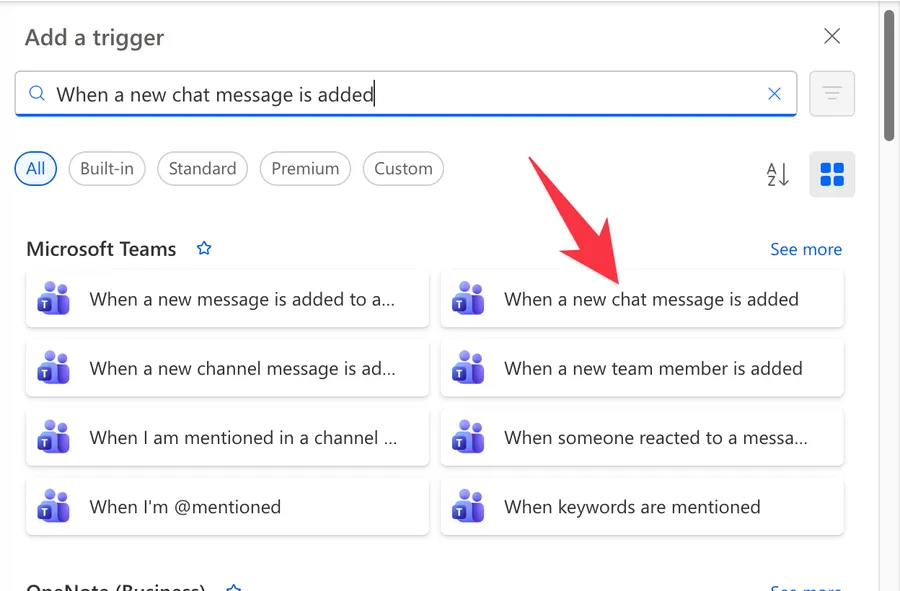
Here's what it looks like.
The Microsoft Teams connector ships several message triggers whose names differ by only a word or two, and the screenshot above shows most of them sitting together in the same panel. To make it worse, the picker truncates the longer names, so "When a new message is added to a..." and "When a new channel message is ad..." give you nothing to tell them apart by. Picking the wrong one costs you an afternoon, so please check the table below before you commit.
| Trigger | Scope | Can you narrow it? |
|---|---|---|
| When a new chat message is added | Every chat the connected user is in | No, it has no parameters |
| When a new message is added to a chat or channel | One specific chat or channel you choose | Yes, you pick the message type and the target |
| When a new channel message is added | One channel inside one team | Yes, you pick the team and the channel |
| When keywords are mentioned | A chat or channel, filtered by a single word | Yes, by target and keyword |
If you already know which conversation you care about, the second row is almost always the better choice. The trigger described in this article is the blunt instrument of the group, and it earns its place only when you genuinely want everything.
Now that we know how to find it let's understand how to use it.
Usage
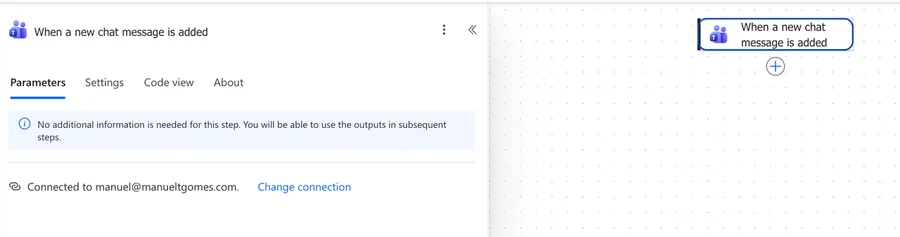
There is nothing to configure
Nothing to configure, but you need to know that the connection is important.
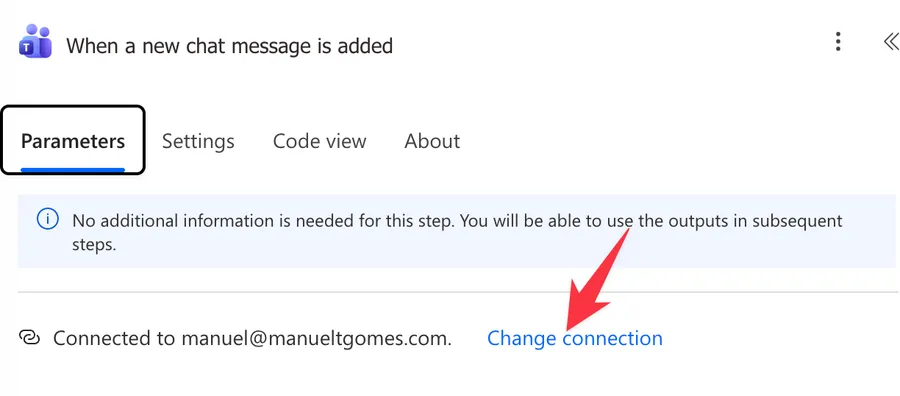
The trigger listens on behalf of the account behind that connection, so if Joana sets up the flow with her account, the flow sees Joana's chats and nobody else's.
Swapping the connection later changes which mailbox of conversations the flow watches, so be careful with the connection you set, especially if you use a service account to run the flow.
Trigger conditions, and what they can actually see
Since the trigger has no parameters, a trigger condition is the only way to stop a run before it starts. Trigger conditions live under the Settings tab of the trigger card, right beside the empty Parameters tab, and they are worth using here, because a busy person can easily generate a few hundred runs a day.
A trigger condition can only test values that exist in the trigger output, and the trigger output holds three identifiers and nothing else. You cannot filter by sender, by keyword, by importance, or by message type at the trigger, because none of those values have arrived yet.
What you can do is filter by conversation. If you only care about one chat, this expression keeps every other conversation out of your run history.
@equals(first(triggerBody()?['value'])?['conversationId'], '<insertConversationId>')
Breaking that down:
triggerBody()gets the body of the trigger output?['value']safely reaches the array of messages the trigger deliveredfirst(...)takes the first entry of that array, using the "first" function?['conversationId']safely reads the chat identifier from that entryequals(..., '<insertConversationId>')compares it to the chat you care about, using the "equals" function
Please note that the trigger can deliver more than one message in a single batch, so first only inspects the leading entry. It is good enough for the common case where the batch holds one message, but if you need to be exact, use the "contains" function against the serialized payload instead.
@contains(string(triggerBody()?['value']), '<insertConversationId>')
To find the conversation ID in the first place, run the flow once, open the run history, and copy the value from the trigger output. It looks like 19:a1b2c3d4e5f6@thread.v2 for a group chat.
Getting the message content
Because the trigger gives you identifiers rather than content, almost every real flow starts with a "Get message details" action. That pairing is covered in detail in the next section, since it is really a consequence of the trigger's output shape.
Outputs
The trigger returns a ChatMessageWebhookResponseSchema object. Here is the whole thing, and it is genuinely this small.
| Field | Type | Description | Example value |
|---|---|---|---|
value |
array of object | Message details response | An array with one entry in most runs |
value.conversationId |
string | The chat's unique identifier | 19:a1b2c3d4e5f6@thread.v2 |
value.messageId |
string | Message ID | 1755012345678 |
value.linkToMessage |
string | Message link | https://teams.microsoft.com/l/message/19:a1b2c3d4e5f6@thread.v2/1755012345678 |
Three identifiers and a deep link. No text, no sender, no timestamp, no importance.
The linkToMessage value is more useful than it first appears. If your flow only needs to notify somebody that a message arrived, you can post that link and let the reader click through to Teams. That avoids a second API call entirely, and it sidesteps every formatting problem that comes with reproducing a message somewhere else.
Everything arrives inside an array
value is an array of object, so the designer wraps the first action you add in an "Apply to each" loop the moment you reference a field inside it. This catches people off guard, especially since the array usually carries exactly one message. Do not fight it, because the batch really can hold more than one entry.
Inside the loop, reach the fields like this.
items('Apply_to_each')?['messageId']
items('Apply_to_each')?['conversationId']
items('Apply_to_each')?['linkToMessage']
Fetching the real message
To get the content, add a "Get message details" action inside that loop. It takes three inputs.
- Message, which is the
messageIdfrom the loop - Message type, where you choose Group chat, Meeting chat, or Chat depending on the conversation
- Conversation, where you pass the
conversationIdfrom the loop
The action returns a full Microsoft Teams ChatMessage object. These are the fields you will reach for most often.
| Field | Type | Description |
|---|---|---|
body.content |
string | The content of the message |
body.contentType |
string | The type of the content. Possible values are text and html |
from.user.displayName |
string | Display name of the sender |
from.user.id |
string | The sender's identifier |
createdDateTime |
date-time | Timestamp of when the chat message was created |
lastModifiedDateTime |
string | Timestamp when the message was created or modified, including when a reaction is added or removed |
importance |
string | The importance of the message. The possible values are normal, high, urgent |
messageType |
string | The type of chat message |
subject |
string | The subject of the chat message, optional |
summary |
string | Summary text of the message, useful for push notifications and fallback views |
mentions |
array of object | List of entities mentioned in the message. Supported entities are user, bot, team, and channel |
attachments |
array of object | Attachments carried by the message |
reactions |
array of object | Reactions for this message, for example Like |
replyToId |
string | ID of the parent message of the thread |
deleted |
boolean | Whether the message was deleted |
locale |
string | Locale of the message set by the client |
The outputs of "Get message details" are dynamic, so please use safe navigation when you read them.
outputs('Get_message_details')?['body']?['body']?['content']
outputs('Get_message_details')?['body']?['from']?['user']?['displayName']
The doubled ['body'] is not a typo. The first one is the action's response body, and the second is the message's body object.
The body.content value usually arrives as HTML, even for a message that looked like plain text in the client. If you plan to store it or email it, run it through the "HTML to Text" action first.
Non-intuitive behaviors
Here are the behaviors that catch people off guard.
The payload has no message content
This is the big one, and it is worth stating plainly because it undermines the obvious mental model. The trigger is named after chat messages, so people reasonably expect a chat message. What arrives is a receipt telling you that a message exists somewhere, and you have to go and collect it. Every flow built on this trigger costs at least two connector calls per message, one for the trigger and one for "Get message details".
You cannot filter on anything meaningful at the trigger
Because the payload holds only identifiers, a trigger condition can test the conversation and nothing more. Filtering by sender, by keyword, or by importance has to happen inside the flow, after you have fetched the message. That means the run is already consuming your quota by the time you decide you did not want it. Consider that when estimating how many runs a chatty colleague will generate.
It covers chats, never channels
"Any chat the user is a part of" means one to one chats, group chats, and meeting chats. Channel conversations are a separate world in the Microsoft Teams data model, and this trigger never sees them. If you want channel activity, use the When a new channel message is added trigger instead.
The flow's own messages come back around
If your flow posts a message into a chat the connected user belongs to, that post is itself a new chat message in a chat the user is part of, so the trigger fires again. The loop is easy to build by accident and unpleasant to watch. Since the trigger payload has no sender, you cannot break the cycle with a trigger condition, so the guard has to sit inside the flow, after "Get message details", comparing the sender against the account your flow posts as.
It can go quiet without failing
Community reports describe flows that run happily for an hour or two and then stop firing, with no failed runs and no error to investigate. The flow simply sits there looking healthy while messages go unnoticed, which is the worst kind of failure because nothing alerts you.
The reports point at the underlying webhook subscription expiring, based on a subscriptionExpirationDateTime value that appears in real trigger outputs roughly an hour ahead of the flow starting. That field is not part of the documented schema, and Microsoft has not published an acknowledgement or a fix, so please treat this as a community observation rather than settled behavior. If you hit it, the workarounds people report are switching to the "When keywords are mentioned" trigger, or running a scheduled flow that turns the affected flow off and on again on a timer.
Limitations
Here are the constraints to keep in mind.
One user per flow
Microsoft documents this explicitly. When a new chat message is posted in any chat where you are a participant, the trigger supports only one user per flow. There is no way to watch a second person's chats from the same flow, and no admin setting changes that. Monitoring several people means several flows, several connections, and a licensing conversation.
No parameters, so no scoping
The trigger cannot be narrowed at the source. Every message in every chat reaches your flow, and any filtering you apply is client side and after the fact. For someone in a handful of quiet chats this is fine. For someone living in twenty group chats it produces a run history that is difficult to read and a quota that drains quickly.
Content requires a second call
There is no toggle that makes the trigger return the message body. The "Get message details" round trip is mandatory whenever you need content, which doubles your call count and adds a point of failure.
Connector throttling
The Microsoft Teams connector allows 100 API calls per connection every 60 seconds. Since each message costs you at least one extra call for the details lookup, and often more if you also resolve members or attachments, a busy period can hit that ceiling. Non-GET requests are capped separately at 300 per connection every 300 seconds, dropping to 25 for Flow bot operations.
Private channels and posting limits
If your flow replies as well as listens, remember that posting a message or adaptive card to a private channel is not supported, and a single message can @mention at most 20 users and 20 tags.
Recommendations
Here are some things to keep in mind.
Reach for the scoped sibling first
If you know which conversation you care about, use "When a new message is added to a chat or channel" instead. It takes a message type and a target, so the filtering happens before the run rather than after, and it covers channels as well. Most flows that start with this article's trigger end up wanting that one.
Post the link instead of the message
When the goal is simply to tell somebody that something happened, send linkToMessage rather than rebuilding the message elsewhere. You skip the details lookup, you halve your API usage, and the reader lands in the real conversation with all its context intact instead of reading a stripped copy.
Guard against loops deliberately
If the flow posts anything back into Microsoft Teams, add a Condition right after "Get message details" that stops the run when the sender is the account your flow posts as.
@not(equals(outputs('Get_message_details')?['body']?['from']?['user']?['id'], '<insertUserId>'))
outputs('Get_message_details')gets the action's full output?['body']?['from']?['user']?['id']safely walks down to the sender's identifierequals(..., '<insertUserId>')checks whether the sender is your flow's accountnot(...)inverts it, so the flow continues only for messages somebody else wrote, using the "not" function
Filter case insensitively when you look for words
Keyword checks inside the flow should not care whether Beatriz typed "Deploy" or "deploy". Wrap the content with the "toLower" function before comparing.
@contains(toLower(outputs('Get_message_details')?['body']?['body']?['content']), 'deploy')
Please remember that the content is HTML, so a word can be split by markup in ways you did not expect. Converting to text first makes the check far more reliable.
Convert the HTML before you store it
Raw HTML in a SharePoint column or an email body rarely renders the way you hope. Run body.content through the "HTML to Text" action and store the clean version, keeping the original only if you truly need the formatting.
Use a dedicated account for shared flows
Because the trigger follows the connection's owner, a flow built on a personal account stops working the day that person changes role or leaves. If the flow serves a team, connect it with a service account that everybody agrees to maintain, and document which account it is.
Watch the run history for a while before trusting it
Given the reports of the trigger going quiet, please do not build something critical on it and walk away. Let it run for a few days and check that the runs keep appearing. If silence would cause real harm, add a separate scheduled flow that checks for recent activity and raises a flag when the run history goes unexpectedly still.
Name it correctly
Always build the name so others can understand the trigger's purpose without opening it and checking the details.
Always add a comment
Adding a comment will also help avoid mistakes. Indicate what conditions trigger the flow and any assumptions about the data. It's essential to enable faster debugging when something goes wrong.
Final Thoughts
"When a new chat message is added" is the widest net the Microsoft Teams connector offers, and that width is both its appeal and its problem. It needs no setup, it reacts quickly, and it sees everything, but it hands you identifiers rather than messages, it cannot be narrowed at the source, and it watches exactly one person.
Use it when you genuinely want every conversation and you are ready to pay for a details lookup on each one. When you know which chat matters, reach for the scoped sibling instead and save yourself the loop, the extra call, and the noisy run history.
Sources
Back to the Power Automate Trigger Reference.
Photo by Miguel A Amutio on Unsplash



No comments yet
Be the first to share your thoughts on this article!