
Open any list that people fill in by hand and you'll find the same code written three ways: "abc-101", "Abc-101", and "ABC-101". The data is technically there, but grouping, filtering, and plain reading all suffer. That's where the SharePoint UPPER function comes in. You give it text, and it returns the same text with every letter converted to uppercase, leaving numbers and punctuation untouched.
It's one of the three case functions, together with the "Lower Function" and the "PROPER" function, and it's the one you'll reach for when you want codes, labels, and identifiers to look the same in every row.
Where to find it?
Formulas live in calculated columns. In your list, select the gear icon, then "List settings", then "Create column", and pick the "Calculated (calculation based on other columns)" type. The formula goes in the formula box, and the columns you can reference are listed right next to it. You can also use the same formulas in column validation settings, and we'll see below why that combination is more useful than it first looks.
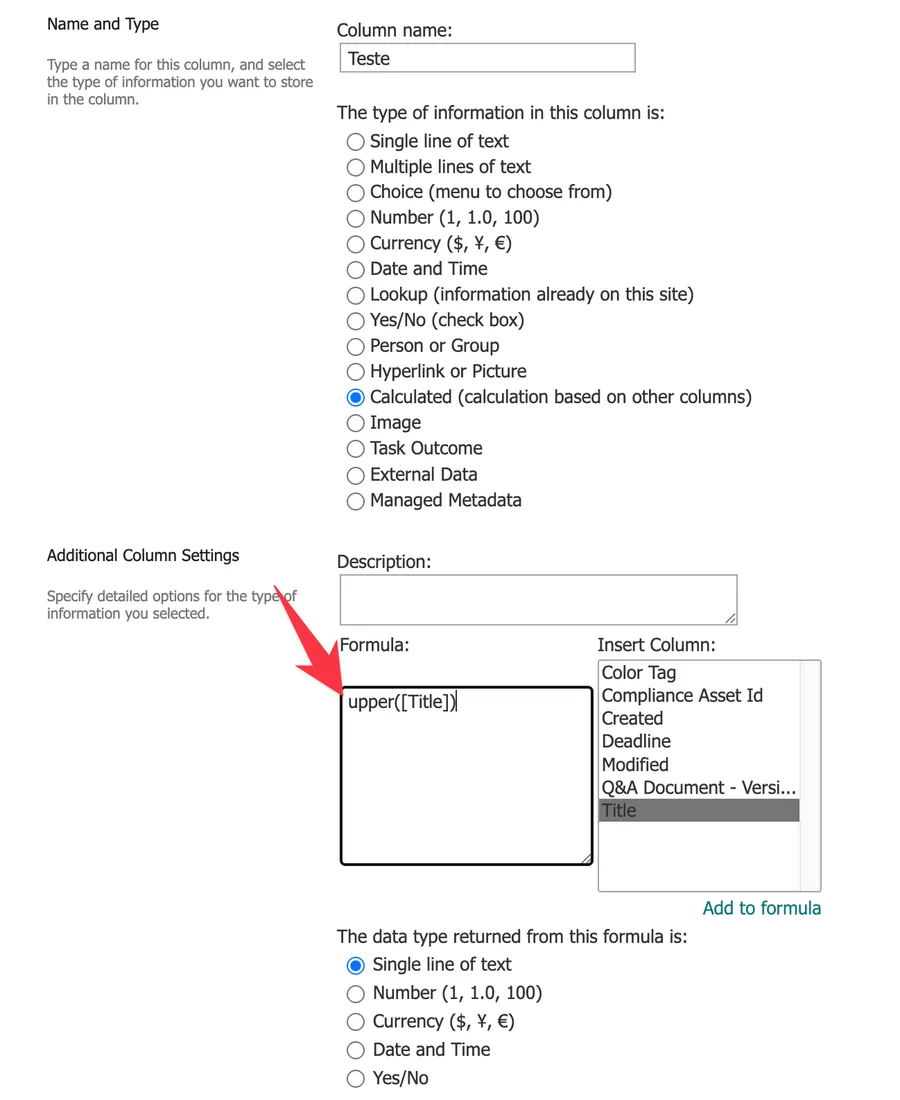
The UPPER function capitalizes every letter. The "PROPER" function capitalizes only the first letter of each word, turning "maria silva" into "Maria Silva". If you want title case for names, "PROPER" is the one you need.
Here's what it looks like:
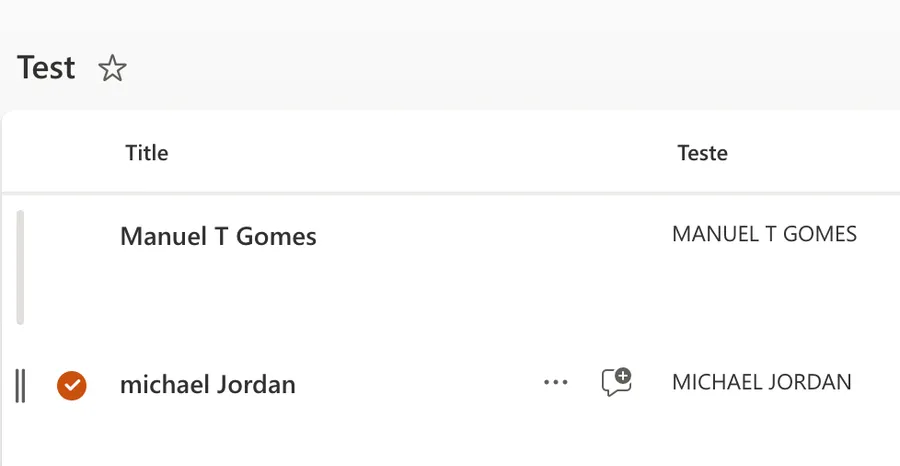
Notice that it converts all characters, but we'll explore this in detail later.
Usage
It follows a simple pattern.
- Text or column name
Here's how to use it referencing another column:
String
"Manuel Gomes"

=UPPER([Title])

will return

"MANUEL GOMES"
You can also provide the text directly:
=UPPER("abc-101")

will return

"ABC-101"
Digits and punctuation have no uppercase, so a "Number" column passes through unchanged. The only visible effect is that the result becomes text, and any currency or thousands formatting is dropped:
Number
1234.5

=UPPER([UnitPrice])

will return

"1234.5"
A "Date and Time" column produces the classic surprise. SharePoint stores dates internally as a sequential serial number, inherited from how Excel stores dates, so the function converts the date to text as that number. I go into a lot of detail regarding serial numbers in the "Now Function" and "Today Function" articles:
Date
11th of December 2020

=UPPER([InvoiceDate])

will return

"44176"
A "Yes/No" column evaluates as a Boolean, and the function returns it as the text "TRUE" or "FALSE", which is already uppercase. This matches how Excel coerces Booleans to text, so don't expect a "Yes" here:
Yes/No
Yes

=UPPER([Active])

will return

"TRUE"
A "Choice" column works like text, as long as it allows only a single selection:
Choice
"pending approval"

=UPPER([Status])

will return

"PENDING APPROVAL"
A "Location" column can't be referenced as a whole, but its individual sections work fine:
Location
Porto

=UPPER([Office: City])

will return

"PORTO"
Real-world examples
Normalize reference codes
Maria Silva tracks product codes that arrive typed every which way, with stray spaces included. Combining the UPPER function with the "Trim Function" cleans both problems in one calculated column:
=UPPER(TRIM([ProductCode]))

will return

"ABC-101" when someone typed " abc-101 "
Group and filter your views on this column instead of the original, and the inconsistencies disappear.
Force uppercase with column validation
A calculated column shows a clean copy, but it doesn't change what people type. If the column must contain uppercase, use column validation with the "EXACT" function:
=EXACT([CountryCode],UPPER([CountryCode]))

will return

true for "PT" and false for "pt", rejecting the lowercase entry
The "EXACT" function is the key ingredient because it compares text case-sensitively. A plain equals sign won't work here, as we'll see below.
Build a consistent label
To generate a uniform label from a department and a cost center, combine it with the "Left Function" and the "CONCATENATE Function":
=UPPER(CONCATENATE(LEFT([Department],3),"-",[CostCenter]))

will return

"FIN-1042" when the department is "Finance" and the cost center is 1042
Non-intuitive behaviors
Comparisons already ignore case
The first instinct is to wrap both sides of a comparison in the UPPER function, like =IF(UPPER([Status])="APPROVED","Done","Pending"). You usually don't need to. The equals sign in formulas compares text case-insensitively, just like in Excel, so "approved" already matches "APPROVED". The function only matters for comparisons when you go the other way and need case to count, which is what the "EXACT" function is for.
It shows a copy, it doesn't fix the data
The calculated column displays the uppercase version, but the source column keeps whatever was typed. Anything that reads the original column, like flows or exports, still sees the messy value. And remember that calculated columns only recalculate when the item is edited, so fixing the formula updates everything, but fixing a workflow that writes bad data won't retroactively clean rows until they're touched.
Accented letters keep their accents
Lowercase accented letters convert to their accented capitals, so "josé" becomes "JOSÉ". If your style guide drops accents from capitals, the function won't do that for you.
The accented-letter behavior is documented for Excel's UPPER function, but Microsoft doesn't spell it out for SharePoint calculated columns. Test with your own data if accents matter in your lists.
Limitations
As with the other text functions, you can't use it on lookup columns, person columns, or choice columns that allow multiple selections. A "Location" column only works through its individual sections, never the whole column.
The result is always text, even when the input is a number. If you need to do math afterward, don't route the value through this function first.
A blank source value returns a blank result, which is harmless on its own but can surprise you when another formula builds on top of this column and expects text to be there. Use the "ISBLANK Function" to handle empty rows explicitly.
Troubleshooting Common Errors
Symptom: "The formula contains a syntax error or is not supported" when saving the column. Cause: Depending on the regional settings of the site, the argument separator is a semicolon instead of a comma. A misspelled column name, or a reference to an unsupported column type like a person column, causes the same message. Solution: Replace the commas with semicolons and check that each column name matches the display name exactly, wrapped in brackets.
=UPPER(CONCATENATE(LEFT([Department];3);"-";[CostCenter]))
Symptom: The column shows a number like "44176" instead of an uppercase date. Cause: The source is a "Date and Time" column, and the function converted the internal serial number to text. Solution: Format the date as text first with the "TEXT" function, then uppercase the result.
=UPPER(TEXT([InvoiceDate],"dd-mmm-yyyy"))
Symptom: Validation with =UPPER([Code]) accepts lowercase values anyway.
Cause: Validation needs a formula that returns true or false. The UPPER function returns text, and comparing it with a plain equals sign ignores case.
Solution: Wrap the comparison in the "EXACT" function so the case difference is detected.
=EXACT([Code],UPPER([Code]))
Recommendations
Here are some things to keep in mind.
Clean while you convert
Inconsistent case and stray spaces usually travel together. Wrapping the column in both the UPPER function and the "TRIM" function costs nothing and saves you a second cleanup column. If you also need to check lengths, the "Len Function" pairs nicely with both.
Pick the right case function
Use the UPPER function for codes and identifiers, the "LOWER" function for values you'll feed into systems that expect lowercase, and the "PROPER" function for people's names. You can find all of them in SharePoint's List Function Reference.
Always deal with errors
SharePoint often won't stop you from saving a broken formula. It will save fine and then display "#VALUE!" in the rows where a nested function received bad data. If you don't catch these, the error cascades into every other column that uses this one in its own formula. Validate the data or handle the error cases explicitly.
Don't nest it
If you need the uppercase value as part of a bigger formula, consider creating a calculated column that returns only the clean uppercase text and then building the other formulas on top of it. You'll get simpler formulas that are a lot easier to debug when one row shows an unexpected result.
Final Thoughts
The UPPER function is a small tool that pays for itself the first time you group a view by a code column. Use it in a calculated column to display clean values, and pair it with the "EXACT" function in validation when uppercase isn't optional. Your lists will read better, and your filters will finally agree with each other.
Sources
- Microsoft's UPPER Function Reference
- Examples of common formulas in lists
- Introduction to SharePoint formulas and functions
Back to the SharePoint List Function Reference
Photo by Kai Gradert on Unsplash

No comments yet
Be the first to share your thoughts on this article!