
Monthly reports are everywhere. Sales by month, vacation days by month, invoices grouped by month, you name it. If your list has a date column, sooner or later someone will ask you to group or filter the items by month, and scrolling through full dates is not a pleasant way to do it. SharePoint has a function for exactly this, so today let's look at the MONTH function and how it can extract the month from any date in your lists.
Where to find it?
The MONTH function lives in calculated columns. To use it, open your list, go to "List settings", select "Create column", and pick "Calculated (calculation based on other columns)" as the type. You can also use it in column validation and list validation formulas, where it works exactly the same way.
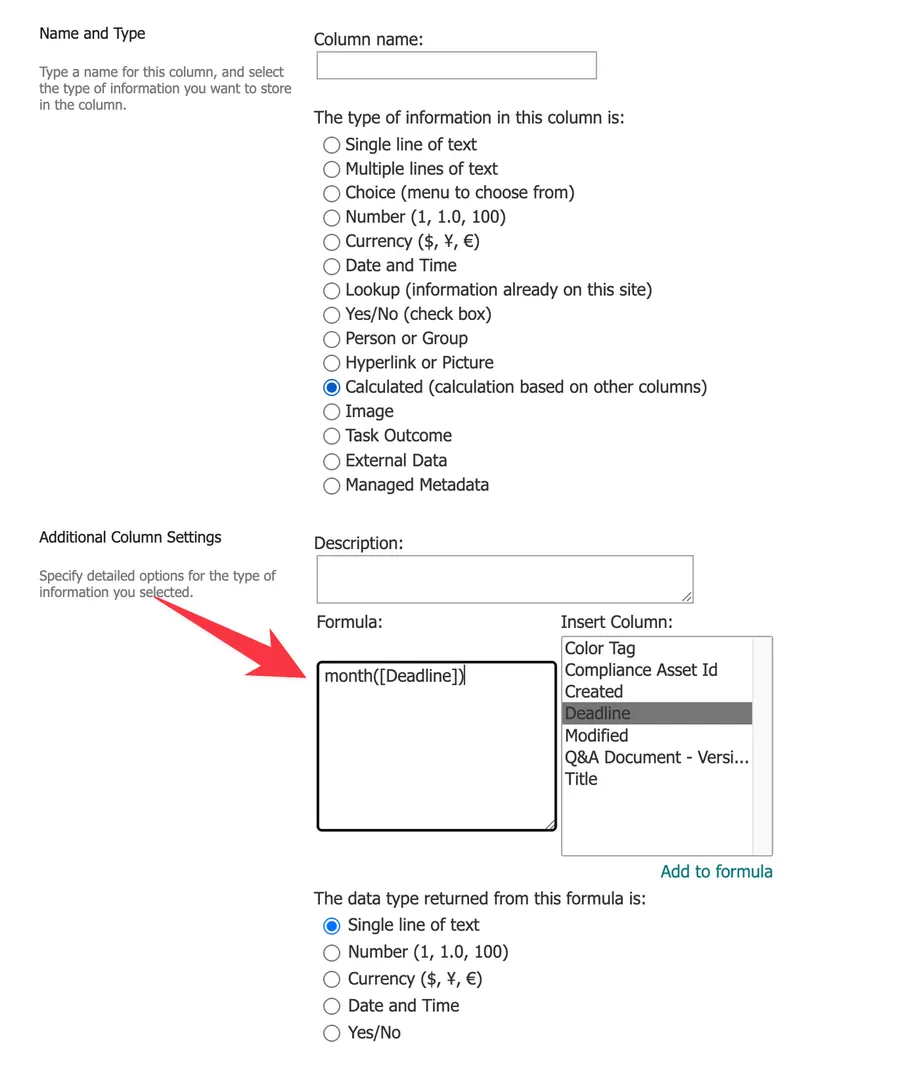
The MONTH function returns the calendar month of a single date, always a number between 1 and 12. If you want the number of months between two dates, that's a different job, and the "DATEDIF" function with the "M" unit is the one to use.
Usage
It follows a simple pattern.
- Date, serial number, or column name
The result is always a number between 1 (January) and 12 (December), never the month's name. We'll look at how to get the name in the examples below.
From a date column
Here's how to use it referencing another column:
Date
21st of September 2021

=MONTH([dateColumn])

will return

9
From a date string
You can also provide the date directly as a string:
=MONTH("2021-09-21")

will return

9
From a serial number
Dates in SharePoint are stored internally as serial numbers, counting the days from SharePoint's day zero, December 30, 1899. I go into a lot more detail about serial numbers in the "NOW" function and "TODAY" function articles, and there's also an article on how to convert these numbers into dates with Power Automate. The short version is that you can feed the MONTH function a serial number and it will happily return the month of the date it represents:
=MONTH(44460)

will return

9 because 44460 is the 21st of September 2021
The same logic applies to number columns. SharePoint treats the value as a serial number and converts it to a date first:
Number
44460

=MONTH([numberColumn])

will return

9
From a text column
For a single line of text column, the function works as long as the text contains something SharePoint can parse as a date:
String
"2021-09-21"

=MONTH([textColumn])

will return

9
If the text is not a recognizable date, like a name or a code, you'll get a "#VALUE!" error instead.
Microsoft documents the MONTH function for Excel, where text values are converted to dates automatically. SharePoint calculated columns usually follow the same rules, but the accepted date formats depend on your site's regional settings, so always test with your own locale.
Real-world examples
Here are a few places where the MONTH function earns its keep.
Quarter column for reports
Maria from accounting wants to group orders by quarter, but SharePoint only has the order date. A small calculated column does the trick:
="Q"&INT((MONTH([orderDate])-1)/3+1)

will return

"Q3" for an order placed on the 21st of September
The "INT" function rounds the division down, turning months 1 to 3 into quarter 1, 4 to 6 into quarter 2, and so on.
Month name for grouping
A view grouped by "9" is not very inviting. You can combine the MONTH function with the "CHOOSE" function to translate the number into a name:
=CHOOSE(MONTH([invoiceDate]),"January","February","March","April","May","June","July","August","September","October","November","December")

will return

"September"
The TEXT function can do the same with less typing, like =TEXT([invoiceDate],"MMMM"), so pick whichever reads better to you.
Sortable month key
Grouping by month name has one annoyance: views sort alphabetically, so April comes before January. A year-month key keeps everything in chronological order:
=YEAR([dueDate])&"-"&TEXT([dueDate],"mm")

will return

"2021-09"
Non-intuitive behaviors
Errors only show up in the list
If you pass a negative number, SharePoint won't complain when you save the formula. It will display "#NUM!" as the result instead, which is easy to miss until a user spots it.
The result is always Gregorian
According to Microsoft's documentation, the value returned is always the Gregorian month, regardless of the display format or calendar of your site. If your site uses a different calendar, such as Hijri, the number may not match what users see on screen.
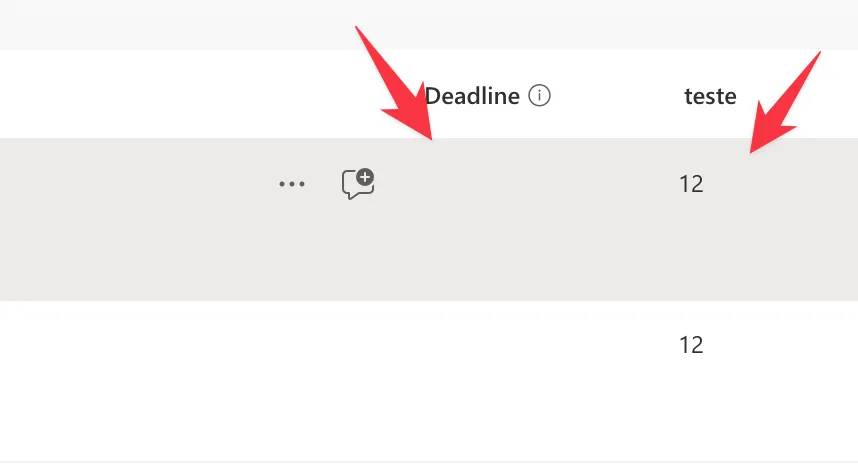
It will return 12 if the field is empty
This one trips me up a lot, but if the field is empty, it will return 12. Here's an example.
It will return the following:
But if you insert a valid date you'll get:
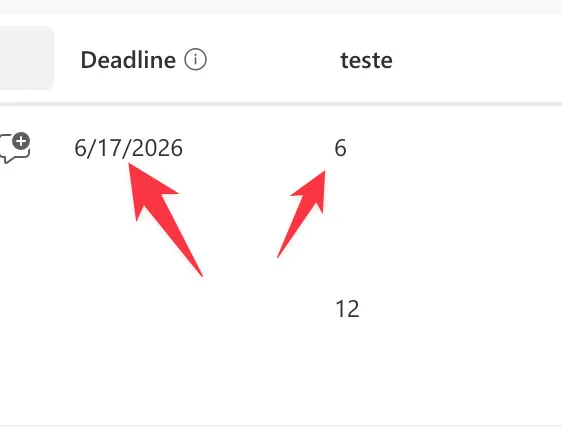
I know it's strange, but take this into consideration. The reason is that SharePoint treats the empty field as the serial number 0, which lands on its day zero of December 30, 1899, so you get December back. If your column can be empty, wrap the formula with the "ISBLANK" function so blanks stay blank:
=IF(ISBLANK([dateColumn]),"",MONTH([dateColumn]))
Limitations
Unsupported column types
The MONTH function can't be used on lookup columns or person columns. Choice columns that allow multiple selections are also out, and since a choice value is text, even a single-selection choice column only works if the choice itself is a date.
Location columns don't work either. You can reference individual sections like [locationColumn: City] in calculated columns, but those sections are text values, not dates, so the function will return an error anyway.
Yes/No columns
Yes/No columns make no sense as an argument. In Excel, a true value converts to the number 1 and returns January, which is technically a result but never a useful one. There's no meaningful date hiding inside a true or false value, so don't try to force it.
Troubleshooting Common Errors
Symptom: "The formula contains a syntax error or is not supported" when saving the column.
Cause: In regional settings where the comma is the decimal mark, SharePoint expects semicolons as the argument separator, and the other way around.
Solution: Swap the delimiters to match your site's regional settings. A formula like =DATE(YEAR([Start]),MONTH([Start])+1,DAY([Start])) becomes =DATE(YEAR([Start]);MONTH([Start])+1;DAY([Start])) on those sites.
Symptom: The column shows "#VALUE!". Cause: The argument is text that SharePoint can't parse as a date. Solution: Fix the source data, or wrap the formula with the "IF" function and the "ISERROR" function to show a friendly message instead.
Symptom: The column shows "#NUM!". Cause: The argument is a negative serial number. Solution: Check where the number comes from and make sure it's always 1 or above before it reaches the MONTH function.
Recommendations
Here are some things to keep in mind.
Show the month's name to your users
A column full of 9s is accurate but not friendly. If people will read the result, use the quarter or month name patterns from the examples above so the views speak their language.
"Hidden" validation columns
Since SharePoint works with columns, you can create hidden "validation" columns that check the data with formulas. After that, you can expose the "message" columns with helpful error messages or actions the user can take to solve the problem.
Always deal with errors
A "#NUM!" or "#VALUE!" sitting in a list view looks broken, and worse, the error cascades into any other calculated column that uses it. Wrap your formula with the "IF" function and the "ISERROR" function to catch problems close to where they happen.
Don't do the math yourself
If you need other parts of the date, don't try to calculate them from serial numbers. There's a function for each piece, like the "DAY" function for the day, the "YEAR" function for the year, and the "WEEKDAY" function for the day of the week, and they handle all the edge cases for you.
Final Thoughts
The MONTH function is one of those small building blocks that you'll reach for again and again. On its own it only returns a number, but combined with its siblings it powers quarters, month names, and sortable keys that make your views a lot friendlier. Keep an eye on the errors, and it will serve you well.
Sources
- Microsoft's MONTH Function Reference
- Introduction to SharePoint formulas and functions
- Calculated Field Formulas
Back to the SharePoint List Function Reference
Photo by Towfiqu barbhuiya on Unsplash



No comments yet
Be the first to share your thoughts on this article!