Sooner or later, every list needs to be sliced by year. You want to know how many requests came in this year, group invoices by fiscal year, or check how long ago a project started. The date column has all that information, but you need a way to pull only the year out of it. That's precisely what the SharePoint YEAR function does. You give it a valid date, and it returns the year as a number between 1900 and 9999.
Where to find it?
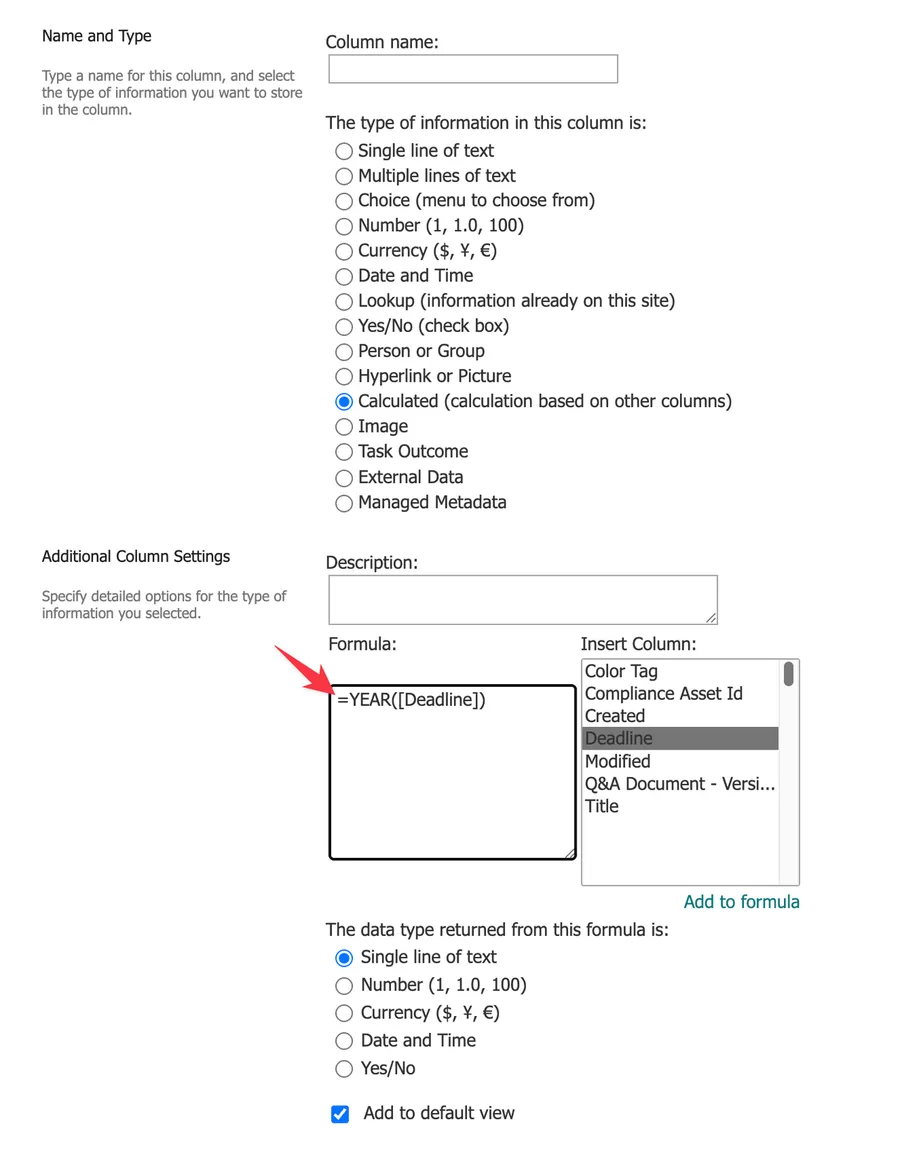
Formulas live in calculated columns. In your list, select the gear icon, then "List settings", then "Create column", and pick the "Calculated (calculation based on other columns)" type. The formula goes in the formula box, and the columns you can reference are listed right next to it. You can also use the same formulas in column validation settings when you want to check data instead of computing it.
The YEAR function extracts the year from a single date. If what you want is the number of years between two dates, use the "DateDif Function" instead. Subtracting two YEAR results ignores months and days, so everyone "gets a year older" on the 1st of January.
Here's what it looks like:
Usage
It follows a simple pattern.
- Date or column name
Here's how to use it referencing another column:
Date
11th of June 2026

=YEAR([StartDate])

will return

2026
You can also provide the date directly:
=YEAR("11-Dec-2020")

will return

2020
Or you can build the date with the "DATE" function, which is safer than text when the date comes from other columns:
=YEAR(DATE(2026,6,11))

will return

2026
Like the other date functions, you can provide a serial number. SharePoint stores dates internally as a sequential number, inherited from how Excel stores dates, so the function happily accepts one:
=YEAR(44176)

will return

2020 because 44176 is the 11th of December 2020
I go into a lot of detail regarding serial numbers in the "Now Function" and "Today Function" articles, so check those if you want to understand what's happening under the hood. And if you ever need to turn one of these serial numbers back into a date outside SharePoint, I have an article on converting Excel numbers to dates with Power Automate.
Real-world examples
Calculate a renewal date
Maria Silva manages contracts and wants a column with the renewal date, three years after the signature. Combining the YEAR function with the "DATE", "MONTH", and "Day Function" does it:
=DATE(YEAR([ContractDate])+3,MONTH([ContractDate]),DAY([ContractDate]))

will return

the 11th of June 2029 if the contract was signed on the 11th of June 2026
This is the pattern Microsoft recommends for adding years to a date. The "DATE" function takes care of month lengths and leap years for you.
Group items by year
To group or filter a view of invoices by year, create a calculated column with the return type "Single line of text":
=TEXT(YEAR([InvoiceDate]),"0")

will return

"2026"
The "TEXT" function keeps the result as a clean label, so you avoid the thousands separator problem we'll see below.
Count the years between two dates
For a quick "how many calendar years did this span" column between two date columns:
=YEAR([EndDate])-YEAR([StartDate])

will return

3 if the project started in 2023 and ended in 2026
Remember the warning above. This counts calendar year changes, not complete years. If you need complete years, the "DATEDIF" function with the "Y" unit is the right tool.
Non-intuitive behaviors
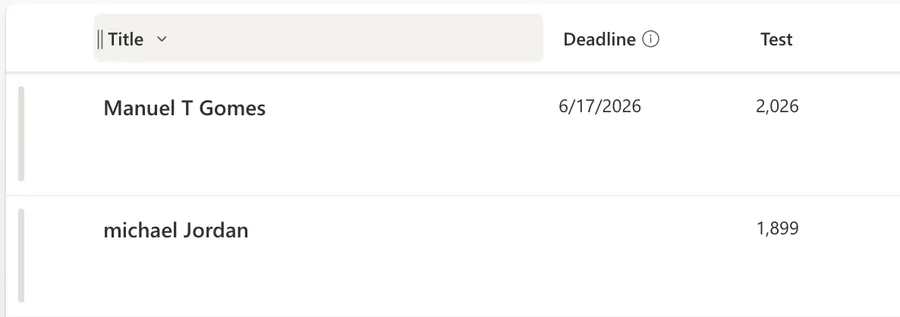
The year shows up as "2,026"
The YEAR function returns a number, and a calculated column with the "Number" return type applies the thousands separator from the regional settings. Your column proudly displays "2,026" instead of "2026". To fix it, set the calculated column to return "Single line of text", or convert the result yourself with =TEXT(YEAR([StartDate]),"0").
You can't use it with the current date
The obvious idea of =YEAR([Today]) to show the current year doesn't work. SharePoint rejects it with "Calculated columns cannot contain volatile functions like Today and Me". And even when a formula with TODAY() slips through, there's a deeper problem: calculated columns only recalculate when the item is edited, so the value goes stale the moment the year changes. I cover this in detail in the "Today Function" article. If you need the current date, use it in view filters or column validation, where it stays dynamic.
The result is always the Gregorian year
The function returns the Gregorian year regardless of the regional settings or the display format of the date column. If your site displays dates in a different calendar, the function still returns the Gregorian value.
It returns 1899 when the date is empty
If the field is empty, it will return 1899. SharePoint treats the empty date as the serial number 0, which falls on the 30th of December 1899 in the internal date system.
Limitations
The function only works in the range of 1900 to 9999 for valid dates. If you use a serial number, the lowest value it accepts is 0, the empty date case we saw above. A negative number won't return an error when you save the formula, but the column will display "#NUM!" as the result. Invalid dates, like text that SharePoint can't parse as a date, will display "#VALUE!" instead.
As with the other date functions, you can't use it on lookup columns, person columns, or choice columns that allow multiple selections.
Troubleshooting Common Errors
Symptom: "The formula contains a syntax error or is not supported" when saving the column. Cause: Depending on the regional settings of the site, the argument separator is a semicolon instead of a comma. A misspelled column name causes the same message. Solution: Replace the commas with semicolons and check that each column name matches the display name exactly, wrapped in brackets.
=DATE(YEAR([ContractDate])+3;MONTH([ContractDate]);DAY([ContractDate]))
Symptom: The column shows "#VALUE!" for some rows. Cause: The argument isn't something SharePoint can read as a date, usually a text column with a date written in an unexpected format. Solution: Use a real "Date and Time" column as the source instead of text, or fix the rows with the bad values.
Symptom: The column shows "#NUM!" for some rows. Cause: The formula produced a serial number below 1, usually after subtracting dates. Solution: Check the math that feeds the function and handle the rows where the result can go negative.
Recommendations
Here are some things to keep in mind.
Format the result before showing it
If the year ends up displayed as "2,026", don't fight the number formatting. Either set the calculated column's return type to "Single line of text" or wrap the result in a "TEXT" function. Both get you a clean four-digit year.
Use the date functions instead of doing the math
There are functions for the other parts of a date, like the "DAY" function, and functions to compare dates, like the "DATEDIF" function we saw above. Don't try to calculate these values yourself from serial numbers. The pre-defined functions handle the edge cases for you. You can find all of them in SharePoint's List Function Reference.
Always deal with errors
The function often won't stop you from saving a broken formula. It will save fine and then display "#NUM!" or "#VALUE!" in the column for the rows with bad data. If you don't catch these, the error cascades into every other column that uses this one in its own formula. Validate the data or handle the error cases explicitly.
Don't nest it
If you need the year as part of a bigger formula, consider creating a calculated column that returns only the year and then building the other formulas on top of it. You'll get simpler formulas that are a lot easier to debug when one row shows an unexpected result.
Final Thoughts
The YEAR function is one of those small building blocks you'll use constantly once you start grouping and comparing dates in your lists. Pair it with the other date functions, keep an eye on the thousands separator, and you'll get clean, reliable years out of any date column.
Sources
- Microsoft's YEAR Function Reference
- Examples of common formulas in lists
- Introduction to SharePoint formulas and functions
Back to the SharePoint List Function Reference


No comments yet
Be the first to share your thoughts on this article!