
Dealing with shared mailboxes used to be quite hard, but Power Automate can handle them properly now. Shared mailboxes tend to get a lot of emails, so automatic parsing and archiving is essential. I'm sure you have one shared mailbox like this with:
- Notifications from failing servers.
- Newsletters from services that you registered.
- Notifications for changes in services that you have.
- Warnings from the teams.
- General feedback.
I can continue, but you get the idea. So how to move the emails?
Before we start, some caveats
First, you need permission to access the shared mailbox. These permissions are not something you configure on Power Automate, so they need to be added by your administrator. What you want is Full Access to the mailbox. "Send As" and "Send on Behalf" sound like they should be enough, but they aren't. The best way to know if you have permissions or not is to open your Outlook and check if you have that mailbox there. If you do, then you're able to use Power Automate to change something.
The second one is more procedural. Please remember that it's a shared mailbox so that other people may have access to it. Make it clear to everyone that checks that mailbox that Power Automate is parsing some emails automatically. And that some of those emails are moved automatically. People should be aware of what's happening because, otherwise, by moving the emails, you'll be, for all intents and purposes, hiding them in a folder.
Caveats out of the way, let's see how to do it.
Move email
You only need the "Move Email" action. This action has a field that is the "Original Mailbox Address" field.
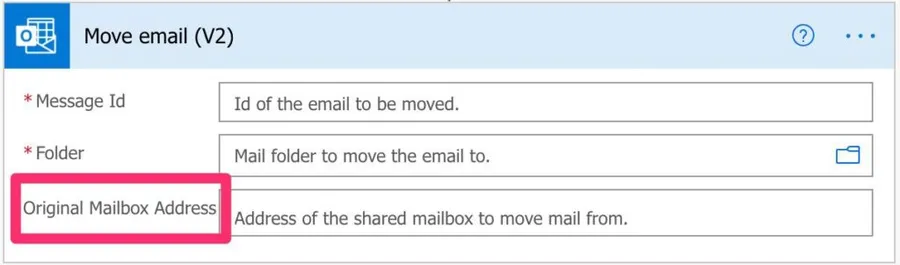
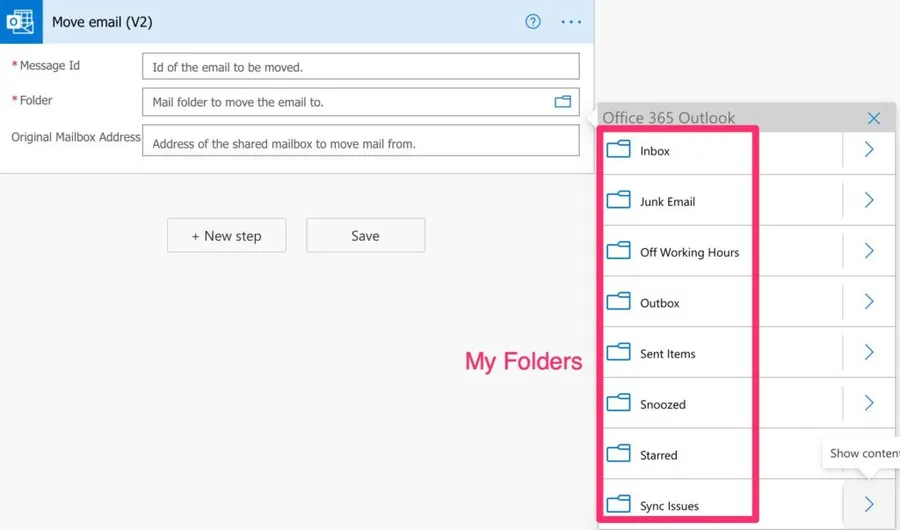
If you leave it empty, then it will use your mailbox as the default. If you press the folder icon, you'll see your email folders.
But if you are filling in the email address, you'll see the folders in the shared mailbox instead.
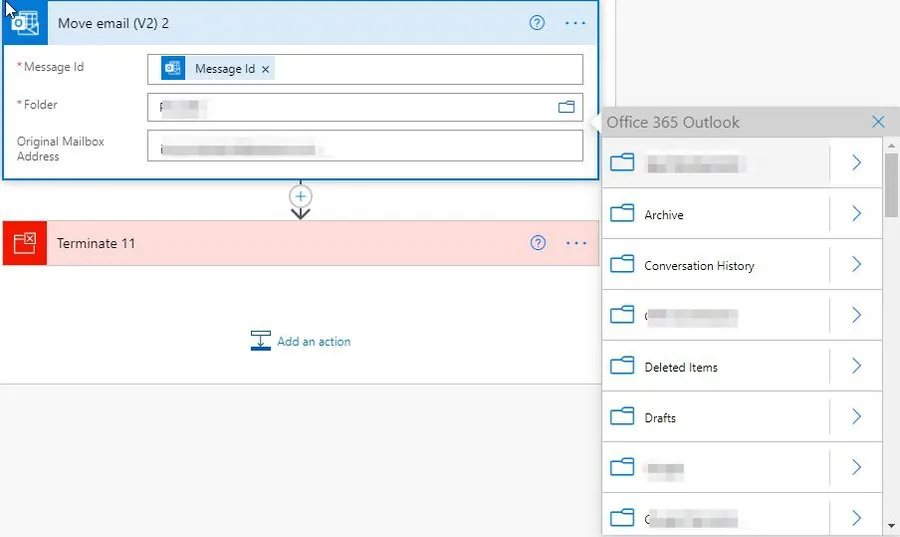
That's it. You need to be careful that the email address is the one you're looking for, and you'll be able to move the email. Fill in the address before you touch the folder picker, since the picker loads whichever mailbox is in that field at the time. If the picker doesn't cooperate, you can also type the folder path as a custom value, or paste a folder ID.
If you want you can move emails from the shared mailbox into your mailbox. To do that, in the "Move Email" action, don't put any email and you'll see your own folders. If you pick one of those, then the email will be moved there.
Non-intuitive behaviors
The email's ID changes after the move
This one catches people out, and it's the reason a lot of flows break. Moving an email doesn't shift it sideways in place. Behind the scenes, a new copy is created in the destination folder and the original is removed, so the message gets a brand new ID. Anything downstream that reuses the ID from the trigger, like "Mark as read", "Get Attachment", or "Reply to email", will look for an email that no longer exists and fail.
Do the move last. If you need to do anything else to the email, do it before the "Move Email" action, or capture the new ID from the move's output.
The regular email trigger doesn't watch shared mailboxes
If you're building this on a shared mailbox, the "When a new email arrives" trigger won't help you. It only looks at user mailboxes. You want the "When a new email arrives in a shared mailbox" trigger instead.
Moving emails can re-trigger your flow
Microsoft documents that the shared mailbox trigger can intermittently fire for emails that were moved into another folder. Since moving emails is exactly what we're doing here, it's worth keeping in mind. If your flow starts running twice for the same email, this is usually why. A condition that checks the folder before acting is a cheap safety net.
Microsoft 365 Group addresses don't work
The "Original Mailbox Address" field wants a real shared mailbox. A Microsoft 365 Group address looks like an email address, but it isn't a mailbox the connector can act on, so it will fail.
Limitations
Permissions take time to arrive
The person whose connection runs the flow needs Full Access to the shared mailbox. Worth knowing: after your administrator grants the permission, it can take around two hours to replicate. If it fails right after the permission was added, wait a bit and try again before you go hunting for a bug that isn't there.
Throttling
The Office 365 Outlook connector allows 300 API calls per connection every 60 seconds. If you're parsing a busy shared mailbox, that's a real ceiling, so keep an eye on it.
Exchange Online only
The connector needs a mailbox with the REST API enabled. On-premises mailboxes won't work, service principal authentication isn't supported, and connections can't be shared with other people.
Folder names with a forward slash
If you type the folder as a custom value instead of picking it, a folder whose name contains a / will break the path. Use the folder picker, or provide the folder ID instead.
Common errors
HTTP 403 when moving mail in a shared mailbox
Cause: Microsoft support has described this as a known limitation, where the connector's write path is tied to the signed-in user's own mailbox. It doesn't happen to everyone, and plenty of flows work fine with the field filled in, so don't assume this is your problem straight away.
Solution: Confirm Full Access is in place and that the permission has had time to replicate. If it still fails, the documented fallback is to call the Microsoft Graph API through the "HTTP with Microsoft Entra ID" action, which is a premium connector.
MailboxNotEnabledForRESTAPI
Cause: The mailbox isn't reachable through the REST API. Usually it's on-premises, soft-deleted, or the account doesn't have an Exchange Online license.
Solution: Check that the mailbox is a licensed Exchange Online mailbox.
404 or ErrorItemNotFound
Cause: The message ID no longer points at anything. Either you already moved the email earlier in the flow, or somebody in the shared mailbox dragged it into a folder before your flow got to it. Remember, in a shared mailbox, humans are moving things around too.
Solution: Move the email last, and don't reuse the trigger's message ID after a move.
Final Thoughts
I want to thank Microsoft for this small but huge change. This was impacting our productivity greatly because we had a lot of emails arriving, and I didn't want to delete them. By implementing the ability to move emails inside the shared mailbox, I parse a lot of emails and make some of my co-workers very happy.
If you do hit a wall with the connector, the escape hatch is calling the Microsoft Graph API directly with the "HTTP with Microsoft Entra ID" action. It's a premium connector, so it isn't free, but it gives you the full move operation and stable message IDs. For most shared mailboxes, the "Move Email" action will do the job just fine.
Photo by Robinson Greig on Unsplash



Thank you so very much. I am often surprised at how my expectations of PowerAutomate don't align with the actual execution... at least not always in plain site. First time needing to do this and was shocked when all I saw was my personal mailbox folders at first.
Hi Manuel,
Thanks for this interesting article.
When trying to move an e-mail within a shared mailbox, my flows keeps failing with the "The specified object was not found in the store." error. Could this have something to do with permissions my account has on that shared mailbox? I only have read permissions on the mailbox, would that be enough and if not, what permissions would I exactly need in order to move e-mails via Power Automate?
Thanks in advance!
Best regards,
Alex
Hello Manuel - I see you have a Terminate at the very end - Do I always have to put a terminate in? I haven't been putting terminate in.
Hi Tim,
No need for a terminate. I took the screenshot from one of my Flows and mistakenly added it.
Thanks for pointing that out!
Cheers!
Hi, thank you for that!
I got another small tip, which may be helpful for people.
We got an alias on an alias (shared mailbox) - it's an inbox we use for raffles and give aways and the incoming mail is going to a list, so we can sort, filter and process.
In some cases we needed the incoming mail to go to another list (special contests etc), so I assigned a slightly different mail as secondary email address for the shared mailbox, and in the flows, when you enter that second email address (ie. contest special @ company, instead of the main contest @ company) in the field "To" - flow indeed route only these mails to a different list AND also move them to a different subfolder.
Automate is really quite fun.
@Manuiel
Pro Tip:
If you want you can move emails from the shared mailbox into your mailbox. To do that, in the “Move Email” action, don’t put any email and you’ll see your own folders. If you pick one of those, then the email will be moved there.
I can't get this to work. I have full access on the shared mailbox and If I try to move the mail to my one mailbox it always says. Message with Idd..... does not exist in targetmailbox ....
hi, this works perfectly when you select the relevant folder, but what about when it varies? I want to move an email to a specific variable folder