
Sorting email manually is where productivity goes to die. But, even if you have a quick way to do it, nothing beats automatic, so Power Automate provides a trigger that helps you deal with emails as soon as they arrive. Today let's explore the "When a new email arrives" trigger for Office 365. We'll be using the V3 version, which is the current one. If you still see the older "webhook" version around, skip it, since it's deprecated and V3 is the one Microsoft wants us to use.
Where to find it?
You can find it by searching "When a new email arrives."
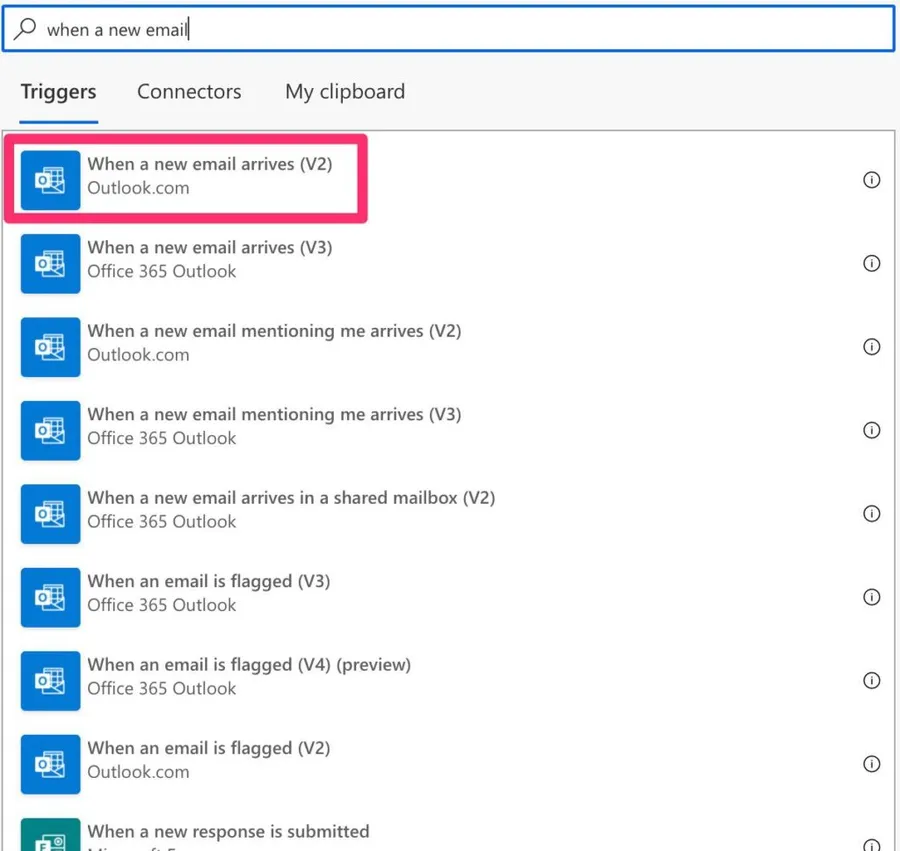
It's essential to define what an email "arriving" actually means. It doesn't have to be an email that drops straight into your inbox. If a rule routes a fresh incoming email into a folder as it lands, that counts too, which opens the doors to automation based on how your mail is sorted on arrival. The key word is "arriving", though: as we'll see later, manually moving an older email into the folder won't fire the trigger.
There are two versions of this trigger-one for Office 365 and another for Outlook.com. Please use "Office 365," although the other one works similarly.
Usage
There are a lot of fields that we can configure. Let's look at them individually.
Folder
We don't need to look at the inbox exclusively. We can have another folder where we look for new emails arriving. For example, you may have a folder where you send a pre-defined answer to the person that emails you. It's a simple example, but you mustn't limit yourself to incoming email emails.
To look at shared mailboxes, you need to use the "When a new email arrives in a shared mailbox" trigger.
"To", "CC", "To or CC", or "From"
These fields were a great idea from Microsoft when creating this trigger. Since we receive many emails, it doesn't make sense for the trigger to fire each time we receive an email since we're only looking for a sub-set. With these filters, we don't need to add huge "Condition" or "Switch" actions to filter the emails you want. Instead, the trigger does all the work for you.
Just so you know, the trigger will run only if at least one matches, which is also good if you have substantial limitations on the number of Flows you can run a day.
To use it, separate the emails with ";" You can have internal and external emails, but keep this field with only the email. When you copy emails from some email clients, you'll have the name associated with it, so be sure to remove it.
Finally, I want to highlight the "To or CC" field. If you add an email to the "To" field or the "CC" field, the email must contain both for the Flow to trigger. But if you want either one, you can use the "To or CC" field.
Importance
The "importance" field is often ignored, but some organizations can have strict rules on using it. If yours is one of them, you can have a Flow that sends you a notification each time a "High" priority email arrives, for example. The available possibilities are:
- Any
- High
- Normal
- Low
Only with Attachments
For example, if you have a Flow that archives your attachments automatically, you may want to trigger Flows that have them. Having your Flow trigger only when a condition is satisfied makes your life easier because you don't need to validate, for each email that arrives, if there's an attachment or not. One quick note: depending on where you look, Microsoft calls this same toggle "Has Attachment" in some places and "Only with Attachments" in others. They're the same field, so don't let the naming confuse you.
Include Attachments
Should the trigger include the attachment information or not? There is, however, something that you should know. Even if you enable this feature, the trigger doesn't always fetch the attachments correctly, and turning it on makes the trigger wait for every attachment to download, which can time out when a lot of heavy emails land together. I go into detail in this article, but the safer pattern is to keep this off and fetch the attachments separately using the "Get email" action.
Subject Filter
Like the other fields, we can filter the subject for a specific string, and the Flow will only trigger if that condition is met. Keep in mind that this is a plain substring match, not a regular expression, so there are no wildcards. If the text you type appears anywhere in the subject, it matches.
Trigger conditions
The filter fields cover most cases, but sometimes you need something they can't express. For those, open the trigger's Settings and add a trigger condition. The big advantage is that, unlike a "Condition" action, a trigger condition that evaluates to false doesn't consume a run, so you save quota. For example:
@contains(triggerOutputs()?['body/subject'], 'Invoice')
This only runs the Flow when the subject contains "Invoice", and never burns a run when it doesn't.
Outputs
The trigger returns a lot of information in a JSON format, although the conversion from JSON is done automatically for you. Here's an example:
{
    "headers": {
        ...
    },
    "body": {
        "id": "<redacted>",
        "receivedDateTime": "2021-09-01T10:13:32+00:00",
        "hasAttachments": false,
        "internetMessageId": "<redacted>",
        "subject": "<redacted>",
        "bodyPreview": "<redacted>",
        "importance": "normal",
        "conversationId": "<redacted>",
        "isRead": false,
        "isHtml": true,
        "body": "<body's HTML>",
        "from": "<redacted>",
        "toRecipients": "manuel@manueltgomes.com",
        "attachments": []
    }
}
A few of these are easy to miss but very handy. The "conversationId" lets you group an email with the rest of its thread, and the "internetMessageId" is a stable identifier you can use to match the same message across systems. The "bodyPreview" gives you a plain-text snippet when you don't want to deal with the HTML "body", and "isHtml" tells you which one you're getting. The "isRead" flag is great for only acting on unread mail. When attachments are included, each item in the "attachments" array carries its own "name", "contentType", "contentBytes", "size", and an "isInline" flag, so you can tell real attachments apart from inline images.
Non-intuitive behaviors
This trigger is friendly, but it has a few quirks that catch people out. Here are the ones worth knowing before you build on top of it.
Moving an email into a folder doesn't trigger
It's tempting to think that dropping an existing email into the monitored folder will fire the Flow. It won't. The trigger looks at the email's received date and time, not at folder moves, so anything that arrived before the last run is simply skipped. If you want to act on a move, you need a different approach.
Subfolders aren't monitored
The trigger only watches the exact folder you point it at. If a rule routes some mail into a subfolder, a Flow watching the inbox won't see it. Each subfolder you care about needs its own Flow.
"To or CC" behaves differently when you fill both
When you use the "To or CC" field, fill in only one of "To" or "CC" and leave the other empty. If you set both, the trigger fires only for emails that match both at the same time, which is the opposite of what most people expect.
Safe Attachments can fire it twice
If your organization uses Microsoft Defender Safe Attachments with Dynamic Delivery, the trigger can fire twice for the same email, and on the first fire the attachments array is empty. A quick guard like checking that length(triggerOutputs()?['body/attachments']) is greater than zero saves you from acting on the empty one.
Encrypted and signed emails
For encrypted or rights-protected mail, the output won't contain the real body, just a note saying the message is secured. Digitally signed emails can return attachment content that doesn't work in later actions, so test those cases before relying on them.
Limitations
You can't access emails in shared mailboxes with this trigger. You need to use the "When a new email arrives in a shared mailbox" trigger instead, and remember to set the "Mailbox address" parameter on the downstream actions, or you'll hit an "item ID doesn't belong to current mailbox" error.
A few other limits are good to keep in mind. The trigger skips any email larger than around 50 MB (the content cap sits at 49 MB), so very large messages won't fire it at all. The connector is throttled to 300 API calls per connection every 60 seconds, which is plenty for most cases but worth knowing if you run high-volume automation. Finally, if you see a "REST API is not yet supported for this mailbox" error, the mailbox isn't on a plan that supports this trigger.
Recommendations
Here are some things to keep in mind.
Use the filters wisely
The filter fields are a fantastic way to trigger your Flow when the condition is met. But it's important to know that the Flow will trigger only if all filters are met. So test your triggers and ensure they are firing when you want them. Any email that should be parsed but doesn't fit the filters will be ignored, so it's a hidden error since there are no error messages or warnings.
Name it correctly
The name is super important in this case since there are a lot of filters. Define in the name what you're trying to achieve. Always build the name so that other people can understand what you are using without opening the action and checking the details.
Always add a comment
Adding a comment will also help to avoid mistakes. For example, indicate what emails you want to fetch and the ones to ignore, the exceptions, and the reasoning behind that. It's essential to enable faster debugging when something goes wrong. Besides, it's good to understand the mindset and requirements when building the Flow in case someone else is debugging or improving it.
Final Thoughts
The "When a new email arrives" trigger looks simple, but its real power is in the filter fields. Set them well and you save run quota and skip a pile of conditions later. Keep "Include Attachments" off unless you truly need it, and you'll avoid the most common headaches people run into.
Back to the Power Automate Trigger Reference.
Photo by Signature Pro on Unsplash


Hello, I'm thinking about using this trigger for a MB where a lot of "old" emails are being moved around so I was wondering how a "new" email is defined. Does it need to be unread? Only received in the last day/hour? Let's say there is an email present in the MB (received) for a few weeks and which has already been read and moved around a few times. If this email is moved by an user to the folder monitored by the trigger, will it activate it?
How to trigger by any Email addresses (Excel List) that ends with: @abc/com @xyz.ca @ghi.com.hk
Hi folks, has anyone tried using this for a high usage email scenario? are there performance limits we ought to be aware of? I'm looking at upping the polling frequency to every minute, and there is a chance the system might be bombarded with 100s of emails per minute. is there any data on the number of emails per minute we can expect this to handle? thanks Andy
Use this all the time. I find using inbox rules in outlook to process the emails to a folder/sub folder and then the flow just has to monitor that folder. Gives you more flexibility in those rules.
Bingo! That's exactly the sweet spot, in my opinion. Well done Brian Cheers Manuel