
If you work with SharePoint in a team, you've probably run into this. Someone checks out a file and leaves for holidays, and someone else can't edit it because it's locked. You will then need to ask the admin to do a manual check-in, and everyone loses time. It's a small thing but I see this happening constantly.
We can solve this problem with Power Automate because we can detect this happening and act on it. I will propose a few solutions but it all depends on how you want to proceed. Regardless of the solution, it's important to warn everyone about what can happen so that people are not surprised. There are a few solutions from gently nudging the person who has the file checked out, to releasing the lock automatically (more drastic and people may lose work).
Before we start, Microsoft is implementing more and more collaboration features meaning that you can open files, make your edits and don't worry about checking in and out. I'm writing this article because I see a lot of places where the policy is to check out and people run into problems like this.
Although there's no built-in trigger for "when a file is checked out", we can build the system ourselves.
The two kinds of locks
Before we build anything, you need to know that SharePoint has two very different "lock" mechanisms, and they are often confused, so let's first take a look at what they are.
The first one is the explicit checkout. This happens when someone clicks "Check out" on a file, or when the document library is configured to require checkout before editing. The file gets a small green arrow on its icon, and SharePoint stores the user who did it in a field called CheckoutUser. We can read this field, we can act on it, and this is the case we will solve today.
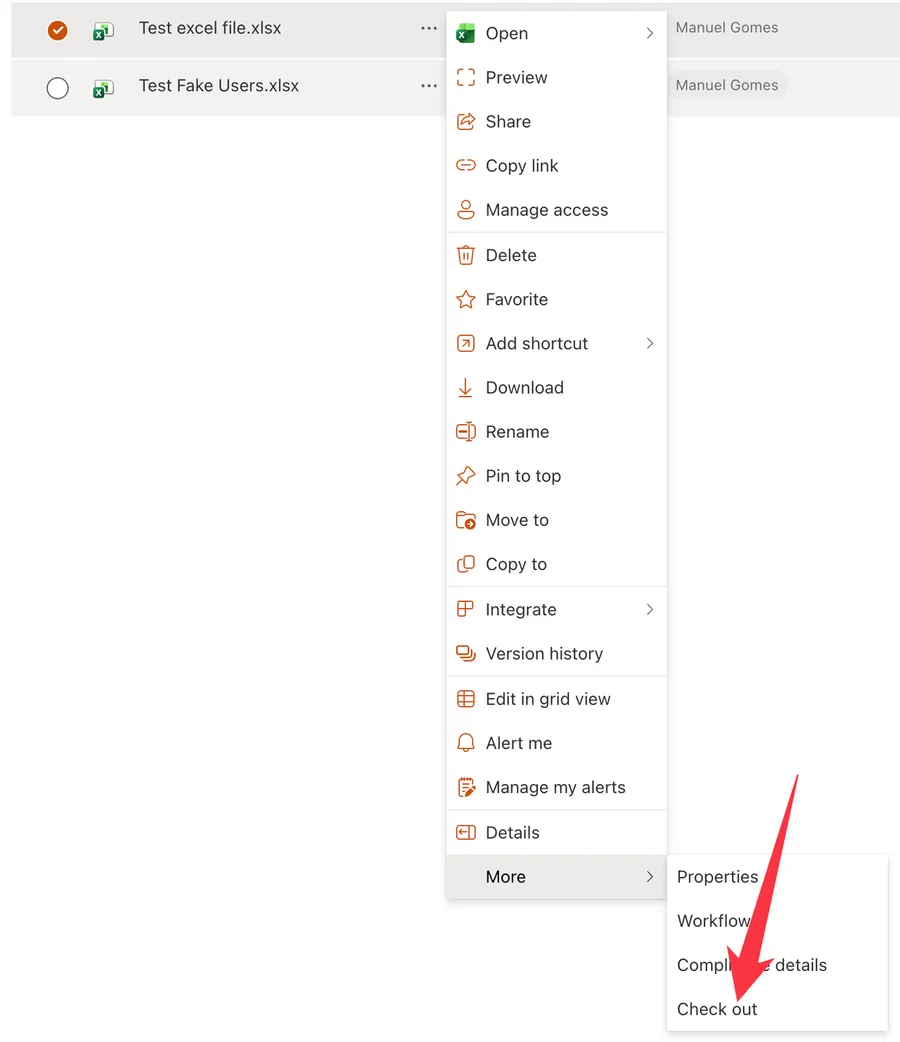
The second one is the coauthoring lock, which fires automatically when someone opens the file in desktop Excel or Word. SharePoint refreshes that lock every ten minutes for as long as the file stays open. This one is mostly invisible to Power Automate, you cannot read it through the standard connector, so the flow we are about to build will not help with desktop sessions. The lock releases on its own roughly ten minutes after the user closes the file, so it usually fixes itself anyway. But we won't need to release the coauthoring lock because if we're "coauthoring" we can edit the files and automatically see the changes from other people.
Since using the files in coauthoring doesn't trigger this problem, probably it would be a good solution to think about first. Check if editing the files in coauthoring would work for everyone. To use the "coauthoring" strategy you can open the files either directly in Microsoft Teams and SharePoint or in your desktop app and it will do it automatically. Let SharePoint do the management and merging of the files. That's what it's for.
Our flow targets the first case, which is the painful one because, unlike the second, it doesn't fix itself.
The flow at a glance
Here is the shape of what we are going to build, before we touch any actions:
- A scheduled trigger runs every hour during business hours.
- It asks SharePoint for all files in a given library that are currently checked out.
- Parse the contents (I'll explain) using the "Parse JSON" action.
- For each one, it checks how long the file has been sitting locked.
From here it depends on what you want to do.
- It sends a friendly email to the person holding the file, asking them to check it back in.
- Optionally, after a configurable threshold, it escalates, either by copying a manager or by releasing the lock automatically.
Let's go through each step.
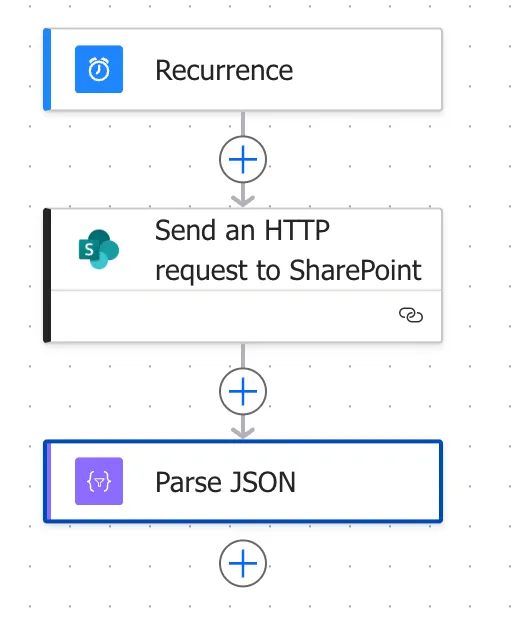
Trigger periodically
Start with the "Recurrence" trigger and configure it to run every hour. You can refine the schedule later, for example to skip weekends or run only between 9:00 and 18:00, but hourly is a sensible default while you are testing.
You don't need to wait an hour to test the Flow. You can click "run" as many times as you want to run things while you're testing.
Fetch the data from SharePoint
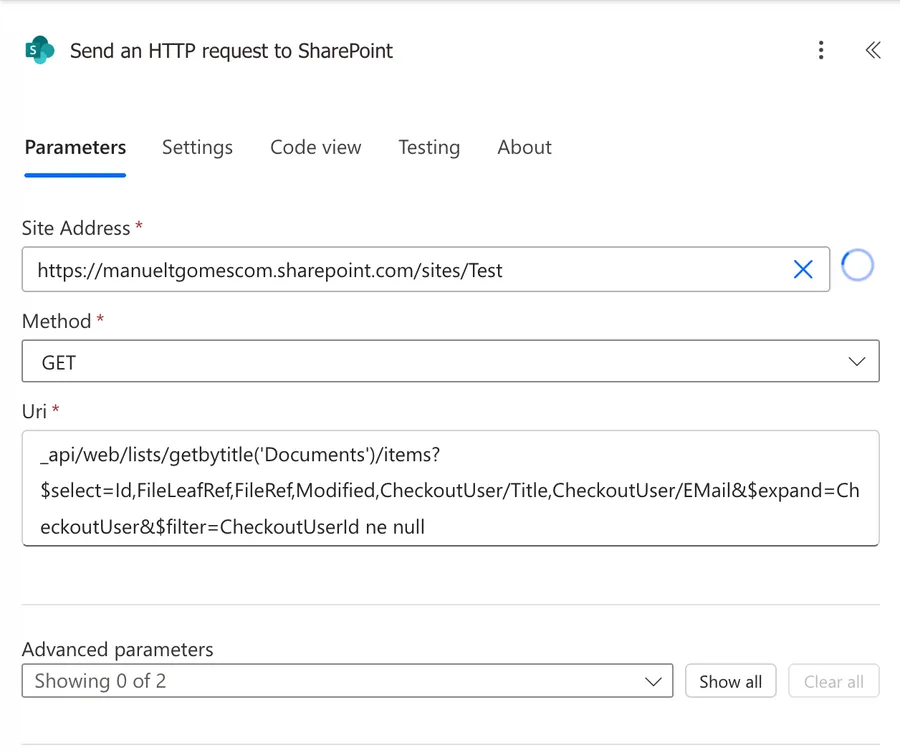
Next, add a "Send an HTTP request to SharePoint" action. Why this one and not the friendlier "Get files (properties only)"? Because the HTTP action lets us pass a precise filter and pull exactly the fields we need, including the email of the person who has the file checked out. Configure it like this:
- Site Address: your site, for example
https://<insertTenant>.sharepoint.com/sites/<insertSite> - Method:
GET - Uri:
_api/web/lists/getbytitle('Documents')/items?$select=Id,FileLeafRef,FileRef,Modified,CheckoutUser/Title,CheckoutUser/EMail&$expand=CheckoutUser&$filter=CheckoutUserId ne null
That filter is the important part. It returns only items where someone has the file checked out, so we don't waste a loop on files that are fine.
Parsing the results
Now let's add a "Parse JSON" action. This is important because the "Send an HTTP request to SharePoint" action can get any type of data, but it would be nice to pick the fields from the "dynamic content". You can copy the following schema:
{
  "type": "object",
  "properties": {
    "d": {
      "type": "object",
      "properties": {
        "results": {
          "type": "array",
          "items": {
            "type": "object",
            "properties": {
              "__metadata": {
                "type": "object",
                "properties": {
                  "id": { "type": "string" },
                  "uri": { "type": "string" },
                  "etag": { "type": "string" },
                  "type": { "type": "string" }
                }
              },
              "CheckoutUser": {
                "type": "object",
                "properties": {
                  "__metadata": {
                    "type": "object",
                    "properties": {
                      "id": { "type": "string" },
                      "type": { "type": "string" }
                    }
                  },
                  "Title": { "type": "string" },
                  "EMail": { "type": "string" }
                }
              },
              "Id": { "type": "integer" },
              "FileLeafRef": { "type": "string" },
              "ID": { "type": "integer" },
              "Modified": { "type": "string" },
              "FileRef": { "type": "string" }
            },
            "required": [
              "__metadata",
              "CheckoutUser",
              "Id",
              "FileLeafRef",
              "ID",
              "Modified",
              "FileRef"
            ]
          }
        }
      }
    }
  }
}
It should look like this:
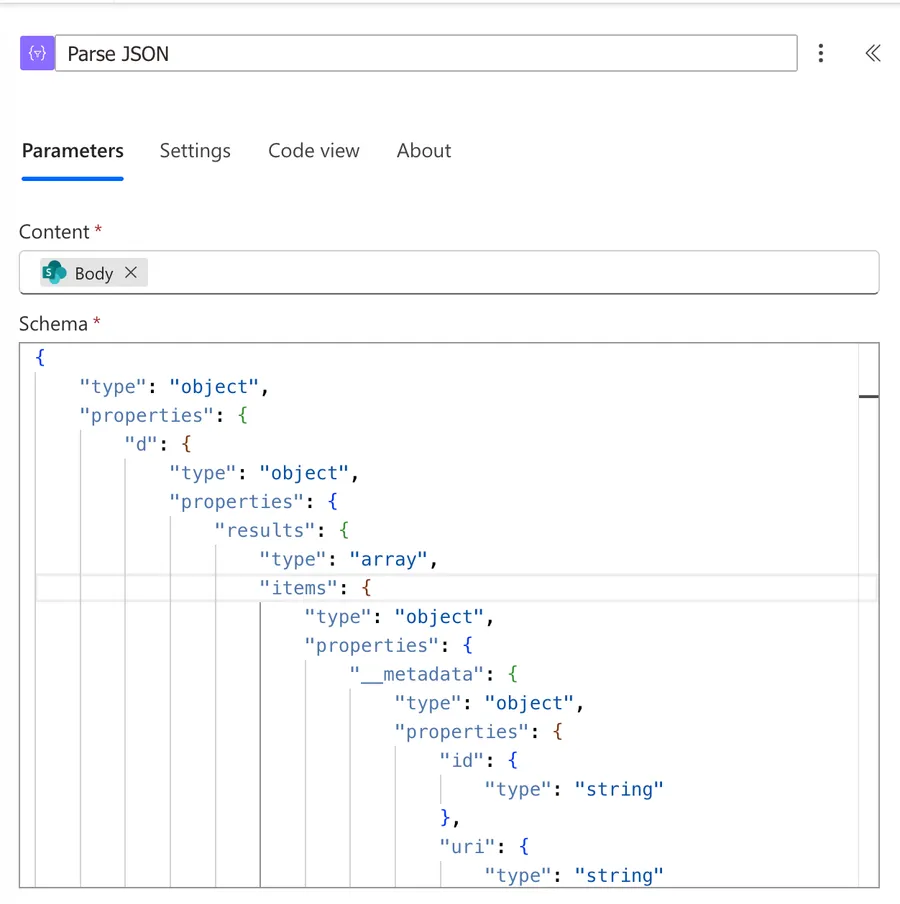
If you don't use this it's fine. I'll tell you the expressions that you can use.
List all results
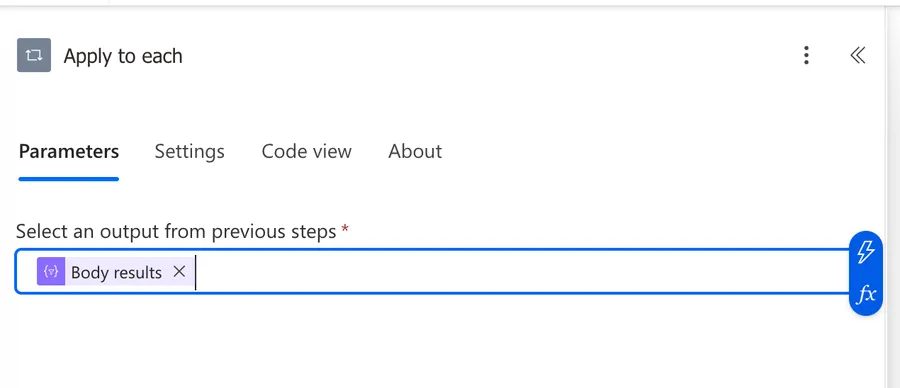
Now add an "Apply to each" action. If you used the "Parse JSON" action, point it at the parsed output; otherwise, use body('Send_an_HTTP_request_to_SharePoint')?['d']?['results']. The ?[] notation keeps the flow safe if SharePoint ever returns an empty body, otherwise the loop would crash. Inside the loop, you now have one item per checked-out file, with the holder's name and email ready to use.
Now let's see what we can do with the results.
The "nice guy" option
I would recommend sending an email with the "Send an email notification" action for example addressed to items('Apply_to_each')?['CheckoutUser']?['EMail'] (if you're not using the "Parse JSON" action). I'll let you customize the message to manage the level of "niceness" for the closing of the file.
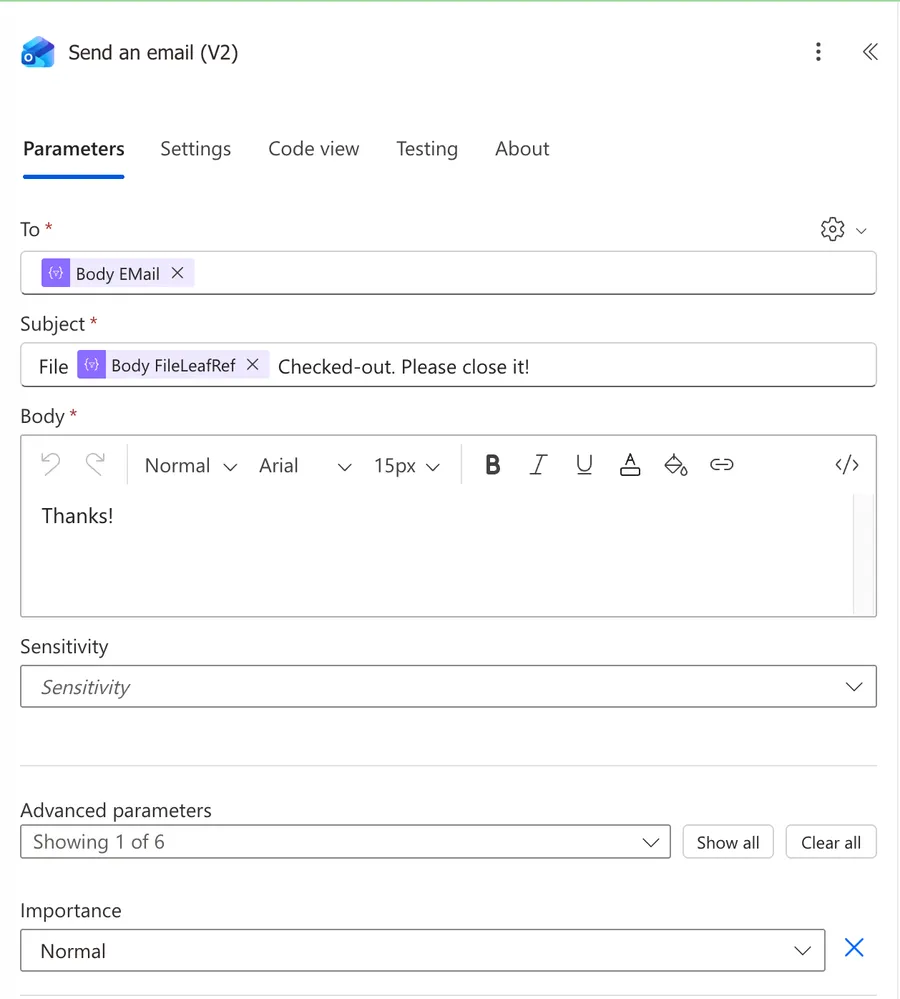
I would recommend, however, that you check how long the file is checked out so that you don't send a notification 5 minutes after the person starts working on the file, but we have an issue. We don't have a decent way to get when the file was checked out. I see some suggestions using the modified date, but this is fallible because if you check out a file that was last edited last year and you don't touch it, then the modified date is from last year.
But if you still want to use it, then the trick is to look at the Modified timestamp on the checked-out file and compare it to the current time. Initialize a variable using the "Initialize variable" action, name it hoursLocked, and set it to the result of the "dateDifference" function between the file's Modified value and the "utcNow" function.
Now wrap your email logic in a "Condition" action and tier the responses, like:
- Less than 4 hours: do nothing, the person is probably actively editing.
- Between 4 and 24 hours: send the friendly nudge described above.
- Between 24 and 72 hours: send a stronger reminder and CC their manager.
- Over 72 hours: escalate, either to an admin distribution list or, if you are brave, to the destructive option below.
The destructive option
Discarding a checkout is permanent. Any unsaved changes the user made are lost forever, with no recycle bin and no undo. Use this only when there's no other way of closing the file and it's better to lose data than keep the file checked out.
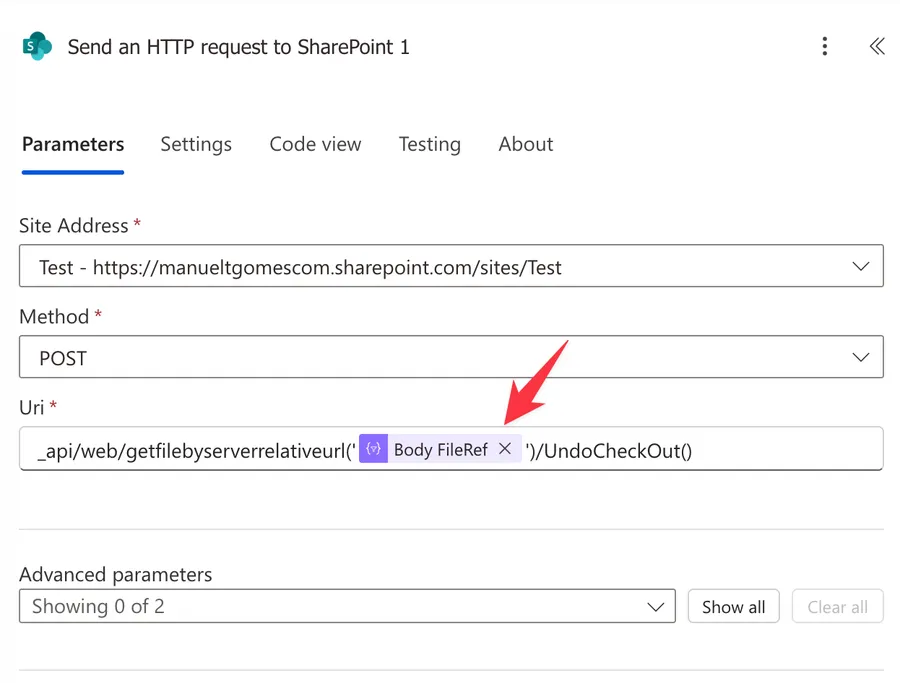
If you really need to release a lock automatically, SharePoint exposes an UndoCheckout endpoint you can call from another "Send an HTTP request to SharePoint" action.
To do that you need the name of the file and run the following:
- Method:
POST - Uri:
_api/web/getfilebyserverrelativeurl('/sites/<insertSite>/Shared Documents/<insertFileName>.xlsx')/UndoCheckOut()
This version is simple, predictable, and easy to reason about. You know exactly which file will be unlocked, and nothing else in the library is touched. It is also a great way to test the endpoint for the first time, because you can run it against a test file you do not mind losing changes on.
Notice that the file name is not enough. You need the full path like /sites/Test/Shared Documents/Test excel file.xlsx. The default library's URL slug is Shared Documents, not Documents, even though its display name is "Documents". Also note that you don't need to URL-encode spaces as %20 inside the quoted path, SharePoint accepts the spaces as written.
But if you want to close all files periodically then you can use the same strategy but put the "Send an HTTP request to SharePoint" action inside the "Apply to each" action. Here's how to do it.
- Method:
POST - Uri:
_api/web/getfilebyserverrelativeurl('@{items('Apply_to_each')?['FileRef']}')/UndoCheckOut()
The FileRef value comes straight from the SharePoint response and contains the full server-relative path of each file, so the same action handles ten files or a hundred without any changes.
Do not fire UndoCheckOut without a safety net. I strongly suggest writing the action to a log list before calling it, so you have a paper trail when someone inevitably asks, "who deleted my changes?". And whichever option you pick, only run the discard after a final warning email has gone out at least 24 hours earlier, so the person had a real chance to act.
Gotchas to watch for
A few small details that catch people out, so you do not have to discover them the hard way:
- The 5000-item threshold: if your library is large, append
&$top=5000to the URI and consider running the flow more often against narrower folders. - Permissions: the account running the flow needs at least Edit rights on the library, and for the destructive option it needs Full Control. The cleanest option is to create a separate Microsoft 365 account just for this flow, do not run it under João's name or yours.
- Time zones: the
Modifiedfield is in UTC, and so is the "utcNow" function, so the comparison is safe. If you are reporting hours to humans, convert to Lisbon time before showing it.
Final Thoughts
I'm writing this article so that people have a solution, but I hope you don't need it. SharePoint has a lot of nice collaboration tools, so you and your colleagues can have the files open and collaborate on them. But if you need to close files, please be careful. This can have a huge impact since you're basically discarding other people's changes.
I'd start with the gentle reminder, watch how it behaves for a couple of weeks, and only enable the automatic discard once you trust the results.
Photo by Muhammad Zaqy Al Fattah on Unsplash


No comments yet
Be the first to share your thoughts on this article!