
Every file in a SharePoint document library carries two very different kinds of information. There's the file itself, the bytes of the Word document or the Excel workbook, and then there's everything the library knows about that file, the Title, the columns you added, who last edited it, and when. The "Get file properties" action in Power Automate fetches that second kind. Give it the ID of one item in a library, and it returns all the column values stored for that file as a single record. It belongs to the SharePoint connector. It's a standard action with no premium license required, and it does need a connection since it talks to your SharePoint tenant. It's the metadata companion to the "Get file content" action, which grabs the bytes.
Where to find it?
Search for "get file properties" in the action picker and pick it from the SharePoint connector.
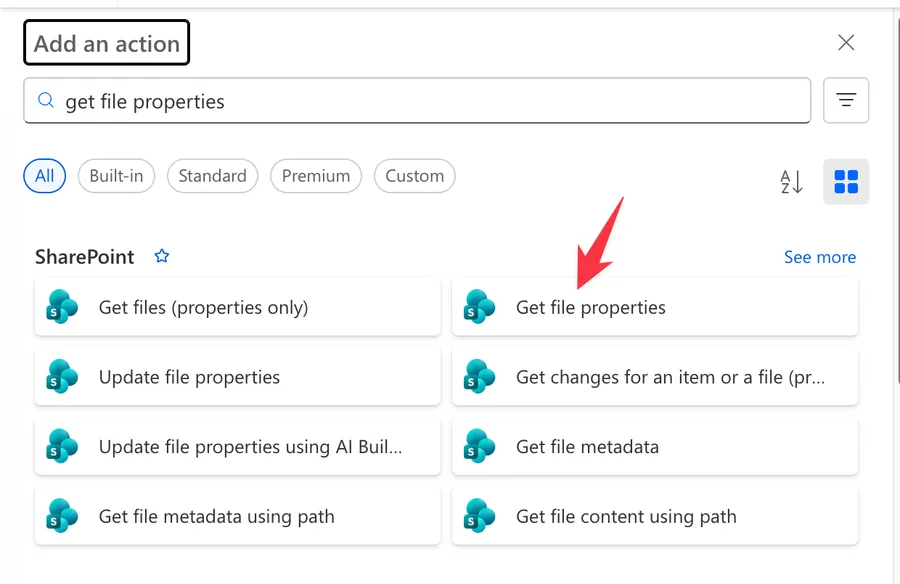
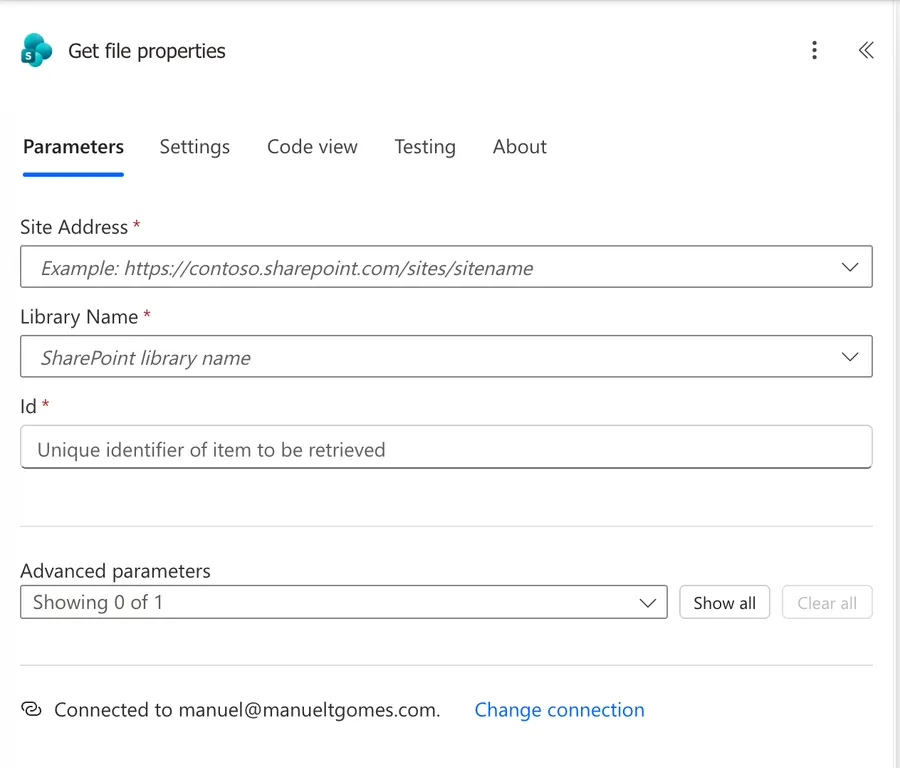
Here's what it looks like once you drop it on the canvas.
The SharePoint connector has a cluster of "get" actions that are easy to mix up. This action returns the library column values for one file, addressed by its list item ID. The "Get file metadata" action returns file system information instead (size, ETag, created date) and is addressed by a file identifier. And "Get files (properties only)", which has no article yet, returns the column values for many files at once as an array, with Filter Query and Top Count options this single action does not have. This article covers the singular "Get file properties".
Now that we know how to find it let's understand how to use it.
Usage
The action has three required fields and one optional advanced parameter. That's the whole surface area, which makes it one of the simpler SharePoint actions to configure.
Site Address
The site that hosts the library. Power Automate usually offers your recent sites in a dropdown, and you can paste a full URL like https://<insertTenant>.sharepoint.com/sites/<insertSite> if the site you want isn't listed. Get this wrong and every other field stays empty, because the connector can't enumerate libraries for a site it can't reach.
Library Name
The document library inside that site, again as a dropdown. Note that this is a library, not a list. If you're chasing list items rather than files, you want the "Get item" action instead. One exception to the dropdown: when the library sits behind the On-Premises Data Gateway, Microsoft's connector reference notes that the library name may need to be typed in by hand.
Id
This is the one that trips people up. The "Id" field expects the integer list item ID of the file, the small number like 42 you'd see in the ID column of the library. It is not the long encoded "File identifier" string that some triggers and actions hand you. If you have a file identifier and not an item ID, you'll need to resolve the ID first, for example from the trigger outputs or a preceding "Get files (properties only)" action, before you can feed it to this action.
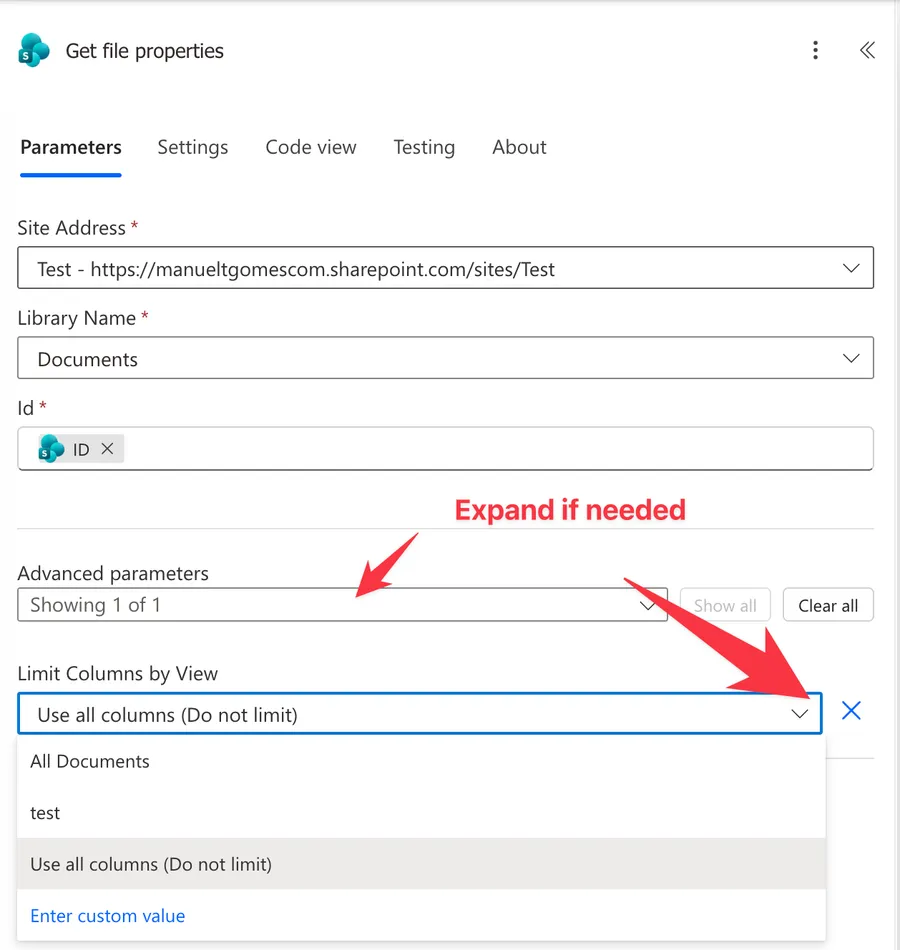
Limit Columns by View
The only advanced parameter, and it starts hidden behind the collapsed "Advanced parameters" section. Instead of returning every column in the library, you point the action at a named view and it returns only the columns configured in that view. This exists mostly to dodge the lookup column threshold error, which I cover under Troubleshooting below. It's also a tidy way to keep your run history readable when a library has fifty columns and you care about four. The default is "Use all columns (Do not limit)", which is exactly what it sounds like.
Using the action's outputs
Because the columns in a library differ from tenant to tenant, Microsoft documents the outputs of this action as dynamic. Power Automate reads your library's schema and generates dynamic content for every column, both the built-in ones and any custom columns you added. A handful of system fields are always there:
| Output | Description | Example Value |
|---|---|---|
| Id | The list item ID of the file | 42 |
| Title | The Title column value | Quarterly Report |
| Name (with extension) | The file name including its extension | quarterly-report.xlsx |
| Link to item | The URL that opens the item | https://<insertTenant>.sharepoint.com/sites/<insertSite>/... |
| File identifier | The encoded identifier used to fetch content | <long encoded string> |
| Is Folder | Whether the item is a folder | false |
| Created | When the item was created | 2026-07-10T08:30:00Z |
| Modified | When the item was last modified | 2026-07-14T09:12:00Z |
| Created By | A person object for the author | { DisplayName, Email, Claims } |
| Modified By | A person object for the last editor | { DisplayName, Email, Claims } |
The most common reason to reach for this action is that "File identifier" output. You feed it straight into the "Get file content" action to grab the bytes once you've confirmed the metadata is what you expect. To pull a value in an expression, use the "outputs" function:
outputs('Get_file_properties')?['body/Modified']
Here's the breakdown:
- The "outputs" function returns everything the action produced.
?['body/Modified']safely navigates into the body and reads the Modified field. The question mark returns null instead of crashing the flow if the field is missing, and I explain why you always want that question mark in a separate article.- Note the underscores in the action name. Power Automate replaces the spaces in "Get file properties" with underscores when you reference it in expressions.
Non-intuitive behaviors
Person and lookup columns come back as objects, not text
A "Created By" or a custom person column isn't a string. It's an object with sub-properties. Drop it straight into an email and you'll get a blob of JSON or an empty value. Reach into the piece you want instead:
outputs('Get_file_properties')?['body/Author/DisplayName']
The same shape applies to lookup columns, which expose a Value and an Id, and to managed metadata columns, which also expose a Value. If you need the account for a later action rather than a display name, read the Claims property (Author/Claims) instead of DisplayName.
Multi-value columns are arrays
A multi-select choice column, a multi-value lookup, or a multi-person column returns an array rather than a single value. You can't just print it. Loop it with an "Apply to each" action or join it into a string. I walk through the details in how to fetch multi-select columns in SharePoint.
Internal column names hide behind friendly labels
The label you see in the SharePoint UI is the display name. Under the hood the column has an internal name, and spaces there become _x0020_. So a column shown as "Due Date" is Due_x0020_Date in an expression. If a value keeps coming back null even though the data is clearly there, an internal name mismatch is usually why.
System fields need curly braces in expressions
The friendly labels in the dynamic content list are not the names you use in an expression. SharePoint's own file system fields arrive wrapped in braces, so "File identifier" is {Identifier} and "Name (with extension)" is {FilenameWithExtension}:
outputs('Get_file_properties')?['body/{Identifier}']
The same shape covers {Link}, {IsFolder}, {Name}, {FullPath}, and {ContentType}. Columns you created yourself carry no braces, so body/Modified works while body/File identifier quietly returns null.
It returns one record, no loop required
Unlike "Get files (properties only)", which always hands you an array, this action returns a single object. You can bind its outputs directly without an "Apply to each" action wrapping them. If the designer insists on wrapping your reference in a loop anyway, it usually means you accidentally pointed at a multi-value column output rather than the item itself.
Limitations
One item at a time
The action fetches exactly one file, addressed by one ID. There's no Filter Query, no Order By, and no Top Count here. Those belong to "Get files (properties only)". If you need the properties for a set of files, use that action or the "Get items" action family instead of calling this one in a loop, which is far slower and burns action runs. The SharePoint connector allows 600 API calls per connection every 60 seconds, so a loop over a few hundred files can throttle inside a single minute.
Libraries only, not lists
The "Library Name" field only lists document libraries. To read the columns of a plain list item, use the "Get item" action. They look almost identical in the designer, but pointing the wrong one at your data source just leaves the dropdown empty.
It returns metadata, never the file
This action gives you the column values and the file identifier, not a single byte of the document. That's by design. To get the actual content you chain into the "Get file content" action using the file identifier this action returns.
More than 12 lookup columns breaks the query
SharePoint counts person or group and managed metadata columns as lookup columns alongside true lookups, and a single query can only cross 12 of them. Since this action returns every column by default, a library with 13 person columns fails even when it holds a handful of files. The limit is fixed in SharePoint Online and no administrator can raise it. Point the "Limit Columns by View" parameter at a view that stays under 12, or use the "Send an HTTP request to SharePoint" action to request precisely the fields you want.
Troubleshooting Common Errors
The specified item was not found
Cause: The "Id" you passed doesn't exist in that library, or you fed the action a file identifier string where it expected the integer list item ID. This is the single most common mistake with this action, because several triggers hand you a file identifier and the field name "Id" makes it tempting to drop it straight in.
Solution: Confirm you're passing the numeric item ID, the value from the library's ID column, not the long encoded identifier. Check the action's inputs in the run history to see exactly what arrived, and if you only have a file identifier, resolve the item ID from your trigger outputs first.
The query cannot be completed because the number of lookup columns it contains exceeds the lookup column threshold
Cause: The library holds more than 12 lookup columns, counting person or group and managed metadata columns alongside true lookups. This action returns every column by default, so the query crosses the threshold and SharePoint refuses it. The item count is irrelevant here, since this action only ever fetches one file.
Solution: Set the "Limit Columns by View" parameter to a view holding 12 or fewer lookup columns. If no suitable view exists, create a lightweight one for the flow, or switch to the "Send an HTTP request to SharePoint" action and select just the fields you want with a $select query.
A column value keeps coming back empty
Cause: Either the expression is using the friendly display name where SharePoint expects the internal name (spaces need to be _x0020_), or you dropped the braces from a system field like {Identifier}, or the column is a person, lookup, or managed metadata column and you're reading the object instead of one of its sub-properties.
Solution: Open the run history and inspect the raw output of the action to see the exact internal field names and the shape of complex columns. Then reach into the right sub-property, for example ?['body/Author/DisplayName'] for a person column, using ?[] safe navigation throughout.
The person column is blank in my email but not in SharePoint
Cause: You dropped the whole person object into a text field, so Power Automate rendered nothing usable. Person columns store an object, not a string.
Solution: Read DisplayName for a human-readable name or Claims for the account, and if the column allows multiple people, loop the array first. The same case-sensitivity trap that breaks person filters applies here, which I unpack in the capital M that breaks your SharePoint person column filter.
Recommendations
Here are some things to keep in mind.
Limit columns by view on purpose
Even when you're nowhere near the threshold, pointing the action at a focused view keeps your run history clean and your dynamic content list short. It's a small habit that pays off every time you debug the flow six months later.
Confirm the ID before you assume the file
Because the action is addressed by an integer that's easy to mistype or misroute, add a "Compose" action just before it that outputs the ID you're about to use. When something fails, you'll see instantly whether the problem was the ID or the file, without digging through nested inputs.
Name it correctly
The name is super important in this case since we get the file by calculating the ID or having a defined static one. Always build the name so others can understand your use without opening the action and checking the details, for example, "Get file properties, invoice being approved".
Always add a comment
Adding a comment will also help avoid mistakes. Indicate where the ID comes from, for example, if it's calculated and how. It's essential to enable faster debugging when something goes wrong.
Always deal with errors
Have your Flow fail gracefully and notify someone that something failed. It's horrible to have failing Flows in Power Automate since they may go unnoticed for a while or generate even worse errors. I have a template that you can use to help you make your Flow resistant to issues. You can check all details here.
Final Thoughts
The "Get file properties" action is the quiet workhorse behind most document-driven SharePoint flows. It does one narrow job: one file's column values in exchange for one ID. Two rules keep it reliable. Pass the integer item ID rather than a file identifier, and reach into the sub-properties of person and lookup columns rather than the objects themselves. Pair it with the "Get file content" action when you need the bytes too, and you have a clean two-step pattern for reading anything a library knows about a file.
Back to the Power Automate Action Reference.
Photo by Mick Haupt on Unsplash


No comments yet
Be the first to share your thoughts on this article!