I wrote recently about converting strings into numbers, but in that article, I used the "Format Number" action for simplicity's sake. But its counterpart is the "formatNumber" function, which works similarly, but if it works the same way, why use it?
The main reason is that we can include it in other more complex expressions, enabling us to have a lot of logic in the same action. I strongly advise you to be careful and keep things simple so you can easily understand what each action does, but sometimes it's the only way to do something.
So with this in mind, let's look at how to use the "formatNumber" function.
Where to find it?
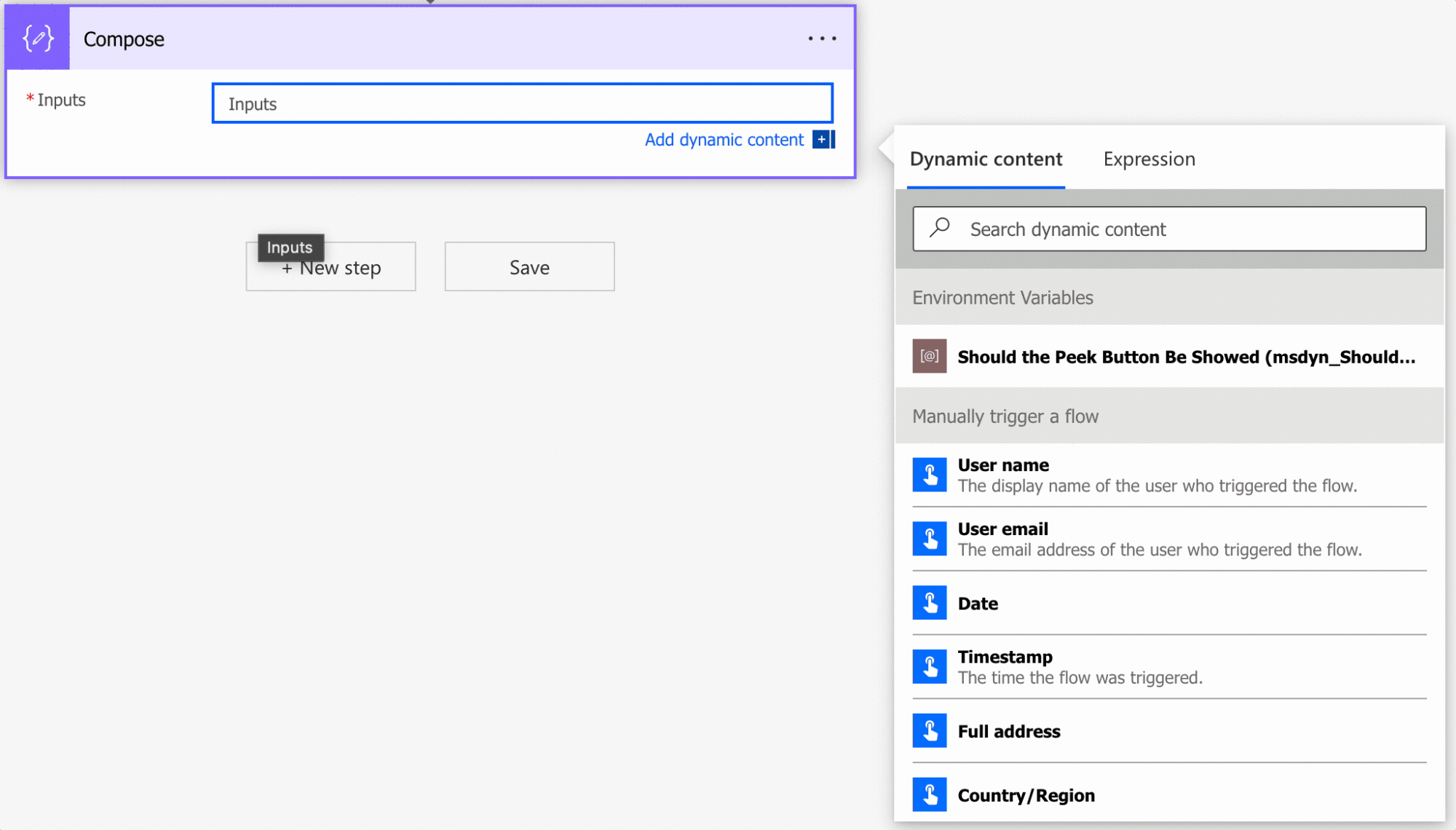
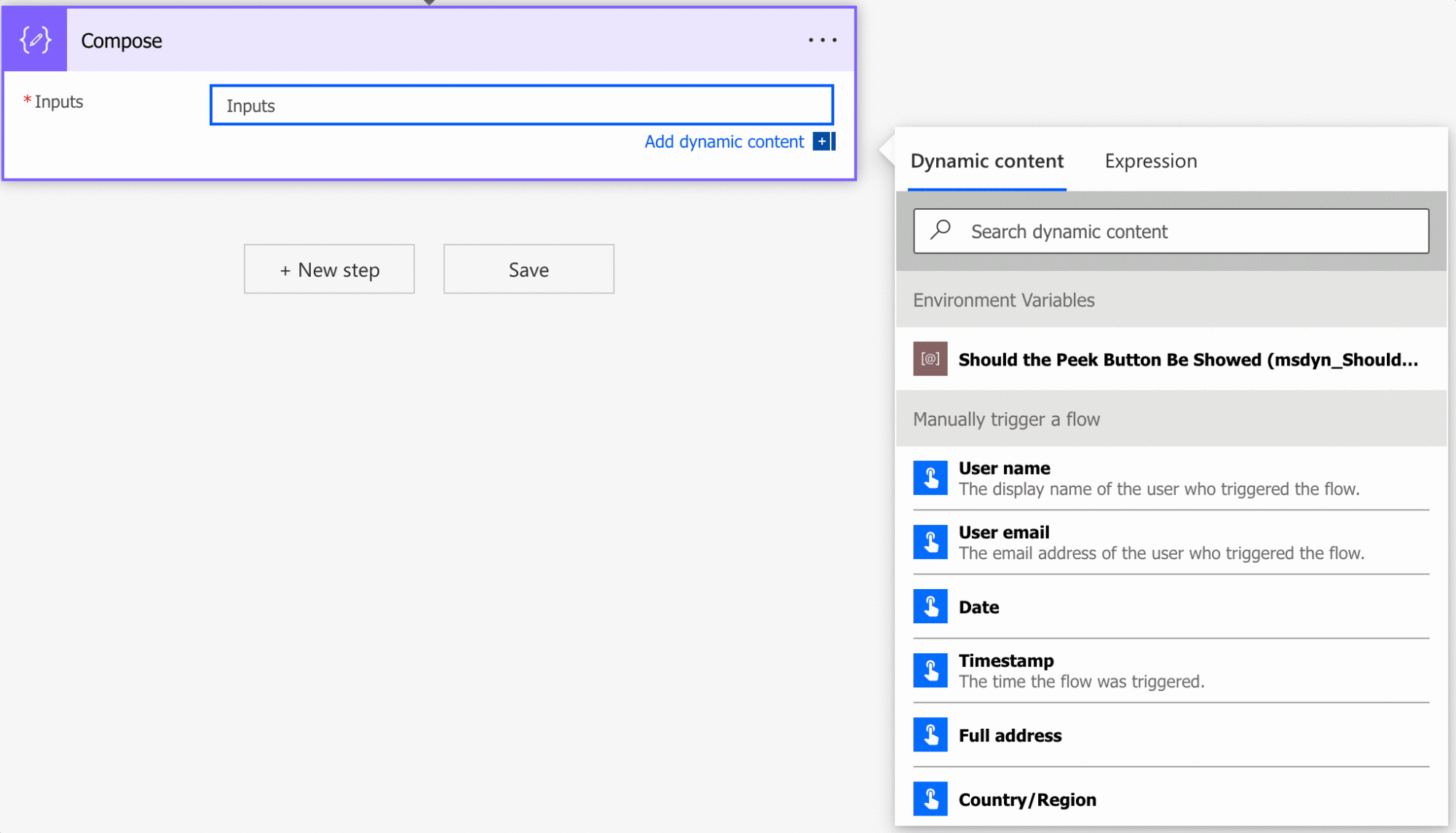
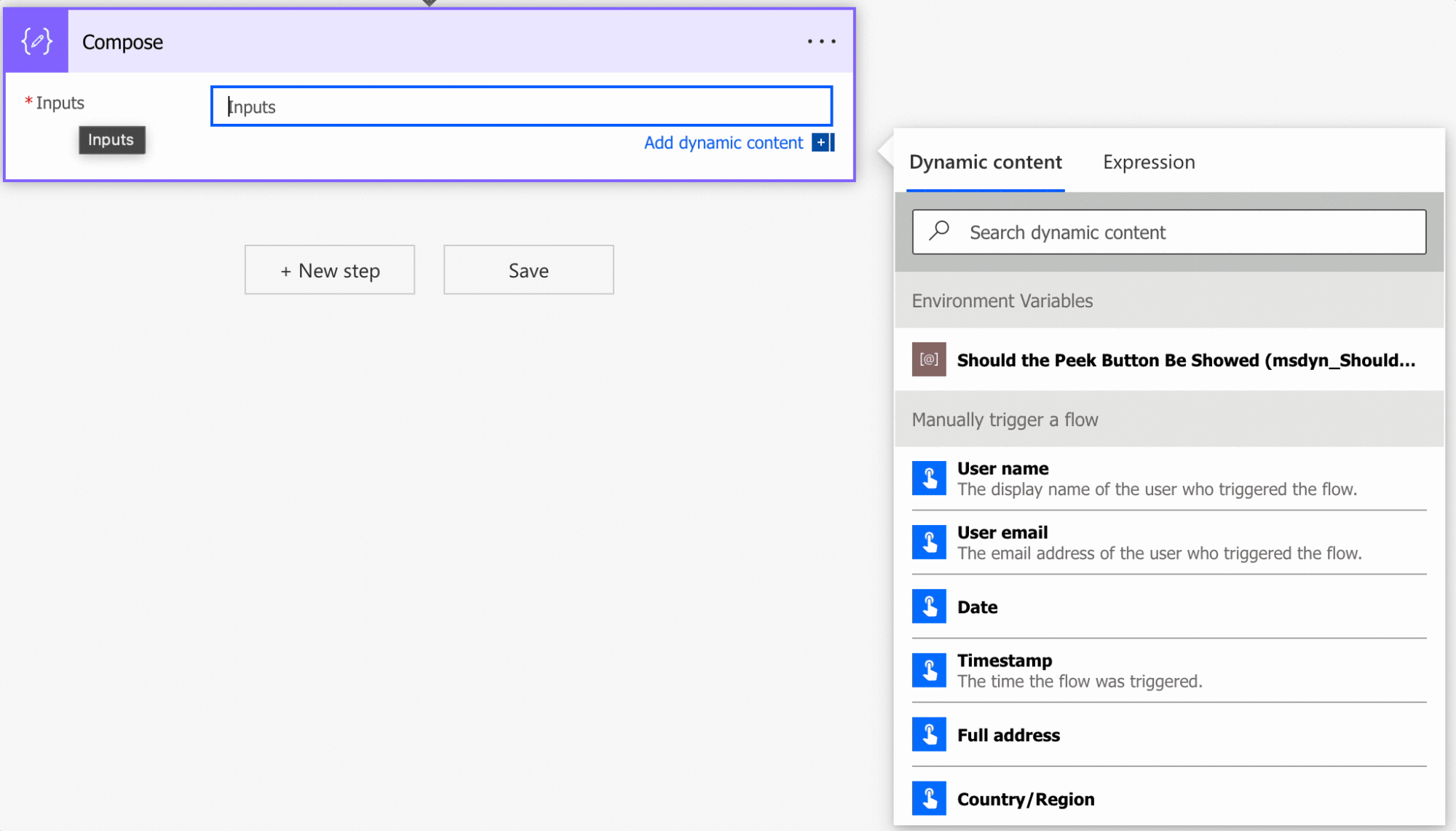
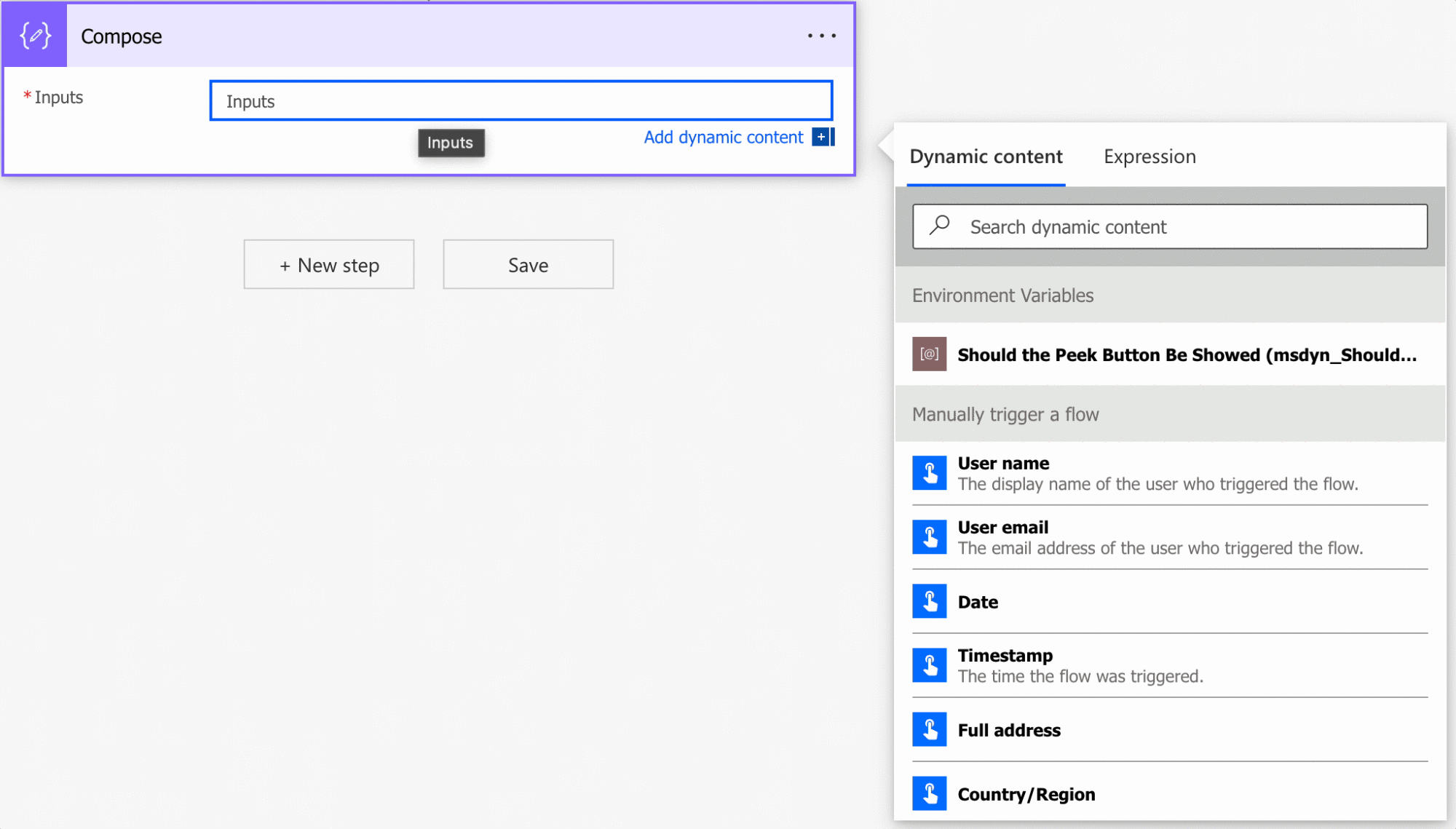
You can find the function in every action where a formula is supported. For example, let's look at a "Compose" action:
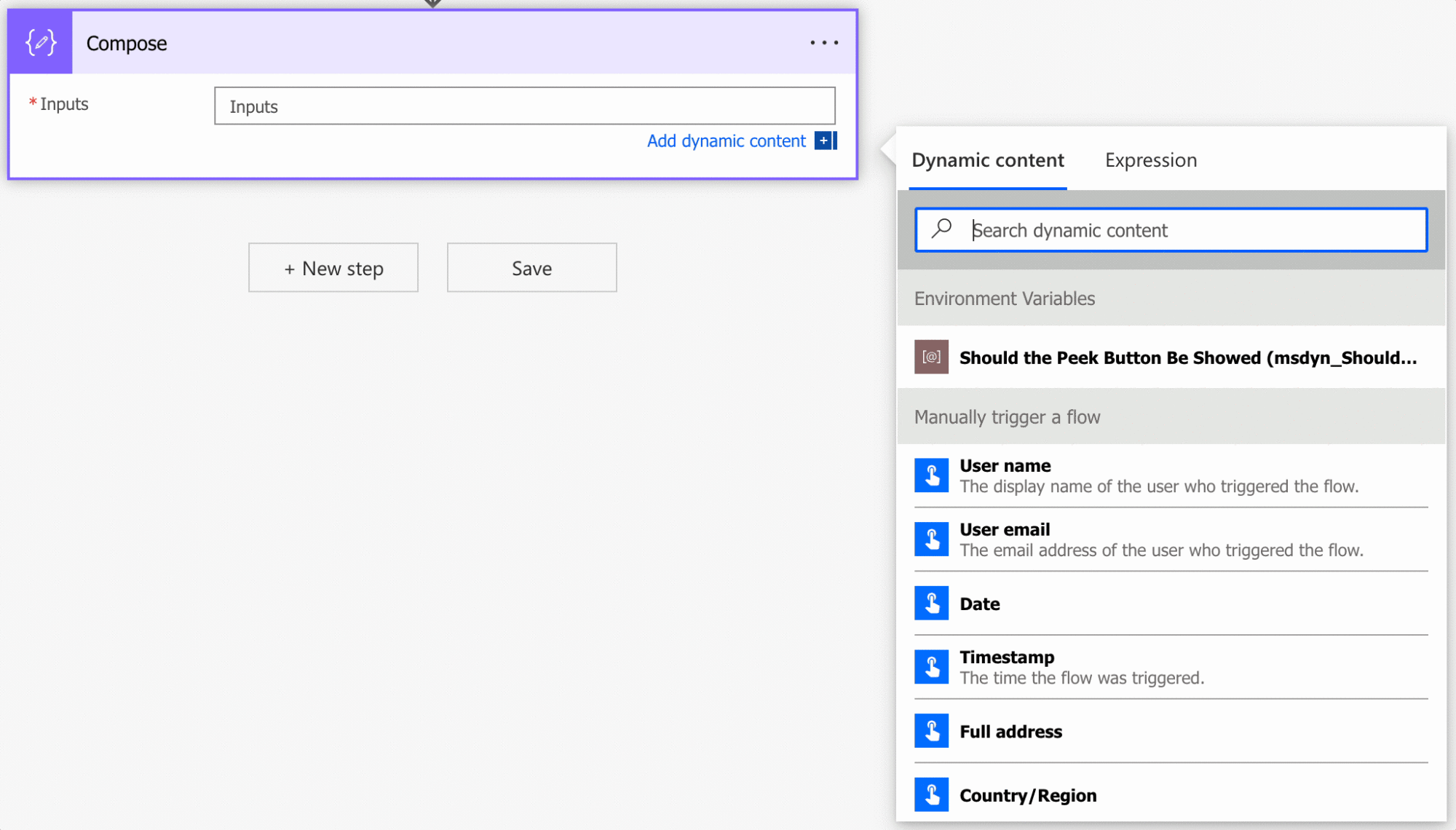
As you can see, we can auto-complete by using the "tab" key. Let's look at how to use it.
Usage
It follows a simple pattern.
formatNumber(<number>, <format>, <locale>?)
| Parameter | Required | Type | Description |
|---|---|---|---|
| number | Yes | Integer or Double | The value we want to format |
| format | Yes | String | The format we want, either a letter format like "C2" or a custom picture format |
| locale | No | String | The locale code, like "en-US" or "pt-PT". Defaults to "en-us" |
We always have to pass a number to the function. If you have a string, even if it's a number, you need to convert it first by using the "int" function or "float" function, for example.
Please note that the result is always a string and not a number. You'll see some examples where the result looks like a number, but you always need to convert if you want to use it.
After that, you need the format. The format represents the type of output that you want to get. For example, if you want the result to be described as a currency, you need to use "C2".
Currency
Why "C2"? "C" stands for "currency," and the number represents the number of decimal digits or the precision you want. For example:
formatNumber(3.141592653589793238,'C2')

will return

$3.14
Notice two things. The first is that the number was reduced to 2 decimals since we indicated "C2". The other is that the "$" was included. It's the default value for the currency in Power Automate, but you can change it by using the "locale" third parameter. We'll go over that in detail at the end of this article.
Negative amounts follow the style of the locale, either with a minus sign or inside parentheses. Check a negative value for each locale you support.
Digits
But what if we want to add digits to the left of the number? To do that, we indicate "D2" as "digits". Same reasoning as before. We use the number to indicate the precision. Let's try it out:
formatNumber(3.141592653589793238,'D2')
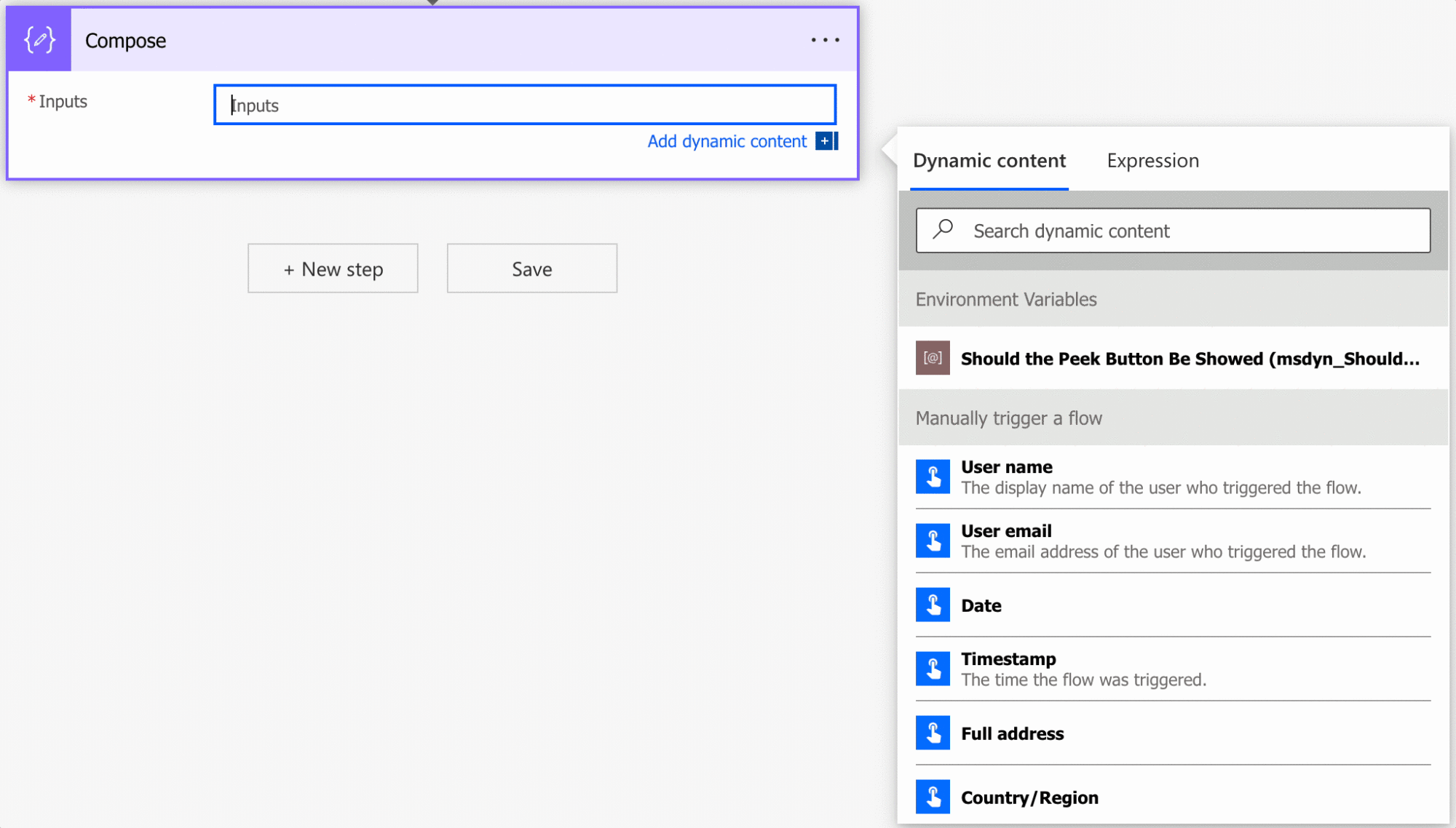
We'll get:
Unable to process template language expressions in action 'Compose' inputs at line '0' and column '0': 'The template language function 'formatNumber' format string 'D2' is invalid. The format string should be numeric. Please see https://aka.ms/logicexpressions#FormatNumber for usage details.'.
If you're getting this, don't worry. You didn't do anything wrong. The issue is that Power Automate will expect a whole number and not a floating point number, which is understandable but confusing when using it. The error message doesn't guide us to a solution.
If you truncate to a whole number, you'll be able to get a result:
formatNumber(3,'D2')

you'll get

03
You'll get:
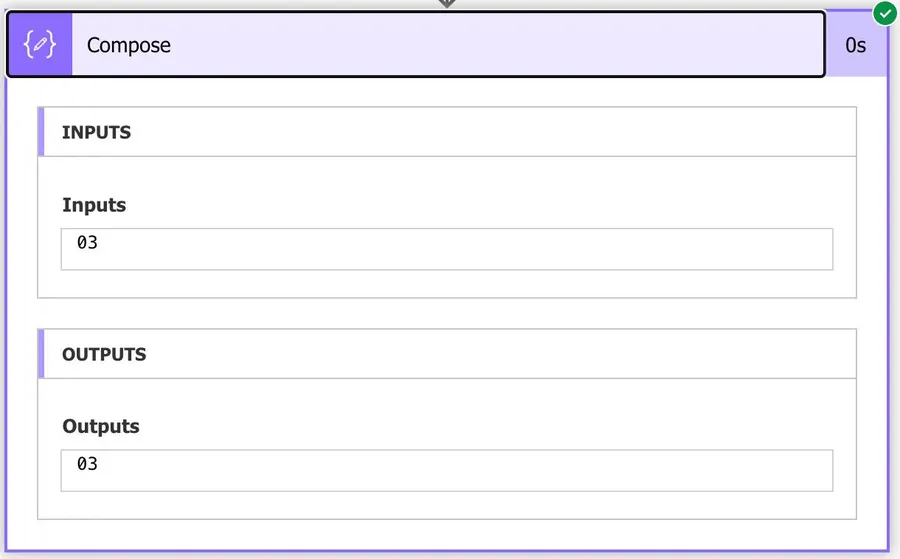
As you can see, we're getting a formatted number with padded zeros to fit the number of items we defined in the function. If we wrote "D3", we would get "003".
Exponential
Granted that this is less used but let's cover it anyway. The exponential will represent the number as a string in scientific notation, like this:
formatNumber(3.141592653589793238,'E2')

will return

3.14E+000

Or for example:
 formatNumber(3.141592653589793238,'E10')

will return:

3.1415926536E+000
Let's look at one more representation.
Fixed-point
The fixed-point representation of the number will guarantee several decimal places even if they don't exist. For example, if you provide a whole number, it will add zeros until it fulfills the number provided. For example:
formatNumber(3.141592653589793238,'F2')

will return

3.14
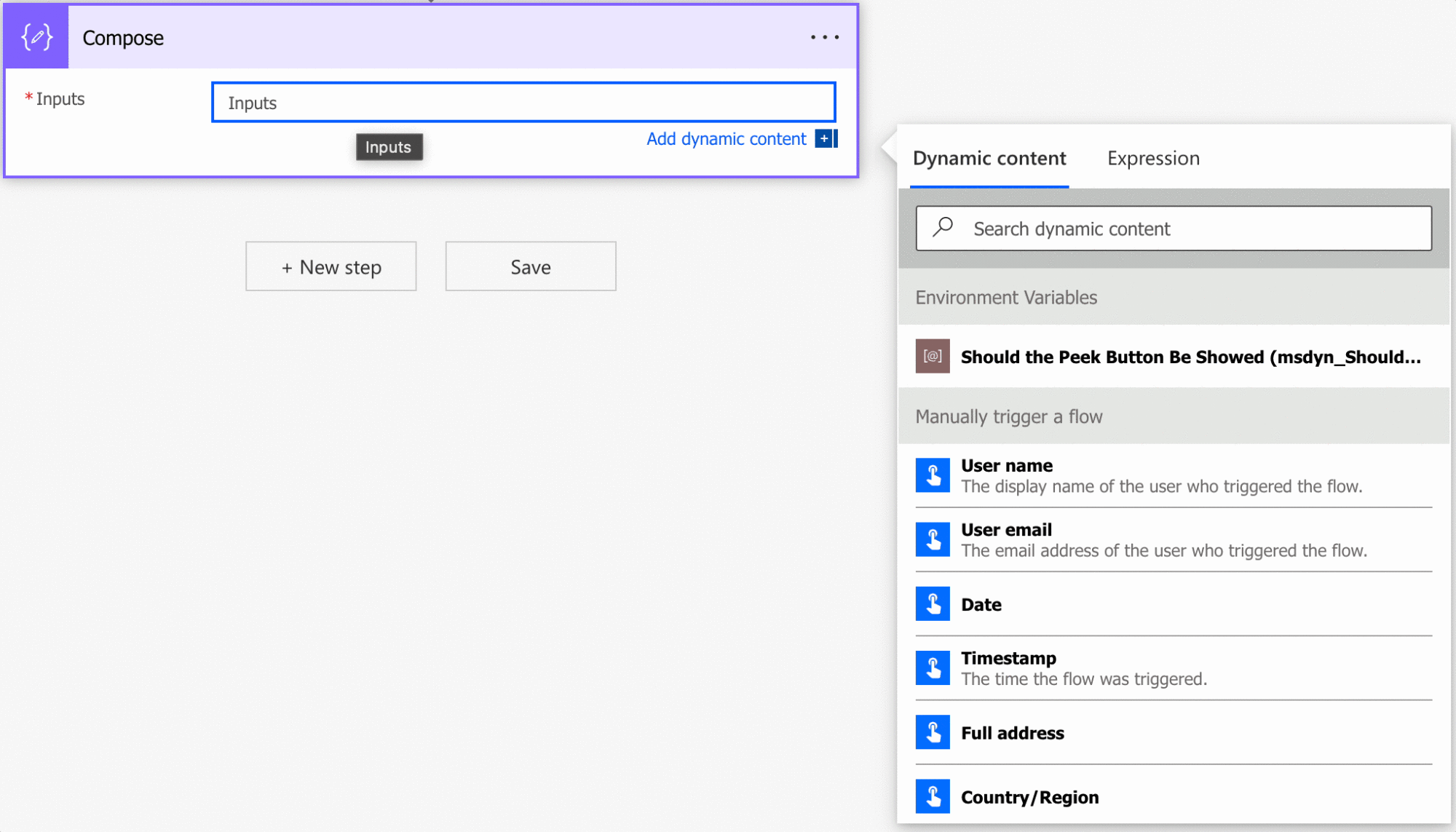
Like before, the number after the "F" will represent the number of decimal places we want. For example:
formatNumber(3,'F2')

will return

3.00
This is great for uniform numbers in a database, especially if you get the number from another service or user.
Please note that this is not a simple truncation of values. The number will be rounded up if the next value after the one we want is 5 or greater. For example:
formatNumber(3.141592653589793238,'F4')

will return:

3.1416
Since the value after the 5 is a 9. This behavior takes people by surprise, so please be aware of it.
Numeric modifier
The numeric will get a number and format it, so it looks better to you visually. I know this is abstract so let's look at an example.
formatNumber(31415.92653589793238,'N4')

will return:

31,415.9265
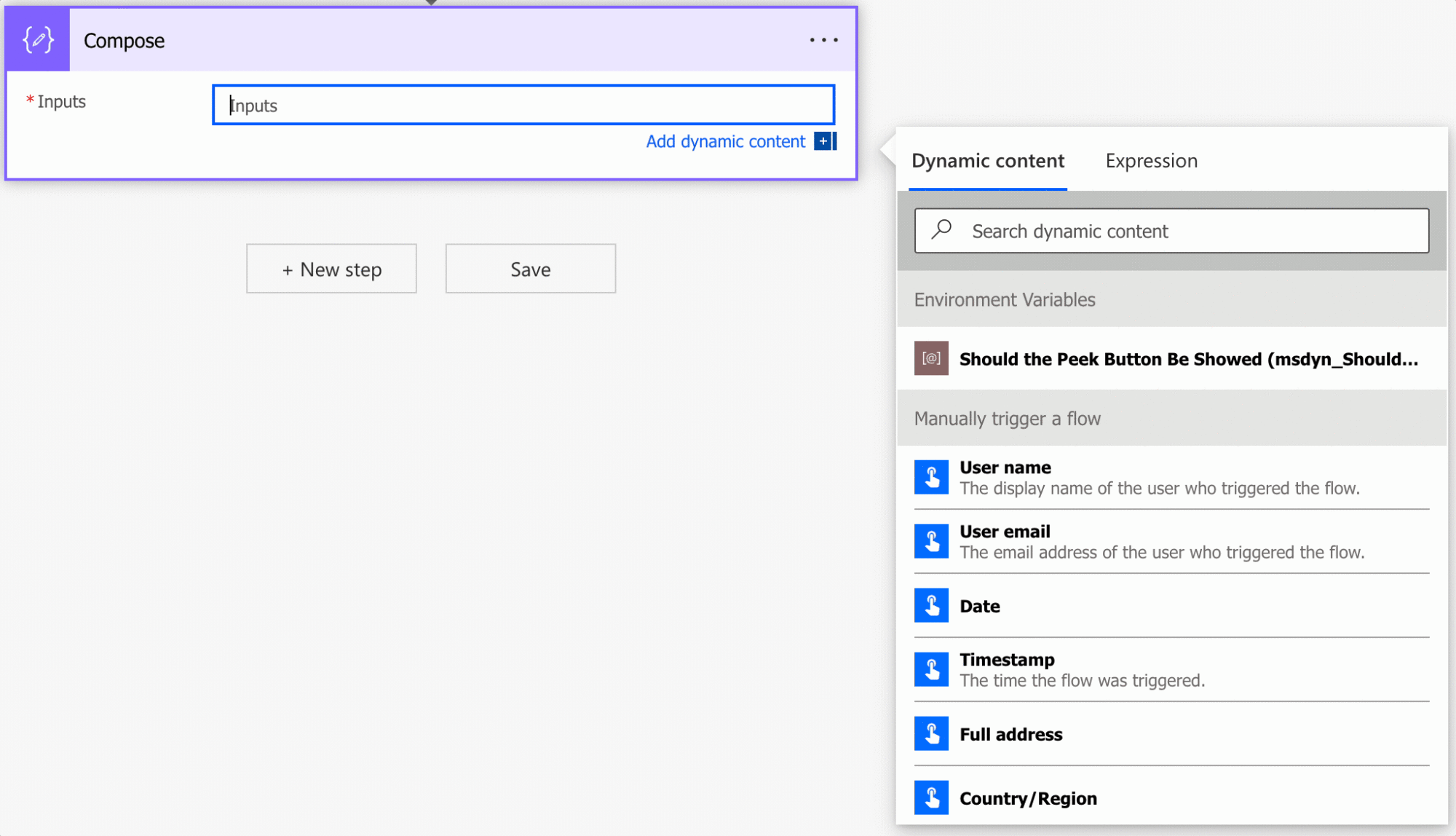
The number above makes sense to our American friends, and we'll do some variations of this in the "locale modifier" section. Still, the critical thing to understand is that the number is being formatted to display to your user. The number above is visually appealing based again on the locale selected.
It also behaves like the previous formats, where the number is rounded up when the next digit after the one we're interested in is 5 or greater. For example:
formatNumber(31415.92653589793238,'N2')

will return:

31,415.93
Since the 3rd value is 5 or greater. As before, if the value is a whole number, more digits will be added. For example:
formatNumber(31415,'N2')

will return:

31,415.00
As I mentioned, the "formatNumber" function here is excellent for uniforming the information so that you always display the same data to your users, for example.
General
The general format ("G") gives you whichever is shorter, the fixed-point or the exponential version of the number. It's a handy default when you don't want to think too hard about the shape of the result.
formatNumber(3.141592653589793238,'G4')

will return

3.142
Custom format strings
Besides the single-letter formats above, you can pass a custom "picture" format and build the exact shape you want. A "0" is a fixed digit that shows a zero when there's nothing there, a "#" is an optional digit, "," groups the thousands, and "." marks the decimal point. For example:
formatNumber(1234.5,'#,##0.00')

will return

1,234.50
You can even give positive, negative, and zero values different looks by separating them with semicolons, but keep it simple when you can.
When you use semicolon sections, the negative section doesn't show a minus sign on its own. Add it to the pattern yourself:
formatNumber(-1234.5,'#,##0.00;-#,##0.00')

will return

-1,234.50
Fixed text goes inside double quotes, for example '#,##0.00 "EUR"'.
Round-trip format
I'll include this one for completeness, but it's something that barely anyone uses. If you have a good use case for this, please let me know, and I'll feature it here.
As the name entails, it will try to convert the value to a string, which can then be converted back to a number.
One more note: Microsoft now suggests using "G17" (or "G9" for single-precision numbers) instead of "R" when you need a value that converts back to the exact same number, so reach for those if round-tripping is what you're after.
Hexadecimal format
Hexadecimal is used for many things, like representing colors, so here's a good way to convert a number to its hexadecimal form. Like the digits, this can only be used with whole numbers, so here's an example:
formatNumber(31415,'X')

will return:

7AB7
In the case of the number added after the X, it represents the minimum number of digits in the hexadecimal representation. If necessary, it will pad with zeros to achieve that number. For example:
formatNumber(31415,'X6')

will return:

007AB7
Don't forget that this only works with whole numbers.
Percent format
The percent format will get the number, multiply it by 100 and display it as a percentage format. Notice the multiplication, so if you want to represent 10%, you need to provide "0.1" and not "10" to get the correct value. For example:
formatNumber(0.1,'P')

will return

10.00%
Notice the two zeros in the end, even if we didn't provide them. As before, the number after the "P" will represent the precision of the value. For example:
formatNumber(0.1,'P1')

will return:

10.0%
As before, the number will be rounded, so if you have:
formatNumber(0.1456,'P1')

will return:

14.6%
Finally, if you make a mistake and don't provide the decimal form, you'll get something like this:
formatNumber(1456,'P1')

will return:

145,600.0%
The comma above represents the default locale (en-us), but we'll now check how to display another locale closer to your users.
The locale modifier
All formats above have the "en-us" locale as the default, but what about if we want to display a currency in euros, for example. Let's take a look at the 3rd parameter.
Let's use the same example above for the currency and use the Portuguese locale (pt-PT) and see what we get:
formatNumber(3.141592653589793238,'C2', 'pt-PT')

will return

3,14 €
Notice two important things. The first is that the currency symbol shows up after, which is how we represent currency here. The second is that the decimal value is a comma, not a period. When using Power Automate, we always use the period to represent decimal values. Still, when displaying to a European customer, it is essential to show the numbers so there's no confusion.
But how about big numbers? How would the numeric representation change:
formatNumber(31415.92653589793238,'N4','pt-PT')

will return:

31 415,9265

Again very different representation. In Europe, we don't use the comma to separate the thousands in the digits; instead, using spaces for better understanding.
The locale changes custom formats too. The pattern '#,##0.00' with the "is-IS" locale swaps the commas and periods, so 1234567890 becomes "1.234.567.890,00".
If the locale isn't a valid code, the expression fails with an error. Double-check the code, for example "pt-PT" with a hyphen, before you use it.
These representations will change from country to country, so be sure to adapt to the ones that make sense to you.
Non-intuitive behaviors
Rounding may not do what you expect
Formatting is meant for display, and Microsoft doesn't document a rounding rule for the "formatNumber" function. The underlying .NET formatting says the precision "does not round the number itself". Depending on the engine, a value sitting exactly on the midpoint may round to the nearest even digit instead of always going up.
Decimal values like 0.135 can't be stored exactly, so they may land slightly above or below the midpoint. That makes the result hard to predict. Anything that isn't close to a midpoint rounds the way you'd expect, so most of your numbers behave normally.
If money or reporting depends on a specific rounding rule, round the value yourself before you format it. Formatting only changes how the number looks, it doesn't change the number you keep in your variable.
Limitations
As mentioned above, the "digits" format in the "formatNumber" function can only accept whole numbers. I can understand why: the number after the "D" could be interpreted as the overall digit count (considering the decimal part) or not. But since the other formats allow for decimal values, it may confuse some users. To get a whole number, use the "int" function or round the value first.
The hexadecimal ("X") format shares the same restriction, so remember to pass a whole number there too.
The currency symbol comes from the locale, because the function has no separate currency setting. To show a symbol the locale doesn't use, use a custom format with the symbol inside double quotes.
Recommendations
Here are some things to keep in mind.
Always use the locale
Although it's flagged as optional, I strongly recommend using the locale and showing the values always in the format that the users will understand. As mentioned above, in Europe, the value "100,233" is not "hundred thousand two hundred and thirty-three," but it's "hundred point two hundred and thirty-three." The value as a string is correct but different locations in the world will think of numbers differently, so having the "formatNumber" function in your Flows can be either helpful or confusing, depending on whether you use it properly.
Please don't use it to store values
Values converted using the "formatNumber" function should not be stored. They should only show your users or consistently display the numbers. You would always want to keep the original numeric value so that you can convert it in the future to whatever you want. The formatted text can't be turned back into a number reliably, since symbols and separators from the locale will break the conversion. Do your math first and format last.
Don't nest
There's no real reason to do it, but if you find yourself in a situation where you have nested "formatNumber" functions in a formula, you should review it and make everything more straightforward. You'll have issues since a nested "formatNumber" function will fail since the input are numbers, and the outputs are strings. Also, if you have multiple "formatNumber" functions in the same expression, think about breaking it into various actions to understand what's happening in each step safely.
Final Thoughts
The "formatNumber" function is a small tool that quietly solves a lot of display problems, from currency to percentages to padded IDs. The main thing to remember is that it's for showing numbers, not storing them, and that the locale you pick changes everything about how the result reads. Get those two right and it'll serve you well.
Sources
Reference for functions in workflow expressions, Azure Logic Apps and Power Automate
Back to the Power Automate Function Reference.
Photo by James Sutton on Unsplash



Thank you!
You're welcome, glad it helped!
No idea why this information is so hard to come by. Thank you very much for the details - using it now to great effect.
Thank you for the kind words. I'm happy it's working well for you.
How do you use the formatNumber function to format a number to two decimal places?
Hi! Use the "F" format with the number of decimals you want after it:
formatNumber(3.14159,'F2')
This returns "3.14". The number after the "F" is the number of decimals, so "F3" would give "3.142". Whole numbers get zeros added, so formatNumber(3,'F2') returns "3.00".
If you also want thousands separators, use "N2" instead. For example, formatNumber(31415.9265,'N2') returns "31,415.93".
One thing to remember is that the result is text, not a number. If you need an actual number for math, use the "round" function instead. The article has an example for each format, so take a look at the "Fixed-point" and "Numeric modifier" sections.