
The "subtractFromTime" function walks a timestamp backwards. You hand it a date, tell it how much to remove and in which unit, and it gives you the earlier timestamp. "Three days before this due date", "two weeks before the contract renews", "one hour before the meeting starts", they all come out of a single expression.
The important word in that sentence is "this". The starting point is a timestamp you supply, not the current moment, and that is the whole reason the function exists. Its mirror twin is the "addToTime" function, which does the same arithmetic in the other direction. Let's look at how it works, where it earns its keep, and the handful of places where its behavior surprises people.
Where to find it?
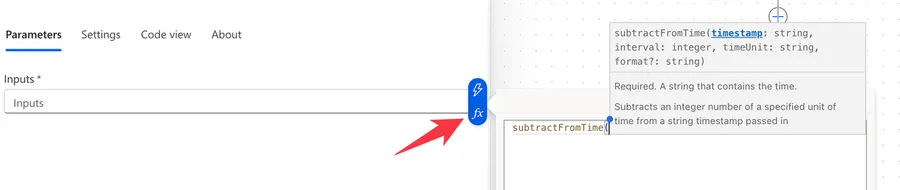
You can use the function anywhere an expression is supported in Power Automate. In practice it turns up inside a "Compose" action, an "Initialize variable" action, a "Condition" action, or in the filter query of an action that fetches records.
Both functions go backwards, but "subtractFromTime" starts from a timestamp you pass in, while the "getPastTime" function always starts from the current moment. If your starting point is a due date that came off a list item, "getPastTime" cannot help you, because it has no idea that date exists. If your starting point is simply "now", "getPastTime" is the shorter way to say it.
Let's look at how to use it.
Usage
The "subtractFromTime" function takes three required parameters and one optional one:
subtractFromTime('<timestamp>', <interval>, '<timeUnit>', '<format>'?)
| Parameter | Required | Type | Description |
|---|---|---|---|
| timestamp | Yes | String | The string that contains the starting timestamp |
| interval | Yes | Integer | The number of time units to subtract |
| timeUnit | Yes | String | The unit to subtract. One of Second, Minute, Hour, Day, Week, Month, or Year |
| format | No | String | A format string for the output. Defaults to o (yyyy-MM-ddTHH:mm:ss.fffffffK), which is ISO 8601 and keeps full precision |
Notice the shape of that argument list. The timestamp is text and carries quotes, the interval is a number and carries none, and the unit is text again and carries quotes. Getting those three in the wrong order, or quoting the number, is the single most common way to make this function fail.
Basic example
The simplest possible call removes one day from a fixed timestamp:
subtractFromTime('2018-01-02T00:00:00Z', 1, 'Day')
That returns 2018-01-01T00:00:00.0000000Z. The time of day is untouched, so subtracting a day from a timestamp at nine in the morning leaves you at nine in the morning on the previous day, not at the start of it.
Using a custom format
The fourth parameter shapes the output, and it is the one you want whenever a person is going to read the value:
subtractFromTime('2018-01-02T00:00:00Z', 1, 'Day', 'D')
That returns Monday, January 1, 2018. You can also supply your own pattern when you need a specific shape:
subtractFromTime('2026-07-16T09:00:00Z', 1, 'Day', 'yyyy-MM-dd')
That returns 2026-07-15. The formatting rules are the same ones the "formatDateTime" function uses, so anything you already know from there applies here without change.
Using a dynamic timestamp
The starting point rarely lives in your expression. Far more often it comes off the trigger or out of a variable:
subtractFromTime(triggerBody()?['DueDate'], 3, 'Day')
Let's break that down:
triggerBody()?['DueDate']reads the due date from the trigger, using the "triggerBody" function and safe navigation, so a missing column returns null instead of blowing up the whole run.3is the interval, unquoted because it must arrive as a number.'Day'is the unit, quoted because it is text.
If the interval is dynamic too, run it through the "int" function so it arrives as an integer rather than as a string. The "variables" function hands you a string more often than you would like:
subtractFromTime(triggerBody()?['DueDate'], int(variables('LeadTimeDays')), 'Day')
Real-world examples
A reminder before a deadline
Joana has a task list where each item carries a due date, and the team wants a nudge three days before. You calculate the reminder date as the item is created and store it on the record:
subtractFromTime(triggerBody()?['DueDate'], 3, 'Day', 'yyyy-MM-dd')
A scheduled Flow on a "Recurrence" trigger then picks up whatever matches today and sends the emails. The math happens once, at creation, rather than on every single run.
A rolling window that ends at a known point
You want everything that happened in the two weeks before a reporting cut-off. Both ends of the range come from one timestamp:
CreatedDate ge '@{subtractFromTime(variables('CutOff'), 2, 'Week')}' and CreatedDate le '@{variables('CutOff')}'
The "greater than or equals" operator and the "lower than or equals" operator family bracket the window, and the expression supplies the far edge. No loops, no extra actions.
An escalation check on a stored deadline
Manuel opens a support ticket with a promised response time, and you want to warn the team one hour before the clock runs out. Given the deadline stored on the item:
subtractFromTime(triggerBody()?['ResponseDeadline'], 1, 'Hour')
Compare that against the current moment with the "utcNow" function and you have your warning threshold, calculated from the promise rather than from whenever the Flow happened to wake up.
Non-intuitive behaviors
Here are the behaviors that catch people off guard with the "subtractFromTime" function.
A date with no time is treated as midnight UTC
Pass '2026-07-16' and the function reads it as 2026-07-16T00:00:00Z. That is usually fine, right up until you subtract a few hours and land on the previous calendar day, which looks like an off-by-one bug and is not. If your source column stores dates only, decide deliberately whether midnight is the anchor you want, and reach for the "startOfDay" function when you want that anchor to be explicit rather than implied.
Months and years clamp to the end of the month
Subtract one month from March 31 and you get February 28, not March 3. The date arithmetic refuses to spill into a neighboring month, so it clamps to the last valid day instead:
subtractFromTime('2026-03-31T00:00:00Z', 1, 'Month', 'yyyy-MM-dd')
That returns 2026-02-28. This is almost always what you want, and it is not reversible. Subtracting a month and then adding one back does not necessarily return you to where you started, so do not build logic that assumes it does.
subtractFromTime(<insertTimestamp>, 1, 'Month') and subtractFromTime(<insertTimestamp>, 30, 'Day') are different questions. If the business rule means thirty days, say thirty days. If it means "the same date last month", say one month. They only land on the same date when the month you step back into has exactly thirty days, so they agree for most dates in May, July, October and December, and disagree the rest of the year.
The custom format quietly drops the Z
The default o format returns something like 2026-07-13T09:00:00.0000000Z, and that trailing Z is what tells every downstream system the value is UTC. The moment you pass a custom format, the Z is gone unless your pattern puts it back.
That matters most in filter queries, where a value with no Z is read as the source's local time and quietly shifted. If the value is going into a filter or a date column, keep the default format and let the receiving system do the reading.
Negative intervals are undocumented territory
Microsoft describes the interval as the number of time units to subtract and says nothing at all about negative numbers. Community write-ups report that a negative interval sends you forwards, which would make subtractFromTime('<insertTimestamp>', -5, 'Day') behave like a call to the "addToTime" function, but that is not a contract Microsoft has published. Even where it works, the expression reads as the opposite of what it does, and the next person to open the Flow has to stop and think. Say what you mean and use the function that matches the direction.
Microsoft documents the default o format as preserving time zone information, which implies that an input carrying an offset such as 2026-07-16T09:00:00+01:00 comes back with that same offset rather than normalized to Z. Behavior when the input is not already UTC is worth testing against your own data before you depend on it.
Limitations
The units are fixed, and quarters are not among them
You get Second, Minute, Hour, Day, Week, Month, and Year. Everything else has to be expressed in those terms. A quarter is three months, a fortnight is two weeks, and a working day is not expressible at all, because the function has no concept of weekends or holidays. Subtract five days from a Wednesday and you get the Friday before, whatever your calendar thinks.
The result is a string, not a date
The output is text, so you cannot do arithmetic on it directly. When you need to compare or measure, run the value through the "ticks" function to get a number, or use the "dateDifference" function when what you want is the gap between two timestamps.
An invalid format string is an error, not a fallback
If the format you pass is not a valid specifier or pattern, the function raises an error rather than falling back to the default. There is no partial success here, so a typo in the fourth parameter fails the action.
Expression size limits
As with every Power Automate expression, you have a ceiling of 8,192 characters. Nesting date math inside a larger filter query eats into that faster than you would expect, so break long expressions out into "Compose" actions.
Troubleshooting Common Errors
The expression is invalid when you add the time unit
Cause: The unit is wrapped in double quotes. Inside the expression editor the whole expression is already a JSON string, so "Day" closes it early and the parser gives up.
Solution: Use single quotes around every string parameter, including the timestamp and the unit.
subtractFromTime('2026-07-16T09:00:00Z', 1, 'Day')
The function expects its second parameter to be an integer
Cause: The interval is quoted, or it arrived from a variable or a column, which almost always means it arrived as a string.
Solution: Drop the quotes on a literal, and wrap a dynamic value in the "int" function.
subtractFromTime(triggerBody()?['DueDate'], int(triggerBody()?['LeadDays']), 'Day')
The provided time unit is not valid
Cause: The unit is not one of the seven the function accepts. Days, days, Mins, and Hrs are all common, and so is forgetting the quotes entirely.
Solution: Use the exact singular, capitalized names. Second, Minute, Hour, Day, Week, Month, Year. Nothing else will do.
The string was not recognized as a valid DateTime
Cause: The first parameter is not a timestamp the engine can parse. An empty column, a null from a lookup, or a value like 16/07/2026 all land here.
Solution: Guard the input before the math runs. The "coalesce" function gives you a fallback, and the "empty" function inside a condition lets you skip the branch entirely.
subtractFromTime(coalesce(triggerBody()?['DueDate'], utcNow()), 3, 'Day')
The date is a day out from what you expected
Cause: The UTC baseline. A timestamp late in the local evening is already on the next calendar day in UTC, so the answer looks wrong by exactly one day.
Solution: Do the arithmetic in UTC, then convert for display, using the "convertFromUtc" function or the "Convert time zone" action. Converting first and subtracting afterwards is how the off-by-one creeps in.
Recommendations
Here are some things to keep in mind when using the "subtractFromTime" function.
Pick the function that matches the starting point
If the anchor is a timestamp you already have, this is your function. If the anchor is simply "now", the "getPastTime" function says it in fewer characters and reads better. Writing subtractFromTime(utcNow(), 7, 'Day') works, and it is a longer way of saying something the platform already has a word for.
Keep the default format for machines
Pass a format string when a person is going to read the value, and leave the format alone when a system is. The default carries the Z and the full precision, which is exactly what filter queries, date columns, and comparisons want.
Guard the timestamp, not the result
Most failures with this function are bad input, not bad math. Check that the source column has a value before the expression runs, using safe navigation and a fallback, and the action stops failing for reasons that are hard to trace later.
Say what you mean with units
Reach for the unit that matches the business rule rather than the one that is convenient. "Two weeks before" is 2, 'Week', not 14, 'Day', even though they agree today. When the rule later changes to "a month", the intent in the expression is already clear. If the unit is always days, the "addDays" function with a negative number says the same thing in a shape some people find easier to read.
Convert time zones last
Do every calculation in UTC and convert only at the point where a human sees the value. Mixing converted and unconverted timestamps in the same comparison is the source of most date bugs in Power Automate, and the "convertToUtc" function is there for pulling stray local values back into line.
Always add a comment
Adding a comment will help others understand your expression. Say what the interval means in business terms, because "3 days" in the code rarely explains why it is three and not five.
Final Thoughts
The "subtractFromTime" function is the one you reach for when the past you care about is measured from a date on a record rather than from the clock on the wall. Give it a timestamp, a number, and a unit, and it hands back the earlier moment without a loop or a variable in sight. Keep the quoting straight, keep the default format for anything a machine will read, and it will do exactly what you asked, every single run.
Sources
- Microsoft's subtractFromTime function reference
- Reference for functions in workflow expressions, Azure Logic Apps and Power Automate
- Standard date and time format strings
- Custom date and time format strings
Back to the Power Automate Function Reference
Photo by Daniele Franchi on Unsplash


No comments yet
Be the first to share your thoughts on this article!