
Every spreadsheet eventually needs to make a decision. Is this order over budget? Did the student pass or fail? Should this row show "Ship" or "Hold"? You could eyeball the numbers and type the answer yourself, but the moment the data changes you are back to reading rows one by one.
The "If" function is how you teach a cell to decide for itself. You give it a question that resolves to true or false, tell it what to show for each outcome, and it answers automatically for every row you point it at. If you spend any real time in Excel, this is the function that turns a static table into something that reacts.
Where to find it?
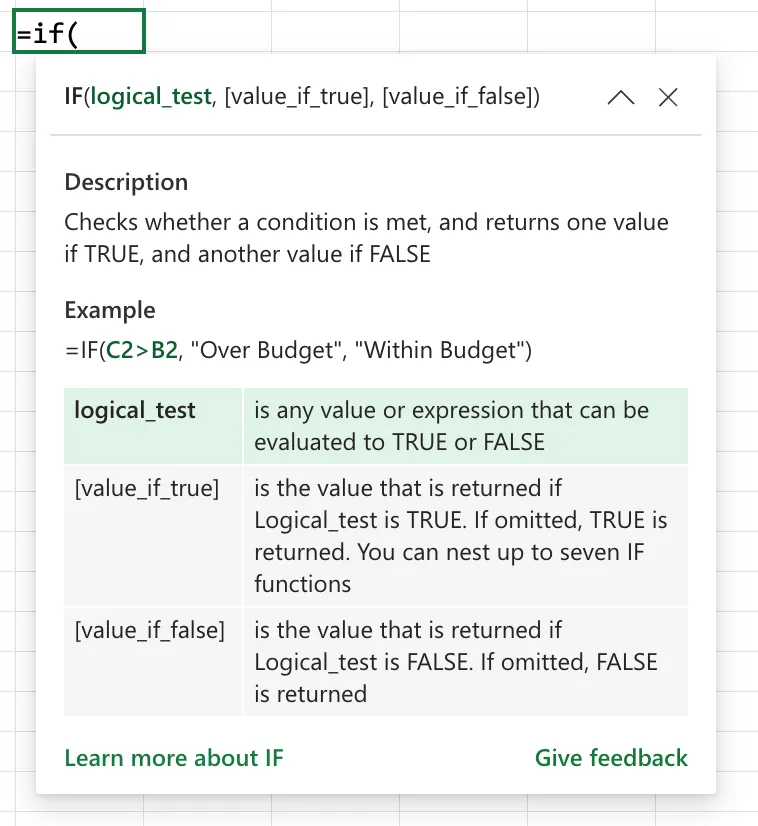
You type the "If" function straight into a cell. Start with an equals sign, type IF, and Excel's formula AutoComplete will offer it and show the argument order as you go. You can also reach it through the Formulas tab, "Insert Function", under the Logical category if you prefer the guided dialog. It behaves the same in Excel for Windows, Excel for Mac, and Excel for the web.
The "If" function checks one condition and returns one of two answers. The "Ifs" function checks several conditions in order and returns the answer for the first one that is true, which saves you from stacking "If" functions inside each other. If you find yourself nesting three or four "If" functions, the "Ifs" function is usually what you actually wanted.
Usage
The "If" function takes a test, an answer for when the test is true, and an answer for when it is false.
=IF(logical_test, value_if_true, [value_if_false])
| Parameter | Required | Type | Description |
|---|---|---|---|
| logical_test | Yes | Expression | The condition to check, anything that resolves to TRUE or FALSE |
| value_if_true | Yes | Any | What to return when the test is TRUE |
| value_if_false | No | Any | What to return when the test is FALSE |
The interesting part is what counts as a valid test and what the two branches can hold, so let us walk through it.
The logical test
The test is usually a comparison built with operators like =, <>, >, <, >=, and <=. It resolves to TRUE or FALSE, and the "If" function picks the matching branch.
Data in A1
72

=IF(A1>=50, "Pass", "Fail")

will return

Pass
Numbers used directly as a test
If you hand the "If" function a number instead of a comparison, any non-zero number counts as TRUE and zero counts as FALSE. This is handy when a cell already holds a count you can trust.
Data in A1
0

=IF(A1, "Has value", "Empty")

will return

Empty
Text comparisons
Comparing text is case-insensitive, so "Apple", "apple", and "APPLE" all match. If you need an exact, case-sensitive match, wrap the test in the "Exact" function instead.
Data in A1
APPLE

=IF(A1="apple", "Match", "No match")

will return

Match
What the branches can return
Each branch can be a number, a piece of text in double quotes, a cell reference, or even another formula. That last option is what lets you nest "If" functions to handle more than two outcomes.
Data in A1
85

=IF(A1>=90, "A", IF(A1>=80, "B", "C"))

will return

B
The function family
The "If" function sits at the center of a small group of logical helpers, and picking the right one keeps your formulas readable. None of these have a dedicated article yet, so keep this table handy.
| Function | What it does |
|---|---|
| If | Returns one of two values based on a single true or false test |
| Ifs | Checks several conditions in order, returns the first true result |
| Iferror | Returns a fallback value when a formula would otherwise error |
| Ifna | Returns a fallback value only for the #N/A error |
| Switch | Compares one value against a list of options and returns the match |
The "And", "Or", and "Not" functions pair with the "If" function too. Use them inside the logical test when you need to combine conditions, for example =IF(AND(A1>=50, B1="Yes"), "Ship", "Hold").
Non-intuitive behaviors
An omitted false branch returns FALSE, not blank
If you leave out the third argument entirely, the "If" function returns the logical value FALSE when the test fails, which is rarely what you want to see in a report.
Data in A1
10

=IF(A1>50, "Over")

will return

FALSE
Give the false branch an empty string to keep the cell looking clean: =IF(A1>50, "Over", "").
Leaving the third argument off returns FALSE. Writing the comma but nothing after it, as in =IF(A1>50, "Over", ), returns 0 instead. If a cell shows a stray 0, check for a trailing comma with an empty branch.
A blank cell is treated as zero
When the test compares a cell against 0, a truly blank cell passes as if it held 0. That can quietly send an empty row down the wrong branch.
Data in A1
(blank)

=IF(A1=0, "Zero", "Not zero")

will return

Zero
To tell a real blank apart from a zero, test for an empty string instead: =IF(A1="", "Blank", "Has value").
Returning a blank reference shows 0
If a branch points at an empty cell, the "If" function returns 0 rather than a blank. Reference the cell with &"" or return "" directly when you need the result to stay empty.
Limitations
It only handles one test at a time
A single "If" function answers one true or false question. Extra conditions mean nesting more "If" functions or reaching for the "Ifs", "And", or "Or" functions. The logic still works, it just gets harder to read.
A maximum of 64 nested If functions
Excel lets you nest up to 64 "If" functions inside one formula. Long before you hit that ceiling the formula becomes almost impossible to audit, so treat a deep nest as a sign to switch to the "Ifs" or "Switch" function.
It does not catch errors on its own
The "If" function evaluates its test as written. If the test itself produces an error, such as a division by zero, that error flows straight through to the result. Wrap the risky part in the "Iferror" function to handle it.
Localization
The argument separator changes with your regional and list separator settings. With some settings it is a comma, with others, such as Portugal, it is a semicolon.
// Comma-based regional settings
=IF(A1>=50, "Pass", "Fail")

// Semicolon-based regional settings (for example, Portugal)
=IF(A1>=50; "Pass"; "Fail")
Troubleshooting Common Errors
The formula returns #NAME?
Cause: The function name or a piece of text in the formula is misspelled, or a text value is missing its double quotes.
Solution: Check the spelling of IF and make sure every text value sits inside double quotes.
=IF(A1>=50, "Pass", "Fail")
The cell shows a 0 you did not expect
Cause: The false branch is empty (a trailing comma with nothing after it) or it points at a blank cell.
Solution: Return an empty string from the branch instead of leaving it empty.
=IF(A1>50, "Over", "")
A blank row falls into the wrong branch
Cause: The test compares against 0, and Excel treats a blank cell as 0.
Solution: Test for an empty string first so blanks are handled on their own.
=IF(A1="", "Missing", IF(A1>=50, "Pass", "Fail"))
Recommendations
Here are some things to keep in mind.
Always return something for both outcomes
Fill in the false branch even when you think the test will always pass. An explicit "" or a clear label beats a stray FALSE or 0 showing up in a report months later.
Stop nesting and switch functions
Two levels of "If" is fine. Three or more is a warning sign. Move to the "Ifs" function for a list of conditions or the "Switch" function when you are matching one value against several options, and the formula becomes readable again.
Always deal with errors
The "If" function passes errors through from its own test, so a bad reference upstream can surface as #DIV/0! or #VALUE! in your result. Wrap the formula in the "Iferror" function so one bad cell does not break the report that depends on it.
=IFERROR(IF(A1/B1>1, "Over", "Under"), "Check inputs")
Final Thoughts
The "If" function is the workhorse of spreadsheet logic, and most of its surprises come down to two habits: always give it a false branch, and remember that blanks quietly count as zero. Keep those in mind, lean on the "Ifs" and "Switch" functions once the logic grows, and it will handle the decisions in your workbook without complaint.
Sources
- The "If" function on Microsoft Support
- IF function, nested formulas and avoiding pitfalls
- Overview of formulas in Excel
Back to the Excel Function Reference
Photo by Denys Nevozhai on Unsplash



No comments yet
Be the first to share your thoughts on this article!