
You have a column full of product codes like PRD-2026-0148, and all you actually need is the PRD prefix. Or maybe a list of phone numbers where the first few digits tell you the region, or names where you want just the initial. Reaching for the mouse to trim each cell by hand isn't an option when the list is a thousand rows long.
That's exactly the job of the "Left" function in Excel. It reads a piece of text and hands you back a chosen number of characters counted from the left edge. It's one of the small text functions you end up using constantly once you start cleaning and reshaping data. It's well worth understanding properly, including the couple of places where it behaves in a way you might not expect.
Where to find it?
You type the "Left" function straight into a cell. Start with an equals sign, type LEFT, and Excel's formula AutoComplete will offer it along with its text-function siblings. You can also reach it through the Formulas tab, "Insert Function", and search for it if you prefer the guided dialog. It behaves the same in Excel for Windows, Excel for Mac, and Excel for the web.
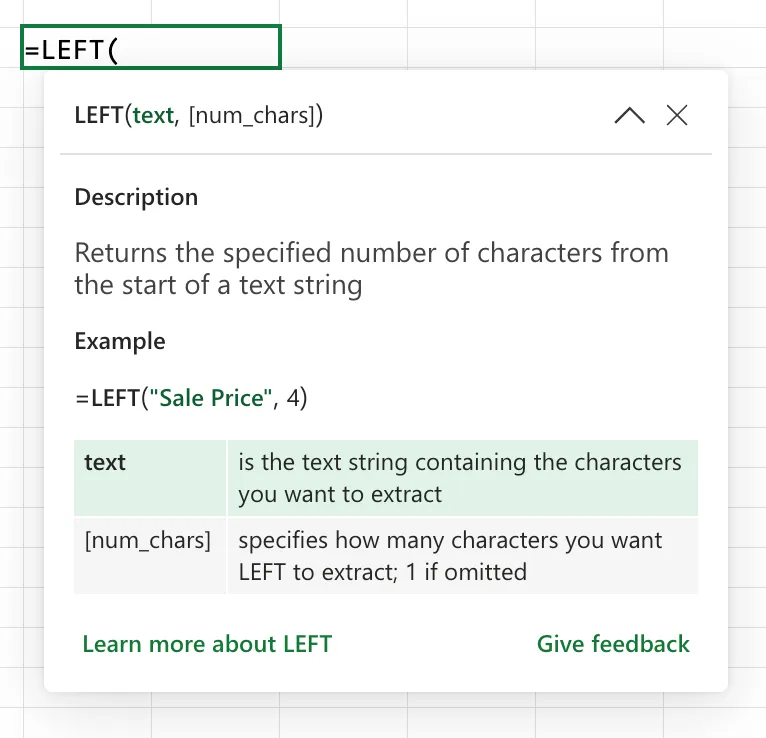
The "Left" function counts characters from the start of the text, while the "Right" function counts them from the end. If you want the last few characters of a code rather than the first, the "Right" function is the one you want, and if you need characters from the middle, the "Mid" function does that job.
Usage
The "Left" function takes the text you want to read from and, optionally, how many characters you want back.
=LEFT(text, [num_chars])
| Parameter | Required | Type | Description |
|---|---|---|---|
| text | Yes | Text | The text string you want to extract characters from |
| num_chars | No | Number | How many characters to take, counting from the left |
The interesting part is how the "Left" function reacts to the different values it can meet, so let's walk through them.
Text is the obvious case. You give it a string and a count, and it returns that many characters from the front.
Data in A1
"PRD-2026-0148"

=LEFT(A1, 3)

will return

"PRD"
If you leave out num_chars, the "Left" function assumes you want exactly one character.
Data in A1
"Manuel"

=LEFT(A1)

will return

"M"
If you ask for more characters than the text actually has, the "Left" function simply gives you the whole string rather than raising an error.
Data in A1
"Hi"

=LEFT(A1, 50)

will return

"Hi"
Numbers are accepted too, but here's the first surprise. The "Left" function treats a number as its underlying value, converts it to text, and reads characters from that. It ignores any cell formatting, so a value displayed as currency or with thousands separators is read as its raw digits.
Data in A1 (displayed as $1,234.50)
1234.5

=LEFT(A1, 4)

will return

"1234"
Blank cells return an empty string. The "Left" function doesn't error on an empty cell. It just gives you nothing back, which is handy when you run it down a column that isn't fully populated.
Data in A1
(blank)

=LEFT(A1, 3)

will return

""
The function family
The "Left" function belongs to a small group of text functions that you almost always end up using together. Most of these don't have a dedicated article yet, so keep this table handy while you decide which one fits the job.
| Function | What it does |
|---|---|
| Left | Returns characters from the start of the text |
| Right | Returns characters from the end of the text |
| Mid | Returns characters from a chosen position in the middle |
| Len | Returns how many characters the text contains |
| Find | Returns the position of one string inside another (case sensitive) |
| Search | Returns the position of one string inside another (not case sensitive) |
The real power comes from combining them. Pairing the "Left" function with the "Find" or "Search" function lets you extract everything up to a delimiter without knowing the length in advance, which is the trick behind most real-world text splitting.
Real-world examples
Pulling a category code out of a product ID
Say Joana keeps a product list where every ID starts with a three-letter category, like PRD-2026-0148. A single formula gives her a clean category column she can group or filter on.
=LEFT(A2, 3)
This returns PRD for every row, ready to feed into a pivot table or a lookup.
Extracting a name up to the first space
When the length of what you want changes from row to row, hard-coding a number doesn't work. Combine the "Left" function with the "Find" function to grab everything before the first space, which is a quick way to isolate a first name from a full name like Maria Silva.
=LEFT(A2, FIND(" ", A2) - 1)
The "Find" function locates the space, and subtracting one stops the "Left" function just before it, returning Maria.
Flagging rows by their prefix
The "Left" function pairs nicely with the "If" function when you want to react to how a value begins. Here we mark any invoice whose reference starts with INT as internal.
=IF(LEFT(A2, 3) = "INT", "Internal", "External")
Non-intuitive behaviors
The result is always text, even for numbers
The single most common trip-up with the "Left" function is forgetting that it always returns text. Take the first two digits of 12345 and you get the text "12", not the number 12. That looks fine on screen, but it won't add up, and a lookup against real numbers will quietly fail to match. If you need a number back, wrap the result so Excel coerces it, for example by adding zero or using the "Value" function.
=LEFT(A2, 2) + 0
Dates come out as serial numbers, not dates
Because Excel stores dates internally as serial numbers, the "Left" function reads that hidden number rather than the date you see. Ask for the first four characters of a cell showing 01/01/2026 and you will get part of the serial number, something like 4602, which is almost never what you wanted.
To pull the day, month, or year out of a date, use the "Day", "Month", or "Year" functions. They read the date properly, whereas the "Left" function only sees the underlying serial number.
Leading spaces count as characters
The "Left" function counts every character, including invisible ones. If a value arrived from an export with a leading space, the first character it returns is that space, which throws off the whole result. Clean the text with the "Trim" function first when you suspect stray spaces.
=LEFT(TRIM(A2), 3)
Limitations
It only counts characters, not bytes
The "Left" function counts whole characters. Microsoft used to ship a separate "Leftb" function that counted bytes for double-byte languages such as Japanese and Chinese, but that variant is now deprecated because the "Left" function handles Unicode (the standard that covers characters from every language) directly. Unless you're maintaining a very old workbook, you can ignore "Leftb" entirely and use the "Left" function everywhere.
num_chars cannot be negative
The count you pass must be zero or greater. A negative number produces a #VALUE! error, since there's no sensible meaning for taking minus-three characters from the front of a string. Passing zero is allowed and simply returns an empty string.
It reads the stored value, not what you see
Formatting is only a display layer, and the "Left" function reads underneath it. Currency symbols, thousands separators, percentage signs, and date formatting are all invisible to it. When the visible text and the stored value differ, the "Left" function always works from the stored value.
Localization
The "Left" function is localized like most Excel worksheet functions, so the name you type changes with the language version you're running. It's LEFT in English, ESQUERDA in Portuguese, GAUCHE in French, IZQUIERDA in Spanish, and LINKS in German.
Excel stores the formula language-neutrally in the file and re-displays each function name in whatever language your copy of Excel uses. A workbook built in Lisbon opens correctly in Paris with no conversion step. What doesn't travel is a formula copied as plain text from a tutorial, because that never went through the file. A Portuguese Excel will reject =LEFT(...) typed straight into a cell.
The argument separator changes with your regional and list separator settings too. With some settings it's a comma, with others, such as Portugal, it's a semicolon.
// Comma-based regional settings
=LEFT(A2, 3)

// Semicolon-based regional settings (for example, Portugal)
=LEFT(A2; 3)
If you copy a formula from a tutorial and Excel rejects it, the function name and this separator are the first two things to check. You can confirm your own regional settings here.
Troubleshooting Common Errors
The formula returns a #VALUE! error
Cause: The num_chars argument is a negative number or is text that Excel can't read as a number.
Solution: Make sure the count is zero or greater. If it comes from another formula, check that formula isn't returning text or a negative result.
=LEFT(A2, MAX(0, B2))
The result will not match or add up
Cause: The "Left" function returned text, and you're comparing it against, or adding it to, real numbers.
Solution: Coerce the result to a number before comparing, either by adding zero or wrapping it in the "Value" function.
=VALUE(LEFT(A2, 4))
A date returns strange digits
Cause: The cell holds a real date, which Excel stores as a serial number, so the "Left" function reads that number instead of the visible date.
Solution: Use the "Day", "Month", or "Year" function to pull date parts, or convert the date to text with the "Text" function first if you genuinely want the formatted characters.
=LEFT(TEXT(A2, "dd/mm/yyyy"), 2)
Recommendations
Here are some things to keep in mind.
Coerce to a number when you need one
If the characters you pull will be compared, summed, or looked up against real numbers, convert them right away. A quick + 0 or the "Value" function saves you from a lookup that silently returns nothing because text and numbers never match.
Combine it with Find or Search for variable lengths
Hard-coding a character count only works when every value has the same shape. When the part you want ends at a delimiter, let the "Find" or "Search" function measure the length for you so the formula keeps working as your data varies.
=LEFT(A2, FIND("-", A2) - 1)
Trim before you cut
Leading spaces from imports and copy-paste are the quiet reason a "Left" result looks off by one. Wrap the text in the "Trim" function when the source isn't under your control, and you remove a whole class of confusing bugs.
Always deal with errors
A #VALUE! from a bad count, or an error value flowing in from the source cell, will cascade into every formula that reads the result. Wrap the "Left" function in the "Iferror" function so one bad row doesn't break the report that depends on it.
=IFERROR(LEFT(A2, 3), "")
Final Thoughts
The "Left" function is one of those small tools that quietly earns its place in almost every data-cleaning job you do. Remember that it always hands back text and that it reads the stored value rather than what you see. Pair it with the "Find" or "Trim" function, and it will serve you well every time you need to reshape a column.
Sources
- LEFT function on Microsoft Support
- Overview of formulas in Excel
- LEFT function names by language on Excel-Translator
Back to the Excel Function Reference
Photo by Nick Fewings on Unsplash


No comments yet
Be the first to share your thoughts on this article!