
Operators like the "equals" operator are great when you know the exact value you're after, but a lot of real questions sound more like "does this text contain X anywhere?" The "substringof" function answers exactly that.
It returns the rows where one string appears somewhere inside another, so it's the OData way to do a "contains" search. Where the "startswith" function only looks at the beginning of a value, "substringof" looks across the whole thing.
As always, we'll use Power Automate to test, but since OData is a standard, the same skill carries over to any RESTful API that supports it, even outside Microsoft's platform.
The SharePoint "Get items" action is one of the most impactful actions to use this since we can quickly filter the information that we want so that we don't need to fetch all data and then filter it in Power Automate. It's faster and we're sure that all items that we get are needed. Win-win.
Let's check how to use it.
Where to find it?
OData filters live in the advanced parameters of data actions. In the SharePoint "Get Items" action, you write it in the "Filter Query" box. If you don't see that box, expand the advanced options first, because it's hidden by default.
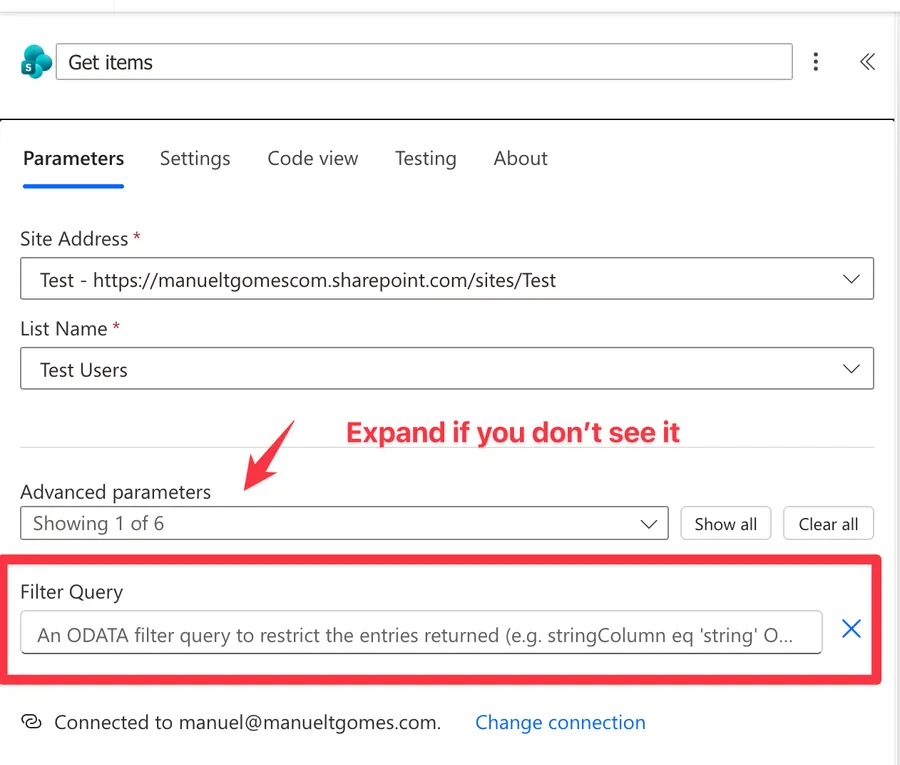
Now that we know where it lives, let's see how to use it.
Usage
The syntax has one trap built right into it, so read the order carefully. The value you're searching for comes first, and the field you're searching in comes second.
substringof('<value>', <field>)
To test, we'll use a SharePoint list of fake people, with the full name stored in the Title column. Let's fetch everyone whose name contains "ada" anywhere in it.
substringof('ada', Title)
This returns every row where Title contains "ada", so it picks up "Ada Lima", "Joana Sousa", and "Manuel Granada" alike, because the match can land at the start, middle, or end of the value.
The search value always goes in single quotes. If your SharePoint column name has a space, you can't use the display name directly. SharePoint stores spaces internally as _x0020_, so a column shown as "Full Name" becomes Full_x0020_Name in the filter.
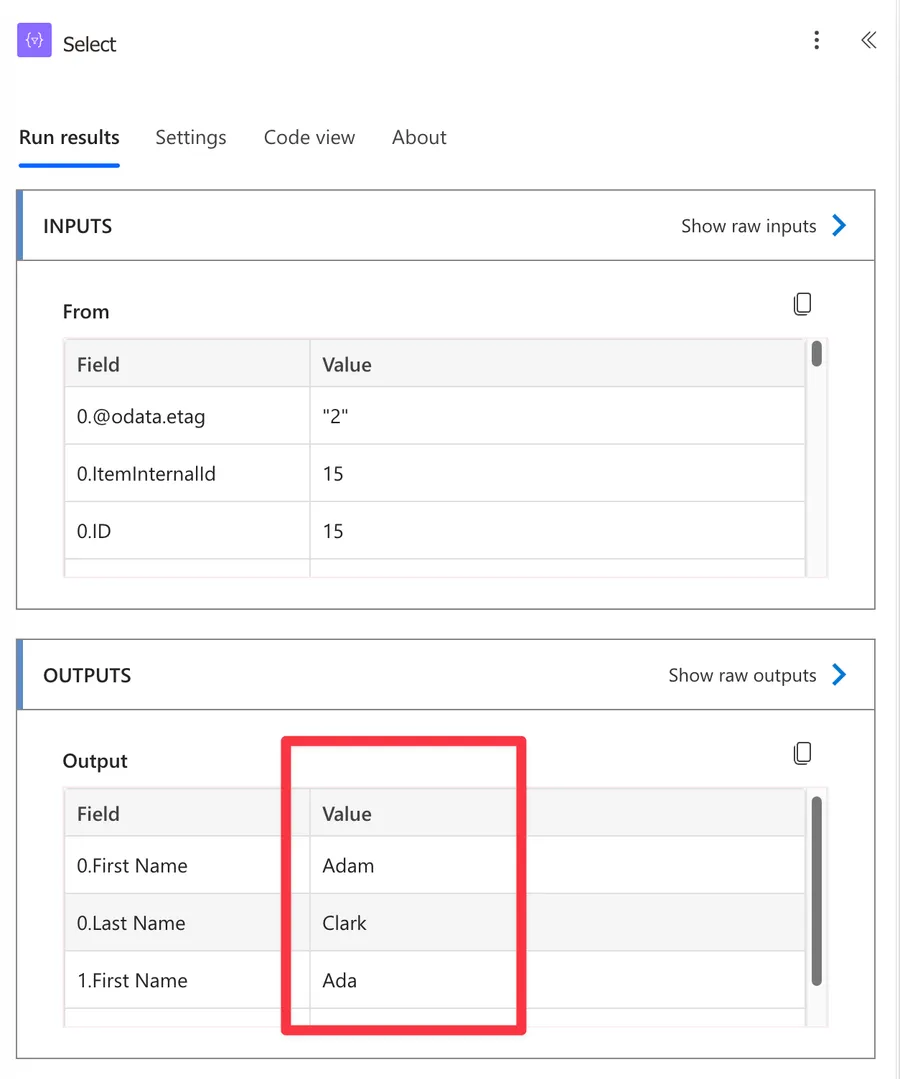
Here's the result. I'll use a "Select" action so that things are more visible, and only show the name so that you're not overwhelmed with too much data.
Non-intuitive behaviors
The arguments are reversed compared to other functions
This is the one that catches almost everyone, including myself. The two functions read in opposite orders.
startswith(Title, 'ada')
substringof('ada', Title)
With the "startswith" function the field comes first, then the value. With "substringof" the value comes first, then the field. Getting it backwards is the number one reason a filter returns nothing or throws an error, so it's worth a second look every time you write one.
Case-insensitive in SharePoint
In SharePoint, text comparisons ignore case, so substringof('ada', Title) also matches "ADA" and "Ada". That's convenient, but it's a SharePoint behavior rather than a guarantee of the function itself. Other data sources may treat case differently, so don't lean on it when you move the same filter to another connector.
Connector support varies
"substringof" is part of the older OData standard that SharePoint speaks, so it works nicely in the SharePoint "Get Items" action. Other connectors don't all understand it. The Excel Online connector, for example, rejects it with the error "An unknown function with name 'substringof' was found." Always confirm the function is supported by the specific source you're querying.
Limitations
Only strings
The "substringof" function works on text values only. Asking it about a number or a date column will either error out or quietly return nothing, so reach for it when you're matching against a single line of text, a title, or a similar string field.
Field names, not display names
OData filters work on the internal field name, not the friendly name you see in the UI. In SharePoint, spaces in the internal name become _x0020_, so "Full Name" is really Full_x0020_Name. If the filter silently returns nothing, a wrong field name is a likely culprit.
Before you write the filter, run the action once with a "Get Items" limited to a single record and look at the output. The result shows the exact internal field names, so you can copy and paste them instead of guessing.
There's no "ends with" counterpart
SharePoint's OData supports "startswith" for the beginning and "substringof" for anywhere inside, but it does not support an "endswith" function. If you only care about how a value ends, you'll need to retrieve the data and narrow it afterwards.
URL size
The filter is sent as part of the request URL, which has a practical limit of around 2000 characters. A long chain of "substringof" clauses joined with the "or" operator can hit that ceiling. If you're building something that large, it's usually a sign to rethink the query or filter in stages.
Troubleshooting Common Errors
The filter runs without error but returns no items, even though you know matching data exists.
- Cause: The arguments are in the wrong order, for example
substringof(Title, 'ada')instead ofsubstringof('ada', Title). - Solution: Put the search value first and the field second. Then double-check the internal field name (remember
_x0020_for spaces).
The run fails with "An unknown function with name 'substringof' was found."
- Cause: The connector you're querying doesn't support "substringof", which is common outside SharePoint (Excel Online is one example).
- Solution: Check the connector's supported functions. If it can't filter the way you need, retrieve the rows and narrow them with the "Filter Array" action using the "contains" function.
The filter is ignored and every row comes back.
- Cause: The field name was wrapped in single quotes, so it was treated as a literal piece of text rather than a column.
- Solution: Only the search value gets quotes. The field name stays unquoted, for example
substringof('ada', Title).
Recommendations
Here are some things to keep in mind.
Mind the argument order
Since "substringof" and the "startswith" function read in opposite orders, it helps to pause and say the pattern out loud before you save: value first, field second. A quick check here saves a lot of "why is this empty?" debugging later.
If you can, never fetch all results
I know that the "Filter" action is quite fast, but why bring 500 records when you only need 5. Filter the data before starting to parse it. The flow will run a lot faster because it doesn't have so much data to transfer and you don't have to filter the data before you process it. It's a huge win, so use it as much as possible.
Name it correctly
The default view of actions like the SharePoint "Get Items" action hides the advanced options, so someone scanning your Flow may not notice there's a filter at all. Rename the action to say what it returns, so the filter isn't a hidden surprise.
Always add a comment
If you can, regardless of where you use the expressions, try to add a comment indicating what you are trying to do. Do this before you do the expression so that you think before you do. It's a good practice to map intention with action so that, if something goes wrong, you can check either the initial information or the expression itself. Also, when you're scanning your Flow to understand what it's doing, having a comment will help you understand what's being done without looking at the expression.
Final Thoughts
The "substringof" function is the simplest way to ask "does this text contain my value?" right at the source, so you pull back only the rows you actually need. Just remember the reversed argument order, keep an eye on the internal field names, and check that your connector supports it. Get those three right and it becomes one of the handiest tools in your OData toolbox.
Back to the OData Reference.
Photo by Andreas Fickl on Unsplash


No comments yet
Be the first to share your thoughts on this article!