
When you work with arrays in Power Automate, you often need to reshape the data before passing it along. Maybe an API gives you twenty fields per object and you only need three. Maybe the field names are awkward and you want to rename them. Maybe you need to add a calculated column or a row index. The "Select" action handles all of this without ever opening an "Apply to each" action loop, which makes it one of the most powerful (and most underused) actions in the Data Operations family.
You should always check the "Select" action before looking at the "Apply to each" action loop and only use it if you have to. The performance difference is huge, and this action will usually run in under a second, while the "Apply to each" action loop can take minutes to process the same data.
Think of it as a way to take an array of objects, define what each object should look like in the output, and let Power Automate build the new array for you in a single step. The shape changes, the order stays the same, and the count stays the same. That last detail is important and we'll come back to it.
Where to find it?
The "Select" action lives under "Data Operation," together with "Compose", "Filter array", "Join," "Create CSV table," "Create HTML table," and "Parse JSON".
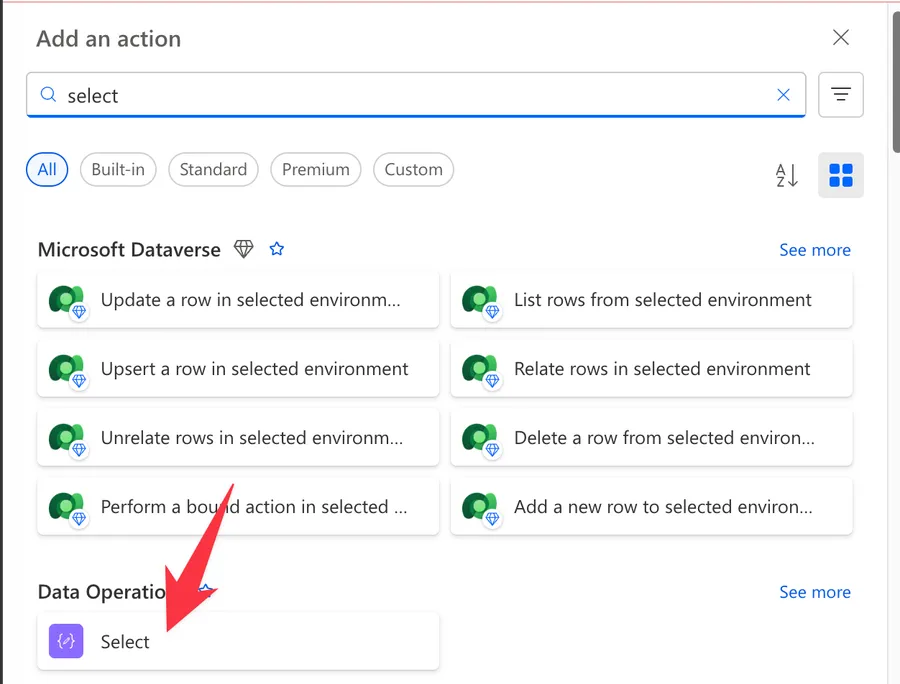
The fastest way to find it is to type "select" in the action search box. You will see a few options, so make sure you pick the one labeled "Select" under "Data Operation," not anything from a connector.
Power Automate tends to save the most common actions in the main screen, so check there before going through the full hierarchy. Also, you can use the search to find it quickly.
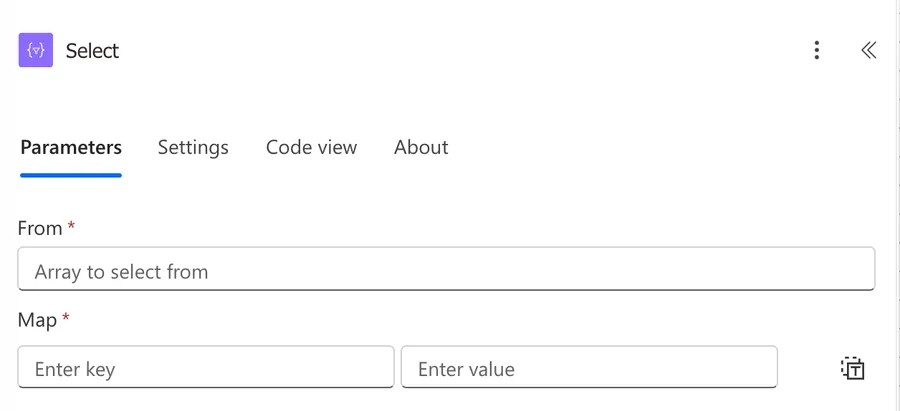
Here's what it looks like once you add it to your Flow.
Now that we know how to find it, let's understand how to use it.
Usage
The "Select" action has two parameters: "From" and "Map." That's it. Everything else is about how you fill them in.
From
This is the source array. It can come from a previous action's output, a variable, an expression, or a trigger body. The only hard rule is that it must be an array. We will look at what happens if it isn't in the "Non-intuitive behaviors" section below.
For our examples, imagine Joana from the Lisbon office runs a Flow that pulls a list of employees from an HR system. The trigger gives her something like this:
[
  { "first": "Joana", "last": "Costa", "city": "Lisbon", "department": "HR" },
  { "first": "Miguel", "last": "Ferreira", "city": "Porto", "department": "Engineering" },
  { "first": "Beatriz", "last": "Almeida", "city": "Coimbra", "department": "Engineering" }
]
She drops the trigger body into the "From" field and now she can decide what each object in the output should look like.
Map (key/value mode)
This is where the reshaping happens. By default, "Map" shows two columns. On the left you write the property name you want in the output. On the right you write the value, usually an expression that references the source array.
To pick a property from the current item, use the "item" function with the safe navigation operator:
item()?['first']
item()returns the object Power Automate is currently looking at inside the array.?['first']safely reads thefirstproperty. If it doesn't exist, you get null instead of an error.
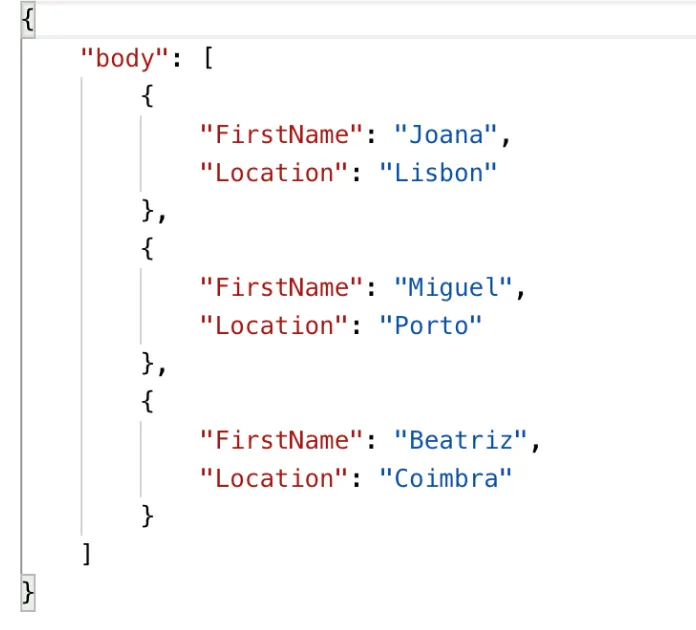
If Joana wants to keep only the first name and the city, but rename them, her map looks like this:
| Key | Value |
|---|---|
FirstName |
item()?['first'] |
Location |
item()?['city'] |
The output becomes:
[
  {
    "FirstName": "Joana",
    "Location": "Lisbon"
  },
  {
    "FirstName": "Miguel",
    "Location": "Porto"
  },
  {
    "FirstName": "Beatriz",
    "Location": "Coimbra"
  }
]
Adding a calculated property
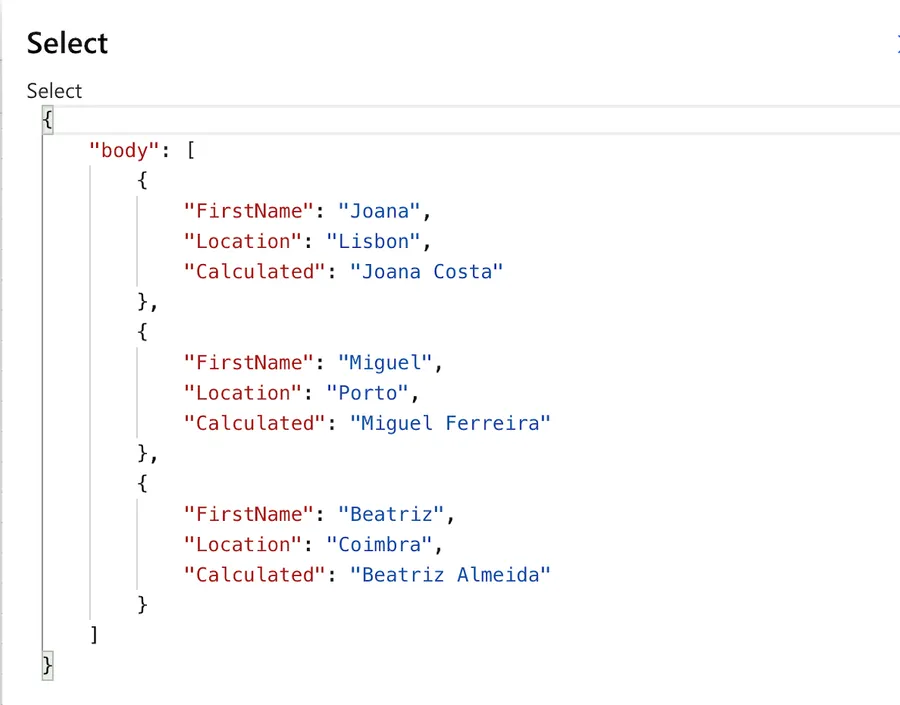
You aren't limited to copying values. Any expression that returns something is valid on the right side. If Joana wants a FullName field that combines first and last, she can use the "concat" function:
concat(item()?['first'], ' ', item()?['last'])
concat(...)joins the values together as a single string.- The single space
' 'keeps the result readable.
Add a row to the map and you get a new field in every output object without writing a single loop.
Map (text mode)
Click the icon to "Switch map to text mode" and the key/value table collapses into a single JSON expression. This is useful when you have many fields, want to copy a map between Flows, or need to output something that isn't an object at all.
In text mode, Joana's earlier example looks like this:
{
  "FirstName": "@{item()?['first']}",
  "Location": "@{item()?['city']}"
}
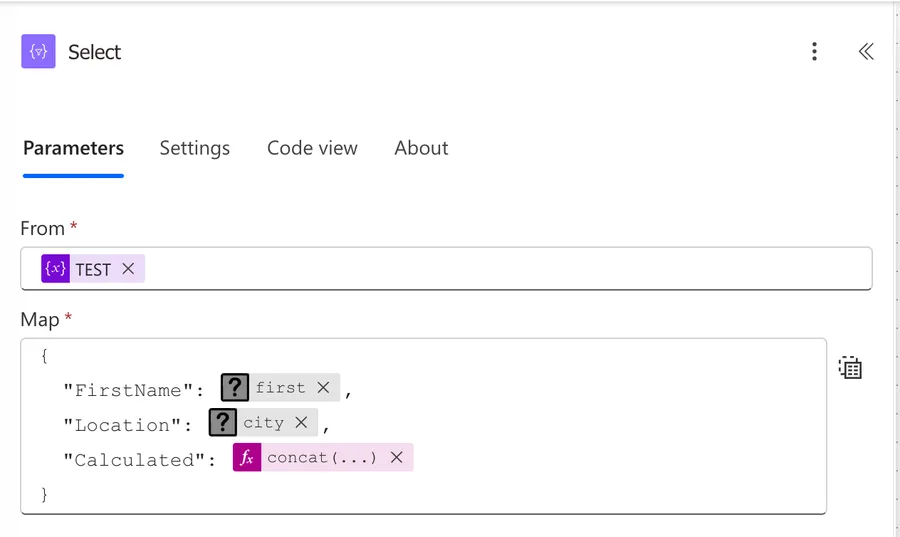
Text mode is a one-way switch in some designer versions. If you go back to key/value mode, double-check that nothing changed in the conversion. Always test the Flow after switching.
Non-intuitive behaviors
"From" must be an array, not an object
If you point "From" at a single object instead of an array, the Flow saves without complaining. It only fails at runtime with this message:
The 'from' property value in the 'select' action inputs is of type 'Object'. The value must be an array.
This catches people out when the upstream action returns something like { "value": [ ... ] } and they pass the whole body instead of body('Action_Name')?['value']. Always check the dynamic content type before wiring it up. If you only have a single object and want to run it through "Select," wrap it in square brackets first using the "createArray" function:
createArray(outputs('Get_item')?['body'])
The output is always the same length as the input
"Select" reshapes objects but never adds or removes them. If you start with three items, you end with three items. If you need to drop items based on a condition, that's the "Filter Array" action's job. A common pattern is to chain them: filter first, then select, so you only reshape what you actually need.
You can output a flat list instead of objects
If you switch to text mode and put a single expression instead of a JSON object, "Select" returns a flat array of values rather than an array of objects. For example, this map:
@{item()?['first']}
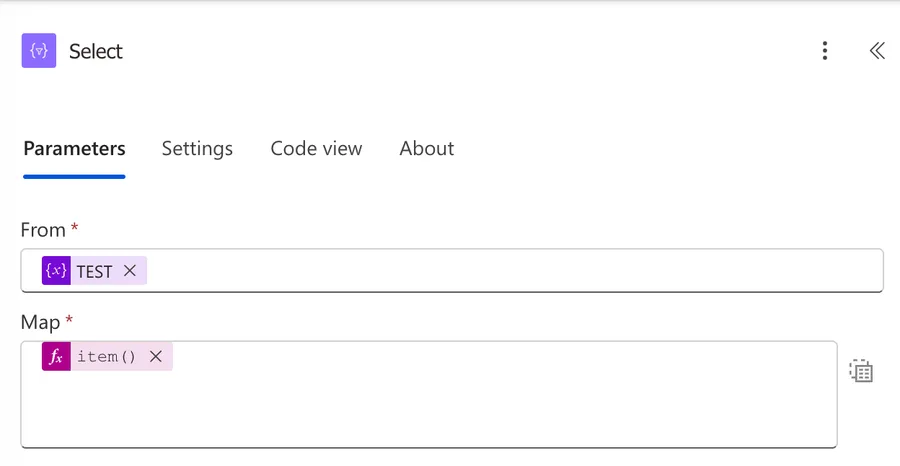
Turns the earlier input into:
["Joana", "Miguel", "Beatriz"]
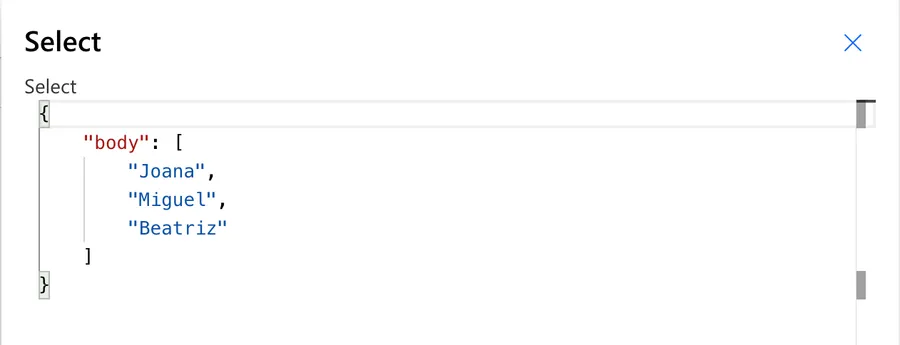
This is great when you need a simple list to pass to the "join Function" or to use in a "contains" check, without dragging the rest of the object along.
Adding an index column needs a small trick
The most common request is to number each row. The trick is to use the "range" function on "From" and reach back into the original array on "Map."
In text mode:
- From:
range(0, length(variables('Employees'))) - Map:
addProperty(variables('Employees')[item()], 'Index', item())
Breaking that down:
range(0, length(...))builds an array of integers from 0 to the array length minus one.- Inside the map,
item()is now the integer (the index), sovariables('Employees')[item()]reaches into the original array at that position. addProperty(..., 'Index', item())adds an "Index" field with the current integer.
The output has every original field plus a new Index starting at 0. Use the "add" function if you prefer it to start at 1.
Limitations
You cannot change the number of items
This is the single biggest constraint. "Select" is shape-only. If your goal is to drop empty rows, deduplicate, or split one record into many, you need a different action. "Filter array" handles drops, the "union" function handles dedup, and a careful "Apply to each" handles row explosion.
You cannot perform other actions inside it
"Select" is a transformation, not a loop. You cannot send an email, write to a list, or call an HTTP endpoint per item from within "Select." For that you still need "Apply to each". The rule of thumb is, if you only need to reshape data, use "Select." If you need to act on each item, use "Apply to each."
Type conversions still have to be explicit
If a value in your source array is a string but you need a number, "Select" will not convert it for you. Use the "int" function, "float" function, or "bool" function inside the map. A common pattern is setProperty(item(), 'Score', int(item()?['Score'])) to replace a text score with a numeric one.
Troubleshooting Common Errors
"The 'from' property value... must be an array"
Symptom: The Flow saves fine but fails at runtime with The 'from' property value in the 'select' action inputs is of type 'Object'. The value must be an array.
Cause: "From" is pointing at an object instead of an array. This usually happens when the upstream action's body wraps the array in a value property and you pass the whole body.
Solution: Drill down to the array property explicitly. For example, replace body('List_items') with body('List_items')?['value']. If the source really is a single object, wrap it with the "createArray" function.
"InvalidTemplate" when running the action
Symptom: The Flow fails with InvalidTemplate. Unable to process template language expressions in action 'Select' inputs at line ... and column ....
Cause: One of the expressions in your map references a property that doesn't exist on the current item, or a function received the wrong type. This is especially common when an upstream action gets renamed and the dynamic reference still points at the old name.
Solution: Open the failed run, expand the "Select" action, and look at the "Inputs" panel to see exactly which expression failed. Use the safe navigation operator ?[] everywhere so a missing property returns null instead of throwing. Replace any item().Field style with item()?['Field'].
Output looks empty even though the input has data
Symptom: "Select" runs successfully, but the output array contains objects with all null values.
Cause: The expressions in the map use the wrong property names, often because of casing. Power Automate property names are case-sensitive, so item()?['First'] is not the same as item()?['first'].
Solution: Copy a sample of the input directly from the run history and match the casing exactly. If the field names are inconsistent across items, normalize them upstream before the "Select" action.
Recommendations
Here are some things to keep in mind.
Reach for "Select" before "Apply to each"
If your goal is to reshape an array, "Select" is almost always faster and cleaner than "Apply to each". It runs as a single action regardless of array size, so a 5,000 row payload that took minutes inside a loop often finishes in seconds. Save "Apply to each" for when you genuinely need to do something per item, like calling an external system.
Switch to text mode when the map gets long
The key/value editor is great for three or four fields. Past that, it becomes hard to read and easy to misclick. Switching to text mode lets you treat the map as JSON, paste it into version control, and reuse it across Flows. Just remember to test after switching modes, since the conversion can occasionally drop quotes or whitespace.
Pair "Select" with "Filter array" for clean pipelines
A pattern that pays off again and again is "filter first, then select." Filter the array down to the rows you care about, then reshape only those rows. The other order works too, but you waste effort reshaping items you'll throw away.
Name it correctly
The default name "Select" tells you nothing about what the action is doing. Rename it to describe the transformation, for example "Select Employee Summary Fields" or "Map API Response To Email Rows." Future you (and anyone else opening the Flow) will appreciate it.
Always add a comment
Add a comment that explains where the source array comes from and what shape you expect on the output. This is especially helpful when the "Select" sits between two unrelated actions and the link isn't obvious. It makes debugging far quicker when something downstream breaks.
Always deal with errors
Have your Flow fail graciously and notify someone that something failed. It's horrible to have failing Flows in Power Automate since they may go unlooked-for a while or generate even worse errors. I have a template that you can use to help you make your Flow resistant to issues. You can check all details here.
Final Thoughts
The "Select" action is one of those features that quietly changes how you build Flows once you start using it. Reach for it whenever you need to reshape an array, switch to text mode for anything beyond a couple of fields, and remember the one rule that catches everyone out: same number of items in, same number out.
Back to the Power Automate Action Reference.
Photo by maryam Rad on Unsplash



No comments yet
Be the first to share your thoughts on this article!