
Most triggers wait for something to happen. This one waits for a person to ask something.
The "For a selected message (V2)" trigger turns your flow into a menu item inside Microsoft Teams. Someone hovers over a message, opens the "More actions" menu, picks your flow by name, and the flow runs with that message attached. It is the Power Automate equivalent of a right click command.
That makes it a good fit for the jobs that start with "somebody said something important". Turning a message into a task, filing it as a support ticket, logging it to a list, or forwarding it to a system that nobody wants to open.
I'm getting ahead of myself, but the automation possibilities are great here. Messages are messy, and this gives us a quick way to "parse" one without any copying and pasting. Power Automate does it for us.
It is an instant trigger, so there is no polling interval and no delay. It fires the moment the person picks it.
The trigger also has an optional adaptive card. An adaptive card is a small form that Teams renders inline, so you can ask the person for a due date or a category before the flow does its work.
There are a few rules about where the flow has to live before Teams will show it, and the outputs sit deeper in the payload than the designer suggests. Let's walk through both.
Where to find it?
The easiest way is to search for "selected message" in the trigger picker.
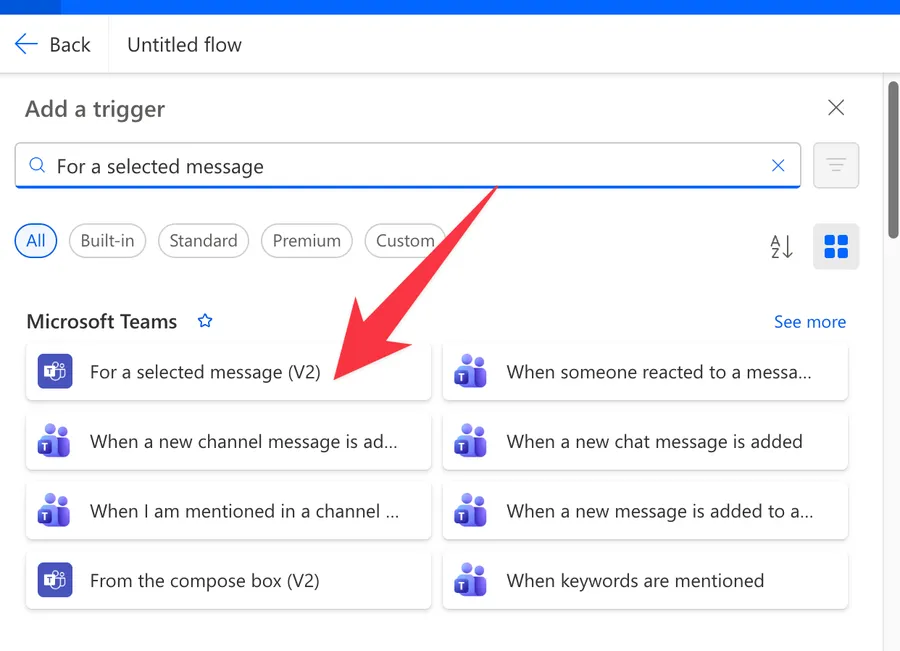
Here's what it looks like.
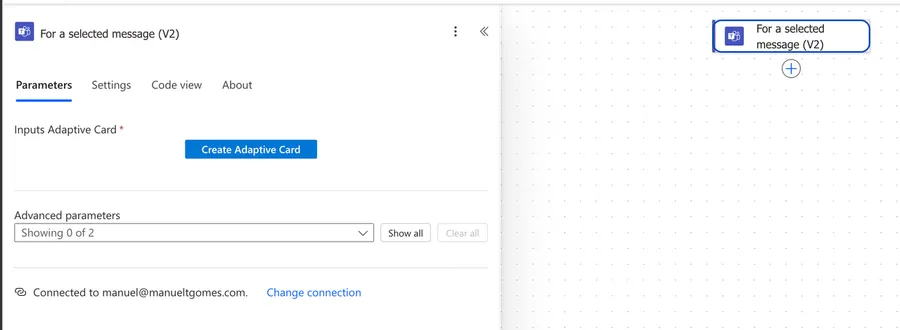
The Microsoft Teams connector ships a small family of triggers that all start from a person doing something in the client. Picking the wrong one means the flow never appears where you expect it, so check the table before you commit.
| Trigger | Starts from | Gives you the message |
|---|---|---|
| For a selected message (V2) | A person picking your flow from a message's "More actions" menu | Yes, the full message payload |
| From the compose box (V2) | A person picking your flow from the message compose box | No, there is no message yet |
| When someone responds to an adaptive card | A person submitting a card your flow posted earlier | No, only the card's values |
If you want the person to act on a message that already exists, this article's trigger is the right one. If you want them to start something from a blank compose box, use "From the compose box (V2)" instead.
The public Microsoft Teams connector reference lists the connector's triggers, and this one is not among them. It still appears in that page's known issues table. The trigger is only surfaced inside the Power Automate designer and inside Teams, so treat the designer and the run history as the source of truth for its shape.
Now that we know how to find it let's understand how to use it.
Usage
What the trigger card shows
The trigger card is almost empty. There is one visible parameter called "Inputs Adaptive Card", two advanced parameters hidden behind the "Show all" button, and a line telling you which account the connection uses.
That connection line matters. The flow runs as that account, so a flow built on a personal connection stops working the day that person leaves.
The designer marks the card with a red asterisk, which usually means required. Microsoft documents it as optional, and a flow saves and shows up in Teams with no card configured. Treat the asterisk as a nudge rather than a blocker.
The flow name is the button label
Teams has no separate place to set the menu text. It uses the flow's name exactly as you typed it.
So "Create ADO work item from message" reads well in the menu, and "Copy of Flow 3 (2)" does not. Rename the flow before you share it, because the people using it will only ever see that string.
I made a mistake while writing this article and didn't change the name and Teams was happy to create the workflow anyway.
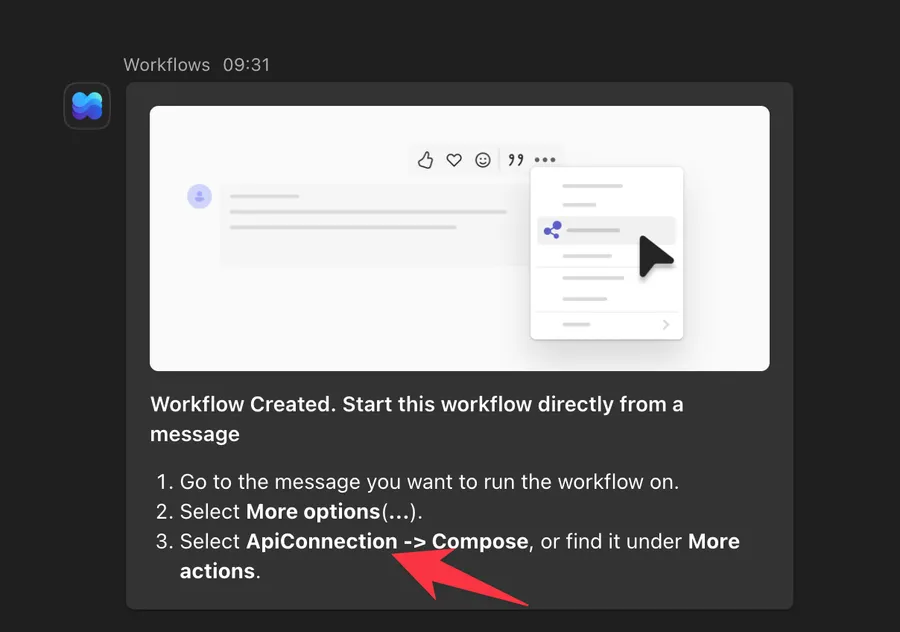
The Workflows app confirms the creation with a card that spells out how to run the new flow, and that card is where the cost of skipping the rename shows up. Power Automate had generated a name from the flow's own contents, so the instruction reads "Select ApiConnection to Compose". That string is what everyone in the conversation would have looked for.
Keep it short too. The menu truncates long names, and a truncated name is hard to tell apart from its neighbors.
Collecting extra information with an adaptive card
Sometimes the message alone is not enough. If your flow files a task, you probably want a title and a due date from the person who triggered it.
Select "Create Adaptive Card" in the trigger. That opens the full Adaptive Cards designer inside the flow, so you never leave the page.
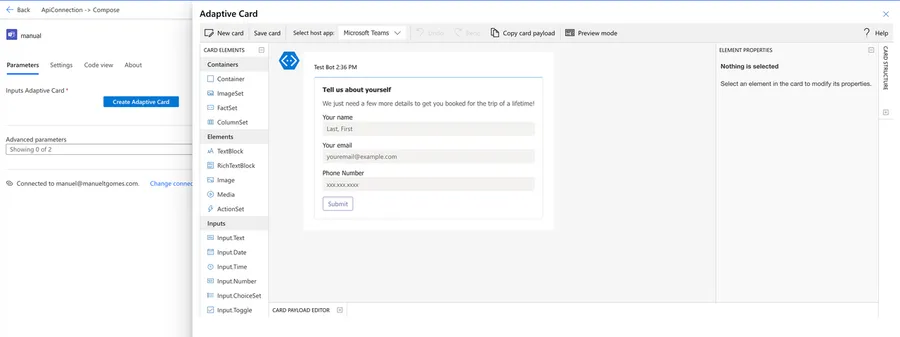
It opens on a sample card called "Tell us about yourself", which is a starting point rather than anything you have to keep. Select "New card" to clear it.
The palette on the left is grouped into three sets. "Containers" holds layout pieces such as Container, ColumnSet, and FactSet. "Elements" holds the parts that only display something, such as TextBlock, Image, and ActionSet. "Inputs" holds the parts that collect an answer, which are Input.Text, Input.Date, Input.Time, Input.Number, Input.ChoiceSet, and Input.Toggle.
Drag an element onto the card and its settings appear in the "Element properties" panel on the right. The "Card payload editor" at the bottom shows the same card as raw JSON, which is the quickest way to paste in a card you already have. "Preview mode" lets you fill the form in as a person would before you commit to it.
Every input element has an Id. The Id is the name you will use later to read what the person typed, so give each one something you will recognize, such as taskTitle rather than Input.Text1.
Two elements sharing an Id means one of the values is lost, and the flow gives you no error to explain it. Check the Ids before you save the card.
Reading what the person typed
Card values arrive in a cardOutputs object, keyed by the Ids you set. cardOutputs is simply the bag of answers the card collected.
triggerBody()?['cardOutputs']?['taskTitle']
Breaking that down:
triggerBody()gets the body of the trigger output, using the "triggerBody" function?['cardOutputs']safely reaches the object holding the card's answers?['taskTitle']safely reads the value of the input whose Id istaskTitle
The ? before each bracket is safe navigation. It returns nothing instead of failing when the field is absent, which matters here because a person can leave an optional input empty.
A multi select choice set returns its picks as one comma separated string rather than an array. Split it before you loop over it.
split(triggerBody()?['cardOutputs']?['categories'], ',')
Outputs
The message travels inside an entity object, under a teamsFlowRunContext property, under a messagePayload property. That nesting is why hand written expressions for this trigger look longer than most.
The designer hides all of it behind friendly dynamic content tokens. Use those tokens when you can, and use the paths below when you need an expression.
The path column is what's inside triggerBody()?['entity']?['teamsFlowRunContext']?['messagePayload'].
| Field | Path | Type | Description | Example value |
|---|---|---|---|---|
| Message ID | ?['id'] |
string | The message's unique identifier | 1755012345678 |
| Subject | ?['subject'] |
string | The message subject, often empty | Deployment window |
| Message content | ?['body']?['content'] |
string | The full HTML content of the message | <div>Please review <b>today</b></div> |
| Plain text message | ?['body']?['plainText'] |
string | The plain text version of the same message | Please review today |
| Link to message | ?['linkToMessage'] |
string | A direct URL that opens the message in Teams | https://teams.microsoft.com/l/message/19:a1b2c3d4e5f6@thread.tacv2/1755012345678 |
| Sender display name | ?['from']?['user']?['displayName'] |
string | The person who wrote the message | Beatriz Salgueiro |
| Sender ID | ?['from']?['user']?['id'] |
string | The message author's user identifier | 8c2f4a10-1e73-4d0b-9c55-3f0a1b2c3d4e |
So reading the plain text of the message looks like this in full.
triggerBody()?['entity']?['teamsFlowRunContext']?['messagePayload']?['body']?['plainText']
Breaking that down:
triggerBody()gets the body of the trigger output?['entity']safely reaches the wrapper Teams sends around the invocation?['teamsFlowRunContext']safely reaches the Teams context for this run?['messagePayload']safely reaches the message the person selected?['body']?['plainText']safely reads the plain text version of the message
The two people involved
There are two different people in every run, and mixing them up is a common source of confusion.
The sender is whoever wrote the message. The originating user is whoever picked your flow from the menu. They are frequently not the same person, because the usual pattern is one person acting on somebody else's message.
Microsoft documents "Originating user display name" and "Originating user id" as trigger outputs alongside the message properties. Take those two from the dynamic content panel rather than typing a path, since their path is not published. If you need the exact path for an expression, run the flow once and read it from the trigger output in the run history.
Reading the run history to confirm a path
Any time you are unsure about a field, open a completed run, expand the trigger, and look at the raw outputs. The JSON there is the real shape, and it beats guessing.
Non-intuitive behaviors
Here are the behaviors that catch people off guard.
The trigger card cannot show anything about the message
The adaptive card is rendered before the flow starts, so there is no dynamic content to put in it. You cannot pre fill a field with the message text, the sender's name, or anything else from the conversation.
Ask for what you need in plain terms instead. "Title for the task" works fine without echoing the message back.
If you truly need a card that reflects the message, leave the trigger card empty and post a card from inside the flow with the "Post adaptive card and wait for a response" action. By then the message is available and you can build the card around it.
The subject is usually empty
Channel posts can carry a subject line, and chat messages never do. Most runs therefore return an empty subject.
Fall back to the message text when that happens.
coalesce(triggerBody()?['entity']?['teamsFlowRunContext']?['messagePayload']?['subject'], triggerBody()?['entity']?['teamsFlowRunContext']?['messagePayload']?['body']?['plainText'])
Breaking that down:
- The "coalesce" function returns the first argument that is not null
- The first argument is the subject
- The second argument is the plain text body, used when the subject is missing
coalesce treats an empty string as a value, so if your tenant returns "" rather than null, test with the "empty" function inside a Condition instead.
Titles also have length limits in most target systems, so trim the fallback with the "substring" function before you send it on.
Message content arrives as HTML
body.content is the message as Teams stores it, which means markup, even for a message that looked like plain typing in the client.
You have two clean options. Use body.plainText when you only want the words, or run body.content through the "HTML to Text" action when you started from the HTML and need it readable.
Keyword checks in particular should never run against the HTML, because markup can sit between the letters of a word. Convert first, then compare with the "toLower" function so casing does not matter.
Nothing tells the person that the flow ran
Teams closes the menu and moves on. There is no spinner, no confirmation, and no error surfaced back into the conversation.
That silence leads people to click twice and create duplicates. Post a confirmation at the end of every flow built on this trigger, either as a chat message to the originating user or as a reply in the conversation. Microsoft recommends the same thing.
It works on chat messages and channel messages alike
The menu appears in one to one chats, group chats, and channel conversations. The payload shape is the same in all of them, so a single flow handles every case.
The parts that vary are the ones you did not get. There is no team name or channel name in the message payload, so if your flow needs to know where the message lived, parse the linkToMessage value or look the conversation up separately.
Limitations
Here are the constraints to keep in mind.
The flow must live in the default environment
An environment is a container that holds flows, apps, and data. Every tenant has one default environment, and Teams only reads flows from that one.
A flow built in any other environment saves and runs normally, and it simply never appears in the "More actions" menu. Build it in the default environment from the start, because moving a flow later means exporting and reimporting it.
The Power Automate Actions app has to be allowed in Teams
Teams gates this feature behind an app called Power Automate Actions, with App ID 00001016-de05-492e-9106-4828fc8a8687.
If it is blocked, no flow shows up for anyone, and the designer gives no hint that this is the reason. Ask an administrator to check the app is enabled in the Teams admin center before you spend time debugging the flow itself.
Only the author sees it until it is shared
Microsoft states this plainly. Only the flow author can trigger the flow, and it becomes available to other members of the chat or channel only when the author explicitly shares it with them.
Share the flow with the people or the team that needs it, and check the menu from a colleague's account before you announce it.
It does not work for guests or external users
Guest and external accounts in a team will not see the flow in their menu. If your process depends on people outside the tenant, give them a different entry point, such as a form or a shared mailbox that starts the same flow.
It is not available in sovereign clouds
The trigger is unsupported in Microsoft Cloud for Sovereignty, which covers GCC, GCC High, and DoD tenants. In those tenants, start the process from a Teams webhook or a scheduled flow that reads the conversation instead.
Connector throttling
The Microsoft Teams connector allows 100 API calls per connection every 60 seconds. Non GET requests are capped separately at 300 per connection every 300 seconds, dropping to 25 for Flow bot operations.
The trigger itself is cheap, since a person has to click for each run. The actions after it are what add up, so batch your writes where you can and keep the confirmation to a single message.
Recommendations
Here are some things to keep in mind.
Write the flow name for the menu, not for you
The name is the entire user interface. Start it with a verb and describe the outcome, so "Log message to support list" rather than "Support list flow".
Keep the card to the fields you truly need
Every field on the trigger card is a field somebody types before anything happens. Three inputs is a form, ten is an obstacle, and anything the flow can work out for itself should not be there at all.
Confirm back into Teams every time
Finish with a message to the originating user, and include what was created and a link to it. It closes the loop, it prevents duplicate clicks, and it gives you a trail when somebody asks what happened.
Prefer plain text, and convert when you cannot
Read body.plainText for anything you store, search, or email. Reach for body.content only when you genuinely want the formatting, and pass it through the "HTML to Text" action whenever the destination is not a rich text field.
Pin the paths in a Compose action
The expressions for this trigger are long, and repeating them across a flow makes it hard to read and harder to change. Put each one in a Compose action near the top, name the actions after the fields, and reference those outputs from then on.
Test it from a second account
The flow will always work for you, because you are the author. The interesting failures are the ones other people hit, such as the flow missing from their menu or a card field they cannot fill. Have a colleague run it once before you announce it.
Name it correctly
Always build the name so others can understand the trigger's purpose without opening it and checking the details.
Always add a comment
Adding a comment will also help avoid mistakes. Indicate what conditions trigger the flow and any assumptions about the data. It's essential to enable faster debugging when something goes wrong.
Final Thoughts
"For a selected message (V2)" is the trigger to reach for when a person, rather than an event, decides that something matters. It costs nothing to run, it needs almost no configuration, and it puts your automation one click away from the conversation where the work actually starts.
The two things worth getting right on day one are the flow name, because it is the only label anybody sees, and the default environment, because Teams will quietly ignore a flow built anywhere else. Sort those out, add a confirmation message at the end, and the rest is just deciding what the message should become.
Sources
- Trigger a cloud flow from any message in Microsoft Teams
- Microsoft Teams connector reference
- Trigger flows from any message in Microsoft Teams, Power Platform blog
Back to the Power Automate Trigger Reference.


No comments yet
Be the first to share your thoughts on this article!