
Triggers play an essential role in Power Automate since we could not even start the Flows without them. Triggers can have information that could be useful in the Flow, like the details of the item that was created in Forms or the message that was published in Teams, for example.
But how do we access the values of the trigger in the Flow? You can select them in the "Dynamic content" tab, but what if you need them in a formula, for example? Here's where the "triggerBody" function comes into play.
Please note that you can use the "triggerBody" function with any trigger. I'm going to use the "Manually Trigger a Flow" trigger as an example, but the concepts apply to any other trigger.
Let's explore how to use it.
Usage
It follows a simple pattern, and no parameters are required:
triggerBody()
It will return the list of items provided when the Flow was triggered. The return is in JSON format. In case you're not familiar with JSON, no worries; I have a general overview of what you should know in my article on the "json" function.
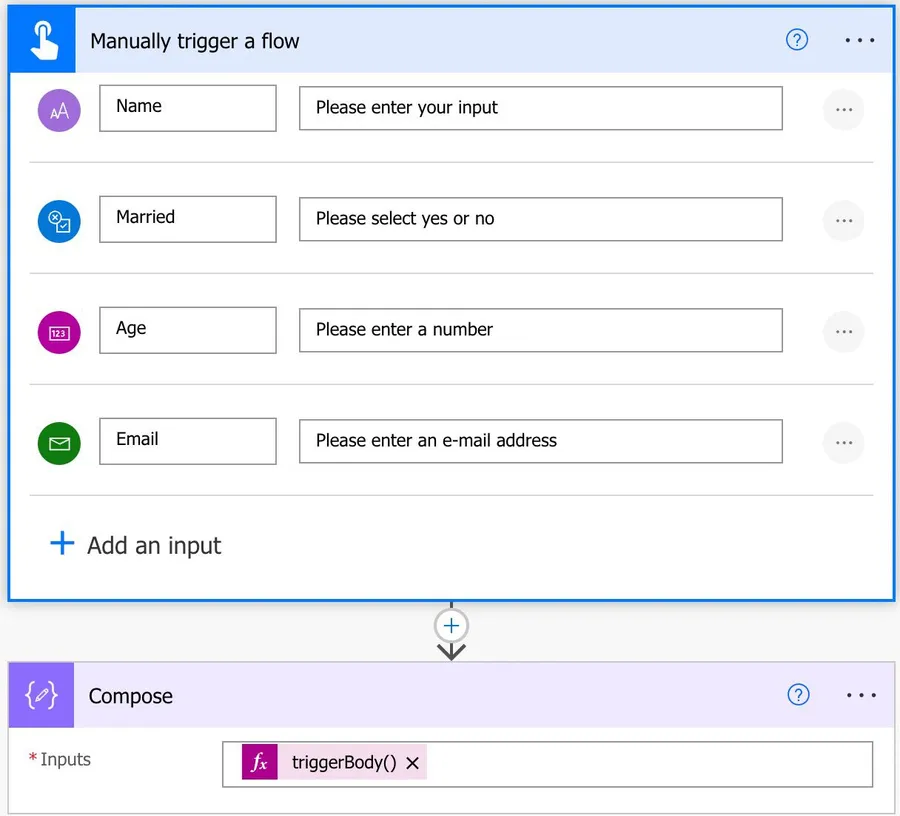
Here's a simple trigger and "Compose" action to show what was provided.
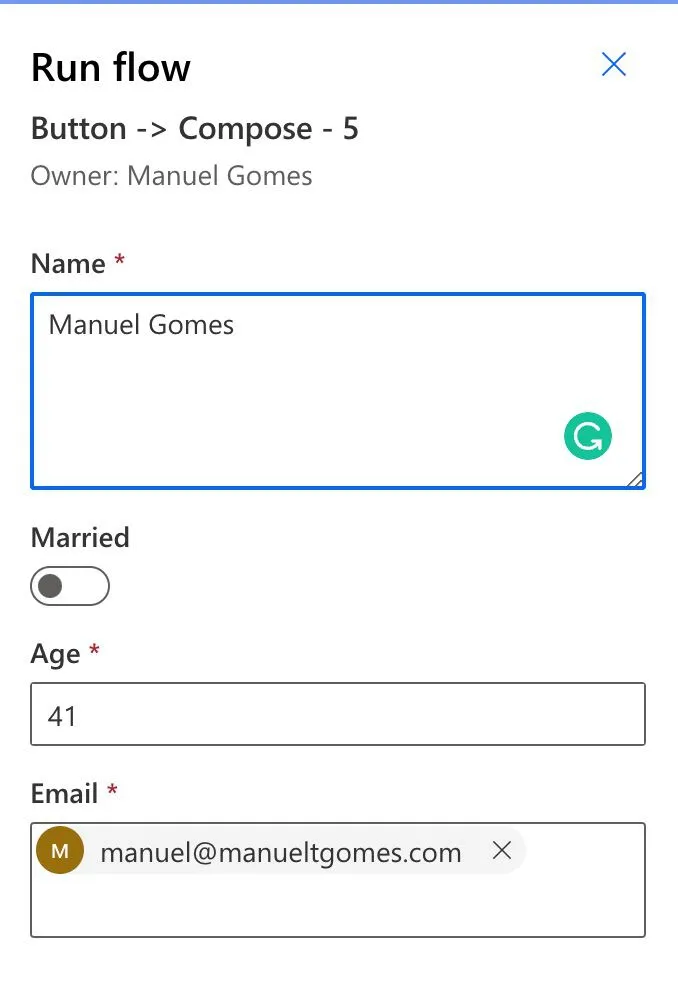
Let's provide some data and run it.
Here's the result.
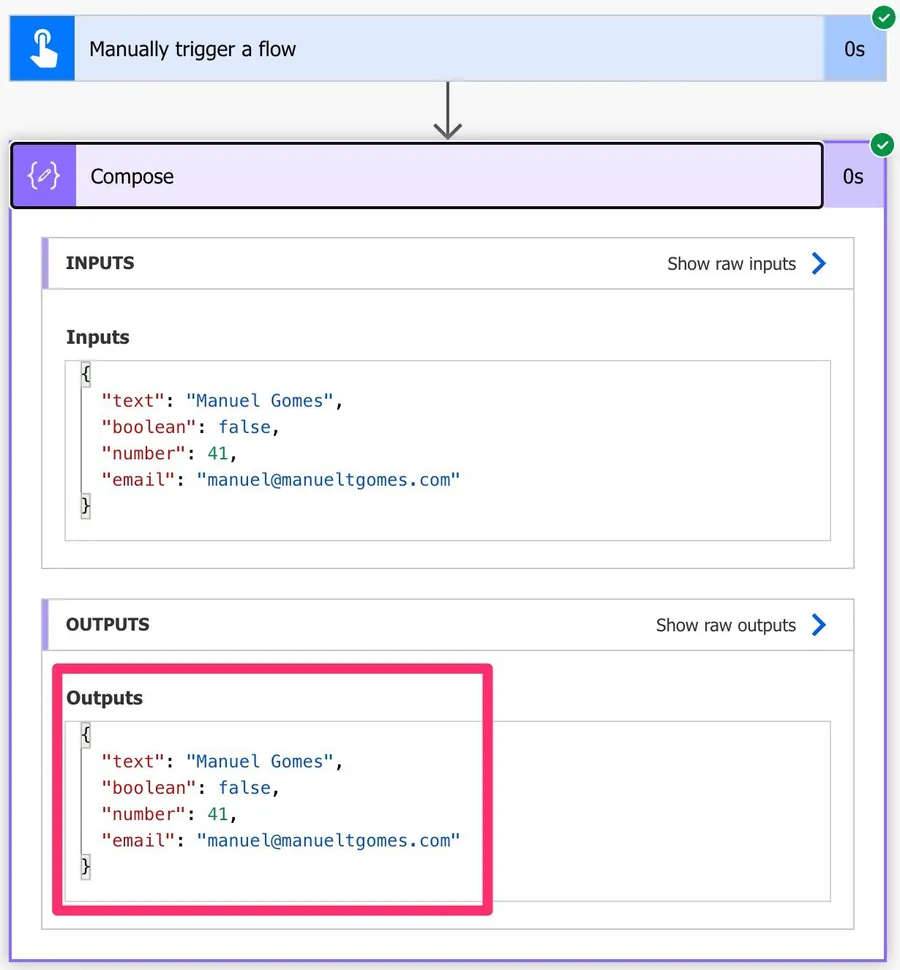
We'll get the following:
{
  "text": "Manuel Gomes",
  "boolean": false,
  "number": 41,
  "email": "manuel@manueltgomes.com"
}
As mentioned before, we'll get a JSON object. Notice also that the field names you set in the trigger (Name, Age, etc.) are not the keys you use to reference them. There's no official mention from Microsoft on why, but I would guess it was because the fields may contain special characters, and it would make the JSON complex or fail depending on the special character.
How to access the information?
Since it's a JSON, we can access it by doing the following:
- Call the function
- Indicate the field we want, using square brackets and its key.
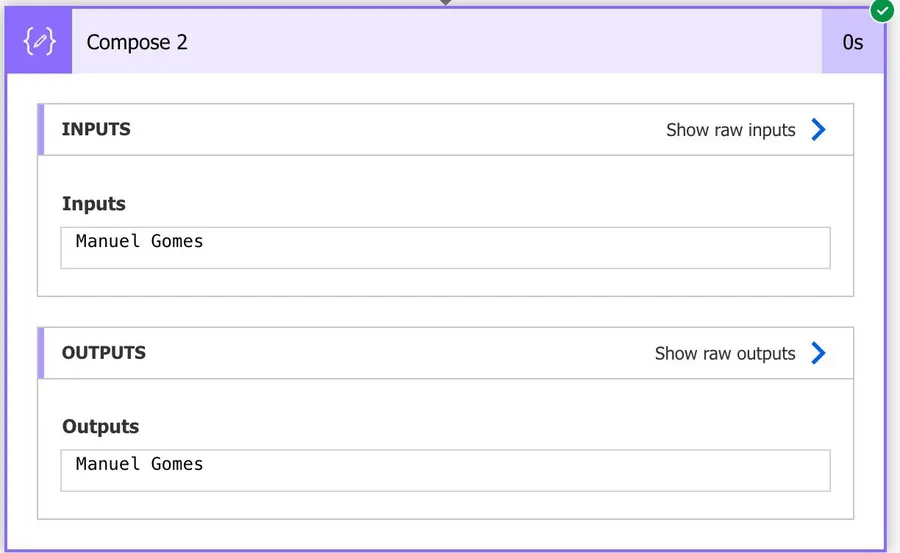
For example, if we want to get the text that was typed, we'll do the following:
triggerBody()?['text']
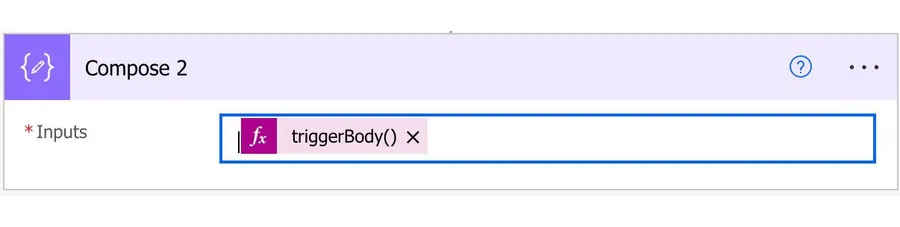
We'll get:
Why the question mark before the brackets?
You'll notice that I write triggerBody()?['text'] and not triggerBody()['text']. That question mark is what Microsoft calls the "null ignore" operator, and it's the documented way to reach a property that might not be there. Plain square brackets are strict, so a key that is missing stops the run with the "Unable to process template language expressions" error. With the question mark, the same expression quietly returns null and we get to decide what happens next.
If you'd rather have a fallback than a null, wrap it in the "coalesce" function:
coalesce(triggerBody()?['text'], 'No value provided')
I would get into the habit of always adding it. It costs one character and saves a lot of failed runs.
How do I know the keys to get the data?
If you add multiple options in the trigger and run the Flow, you'll see Microsoft's convention. The key is the type of the field plus a number in case there are multiple of the same type.
[type]_[number]
For example:
triggerBody()?['text']
triggerBody()?['number_1']
To be sure that you're using the correct keys, you can follow the next section's steps and pick them from the "Dynamic content" or have a "Compose" action at the start of the Flow, run it once and see which values the action gives you, like this.
The result shows exactly which key to use.
You're using it without knowing
Please note that, if you select the items from the "Dynamic content" list, Power Automate will use this function for you. Here's an example.
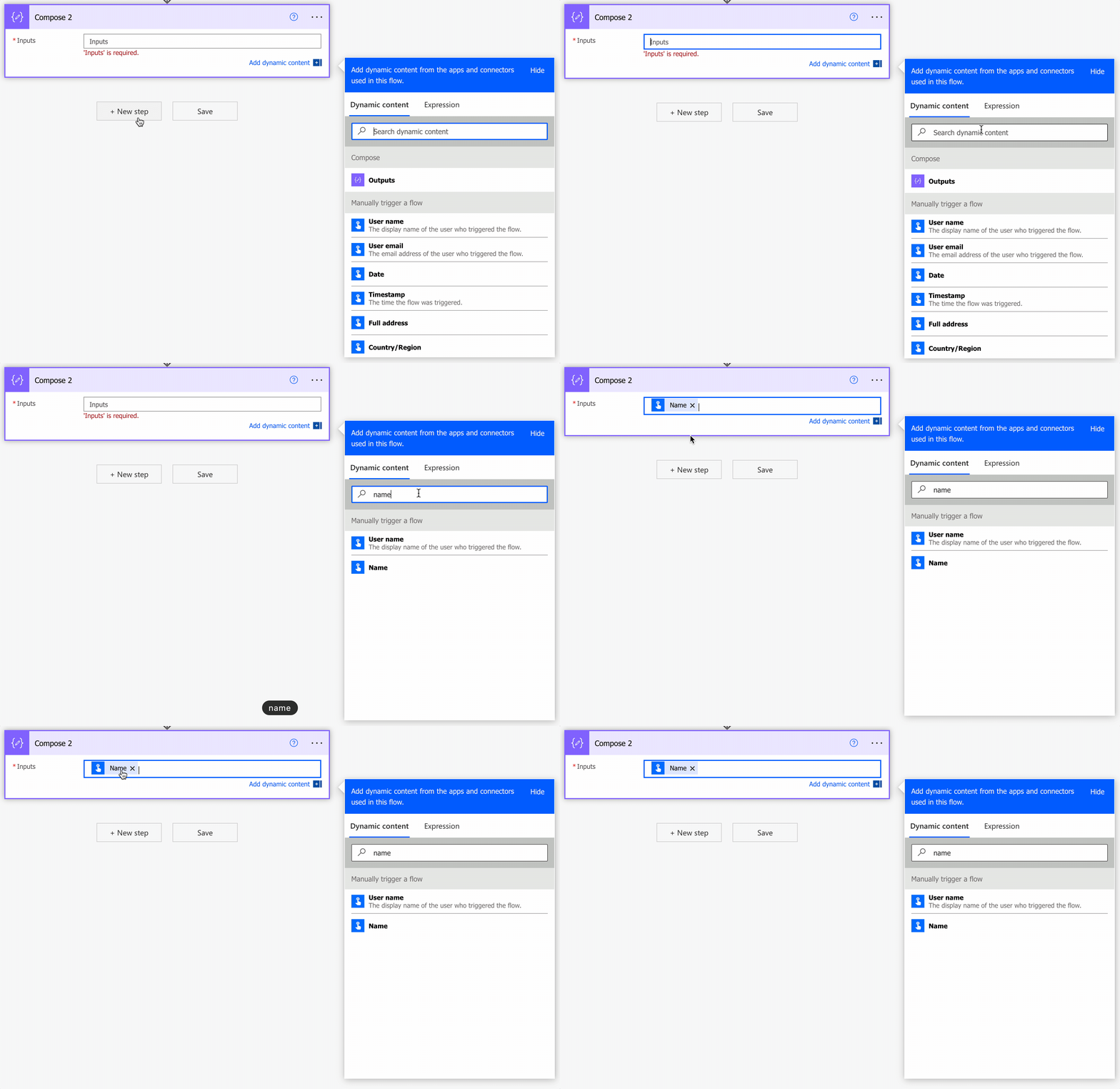
As you can see, when we hover the mouse over it, the value is the same as above:
triggerBody()['text']
Notice that the designer writes the plain brackets without the question mark. It's building the expression for you, so it assumes the value will be there. If that field can ever arrive empty, add the question mark yourself and make it triggerBody()?['text'], for the reasons we saw above.
Non-intuitive behaviors
It's a shortcut, not a separate source of data
Microsoft documents "triggerBody" as shorthand for trigger().outputs.body, so it isn't fetching anything the trigger didn't already hand over. That matters when the value you want simply isn't in the body, because no amount of guessing at keys will find it. In that case, step up one level with the "triggerOutputs" or "trigger" functions, which return the trigger's full output instead of only the body.
triggerBody()
trigger().outputs.body
The "When an HTTP request is received" trigger is the clearest example. Its documented output has exactly two properties, headers and body, so "triggerBody" hands you the payload and nothing else. If you need a header, you have to go one level up.
triggerOutputs()?['headers']?['Content-Type']
The "body/" prefix belongs to "triggerOutputs", not "triggerBody"
Connectors flatten their outputs, which means nested values become a single key joined by a slash. That's why Microsoft's own Dataverse examples use keys like body/SdkMessage. That slash is part of the key when you start from "triggerOutputs". Start from "triggerBody" and you're already inside the body, so the prefix has to go.
triggerOutputs()?['body/Title']
triggerBody()?['Title']
Copying a key straight out of the trigger outputs and pasting it after "triggerBody" is one of the easiest ways to get a null back for no obvious reason.
With "split on", you get one item and not the whole payload
If your trigger returns an array and you turn on "split on" (also called debatching), Power Automate creates a separate run for each item in that array. Inside each of those runs, "triggerBody" returns just that one item, not the original payload. Microsoft also points out that once "split on" is in play, you can't directly reference properties that live outside the array. To avoid failures, add the question mark operator to those references so they return null instead of stopping the run.
Expressions written against the full payload will stop resolving the moment you switch debatching on, and they fail at runtime rather than when you save. If you turn it on, walk back through every "triggerBody" expression in the Flow.
Limitations
8,192 characters per expression
Depending on the size of your expression, your expression may return an error, even if it's correct. Please note that the expressions have a max size of 8,192 characters. If you have an expression that is even longer than 1,000 characters, I'd recommend that you break it into smaller, manageable formulas.
Since we don't have any parameters in this function, you'll only run into this limitation in case you're integrating the "triggerBody" function in other expressions.
The evaluated result has its own ceiling
Microsoft documents a second, much larger limit of 131,072 characters on what an expression can evaluate to, and calls it out for the "concat", "base64", and "string" functions.
kidfrostd did a bit of experimentation and couldn't reproduce this limit. I'm tracking the findings in the community discussion.
"triggerBody" on its own will never get you there, but pushing a big trigger body through one of those three can, so it's worth knowing the number exists.
Troubleshooting Common Errors
Unable to process template language expressions. The provided value is of type 'Null'
Cause: The expression reached for a property on something that came back null. That happens when the key isn't in the body, when the trigger fired without a body at all, or when a connector left an optional field out of the payload.
Solution: Add the question mark operator so the missing property returns null instead of stopping the run, and pair it with the "coalesce" function when the rest of the Flow needs a real value to work with.
coalesce(triggerBody()?['text'], '')
ExpressionEvaluationFailed
Cause: Microsoft separates the two moments an expression can break. A mistake in the expression itself is usually caught when you save the Flow and shows up as "InvalidTemplate". An expression that is written correctly but meets data it didn't expect, such as a trigger body without the key you asked for, only fails once the Flow runs, and that one is "ExpressionEvaluationFailed". The null error above is the exception, since it can still carry the "InvalidTemplate" label at runtime.
Solution: Open the failed run, look at the trigger outputs to see what actually arrived, then guard the expression so an empty value has somewhere to go.
if(empty(triggerBody()?['value']), 'default', triggerBody()?['value'])
Recommendations
Here are some things to keep in mind.
Use "debug" compose actions
As I mentioned above, I would keep a "Compose" action at the beginning of the Flow to ensure that I have the values returned at the start. This way, if something goes wrong with the Flow, I can check whether the values I got from the beginning are correct. If they're correct, the problem is inside the Flow. If not, it's in the values the trigger returned.
Pick from the list
As I mentioned before, you're probably always picking the values from the "Dynamic content" list to ensure you're always using the correct value. Please note that you can do this even if you're writing an expression like this:
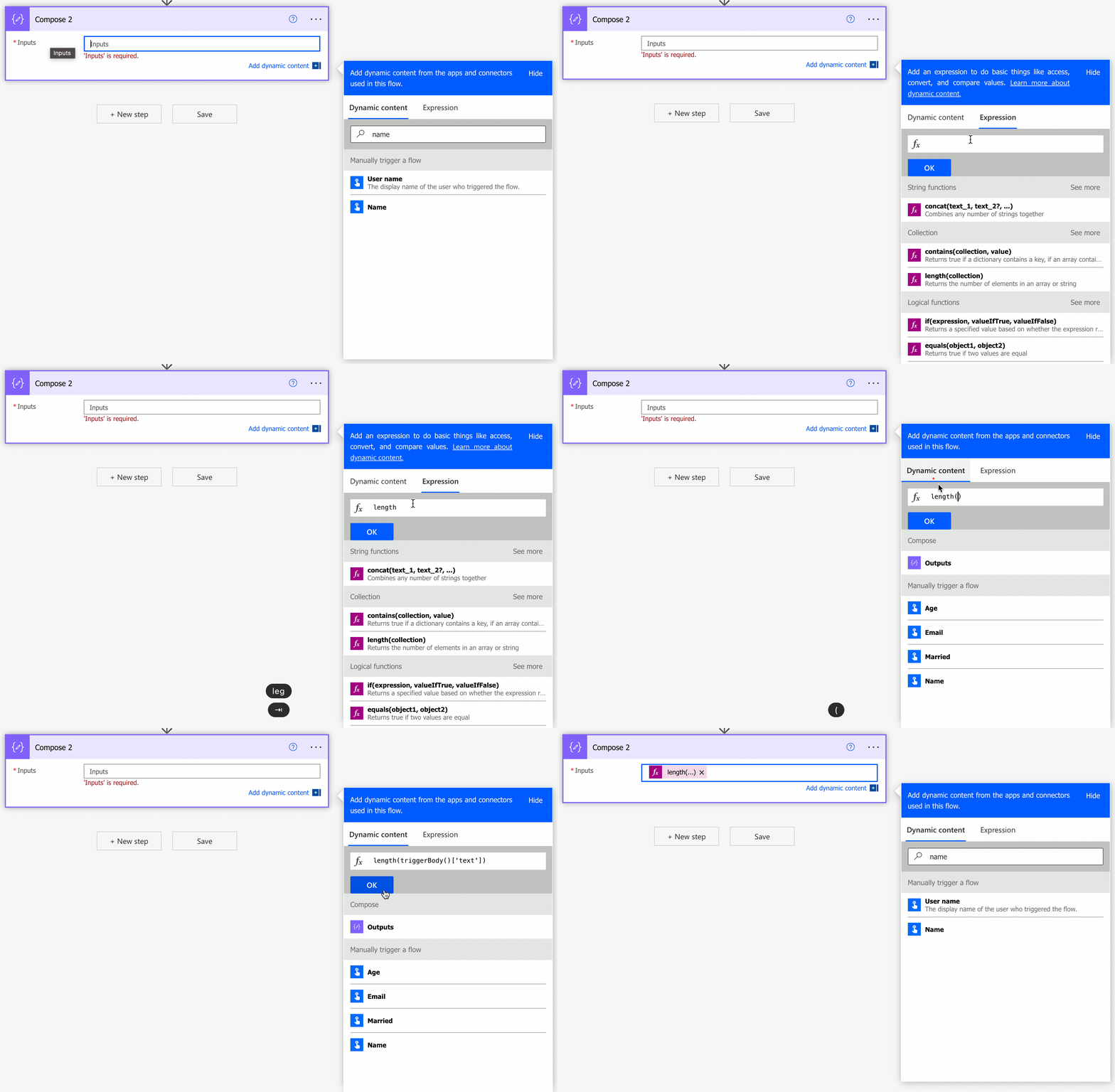
It's the same result and will prevent many mistakes.
Final Thoughts
The "triggerBody" function is one of those small building blocks that you end up using in almost every Flow, often without noticing. Get comfortable with the keys, keep a "Compose" action around while you build, and reaching into your trigger data stops being guesswork.
Sources
- Reference for functions in workflow expressions, Azure Logic Apps and Power Automate
- Workflow Definition Language schema reference, for the question mark (null ignore) operator
- Workflow triggers and actions, for "split on" debatching
- Limits of automated, scheduled, and instant flows
- Cloud flow error code reference
- Getting errors with null fields
- Receive and respond to inbound HTTPS calls
- Trigger flows when a row is added, modified, or deleted
- Power Automate expression cookbook
Back to the Power Automate Function Reference
Photo by MIOPS Trigger on Unsplash



Hey, read through this article today and noticed it was first published in 2022.
Are there any relevant examples of what the 131,072 character limitation really means, or how it's really triggered? I've done some pretty extensive work in Power Automate now, and I've never hit this threshold, even though I've evaluated strings that were ~990K characters (using string(), and concat()) and it never failed with this limit. The first time I can find this number being reported as a problem was back in 2016, and the developer on the thread said it was "fixed and coming on the September update" (back in 2016 still). Their git-pages, nor their blame table within the git-pages, nor their Microsoft Learn pages really satisfy the answer of "How do I trigger this (so I can avoid triggering it)?"
If you're interested - forum post I've logged to try and get an answer to this is here:
https://community.powerplatform.com/forums/thread/details/?threadid=987bd374-0bae-f111-aaac-00224834aaff
Really good overview and experimentation. Indeed the article is old. I tried to update it recently but never went through and did the testing like you did. I'll highlight in the article your findings so that other people can benefit from it. I'll also share and comment if I find anything. Please share as well your findings and I'll be happy to feature them here. Good job!