
When we subtract two columns in a list, sooner or later we end up with negative numbers. Sometimes the sign matters, like knowing whether a task was early or late, but other times we only care about the difference itself. That's where the SharePoint ABS function helps us. We give it a number, and it returns the absolute value, which is the same number without the minus sign.
Let's explore how it works.
Where to find it?
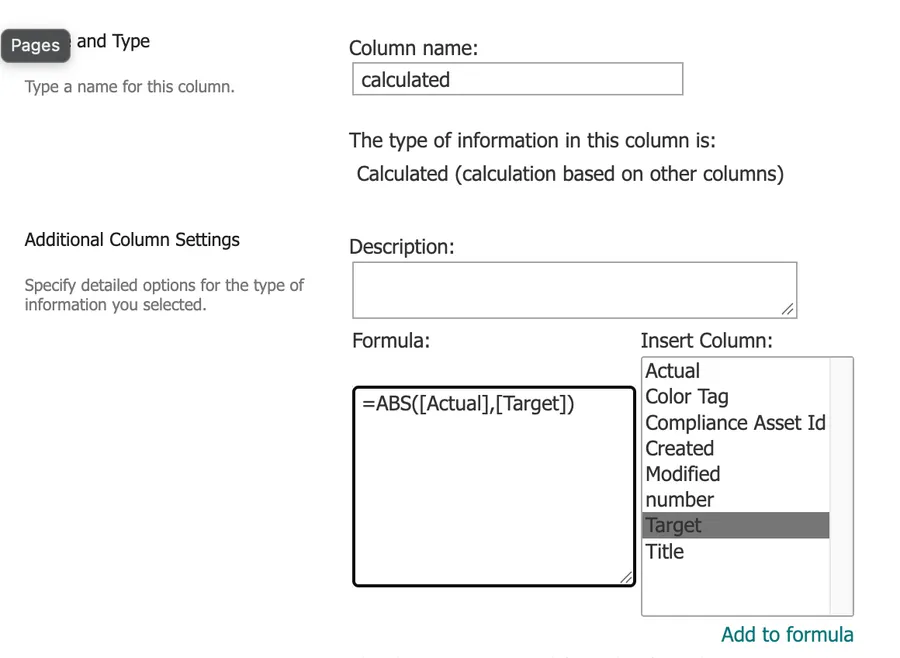
Formulas live in calculated columns. In your list, select the gear icon, then "List settings", then "Create column", and pick the "Calculated (calculation based on other columns)" type. The formula goes in the formula box, and the columns you can reference are listed right next to it. You can also use the same formulas in column validation settings when you want to check data instead of computing it.
The ABS function removes the sign and keeps the decimals. The "INT" function keeps the sign and removes the decimals by rounding down. =ABS(-2.7) returns 2.7, while =INT(-2.7) returns -3.
Usage
It follows a simple pattern.
- Number or column name
Let's start with a simple example referencing another column:
Number
-4

=ABS([Variance])

will return

4
So far, so good. What if we pass in a positive number? It comes back unchanged:
=ABS(2)

will return

2
How about currency columns? It works the same way, which is handy when a column mixes charges and refunds:
Currency
-€ 250.00

=ABS([Amount])

will return

250
If the calculated column is set to return Currency instead of Number, it will also keep the currency symbol.
Now let's try dates. SharePoint, just like Excel, stores dates internally as numbers, so subtracting two date columns gives us the number of days between them. If the earlier date comes first, we get a negative number, and the ABS function fixes that for us:
Date
DueDate: 11th of June 2026
CompletedDate: 15th of June 2026

=ABS([DueDate]-[CompletedDate])

will return

4
Without the ABS function, the same subtraction returns -4 because the due date comes before the completion date.
How about text columns? Text that contains a number may also work. Microsoft documents this conversion for Excel, where =ABS("-4") returns 4. Anything that can't be read as a number shows "#VALUE!" in the row.
The automatic text-to-number conversion is documented by Microsoft for Excel. SharePoint calculated columns usually follow Excel's conversion rules, but test it with your regional settings before relying on it, since decimal separators change how text is parsed.
Real-world examples
Days off schedule, regardless of direction
Joana tracks deliveries and wants a column showing how many days each delivery missed the planned date, whether it arrived early or late:
=ABS([DeliveryDate]-[PlannedDate])

will return

3 whether the delivery was three days early or three days late
This is also a nice alternative to the "DATEDIF" function when we just want to count days. The "DATEDIF" function returns "#NUM!" if the first date is after the second one, while subtracting the dates inside the ABS function works regardless of the order.
Deviation from a target
Manuel runs quality checks where each measurement should stay within 5 units of the target. Combining the ABS function with the "IF" function flags the bad rows:
=IF(ABS([Measured]-[Target])<=5,"Within tolerance","Out of tolerance")

will return

"Within tolerance" if the measurement is 103 and the target is 100
Whether the measurement is above or below the target, the ABS function treats both differences the same way.
Percentage change
This is the example Microsoft uses in its own documentation for lists. To get the percentage change between two numbers, divide the difference by the absolute value of the starting number:
Number
Column1: 2342
Column2: 2500

=([Column2]-[Column1])/ABS([Column1])

will return

0.06746, displayed as 6.75% if the column is set to show percentages
Using the ABS function in the denominator keeps the direction of the change correct even when the starting number is negative.
Non-intuitive behaviors
Errors pass straight through it
The ABS function doesn't fix a formula that already failed. If the inner expression produces an error, the ABS function returns that same error. In the percentage change formula above, a row where "Column1" is 0 displays "#DIV/0!", and wrapping the whole thing in the ABS function changes nothing. Handle the error itself with the "IF" function and the "ISERROR" function instead.
It doesn't round anything
The absolute value of -2.7 is 2.7, not 3. If you want a whole number as well as a positive one, combine it with the "ROUND" function or the "INT" function, for example =ROUND(ABS([Variance]),0).
Date subtractions can include fractions of a day
When your columns are "Date and Time" rather than date only, the subtraction includes the time portion, so =ABS([DueDate]-[CompletedDate]) can return something like 3.5 for three and a half days. Wrap it in the "INT" or "ROUND" function if you want whole days.
Limitations
Single numeric argument only
The ABS function takes a single numeric argument. SharePoint calculated columns don't support cell ranges or arrays, so we always pass a single column reference, a number, or an expression that returns one value.
Unsupported column types
We can't use it on lookup columns, person columns, or choice columns that allow multiple selections. Whole location columns aren't supported either, though individual numeric fields like [Location: Latitude] or [Location: Longitude] work. If you need to calculate values from an unsupported column, use a Power Automate flow to read the data and write the result to a regular Number column.
No [Today] or [Me] references
SharePoint blocks [Today] and [Me] in calculated columns because they are volatile functions, meaning their values change even when nobody edits the item. Because of that, formulas like =ABS([Today]-[DueDate]) won't save. If you need daily comparisons against today's date, filter a list view by [Today] or update a helper column with a scheduled Power Automate flow.
Recalculates only on edit and saves invalid formulas
Calculated columns only recalculate when an item is created or edited, so use a Power Automate flow if values need to refresh on a schedule. Also, SharePoint won't stop you from saving a formula that fails on some rows, and those rows will show #VALUE! or #DIV/0!. Wrap the formula with the "IF" function and "ISERROR" function so invalid rows are handled cleanly.
Troubleshooting Common Errors
"The formula contains a syntax error or is not supported"
Cause: Depending on the regional settings of the site, the argument separator is a semicolon instead of a comma. A misspelled column name causes the same message.
Solution: Replace the commas with semicolons and check that each column name matches the display name exactly, wrapped in brackets.
=IF(ABS([Measured]-[Target])<=5;"Within tolerance";"Out of tolerance")
The column shows "#VALUE!" for some rows
Cause: The argument isn't something SharePoint can read as a number, usually a text column with stray characters or an empty text string ("") returned by another formula. (A blank Number column is treated as 0 and won't trigger this error.)
Solution: Use a real "Number" column as the source instead of text, or fix the rows with the bad values.
The column shows "#DIV/0!" for some rows
Cause: The ABS function is used inside a division, like the percentage change formula, and the denominator is 0 or blank for that row.
Solution: Check the denominator before dividing, for example =IF([Column1]=0,0,([Column2]-[Column1])/ABS([Column1])).
Recommendations
Here are some things to keep in mind.
Decide if you actually need to lose the sign
Keep in mind that the sign actually tells us something useful. A delivery that's three days early is not the same as one that's three days late. Use the ABS function for tolerances and distances, and keep the raw signed value in a second column when the direction matters for sorting and filtering.
Combine it with a rounding function
The ABS function preserves every decimal it receives. For columns that people read, pair it with the "ROUND" function so the result looks clean, and you'll also avoid long decimals when subtracting date and time columns.
Always deal with errors
The function often won't stop you from saving a broken formula. It will save fine and then display "#VALUE!" or "#DIV/0!" in the column for the rows with bad data. If you don't catch these, the error cascades into every other column that uses this one in its own formula. Validate the data or handle the error cases explicitly with the "ISERROR" function.
Don't nest it deeply
If the absolute value feeds several other formulas, create one calculated column that returns it and build the others on top. You'll get simpler formulas that are a lot easier to debug when one row shows an unexpected result. You can find all the available functions in SharePoint's List Function Reference.
Final Thoughts
The ABS function is one of the simplest functions we have in SharePoint, and that's what makes it so handy. Whenever we only care about how big a difference is and not whether it's positive or negative, it gets the job done without getting in the way. Pair it with a rounding function and handle error rows, and you're good to go.
Sources
- Microsoft's ABS Function Reference
- Examples of common formulas in lists
- Introduction to SharePoint formulas and functions
Back to the SharePoint List Function Reference
Photo by Daniele Levis Pelusi on Unsplash


No comments yet
Be the first to share your thoughts on this article!