The SharePoint "TIME" function generates a new time from 3 parameters. So far so good.
You give it an hour, a minute, and a second, and it builds a time value you can add to a date, compare, or format into a label. It's the time-side sibling of the "DATE" function, which does the same for years, months, and days.
It may look strange to generate a time without a date, but it's quite useful as you'll see.
First let's check where to find it.
Where to find it?
Formulas live in calculated columns and there are two ways to create them:
- In your list, select the gear icon, then "List settings", then "Create column", and pick the "Calculated (calculation based on other columns)" type.
- In the list view select "Add Column", then "See all column types" (the calculated is not available in the list) and then create the column.
The formula goes in the formula box, and the columns you can reference are listed right next to it.
You can also use the same formulas in column validation settings when you want to check data instead of computing it, and you can build more complex formulas there too.
Here's what it looks like:
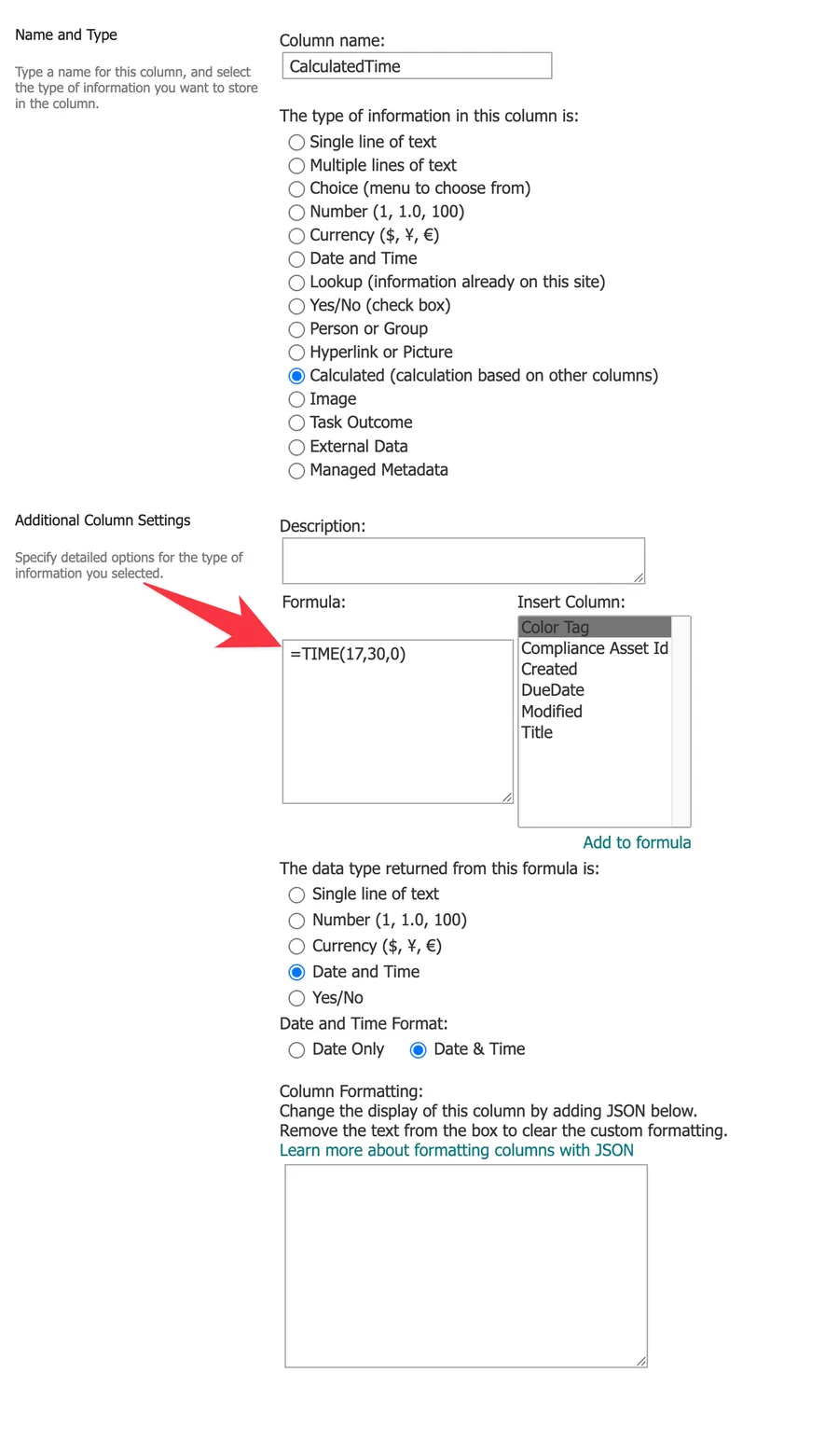
Few things to notice:
- We've selected "Date and Time" as the return type since we want the time to show up
- The format is "Date & Time" for the same reason
The TIME function builds a time from three numbers. The "Hour Function" does the exact opposite, it takes an existing time and extracts the hour from it. The same goes for the "MINUTE" and "SECOND" functions. TIME assembles, the others disassemble.
Here's what it looks like:
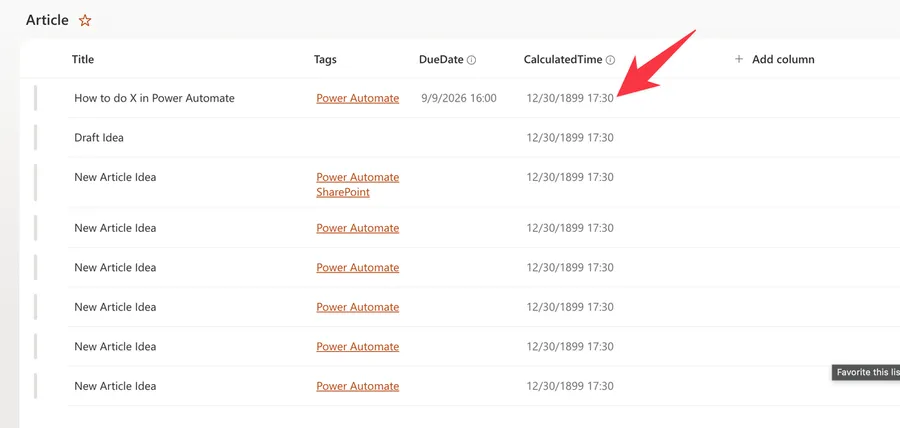
Notice the "ugly" default date. This is because we can't have a "time" column only.
Since we created the time using the function this is the way we have to see it. I'm showing it like this to prove that the time was created correctly, but in 99% of cases you won't have a calculated column with a "generated" time.
You would use the "TIME" function as part of another calculation or more complex formula.
Usage
It follows a simple pattern with three required arguments.
- Hour
- Minute
- Second
| Parameter | Required | Type | Description |
|---|---|---|---|
| hour | Yes | Number | The hour, documented as 0 to 32767. Any value above 23 is divided by 24 and the remainder becomes the hour. |
| minute | Yes | Number | The minutes, documented as 0 to 32767. Any value above 59 is converted into hours and minutes. |
| second | Yes | Number | The seconds, documented as 0 to 32767. Any value above 59 is converted into hours, minutes, and seconds. |
Here's the basic shape with literal numbers:
=TIME(16,48,10)

will return

0.7001157, the internal value for 4:48:10 PM
That decimal looks odd until you remember how SharePoint stores dates. Like Excel, it keeps dates as serial numbers, where the whole part is the day and the part after the decimal point is the time. Noon is 0.5 because it's half a day, so =TIME(12,0,0) returns exactly 0.5. I go into detail about serial numbers in the "Now Function" and "Today Function" articles, and if you ever need to decode one of these values outside SharePoint, I have an article on converting Excel numbers to dates, down to the second, with Power Automate.
The arguments usually come from Number columns:
Number
8 and 30

=TIME([StartHour],[StartMinute],0)

will return

0.3541667, the internal value for 8:30 AM
A "Single line of text" column works too, as long as the text reads as a number. SharePoint converts it before the function runs, so a text column holding "8" behaves exactly like a Number column holding 8:
String
"8" and "30"

=TIME([StartHour],[StartMinute],0)

will return

0.3541667, the same value as the Number columns above
The most useful pattern is adding the result to a Date column. A date-only column stores midnight internally, so the addition lands exactly on the time you built:
Date
11th of June 2026

=[DeliveryDate]+TIME(17,30,0)

will return

the 11th of June 2026 at 5:30 PM
Microsoft notes that when you manipulate dates, the return type of the calculated column must be set to "Date and Time", so pick that return type for formulas like this one.
And when you want the time as a clean label instead, wrap it in the "TEXT" function with a "Single line of text" return type:
=TEXT(TIME(16,48,10),"h:mm:ss")

will return

"16:48:10"
Real-world examples
Add a deadline time to a date-only column
Maria Silva tracks orders in a list with a date-only "DueDate" column, but everything is actually due at 5 PM. A calculated column with the return type "Date and Time" makes the deadline explicit:
=[DueDate]+TIME(17,0,0)

will return

the due date at 5:00 PM
So consider this as a quick way to add a due date to a "date only" field.
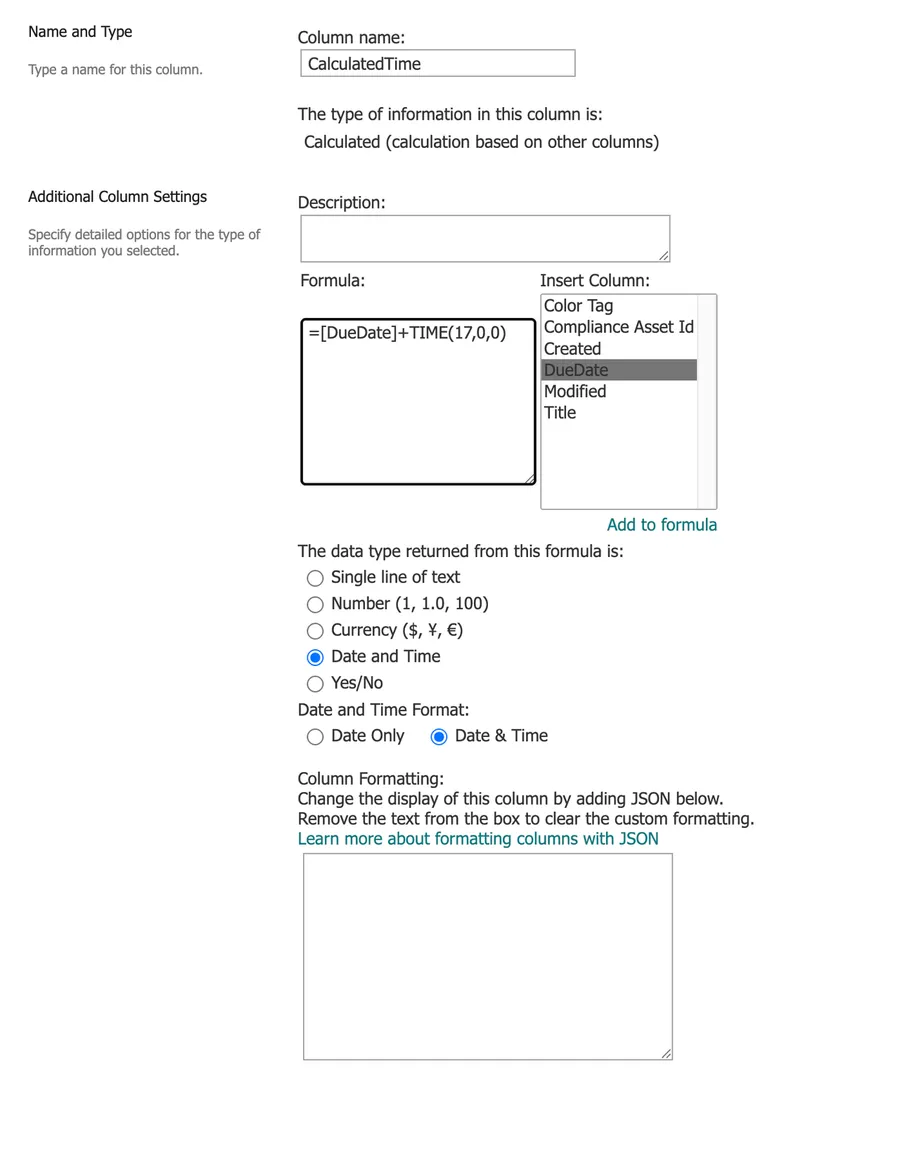
Here's the result:

Add hours to a date that already has a time
The example above shows us the time 17 or 5pm because we added the time to a date that was starting at midnight (the default).
But if we did the same for a date that already had a time, then it would add those hours, minutes and seconds to that date.

This is a feature not a bug and it's quite useful, but also quite dangerous, so be careful.
Build a time label for grouping
To group a view by the meeting time regardless of the day, create a calculated column with the return type "Single line of text":
=TEXT(TIME([MeetingHour],[MeetingMinute],0),"hh:mm")

will return

"08:30"
The fixed two-digit format keeps the labels sorting correctly in the view.
Non-intuitive behaviors
It accepts minutes above 59
You can add minutes above 59 and it will still work. It converts the "excess" into hours.
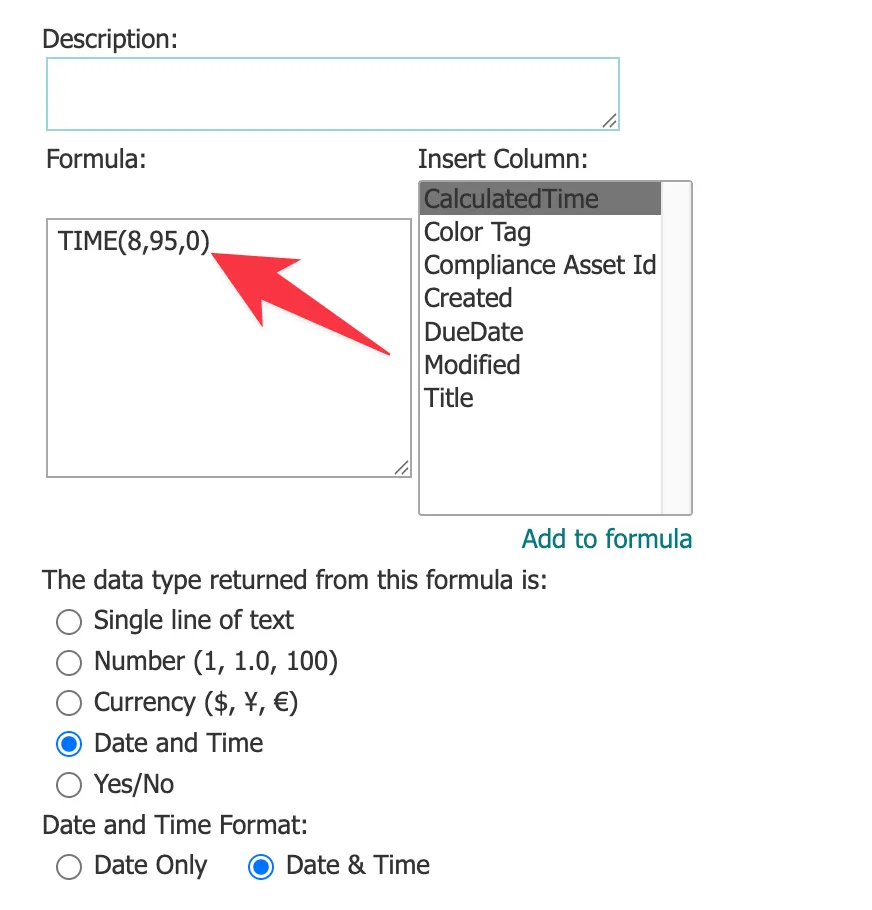
Here's the result:
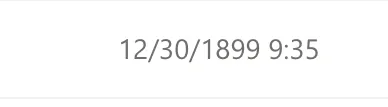
Microsoft documents that same rollover for all three arguments, so =TIME(0,750,0) returns 12:30 PM, because 750 minutes is twelve and a half hours, and =TIME(27,0,0) returns 3:00 AM, because 27 divided by 24 leaves 3.
Again, this is a feature not a bug, but it's more dangerous than useful, so I would not use it like this to do conversions.
It never adds a day
Any hour value above 23 is divided by 24 and only the remainder survives, so the day part is thrown away. =[DueDate]+TIME(26,0,0) adds 2 hours, not 26.
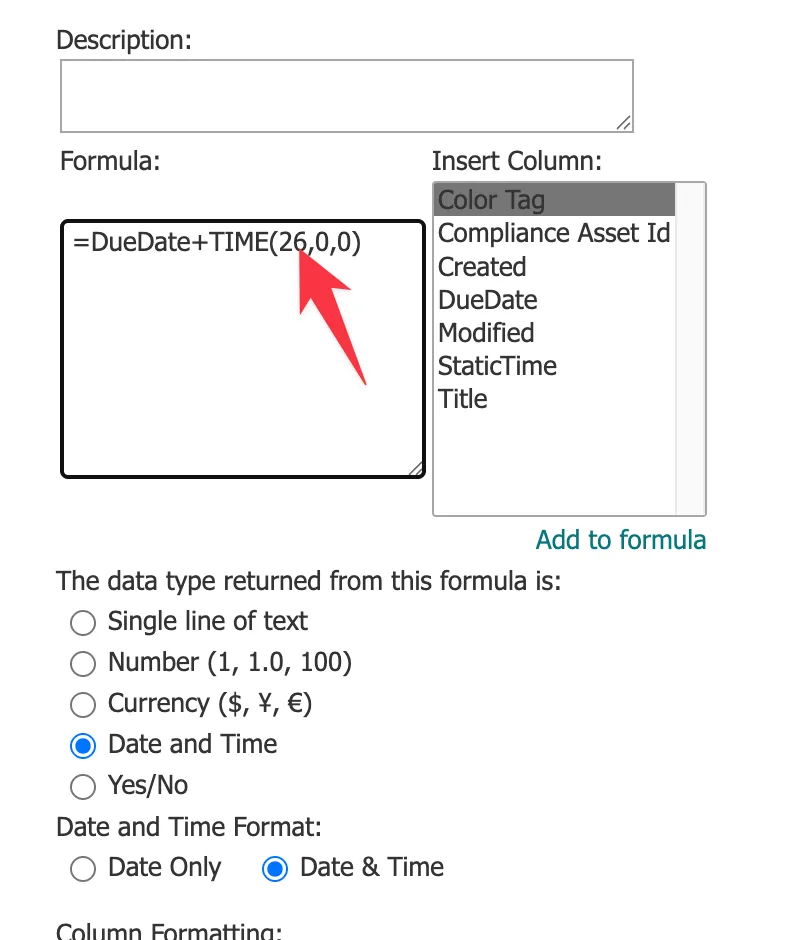
Here's what you'll get:
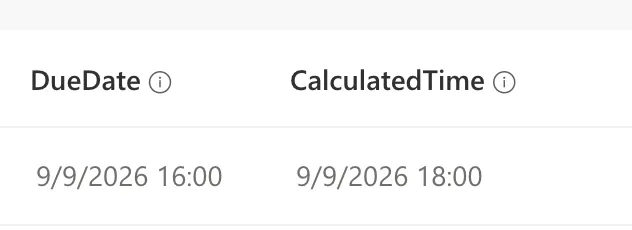
If your durations can cross the 24-hour mark, skip the TIME function and use plain day math instead, like =[DueDate]+([Hours]/24), which carries into the next day correctly.
One more reason not to use numbers above 23 for the hours and 59 for the minutes. The minutes roll up into hours, but the hours wrap at 24 and throw the day away.
The raw result is just a number
On its own, the TIME function returns a fraction of a day, not something SharePoint displays as a clock. With a "Single line of text" or "Number" return type you'll see 0.7001157 instead of 4:48:10 PM. Either anchor it to a date column, as in the examples above, or format it with the "TEXT" function.
The bare result sits between 0 and 0.99988426, which is below serial number 1, the first date SharePoint can represent. In Excel this displays as a time on a phantom day zero, but SharePoint calculated columns with a "Date and Time" return type may show an error instead. Anchor the result to a real date column and you sidestep the question entirely.
The clock time depends on the site's timezone
SharePoint stores every date and time value in UTC, then converts it for display using the site's regional settings, which each user's personal settings can override. A deadline built as =[DueDate]+TIME(17,0,0) reads as 5:00 PM in the site's timezone, so someone in another region can see a different clock time for the same stored value.
Readers also report calculated columns with a "Date and Time" return type showing UTC instead of following the site's regional settings. Microsoft documents the UTC storage and the display conversion but does not cover that case, so check one row on your own site before you trust the displayed time. When a label has to read identically for everyone, build it with the "TEXT" function and a "Single line of text" return type, because text is never converted.
Limitations
Arguments outside the documented range
Microsoft documents each of the three arguments as a number from 0 to 32767, and that documentation is written for Excel. A negative argument won't stop you from saving the formula, but the column displays "#NUM!" in the rows where it happens. A value the formula can't read as a number, such as text, displays "#VALUE!" instead. Guard the source columns with the "IF Function" so a value that can go negative gets replaced with zero before it reaches the function.
The result carries no date
The function returns a time of day and nothing else, so comparisons and additions only make sense against another time-of-day value. When you need a point in time rather than a duration, add the result to a Date column and set the return type to "Date and Time".
Column types it can't read
Microsoft lists the column types a formula can reference: single line of text, number, currency, date and time, choice, yes/no, and calculated. Lookup and person columns are absent from that list, as are choice columns that allow multiple selections, so none of the three arguments can come from one.
The "TODAY" and "ME" functions are not supported inside calculated columns either, though Microsoft notes both do work in a column's default value setting. When the value you need lives in an unsupported column, land it in a supported column type first, such as a Number column filled in by a flow, and point the formula at that column instead.
Troubleshooting Common Errors
The formula contains a syntax error or is not supported
Cause: Depending on the regional settings of the site, the argument separator is a semicolon instead of a comma. A misspelled column name produces the same message.
Solution: Replace the commas with semicolons and check that each column name matches the display name exactly, wrapped in brackets.
=[DueDate]+TIME(17;30;0)
The column shows "#NUM!" for some rows
Cause: One of the arguments went negative, usually after subtracting the columns that feed the function.
Solution: Check the math that produces the arguments and handle the rows where a value can drop below zero.
The column shows 0.71 instead of a time
Cause: The function returned its raw fraction of a day, and the column's return type displays it as a number.
Solution: Add the result to a date column with the "Date and Time" return type, or format it with the "TEXT" function and a "Single line of text" return type.
=TEXT(TIME([StartHour],[StartMinute],0),"hh:mm")
Recommendations
Here are some things to keep in mind.
Never use values above the "normal" hours, minutes and seconds
As we've seen in the examples above, if you add 90 minutes it adds them as extra hours, but if you add 26 hours it doesn't do the same thing. The minutes roll up into hours while the hours wrap at 24 and drop the day, so never lean on this behavior to do conversions.
Anchor it to a date column
The function shines when added to a date. You get a real "Date and Time" value that views can sort and filter, and you avoid the raw decimal showing up in the column. Keep the return type set to "Date and Time" for these formulas.
Format the result before showing it
When the time is meant for human eyes rather than calculations, wrap it in the "TEXT" function with a format like "hh:mm". You get a tidy label, and the raw decimal never reaches the column.
Use day math for long durations
The hour argument wraps around midnight, so anything that can exceed 24 hours belongs in plain arithmetic, like =[StartDate]+([Hours]/24). Reserve the TIME function for genuine times of day.
Always deal with errors
The function often won't stop you from saving a broken formula. It will save fine and then display "#NUM!" or "#VALUE!" in the column for the rows with bad data. If you don't catch these, the error cascades into every other column that uses this one in its own formula. Validate the data or handle the error cases explicitly.
Final Thoughts
The TIME function turns loose hours and minutes into a value SharePoint can actually work with, and paired with a date column it builds precise deadlines and schedules out of plain numbers. Just remember the quirks, overflow rolls over silently and the hours never carry into a new day, and it will serve you well.
Sources
- Microsoft's TIME Function Reference
- Examples of common formulas in lists
- Introduction to SharePoint formulas and functions
Back to the SharePoint List Function Reference
Photo by Immo Wegmann on Unsplash

No comments yet
Be the first to share your thoughts on this article!