
Date math shows up in almost every flow. A task is due three days after it's created, a reminder goes out two hours before a meeting, a document expires one year after approval. The "Add to Time" action is Power Automate's way of doing that math without writing a single expression. You give it a timestamp, a number, and a time unit, and it returns the shifted timestamp.
It belongs to the Date Time group of built-in actions, the ones that run inside the workflow engine itself instead of calling an external service. That has a nice consequence: it's a standard action, not premium, so any license that lets you build flows lets you use it.
Let's take a look at how to use it.
Where to find it?
Search for "Add to time" in the action picker, and you'll find it in the "Date Time" group of built-in actions.
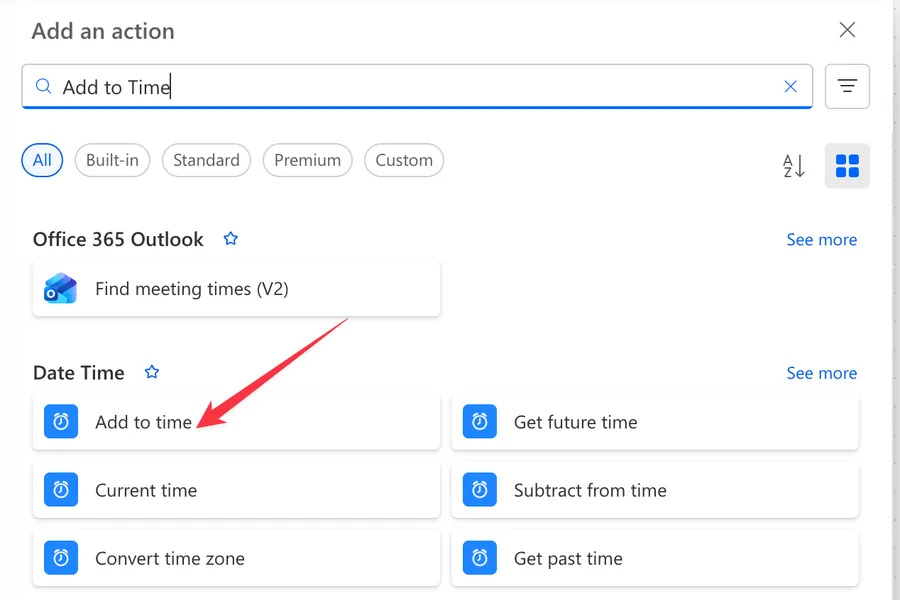
Here's what it looks like.
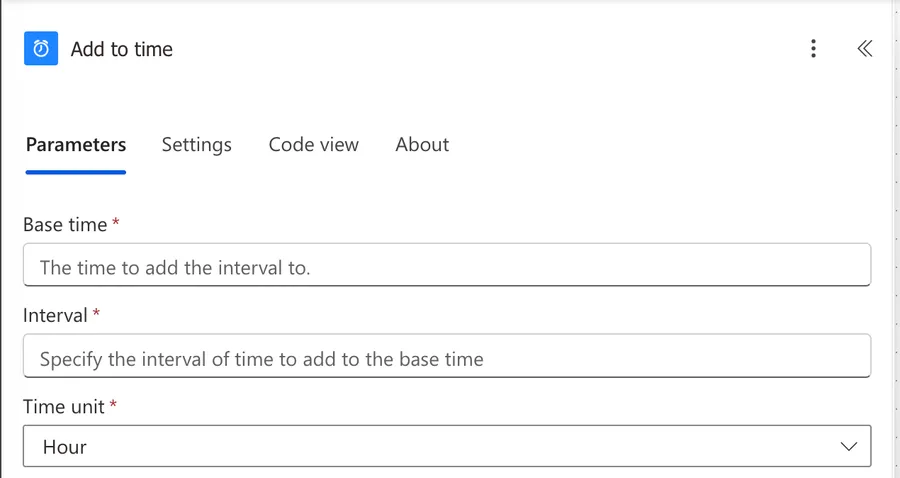
The Date Time group has several lookalikes. "Get Future Time" and "Get Past Time" do the same math but always start from the current time, so they have no base time parameter. "Subtract from Time" is "Add to Time" with the sign flipped. "Get Current Time" just returns the current UTC timestamp. And this is the cloud flows action, not the "Add to datetime" action from Power Automate Desktop, which is a different product with different documentation.
Now that we know how to find it, let's understand how to use it.
Usage
The action takes three parameters, all of them required.
Base time
The timestamp you want to shift. It can be a literal value you type in, dynamic content from a previous step, or an expression like the "utcNow" function. Whatever you provide must be a valid timestamp in ISO 8601 format, for example:
2026-06-12T09:30:00Z
A date without a time, like 2026-06-12, also works and is treated as midnight. Anything that isn't a parseable timestamp makes the action fail at runtime, so be careful with text fields coming from Forms or Excel.
Interval
A whole number of units to add. Here's the first surprise: negative numbers are accepted, and they subtract instead of adding. An interval of -7 with the unit set to "Day" gives you the timestamp one week in the past, which makes the "Subtract from Time" sibling somewhat redundant.
Fractions are not accepted. If you need an hour and a half, ask for 90 minutes instead.
Time unit
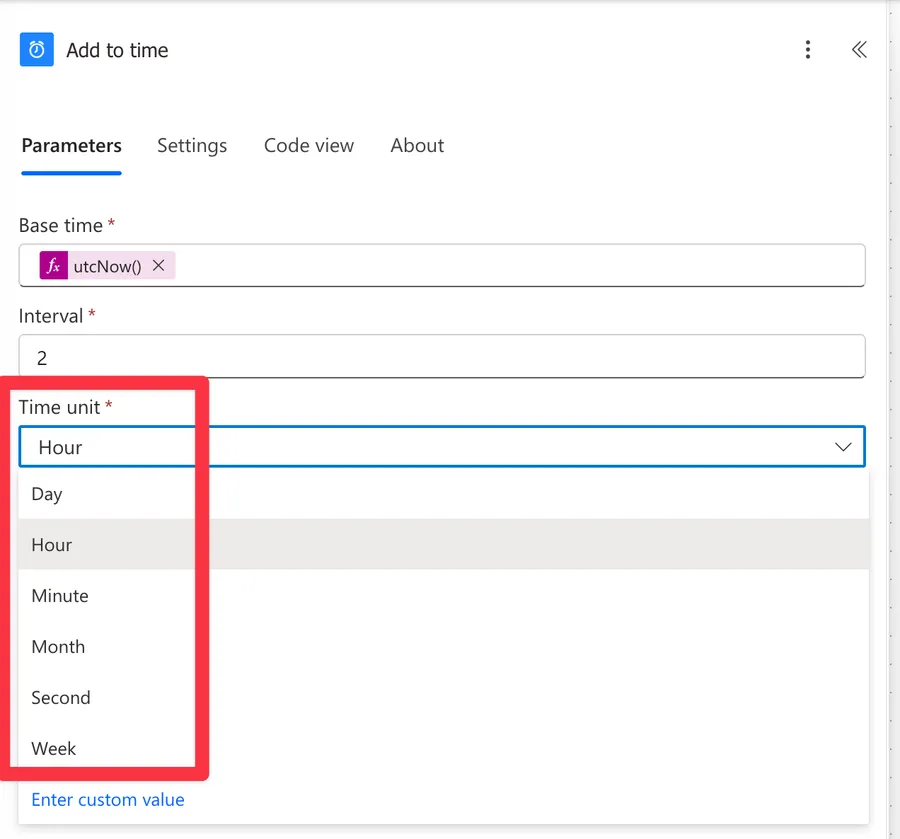
A dropdown with the unit the interval is measured in: Second, Minute, Hour, Day, Week, and Month.
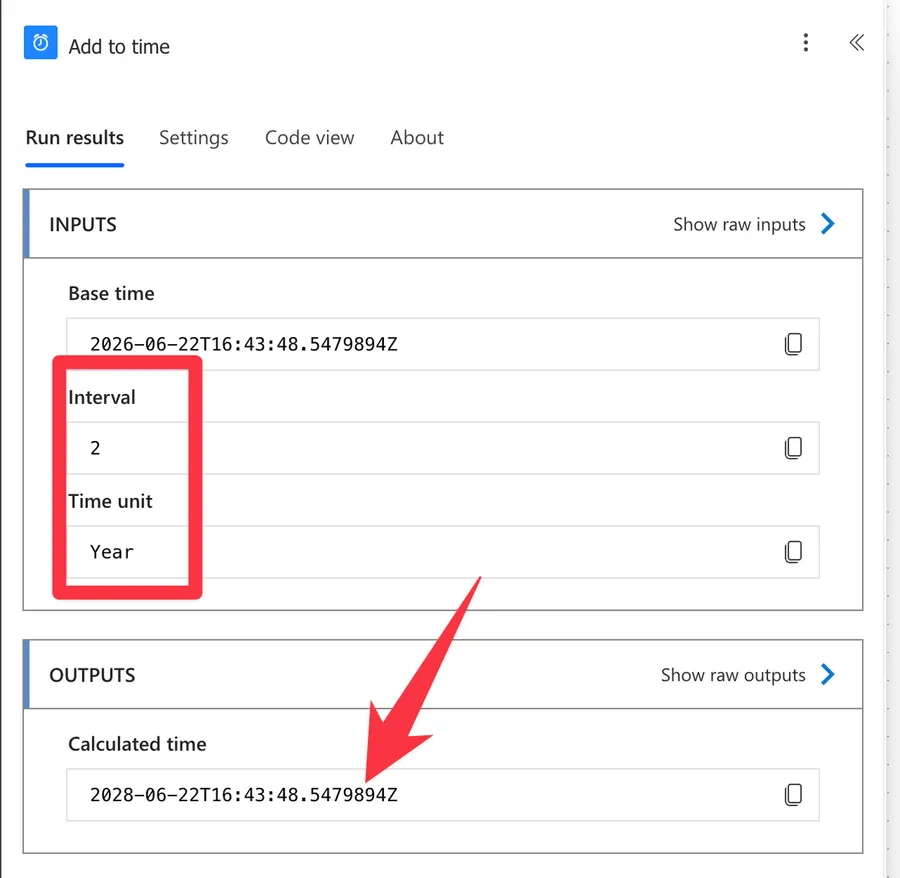
The underlying "addToTime" function accepts "Year" as a unit, but depending on your designer version, the action's dropdown may not show it. If it's missing, use 12 months or switch to the function or add it as a "custom value" and it will work.
At the time of writing this article, here's the dropdown:
But you can "Enter custom value":
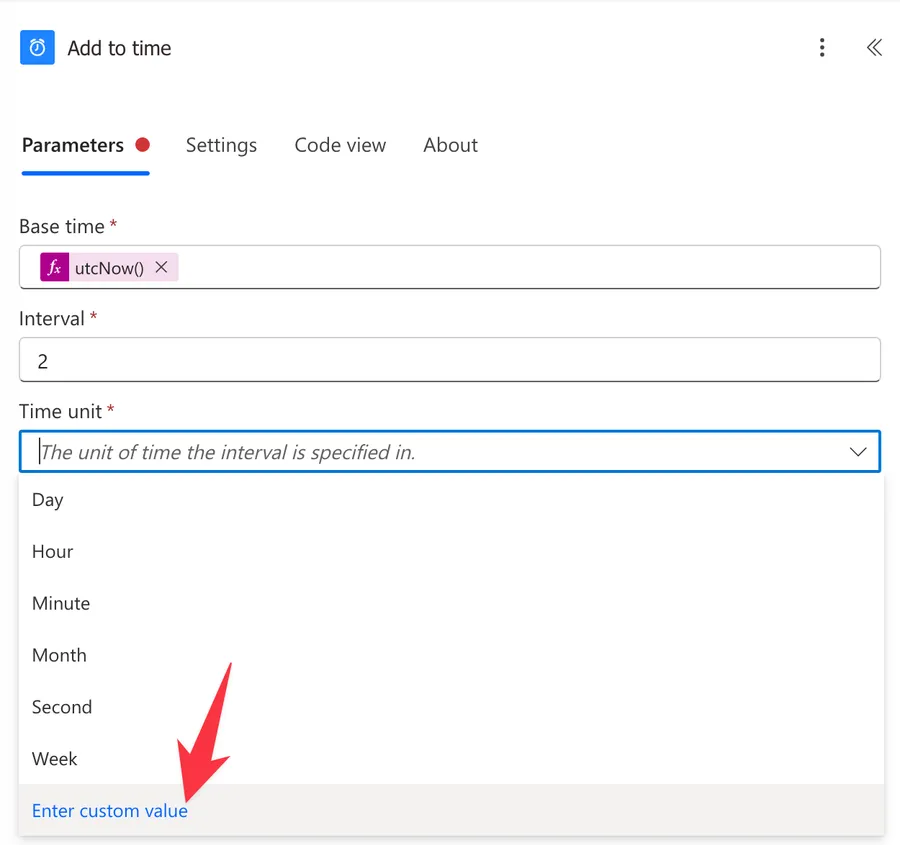
And you'll get:
Settings
There's not much to configure here. The action runs entirely inside the workflow engine, so there's no retry policy, no timeout to worry about, and no connection to authenticate. If the timestamps themselves are sensitive, the settings panel still offers Secure Inputs and Secure Outputs to hide them from the run history.
Using the action's outputs
The action returns a single output.
| Output | Description | Example Value |
|---|---|---|
| Calculated time | The base time with the interval applied, returned as text | 2026-06-22T09:30:00.0000000Z |
You'll find it in the dynamic content picker as "Calculated time". To grab it in an expression, use the "body" function:
body('Add_to_time')
Here's the breakdown:
- The "body" function returns the output of an action.
'Add_to_time'is the action's name, with spaces replaced by underscores. If you renamed the action, use the new name.
The equivalent with the "outputs" function is:
outputs('Add_to_time')?['body']
- The "outputs" function gets everything the action returned.
?['body']safely navigates to the body, where the calculated time lives. The question mark returns null instead of crashing the flow if the property doesn't exist. I explain why you need the question mark operator in detail in another article.
The output comes in the long round-trip format with seven fractional digits. If you need something friendlier, like a date for an email, pass it through the "formatDateTime" function:
formatDateTime(body('Add_to_time'), 'yyyy-MM-dd')
- The "body" function fetches the calculated time.
'yyyy-MM-dd'is the format string, so you get only the date part, like2026-06-22.
Non-intuitive behaviors
It does math, not time zone conversion
The action keeps whatever offset the base time carries, and Power Automate works in UTC by default. Adding two hours to a UTC timestamp gives you a UTC result, not your local time. If you want the result in your time zone, chain it with the "Convert Time Zone" action. On the same note, the math is pure arithmetic, so adding 1 day means adding exactly 24 hours. Around a daylight saving change, the local wall clock result can be off by an hour from what you'd expect.
Negative intervals subtract
Worth repeating because it's easy to miss in a review: -3 days quietly turns your "Add to Time" into a subtraction. It's a feature, but if a colleague reads the flow quickly, the action name says "add" while the configuration subtracts. A comment helps here.
Month math clamps to the end of the month
Adding 1 month to January 31 can't land on February 31, so the engine returns the last day of February instead. This is standard .NET date arithmetic, but it surprises people building monthly deadlines. I recommend testing your specific dates if month-end precision matters to your process.
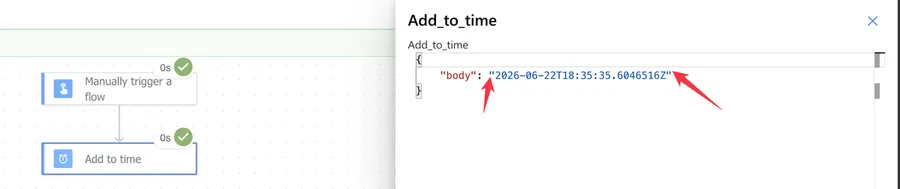
The output is text, not a date
Like everything in Power Automate, the calculated time travels as a string. A "Condition" action comparing two timestamps compares text, which only works reliably when both sides use the exact same format.
Here's an example (notice the quotes wrapping the value, which mark it as text).
For bulletproof comparisons, convert both sides with the "ticks" function and compare the numbers.
Limitations
The base time must be a valid timestamp
There's no leniency here. A blank value, a string like tomorrow, or a regional format like 12/06/2026 9h30 makes the action fail at runtime. Validate or convert your input before it reaches this action.
Whole numbers only
The interval is an integer. For fractional intervals, drop down to a smaller unit, 36 hours instead of 1.5 days.
One operation per action
Each action applies one interval in one unit. If your business rule says "add 1 month and 3 days", you need two actions chained together, or a single expression nesting the "addToTime" function with the "addDays" function.
Troubleshooting Common Errors
The datetime string must match ISO 8601 format
Symptom: The action fails with a template language error saying the value provided for the date time string was not valid and must match ISO 8601 format. Cause: The base time isn't a parseable timestamp. Common culprits are empty fields, dates typed in a regional format, and text columns from Excel or Forms. Solution: Trace where the value comes from and fix it at the source, or convert it first. The "formatDateTime" function can reformat many inputs into a proper timestamp.
The result is off by a few hours
Symptom: The calculated time doesn't match your wall clock. Cause: The base time was in UTC, and you expected local time. Solution: Convert with the "Convert Time Zone" action before or after the math, depending on whether your rule is defined in local time.
The condition after the action never matches
Symptom: A comparison against the calculated time always takes the wrong branch. Cause: String comparison between timestamps in different formats. Solution: Wrap both sides in the "ticks" function so you compare numbers instead of text.
Recommendations
Here are some things to keep in mind.
Consider the "addToTime" function for simple cases
Everything this action does fits in one expression with the "addToTime" function, which also accepts an optional format parameter the action doesn't have. So when should you use which? Use the action when you want the calculation visible in the designer and its inputs and result logged in the run history, which makes debugging much easier. Use the function when the result feeds a single field and an extra action would just add clutter. For common units there are also the "addDays", "addHours", "addMinutes", and "addSeconds" functions, which skip the unit parameter entirely.
Name it correctly
"Add to time" tells the reader nothing. Rename it to describe the business rule, for example, "Add to Time, Due date is 3 days after creation". Always build the name so others can understand your use without opening the action and checking the details.
Always add a comment
Adding a comment will also help avoid mistakes. Indicate where the base time comes from and why the interval has that value, especially when it's negative. It's essential to enable faster debugging when something goes wrong.
Always deal with errors
An invalid base time fails this action at runtime, and timestamps from external sources are never as clean as you'd hope. Have your Flow fail graciously and notify someone that something failed. It's horrible to have failing Flows in Power Automate since they may go unnoticed for a while or generate even worse errors. I have a template that you can use to help you make your Flow resistant to issues. You can check all details here.
Final Thoughts
The "Add to Time" action is date math for people who'd rather click than write expressions, and there's no shame in that. It's free, it's visible in the run history, and the negative interval trick covers subtraction too. Just remember the two traps: the base time must be a valid ISO 8601 timestamp, and the result stays in whatever time zone the input was in.
Back to the Power Automate Action Reference.
Photo by stefan moertl on Unsplash



No comments yet
Be the first to share your thoughts on this article!