
Most email automations in Power Automate start with a trigger that fires one email at a time. Sometimes, though, you don't want to wait for the next message. You want to reach into a mailbox right now and pull back a whole batch of emails so you can report on them, archive them, or process them in a loop. That's the job of the "Get emails (V3)" action. It belongs to the Office 365 Outlook connector, it reads a folder through the Microsoft Graph API, and it hands you back an array of email objects that you can iterate over. It's a standard action, so no premium license is required, but it does need a connection to the mailbox you want to read.
It's the plural cousin of the "Get email (V2)" action, which fetches a single message by its ID. If you already know the exact email you want, use that one. If you want a list, "Get emails (V3)" is the action you're after.
Where to find it?
Search for "get emails" in the action picker and pick the "Get emails (V3)" action under the Office 365 Outlook connector.
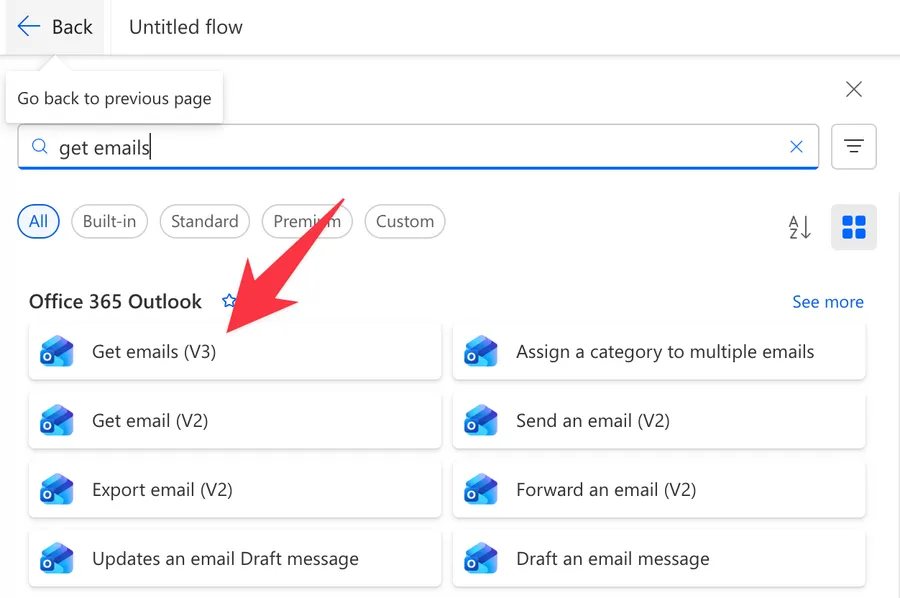
Here's what it looks like once you add it.
The "Get email (V2)" action sounds almost identical but returns a single message by its Message Id. "Get emails (V3)" returns an array. Reaching for the wrong one is the most common mistake here, so check the name carefully before you configure it.
There are a lot of hidden options, so if you need them, press here:
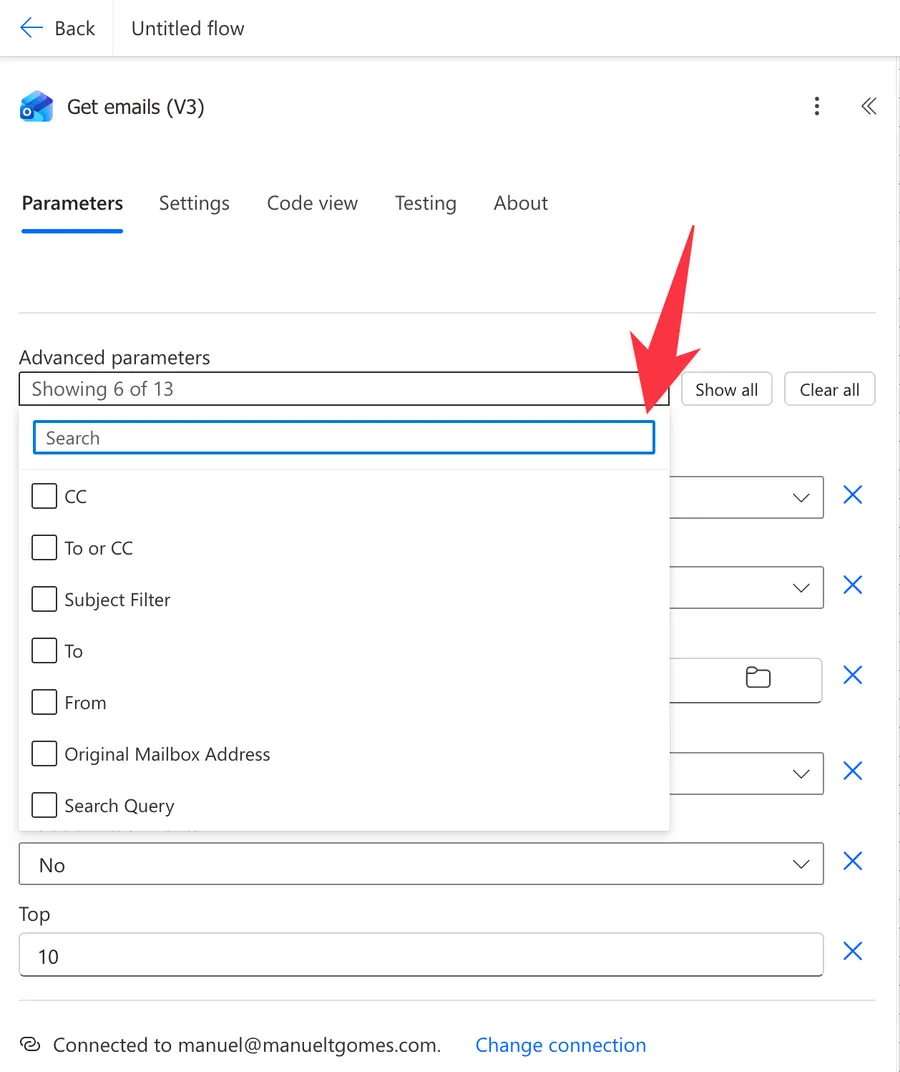
Now that we know how to find it let's understand how to use it.
Usage
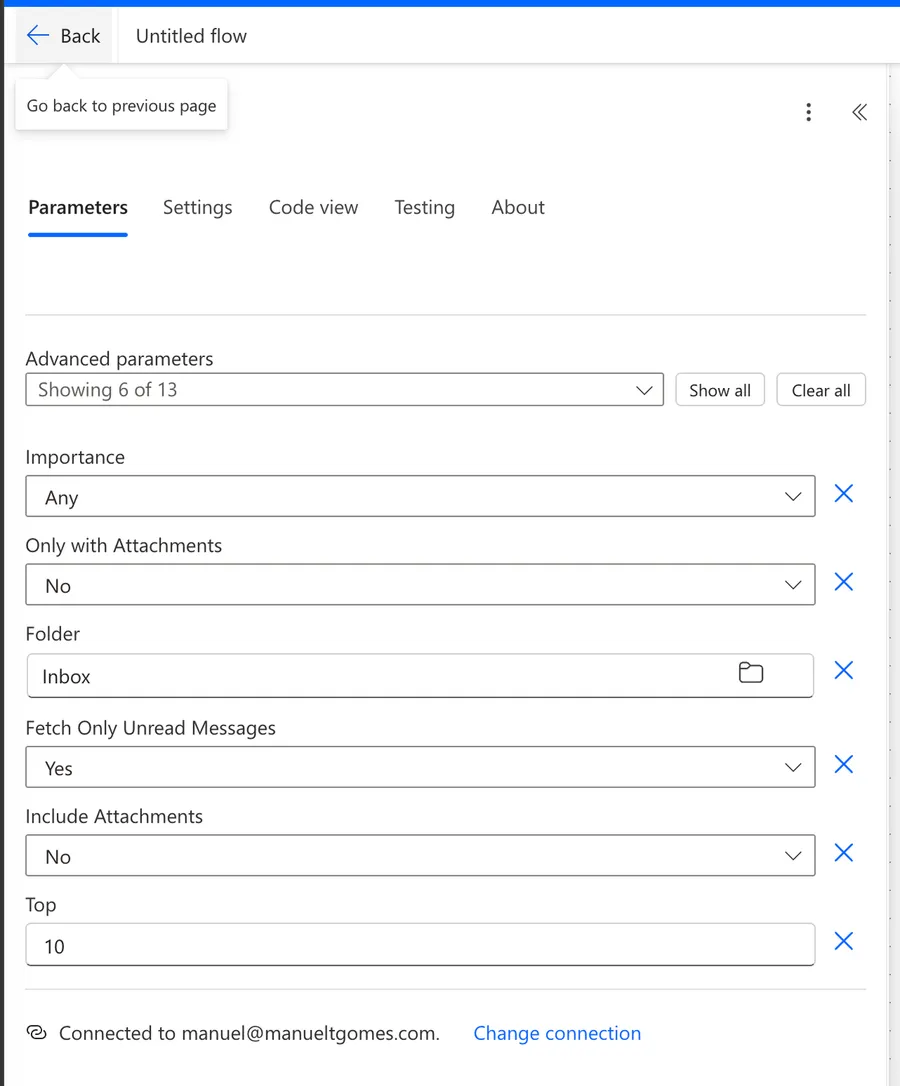
The action works with a single required setting, the folder, and a stack of optional filters hiding under the advanced parameters. You can run it with nothing but the defaults, and it will return the ten most recent emails from your Inbox.
Folder
The mail folder to read from. It defaults to "Inbox", but you can pick any folder in the mailbox, including custom folders you created for sorting. Use the folder picker rather than typing a path, since the connector expects the internal folder identifier.
Filter parameters
These are all optional and all live under the advanced parameters. They narrow down which emails come back:
- To, CC, To or CC, and From: email addresses separated by semicolons. An email is a match if any of the addresses you list appears in that field.
- Importance: one of Any, High, Normal, or Low.
- Only with Attachments: when set to Yes, emails without attachments are skipped.
- Subject Filter: a string to look for in the subject line.
- Fetch Only Unread Messages: when set to Yes, only unread emails come back.
- Original Mailbox Address: the address of a shared mailbox you want to read instead of your own. You need permission on that mailbox for this to work.
Microsoft documents that the To, CC, To or CC, From, Importance, Only with Attachments, and Subject Filter parameters are applied against the first 250 emails in the folder, not the whole folder. If a matching email sits deeper than that, it won't be found. To search the entire folder, use the "Search Query" parameter instead, which runs a Graph $search over the mailbox.
Search Query
A free text search that runs across the whole folder using the Graph $search capability. Unlike the filter fields above, it isn't capped at the first 250 emails, so it's the reliable option when you need to find something in a large mailbox. It matches against common fields like subject, body, and sender.
Top
The number of emails to retrieve. Microsoft documents a default of 10 and a maximum of 1000.
The community widely reports that "Get emails (V3)" often returns far fewer messages than the "Top" value you set, with a practical ceiling frequently cited around 25 to 250 regardless of configuration (for example, this thread on the Power Platform community and Matthew Devaney's write-up). I could not verify the exact ceiling, and it appears to vary by tenant and rollout. If you need to guarantee a large, complete set, treat "Top" as a best-effort hint and read the Limitations section below.
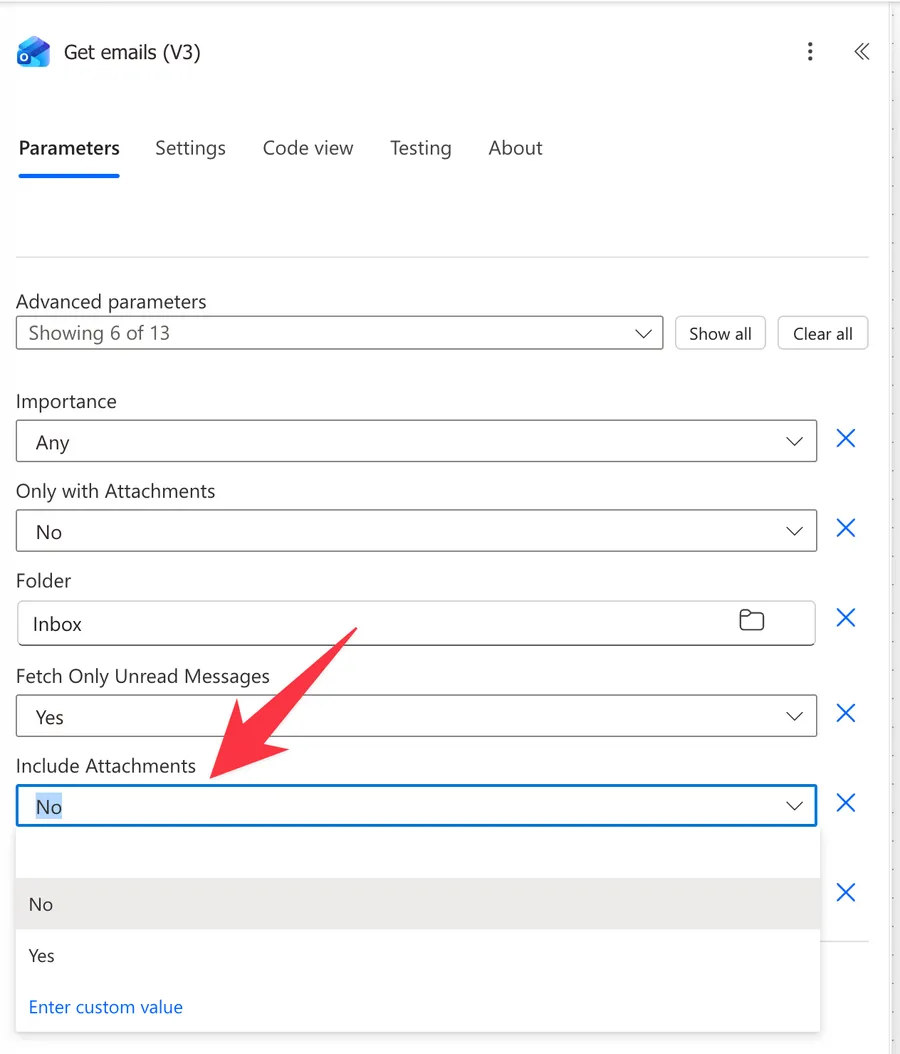
Include Attachments
When set to Yes, the attachment content is downloaded and included with each email. It's off by default because it makes the payload much larger. If you only need to know whether an email has attachments, leave it off and read the HasAttachment flag instead, then fetch the files separately with the "Get Attachment" action when you actually need them.
Using the action's outputs
The action returns a value array, and each element is a full email object. These are the fields you'll reach for most often:
| Output | Description | Example Value |
|---|---|---|
| value | The array of email objects returned | [ {...}, {...} ] |
| Id | The unique message identifier | AAMkAGI2... |
| Subject | The subject line | Quarterly report ready |
| From | The sender address | maria@manueltgomes.com |
| To | The recipients | joao@manueltgomes.com |
| Body | The full message body (HTML or text) | <p>Hi João...</p> |
| Body Preview | A short plain text snippet of the body | Hi João, the report is... |
| Importance | The importance level | Normal |
| Has Attachment | Whether the email has attachments | true |
| Is Read | Whether the email is marked as read | false |
| Received Date Time | When the email arrived (UTC) | 2026-07-15T09:30:00Z |
| Attachments | The attachment array (when Include Attachments is Yes) | [ { "Name": "quarterly-report.xlsx", ... } ] |
Because the result is a collection, you usually feed it straight into an "Apply to each" action and work one email at a time. Inside the loop you read each field with the "item" function:
item()?['subject']
Here's the breakdown:
- The "item" function returns the email object the loop is currently processing.
?['subject']safely navigates to the subject property. The question mark returns null instead of crashing the flow if the property is missing. I explain why you need the question mark operator in a separate article.
If you only care about the newest email, skip the loop and grab the first element with the "first" function:
first(body('Get_emails_(V3)')?['value'])?['subject']
- The "body" function returns the action's output. Note the underscores and the parentheses. Power Automate replaces the spaces in the action name when you reference it in an expression.
?['value']reaches into the array of emails.- The "first" function takes the first element, and
?['subject']reads its subject.
You can also reach the same array with the "outputs" function using outputs('Get_emails_(V3)')?['body/value']. Both the request and the returned emails show up in the run history, so if the mailbox holds sensitive content, turn on Secure Outputs in the action's settings.
Non-intuitive behaviors
The emails live inside a "value" property
The action doesn't hand you a bare array. It returns an object with a value property, and the array of emails sits inside it. When you use the dynamic content picker, Power Automate hides this and adds an "Apply to each" action for you automatically. When you write your own expressions, you have to reach in with ?['value'] yourself, which is a common source of "why is my expression empty" confusion.
Reading emails doesn't mark them as read
Pulling an email with this action, even with "Fetch Only Unread Messages" set to Yes, does not change its read status. The mailbox stays exactly as it was. If your logic depends on not processing the same email twice, you have to mark or move messages yourself, for example with the "Move Email" action, because the action keeps no memory of what it returned last time.
It's an action, so it has no state between runs
Unlike the "When a new email arrives" trigger, which remembers which messages it has already seen, "Get emails (V3)" is stateless. Run it twice a minute apart and you'll get overlapping sets of emails. Deduplicating, marking, or moving processed emails is your responsibility.
Filtering and searching are two different engines
The filter fields (From, Subject Filter, and so on) look at the first 250 emails only, while "Search Query" runs a Graph $search across the whole folder. They can return surprisingly different results for the same intent, so pick one approach deliberately rather than filling in both and hoping.
Limitations
The filter fields only see the first 250 emails
This is the big one, and it's officially documented. To, CC, To or CC, From, Importance, Only with Attachments, and Subject Filter are evaluated against the first 250 emails in the folder. In a busy mailbox, a message that matches your filter but arrived earlier than those 250 simply won't be returned. Use "Search Query" to cover the whole folder.
The returned count is not guaranteed
Even though "Top" documents a maximum of 1000, in practice the action frequently returns fewer emails than requested (see the caveat in the Usage section). If you need to process every email in a large mailbox reliably, the community-recommended path is the "Send an HTTP request" Office 365 Outlook action calling the Microsoft Graph /messages endpoint with $top and $orderby=receivedDateTime desc, which gives you real pagination. For background on why large result sets need special handling, see what pagination is in Power Automate.
Shared mailboxes need permissions
Reading another mailbox through "Original Mailbox Address" only works if the connection's account has the right access to that shared mailbox. Without it, the action fails rather than returning an empty list. I cover a related scenario in moving emails in a shared mailbox.
Attachments inflate the payload
Turning on "Include Attachments" downloads every file inline for every email returned. On a batch with large attachments, that can slow the run and push you toward message size limits. Keep it off unless you genuinely need the file bytes in the same step.
Troubleshooting Common Errors
The action doesn't return all the matching emails
Cause: You're relying on the filter fields (From, Subject Filter, and so on), which only scan the first 250 emails in the folder, so older matches are invisible.
Solution: Move your criteria into the "Search Query" parameter, which searches the entire folder, or narrow the folder itself so the relevant emails sit within the first 250.
My expression returns null or empty
Cause: You're reading the array without going through the value property, or the property name doesn't match. Property access is case-sensitive and ?[] returns null silently instead of failing.
Solution: Reach the array with body('Get_emails_(V3)')?['value'] first, then read fields off each item. Open the run history, expand the action's raw outputs, and copy the property names exactly as they appear.
Forbidden or access denied on a shared mailbox
Cause: The connection account lacks permission on the mailbox set in "Original Mailbox Address".
Solution: Grant the account Full Access (or the appropriate delegate permission) to the shared mailbox, then re-run. Confirm you typed the mailbox address correctly.
The flow slows down or hits throttling
Cause: You're pulling large batches, downloading attachments inline, or calling the action in a tight loop, which runs into the connector's request limits.
Solution: Reduce "Top", leave "Include Attachments" off until you need files, and space out calls. There's more detail in API rate limits and throttling in Power Automate.
Recommendations
Here are some things to keep in mind.
Prefer Search Query for anything that matters
If the result has to be complete and correct, use "Search Query" rather than the filter fields, because it covers the whole folder instead of the first 250 emails. Reserve the individual filter fields for quick, best-effort narrowing on small or well-sorted folders.
Loop with intent
Feeding the output into an "Apply to each" action is the natural next step, but guard it. Check the count first with the "length" function inside a "Condition" action so you skip the loop entirely when nothing came back, and move or flag each processed email so the next run doesn't handle it again.
Name it correctly
The name is super important here since the output is usually one step in a longer chain and often feeds a loop. Always build the name so others understand what it reads without opening the action, for example "Get emails (V3), unread invoices from Finance".
Always add a comment
Adding a comment will also help avoid mistakes. Indicate which folder you're reading, whether you used the filter fields or a search query, and why. It's essential to enable faster debugging when something goes wrong.
Always deal with errors
Have your Flow fail graciously and notify someone that something failed. It's horrible to have failing Flows in Power Automate since they may go unlooked-for a while or generate even worse errors. I have a template that you can use to help you make your Flow resistant to issues. You can check all details here.
Final Thoughts
The "Get emails (V3)" action is the go-to when you need a batch of messages instead of waiting for them one by one. It's simple to start with, since the defaults just return your recent Inbox, but the two things that trip people up are worth remembering. The filter fields only see the first 250 emails, so lean on "Search Query" for anything important, and the returned count is best-effort, so reach for a Graph HTTP call when you truly need everything. Get those two straight and it becomes a dependable first step in reporting, cleanup, and bulk email flows.
Back to the Power Automate Action Reference.
Photo by Laura Olsen on Unsplash



No comments yet
Be the first to share your thoughts on this article!