
Most of the time when you work with email in Power Automate, you're picking the message apart. You take the subject, you take the body, you take the sender, and you rebuild something new out of the pieces. Sometimes, though, you don't want the pieces. You want the whole message, exactly as it arrived, saved somewhere you can open it again later. That's what the "Export email (V2)" action does. It belongs to the Office 365 Outlook connector, you hand it a message identifier, and it hands you back the complete email as a binary EML file. It's a standard action, so no premium license is needed, but it does need a connection to the mailbox holding the message.
Think of it as the archiving action. Everything else in the connector reads fields out of an email. This one photographs the email whole, headers, body, attachments and all, so you can drop it into SharePoint or OneDrive and open it in Outlook months later exactly as the sender wrote it.
Where to find it?
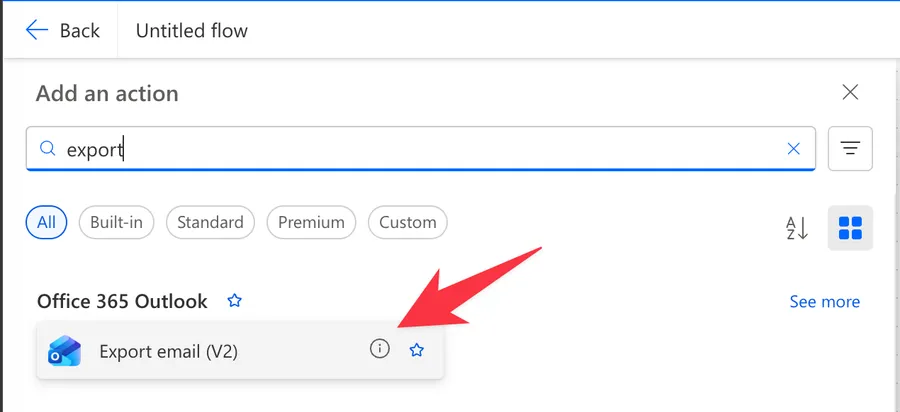
Search for "export email" in the action picker and pick the "Export email (V2)" action under the Office 365 Outlook connector.
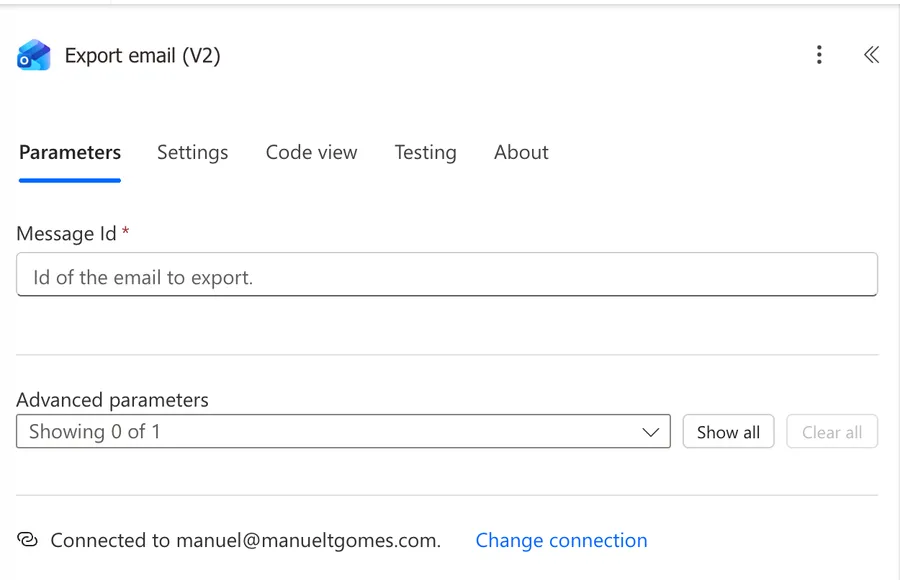
Here's what it looks like once you add it. There isn't much to it, which is part of the appeal.
The connector still lists an "Export email" action without the version suffix. Microsoft has deprecated it and its own documentation points you at "Export email (V2)" instead. The two look nearly identical in the picker, so check for the "(V2)" before you configure anything. The deprecated one has no "Original Mailbox Address" parameter, which is the first thing you'll miss the moment a shared mailbox enters the picture.
Now that we know how to find it let's understand how to use it.
Usage
This is one of the simplest actions in the connector. There's one required field and one optional one, and that's the whole surface area.
Message Id
The identifier of the email you want to export. It's required, and it's almost always dynamic content rather than something you type. Where it comes from depends on how your flow starts:
- From a trigger like the "When a new email arrives" trigger, the "When an email is flagged" trigger, or the "When a new email arrives in a shared mailbox" trigger, pick the "Message Id" from the dynamic content list.
- From the "Get email (V2)" action, use the returned Id.
- From a batch pulled with the "Get emails (V3)" action, read the identifier off the current item with the "item" function inside an "Apply to each" action.
Original Mailbox Address
Optional, and it lives under the advanced parameters. It's the address of a shared mailbox you want to export from instead of the one your connection signs into. If the message lives in a shared mailbox, this field is not a nicety, it's the difference between the action working and the action failing.
If your flow starts from a shared mailbox trigger, the exporting action needs the same mailbox address here. The trigger knows which mailbox it watched, but the action doesn't inherit that knowledge, so you have to tell it again.
Using the action's outputs
The action returns a single thing, and that simplicity catches people out. There's no object to navigate and no array to loop:
| Output | Description | Example Value |
|---|---|---|
| response | The binary content of the exported email, in EML format | Received: from ... (raw MIME content) |
In the dynamic content picker it shows up as "File Content" or as the action's body, depending on where you're standing. In an expression you reach it with the "body" function:
body('Export_email_(V2)')
Here's the breakdown:
- The "body" function returns the action's output, which in this case is the whole EML content rather than a JSON object with fields inside it.
- Note the underscores and the parentheses. Power Automate replaces the spaces in the action name when you reference it in an expression, and the "(V2)" is part of the name.
There's nothing to reach into with ?['something'] here, because there is no something. You take the output whole and feed it to whatever writes the file, typically the "SharePoint Create File" action or the "OneDrive Create file" action. Drop the exporting action's output straight into the File Content field and you're done.
The one place you do need an expression is the file name, because it has to carry the .eml extension. Build it with the "concat" function:
concat(triggerOutputs()?['body/subject'], '.eml')
- The "triggerOutputs" function returns everything the trigger produced.
?['body/subject']safely navigates to the subject. The question mark returns null instead of crashing the flow if the property is missing. I explain why you need the question mark operator in a separate article.- The "concat" function glues the extension on the end.
That expression works right up until someone sends you an email with a colon in the subject. More on that below.
Both the request and the exported message show up in the run history, so if the mailbox holds sensitive content, turn on Secure Outputs in the action's settings.
Non-intuitive behaviors
The attachments are in there, you just can't see them
This is the one that generates the most confusion, and there's plenty of writing online claiming that exported emails lose their attachments. They don't. EML is a MIME format, and attachments are carried inside it as base64. What actually happens is that SharePoint and OneDrive can't render an EML in the browser preview, so you open the saved file, see the message text and no paperclip, and conclude the attachments vanished. Download the file and open it in Outlook and they're all there. If you genuinely need the attachments as separate files sitting next to the email, that's a different job, and the "Get Attachment" action is the action for it.
It's EML, not MSG
The action exports in the EML format. It cannot produce a MSG file, and there's no setting to change that. Outlook opens EML files perfectly well, so for most people this is a non-issue, but if you have a downstream system that insists on MSG, this action won't get you there on its own.
The output is the file, not a description of the file
Every other Outlook action hands you an object full of properties to pick through. This one hands you raw content. If you find yourself writing body('Export_email_(V2)')?['content'] or hunting the dynamic content list for the "real" output hiding inside, stop. What you already have is the entire file. Pass it along untouched.
The Message Id is tied to the folder
An Outlook message identifier is not a permanent name for the email. Move the message to another folder and it gets a new one. If your flow moves an email with the "Move Email" action and then tries to export it using the identifier from the trigger, the export fails with a not-found error, because that identifier stopped meaning anything the moment the message moved. Export first, then move.
Limitations
Shared mailboxes need both the address and the permissions
Setting "Original Mailbox Address" tells the action where to look, but it doesn't grant the account any rights. The connection's account still needs the appropriate access on that mailbox. Miss either half and the action fails rather than returning something empty, which at least makes it obvious. It's a common enough stumble that the community forums are full of it, for example this thread on the Power Platform community. I cover a related scenario in moving emails in a shared mailbox.
Subjects make terrible file names
The action doesn't name the file, so this technically isn't its fault, but it bites everyone who uses it. Email subjects routinely contain characters that file systems refuse, like :, /, \, ?, *, <, >, and |. A subject like "Re: Q3 report 50/50 split" produces a file name that SharePoint rejects outright, and your flow fails on the writing step while the exporting step sits there looking innocent. Clean the subject before you use it.
Big emails are still big
The whole message travels through your flow as a single payload. A thread with a few large attachments produces a correspondingly large EML, and it has to fit within the platform's message size limits. Exporting a handful of emails is fine. Exporting an entire archive of heavy messages in a tight loop is where you'll meet both size limits and connector throttling. There's more detail in API rate limits and throttling in Power Automate.
You can't export what you can't see
The action reads a single message by identifier. It has no way to find messages, filter them, or walk a folder. Finding the right emails is somebody else's job, usually a trigger or a get action, and this one only shows up once you already know exactly which message you mean.
Troubleshooting Common Errors
The action fails with a not-found error
Cause: The identifier doesn't resolve in the mailbox the action is looking at. Either the message lives in a shared mailbox and "Original Mailbox Address" is empty, or the message moved folders after the identifier was captured and the identifier is now stale.
Solution: For a shared mailbox, fill in "Original Mailbox Address" with the exact address and confirm the connection account has access to it. For a moved message, reorder the flow so the export happens before the move, or re-fetch the message to get its current identifier.
The saved file won't open, or opens as gibberish
Cause: The file name is missing the .eml extension, so nothing knows what the file is meant to be.
Solution: Build the name with the extension explicitly using the "concat" function, as shown above. The content is almost certainly fine, the file just isn't telling anyone what it is.
The Create File step fails but the export succeeded
Cause: The file name contains characters the destination won't accept, which came in from the email subject.
Solution: Strip them out with the "replace" function before building the name, or sidestep the problem entirely and name the file from something predictable like the received timestamp. See the recommendation below.
The attachments are missing from the saved email
Cause: Almost certainly nothing. You're looking at a browser preview that can't render EML attachments.
Solution: Download the file and open it in Outlook before concluding anything is lost. If they really are absent, check whether you're exporting the message you think you are, since a reply in the same thread often carries no attachments of its own.
Recommendations
Here are some things to keep in mind.
Name files defensively
Don't feed a raw subject into a file name and hope. Either clean it, chaining the "replace" function over the characters that cause trouble, or build the name from something that can't misbehave, like the received timestamp run through the "formatDateTime" function. A timestamp prefix has the pleasant side effect of sorting your archive chronologically and avoiding collisions when two emails share a subject.
Export before you move
If your flow both archives an email and tidies the mailbox afterwards, put the exporting action first. The identifier you captured at the trigger is only good while the message stays put, and reordering two actions is a lot cheaper than debugging a not-found error later.
Name it correctly
The name is super important here since the output feeds directly into a file-writing step and expressions reference the action by name. Always build the name so others understand what it exports without opening the action, for example "Export email (V2), invoice for archiving".
Always add a comment
Adding a comment will also help avoid mistakes. Indicate where the message identifier comes from and which mailbox you're exporting from, especially when a shared mailbox is involved. It's essential to enable faster debugging when something goes wrong.
Always deal with errors
Have your Flow fail graciously and notify someone that something failed. It's horrible to have failing Flows in Power Automate since they may go unlooked-for a while or generate even worse errors. I have a template that you can use to help you make your Flow resistant to issues. You can check all details here.
Final Thoughts
The "Export email (V2)" action does one thing and does it without fuss. Give it a message identifier and it gives you the whole email as a file you can keep. The action itself will rarely be the thing that breaks. What breaks is everything around it, the identifier that went stale because something moved the message, the shared mailbox that needed its address spelled out, and the file name built from a subject line that had a slash in it. Get those three right and this becomes the quiet, reliable heart of every email archiving flow you'll ever build.
Back to the Power Automate Action Reference.
Photo by Davide Baraldi on Unsplash



No comments yet
Be the first to share your thoughts on this article!