
Adding attachments to an email looks relatively straightforward, but if you want to do it dynamically, it can be tricky to understand how to do it. It's a question that I see all the time showing up in the Power Automate community, and I want to address it here in some detail so that you can understand how it works.
If you want to see an example, I have a template in my cookbook section that you can import and adapt to your needs.
The issue
The main issue here is that you don't know beforehand how many attachments you may have, and, therefore, you need to fill in the attachments dynamically. You cannot map them one by one in the "Send an email (V2)" action.
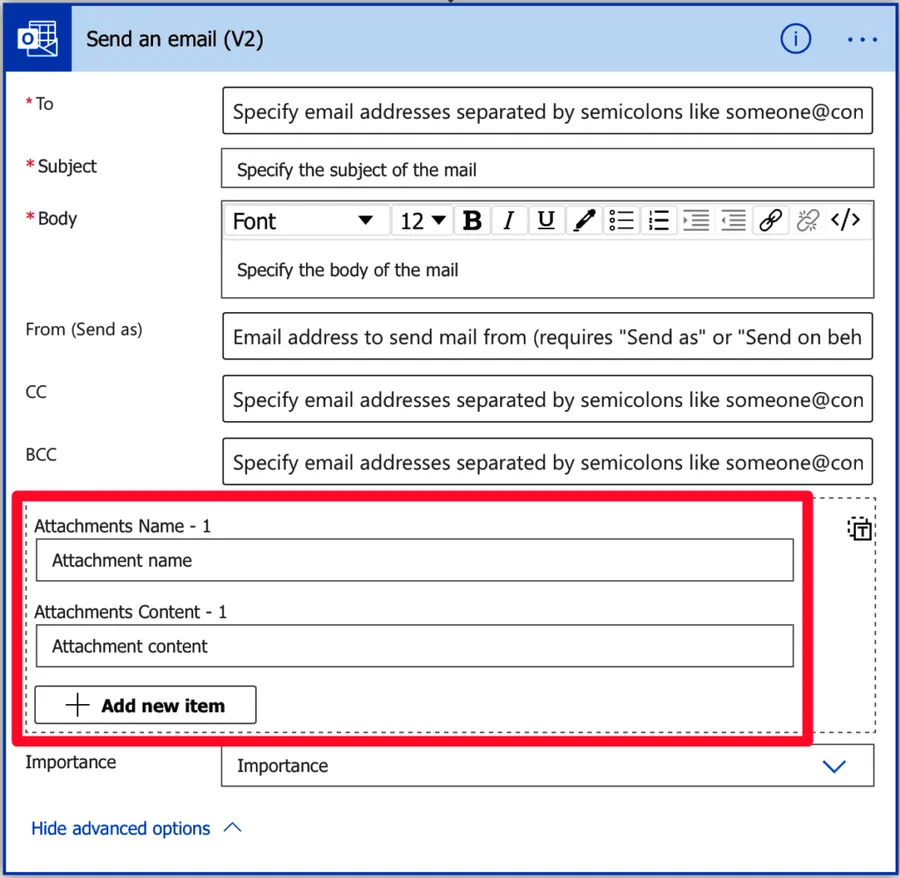
Entering the advanced mode
To achieve this, you need to go into the advanced mode. It can look intimidating since it becomes a text box, so we need to know what we're doing.
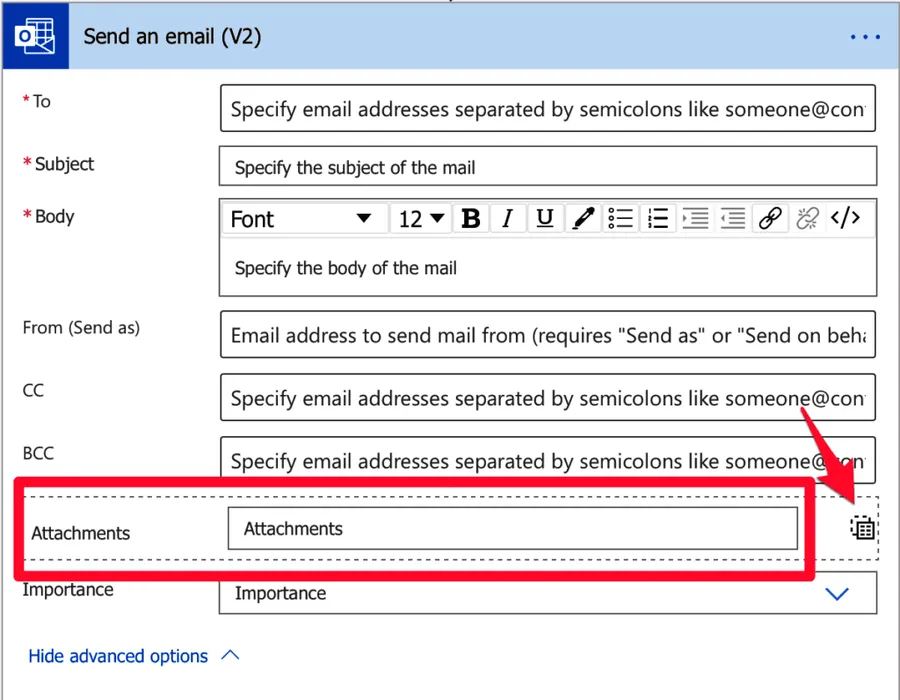
The syntax is straightforward, but when you don't know how to build something, I recommend filling in the primary mode with some data and then switching to the advanced mode. You'll see the structure needed. Something like this:
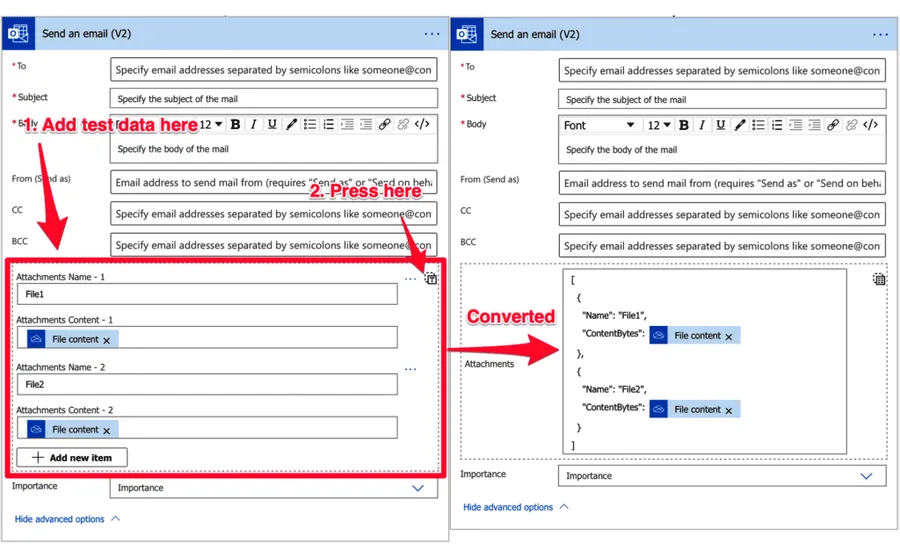
If you're building this in the new designer, the control has a proper name now. It's the "Switch to input entire array" button, and it sits in the upper right corner of the "Attachments" field. It does exactly what the old advanced mode did, so everything below still applies.
The syntax
It may look strange to you, but if you're familiar with JSON, this will make sense.
[
  {
    "Name": "File1",
    "ContentBytes": @{outputs('Get_file_content_using_path')?['body']}
  },
  {
    "Name": "File2",
    "ContentBytes": @{outputs('Get_file_content_using_path')?['body']}
  }
]
Let's break it down.
- The "[" and the "]" indicate that you're defining an array.
- The "{" and "}" indicate a key: value object.
- The key and object say to the "Send an email (V2)" action that you have a field that contains the "Name" of the file and another with the "ContentBytes", which is the actual file.
- Separate each object by a comma to indicate that they are multiple rows in the array.
Two small things tend to trip people up here. The first is the naming. The designer labels the field "Content", but the name the connector expects in the array is "ContentBytes", so that's what we type when we're writing it by hand. The second is that we don't need to convert anything. The connector reference defines that parameter as a byte type, so the output of the "Get file content using path" action goes straight in as it is, with no "base64" function around it.
Sounds OK? So what happens if you want to add the third value? Easy, add another key/object like this:
[
  {
    "Name": "File1",
    "ContentBytes": @{outputs('Get_file_content_using_path')?['body']}
  },
  {
    "Name": "File2",
    "ContentBytes": @{outputs('Get_file_content_using_path')?['body']}
  },
  {
    "Name": "File3",
    "ContentBytes": @{outputs('Get_file_content_using_path')?['body']}
  }
]
The template
Let's say that you query a folder in your OneDrive and want to send all files to a colleague by email. Here's what you can do.
- Define an array variable with the "Initialize variable" action.
- Fetch the files in the folder with the "List files in folder" action.
- Loop over them with the "Apply to each" action, grab each one with the "Get file content using path" action, and append the syntax to the variable with the "Append to array variable" action.
- Use the contents of the variable in the advanced mode.
Here's what it looks like:
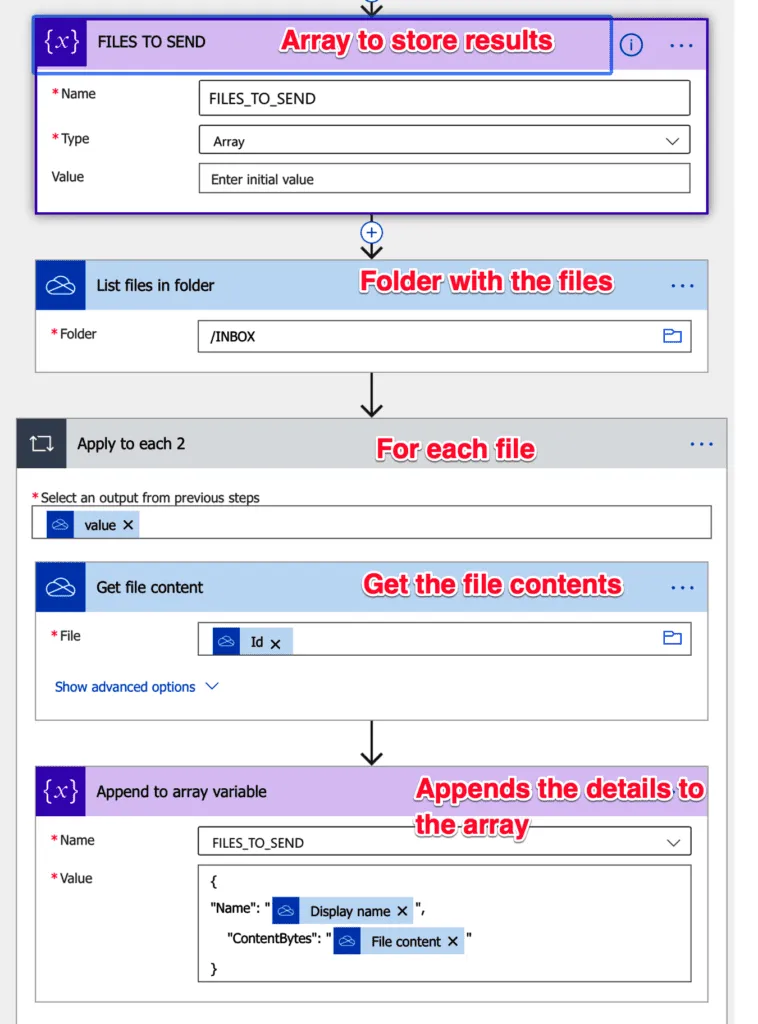
Previously, I converted it to a JSON format before adding it to the "Attachments" part of the action, but it's unnecessary. You can add the array, and the Flow will convert and send the files correctly.
This isn't a workaround I made up, by the way. Microsoft documents the same three steps (initialize an array, append each attachment to it, then reference the array in the action) in the Office 365 Outlook connector reference. They also recommend it when the files arrive at the other end corrupted, which is a nice bonus reason to build it this way.
The only thing we're missing is building the email itself. Here's how to do it:
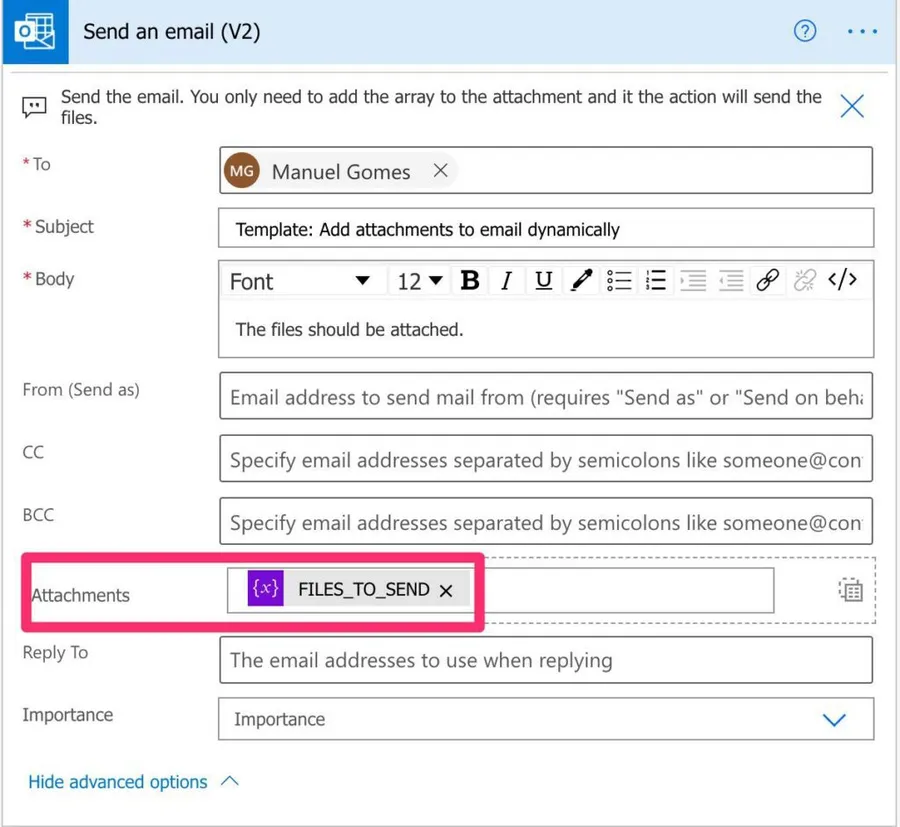
As you can see, we're adding the files dynamically to the "Attachments" section without defining beforehand how many we're sending.
One thing you should be aware of: if you're using your connection to send emails, all of them will be saved in your "Sent" folder since it's you who is sending them. If you don't need them there, I recommend taking a look and deleting them, or building a Flow that does that for you.
Limitations
There are a few hard ceilings worth knowing before you point this at a folder with a hundred files in it.
49 MB of content per email
The connector caps the content of a single mail at 49 MB, and that's the whole payload, not one file. On top of that there are per-connection ceilings of 500 MB of mail content every five minutes for "Send an email" actions, and 2,000 MB every five minutes across all actions. Exchange Online adds its own limit, 35 MB for sending by default, which your administrator can raise up to 150 MB.
250 attachments per message
Exchange Online won't accept more than 250 attachments on a single message, so if the folder you're reading can grow past that, it's worth adding a check before the loop rather than letting the send fail.
300 calls per connection every 60 seconds
The Office 365 Outlook connector allows 300 API calls per connection every 60 seconds. The good news is that each email counts as one call, no matter how many addresses you put in "To", "Cc" and "Bcc".
Item attachments aren't supported
If the things you want to attach are themselves emails or calendar items (.eml, .msg, .ics), the connector won't handle them. The usual way around it is to zip them first and attach the zip.
The connector numbers come from the Office 365 Outlook connector reference, and the message and attachment counts from the Exchange Online limits.
Final Thoughts
It looks complicated, but once you start to understand how things work and that it all boils down to JSON-formatted strings in the background, it becomes simpler to build these advanced cases.
Photo by Thanhy Nguyen on Unsplash



Hi! Thanks a lot!! Very usefull! However it seems not to work when using SharePoint content. The matrix is vell constructed with the contect tested in previous actions, but only corrupted files are attahced. Any idea of what can be happening? Or what I should check?
Best!!
It should be the same thing. it fetches the content from SharePoint and then adds it to the email. are you getting any specific error?
Hi Manuel,
Thanks for this. I would like to enhance this with an excel list containing the different emails to attach different files from different folders.
Sorry i cannot attach any files here.
Would you be able to advise?
Thanks for the tutorial Manuel, I have successfully implemented this to my flow. However, I did run into problems initially. My emailed attachments were not in a valid format. Excel was reporting that they were corrupted.
I was able to solve the problem after examining the log.
In one of your screenshot, titled as "Append the details to the array", has the double quotes around "File Content". The quotations are not needed. Once I removed them in my flow everything worked as expected.
Thank you once again, Manuel, for providing such a helpful tutorial. Your guidance has greatly contributed to the success of my implementation.
Thanks for the tutorial Manuel. I tried implementing this in my flow and got the error message "Unable to read message or attachment content", when I tested the flow. There is a pdf document that I am trying to attach to send an email v2 for new users requesting access to a list I made. Do you have any recommendations for a fix? Thanks
Great article! Thanks for putting the time into works like this....
I have a need to pull attachments off of an email and resend them in a new email. The ContentBytes field seems to provide the file content (I looked at the body of the attachment to confirm the data is a match) but when I attach it via an array, the email's attachment is unviewable. Any thoughts?
Thank you so much for posting this! I've already found it very useful for sending out a specific set of files to one or more individuals.
I tried to extend it so I could send an email out to multiple users at once (using a dynamic variable), but each individual would receive attachments from their own personal folder.
I tried to do this by adding a List Rows action, using an excel table that contained their personal details, email addresses etc. I then tried to use the information extracted by this to create a dynamic 'List Files in Folder' (i.e /Inbox/,) that corresponded to their own folder. I would then send an email, using the same extracted row information to dynamically select the email address (To: ).
My hope was the final outcome is that whoever the email was sent to would have their individual files attached.
So far I have only got Bad Request errors when it tries to List Files in Folder using the dynamic folder name. I haven't even seen manage to test how the email section may fail. Do you think this is at all possible, or have I chosen the wrong approach? Any help would be greatly appreciated
‘List Files in Folder’ (i.e /Inbox/<>,<>)
'To: <>
With <> representing a dynamic variable
Thank you.
Hi
Is there a way to get this flow to work for attachments added to a certain folder but allow up to add the email address per attachment like the input step
Hello manuel.
I used your add attachment email dynamically flow template, however I found an error. With the number of attachments attached on the email. It is also the number of emails I received. The email was duplicating by the number of attachments attached. I used when files created as triggered.
Any thoughts on this?
Appreciate it. Thanks!
Hi Paola,
That's strange. But that's with the imported template? Or you replicate it manually?
Cheers!
Manuel
I'm also having this problem with the imported template (I have not edited it all either).
Manuel,
Similar to a previous comment from Lynn, I too have implemented your template and everything worked, but when the recipient of the email attempts to open the attachments, they receive an error that files cannot be opened. In my particular case, I am sending Microsoft Project files.
Good point. It's not an easy problem but I have to find time to work on it.
After removing the double quotes from around the "file content" in the JSON in the step where we append the files to the array, the files are now able to be opened successfully.
Hi Manuel, when I used your template to add attachments to email dynamically, it works!
However, upon checking my sent email with the multiple attachments, it has some errors.
For example: when I open the PDF file it says "Insufficient data for an image" and certain data in the PDF is blanked out.
and for excel files, the error says that "The file is corrupt & cannot be opened."
Could you help me please?
Thank you
Hi Lynn,
That's indeed strange. The files are being corrupted during the process.
How are you getting the files from another email? There's a bug when you fetch the attachments from an email where the files are curropeed. I explain all in detail:
https://manueltgomes.com/microsoft/powerautomate/save-all-attachments-when-an-email-arrives/
Would you mind letting me know so that we can try to solve this?
Cheers
Manuel
Hi Manuel,
Great sharing on how to add attachment to e-mail dynamically using Power Automate.
Was wondering if you could help me if I want to extract files of various extensions ( eg. PDF & excel) from a Sharepoint Document Library and attach all the files into an email and send them to a customer?
Much appreciated!
Thank you!
Hi Lynn,
Of course. If you want, just email me at manuel@manueltgomes.com with your starting Flow, and I'll try to help you further.
Cheers
Manuel
This is wonderful Manual. Thank you.
I've built, using power automate, an anonymous email tool for our partners so they can email each other without knowing each other's addresses. It all works well except for the passing on each other's attachments. I've now gotten your code working where it sends, as attachments, all files in a folder. That's step two. Now I'm going back to step One which is to put attachments in that folder from a previously sent email.
Trigger on received email
a. Save attachments to a temporary folder.
b. Make a copy to a permanent archive folder
c. Make a log in a spreadsheet: From, To, Attachments Display Names
As I proceed working on step 1 above any thoughts from you (or others) would be appreciated. The temporary folder may be the most difficult part since it needs to be unique just in case there are other emails (runs of the flow) at the same time.
Thoughts?
Thanks again!
Hey!
Thanks a lot, and what a good challenge.
It's feasible, but it will be easier for me to do a template and send it to you. Then you only need to make minor adjustments, and you're good to go.
Sounds good?
Let me work on this, and I'll try to come up with something.
Cheers
Manuel
Hi Paul,
Here’s the template as promised:
https://manueltgomes.com/wp-content/uploads/2021/07/PaulFlow_20210701073840.zip
Notes:
– I left space for you to add your custom email.
– I used OneDrive for this example, but you can use SharePoint document libraries.
– I added a lot of comments so that you can understand what each action does.
– It’s not possible yet to delete folders in Power Automate. I know it’s sad, but I’ll figure out a workaround for OneDrive. I’m making one for SharePoint document libraries, so I’ll have a solution soon if you store your files there.
Can you please check if this is what you need?
Cheers
Manuel
Hi;
<code>Can this be done by parsing an email for URL's, fetching the files (images) the links point to, creating a new email (or same doesn't matter) and adding the files as attachments before emailing them
</code>
I like the idea, but I have to think about it. Parsing text in emails is tricky, as well as fetching stuff from URLs.
Give me a couple of days to try to come up with a template for you :).
Cheers
Manuel
Thank you Manuel. How do I connect the template with the Power Automate program? How does it work?
Hi Ivan,
You have a step-by-step tutorial <a href="https://manueltgomes.com/microsoft/flow-how-to-import-a-flow-template/">here</a> on how to import templates.
Any issues or questions, please let me know.
Cheers
Manuel
Manuel, your tutorial is clear and easy to follow! I tried your steps to send files from One Drive by appending to an array variable but it fails when sending the email "'Attachment Content' cannot be null or empty.". The output for appending is --
{
"Name": "2021-04-30-090412.jpg",
"ContentBytes": null
}
Flow got to the correct jpg file but the file size is 450kb on One Drive. Any ideas?
Hi Yogi Ch
Thanks a lot. I'm glad the articles are helpful.
Regarding your problem, I would check the variable you're using to fill in the "ContentBytes". Also, check if in the Flow History if the file is fetched correctly from OneDrive. You can see this by expanding the OneDrive action and see if you have the information there.
If you have, then it's an issue with associating that to the "Content Bytes". If not, then there's something wrong with fetching the file.
Can you please check if and let me know if you have any questions?
Cheers
Manuel
well, short and simple question here. Can I drop a file in my one drive, at any time and have that file be sent?
I think the answer is yes with this post. But, please advise.
Hi John,
Yes, you can. You can even do it automatically. You can use the "When a file is created" trigger. Fetch it and send it off.
If you have questions about building the Flow, please let me know, and we'll work on a template.
Cheers
Manuel
You know my power automate was having trouble doing this and originally showed an error. I would love to see a template to figure out what I am doing wrong.