
Let's run through a hypothetical. You have a SharePoint list where you want to automate changes. To do that you use the "When an item is created or modified" to trigger Power Automate when something changes in the list. Then in that Flow you edit the status or do another change in the item so that you can save time. So far so good. But notice what happened. You changed the Flow, so it will trigger the "When an item is created or modified" again. And then the Flow updates the list again.
We're generating a loop and this is a huge issue, so let's go into more detail.
The issue
When you use a trigger like "When an item is created or modified", the flow watches the list for any change. The catch is that your own flow usually makes a change too. The moment an "Update item" action writes back a status, a timestamp, or a calculated value, SharePoint records that as a modification. The trigger sees the modification, starts the flow again, the flow updates the item again, and the cycle repeats.

Picture a simple approval flow. An item is created, the flow sets a "Status" column to "In review", and that write counts as a modification. The trigger fires, the flow runs once more, sets the status again, and around it goes. Nothing in the designer warns you, because each individual run is perfectly valid.
The loop only becomes obvious when you open the run history and find dozens of runs stacked seconds apart. Left alone, it burns through your API request limits, can trip throttling, and may get the flow disabled for excessive failures. The same trap exists for the Dataverse "When a row is added, modified or deleted" trigger and for file triggers such as "When a file is created or modified".
Solution
The clean fix is a trigger condition. A trigger condition is a small expression that runs before the flow starts. If it returns true, the flow runs. If it returns false, the run is skipped entirely, so you never pay for it. You set it in the trigger's Settings, under Trigger Conditions, and the mechanics are covered in "How to limit the Flow's trigger?". This is better than dropping a Condition inside the flow, because by that point the run has already started and counted against your limits.
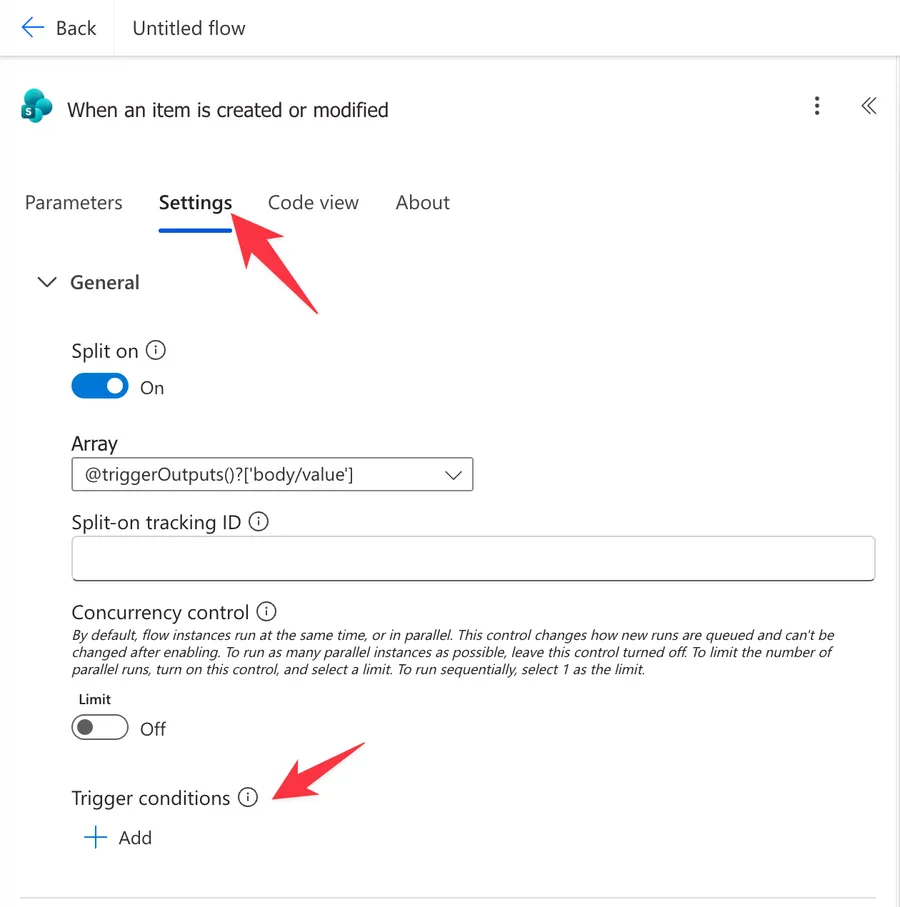
The type of filter now depends largely on what counts as a "change", meaning what should we allow the Flow to run.
Here are some examples.
Skip the changes your flow makes.
If your flow updates items with a dedicated service account, tell the trigger to ignore that account. SharePoint exposes the last editor in the "triggerBody" output, so you can compare it with the "equals" and "not" functions:
@not(equals(triggerBody()?['Editor']?['Email'], 'flow-service@<insertTenant>.onmicrosoft.com'))
Now the flow runs for everyone except its own service account, so its own updates no longer wake it up.
This will only work if your Flow uses a service account or a different account that can be identified, otherwise if it's a "normal" user account it will fail because users can edit SharePoint lists directly, invalidating the strategy.
Notice the ?[] safe navigation, which protects you when the Editor field happens to be empty. One thing to keep in mind is that the Email value can come back blank for some account types. If you hit that, compare the Claims value instead, which is always populated.
Use a flag column instead.
If your flow runs under the same account as your users, the editor check will not help. Add a Yes/No column, for example "Processed", and let the flow set it at the end. The trigger condition then runs only for items that are not yet processed:
@equals(triggerBody()?['Processed'], false)
When the flow flips "Processed" to true, that final update does fire the trigger one more time, but the condition is now false, so the run stops immediately. One harmless extra evaluation, no loop.
Or trigger on creation only.
If you only need to react when an item first appears, switch from "created or modified" to the plain "When an item is created" trigger. A create trigger never fires on later edits, so the loop cannot form in the first place.
Some tips
Here are some tips to make your life a bit easier.
Make things simple
The more complex the expression the harder time you will have. You will end up having situations where the Flow should run and it didn't or vice-versa. Debugging these cases is hard because you don't have a place to check when "it didn't run" since the history won't have these cases.
A recommendation is to use a "Filter" action on a set of test data and create your own custom formula there. Then when you're sure that the data is filtered correctly you can adapt that to the trigger.
Turn the Flow off if it is already looping
If you found this article because a flow is already spinning, turn it off before you do anything else. Set it to off in the flow list so it stops consuming your API calls, then fix the trigger condition, and only turn it back on once you are happy. Trying to debug a loop while it is still running just fills the history with noise and makes the real problem harder to spot.
Concurrency control is not the fix
It is tempting to set concurrency control to one run at a time and assume the problem is solved. It is not. That setting only makes the runs happen one after another instead of all at once, so the loop is still there, just slower and quieter. Stop the run from starting with a trigger condition, do not try to throttle it after the fact.
Watch which columns the trigger reacts to
Some triggers let you narrow down what counts as a change. The Dataverse "When a row is added, modified or deleted" trigger, for example, lets you pick the specific columns to watch. If your flow only ever writes to a column that is not on that list, the trigger never sees its own change and the loop cannot form. It is worth checking your connector before you reach for an expression.
Final Thoughts
An infinite trigger loop is never really a bug in Power Automate. It is the natural result of a flow editing the very item its trigger is watching. Once you see it that way, the fix is obvious. Stop the run from starting when the change came from the flow itself. A trigger condition that checks the editor handles most cases, a flag column covers the rest, and a create-only trigger sidesteps the problem entirely. Add one of these from the start, keep an eye on your run history, and your automations will stay calm instead of chasing their own tail.
Photo by Izabel 🏳️🌈 on Unsplash


No comments yet
Be the first to share your thoughts on this article!