
If I have to bet I would say that the Excel "Count" function is one of the most used functions in Excel, hence being the first that I'll write a reference :).
I'm sure that you know that you can select the columns that you want to count and Excel will give you an automatic count, but there are decisions, other formulas and sometimes just clarity in the report that requires a count to be displayed there.
The "Count" function looks at a range and tells you how many of those cells contain numbers. It quietly skips everything that is not a number, which is exactly what you want most of the time and occasionally the source of a surprise. If you work in Excel often, this is one of the first functions worth understanding properly, because almost every dashboard and report leans on it somewhere.
Where to find it?
You type the "Count" function straight into a cell. Start with an equals sign, type COUNT, and Excel's formula AutoComplete will offer it along with its siblings. You can also reach it through the Formulas tab, "Insert Function", and search for it if you prefer the guided dialog. It behaves the same in Excel for Windows, Excel for Mac, and Excel for the web.
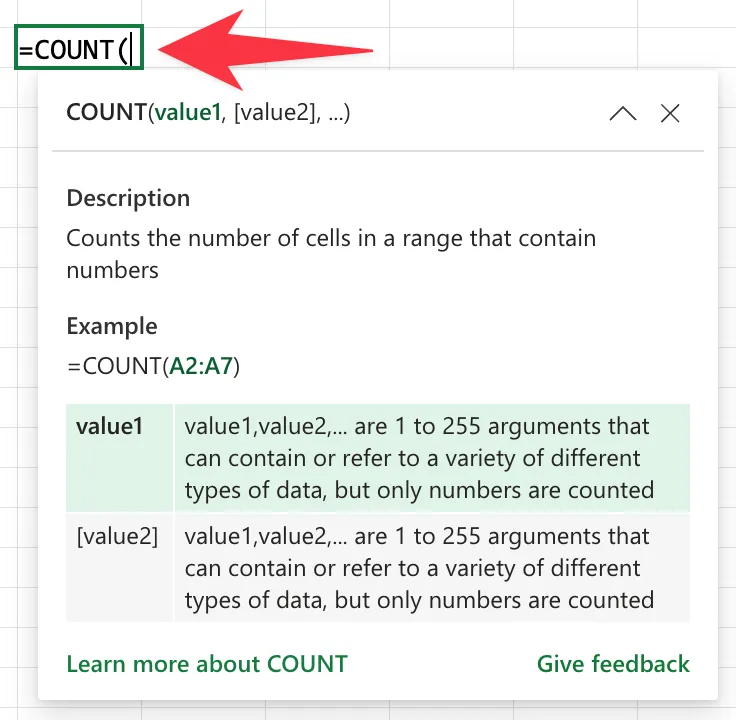
The "Count" function only counts cells that contain numbers. The "Counta" function counts cells that are not empty, regardless of whether they hold numbers, text, or logical values. If your count looks too low, you probably wanted the "Counta" function.
Let's see how to use it.
Usage
The syntax is short. You give the "Count" function one or more values, cell references, or ranges, and it returns how many of them are numbers.
=COUNT(value1, [value2], ...)
| Parameter | Required | Type | Description |
|---|---|---|---|
| value1 | Yes | Value or range | The first item, reference, or range to count numbers in |
| value2 | No | Value or range | Up to 255 additional items, references, or ranges |
The interesting part is what the "Count" function decides to count, so let us walk through the value types it can meet.
Numbers are counted, as you would expect.
Data in A1:A4
10, 20, 30, 40

=COUNT(A1:A4)

will return

4
Dates and times are counted too, because Excel stores them internally as serial numbers.
Data in A1:A3
01/01/2026, 15/06/2026, "apple"

=COUNT(A1:A3)

will return

2
The dates are correct for me but could not be for you. Depending on your regional settings your dates could be different. Check here what your regional settings are and learn a bit about them.
Text, blank cells, and error values sitting inside a range are all ignored.
Data in A1:A5
10, "apple", (blank), #DIV/0!, 20

=COUNT(A1:A5)

will return

2
The function family
The "Count" function has a handful of close relatives, and picking the right one saves a lot of confusion. None of these have a dedicated article yet, so keep this table handy.
| Function | What it does |
|---|---|
| Count | Counts cells that contain numbers |
| Counta | Counts cells that are not empty |
| Countblank | Counts cells that are empty |
| Countif | Counts cells that meet one condition |
| Countifs | Counts cells that meet several conditions |
Non-intuitive behaviors
Numbers stored as text are not counted
If a cell shows 123 but Excel is treating it as text (often because the value was imported or the cell is formatted as Text), the "Count" function will skip it. The number looks real to you, but to the "Count" function it is just a label.
Imported data frequently arrives as text. The quickest tell is alignment: real numbers sit on the right of the cell, text sits on the left, so a column of "numbers" hugging the left edge is your clue. A small green triangle in the corner of the cell is the other giveaway. Convert the cells to numbers and the "Count" function will include them.
Values typed directly behave differently from values in a range
This one trips up almost everyone. Two kinds of values get counted when you type them straight into the formula but ignored when they sit in a referenced range: logical values (TRUE and FALSE) and text that represents a number (like "1"). Typed directly, Excel treats them as numbers. Inside a range, they keep their original type and the "Count" function skips them.
=COUNT(TRUE, "1", 2)

will return

3
Data in A1:A3
TRUE, "1", 2

=COUNT(A1:A3)

will return

1
Dates are considered as numbers
We've seen above that dates are also considered in the counts. This is because dates in Excel are stored internally as numbers, even though Excel displays them as dates you can recognize. Here's an example:
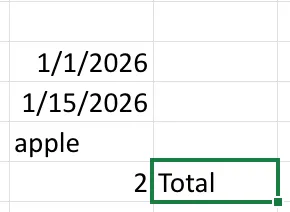
Notice that the "Count" function returned 2 and not 0 as we would expect. This trips people a lot, so please take this into consideration.
Limitations
It only sees numbers
The "Count" function is deliberately narrow. It will not count text, blank cells, or logical values held in a range, and it never raises an error to tell you it skipped them. If you need a broader count, reach for the "Counta", "Countblank", or "Countif" functions instead.
A maximum of 255 arguments
You can pass up to 255 separate items or ranges to a single "Count" function. In practice you almost always pass one range, so this limit rarely bites, but it is there.
Error values pass silently
An error value such as #DIV/0! in the range is ignored rather than counted. That keeps the "Count" function working, but it also means a column quietly full of errors can return a lower number than you expect without any warning.
Localization
The argument separator changes with your regional and list separator settings. With some settings it is a comma, with others, such as Portugal, it is a semicolon. Show both forms so a reader who copies your formula knows what to adjust.
// Comma-based regional settings
=COUNT(A1:A10, C1:C10)

// Semicolon-based regional settings (for example, Portugal)
=COUNT(A1:A10; C1:C10)
Troubleshooting Common Errors
Symptom: The "Count" function returns a smaller number than the cells you can see filled in. Cause: Some of those cells contain text, including numbers stored as text, which the "Count" function ignores. Solution: Convert the text values to real numbers, or switch to the "Counta" function if you genuinely want every non-empty cell.
=COUNTA(A1:A10)
Symptom: The "Count" function returns 0 when the range clearly has values. Cause: Every value in the range is text or the cells are formatted as Text. Solution: Reformat the cells as a number format and re-enter the values, or use the "Convert to Number" prompt on the cell.
Recommendations
Here are some things to keep in mind.
Reference whole columns or named ranges
If your data grows over time, point the "Count" function at a whole column or a named range so the formula keeps working without edits. The "Count" function ignores the empty cells anyway, so there is no penalty.
=COUNT(A:A)
Pick the right family member
Before you write the "Count" function, ask whether you actually want only numbers. If you want every filled cell, the "Counta" function is the answer. If you want cells that match a condition, the "Countif" function is. Choosing correctly the first time avoids a count that is quietly wrong.
Always deal with errors
The "Count" function itself ignores error values, so it will not break, but those hidden errors usually point to a real data problem upstream. If a related formula like the "Sum" or "Average" function reads the same range, one error value there will break it. Clean the source data or wrap the dependent formula in the "Iferror" function.
=IFERROR(AVERAGE(A1:A10), 0)
Final Thoughts
The "Count" function is one of those functions that feels trivial until a count comes back wrong and you remember it only sees numbers. Keep that one rule in mind, reach for the "Counta" or "Countif" function when you need something broader, and it will serve you well in every report you build.
Sources
Back to the Excel Function Reference
Photo by Nick Hillier on Unsplash



No comments yet
Be the first to share your thoughts on this article!