The "addDays" function does exactly what the name promises. You hand it a date, you tell it how many days to move, and it hands back a new date. Due dates, retention windows, reminders that fire three days early, and "everything from the last 30 days" filter queries all start here.
It belongs to a small family of Power Automate functions that all work the same way, alongside the "addHours" function, the "addMinutes" function, and the "addSeconds" function.
Let's look at how to use it, and at the handful of places where it quietly does something you didn't expect.
Where to find it?
You can use it anywhere an expression is supported. In practice, it shows up most often inside a "Compose" action, an "Initialize variable" action, a "Condition" action, or in the filter query of an action that fetches records.
The two do the same math for whole days, but the "addToTime" function also handles weeks, months, and years. If you need to move a date by a month, "addDays" cannot help you, because thirty days and one month are not the same thing.
Usage
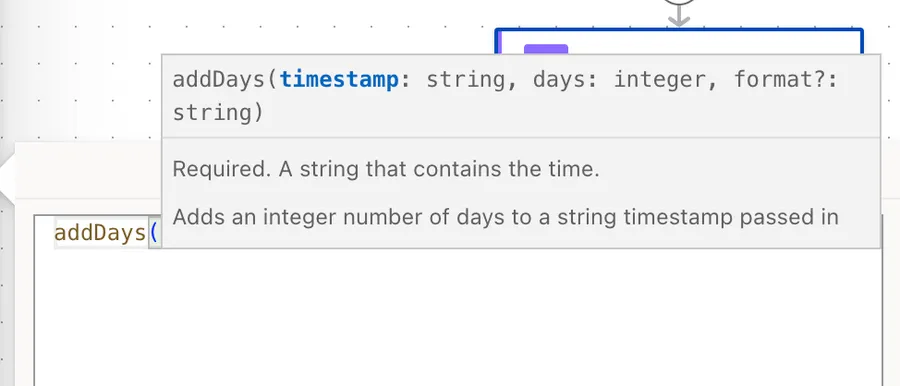
The "addDays" function takes two required parameters and one optional one:
addDays('<timestamp>', <days>, '<format>'?)
| Parameter | Required | Type | Description |
|---|---|---|---|
| timestamp | Yes | String | The date you're starting from |
| days | Yes | Integer | How many days to add. Negative numbers move backwards |
| format | No | String | A single format specifier or a custom format pattern. Defaults to o |
Notice that the timestamp is text and needs quotes, while the number of days is a number and does not. Getting those the wrong way around is the quickest way to make the function fail.
Here's the simplest possible example:
addDays('2026-07-28T10:10:00Z', 10)
That returns:
2026-08-07T10:10:00.0000000Z
Positive numbers add days, and negative ones subtract them, so moving backwards is just a minus sign:
addDays('2026-07-28T10:10:00Z', -10)
Choosing a format
The third parameter shapes the output, and you'll want it whenever the value is going in front of a person or into a filter query:
addDays('2026-07-28T10:10:00Z', 10, 'yyyy-MM-dd')
That returns 2026-08-07, which is much easier to read and much easier to compare. The formatting rules are the same ones the "formatDateTime" function uses, so anything you already know from there applies here.
Please be aware that in the reference material, Microsoft names objects like 2026-07-28T10:10:00Z timestamps. I prefer calling them dates, to avoid confusion with the UNIX timestamp commonly used in APIs to represent the number of seconds elapsed since Jan 01, 1970 (UTC).
Real-world examples
A due date on a new task
Joana logs a support ticket and the team has two weeks to close it. You stamp the deadline as the item is created:
addDays(utcNow(), 14, 'yyyy-MM-dd')
The "utcNow" function supplies "right now" and "addDays" moves it forward, so the value is correct on every run without you touching it.
A rolling 30-day filter query
This is where the function really earns its keep. Instead of fetching everything and filtering afterwards, you build the boundary straight into the "SharePoint Get Items" action:
Created ge '@{addDays(utcNow(), -30, 'yyyy-MM-dd')}'
The "greater than or equals" operator does the comparison, and the expression supplies the far end of the window. One line, no loops, and the window slides forward by itself.
A reminder that fires three days early
You have a list of deadlines and you want to nudge people before the date, not on it. Work backwards from the stored due date:
addDays(items('Apply_to_each')?['DueDate'], -3, 'yyyy-MM-dd')
A due date of 2026-08-07 gives you 2026-08-04, which is the day the reminder should go out. Compare that against today's date and you have your condition.
Non-intuitive behaviors
Let's look at the behaviors that catch people off guard.
The second parameter must be a whole number
This is the most common way to break the function, and it rarely looks like your fault. If the number of days comes from a SharePoint number column or a Dataverse decimal column, it arrives as a Float, even when it holds a perfectly round value like 5. The runtime refuses it:
The template language function 'addDays' expects its second parameter to be an integer. The provided value is of type 'Float'.
Wrap it in the "int" function and the problem goes away:
addDays(triggerOutputs()?['body/StartDate'], int(triggerOutputs()?['body/DurationDays']))
The .NET method underneath accepts values like 4.5 and reads them as four days and twelve hours. The Power Automate wrapper does not. If you need half a day, use the "addHours" function instead.
It adds 24 hours, not a calendar day
The function does plain arithmetic on the instant. It knows about leap years and the number of days in a month, but it knows nothing about daylight saving time, because the value it works on carries no time zone rules.
Most of the year this makes no difference. Cross a daylight saving boundary, though, and what was 09:00 local before the change can land on 08:00 or 10:00 local after it. If the result has to line up with a local wall clock, do the arithmetic first and convert afterwards with the "convertFromUtc" function.
A date with no time zone comes back with no time zone
If the value you pass in has no Z and no offset, the output has none either. The function does not assume UTC and does not add one for you.
addDays('2026-07-28T10:00:00', 1)
That returns 2026-07-29T10:00:00.0000000, with nothing on the end. A reader is fine with that. A filter query is not, and in my experience neither is a connector, which tends to treat the bare value as local time and shift it. Make sure your input is properly tagged, or pick a format that puts the marker back.
The default output is longer than you expect
Leave the format out and you get seven digits of fractional seconds, like 2026-08-07T10:10:00.0000000Z. That is the round-trip format, and it is exactly right for machines. It is also far more precision than an OData filter usually wants, which is why nearly every filter query you'll see trims the value down to something like yyyy-MM-dd.
A colon is not a colon
In a .NET format pattern, : is not a literal character. It is a placeholder for the culture's time separator. So a pattern like yyyy-MM-ddTHH:mm:ss:fffffffK is accepted, but it produces 2026-08-07T10:10:00:0000000Z, which is not ISO 8601 and will break anything that tries to parse it. The fractional seconds are separated by a dot.
Limitations
The date range has a ceiling and a floor
The underlying type runs from 0001-01-01 to 9999-12-31, and pushing past either end fails rather than wrapping around.
That said, the room you get is enormous, and it's far more generous than what you're used to elsewhere. Contrary to SharePoint and Power Apps, dates in the distant past work fine:
addDays('1000-12-30T00:00:00Z', 10, 'yyyy-MM-dd')
That returns 1001-01-09, exactly as you'd expect.
There is no locale parameter
"addDays" formats the output in the default culture and gives you no way to change it. If you need a French or Portuguese month name, do the arithmetic here and the formatting in the "formatDateTime" function, which does take a locale.
Days are the only unit
There is no "addWeeks", no "addMonths", and no "addYears". Anything larger than a day goes through the "addToTime" function, and anything smaller through the "addHours" function, the "addMinutes" function, or the "addSeconds" function.
The result is a string, not a date
The output is text, so you cannot do arithmetic on it directly. Run it through the "ticks" function when you need a number to compare, or use the "dateDifference" function when you want the gap between two dates.
Expressions have a size limit
Like every Power Automate expression, you have a ceiling of 8,192 characters. It sounds generous until you nest a few functions inside a long filter query, so break the complicated ones into "Compose" actions.
Troubleshooting Common Errors
Let's go through the errors you're most likely to run into.
The provided value is of type 'Float'
Cause: The number of days arrived as a decimal. Number columns in SharePoint and decimal columns in Dataverse do this even when the value is whole.
Solution: Wrap the value in the "int" function.
addDays(utcNow(), int(triggerOutputs()?['body/Days']))
String was not recognized as a valid DateTime
Cause: The first parameter isn't a date the runtime can read. The usual culprit is a SharePoint calculated column, which returns text no matter what it looks like on screen.
Solution: Point the expression at a real date and time column. If you genuinely only have text, reshape it with the "formatDateTime" function first.
The filter query returns nothing
Cause: The raw output carries seven fractional digits, and it may carry no Z at all. Either one is enough to make the comparison miss.
Solution: Format the value down to what the source expects, usually just the date.
Created ge '@{addDays(utcNow(), -30, 'yyyy-MM-dd')}'
The date is a day out
Cause: You're comparing a UTC value against a local one. Late in the evening or early in the morning, "today" in UTC is a different calendar day than the one on your wall.
Solution: Normalize both sides with the "startOfDay" function before comparing, and convert to local time after the arithmetic rather than before.
Recommendations
Here are some things to keep in mind.
Always include the format
The format is optional, but the default is the full round-trip pattern yyyy-MM-ddTHH:mm:ss.fffffffK, and that is rarely what the next step wants. Pick a single format specifier such as o, or a custom format pattern such as yyyy-MM-dd, but decide rather than letting the default decide for you.
Use the function that matches the unit
There are analogous functions for hours, minutes, and seconds, so don't do any math trying to use the "addMinutes" function to add days. For weeks, months, and years, go to the "addToTime" function.
Prefer "addDays" over "addToTime" for days
The "addToTime" function with a Day unit gives you the same answer, but "addDays" says what it means in fewer characters, and it keeps the format in the third position where the rest of the family keeps it.
Reach for "getFutureTime" when you're starting from now
If the starting point is the current moment, the "getFutureTime" function rolls the "utcNow" function and the arithmetic into a single call. It's shorter, and it reads better.
Always add a comment
Adding a comment will help others understand your formula. Indicate what the function is doing and why, especially when the number of days encodes a business rule that isn't obvious from the number itself.
Final Thoughts
The "addDays" function is one of the simplest tools in the box, and it stays simple as long as you remember two things. The second parameter has to be a whole number, and the output is a string in whatever format you asked for, or a very precise one if you didn't ask. Get those right, and it will move dates around for you all day without complaint.
Sources
- Microsoft's addDays function reference
- Reference for functions in workflow expressions, Azure Logic Apps and Power Automate
- Standard date and time format strings
- Custom date and time format strings
- Limits and configuration in Power Automate
Back to the Power Automate Function Reference



Incomplete Information
What's missing, in your opinion?
You're right it was quite old now. Added a lot more information to this article. Hope that everything's there but if not I'll add it
Hi! I just want to use the Submitted Date from a list / Form and add a day to it for my Outlook Calendar event start time. How do I do this? Here's what I have - Trigger: When an Item is created of Modified from a Sharepoint List, Action: Create an Event Start time: ???????????? - needs to show a day later from my Submitted Time in the list Please help. I'm a newbie and trying to create efficiency at work. Thanks!
Let me prepare something for you. :)
Instead of using a number in the "Number of days to add/remove", I would like to use a variable. I have tried this and it keeps saying invalid expression. Any workaround is welcome.
Hi, It's possible. Here's the formula: <code>addDays('2019-10-28T10:10:00Z', variables('VALUE'),'yyyy-MM-ddTHH:mm:ssZ')</code> for the following Power Automate: <img src="https://manueltgomes.com/wp-content/uploads/2020/05/Screenshot-2020-05-12-at-16.33.08.png" alt="Simple Power Automate with variable example" /> Is this what you need?